Product feature overview
Solargraf Dealer Configuration (previously referred to as “Parent-Child setup”) allows installers to manage multiple dealerships, external sales orgs or regional branches under a single “umbrella” account. While the "parent" company functions as a fully operational Solargraf account, it is typically recommended to use it primarily as a “headquarters” or “executive team” account, focused on overseeing and managing the dealer accounts.
Each dealer is treated as a distinct team of users, which – linked to the same “parent” account - remain otherwise independent of one another.
A "parent admin" is a user within the parent account who has access to the dealer accounts. This user can “impersonate” any user in any dealer account, assuming their access and permissions. This includes the ability to edit projects, adjust settings, or manage users.
Highlights
Multi-group access control:
Solargraf allows administrators to grant access to multiple user groups, ensuring these groups cannot view each other's information.
Customizable settings:
Admins can define different settings for each group, including installer names, logos, materials and pricing – similar to how they manage their own company settings.
Functionality
Activating the parent-child configuration
Please contact your Solargraf Account Manager to have the dealer configuration enabled. Please also note that this feature is only available on selected subscription plans. Upon activation, the Solargraf admin will nominate an existing user to serve as the "parent admin." There is no limit on the number of parent admins allowed per account.
It is important to note that activating the dealer configuration in Solargraf is irreversible. If an installer no longer wishes to use the dealer configuration, a new Solargraf account must be created. Individual dealer accounts can be deleted by a Solargraf admin. Please note that user data, settings, and project information cannot be transferred from one account to another.
Parent admin interface:
When a parent admin logs in to Solargraf, they will see additional options in the left-side menu that are not available to regular Account Owners. Above the standard menu listing (e.g., Dashboard, Projects, Company Settings), parent admins will find a new option labeled "Your dealers".
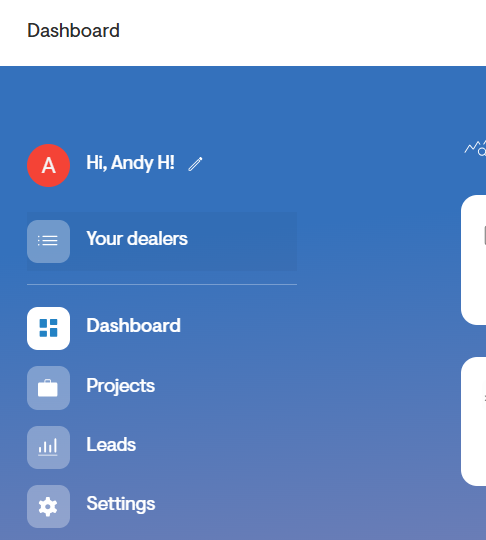
Selecting this option displays a list of all dealer accounts under that parent account. From here, the parent admin can:
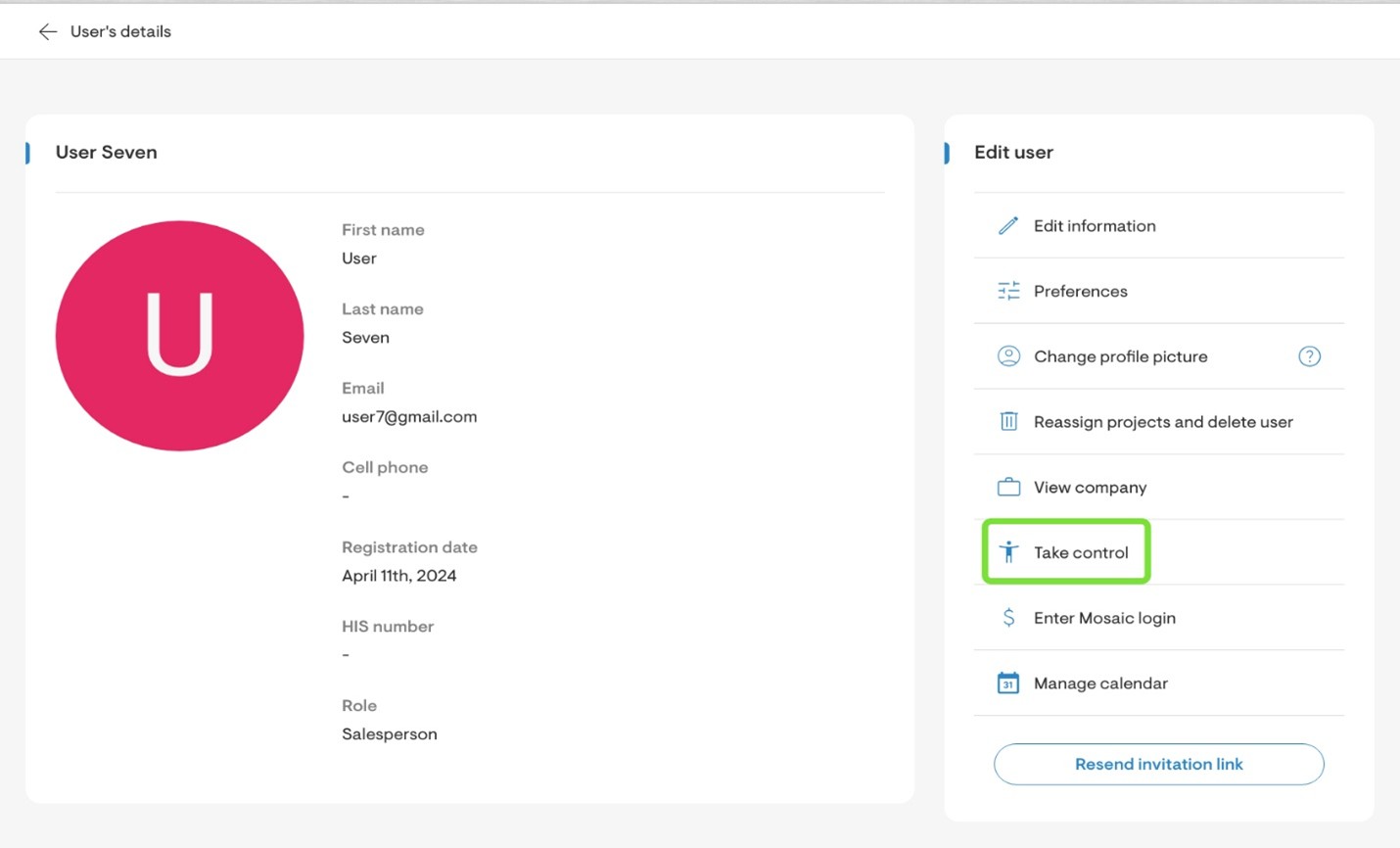
Impersonate users:
View Solargraf from the perspective of a specific dealer user.
Access dealer account data:
Navigate directly to the child company’s projects or settings pages, similar to how Solargraf admins manage accounts.
Important considerations
Billing
As of the September 2024 release, Solargraf now bills the parent account for all users listed under any of their dealer accounts, as well as for all projects created by each user on the parent account in addition to all projects created under any of their dealer accounts.
We recommend that you ensure that the parent company has a subscription plan that covers the total number of users and the expected project volume for all dealer accounts.
If the number of users exceeds the subscription limit, additional user charges will apply, and these charges tend to be higher than purchasing an appropriately-sized subscription from the outset.
In the event that a regional branch closes for a season, or the installer ceases working with an external sales org for a period of time, a parent admin can “pause” the subscription for a specific dealer account. While an account is paused, its user will not be able to create any new projects, and the parent account will not be billed for any of its users. Parent admins can resume a dealer’s subscription at an
Account management
As of the December 2025 release, parent admins can now copy the following settings from their parent account to any of their dealers.
- Materials
- Pricing
- Default design settings
- Document templates (individual templates can be copied to specific dealers)
- Loss templates
- Proposal templates
- Financing options
- Proposal settings
- Custom AHJs (setbacks)
- Custom lead statuses
- Utility settings (inflation rates, custom tariffs, custom consumption profiles)
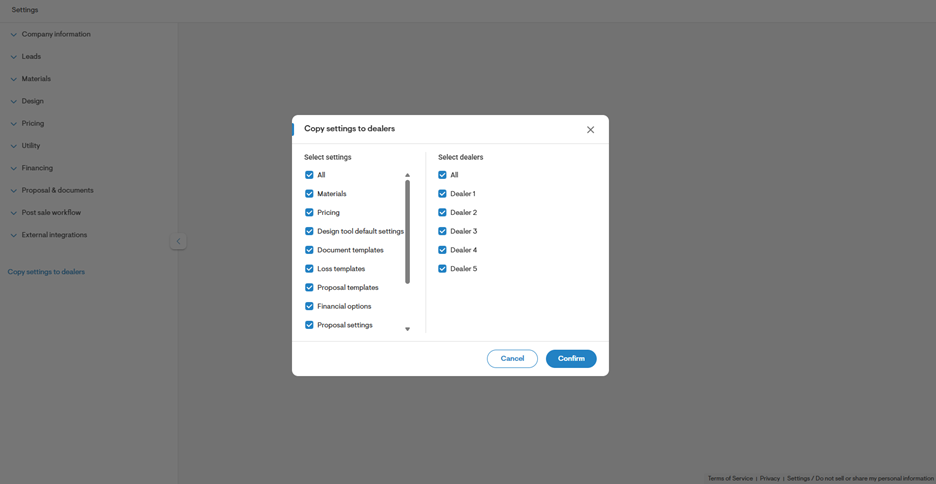
To copy settings from the parent to one or more of your dealers, select Settings in the main menu.
At the bottom of the left-side menu, there is an option to “Copy settings to dealers”.
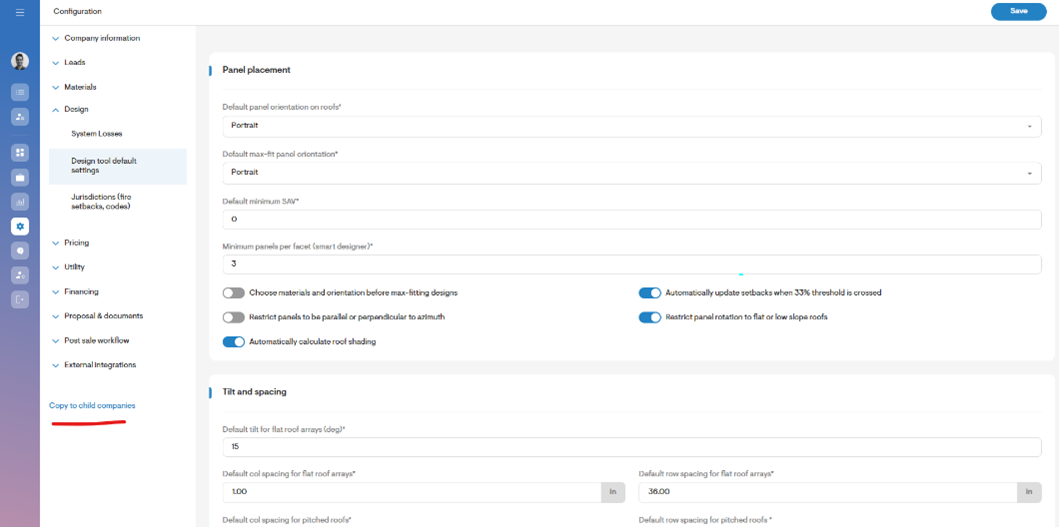
A dialog will open with two columns; the first column allows you to define which settings you’d like to copy, and the second column allows you to define which dealers you’d like to copy these settings to.
Note: There can be a delay of a few minutes before all settings are copied to all dealer accounts. It is therefore advised to copy settings during quieter work hours, when dealer accounts are less likely to be creating projects.