Help Center Financing Set Up
Sunstone Credit Integration on Solargraf
Published on 14 Aug 2026
Sunstone Credit on Solargraf help solar installers activate Sunstone at the company level, import eligible commercial loan products, quote accurate monthly payments on proposals, and launch the Sunstone application flow from the project overview page.
Note: Sunstone Credit is intended for commercial projects in Solargraf. Installers must activate Sunstone credentials and import at least one Sunstone loan before the financing option can be used on projects.
What this integration does
The Sunstone Credit integration lets installers complete the most important commercial financing steps directly inside Solargraf.
Activate Sunstone at the company level using a Sunstone-issued API key
Import supported Sunstone commercial loan products into company financing settings
Use imported Sunstone loans in new and existing commercial projects
Show monthly payment values on webquote using Sunstone pricing responses
Display Sunstone-specific loan details, disclaimers, and maturity or prepayment behavior on proposal views
Launch a Sunstone loan application from the project overview page using a deeplink with project and financing details
In Solargraf, Sunstone is an integrated commercial loan provider. That means loan products are imported from Sunstone and payment amounts are pulled from Sunstone instead of being fully modeled by Solargraf alone.
Before you begin
Before using Sunstone in a project, make sure all of the following are true:
Your company is a Sunstone partner or is in the process of becoming one
You have received a valid Sunstone API key from your Sunstone account manager
At least one Sunstone loan product has been imported into company financing settings
You are working on a commercial project
Note: If Sunstone is not activated or no Sunstone loan products have been imported, installers will not be able to complete the Sunstone project flow.
Step 1: Become a Sunstone partner and activate your account
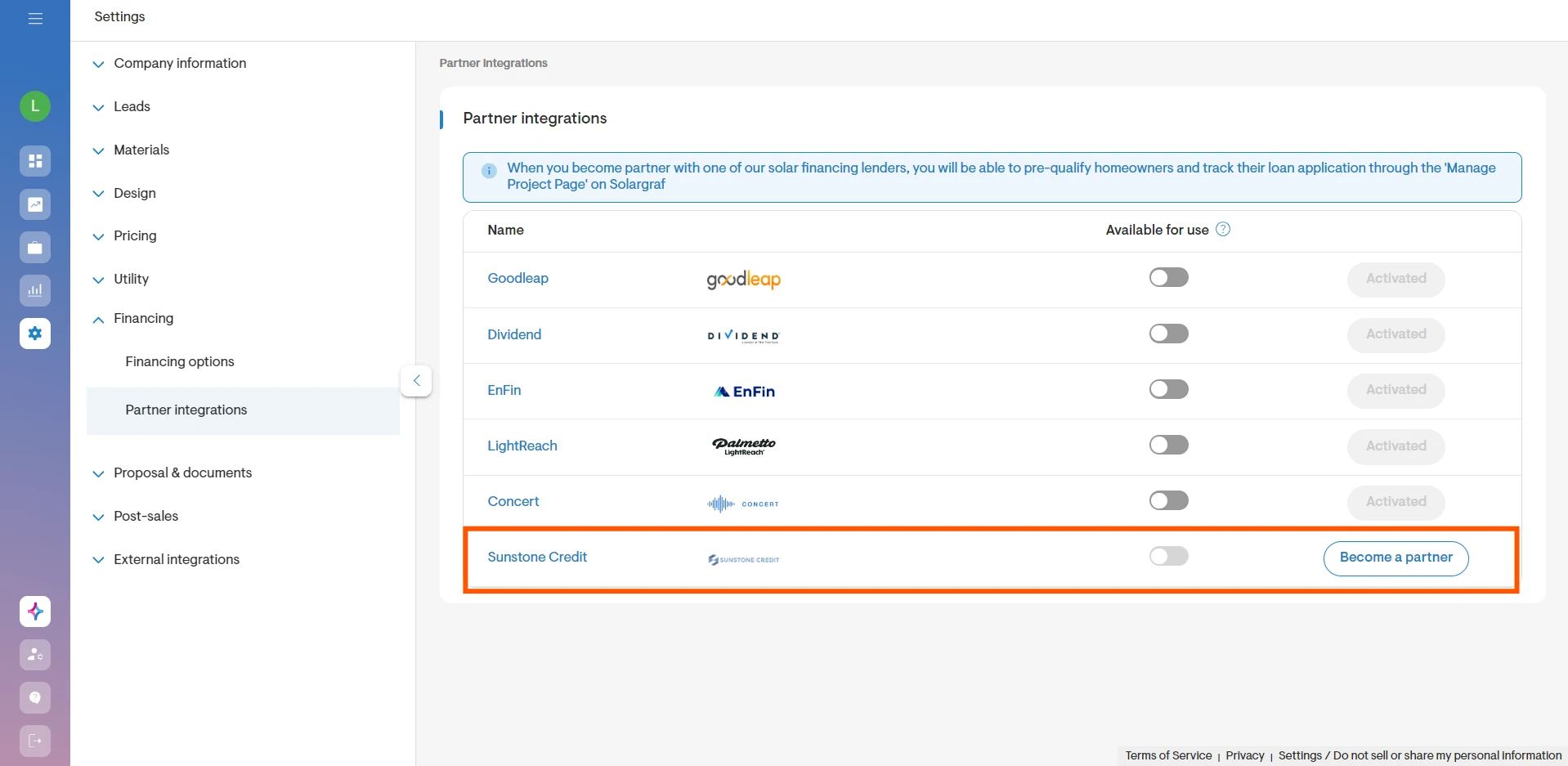
Sunstone first appears under partner integrations page in company settings.
What you will see
If your company has not integrated with Sunstone yet, you will see a Become a partner button
If your company already has credentials saved, you can manage or update them from the Sunstone authentication flow
You will also see a Available for use toggle that controls whether Sunstone appears under financing on project pages
How to become a partner
Go to Company settings > Financing partner settings.
Find the Sunstone Credit section.
Click Become a partner.
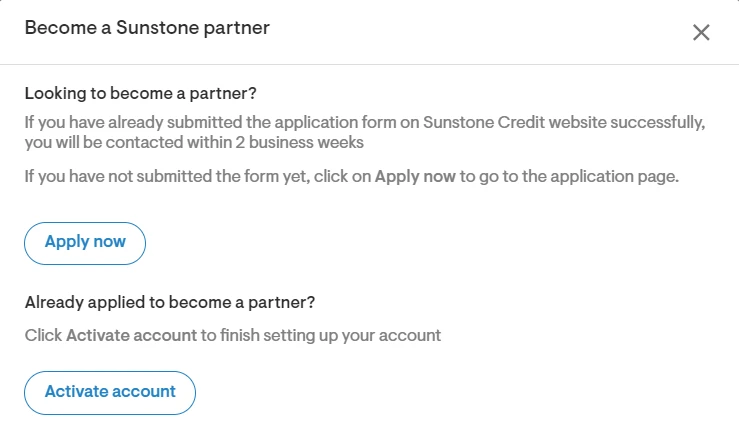
In the dialog, click Apply now if your company has not yet applied with Sunstone.
If your company has already applied and received credentials, click Activate account.
Sunstone partner application link: Partner with us
How to activate Sunstone credentials
Click on Sunstone Credit on partner integrations page.
Enter the API key provided by your Sunstone Credit account manager.
Use the eye icon if needed to confirm the value you entered.
Click Save.
Solargraf validates the API key by calling Sunstone’s payment calculator service. If the key is valid, the credentials are saved and used for future Sunstone requests.
Note: If the API key is invalid, Solargraf shows an error asking you to re-enter your credentials. Unsaved changes are not stored if you leave the page without saving.
Project page visibility toggle
The Available for use toggle controls whether Sunstone can appear under Apply for financing on project pages.
If enabled, Sunstone can appear on eligible commercial projects
If disabled, Sunstone is hidden from the project overview financing area for all user roles
If Sunstone is not yet activated, the toggle is disabled
Step 2: Import Sunstone loan options into company financing
After Sunstone credentials are saved, the next step is to import the loan products your company wants to offer.
Go to Company settings > Financing > Financing options.
Find the Sunstone Credit section.
Click View available loans.
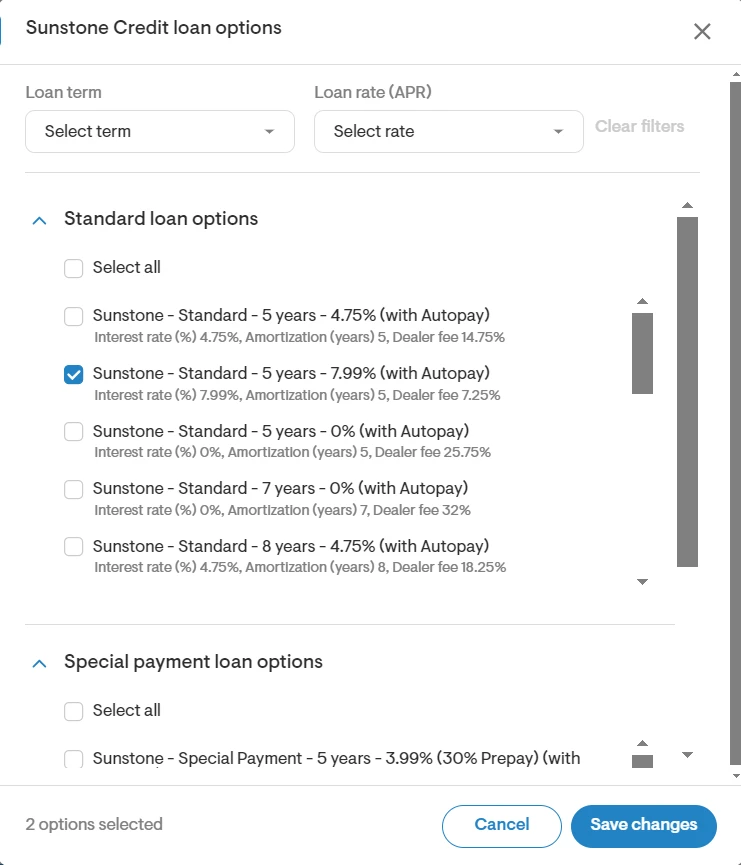
If credentials are valid, Solargraf opens the Sunstone Credit loan options dialog and displays loan products returned by the Sunstone.
What you can do in the loan import dialog
View loan products in two sections: Standard loan options and Special payment loan options
Select individual loan products using checkboxes
Use Select all to select or de-select visible loans
Filter the list by Loan term and Loan rate (APR)
See a running count such as Showing xx out of yy loan options
See a selected count such as xx options selected
Save selected products into company financing settings
Note: Your company can import up to 10 Sunstone loan options into company settings.
Imported loan behavior
Imported Sunstone loans are available for new and existing projects. They are marked as imported from Sunstone, and only certain editable parameters can be adjusted later, such as display name, down payment, and dealer fee setup.
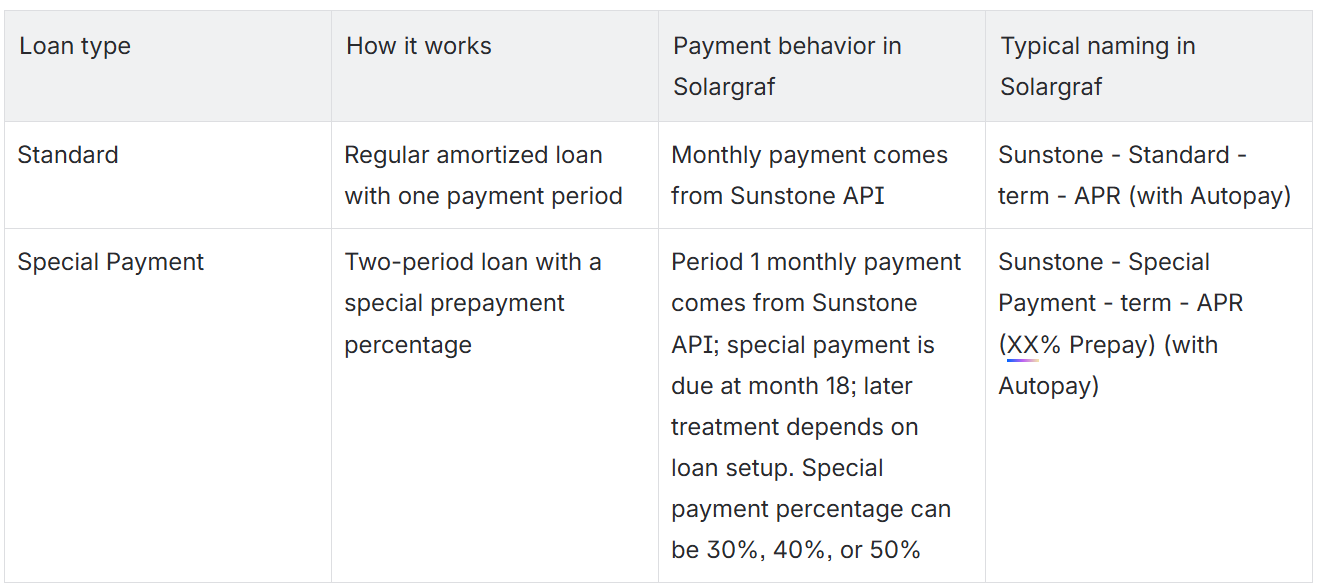
Step 3: Understand Sunstone loan types
Sunstone loans in Solargraf fall into two main product types, with an additional maturity-payment variation when amortization is longer than the loan term.
Loans with maturity payment
If the loan term is shorter than the amortization period, the loan behaves like a maturity or balloon structure.
Monthly payments are calculated on the longer amortization schedule
Only payments up to the actual loan term are made monthly
The remaining balance is due at the end of the loan term as a lump sum
Example: A 10-year Sunstone loan with 20-year amortization will show monthly payments during the 10-year term, and then a maturity payment at the end of year 10.
Step 4: Use Sunstone loans in a commercial project
Once loans are imported at the company level, they can be used in commercial projects.
Create or open a commercial Solargraf project.
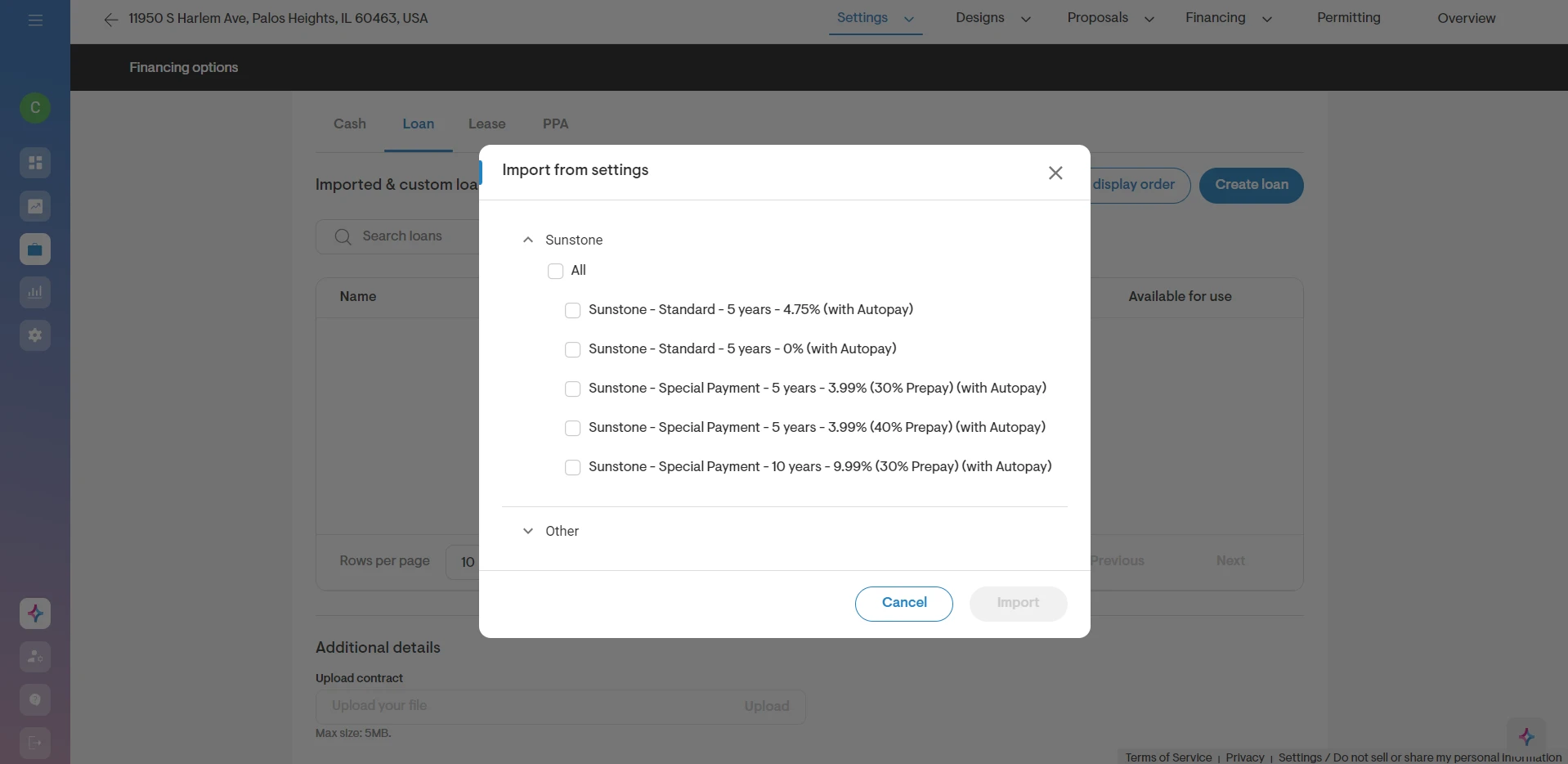
Go to the project financing area and click on “Import from settings” button to import & enable the required Sunstone financing options which are made available for use under company settings.
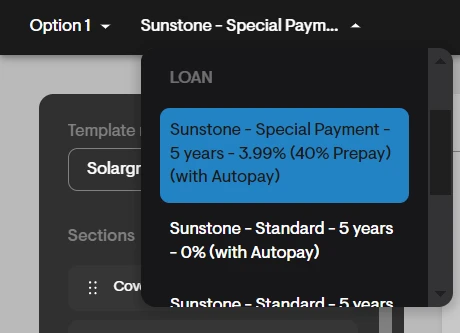
Select a Sunstone financing option on webquote in the financing options dropdown.
Important eligibility checks on webquote
Sunstone loan products are filtered out on webquote when certain conditions are not met.
If the loan amount is outside the allowed range, Solargraf shows: Loan amount is not within the min & max amount eligible
If solar cost is below 51% of the total loan amount, Solargraf shows: Solar cost is less than 51% of total loan amount
If a loan product is no longer supported by Sunstone, Solargraf shows: This Sunstone credit loan product is no longer supported
Unsupported products are identified based on whether they still appear in the current importable Sunstone product list on company settings. Signed proposals can still load even if they used an older unsupported product.
Step 5: How Sunstone payments and loan details appear on webquote
When a Sunstone financing option is selected, Solargraf uses Sunstone’s payment calculator to populate payment information shown on webquote.
What appears on webquote
Loan amount, Loan APR, Loan term, Monthly financing payment in the payment section & comparison chart
Annual & monthly financing payments in the performance analysis section along with deferred payment portion & maturity payment when applicable
Sunstone-specific disclaimers
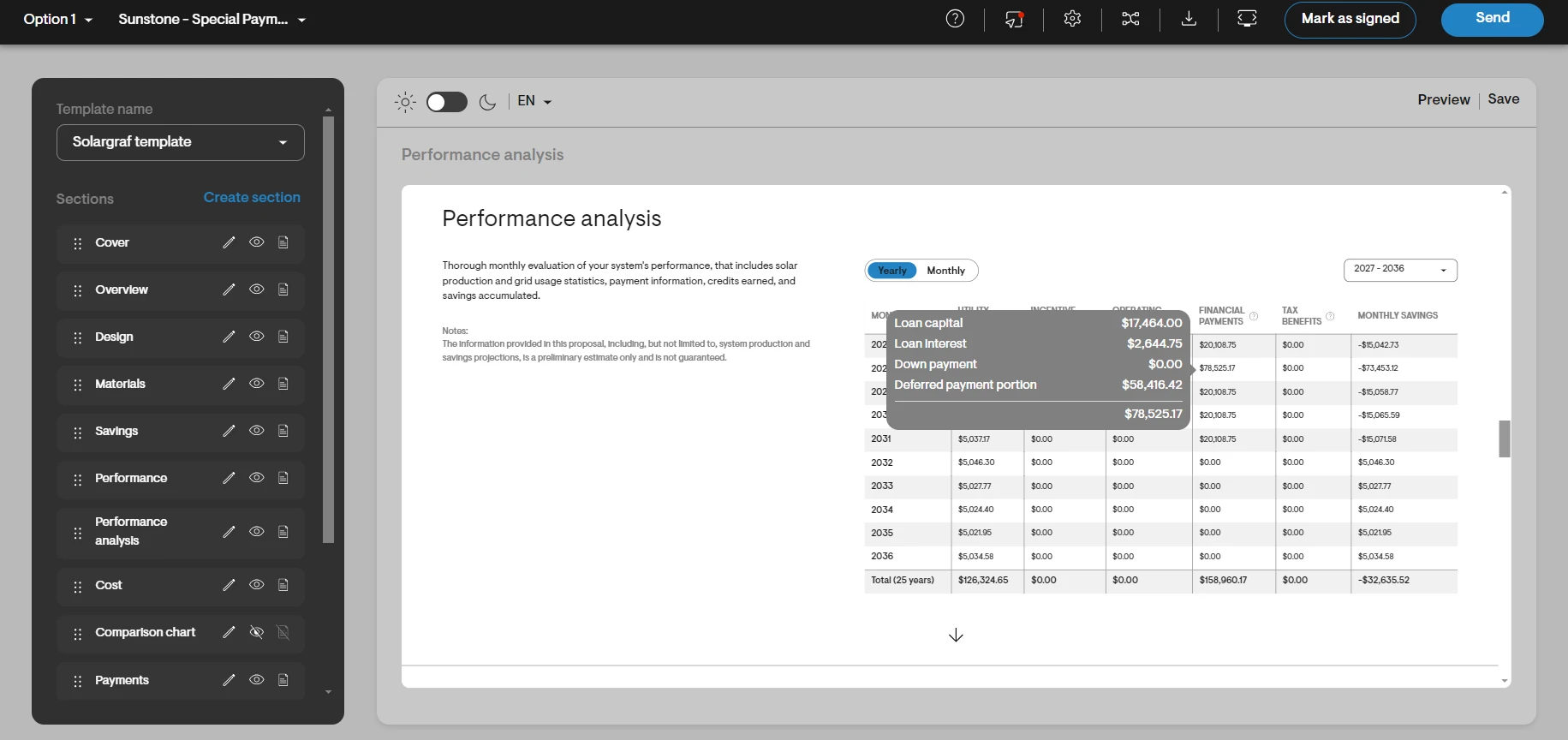
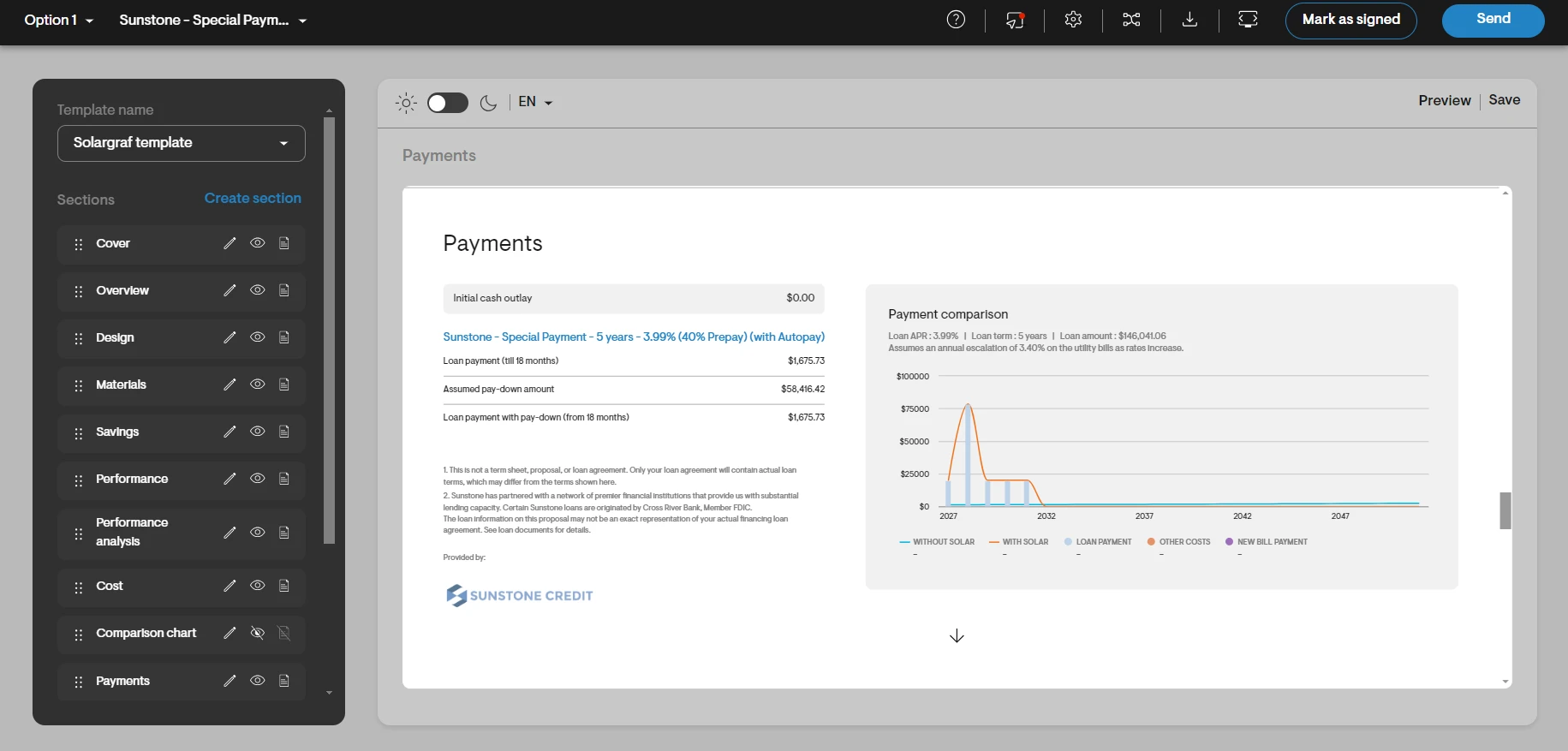 What this means for installers: Some Sunstone loans may look affordable month to month but still have a large required payment later. Always review whether the selected product includes a special payment at month 18 or a maturity payment at the end of term.
Step 6: Apply for a Sunstone loan from the project overview page
After a commercial project has an eligible design and Sunstone financing option, installers can launch the Sunstone application flow from the overview page.
Where to start
Open a commercial project.
Go to the Project Overview page.
Under loan providers, click Apply for Sunstone Credit.
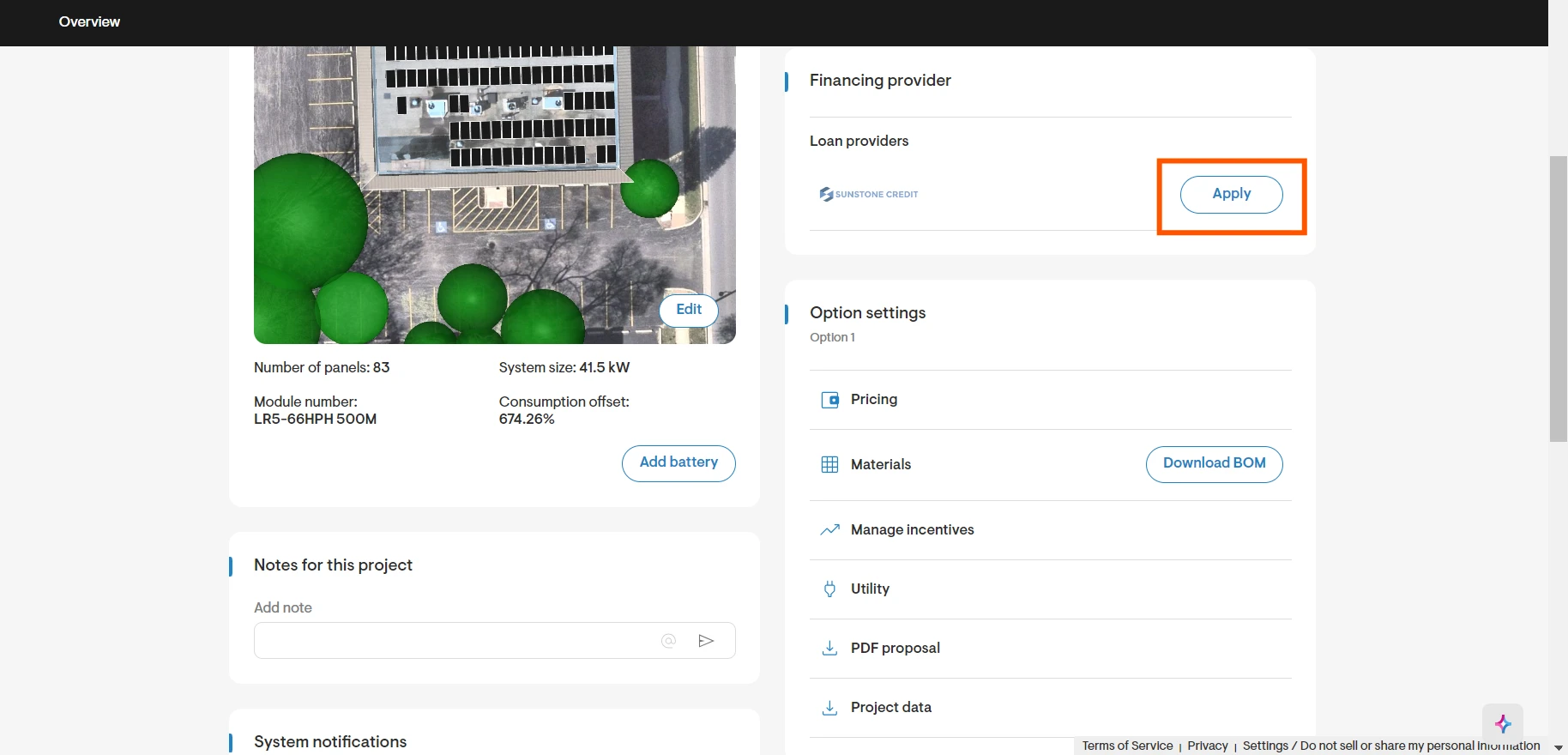 This opens the Sunstone loan application form inside Solargraf before redirecting to Sunstone via deeplink.
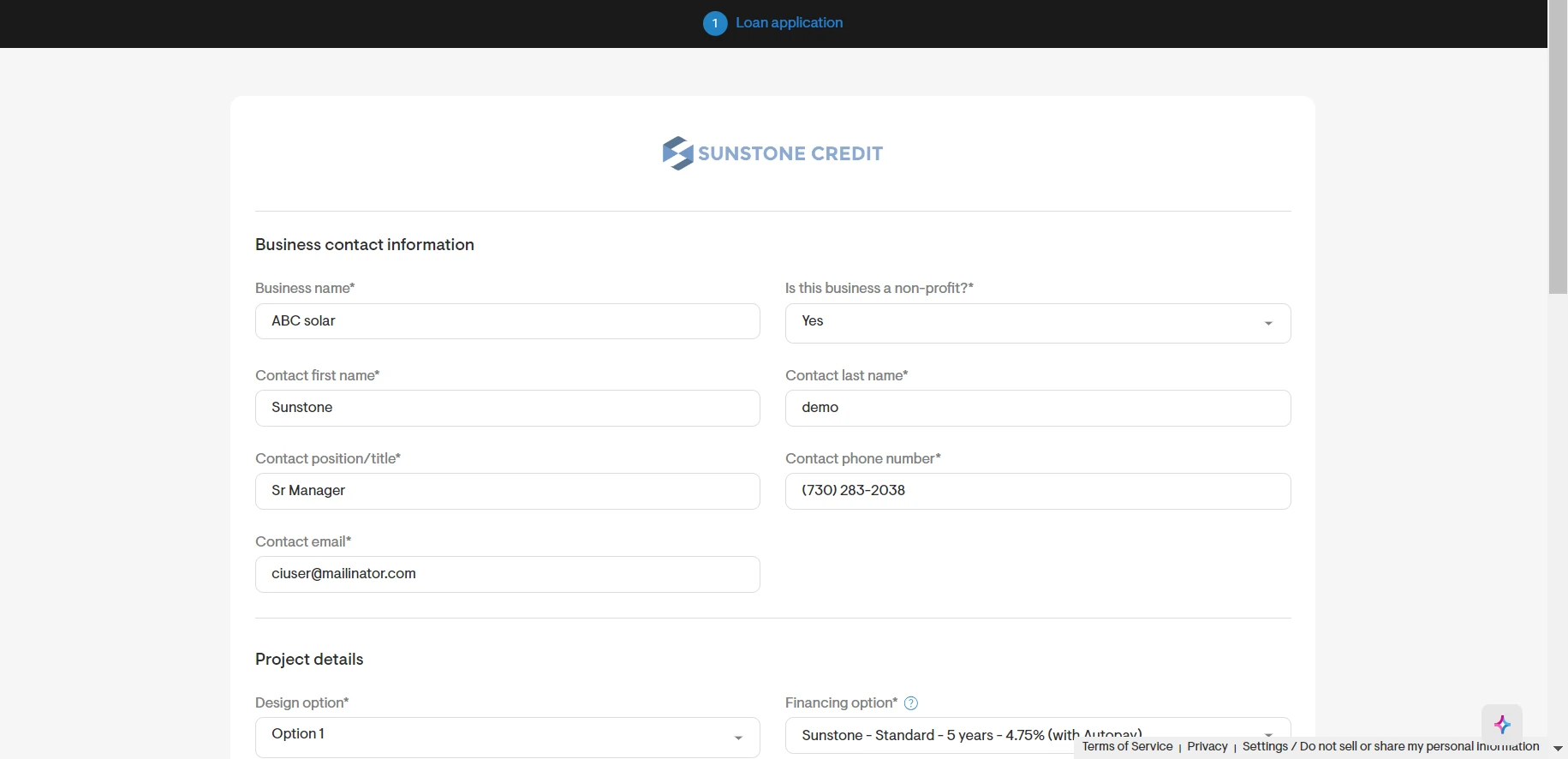
What the form contains
The form has two sections:
Business contact information
Project details
Business contact information section
Installers should complete or verify the following fields:
Business name — required
Is this business a non-profit? — required, Yes/No
Contact first name — required
Contact last name — required
Contact Position/Title — required
Contact phone number — required
Contact email — required
Project details section
The project portion of the form guides the installer through the exact financing request being sent to Sunstone.
Design option — choose an eligible design; default design is preselected
Financing option — choose a supported Sunstone loan
Total financed amount — auto-populated and non-editable
Loan term — auto-populated and non-editable
Amortization period — auto-populated and non-editable
Loan type — auto-populated as Standard or Special
Interest rate — auto-populated and non-editable
Would you like to make this loan a Milestone Loan? — required Yes/No field
Special payment % — shown only for special loans
State — pre-populated and non-editable
Project timeline — required dropdown
System size (in kW) — pre-populated and non-editable
Year 1 production (in kWh) — pre-populated and non-editable
Year 1 savings (in $) — pre-populated and non-editable
Solar-only system cost (in $) — pre-populated and non-editable
Mounting type — required multi-select
Does a portion of the requested loan amount fund one or more enhancements? — auto-populated based on battery or extra costs
Non-solar cost — shown when enhancements exist
Improvement categories funded by the loan — maps battery and extra costs into categories
Deal description & context — optional free text
Project timeline values
Already complete
Currently under construction
Not started - completion within 3 months
Not started - completion within 6 months
Not started - completion in 6+ months
Not started - timeline unknown
Enhancement categories
If part of the financed amount includes non-solar items, installers must map those adders & discounts added under pricing to supported categories.
Energy storage
EV charging
Roof repairs
Other
Battery cost is mapped under Energy storage when a battery exists. Adders on the design must be assigned into the other categories so the deeplink can send the correct details to Sunstone.
If any required extra cost is not mapped, or if a category total becomes negative, Solargraf blocks submission and shows an error similar to other financing integrations.
If Year 1 savings is negative, the installer is blocked from submitting the application.
What happens on submit
Click Submit loan application.
Solargraf validates all required fields.
Related Articles
Delete the Cash option from a proposal (Financing options)
Setup a custom prepaid lease in Solargraf
How to use: Propel (via Concert Finance) in Solargraf
Integrate with LightReach