Help Center Getting Started
Projects Page
Published on 7 Sept 2023
The following guide provides information on how to navigate the projects page.
Viewing the List of Projects
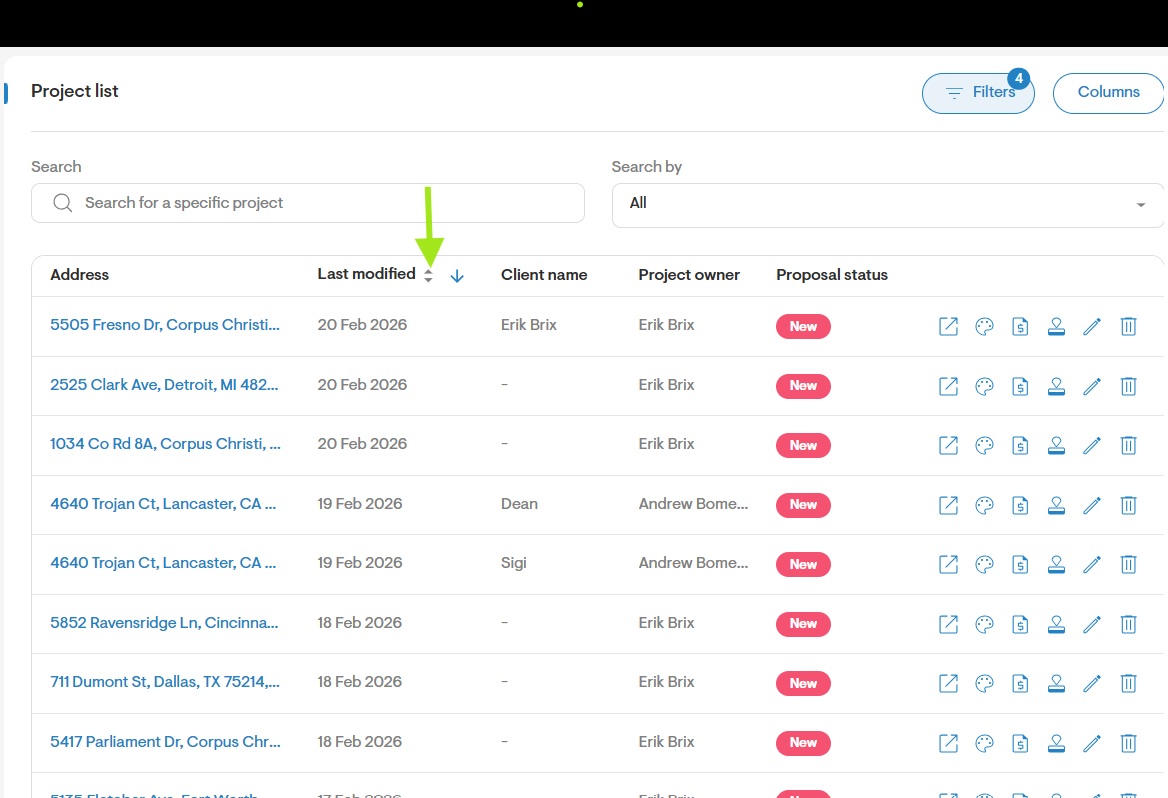
- The projects list will display all the projects created on your account. Depending on your role's permissions on Solargraf, you may be able to see the projects created by other users on your account.
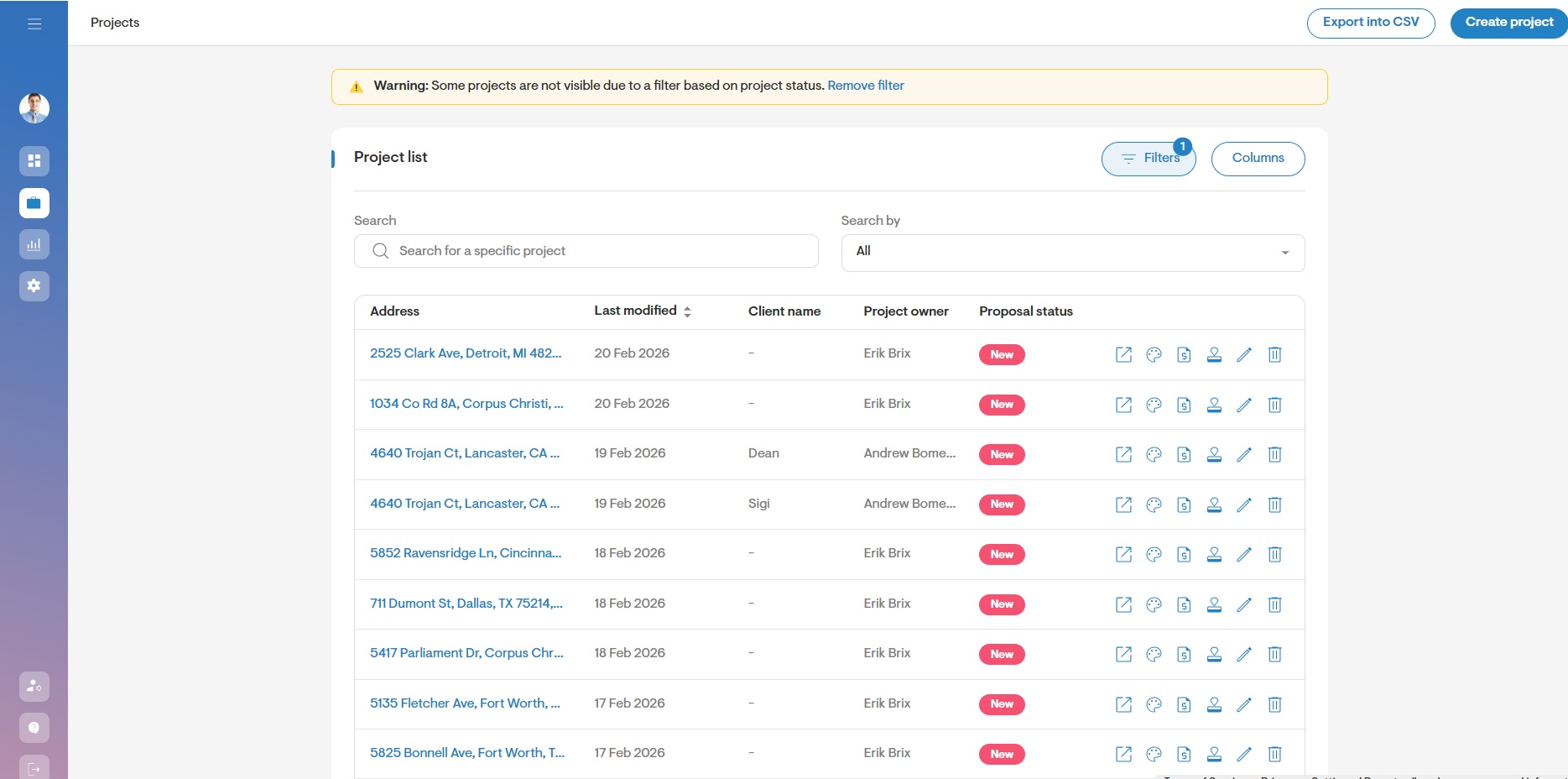
- For each project, you will be able to perform different actions.
- The following icon allows you to open the project Overview page in a new tab.
- The following icon directs you to the drawing tool.
- The following icon directs you to the proposal.
- The following icon directs you to the permits page.
- The following icon allows you to edit the project properties. This includes editing the project name, client name, client email, client phone, project lifecycle stage, project owner, next action and follow-up date. You can also choose to leave a note. The remaining fields are non-editable manually.
- The following icon allows you to permanently delete the project. This may not be visible if you do not have the correct permissions on Solargraf.
Customize Columns
- To customize the columns on this page, click the eye icon on the top right of the page.
- You may select up to 4 columns at a time.
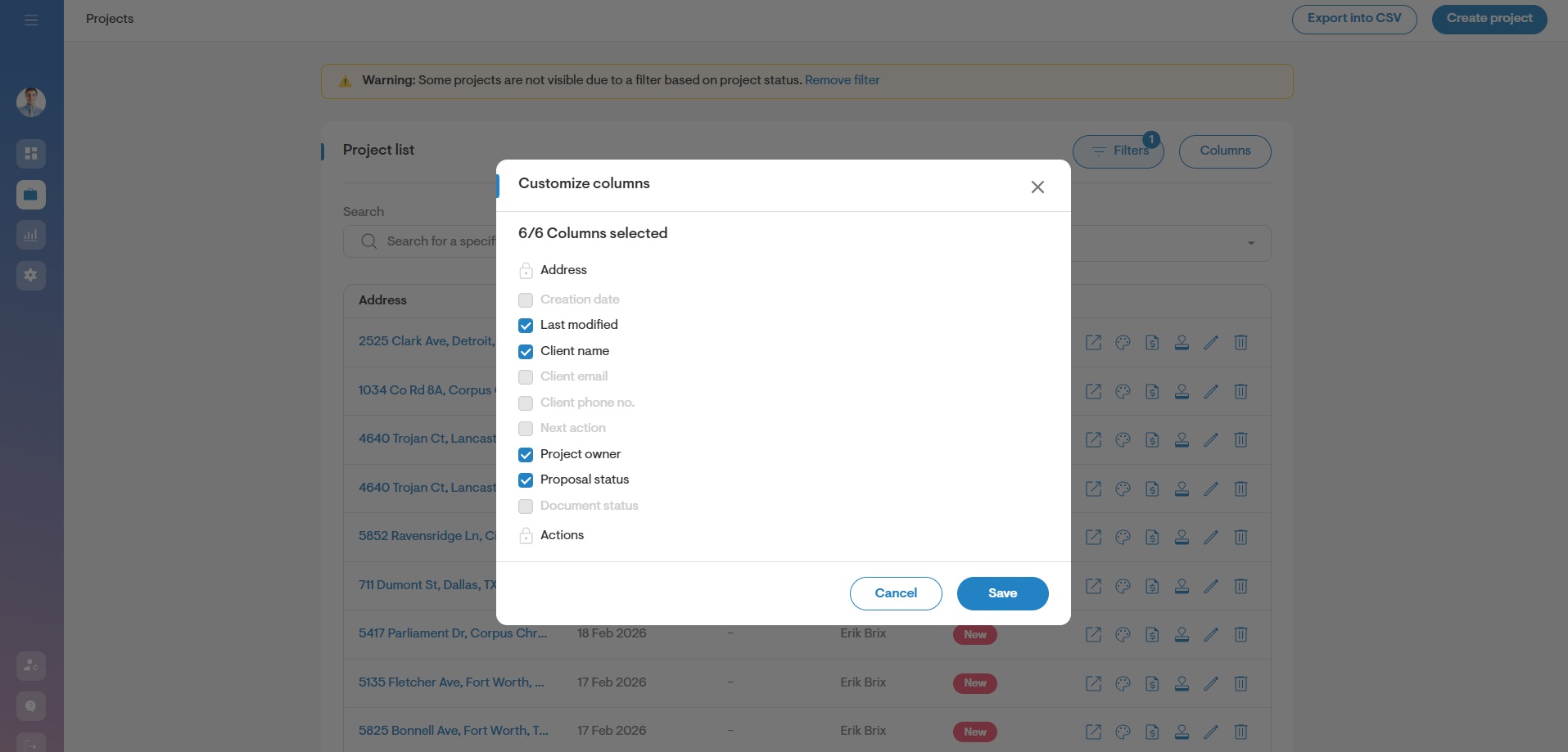
Note: You will not be able to hide the Actions or the Address column.
Using the Search Function
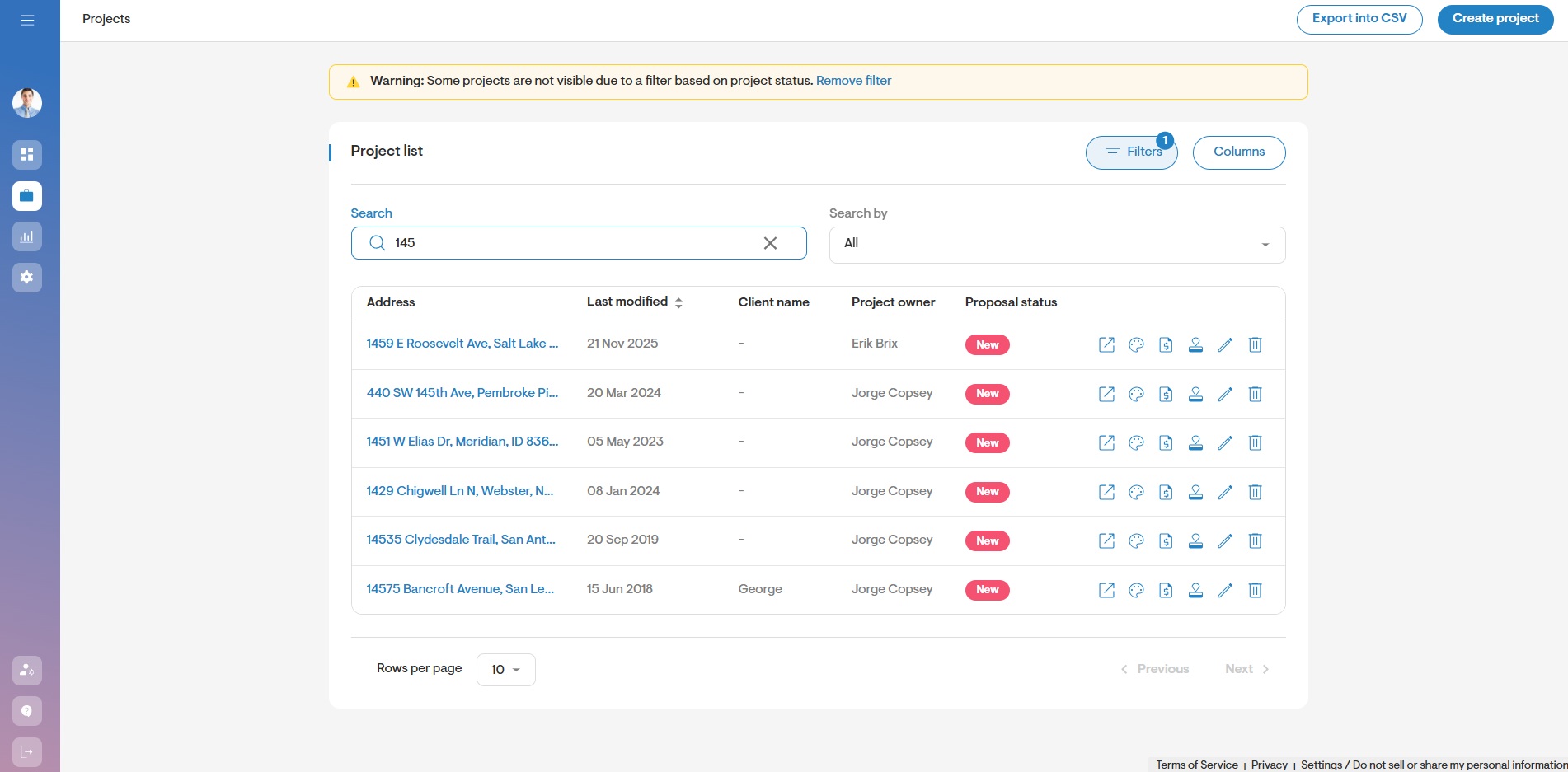
- You can search projects by entering the project title, address, client name, client email and project ID.
- To narrow down your search and speed up the time it takes to return results, you can select what you are searching for from the dropdown menu.
Applying Filters
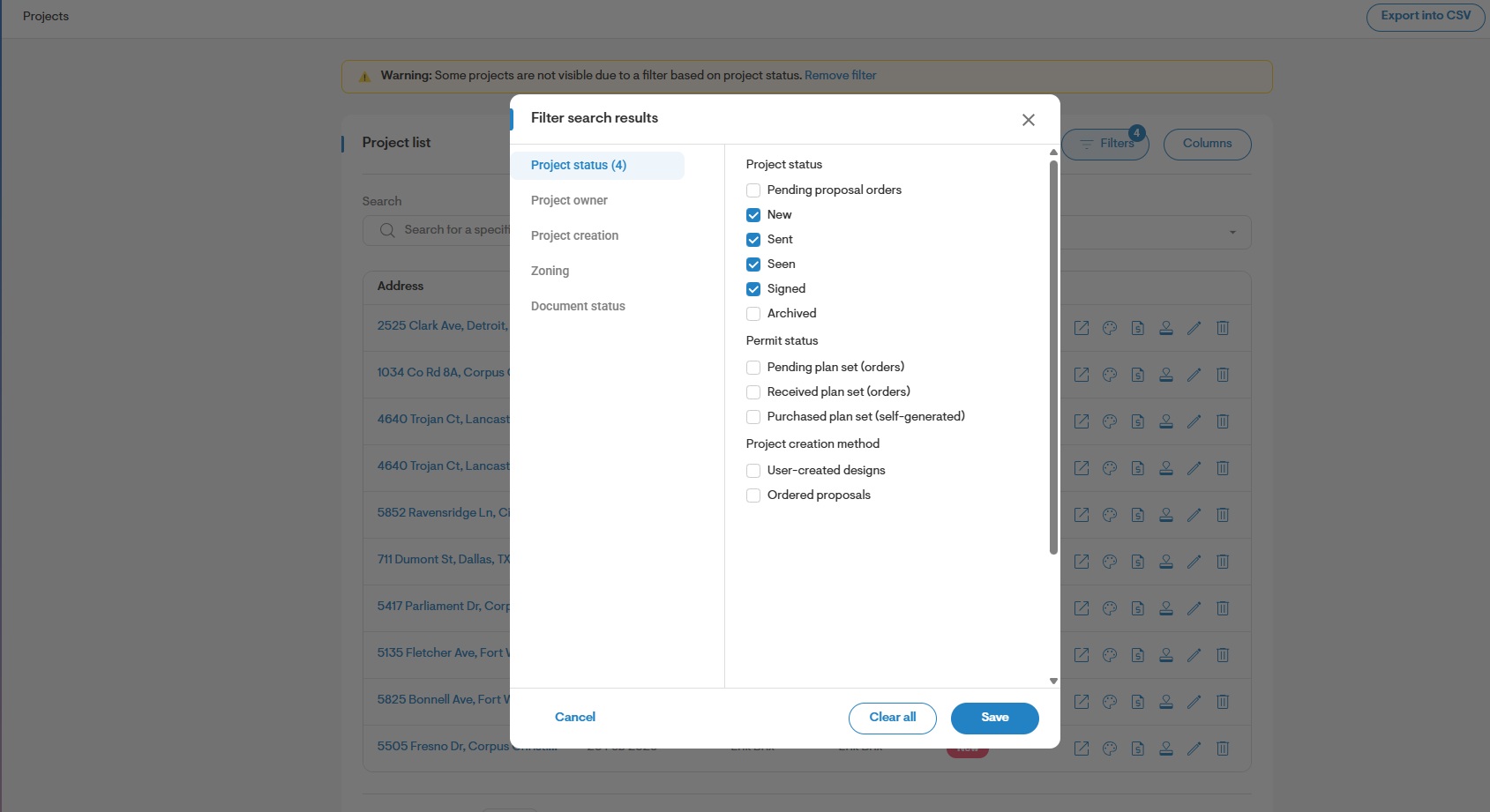
- You can filter projects by the project status.
- You can also filter projects by the creation date, by selecting a date range.
- You can also filter projects by the project owner.
Note: When you select a single filter at a time, you will only be able to view projects that fall under that status. You can select more than one filter at a time to select projects of multiple statuses.
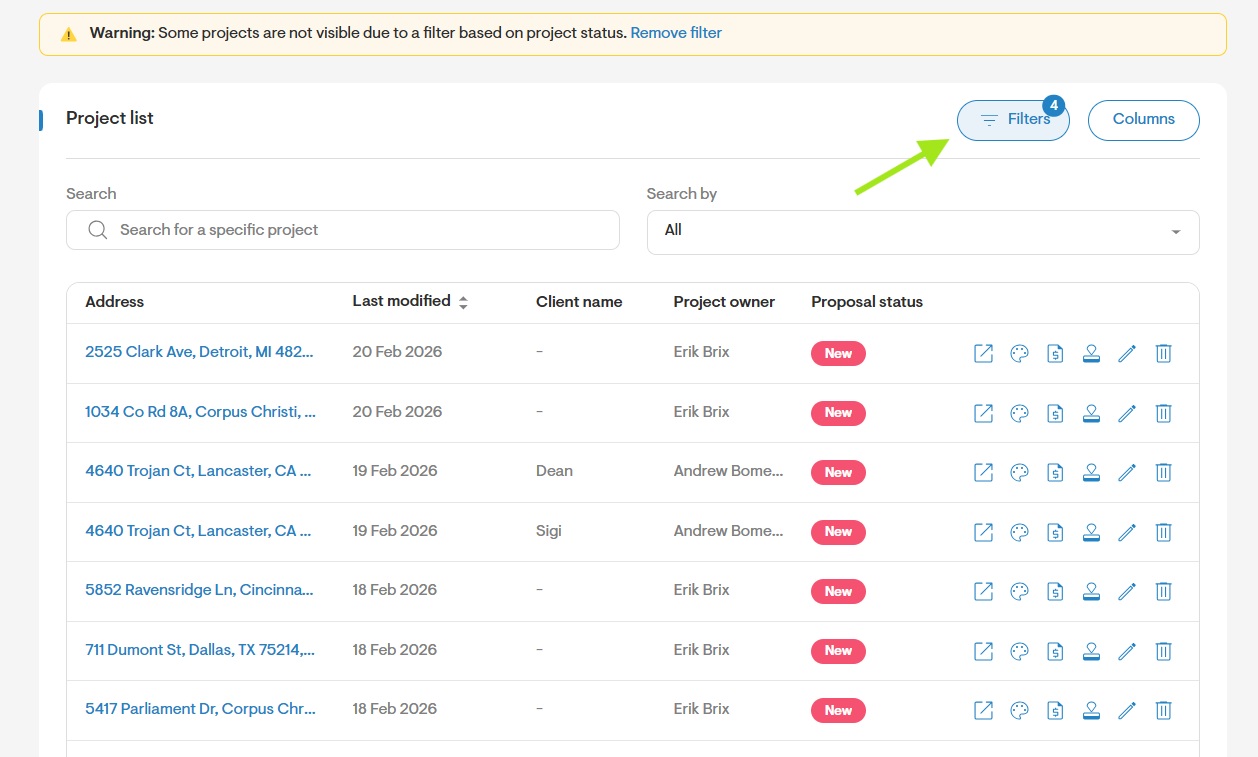
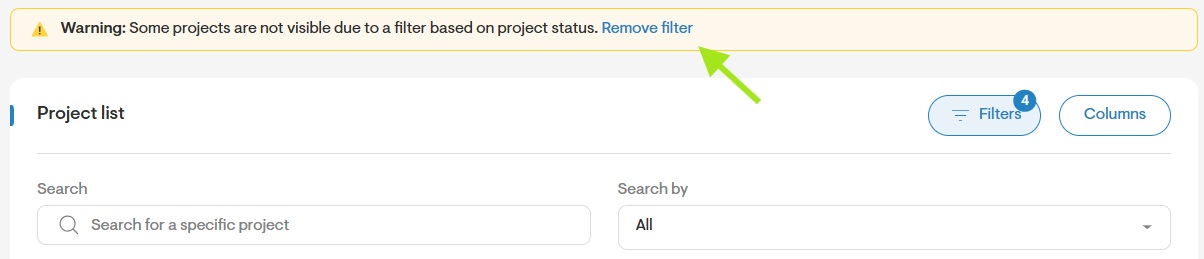
- To remove all filters, click the REMOVE FILTER option in the yellow banner at the top of the page.
Project Search View
- You have the option to view projects in either descending or ascending order based on their creation date.
Customize your project view by selecting to display 10, 20, or 50 projects per page
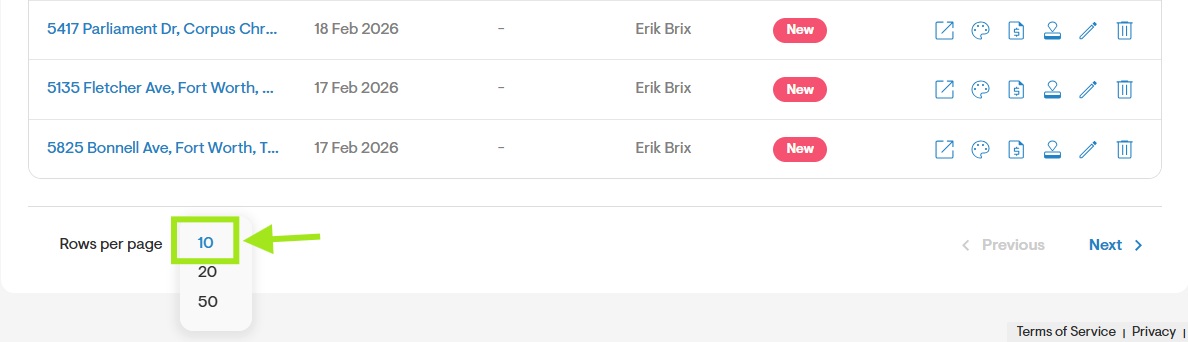
Navigate through pages by clicking the 'Next' and 'Previous' buttons to view additional projects.
