Help Center Getting Started
Managing your Leads in Solargraf
Published on 15 Aug 2022
The following guide walks you through managing your leads on Solargraf. You can import leads to your Solargraf account in three ways: by manually creating a lead, uploading a CSV file that is populated with data according to a pre-defined template, or by integrating your account with a third party software through an open API.
Where to find Leads on your Solargraf account
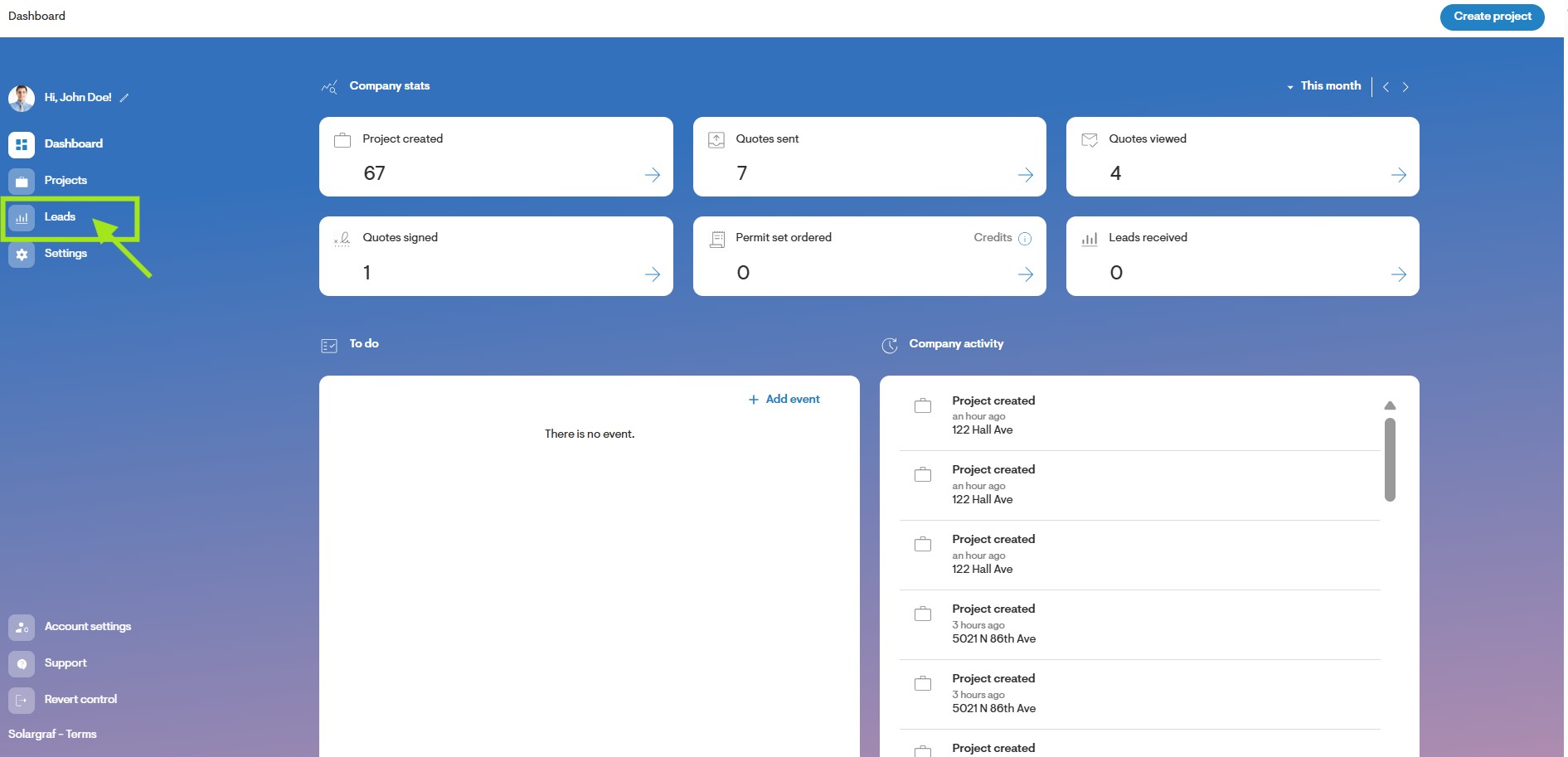
- Your Solargraf leads can be accessed via the Dashboard page on your Solargraf account. To access the menu icon, click on Leads at the top left of the page to navigate to the Leads page.
How to edit a Lead
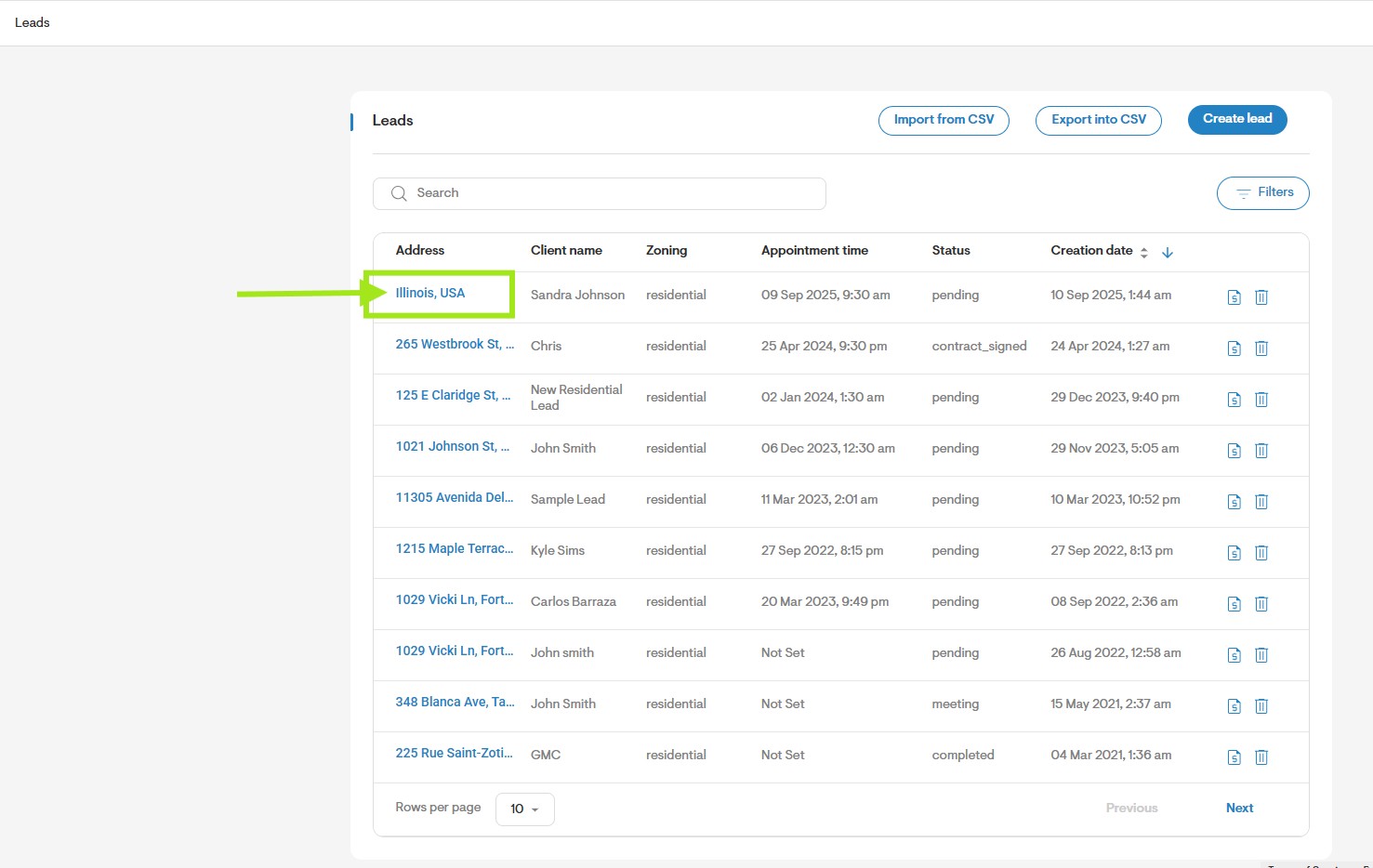
To edit an existing lead, click on the pencil icon located under each lead, as illustrated below.
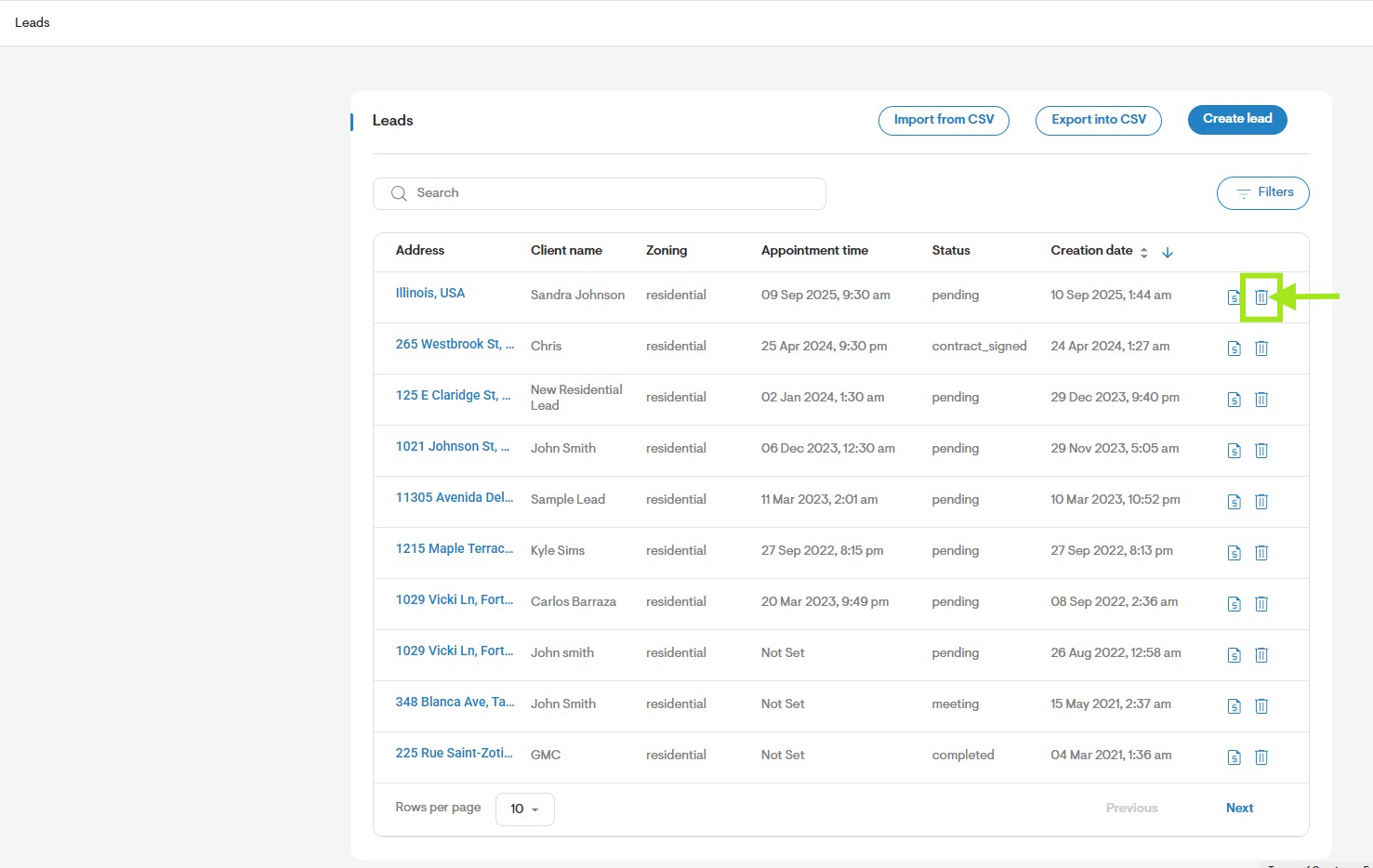
- You can also delete a lead by clicking the bin icon to the right of the lead.
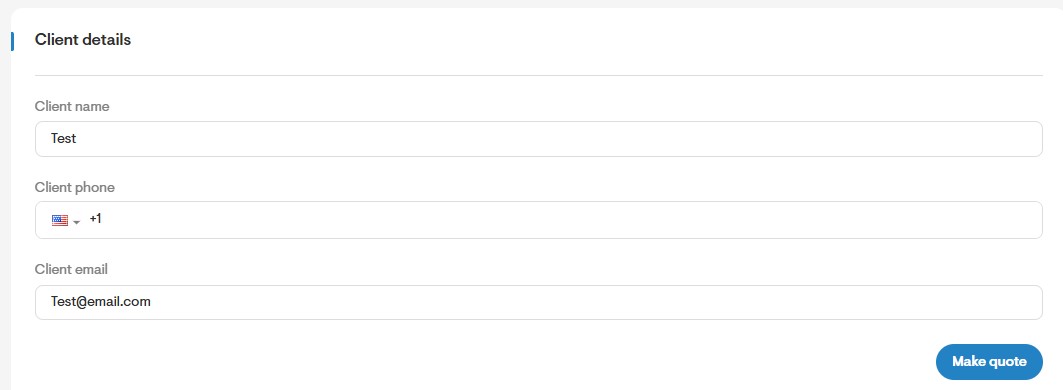
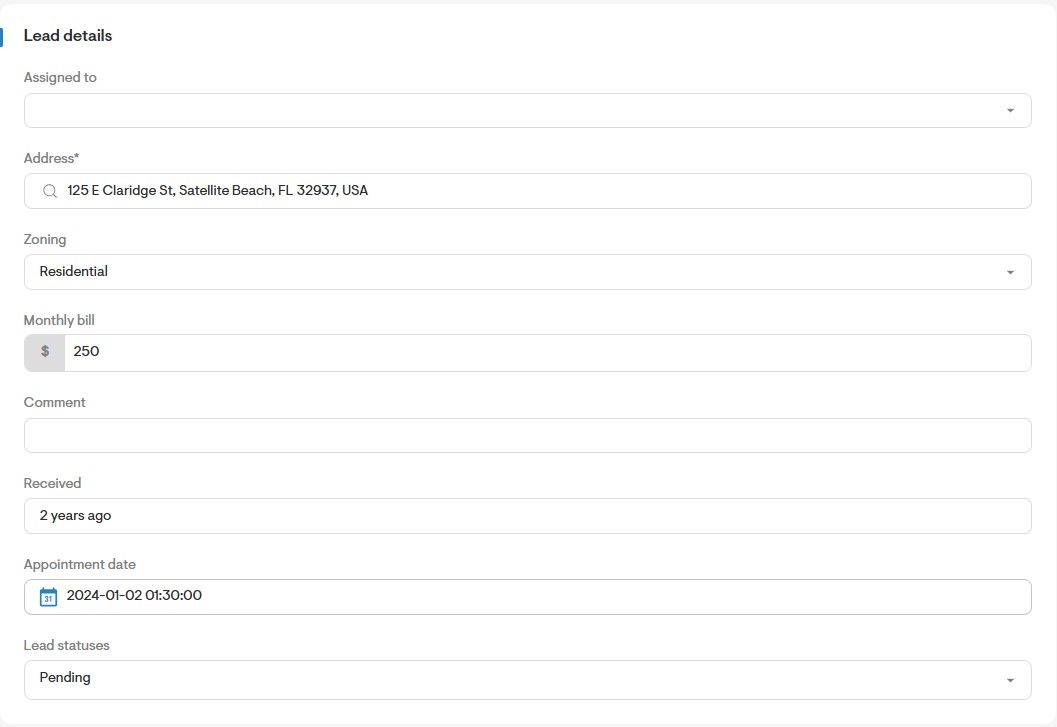
- Once you have selected a Lead you will be taken to a new page where all the Lead information will be visible to you.
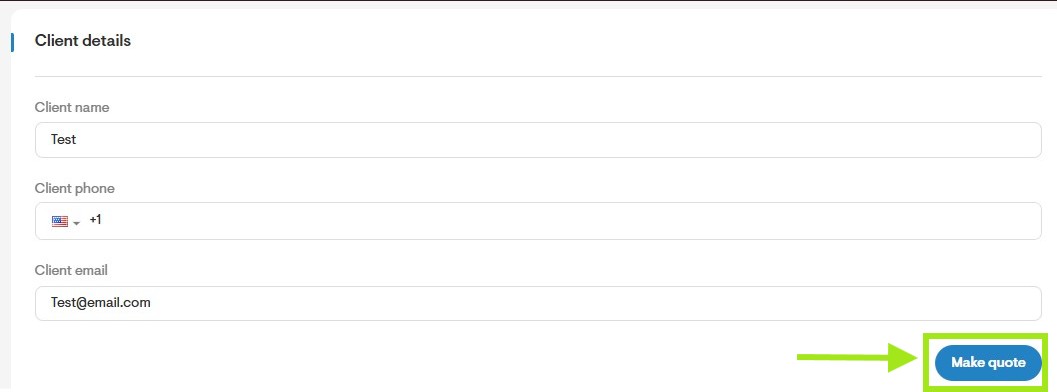
In the Client Details section, you have the option to edit the fields related to the lead's name, phone number, and email.
- In the Leads Details section, you can search for the address using Google by clicking on the search icon.
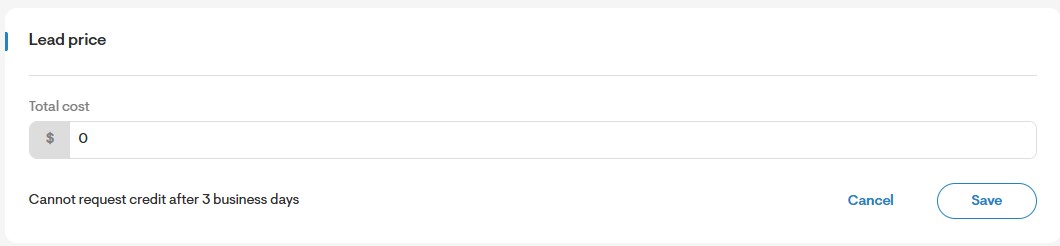
Additionally, you have the ability to specify whether it's a residential or commercial project, set the monthly utility bill, add comments, see the received date, schedule a future appointment date by clicking on the calendar icon, and enter the lead status.
Note: The received status will show the date in which the lead was added to Solargraf.
- You can then click Make quote to generate a proposal for that lead.
How to add a lead
- Once you’re on the Leads page, you can manually add a lead by clicking 'New Lead' at the top right of the page.
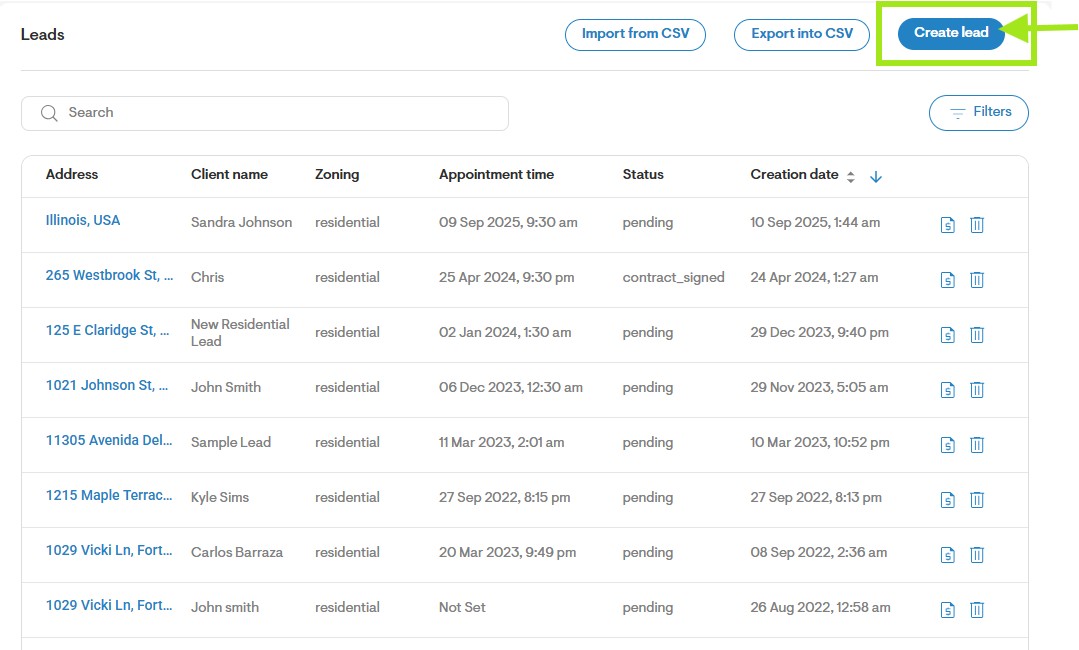
- This will prompt you for the lead’s information. You can add in the following fields:
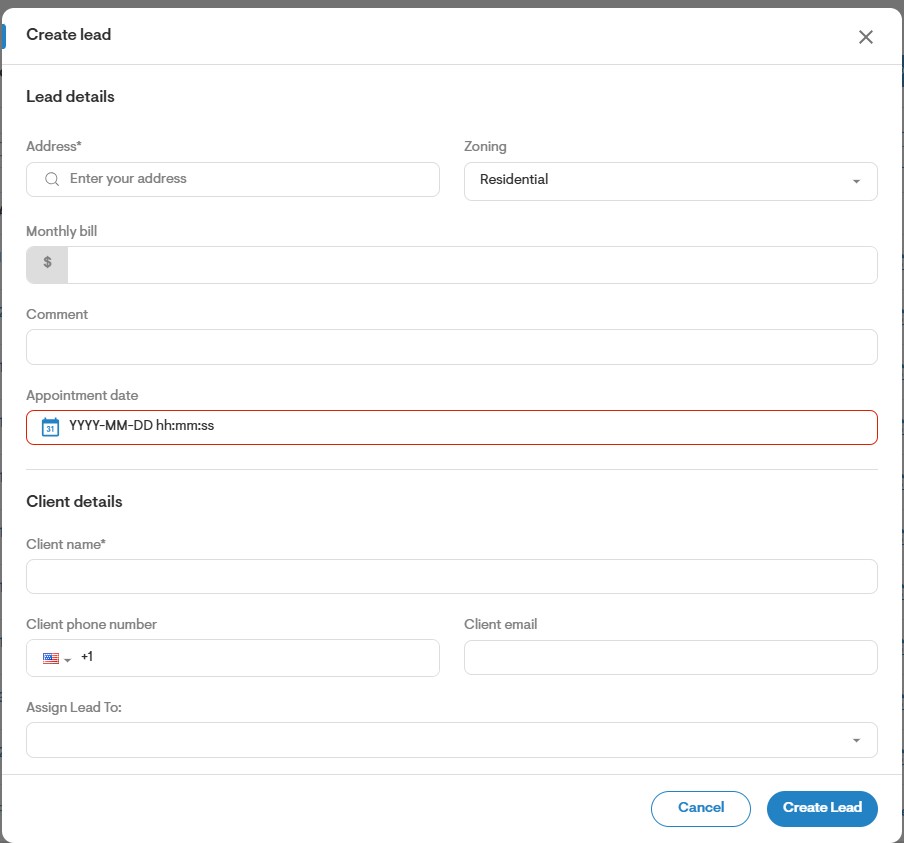
After completing the mandatory fields or more, click on 'Create Lead'.
You can also automate the process of creating leads in Solargraf by using the available open API integration. This will allow you to import lead information seamlessly into Solargraf from third part software such as a CRM.
- To learn more about the Solargraf open API integration, reach out to accounts@solargraf.com.
How to search for Leads
Use the search bar at the top of the page to look up leads by name or address.
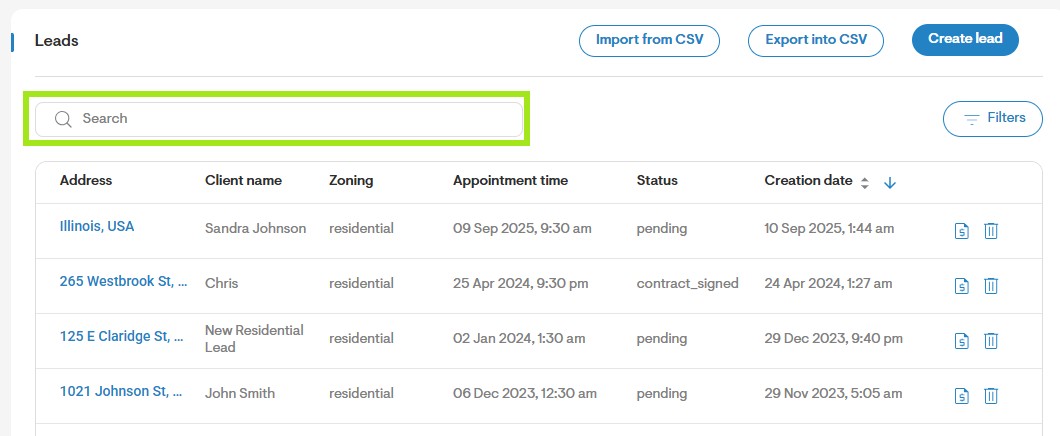
To customize your search based on your preferences, utilize the Personal Options menu.
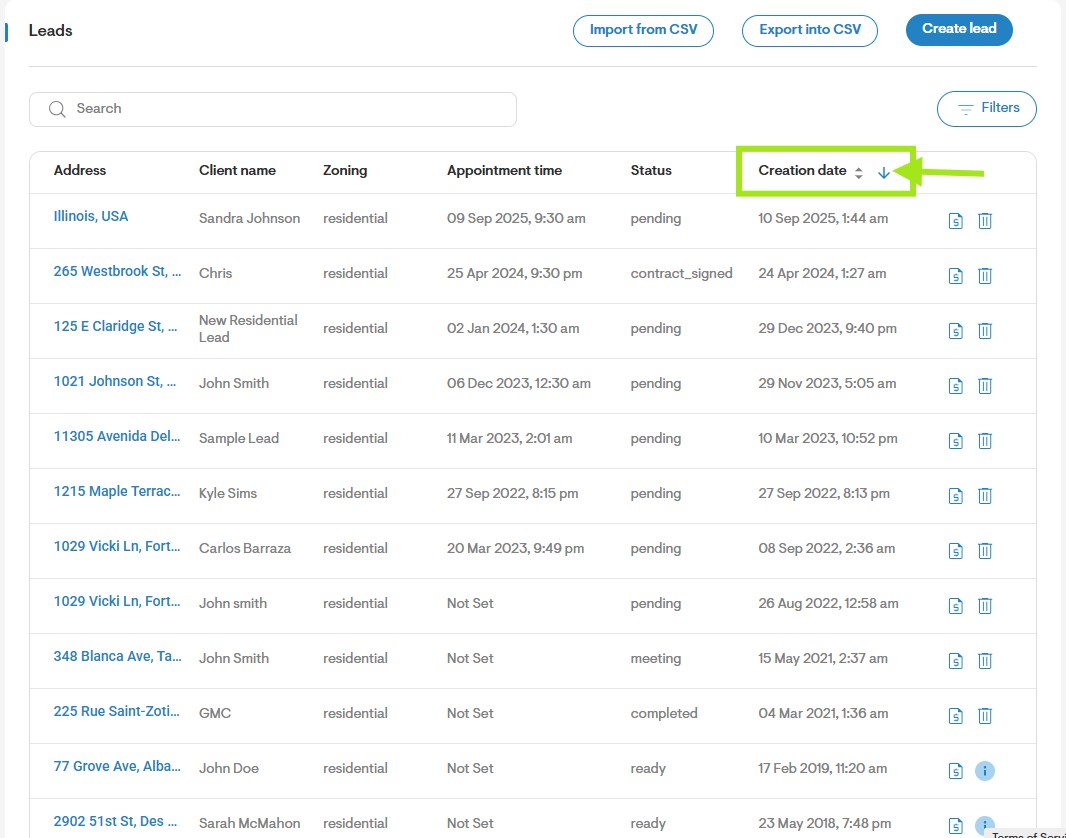
- You also have the option to arrange the visible list of leads by sorting them in either Descending or Ascending order.
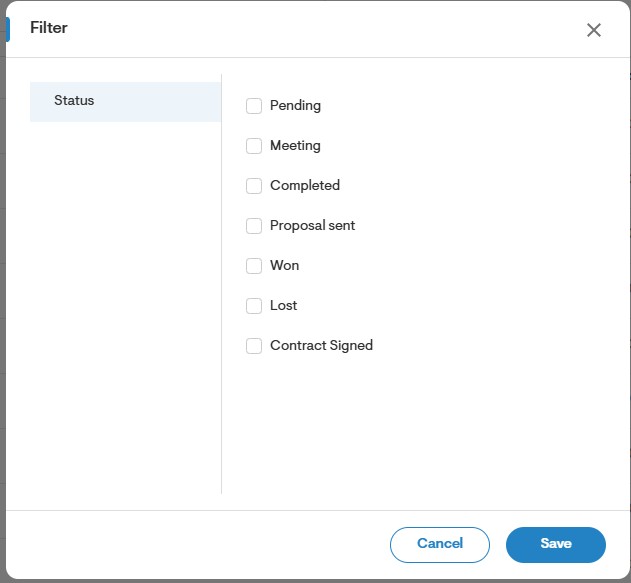
- You can use the Filter By menu to filter out leads per the status you have assigned to them. The following is a list of available statuses in the Leads page.
How to import leads into Solargraf
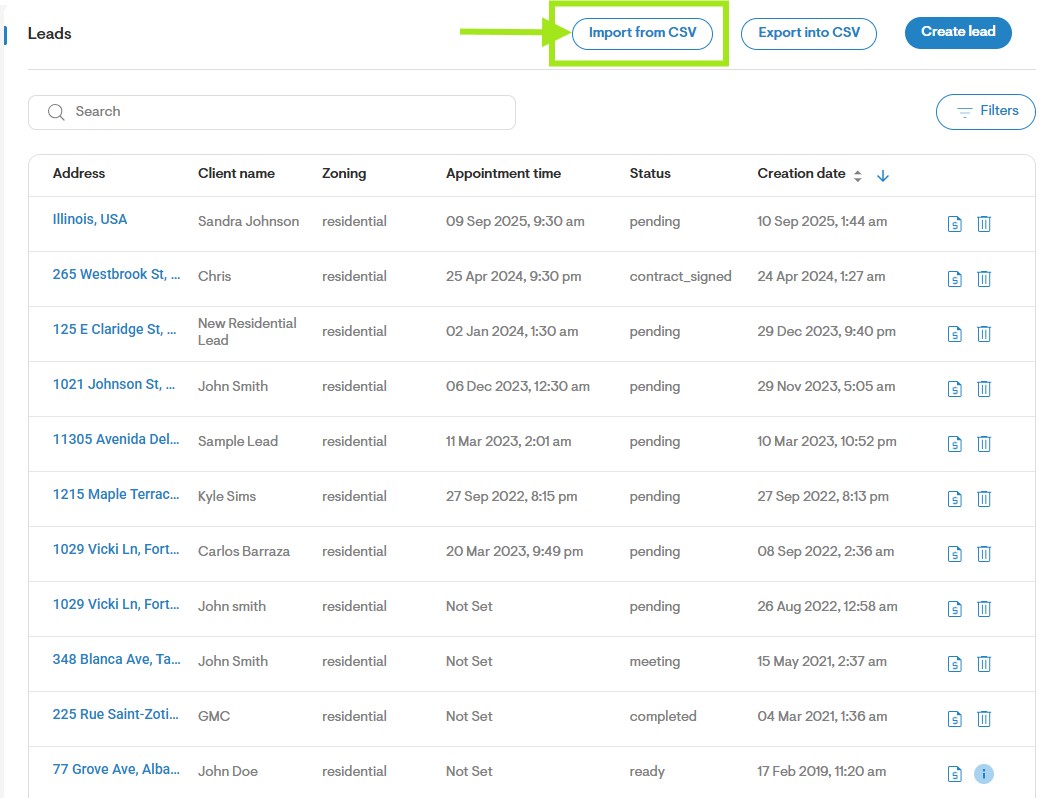
To import leads into your Solargraf account, click on the 'Import from CSV' button located at the top right of the page.
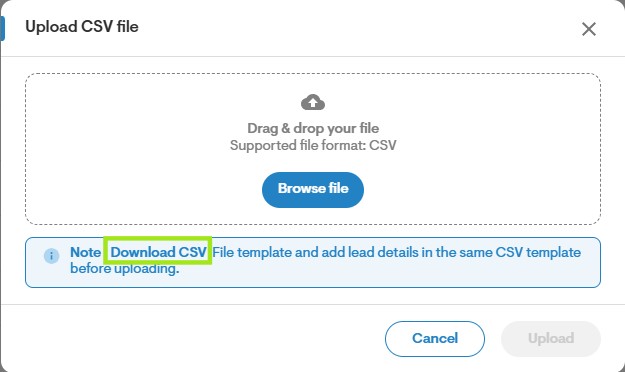
Before uploading your leads, please use the provided template. To access this template file, click on the hyperlink provided below.
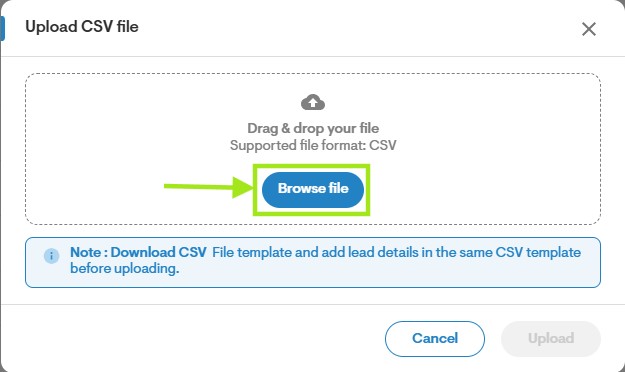
After completing the template with the desired lead data for transfer to Solargraf, click on the 'Browse File' button to select the file from your device.
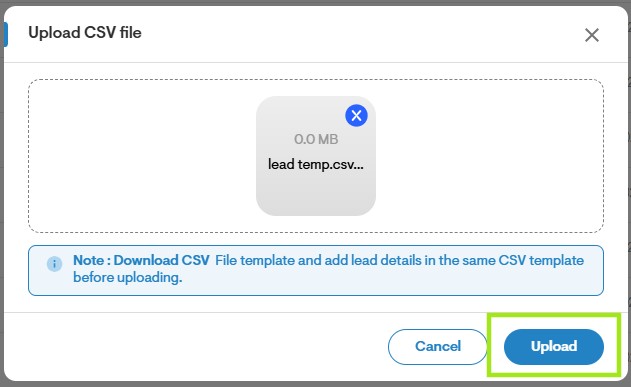
Subsequently, click the 'Upload' button to proceed with the transfer.
How to export leads into a CSV file
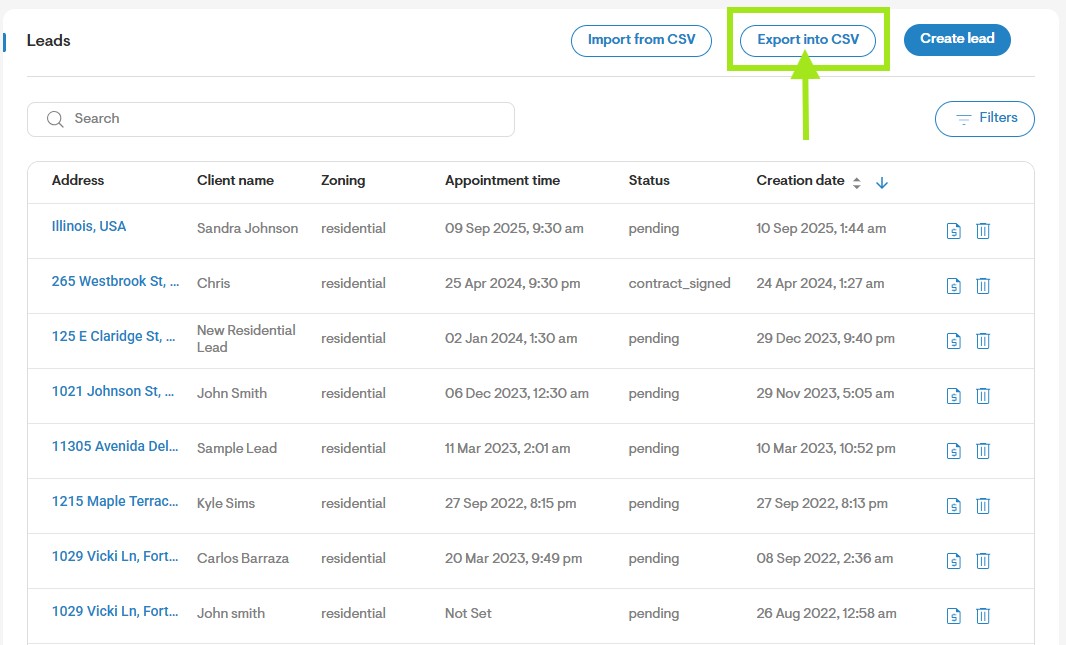
- Finally, once you have your leads added in on your Solargraf account, you can do a mass export of all lead information by using the Export into CSV button on the top right of the Leads page.
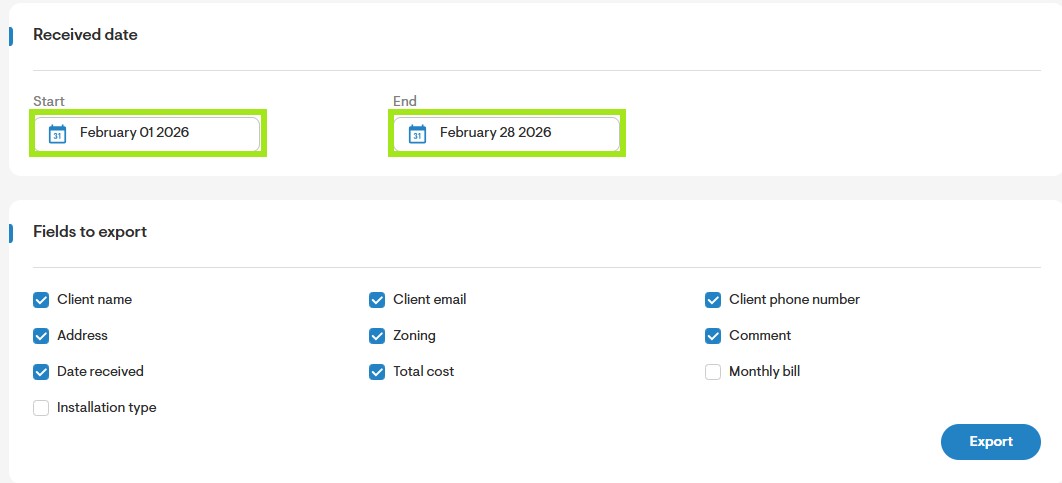
Begin by choosing a time range for when the lead was created. Click on the calendar icon under the 'Received Date' section to make your selection.
When exporting leads, choose the data fields you want to include in the CSV file by checking the box next to each data field, as demonstrated below.
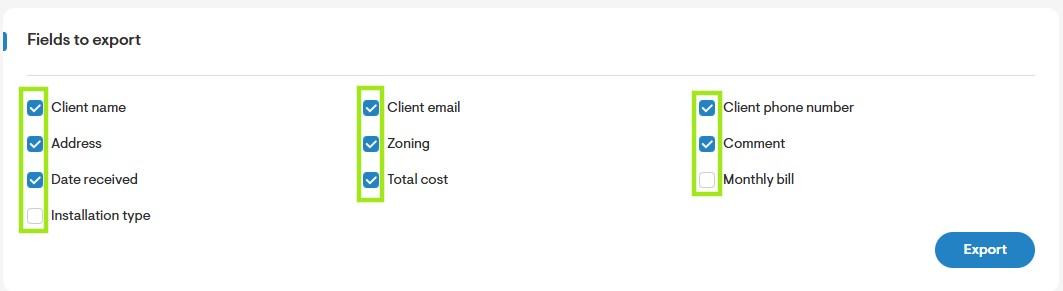
Lastly, click on the export button to generate your CSV report.