The following guide addresses common issues that arise when supporting users with permit set and revision request orders.
General best practices
- Ensure that any files required to complete the permit especially those that need to be reviewed by the permit team are toggled on under Additional permit files.
- To prevent confusion and delays, do not order engineering stamps through a revision request or via our support Live Chat. For the best service and fastest turnaround time, it is strongly recommended that all stamp orders be submitted as part of the initial permit set order.
- If you're moving the location of a Main Service Panel, make sure to indicate this on the first page of the revision request form, on the drawing.
- Make sure to include all relevant additional documentation in your initial permit set order, and that the uploaded documents are clear and easy to understand.
Stamping Services
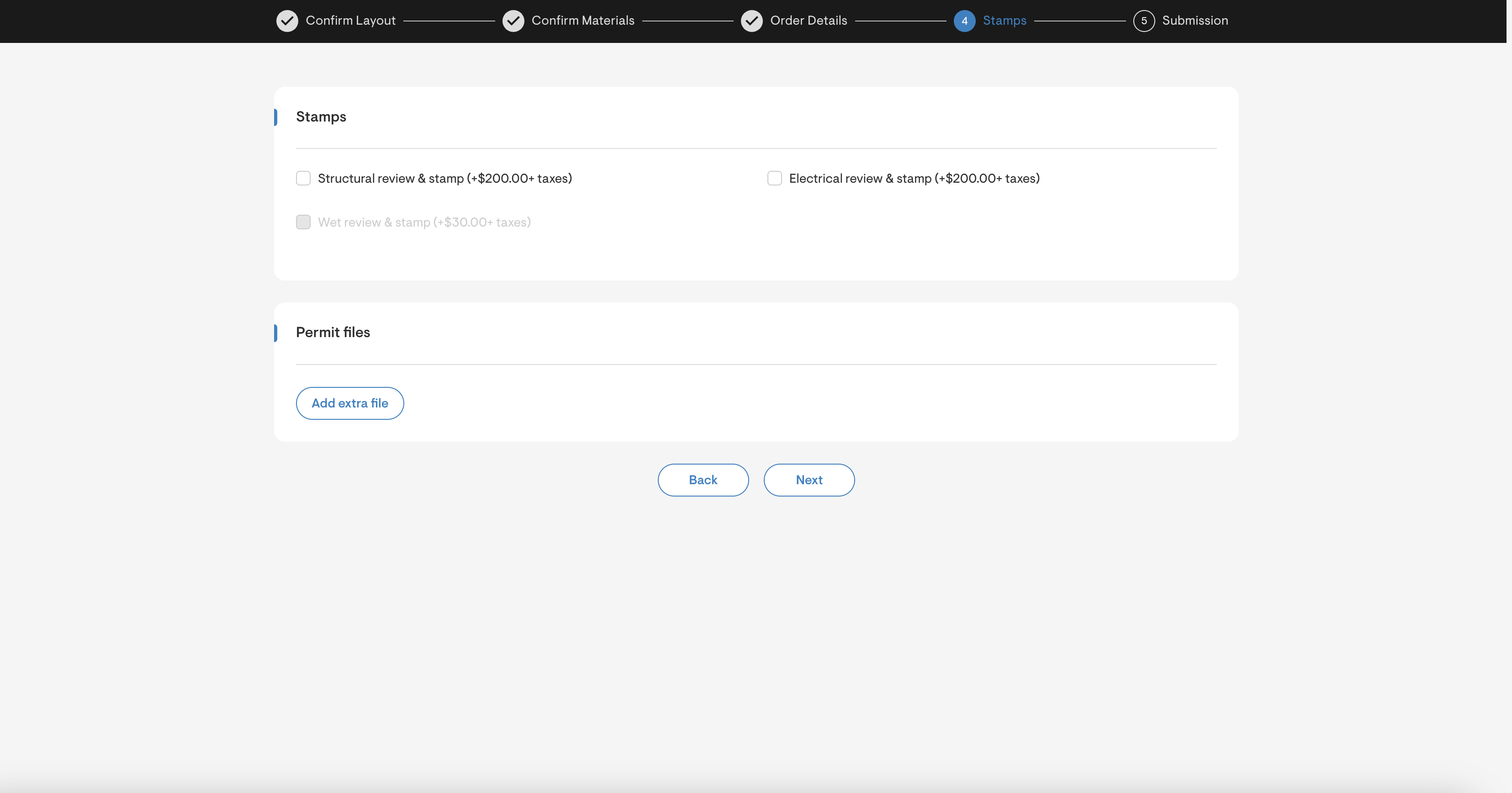
How to order stamps with the initial Permit-Set order?
To order stamps, click Order a plan set on the overview page and complete the form that appears. For a detailed walk through refer to this article.
For Electrical Engineering stamps:
After selecting the checkbox for Electrical review & stamp in Step 4 (Stamps), please proceed to Step 5 (Submission) and use the comments section to specify any code requirements that are unique to the jurisdiction where the permit set is being submitted.
Example: Line-side tap connection requirements that the design team should be aware of.
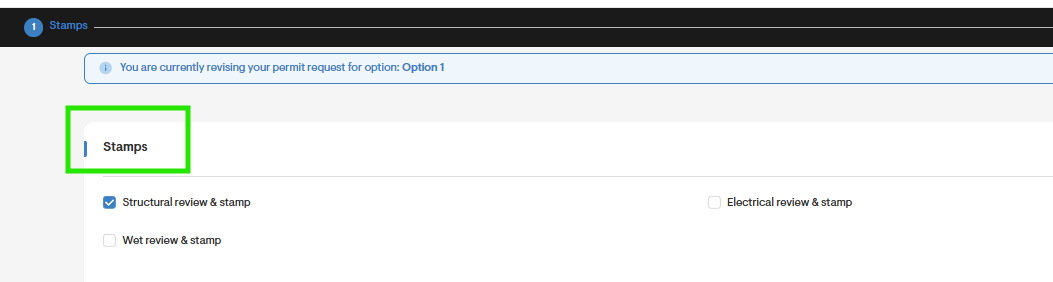
For Structural Engineering stamps:
After selecting the checkbox for Structural review & stamp in Step 4 (Stamps)You are required to provide additional details about the roof structure, including:
- Roof type
- Rafter or truss size
- Spacing
- Material
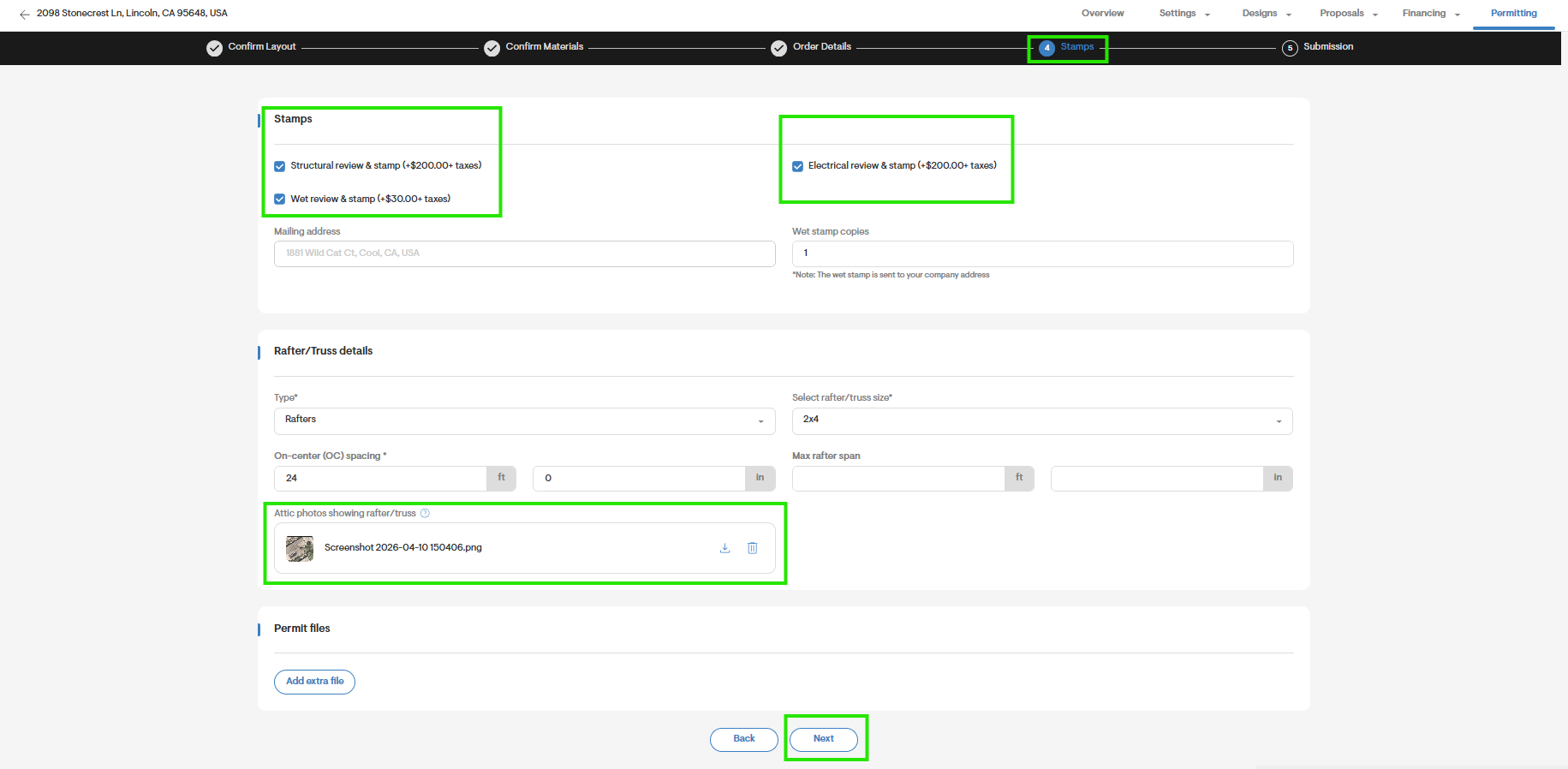
- For Wet Stamp orders: indicate the number of copies you would like to order. These will ship to the company address that is entered under the company's Settings page.
For a detailed step-by-step for submitting a new permit set order with stamps, refer this article: Submit a New Permit Set Application.
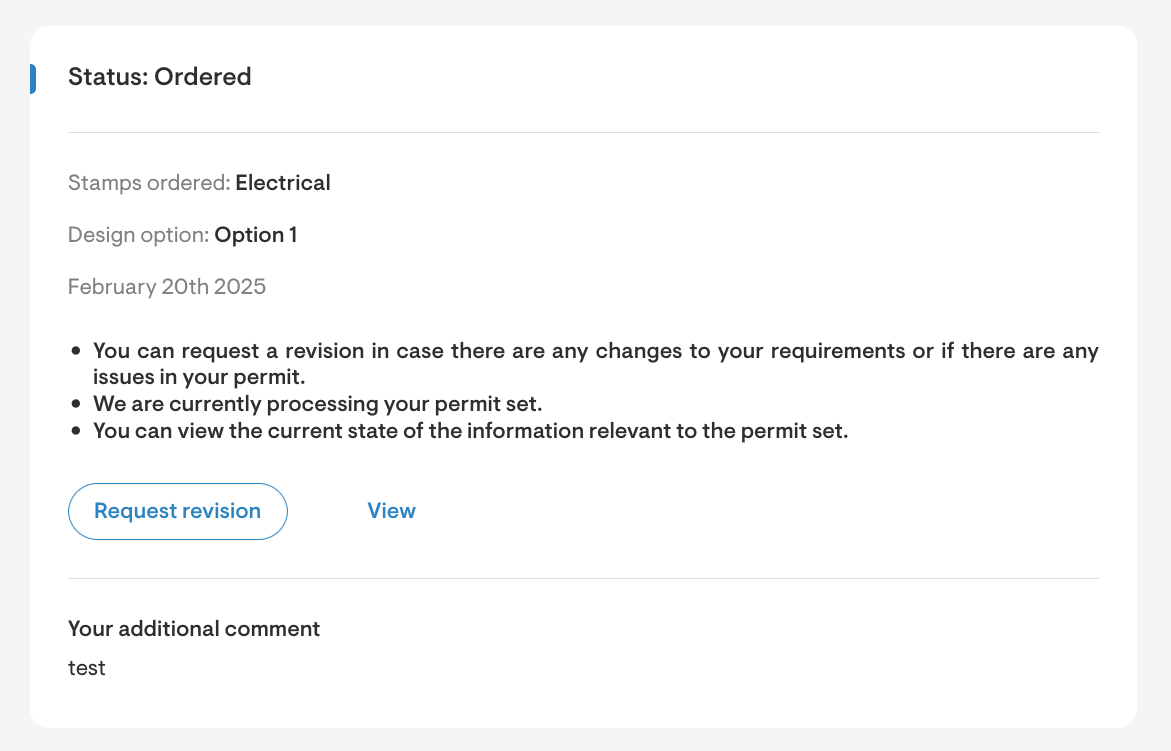
How to order stamps after a Permit-Set order has been completed?
Once an order has been completed, the Order stamps button will become available on the Permit page:
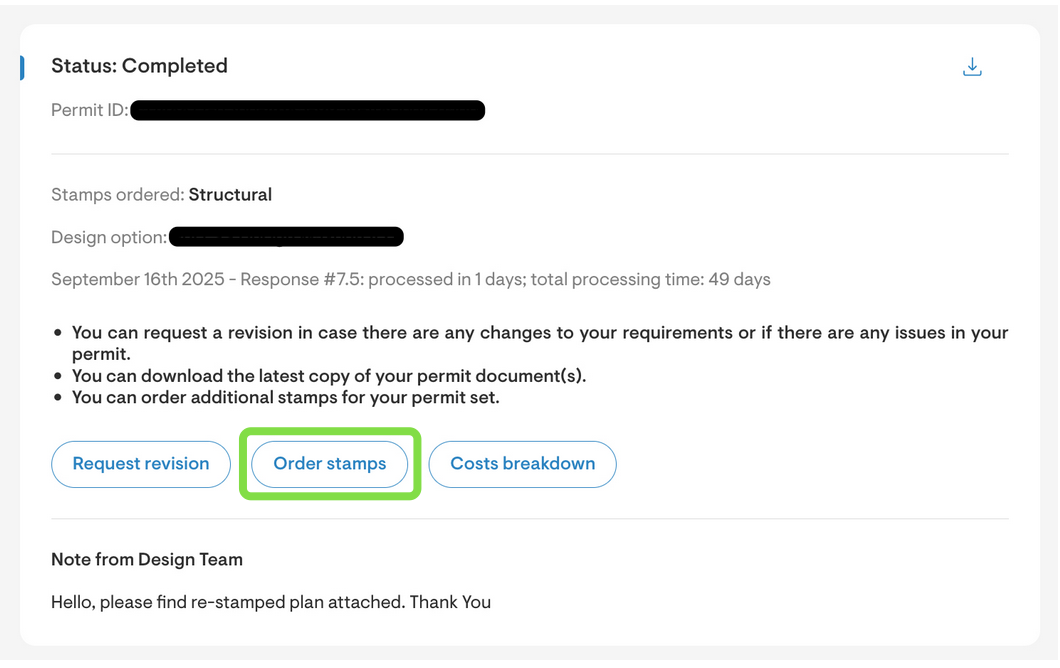
By clicking Order Stamps, you’ll be directed to the stamps order page from the initial permit set application.
- Submit all required information for the selected engineering stamps.
- Ensure your address is correct, as it will be used for mailing wet stamps.
- If ordering a Structural Engineering stamp for a roof mount installation, you must upload images of the attic.
What images must be submitted for a structural engineering stamp order?
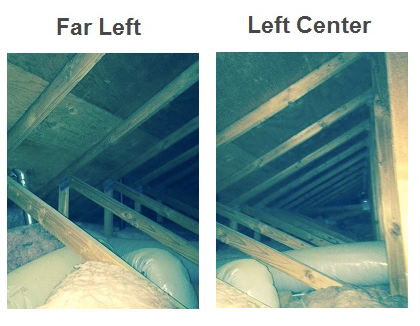
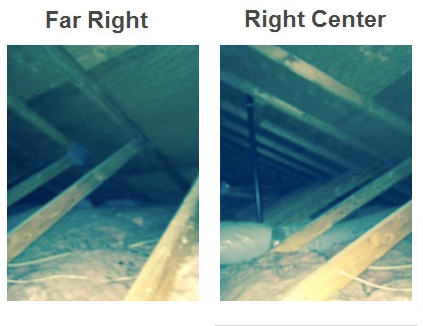
For roof-mount installations, you are required to submit images of the attic. Please include images of the Attic Far Left, Center Left, Center Right and Far Right. Examples of these images have been provided below.
How to request a revision?
- To request a revision go to the project overview and click the Order button located next to Order a plan set.
- Click Request Revision, you’ll be taken to the original permit set order form. Make the necessary changes directly in the form before submitting your revision request.
- If the Main Service Panel location has changed, update it in the drawing on the first page (Confirm Layout) of the order form.
- In addition to updating the relevant sections, summarize all requested changes in the Revision comments section on the Submission page.
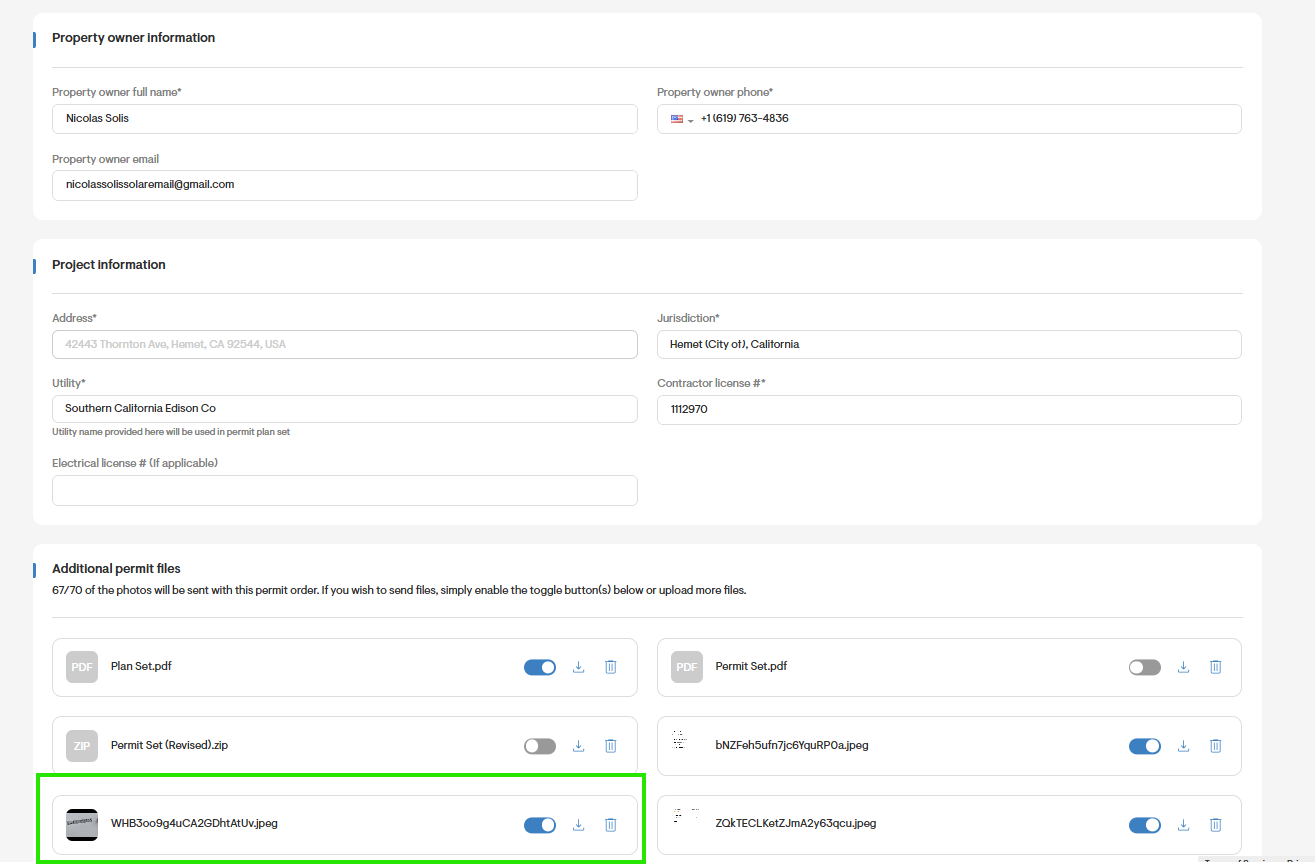
Note: It’s important to ensure that any files required to complete the permit especially those that need to be reviewed by the permit team are toggled on under Additional permit files.
 What information is required to order a battery?
- Under the Confirm layout page Select the checkbox for Installing new battery.
- Choose the battery system and specify the battery system location.
- On the Confirm Materials page, select the appropriate battery model.
How does a user indicate a Main Service Panel upgrade?
You can do so on the second step (Confirm materials) by using the checkbox for Upgrade main service panel and completing the details below it.
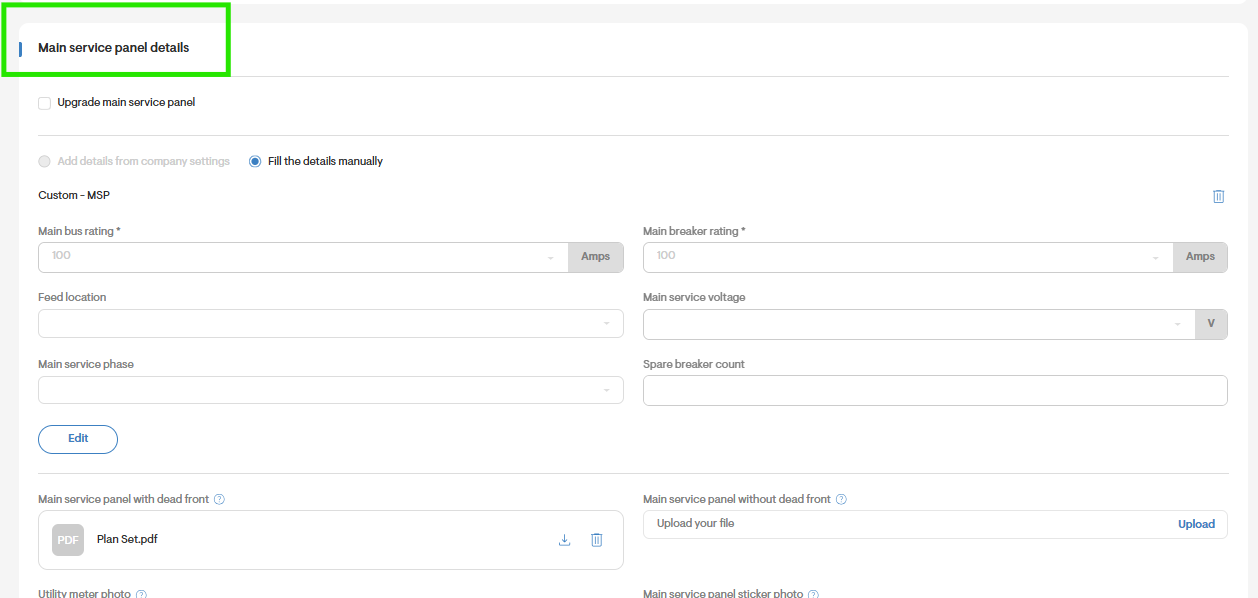
What are the different options for the Main Service Entrance Type?
There are three different options for the Main Service Entrance Type:
- All in one. The utility meter and main service panel are attached and considered one unit.
- Detached. The utility meter and main service panel are detached and are located in separate places (for example, the utility meter may be installed outside and the main service panel may be installed inside the property).
- Adjacent Near. The utility meter and main service panel are detached but are located close to each other (for example, both are located outdoors).
How do I update the drawing layout in the revision request?
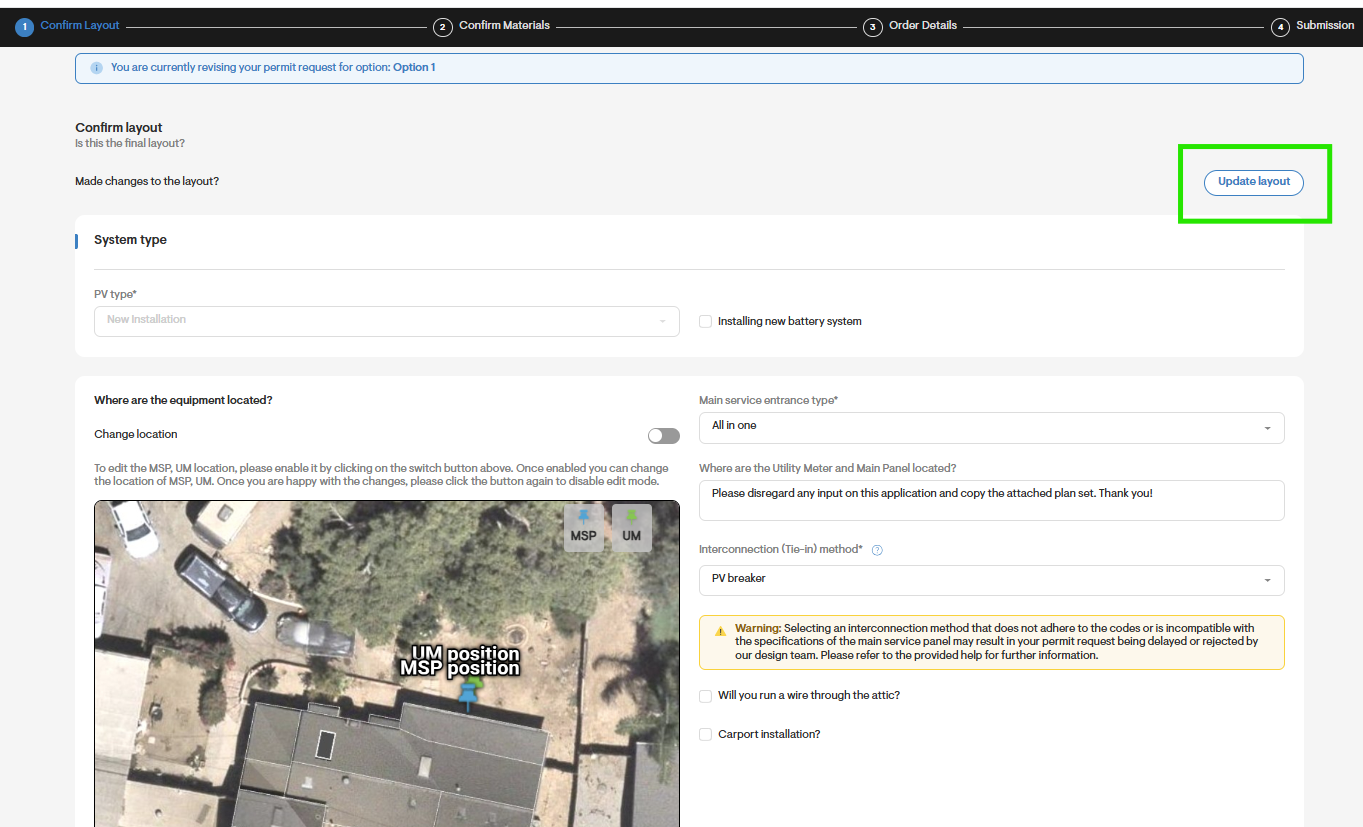
- When submitting a revision request with a changed layout, you will first need to make the required changes on the Drawing page. Then, on the first page of the revision request form, click Update Layout.
- Finally, you will need to determine the correct location of the main service panel in the new layout using the MSP blue pin.
I can't see the Order Stamps button, why?
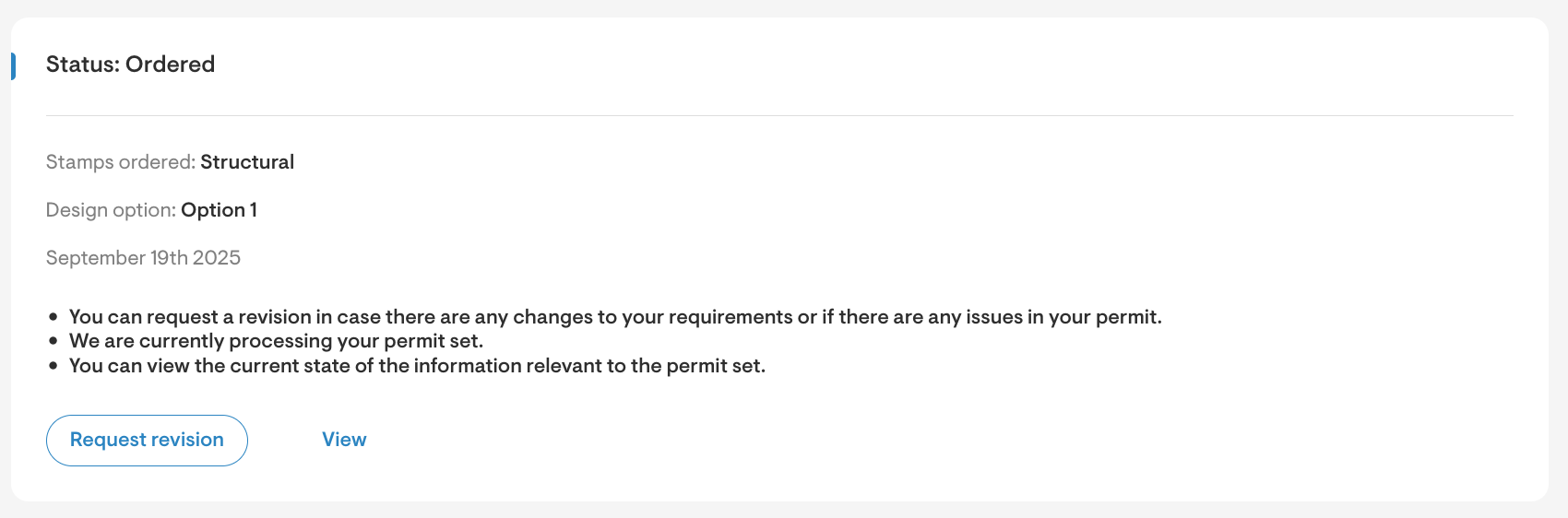
After submitting a permit set order, you’ll see its status on the Permit page while the order is in progress. Here you canView to review your submitted application and send a revision however you cannot order stamps until the permit set has been completed.
What to do in the case of a Need attention status?
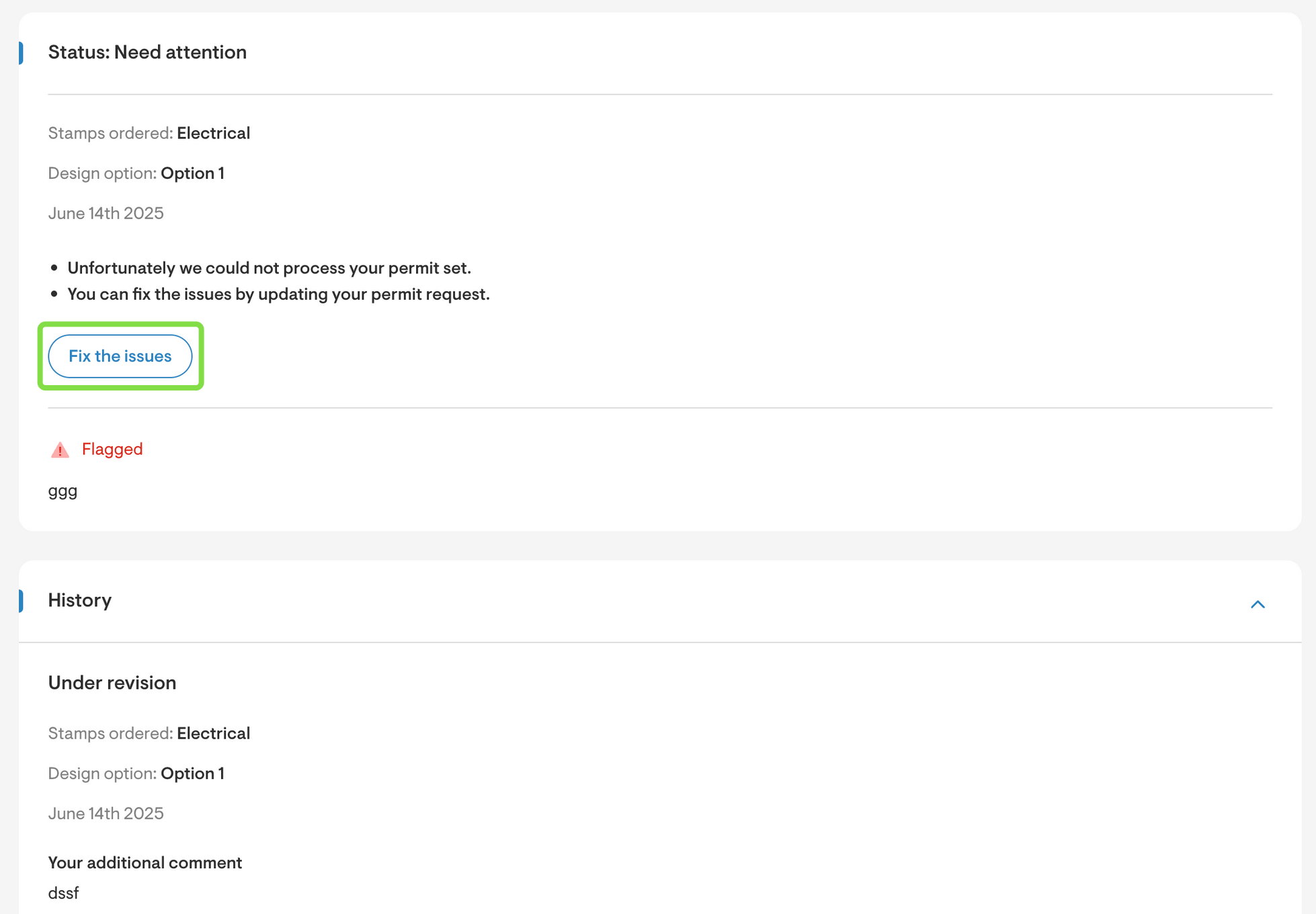
If we require further information from you, will post a rejection message to your account and ask that you click the Fix The Issues button to reply. This will take you to the revision request form where you can update your application and reply to our question in the Revision Comments section on the Submission page. We will not be able to complete your order until we have received your response.
How are the permit set credits applied to an order?
Any credits available on your account for permit set purchases can be applied towards the base price of a permit set only. They cannot be used to purchase stamps.
Please note that the permit set charge may appear on your bank account as an authorization, but the amount will not be captured if a credit is available on your account.
Will I be charged for submitting a permit set revision request?
You will be charged for a revision request only if more than 6 months have passed since the permit set was completed. The exact charge varies according to the changes requested.