Help Center Document Management
Document Templates Q&A
Published on 5 May 2025
In this guide we will go over some common questions related to the Documents feature in Solargraf.
If I delete a Document Template from the Company Settings, will it still be viewable in existing projects?
If you delete a document template, it won't be visible for import in future or past projects. However, if it was already imported, it will remain available in those projects.
What determines whether a Document is marked as "Required"?
Templates are marked "required" based on the homeowner’s address and applicable states in company settings. If a document is set to "ALL states," it will show as required for all projects.
How do I allow a Solargraf user to manage document templates?
The user needs the appropriate permission. This can be found under Account Settings > Users > Roles and Permissions. Here, enable the permission Can manage company documents templates for the user in question.
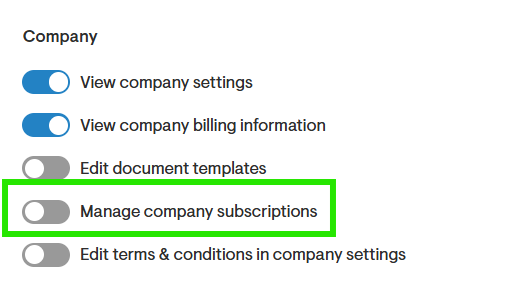
How do I allow a Solargraf user to manage document templates on a project level?
To allow a user to manage documents within a project you must enable the Manage documents within a project permission found under the Project section of the Roles and Permissions.
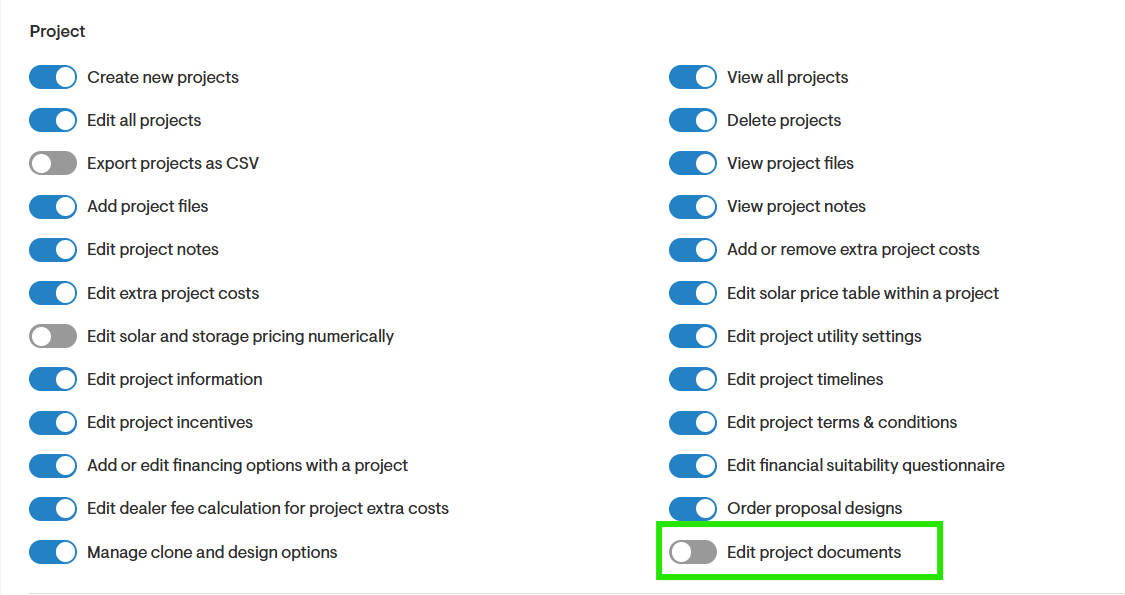
How can a sales rep or any other Solagraf user import a Document Template into a project?
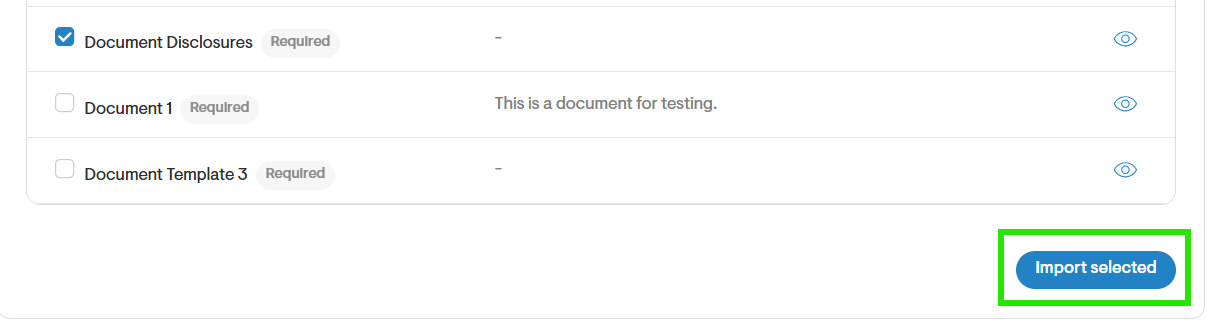
Sales reps can import a document template from the company settings without needing to modify the original version. To do this, they should go to the project overview page, navigate to Documents, select the desired template using the check mark, and click the Importselected button.
How can a Solargraf user check the DocuSign Placeholders Optional Checkboxes within the Imported/Generated document?
Currently, checkboxes can only be signed by signees and not by counter signees. Therefore, only customers identified as signees can check these checkboxes once the document is sent to them. We have a feature on the roadmap to support checkboxes for counter signees, such as installers.
How can the document be saved with the checkboxes checked?
Checkboxes can only be checked and saved once the signees check them after the document is sent.
How can a Solargraf user countersign the proposal via DocuSign?
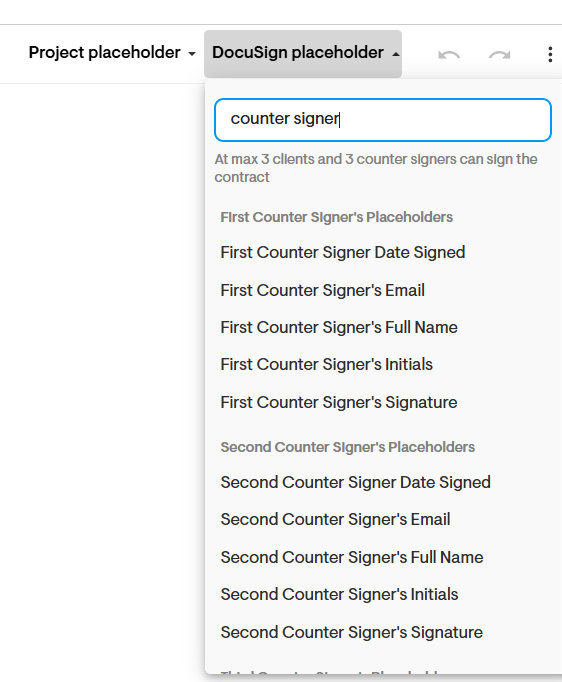
Once all the signees sign the document, it is routed to be signed by the counter signee, i.e., the sales rep or any other user. Please note that a document placeholder for the counter signee needs to be added to the document, and counter signee details need to be included in the process of sending the document.
What is the order in which the document is signed?
Currently, the document signing flow requires customers (signees) to sign the document first. Once all the signees have signed, the document is then routed to the installer (counter signee) for their signature.