Help Center Proposal Setting
Customize Your Solargraf Quote
Published on 10 Dec 2021
Customizing your webquote is a great way to reflect your company's individual branding and identity. It allows you to make the most of the available Solargraf webquote tools to deliver the best experience to your clients. The following sections will outline how you can customize different areas of the old webquote and optimize the way you display information to your clients. These settings apply only to the Old Template. To switch to the new experience, enable the ‘Use enhanced proposal format’ toggle in Company Settings. You can also refer to this article to learn how to use the new proposal experience.
The capabilities listed below are available only to users who have disabled the ‘Use enhanced proposal format’ toggle. You can change this setting in your user preferences.
Changing your default Settings
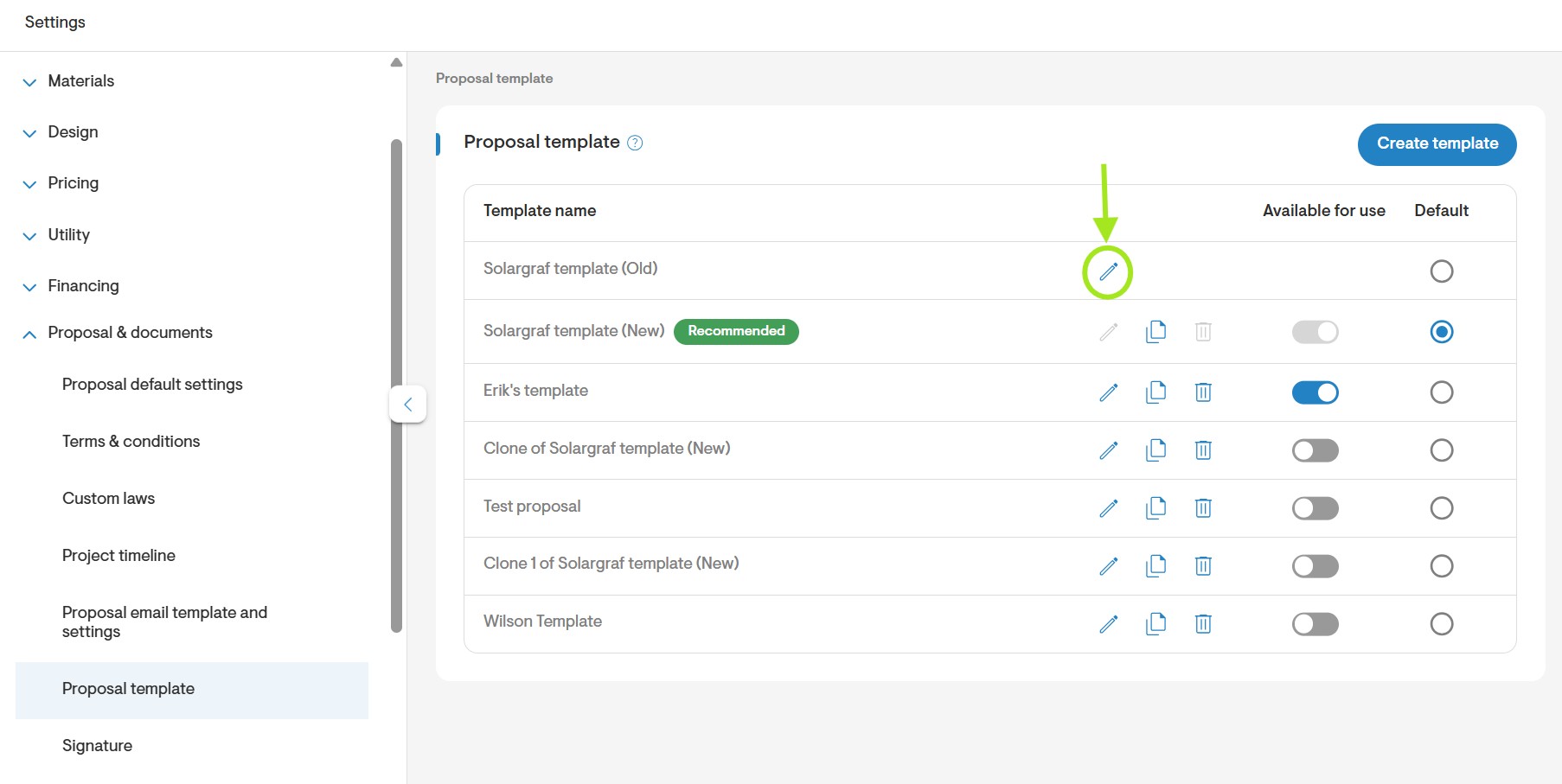
- Navigate to Company Settings > Proposal & Documents > Proposal Templates and click the edit icon next to the template you want to modify.
Change the proposal title and cover Photos
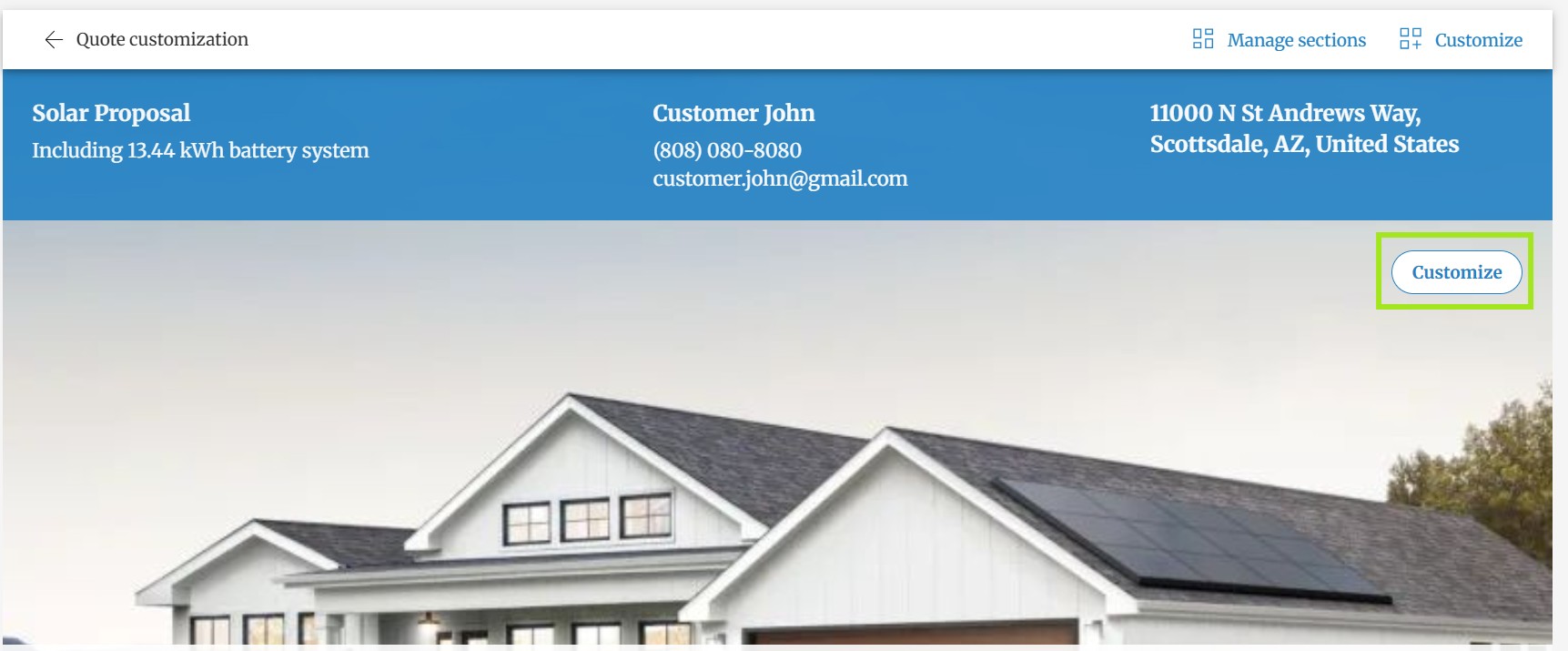
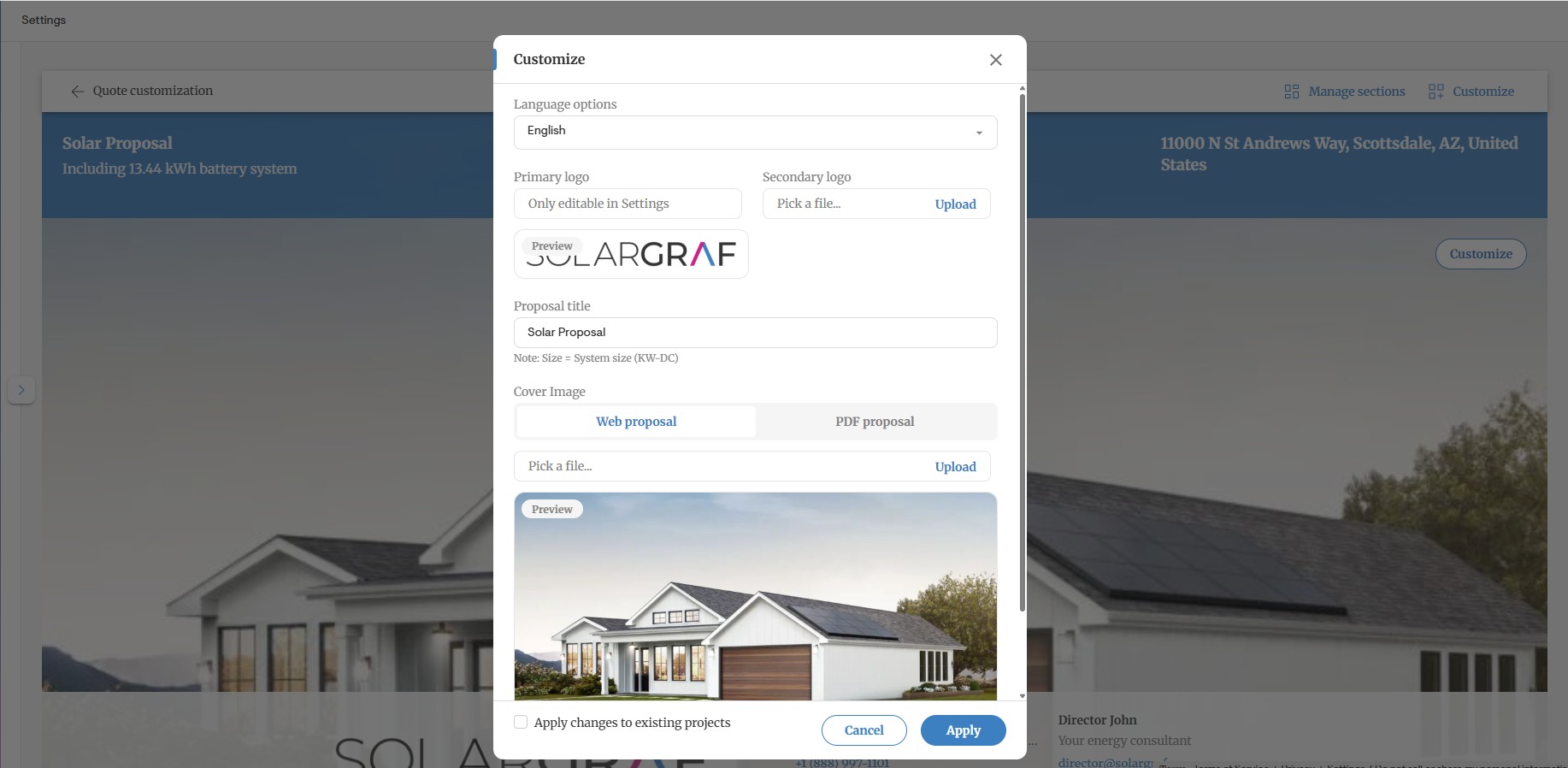
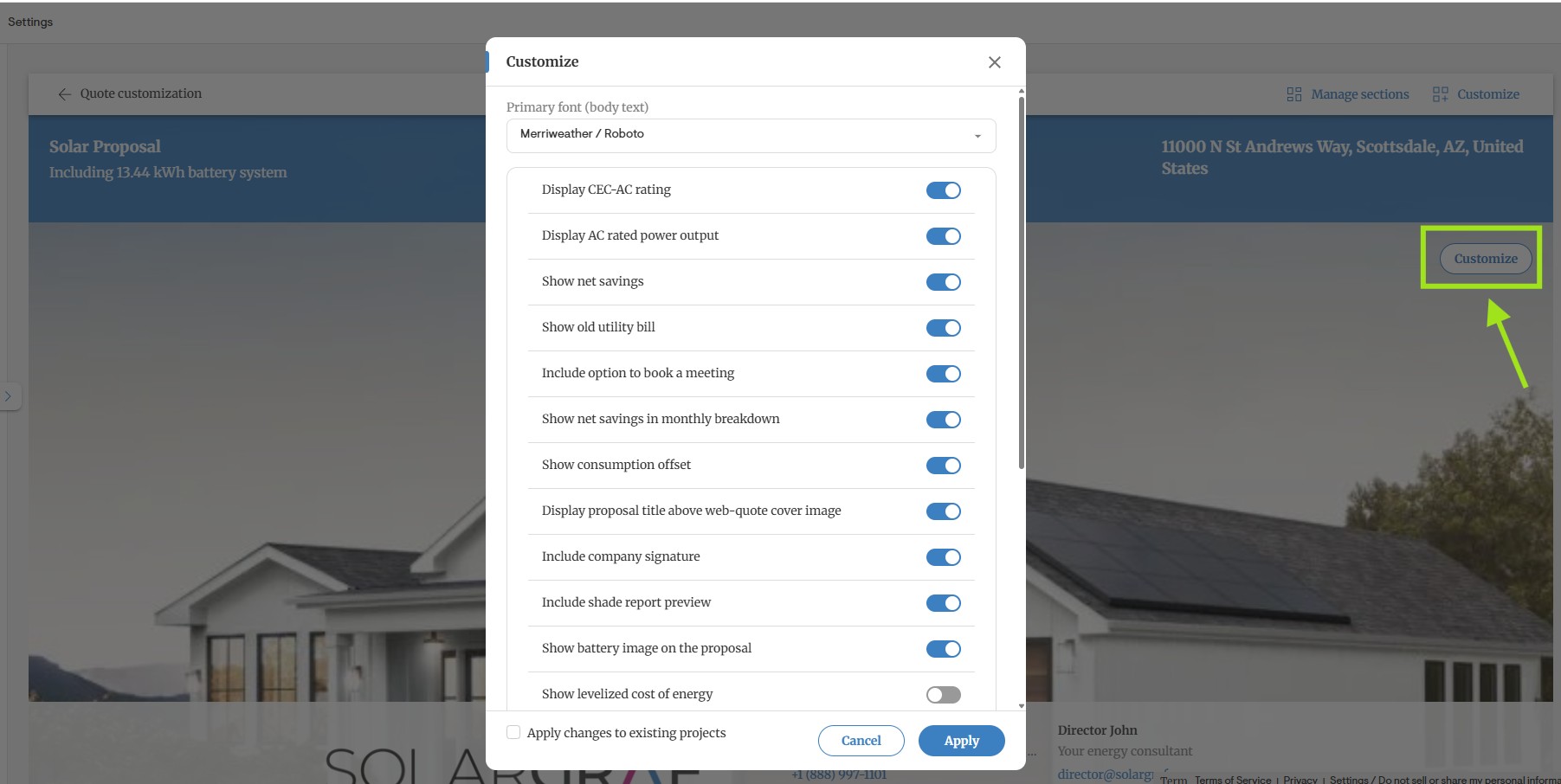
- Click the Customize button on the current web cover image to change the proposal title, web cover image and the PDF cover image. You can enter a new proposal title, as well as use the Browse button to upload an image.
For the web cover image, the recommended size is 1920 x 1000 pixels. For the PDF cover image, the recommended size is 800 x 1000 pixels.
Change the font of your quote
- Click Customize to change the font.
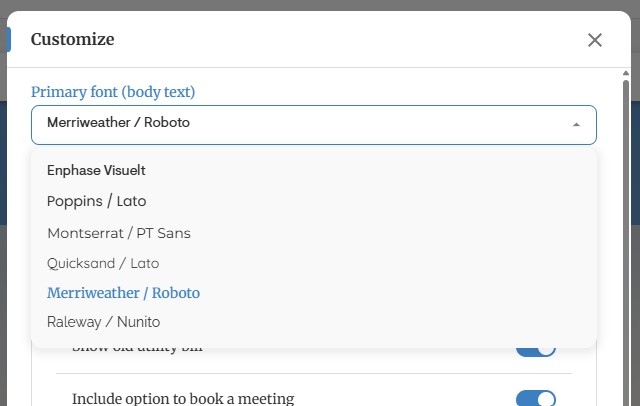
- Select the font from the Primary font dropdown.
Display additional information
- Under the previous Customize settings, you will also find the option to display additional information on your proposal.
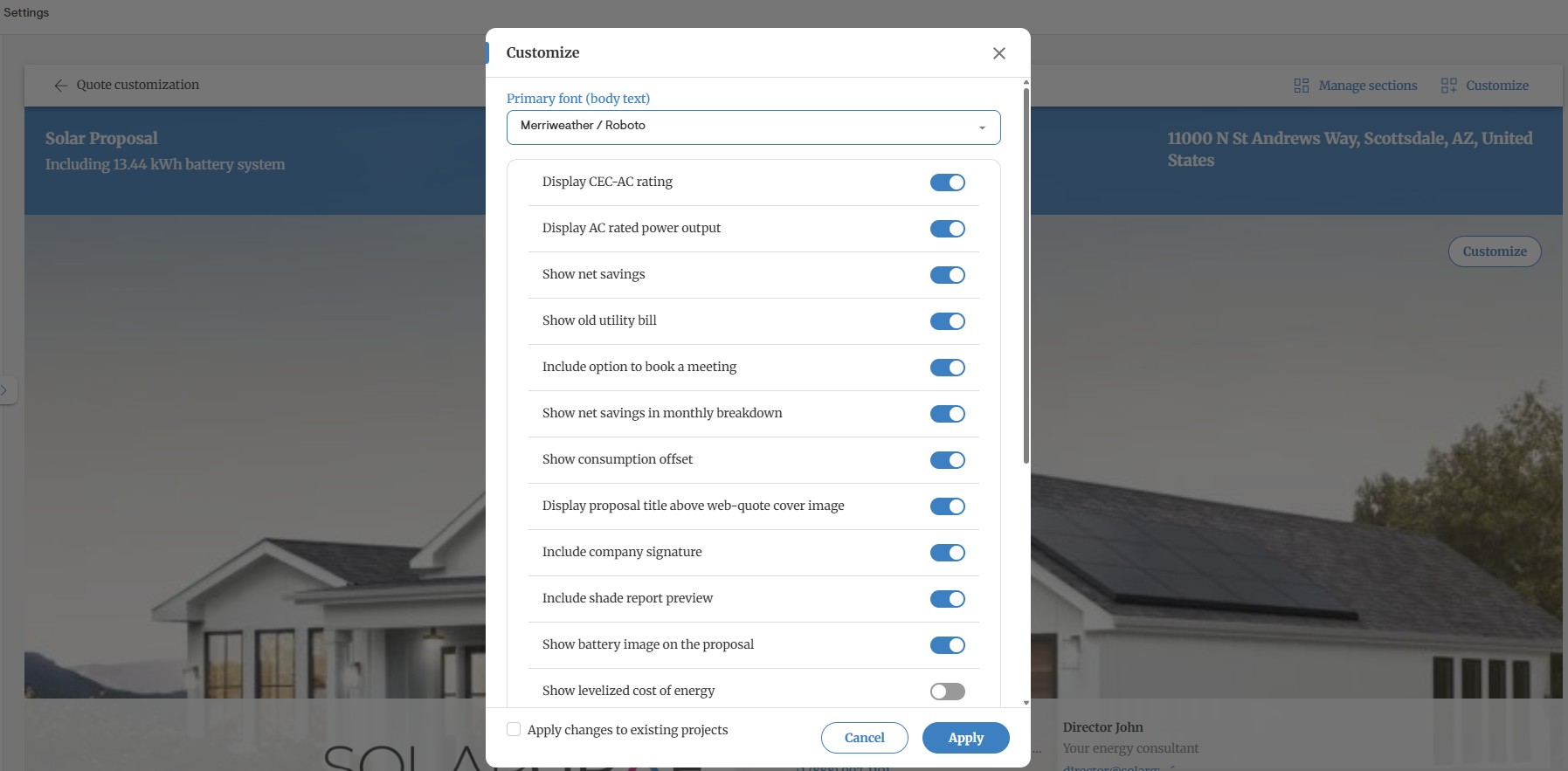
This includes:
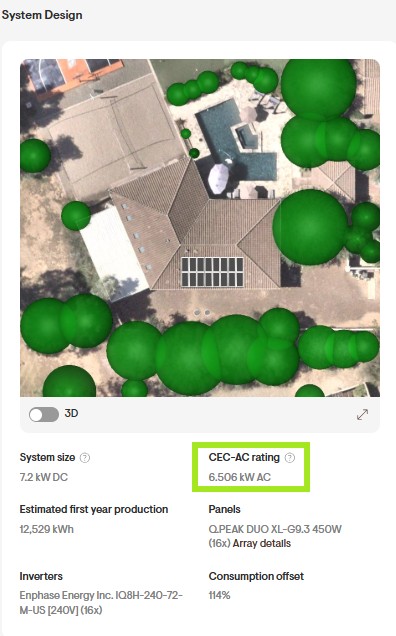
Display CEC-AC Rating. This option displays the system's CEC AC rating under the System Design section. This is calculated as the total project PTC rating multiplied by the inverter efficiency.
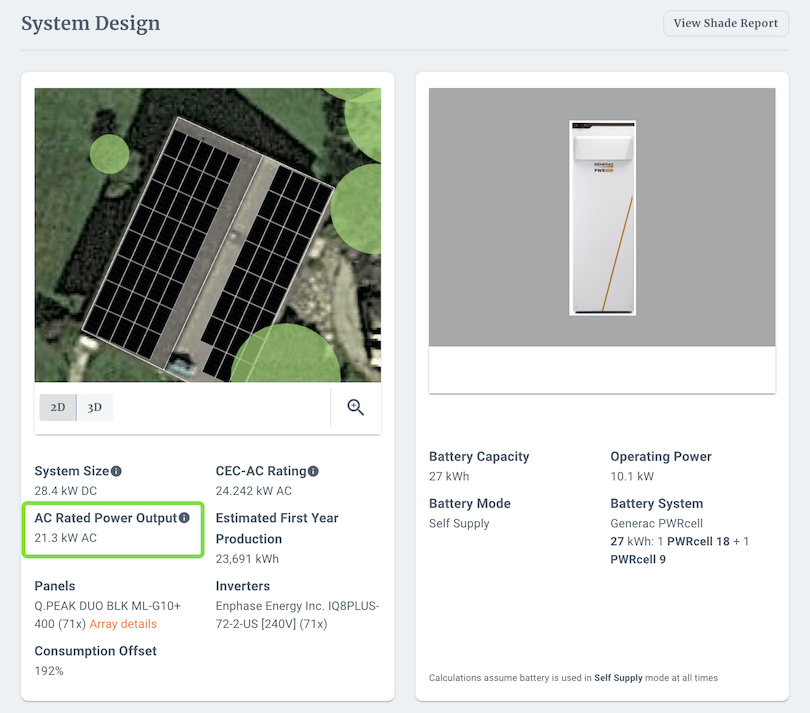
Display AC Rated Power Output. This option displays the AC Rated Power Output which equals to: Number of panels x wattage of panel (PTC) x inverter efficiency
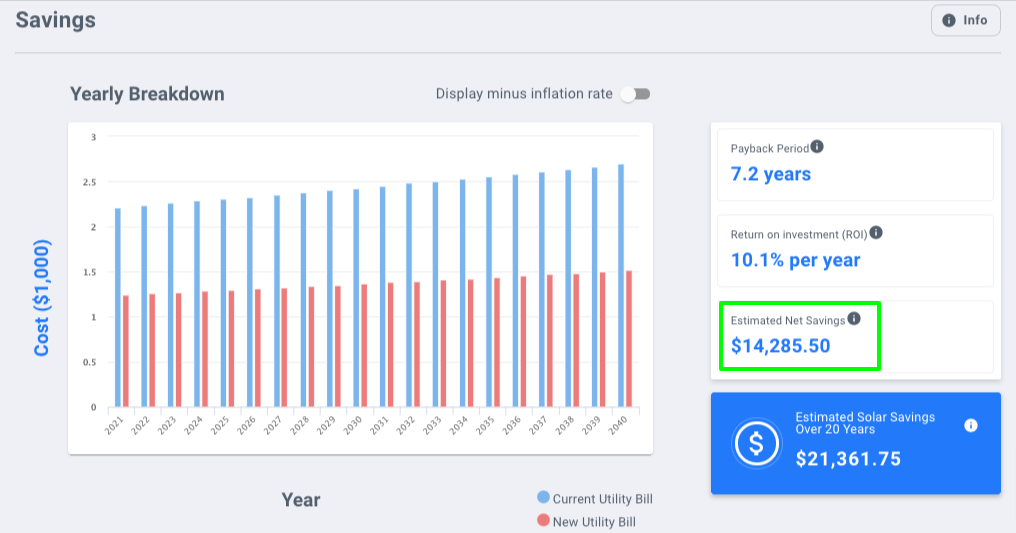
Show Net Savings. This option displays the project Estimated Net Savings. This is calculated as the Estimated Solar Savings over the Project Lifetime minus the Project Cost After Rebates and Incentives.
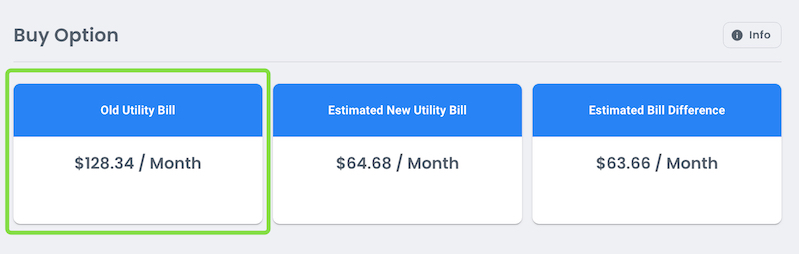
Show Old Utility Bill. This option displays the old utility bill for the Cash option of the WebQuote.
Include Initials on PDF. This option displays a field on the footer of the PDF proposal, to include initials.
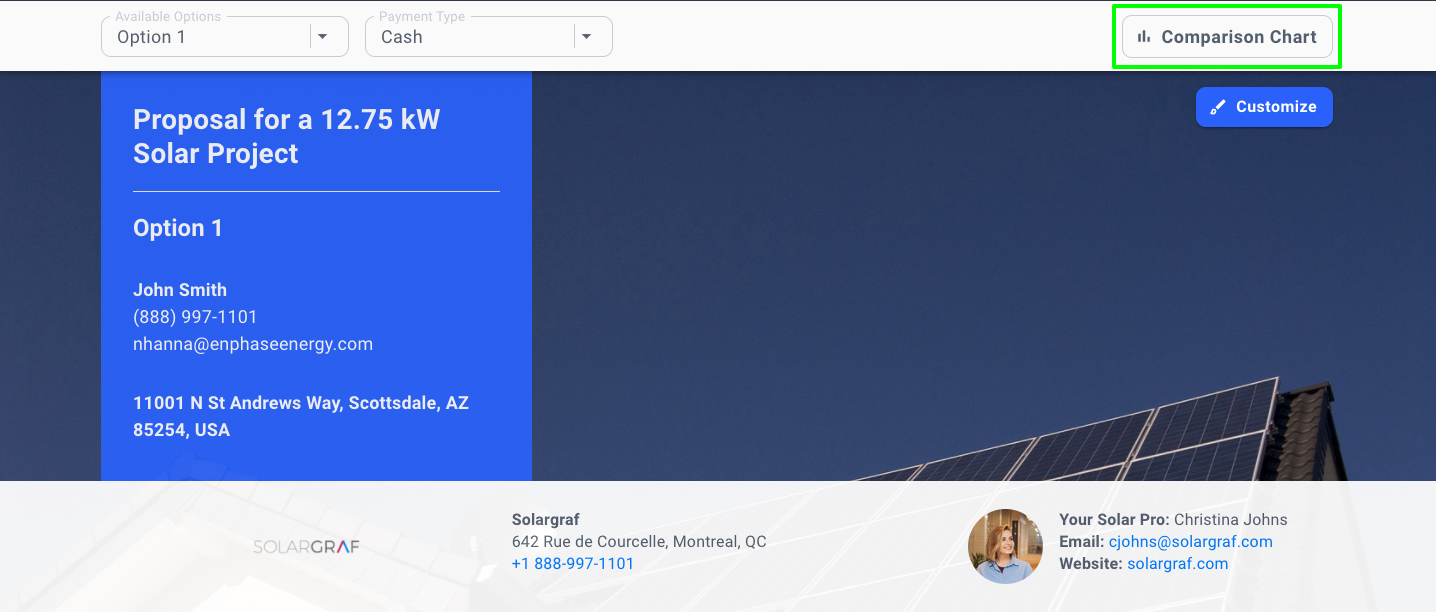
Showing the comparison chart on the webquote. This option allows users to access a comparison chart if multiple options have been created for the same project.
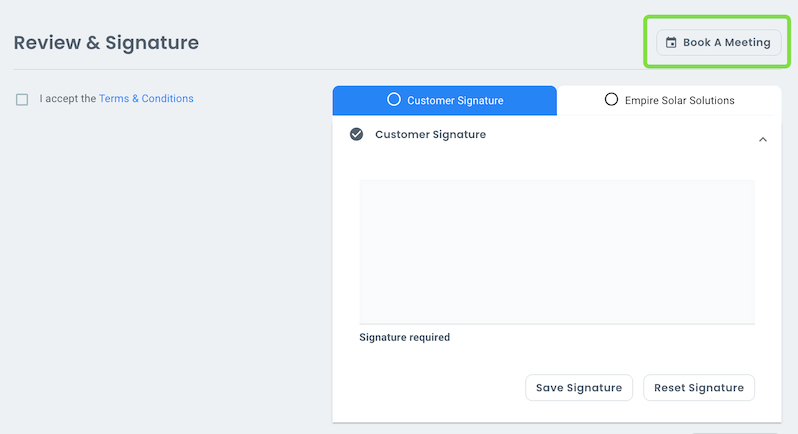
Include Option to Book a Meeting. This option enables the presentation of the "Book a Meeting" button, allowing clients to schedule appointments conveniently on the WebQuote.
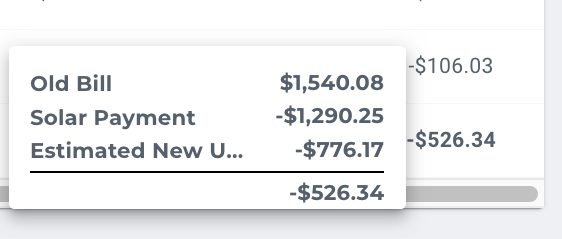
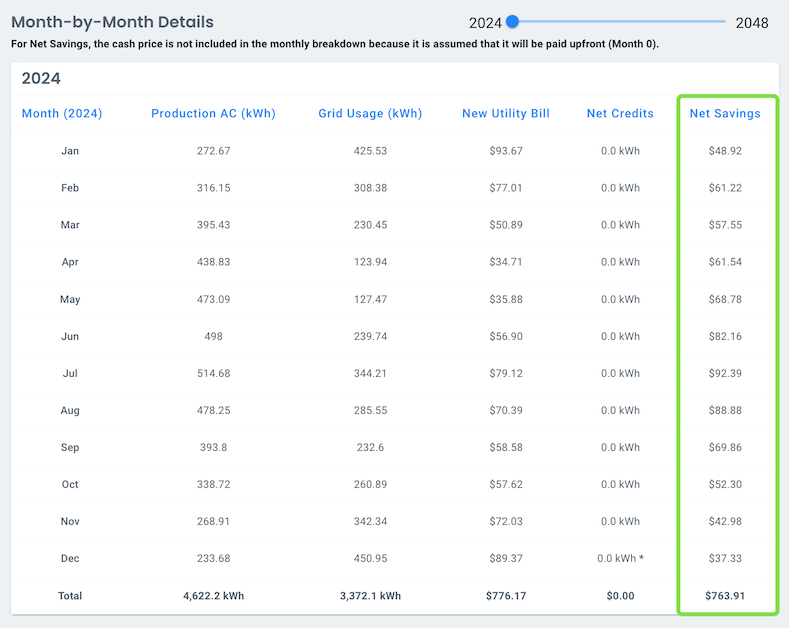
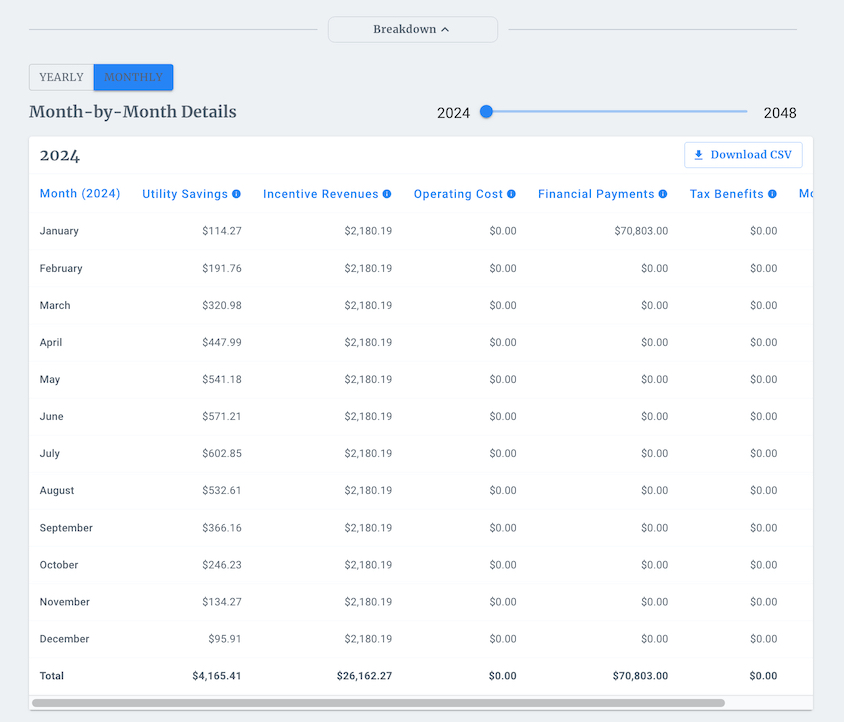
Show Net Savings in Monthly Breakdown. This option enables the Net Savings column in the monthly breakdown which is calculated as the difference between the Old Bill, subtracted by the Solar Payment and Estimated New Utility Bill.
For Net Savings, the cash price is not included in the monthly breakdown because it is assumed that it will be paid upfront (Month 0).
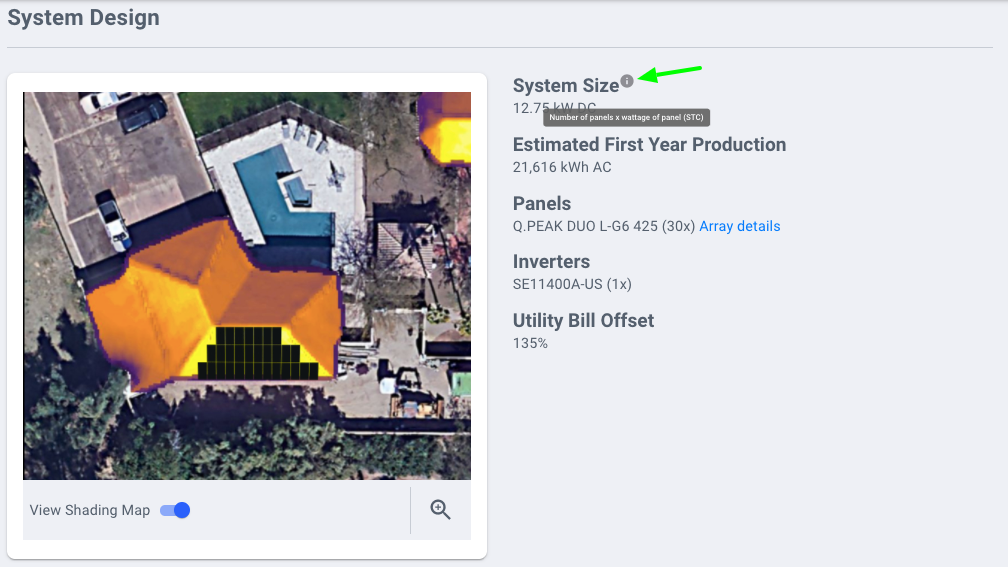
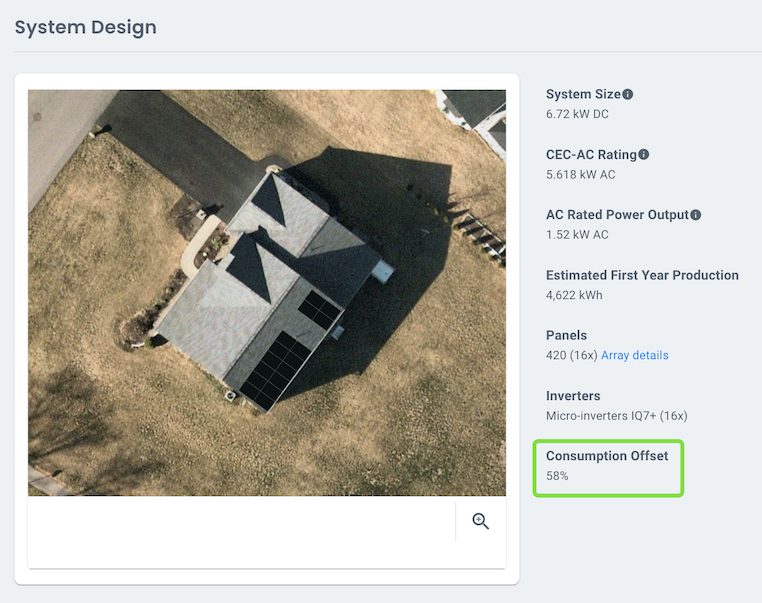
Show Consumption Offset. This option activates the Consumption Offset box in the WebQuote which also displays the Estimated First Year of Consumption and the Estimated First year of Production.
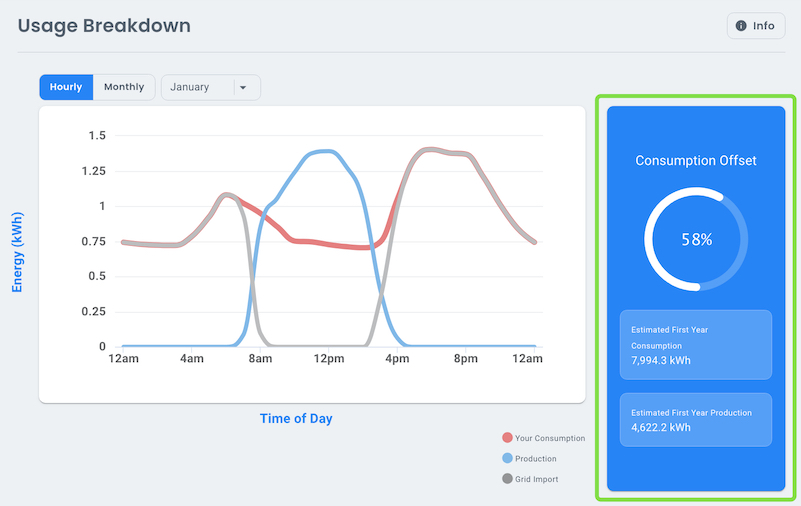
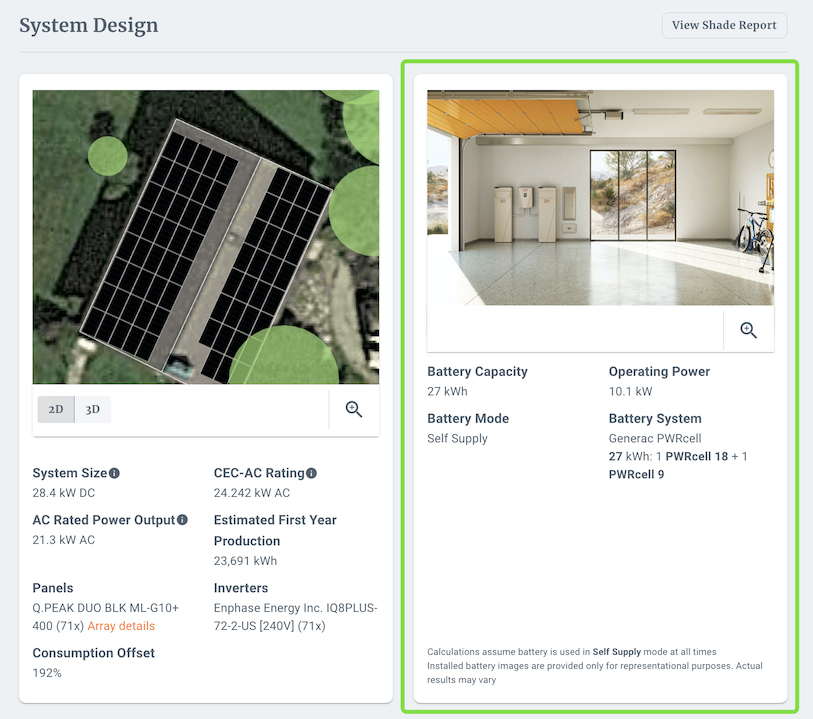
It will also be displayed under the System Design section as seen below.
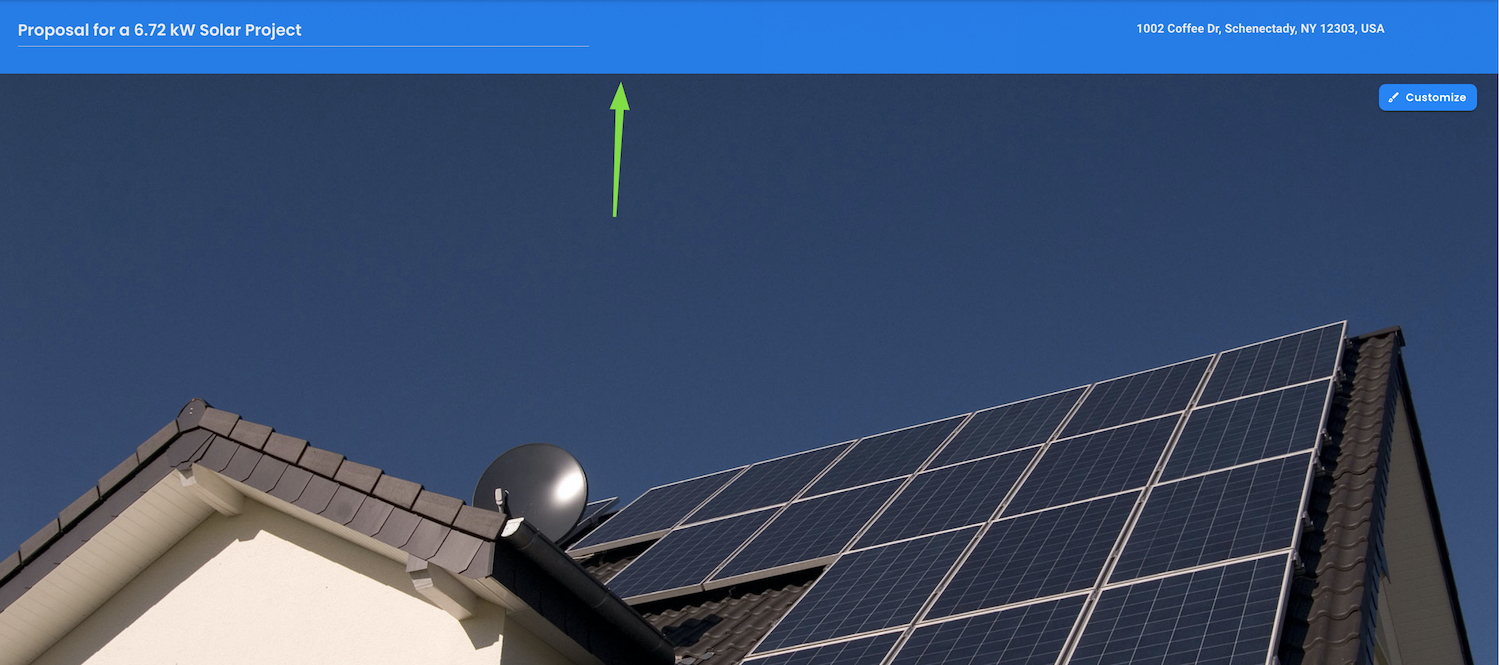
Display proposal title above web-quote cover image. This feature consolidates the Title space into a row format rather than maintaining it as a ribbon positioned atop the WebQuote cover image
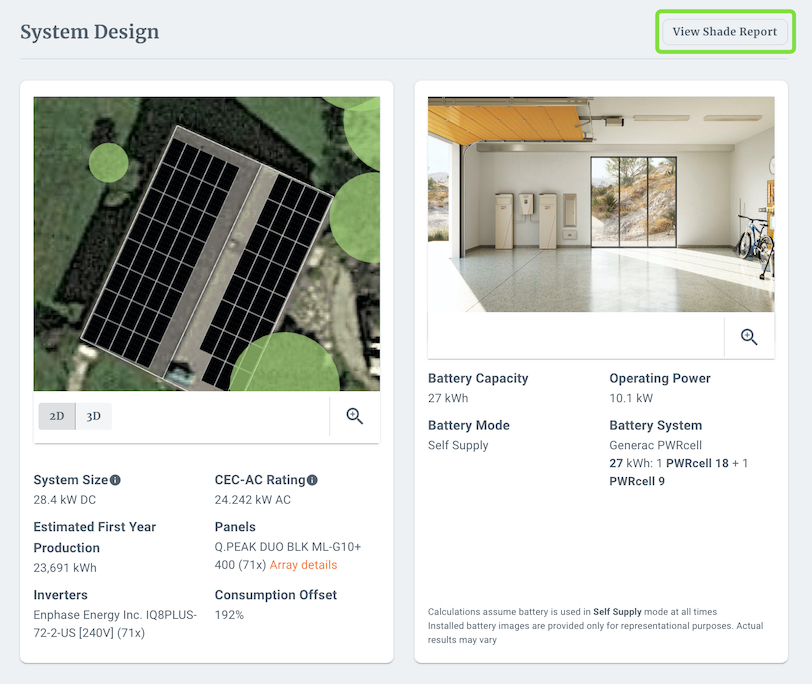
Include shade report preview. This feature enables the presentation of the view "View Shade Report" button which will open the shading report for designs created using the 3D Design Tool.
Show page number on PDF. This options enables initials for the PDF version of the proposal.
Show battery image on the proposal. This option allows users to see the battery image and information under the System Design section.
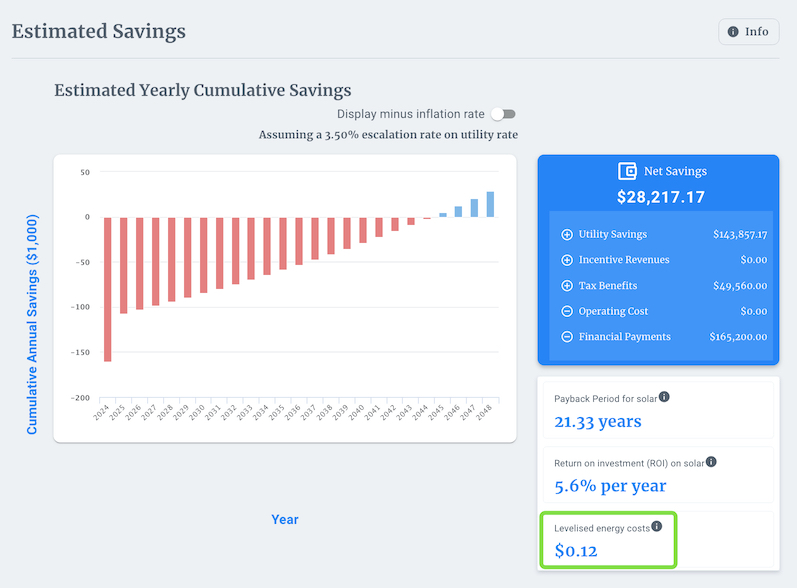
Show Levelized Cost of Energy. This feature enables you to view the Levelized Energy Costs for commercial projects within the Estimated Savings section. The Levelized Energy Costs are determined by dividing the Lifetime Project Costs by the Lifetime Production.
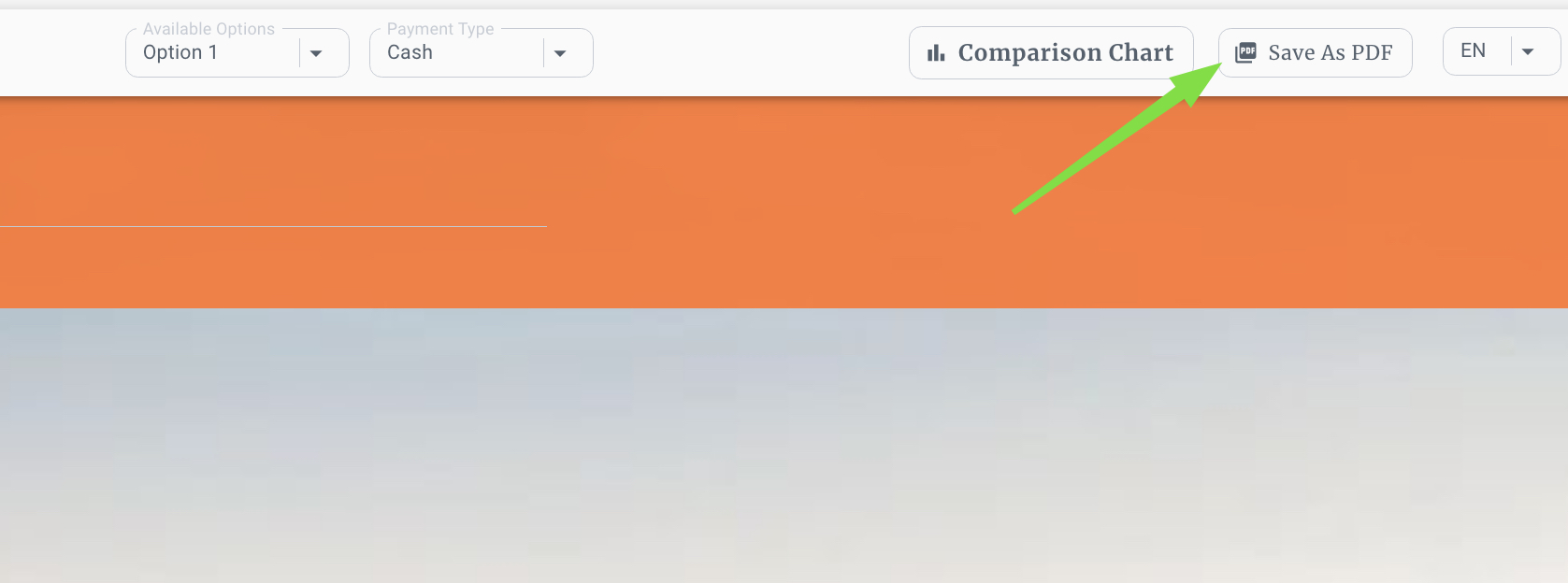
Include Option to Download PDF. This option gives the user the ability to download the PDF from the WebQuote itself.
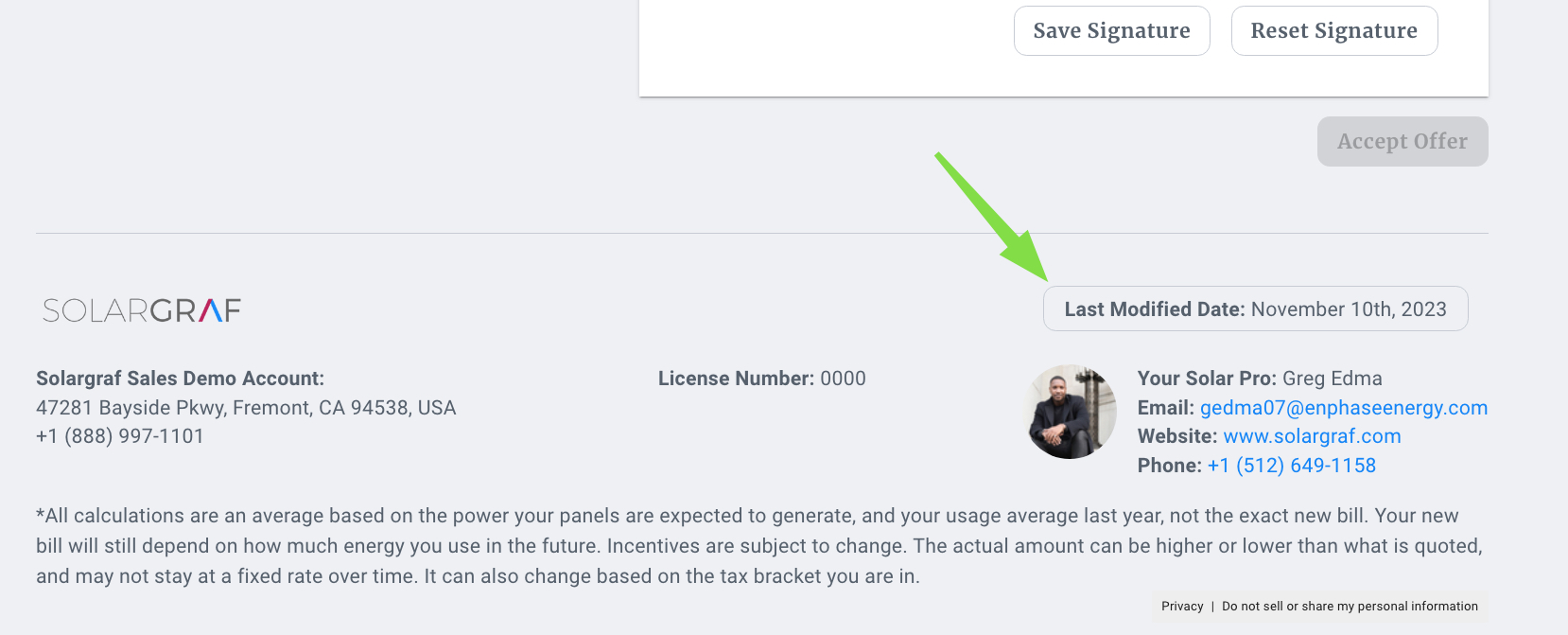
Show Project Last Modified Date. This option allows the user to see the date in which the proposal was last modified/edited as opposed to the date it was created.
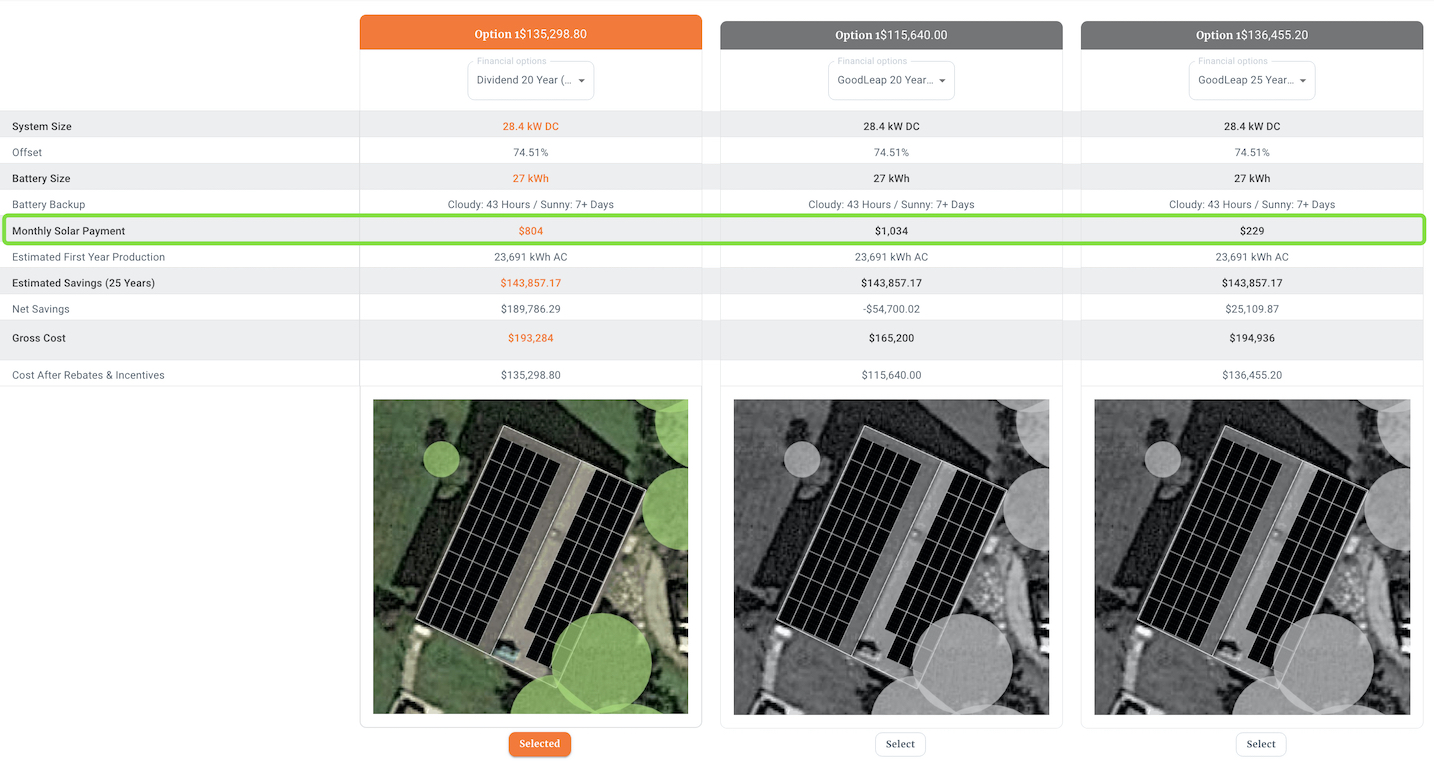
Show Solar payment on Comparison Chart. This option allows users to visualize the Monthly Solar Payment on the comparison chart.
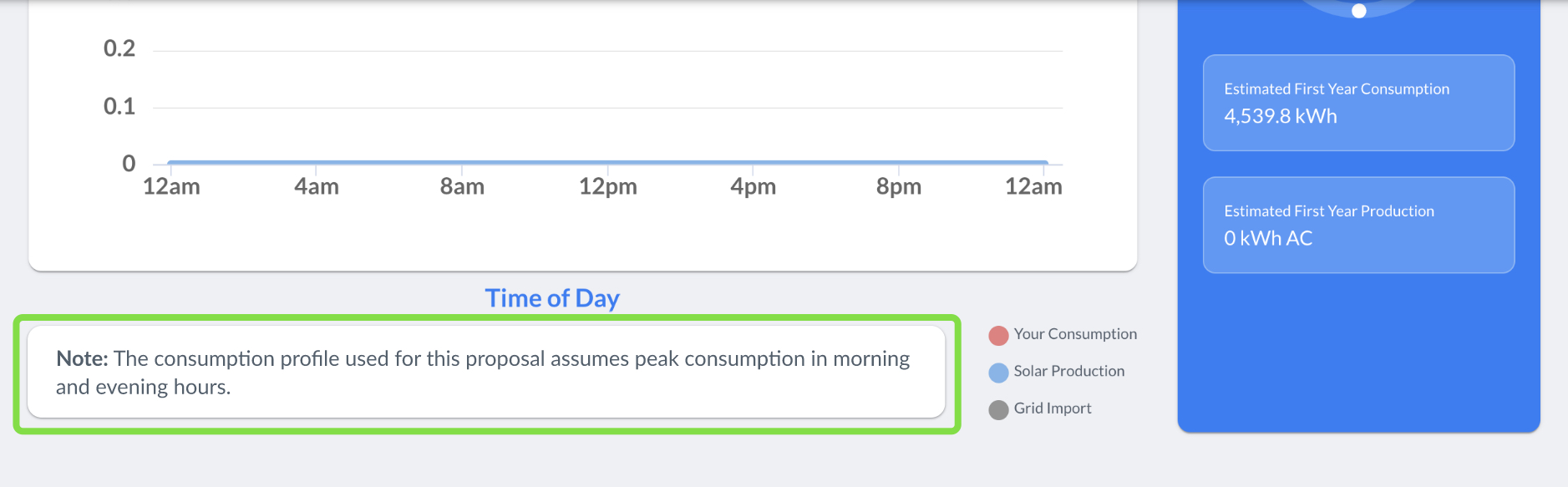
Show Consumption Profile Description. This options enables a description of the consumption profile under the Usage Breakdown section.
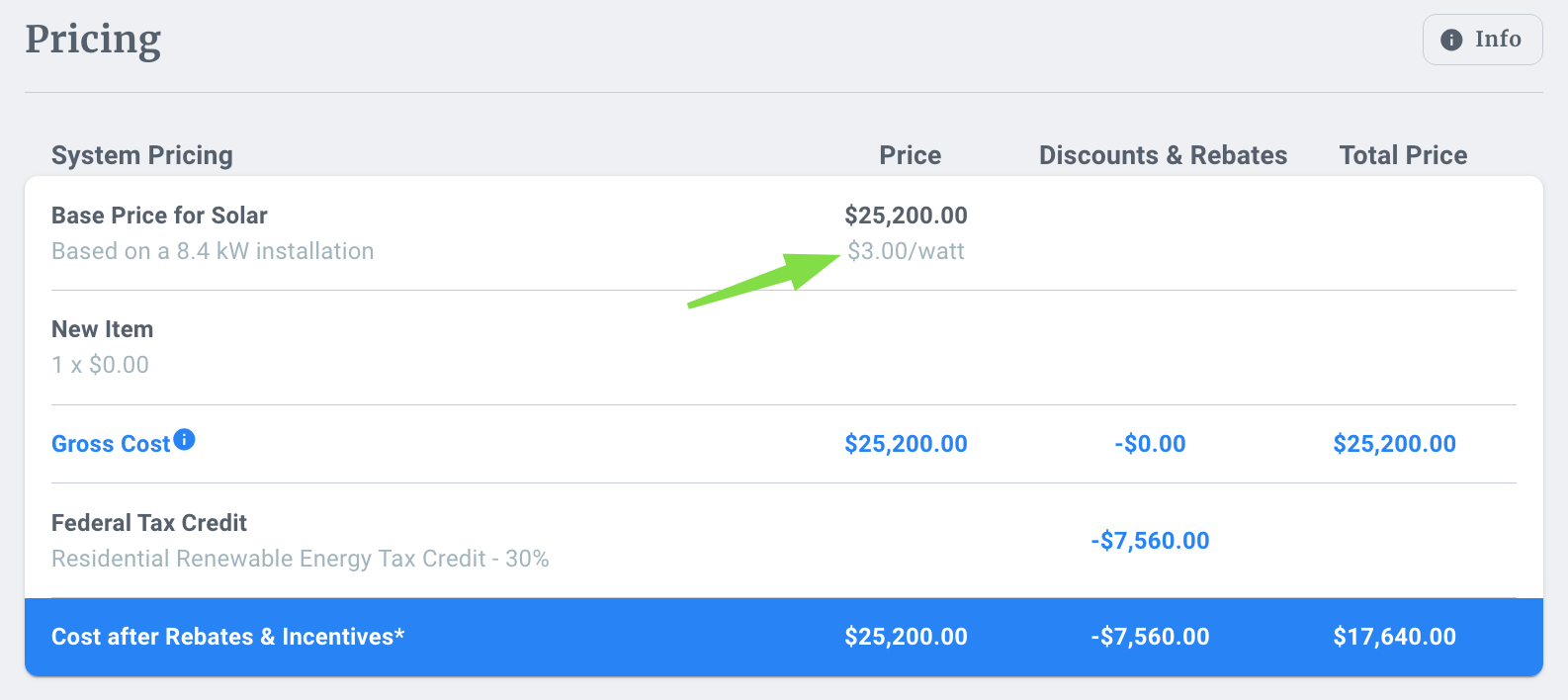
Display Price Per Watt. This option reveals the cost per watt in the Price column located within the Pricing section.
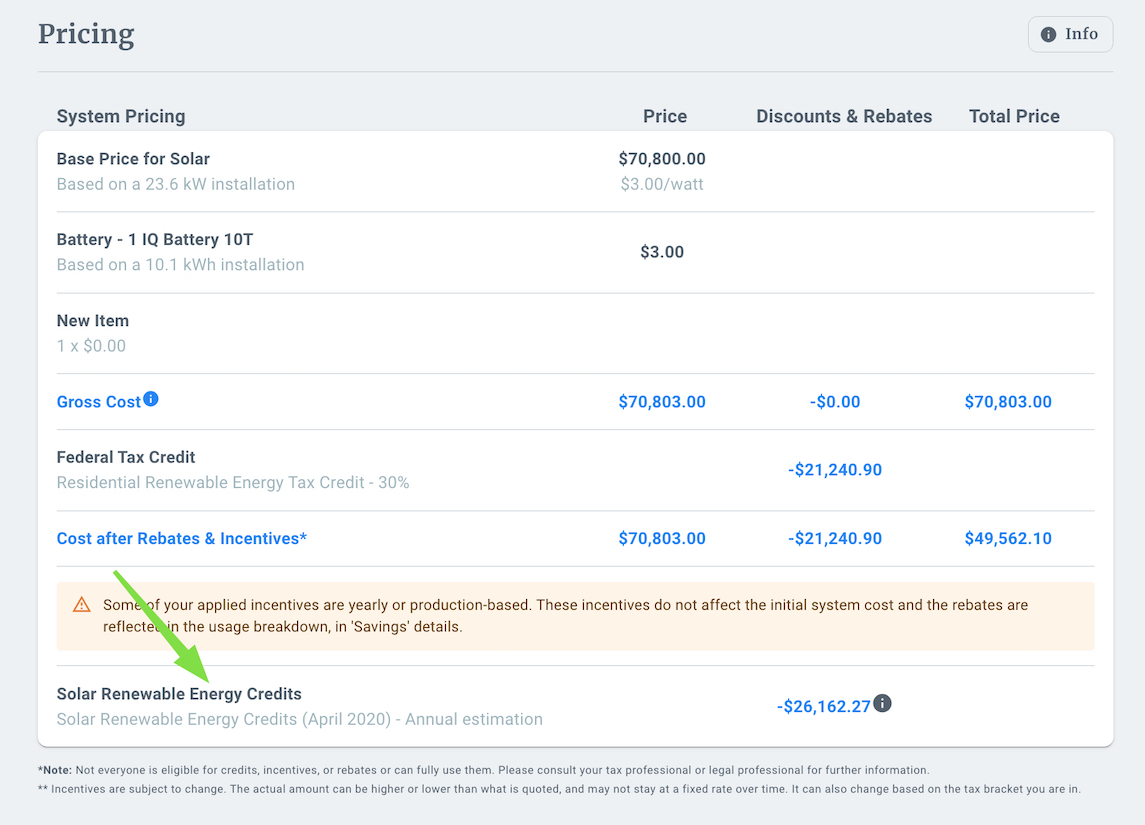
Show estimated annual savings from SRECs. This option allows you to display the estimated annual savings from SRECs Solar Renewable Energy Credits within the pricing section of the WebQuote.
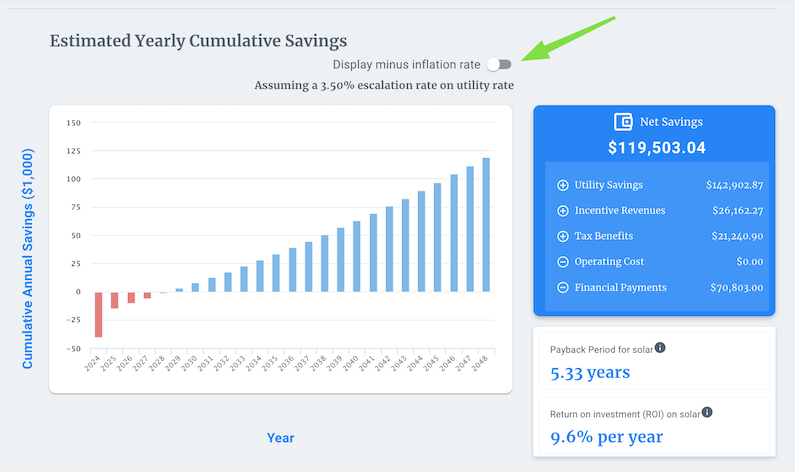
Show negative utility inflation rate toggle. This feature unveils the "Display Minus Inflation Rate" toggle, providing you with the capability to visualize the influence of the inflation rate on the Estimated Yearly Cumulative Savings.
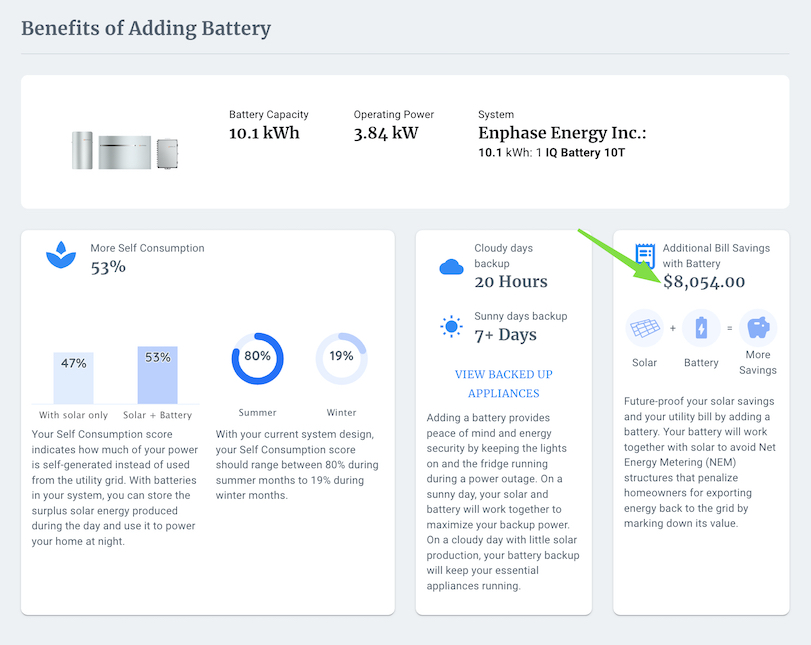
Show additional bill savings with batteries. This option reveals the specific dollar amount of Additional Bill Savings, which can be located within the Benefits of Adding Battery section.
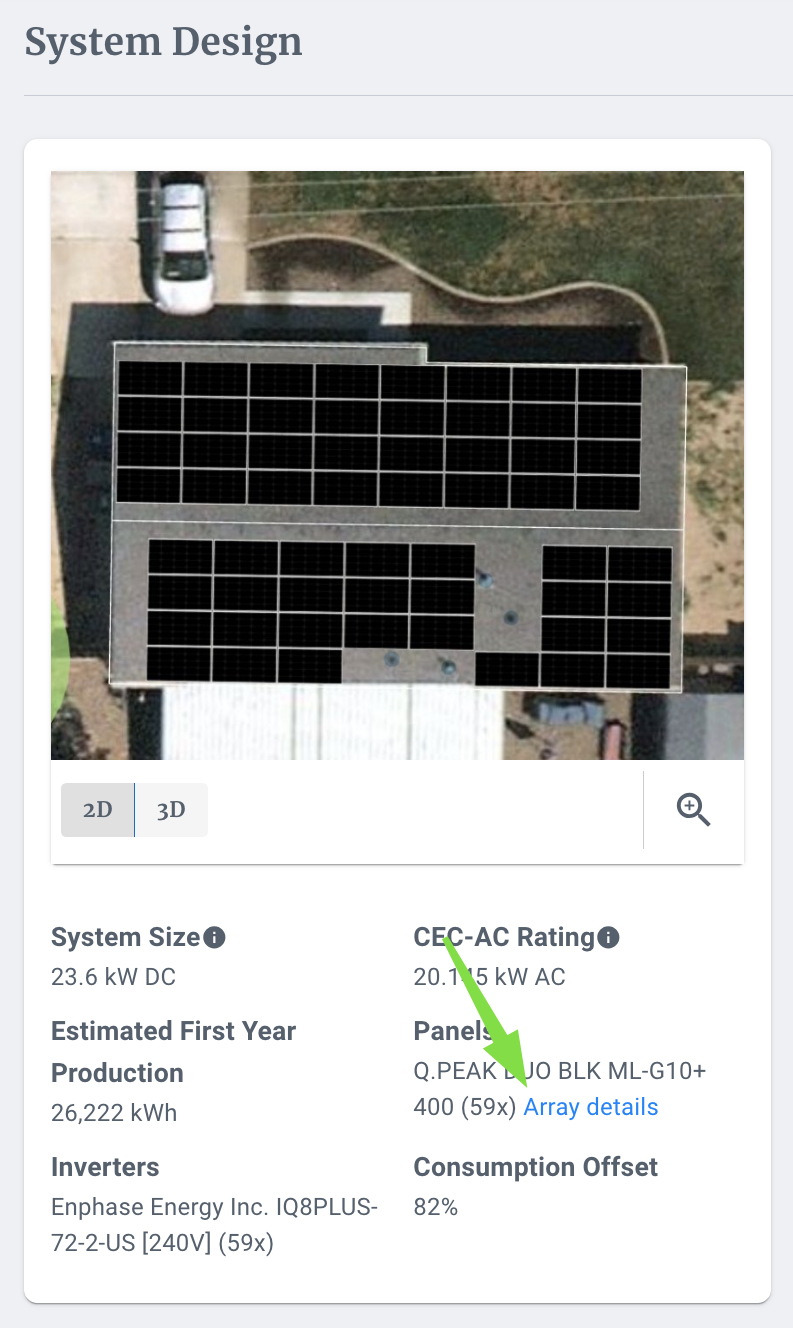
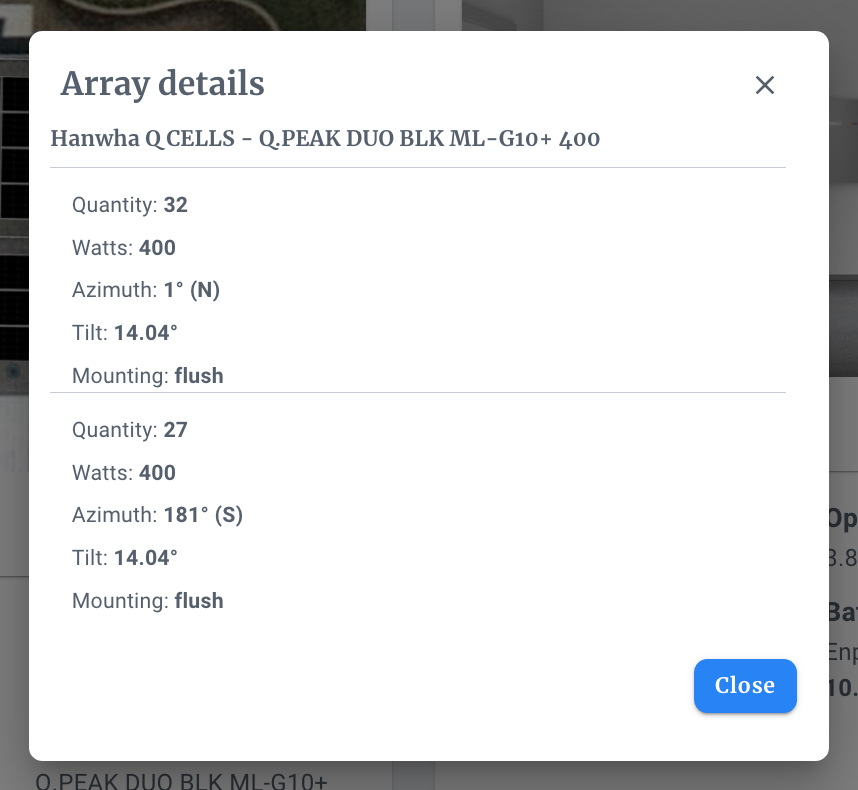
Show Array Details. This option reveals the Array Details Hyperlink under the System Design section.
Show Breakdown Table. This option reveals the Breakdown Table on the webquote.
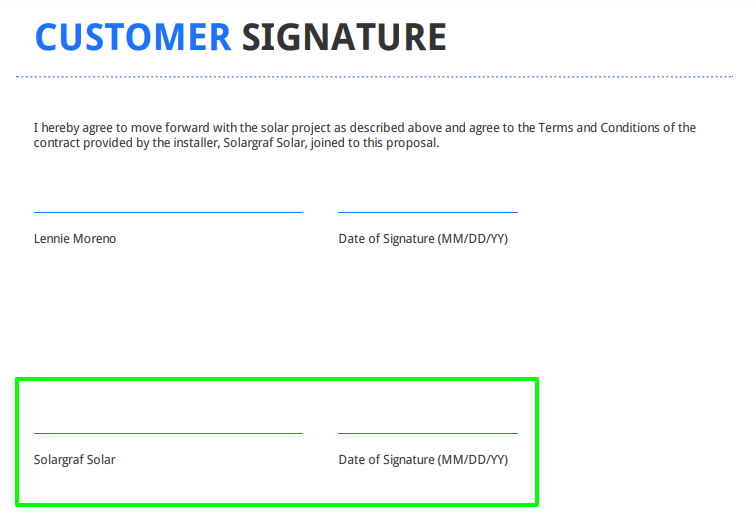
Including the company signature. This option displays an additional signature field in the PDF proposal, for a company representative to sign.
At the project level, you will find an additional option under the Customize settings:
Show Shading Information. If a shading analysis has been completed for this drawing, an option to display the solar irradiance heat map is shown under the System Design section.
Manage Sections
You can change the order of sections displayed as well as hide certain sections from the proposal. To do this, click the Manage Sections option on the top right of the webquote.
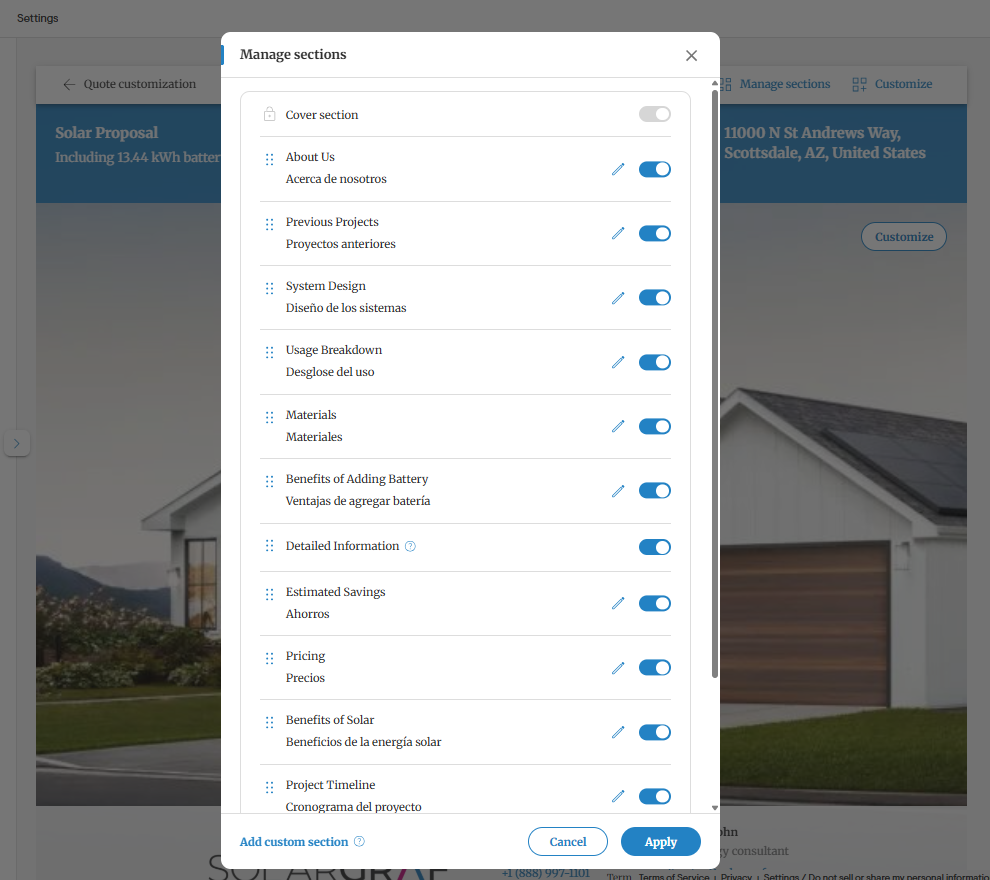
To reorder the sections, click and drag the six dot icon to the left of the section name you would like to move. Use the toggle bar to enable or disable a section.
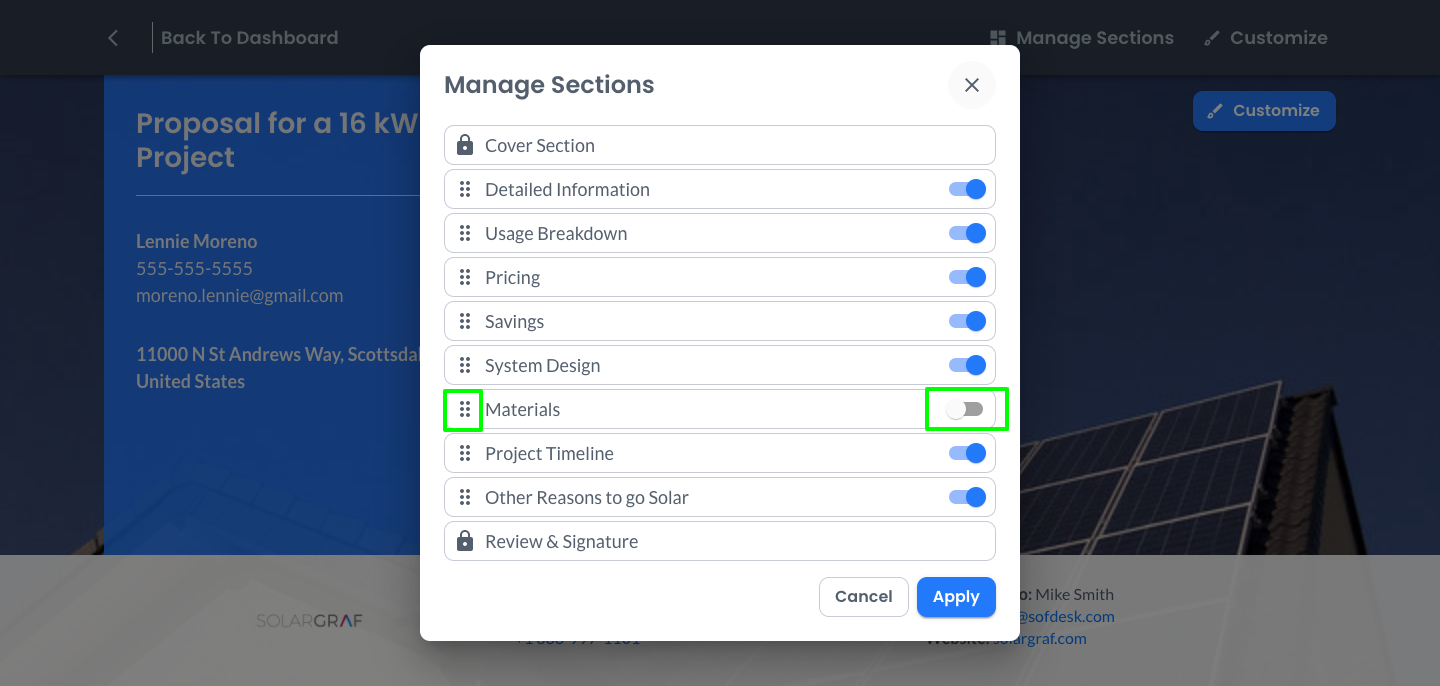
Changes made to the sections on your proposal will impact both the webquote and PDF versions.
To learn more about the information displayed in each section, click the Info button on the top right.
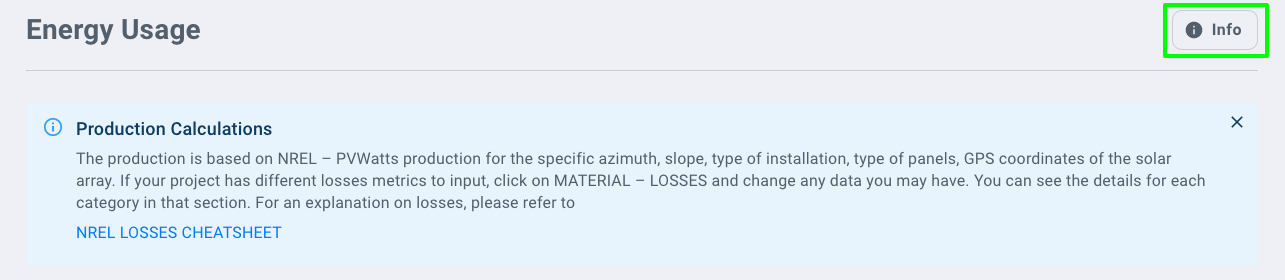
You can also click the info icon throughout the webquote to learn more about a certain field, or to see detailed calculations.