Help Center Account Setting
User Preferences
Published on 8 Jun 2023
The following guide provides information on how to setup the user preferences on your Solargraf account.
First, we will show you how to edit the user information of an existing user.
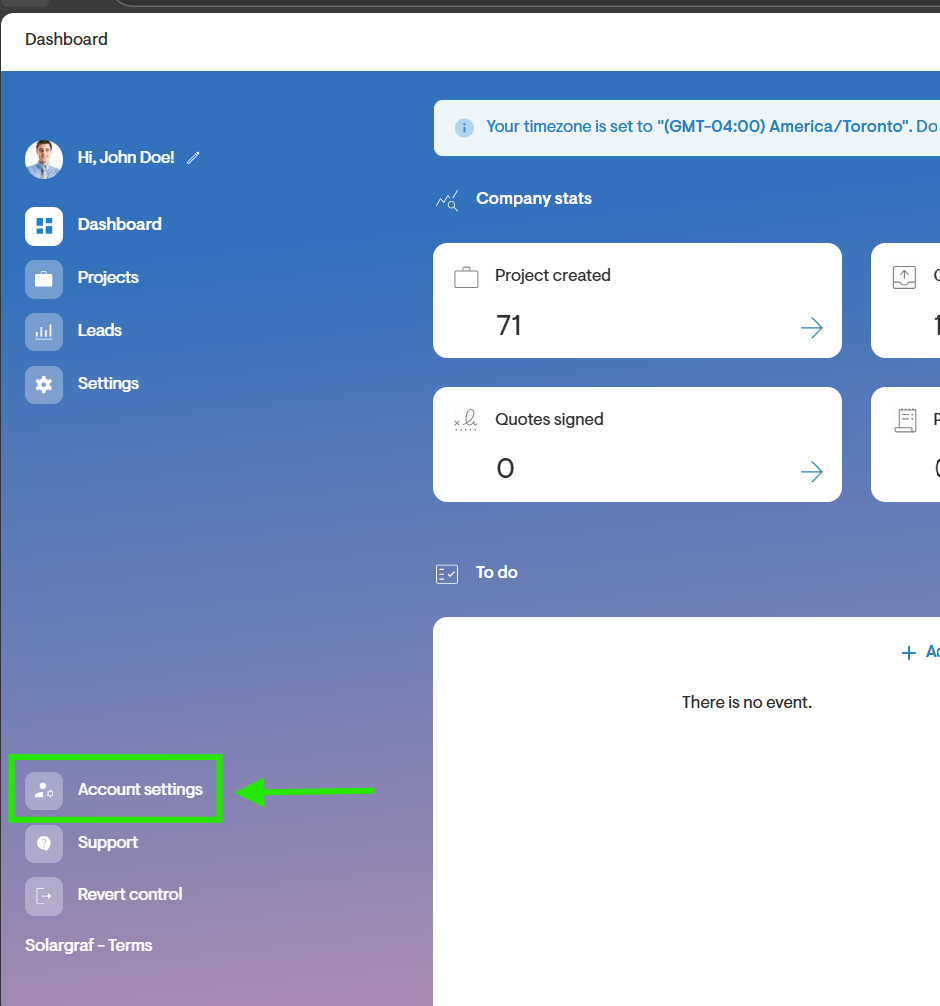
- Click Account Settings from your Dashboard
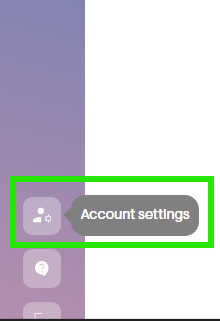
- Or if in the Settings page click on the Account Settings icon found in the side panel at the bottom left of the screen.
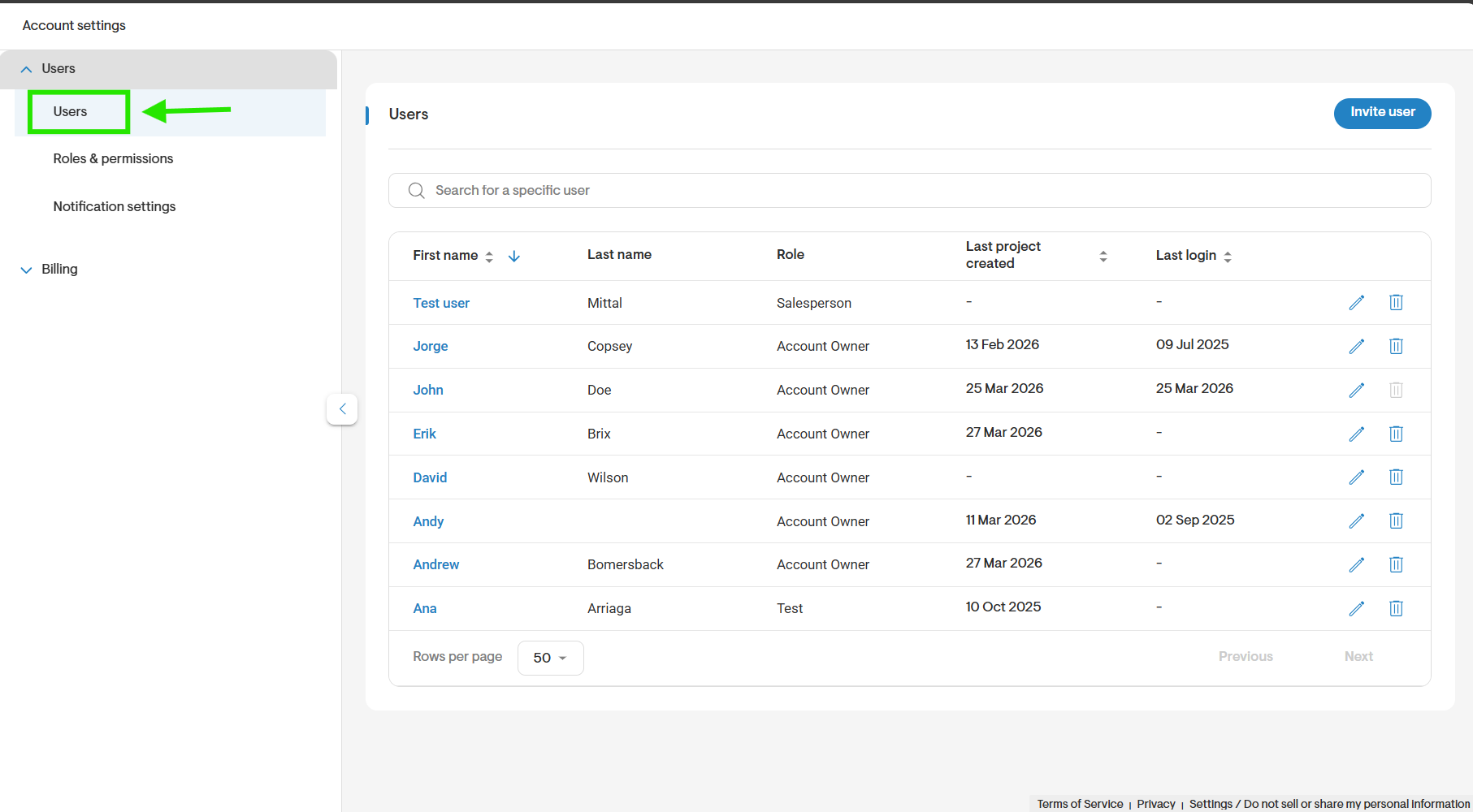
- Click on Users in the left menu.
Edit information
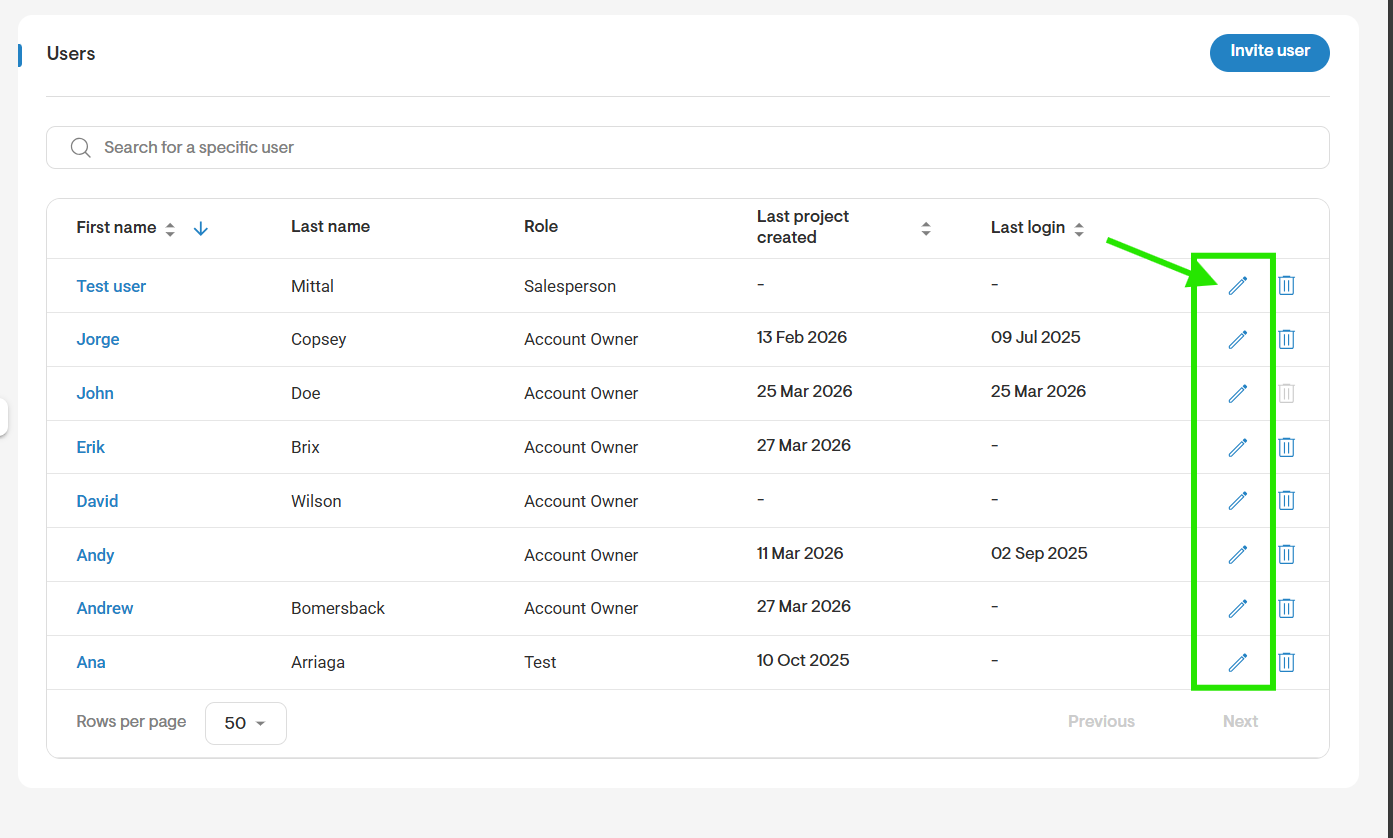
- Click on the pencil icon next to the name of the user you want to edit.
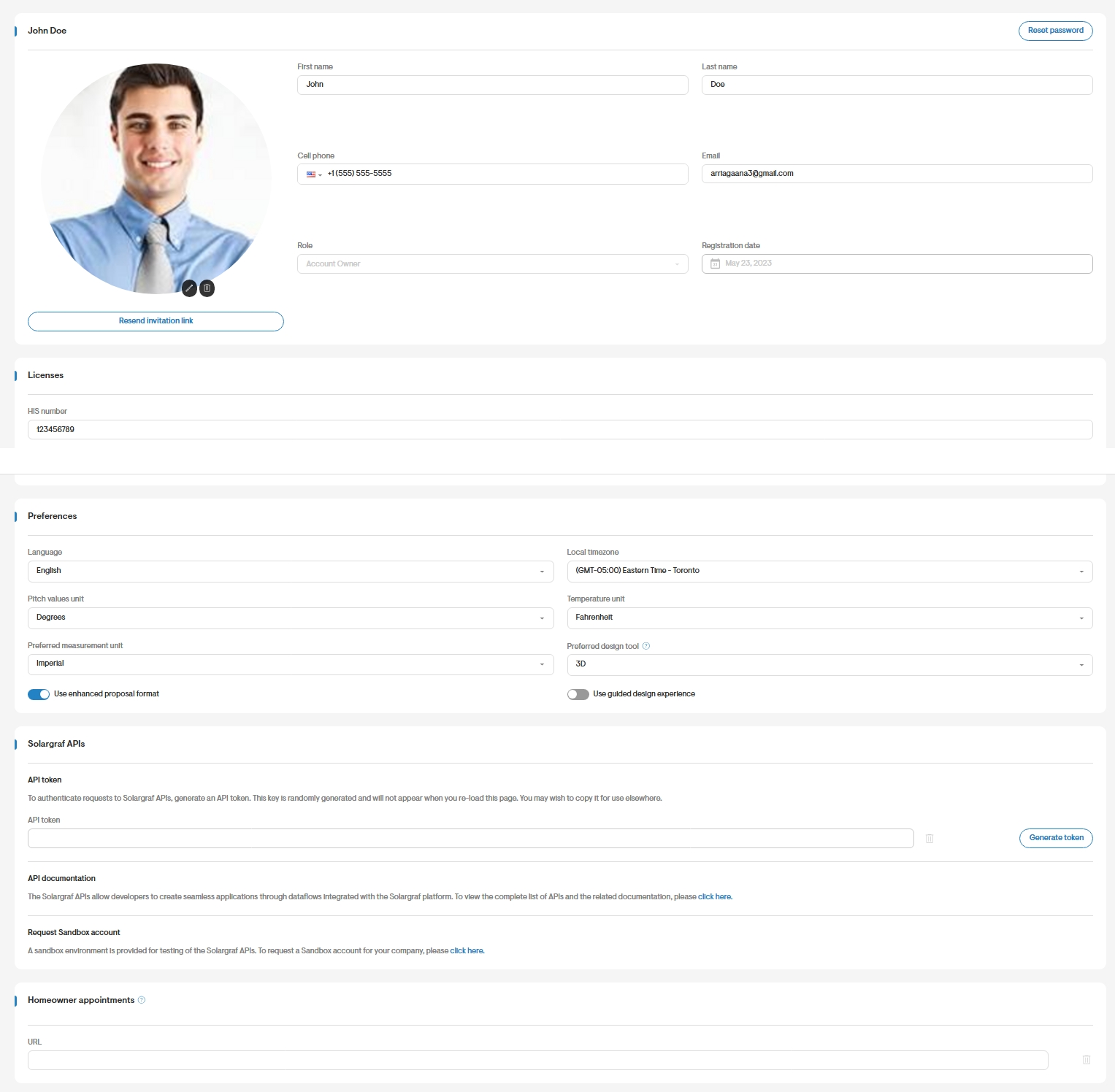
- Edit the First Name, Last Name, Email and Cell Phone.
- Click on the drop-down menu under Role and select the desired role.
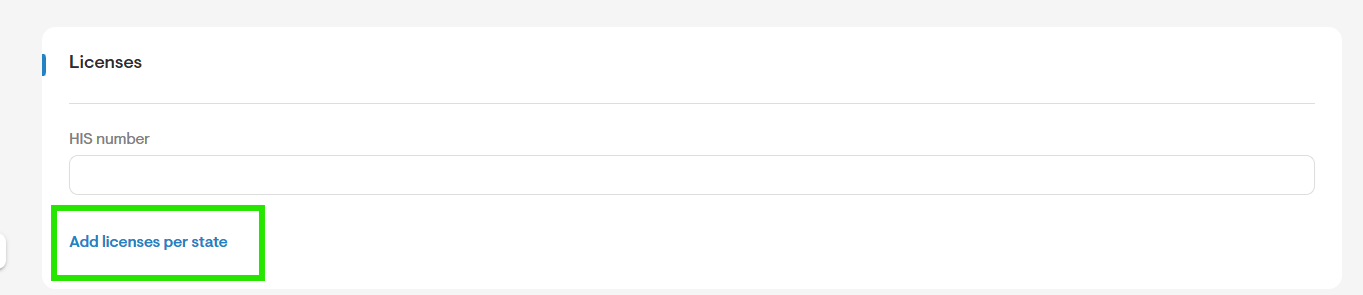
- You can add licenses per state, to do click Add licenses per state.
- Choose a State from the drop-down.
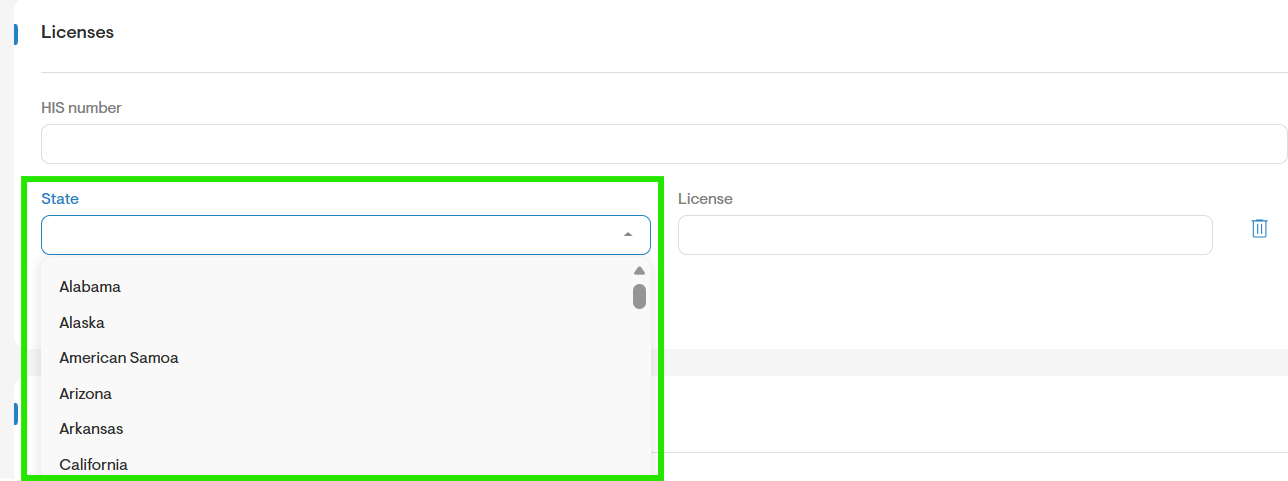
- Enter the License number in the License field.
- Repeat the process if more Licenses available.
- Click of the Save button to save changes.
Preferences
- Navigate to the Preferences section.
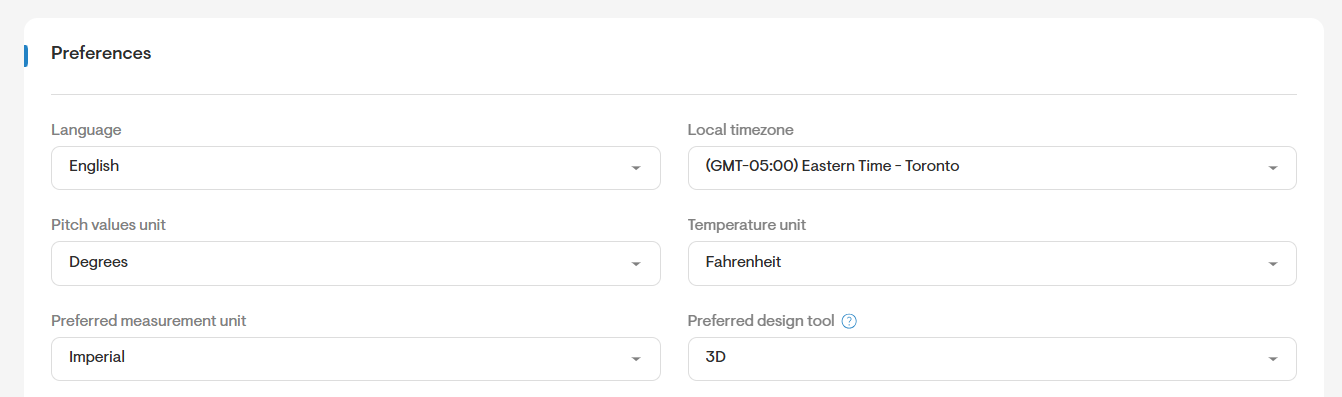
Here you to can edit the:
- Language: Select from our available language options supported.
- Local Timezone: Select from all timezone options.
- Pitch Values Unit: Select from Degrees and X/12.
- Temperature Unit: Select from Fahrenheit and Celsius.
- Preferred measurement unit: Select from imperial and metric.
- Save your changes.
Change profile picture
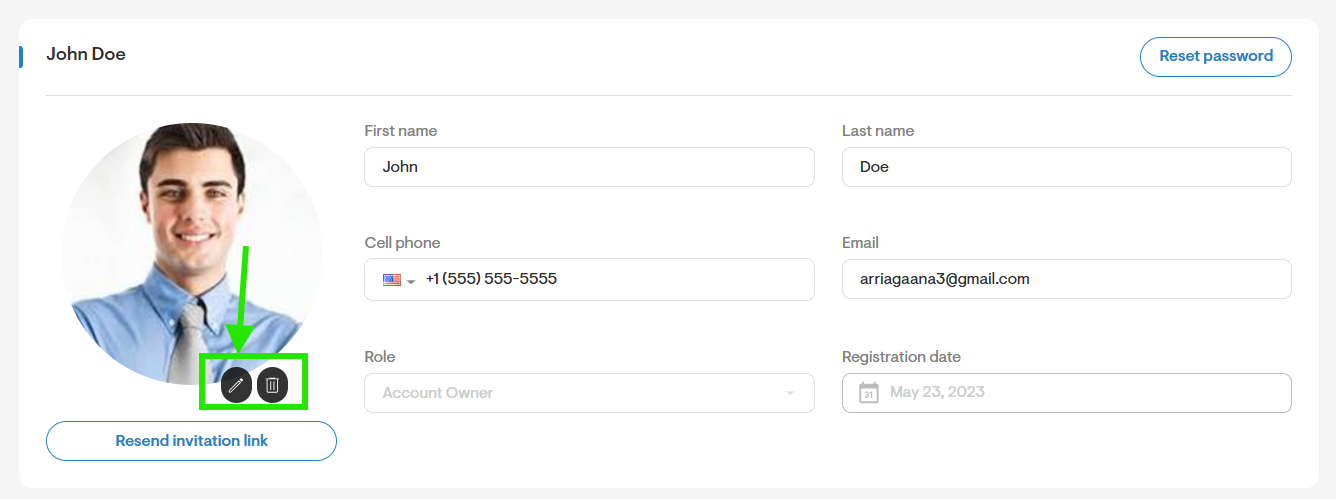
- Click on the image or select edit to set a new profile picture for your Solargraf account. A pop-up window will appear, allowing you to upload an image from your device.
Delete a User
- To delete a user select Reassign projects and delete user from the user information window.
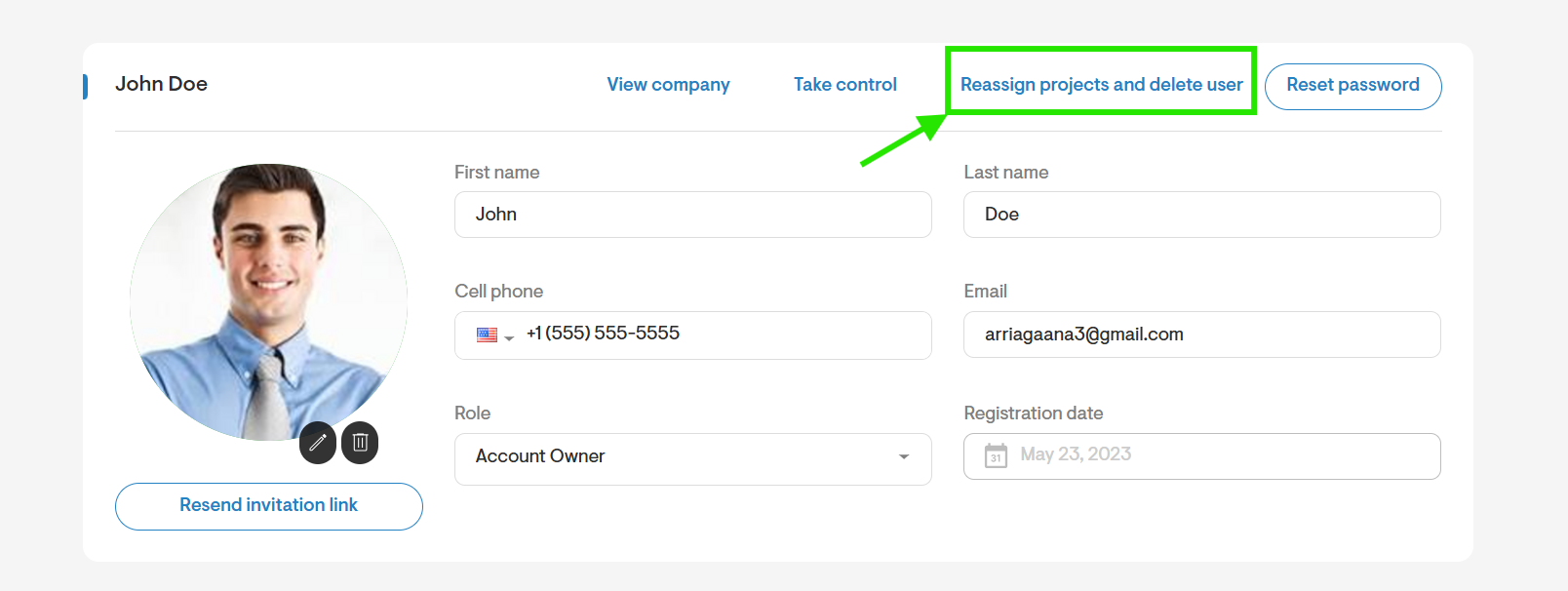
- When a user is deleted from a company account, all of their projects are automatically reassigned to another user.
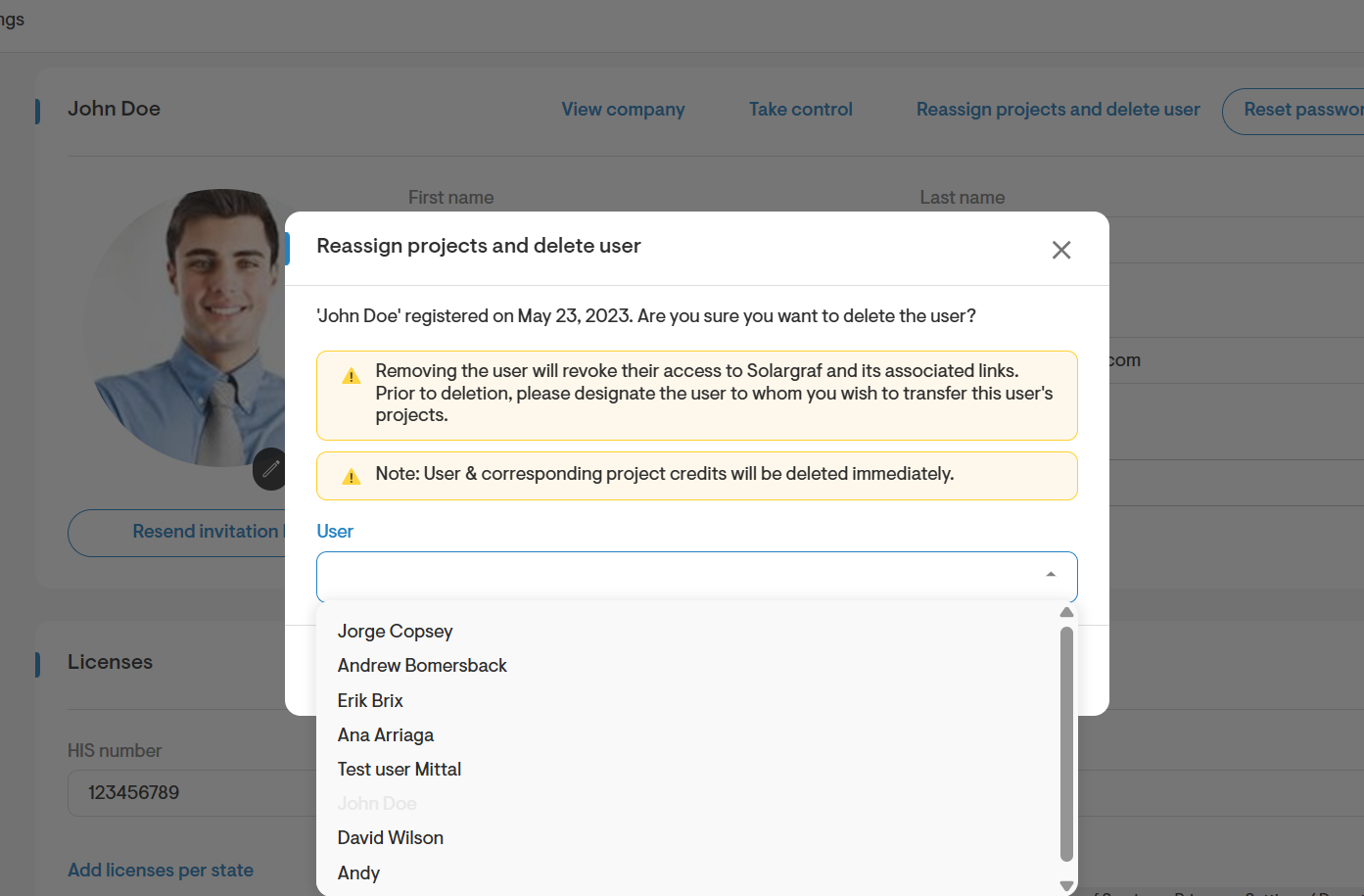
- A dialog window will appear, prompting you to select the user who should take over the deleted user's projects.
.
Homeowner appointments
- This feature is only available in the old version of the proposal.
- Add a URL to your calendar link and click Save.
- The link added here will only appear in that version.