Help Center Account Setting
Roles & permissions
Published on 3 Jul 2024
This guide walks you through how to manage roles and permissions for your company, including assigning roles to users, and adding, editing, or deleting roles.
Edit a User's Assigned Role
Every user invited to use Solargraf by the account owner will be assigned a specific role. Each role comes with predefined permissions that determine what actions the user can perform within Solargraf. In this guide, we will walk you through how to modify the permissions for each role.
First, we will show you how to edit the role of an existing user, as demonstrated below.
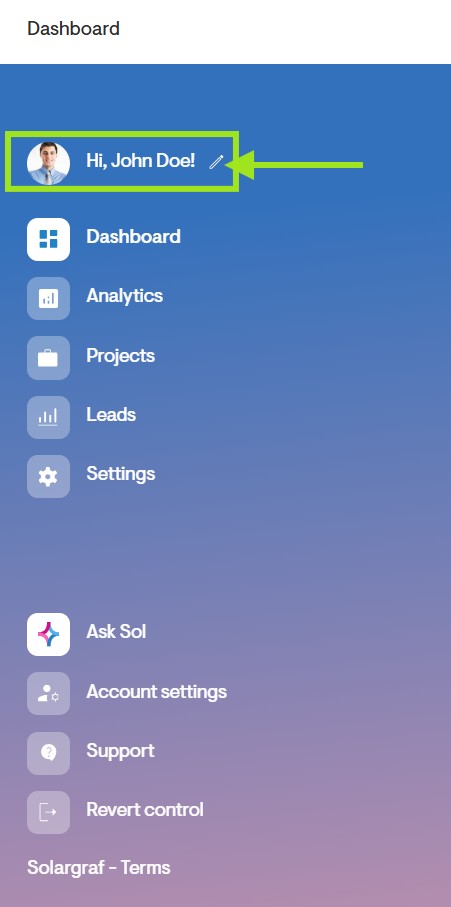
- Click Account Settings from your Dashboard
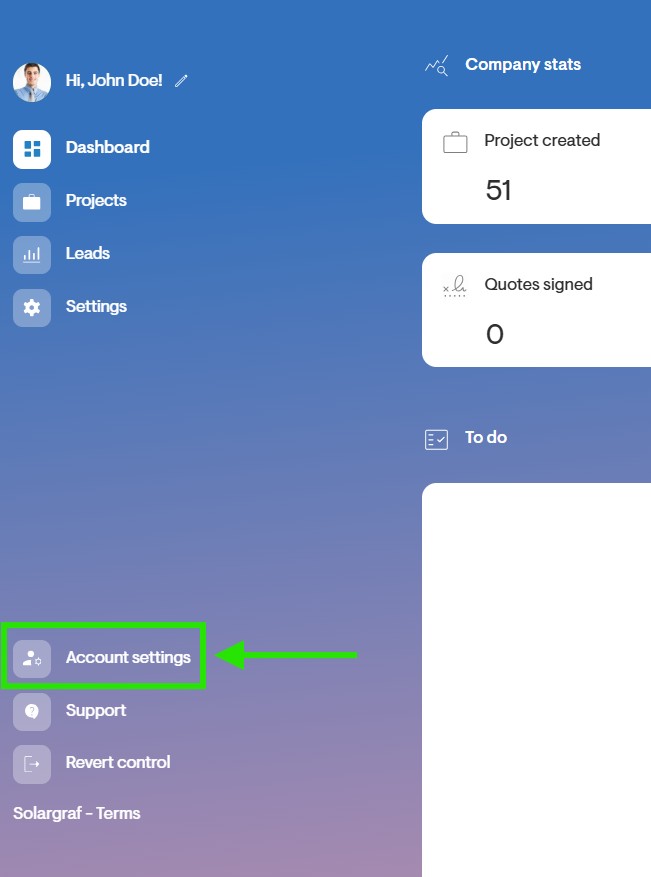
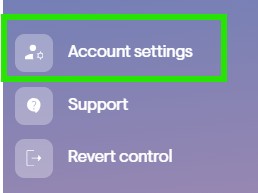
- Or if in the Settings page click on the Account Settings icon found in the side panel at the bottom left of the screen.
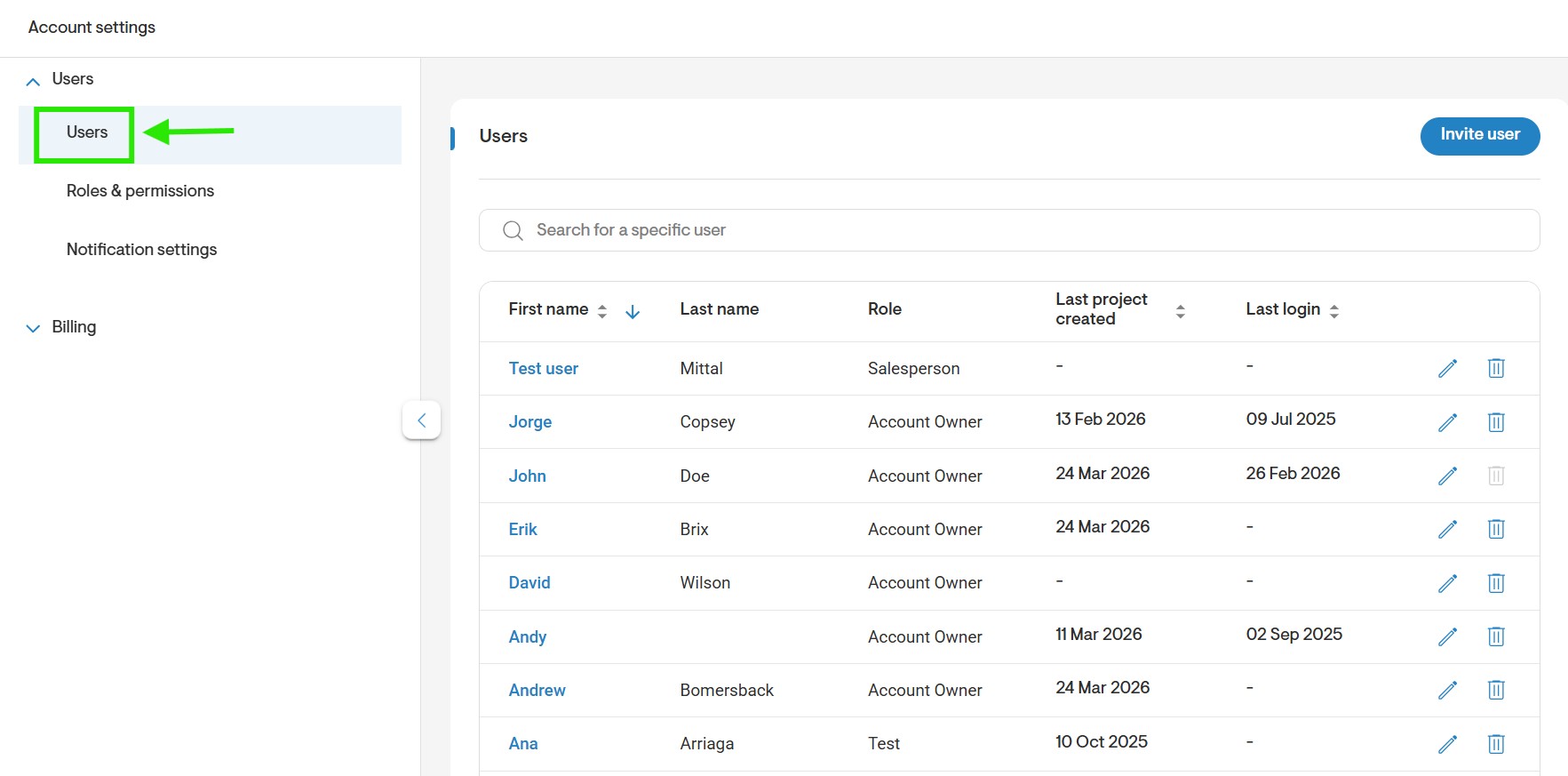
- Click on Users in the left menu.
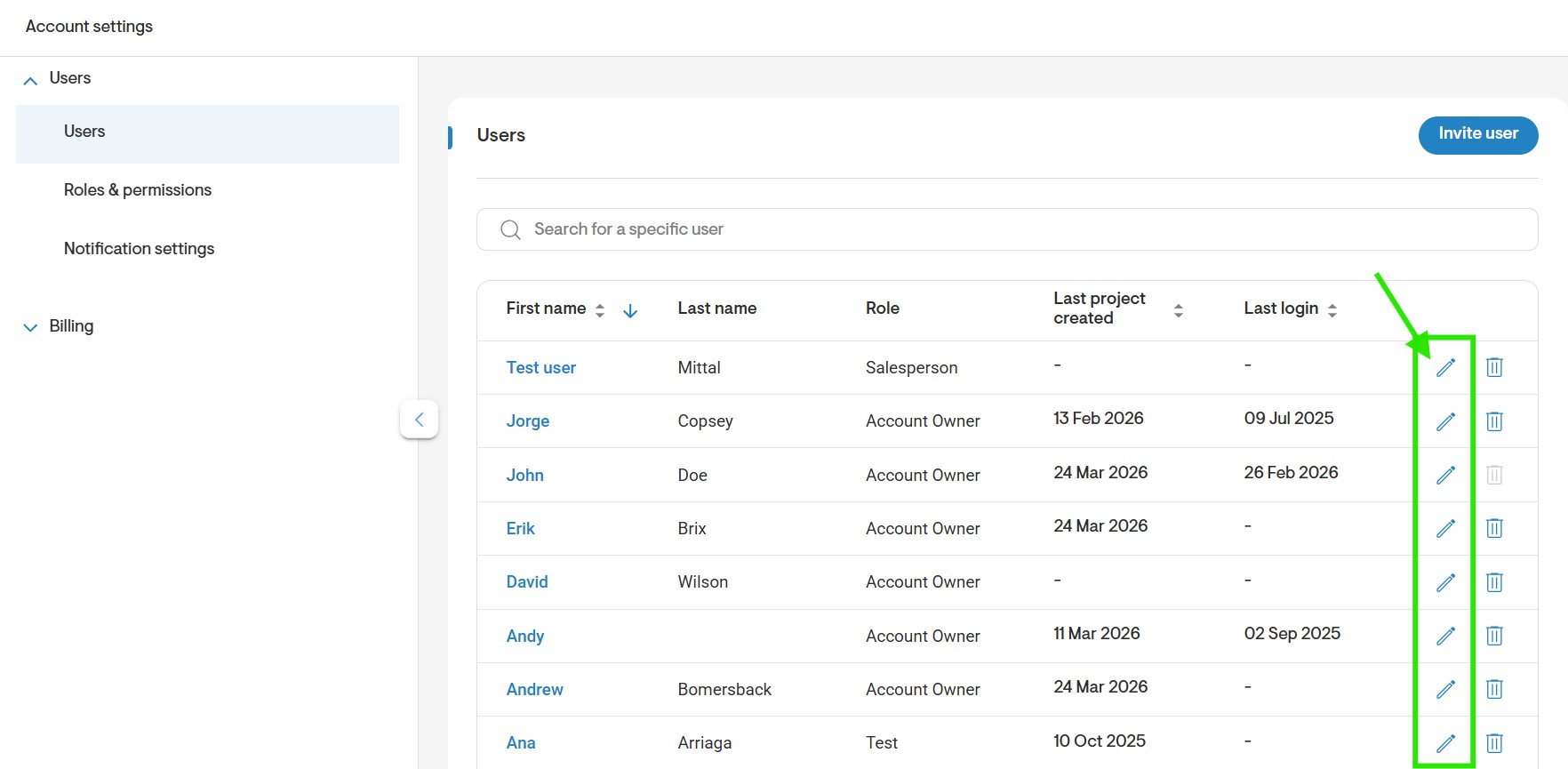
- Click on the pencil icon next to the name of the user you want to edit.
- Click on EditInformation.
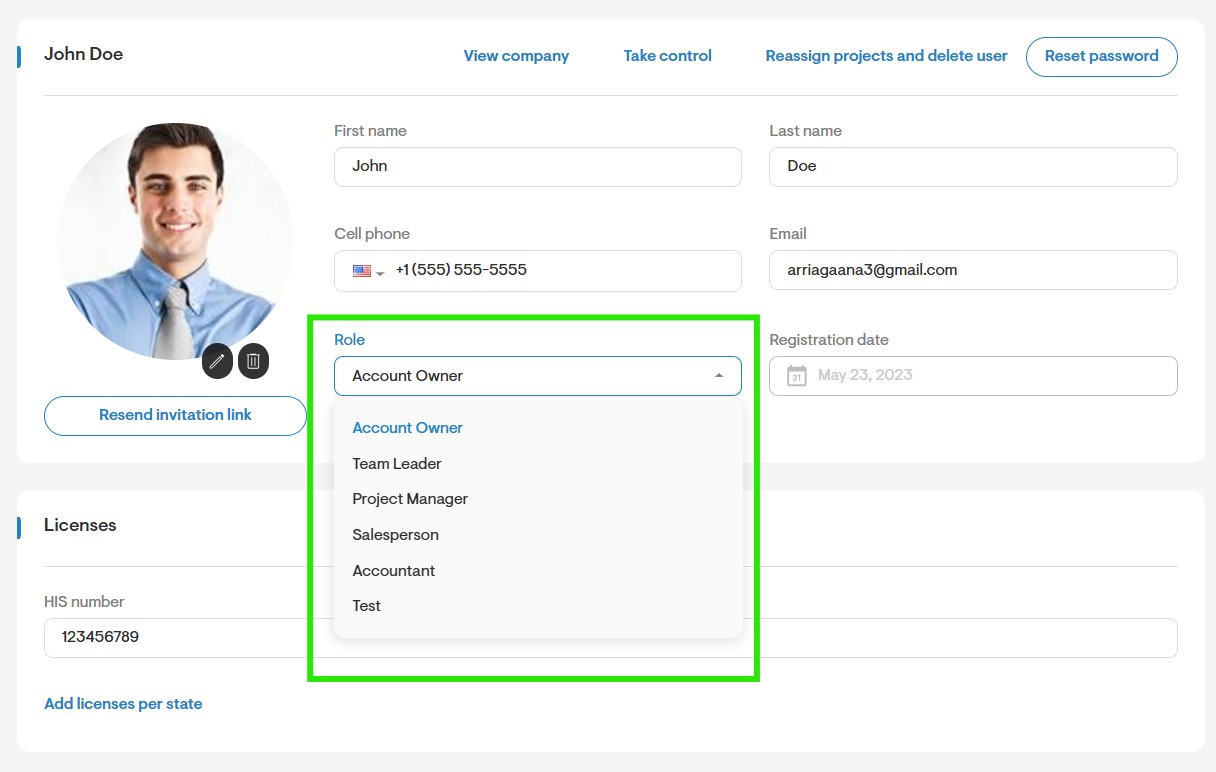
- Click on the dropdown menu under Role and select the desired role.
- Click of the Save button to save changes.
Edit an existing Role
To edit the permissions on each role or to create a new role for your company follow the steps below:
- Go the Settings > Users.
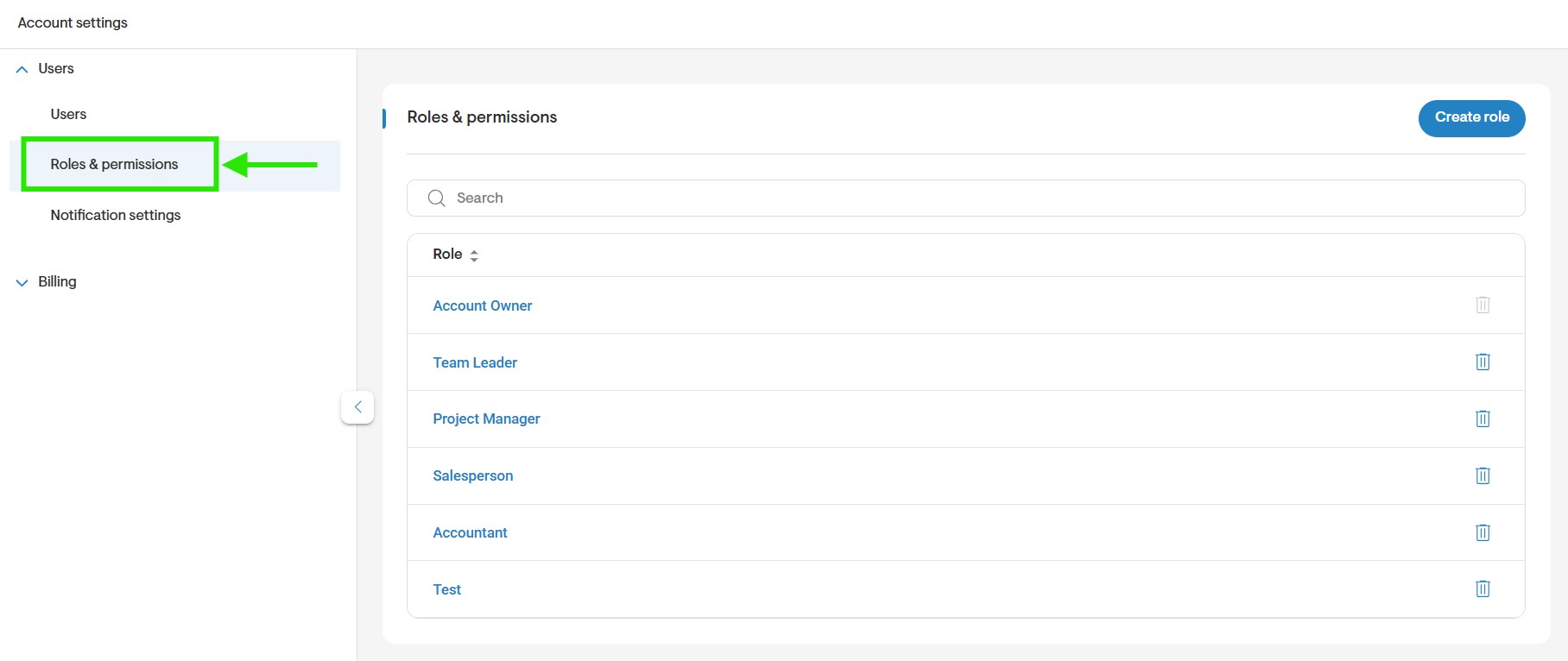
- Click Roles & Permissions.
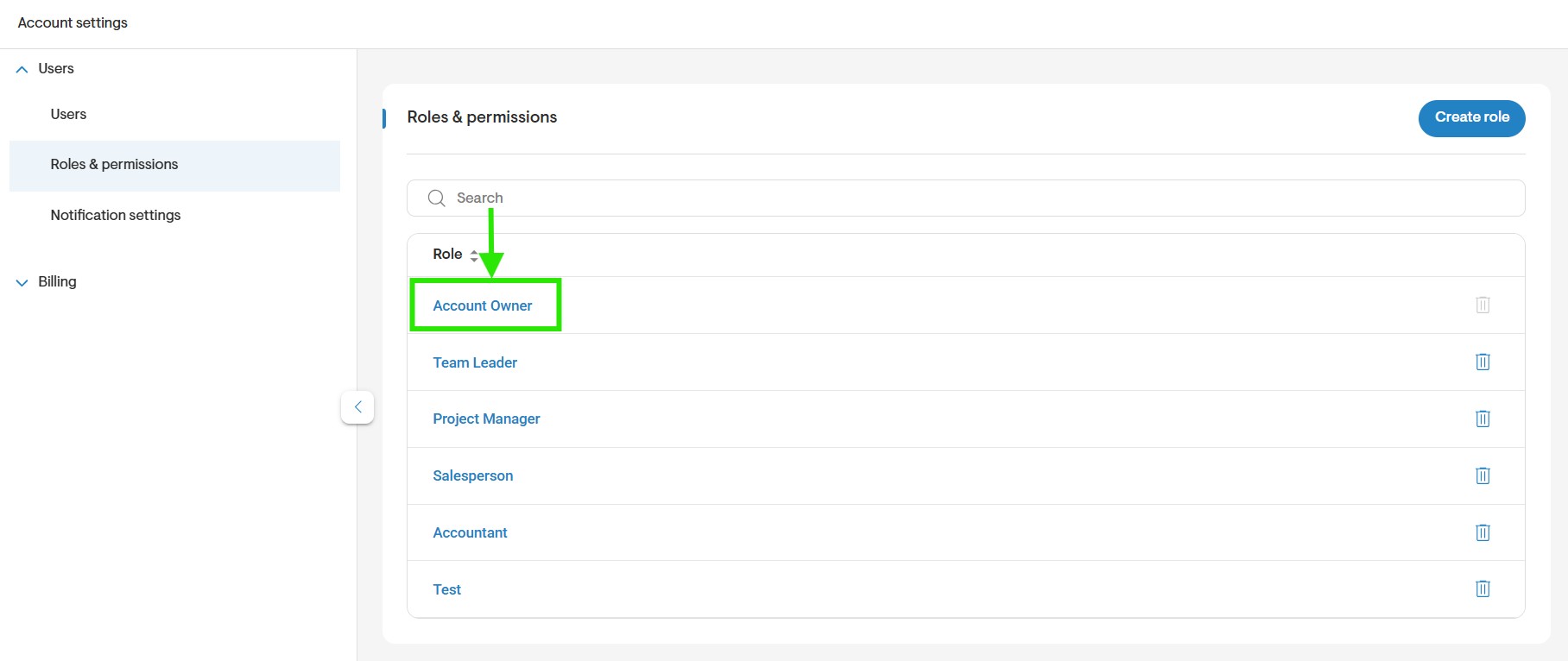
- Click on the role’s name to open its permissions.
- You can then adjust the settings as needed.
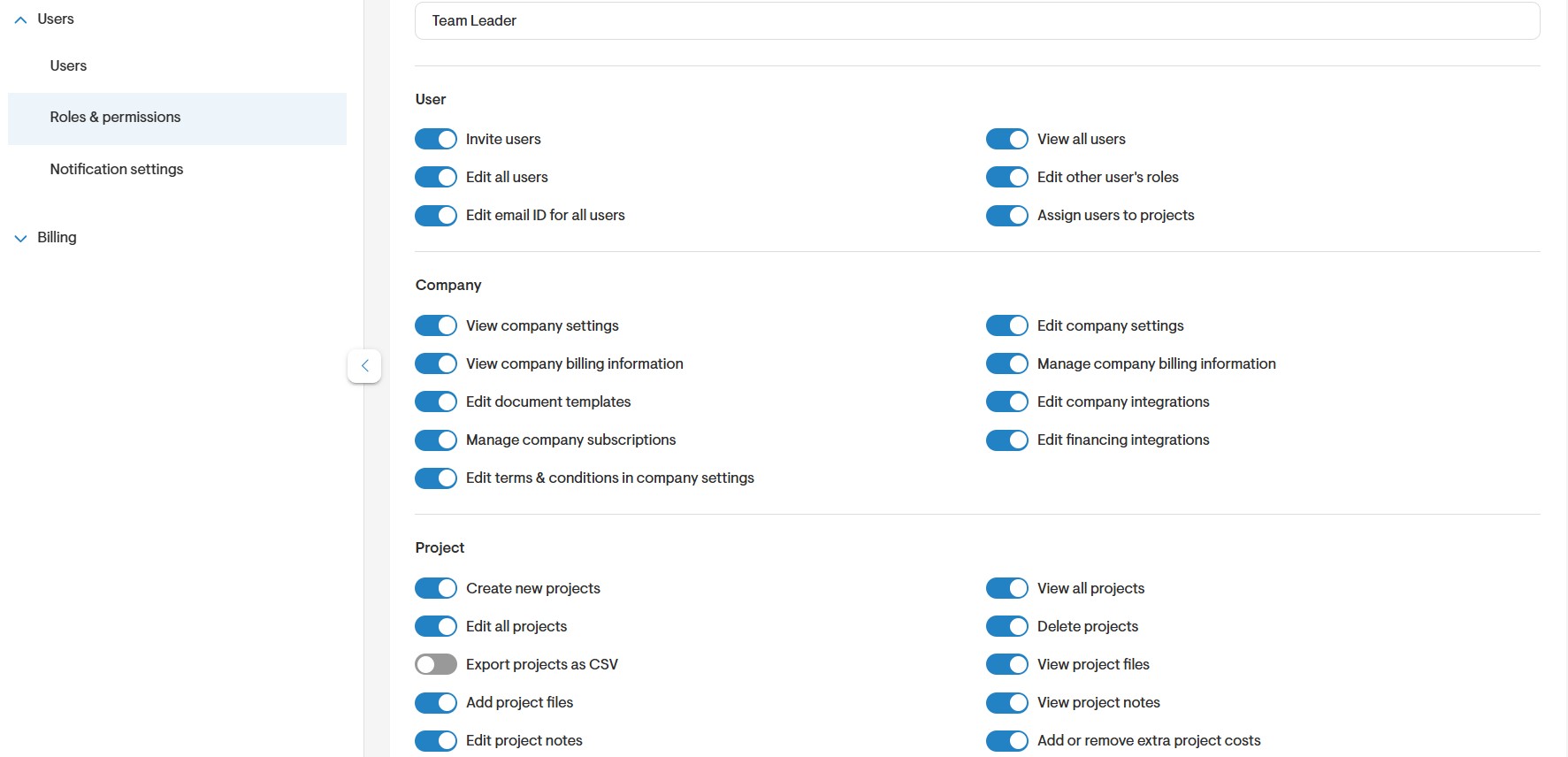
- Use the toggles to turn on and off a permission to set the desired capabilities for the role. If the toggle is blue, a permission has been enabled. If the toggle is gray the permission has been disabled for that role.

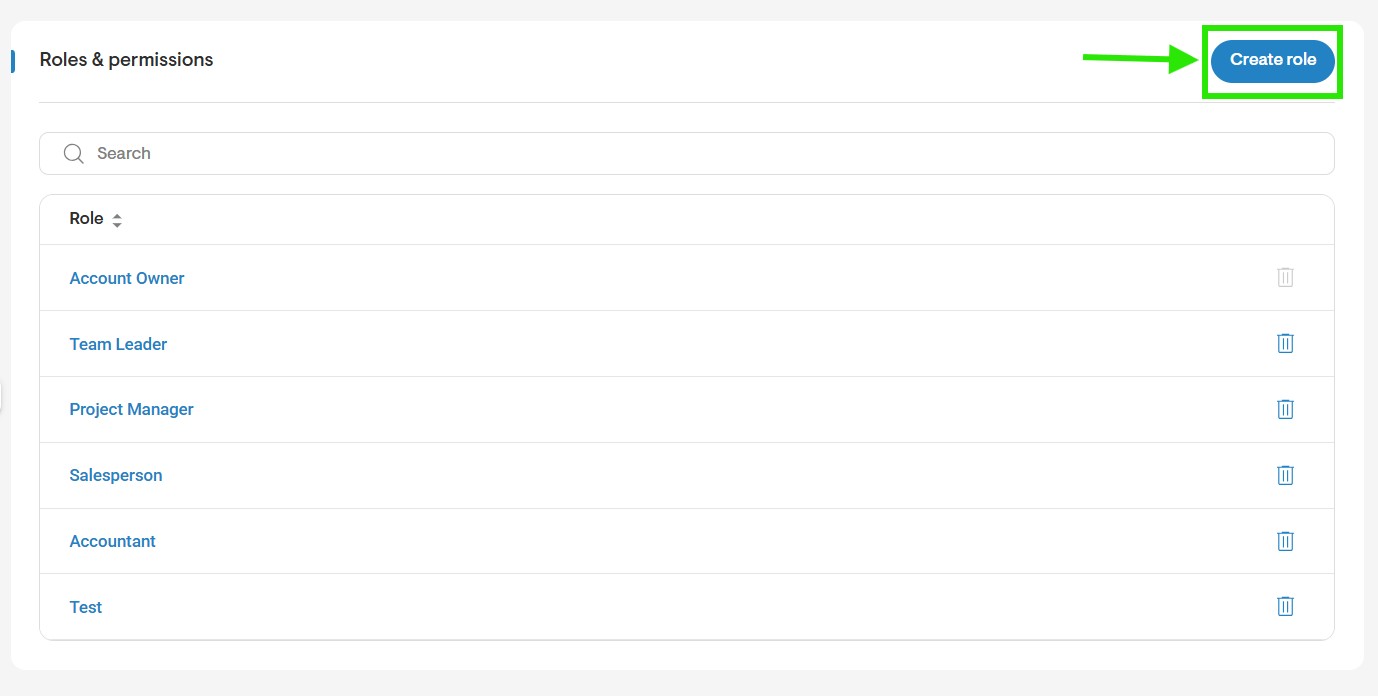
- To delete a role: Click the bin icon next to the role you want to remove.
Note: You’ll find four default roles already set up in your account: Account Owner, Team Leader, Project Manager and Salesperson. The Account Owner is the top-level role with all permissions enabled by default. These permissions are locked in you cannot deselect or modify the Account Owner's access rights.
Create a role
To create a new role follow the steps below:
- Go the Settings > Users.
- Click Roles & Permissions.
- Click the Create role buttonfound at the top right of the Roles & Permissions section.
- Go to Role details and set the name for the role under Role name.

- Use the toggles to turn on and off a permission to set the desired capabilities for the role. If the toggle is blue, a permission has been enabled. If the toggle is gray the permission has been disabled for that role.

- Save your changes by clicking the Create button at the bottom right corner.
Permissions List Definitions
Role
- Edit role names: Allows changing the names of existing roles.
User
- Invite users: Lets the user send invitations to add new users.
- View all users: Grants the user visibility of all users in the system.
- Edit all users: Enables the user to edit details for any user.
- Edit other user's roles: Allows the user to modify roles assigned to other users.
- Edit own email ID: Lets the user update their own email address.
- Assign users to projects: Permits the user to assign users to specific projects.
Company
- View company settings: Allows the user to view the company settings.
- Manage company settings: Grants the user permission to view and manage the company settings.
- View company billing information: Lets the user see the payment method found under Account Settings.
- Manage company billing information: Enables the user to edit the payment method found under Account Settings.
- Manage company documents: Allows the user to upload or edit company documents.
- Manage company integrations: Grants the user control over third-party integrations.
- Manage company subscriptions: Lets the user manage the following settings found under the Billing settings: Payment method, Available projects, Projects renewal, Subscription, Payment history, Redeem code.
- Manage financing partner settings: Allows the user to configure financing partner details if 'Manage company settings' permission has been been enabled.
- Edit terms & conditions in company settings: Allows the user to update company-wide terms if 'Manage company settings' permission has been been enabled.
Project
- Create new projects: Lets the user create a new project.
- View all projects: Grants the user access to view all company projects.
- Manage all projects: Enables the user to view/modify all company projects.
- Export projects as CSV: Allows the user to export project data in CSV format.
- View project files: Lets the user access project files.
- Add project files: Grants the user permission to upload files to projects overview page.
- View project notes: Allows the user to read notes posted on the overview page of a project.
- Edit project notes: Enables the user to edit notes posted on the overview page of a project.
- Add extra project costs: Lets the user add additional costs to projects.
- Edit extra project costs: Allows the user to modify extra costs.
- Edit solar price table within a project: Enables the user to edit solar pricing tables.
- Edit solar and storage pricing numerically: Allows the user to make numeric pricing adjustments.
- Manage project's utility settings: Grants the user control over utility configurations.
- Manage project info, timeline, and incentive: Lets the user update project settings for info, timeline, and incentive.
- Edit terms & conditions of a specific proposal: Allows the user to edit proposal terms.
- Add or edit financing options with a project: Enables the user to manage financing options.
- Edit financial suitability questionnaire: Lets the user modify financial questionnaires.
- Change dealer fee toggle on adders: Allows the user to toggle dealer fees.
- Can order proposal designs: Grants the user the ability to request/purchase proposal designs from the Solargraf design team.
- Manage clone and design options: Enables the user to manage cloning and design settings.
Design
- Manage design tool default settings: Lets the user configure design defaults via the company settings.
- Edit roof design: Allows the user to modify the drawing of the roof.
- Add trees in design tool: Enables the user to add trees in the roof design page.
- Adjust trees in design tool: Lets the user reposition trees in the roof design page.
- Adjust setbacks in design tool: Allows the user to change setbacks in the solar design page.
- Adjust obstructions in design tool: Enables the user to modify obstructions in the roof design page.
- Edit solar design: Grants the user access to the solar design.
- Edit losses numerically in design tool: Allows the user to make numeric loss adjustments on a project level.
- Edit battery design: Lets the user modify battery configurations on a project level.
- Access electrical design: Grants the user access to electrical design features found in the design tool on a project level.
Utility
- Manage utility sell rates: Allows the user to edit sell rates.
- Manage inflation for buy and sell rates: Enables the user to adjust inflation rates.
Material
- Manage all materials: Grants the user full control over company material settings.
Proposal
- Send quotes: Lets the user send proposals to clients.
- Edit proposal templates: Allows the user to modify proposal templates on a company level.
- Edit project proposals: Enables the user to edit individual proposals.
Project permits
- Create permit plan sets: Lets the user create permit plans.
- Order permit plan sets: Allows the user to order permit plans.
- Manage permit plan sets: Grants the user control editing access to permit plans.
Leads
- View all leads: Allows the user to view all company leads.
- Manage all leads: Grants the user full control over company leads.
- View all regions for leads: Lets the user see all lead regions.
- Edit all regions for leads: Enables the user to edit lead regions.
- Assign users to leads: Allows the user to assign users to leads.
- Assign users to regions: Lets the user assign users to regions.
Manages
- Project Manager / Salesperson / Accountant: Indicates who manages the user.
Managed By
- Project Manager / Salesperson / Accountant: Indicates who the user is managed by.