Help Center Account Setting
How to Manage Your Credit Cards
Published on 1 Jun 2023
This guide explains how to add, update, and remove credit cards from your Solargraf account. Please note that access to the Billing settings requires the appropriate permissions to be granted to the user.
Add a New Credit Card
- To add a new credit card, navigate to Account Settings.
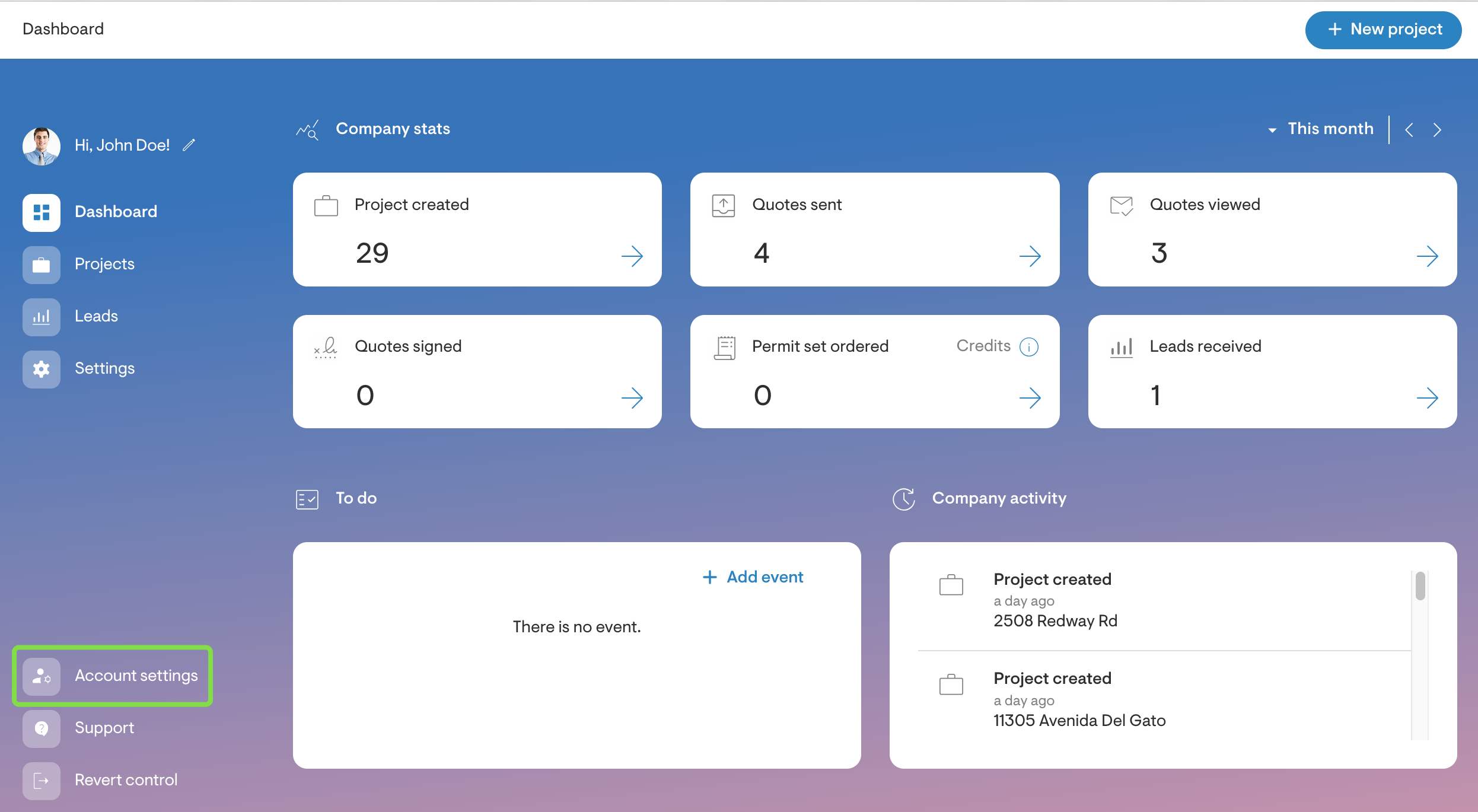
- Click Billing which will open the Payment method screen.
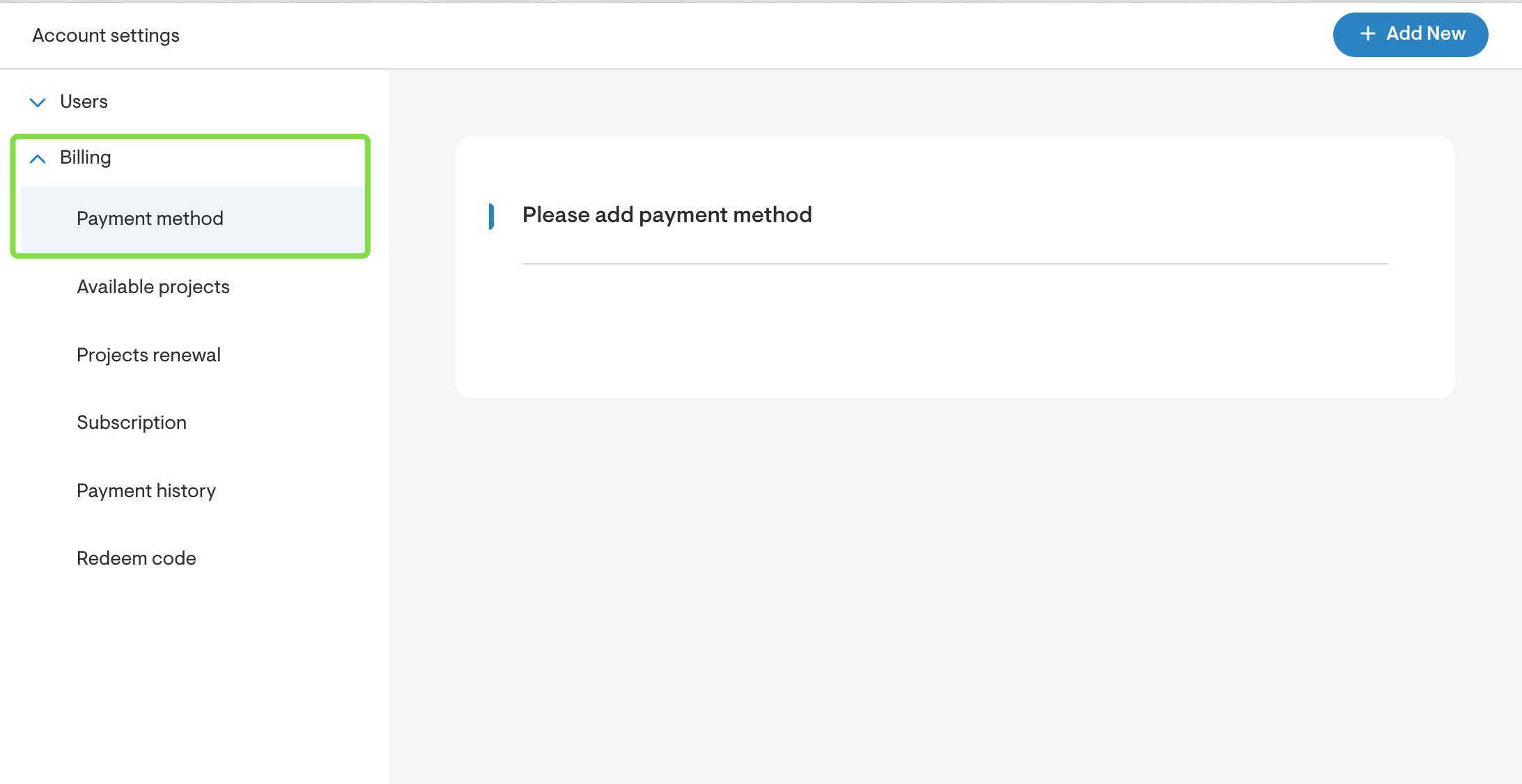
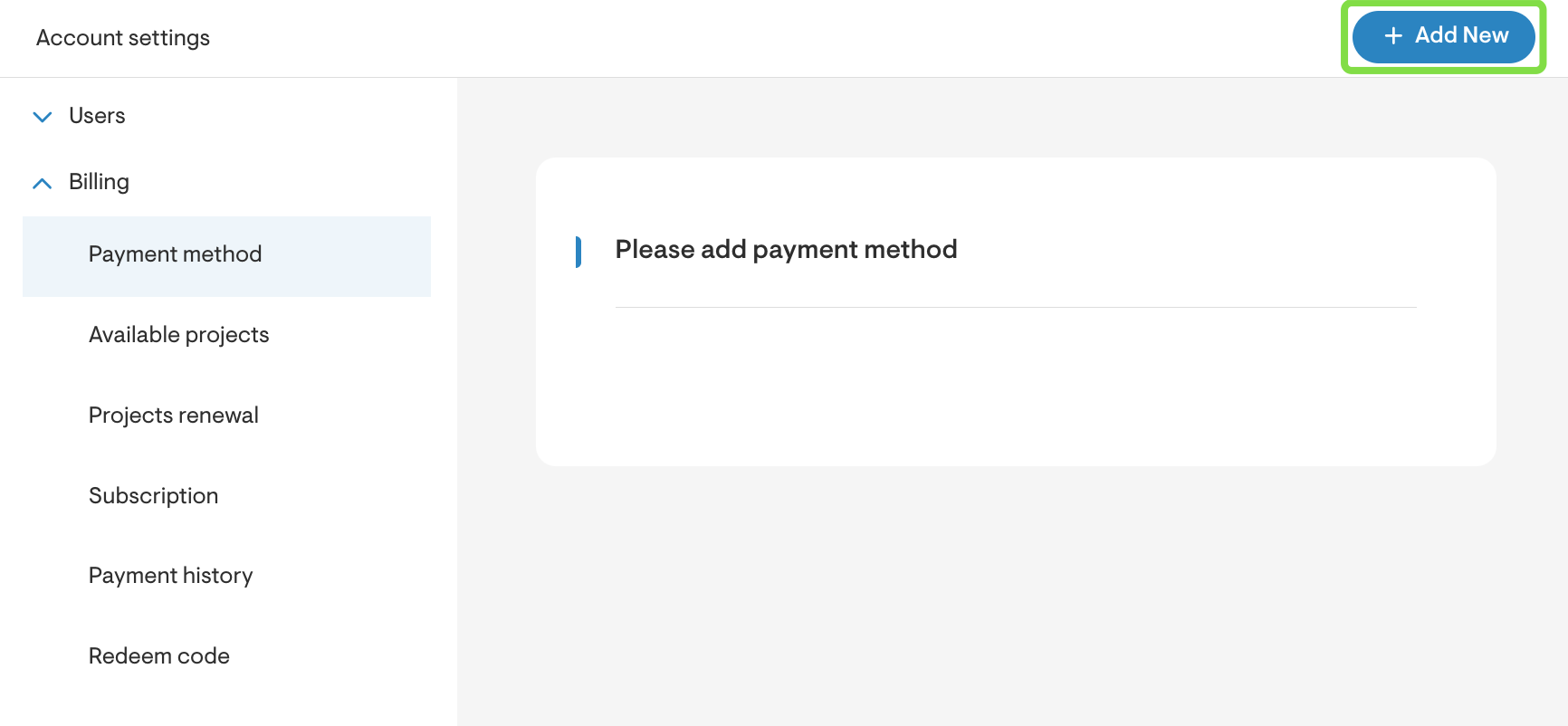
- Click Add new.
- Fill in the Card number, Expiration date, Security code (CVC), Full name, Country or Region as well as the Billing Address.
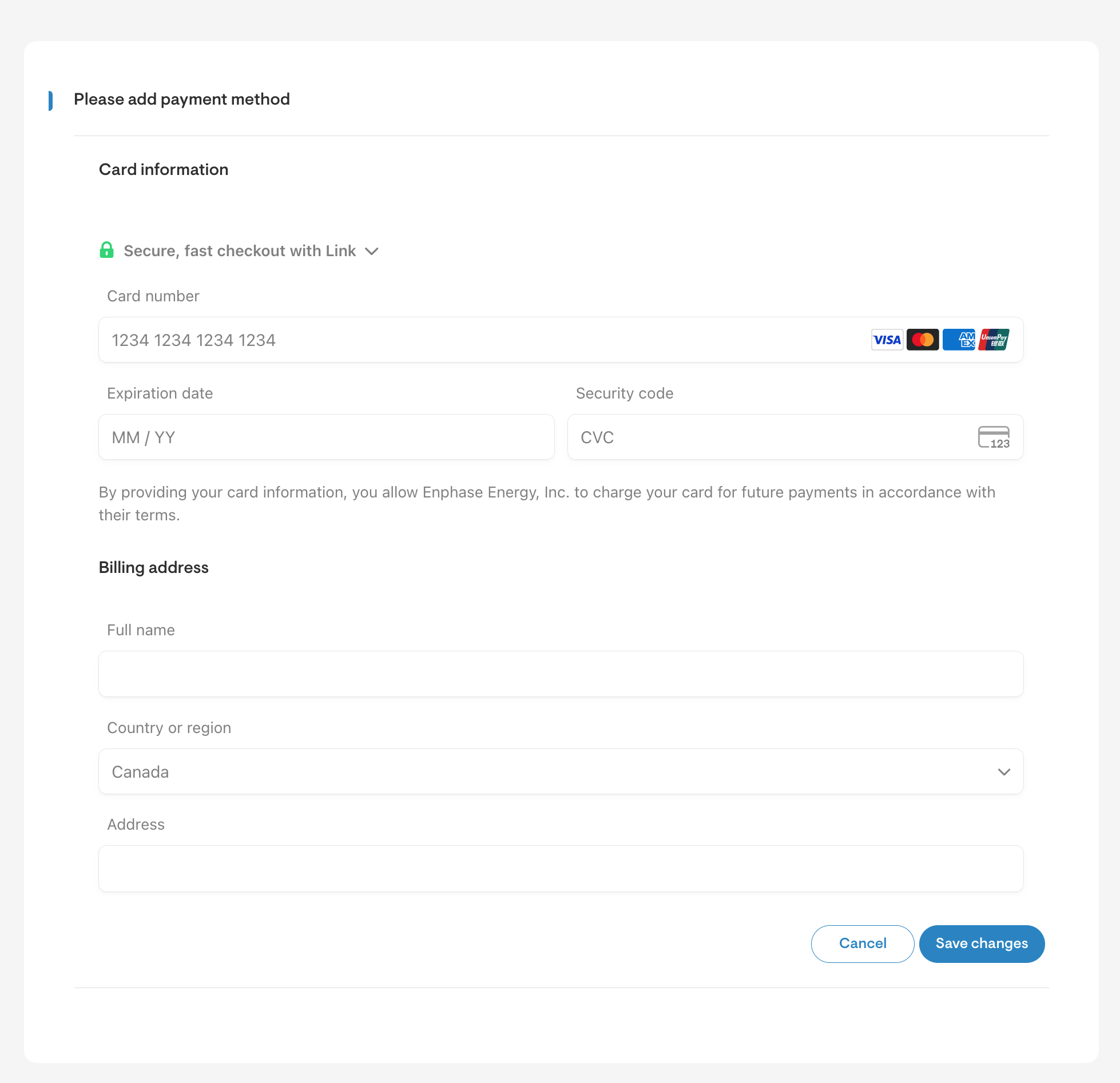
- Click Save.
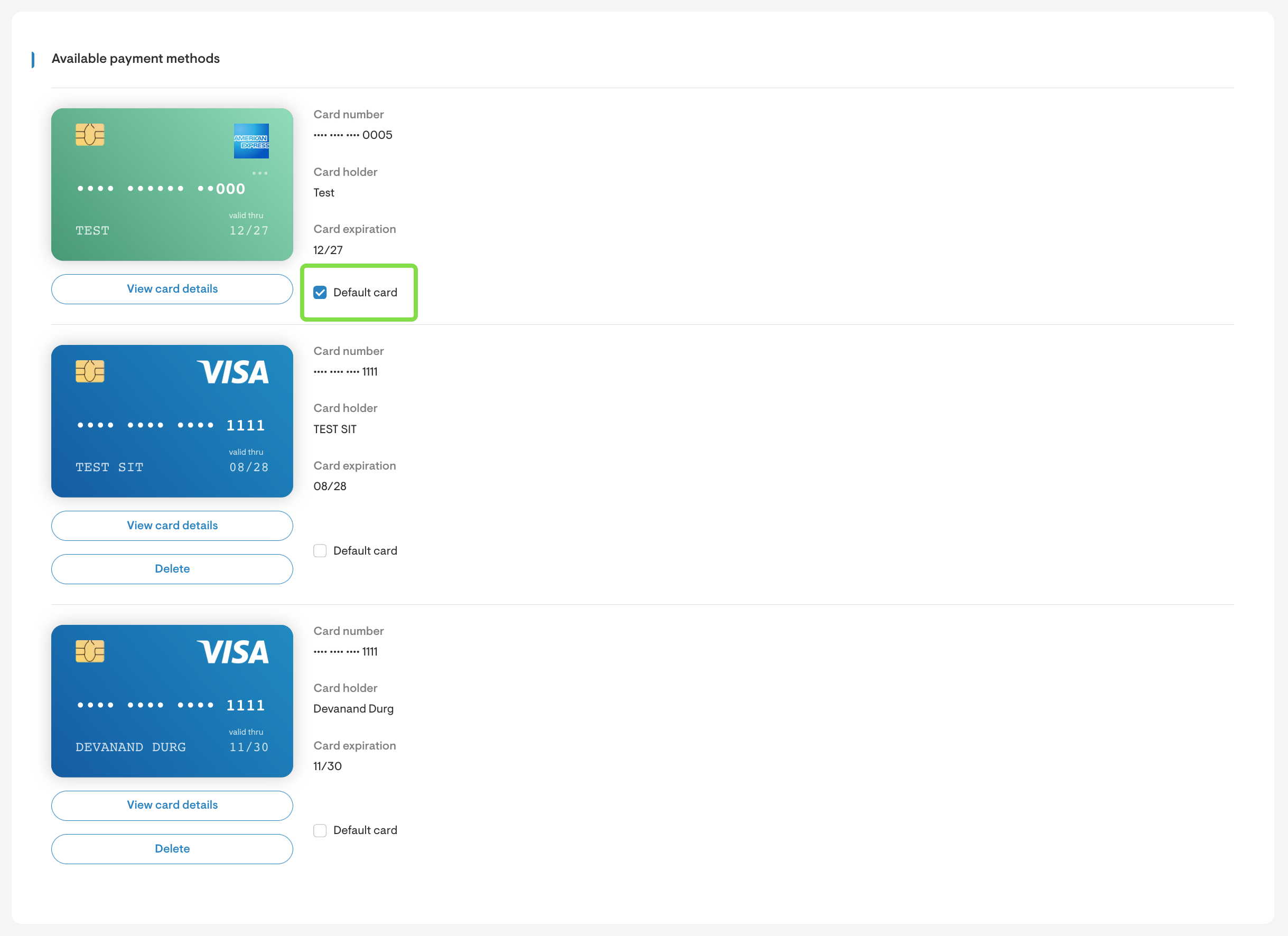
- If multiple cards have been added, the user can select which one to set as the default. To do this, use the checkbox to check the Default card option as shown below.
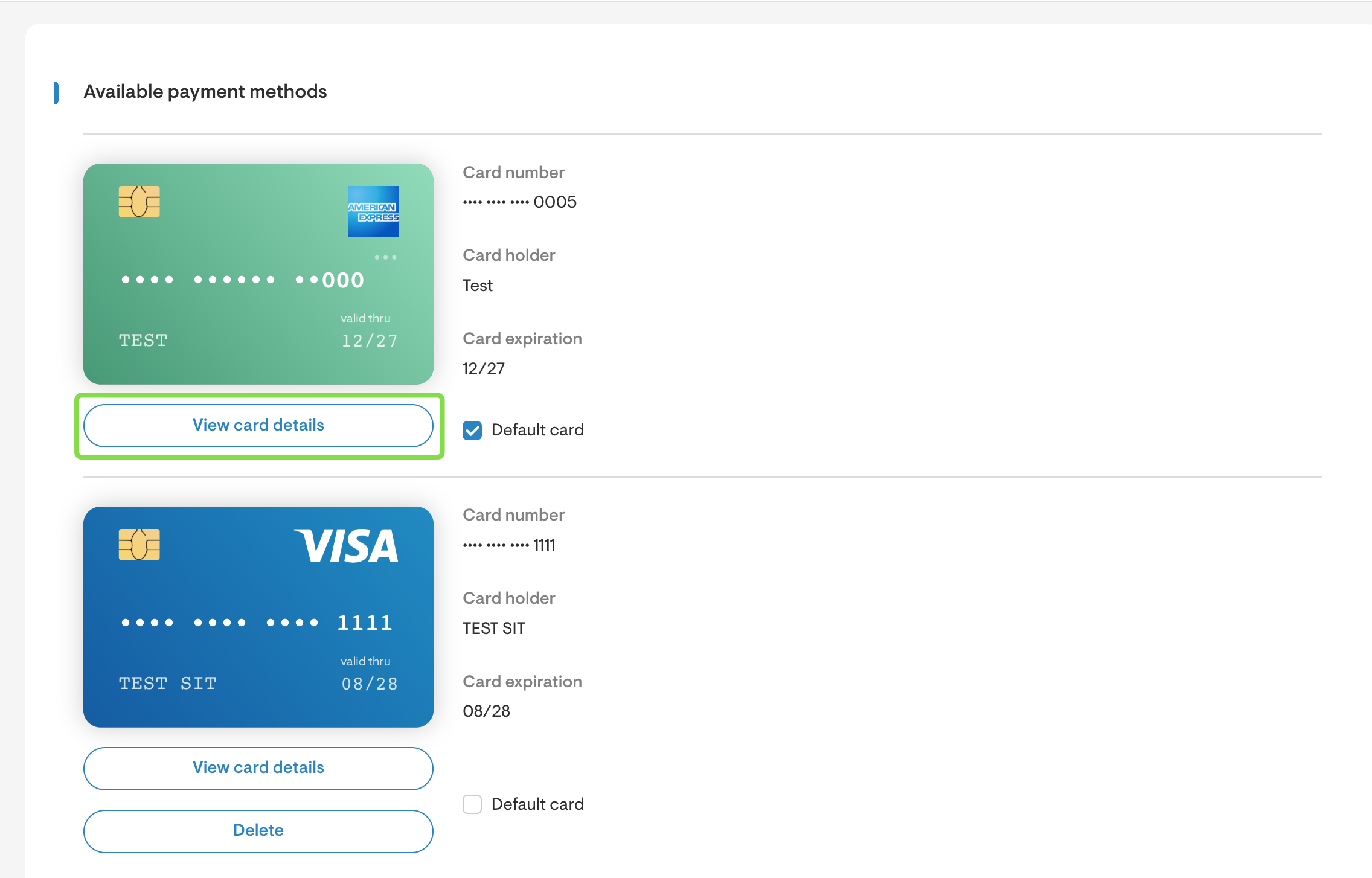
View card details
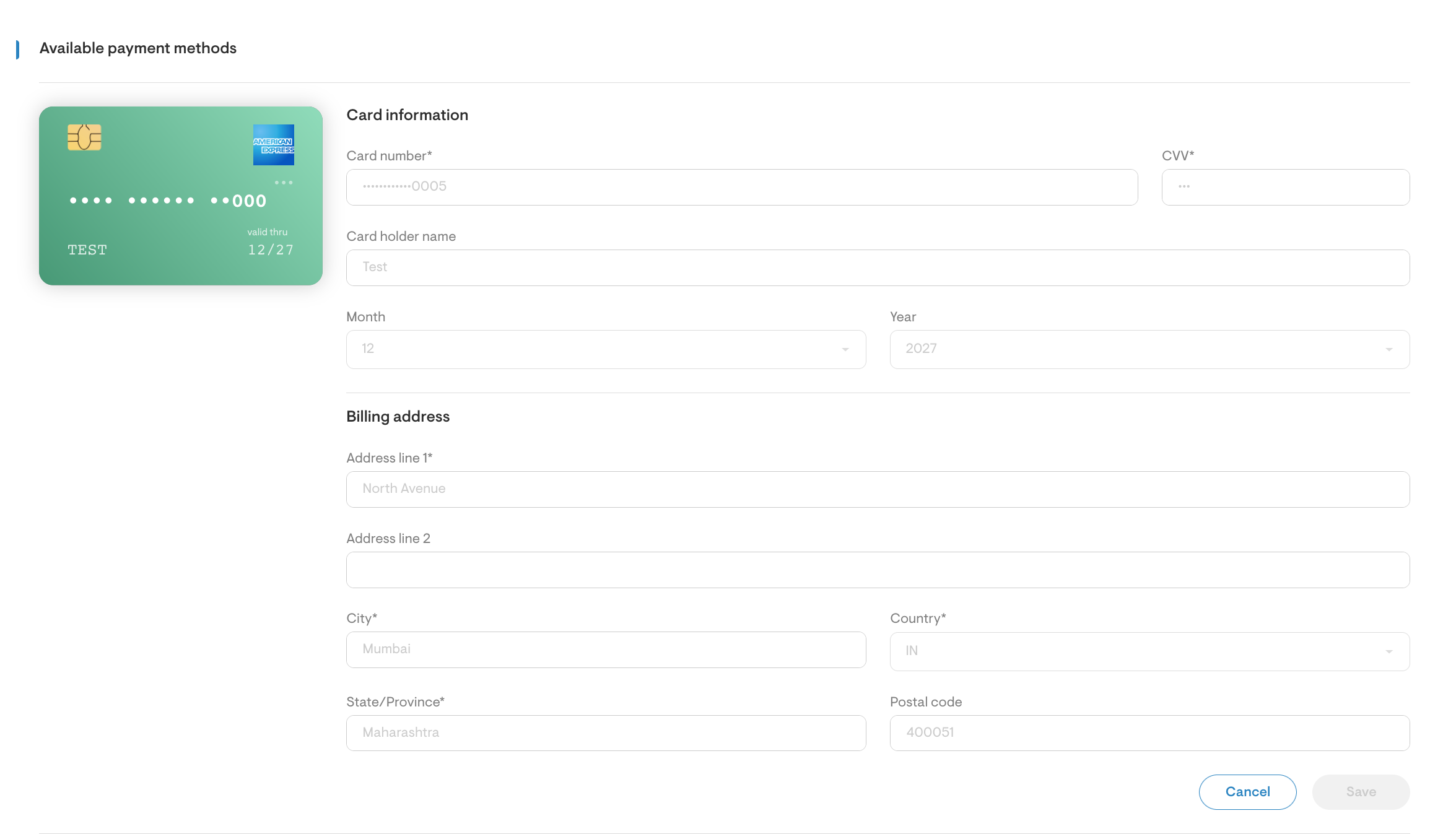
- To view an existing card, click View card details.
Delete an Existing Credit Card
- To delete a credit card, click the Delete button located under each card.
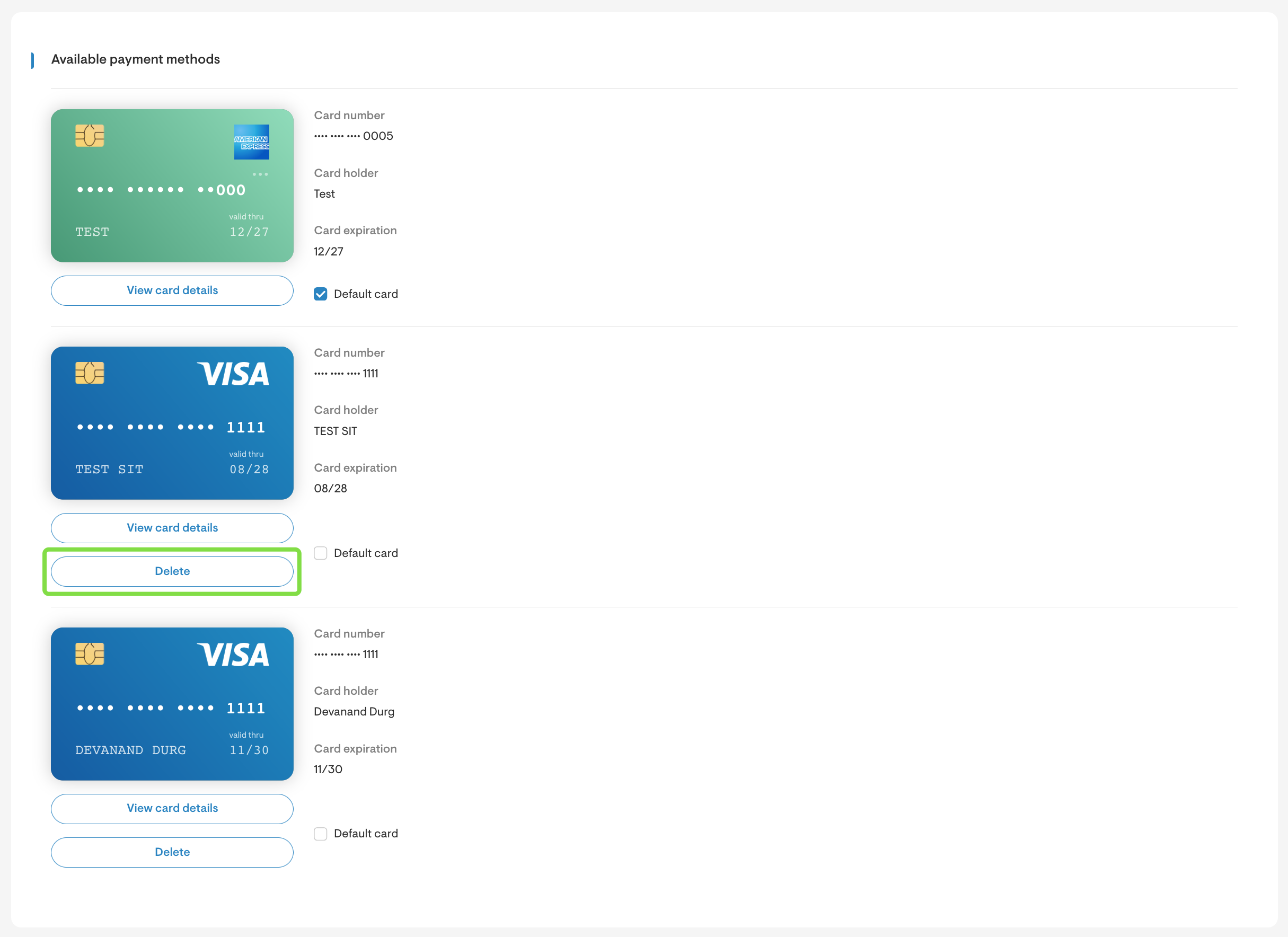
- You must have a minimum of one card on your account at all times. If you only have one credit card on file, you will not be able to delete it.