Help Center Account Setting
Best practices to manage your team - Assign Leads & Projects
Published on 10 Dec 2021
This guide will give you an overview of how best to use the existing features in Solargraf to better manage your team
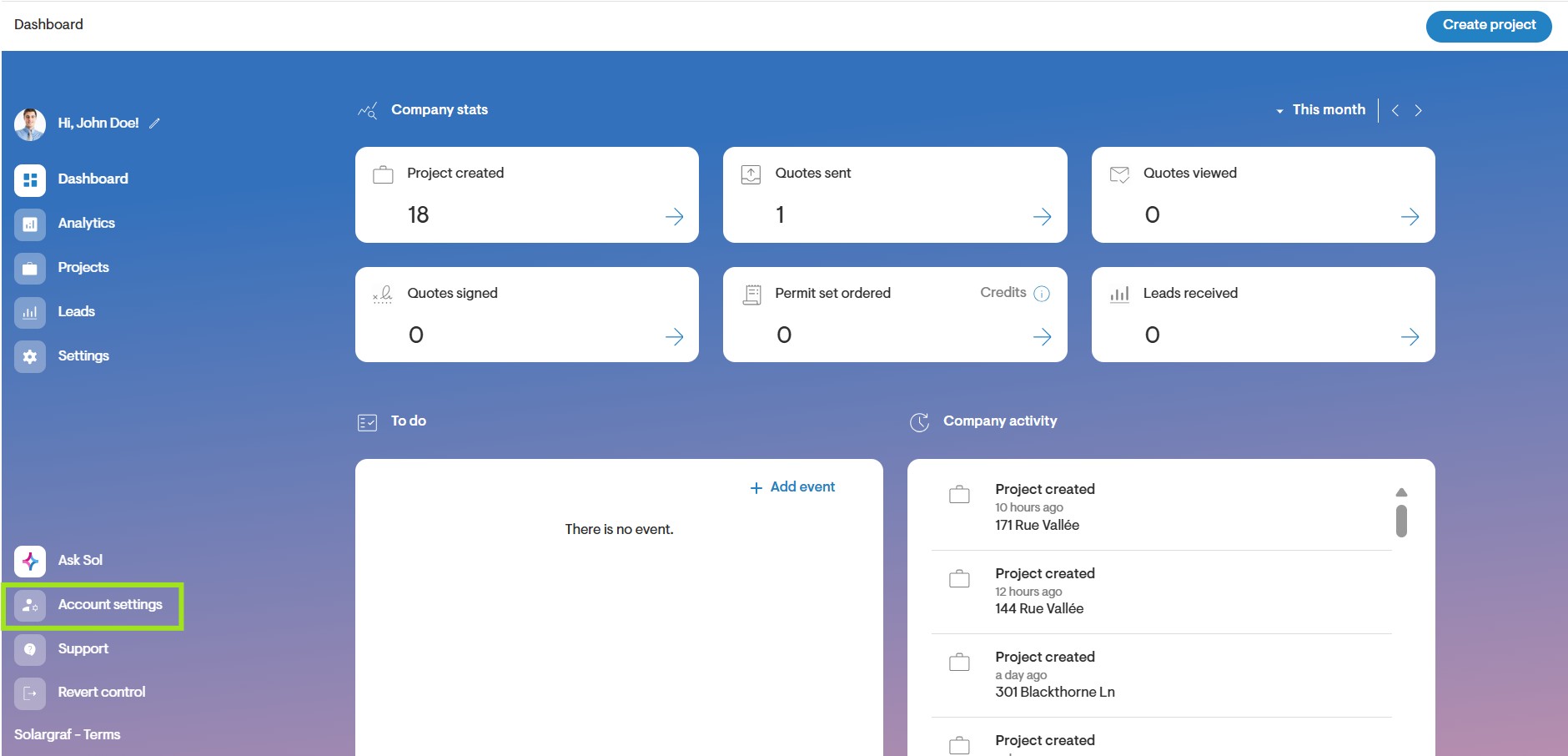
You can find Users, Roles & Permissions and Notifications settings by going to your Account Settings, found at the bottom-left of the dashboard.
Adding a User
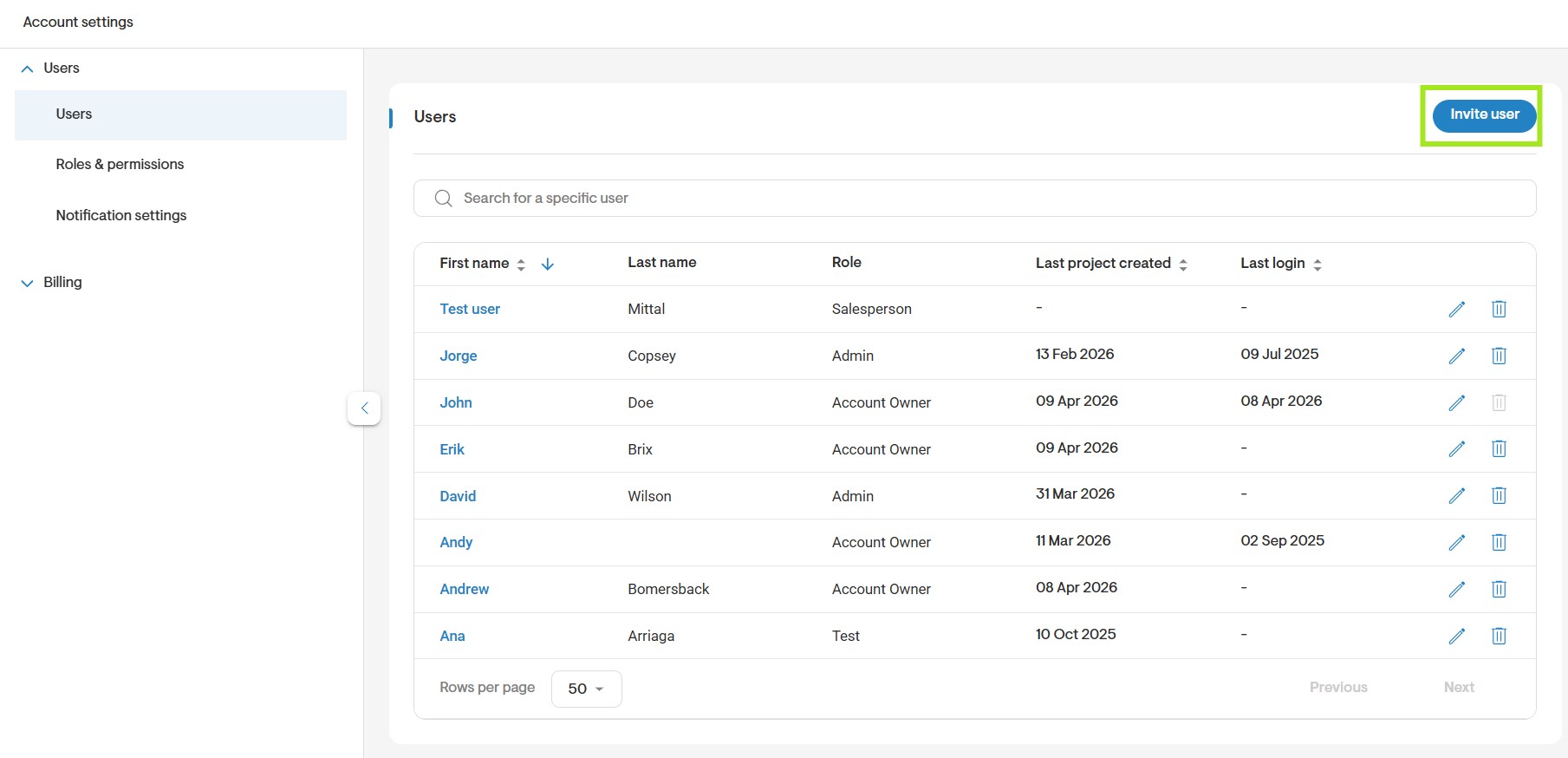
- In the top right corner, click Invite Users.
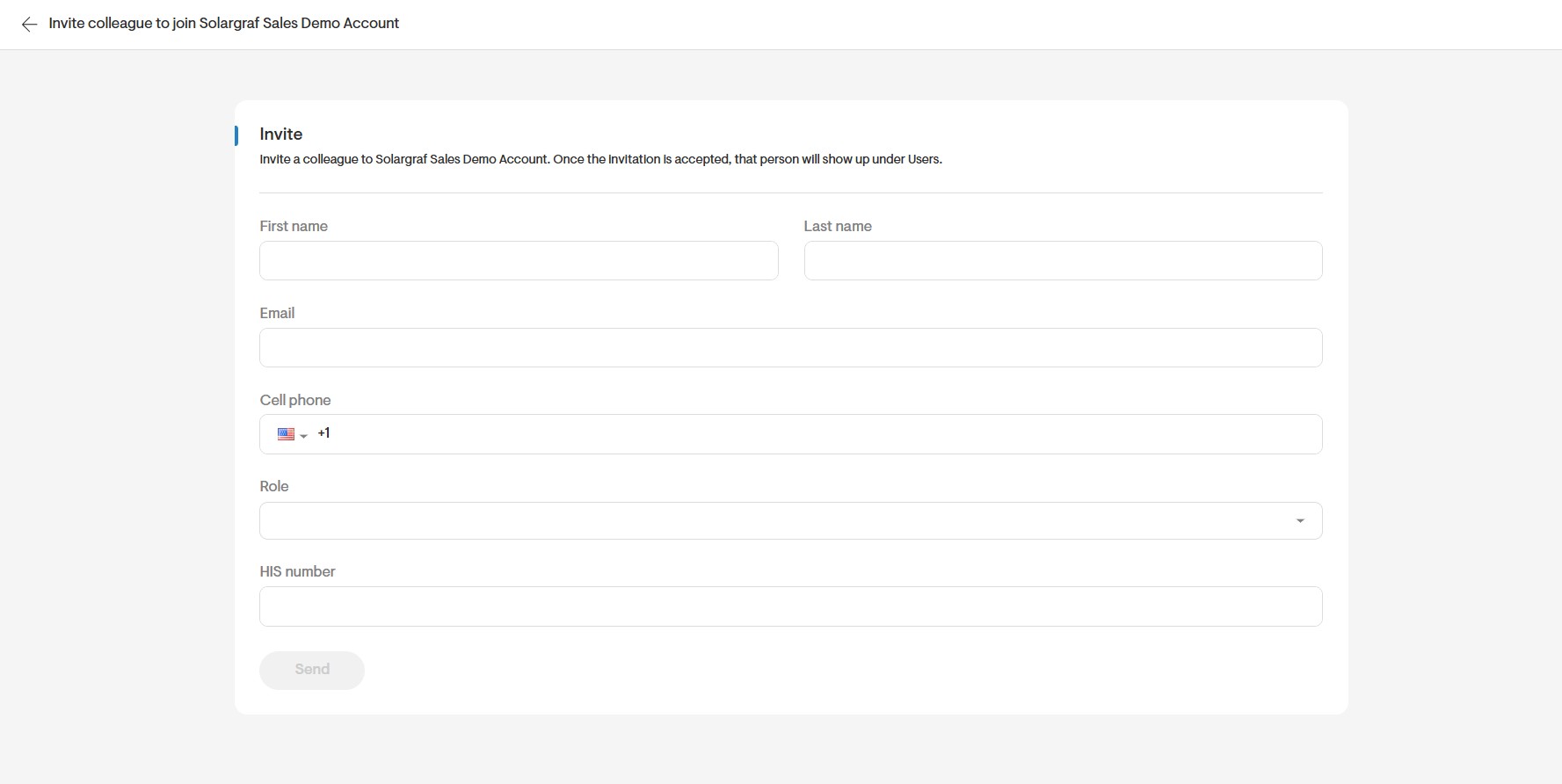
- A form will appear where you’ll enter the new user's first and last name, Cell phone, Role (e.g., Account Owner, Team Lead, Salesperson) and HIS number.
- After submitting the form, the new user will receive an email invitation to sign in and create a password for their account.
- Their provided details name, email, role will be visible within generated proposals.
Reviewing Users
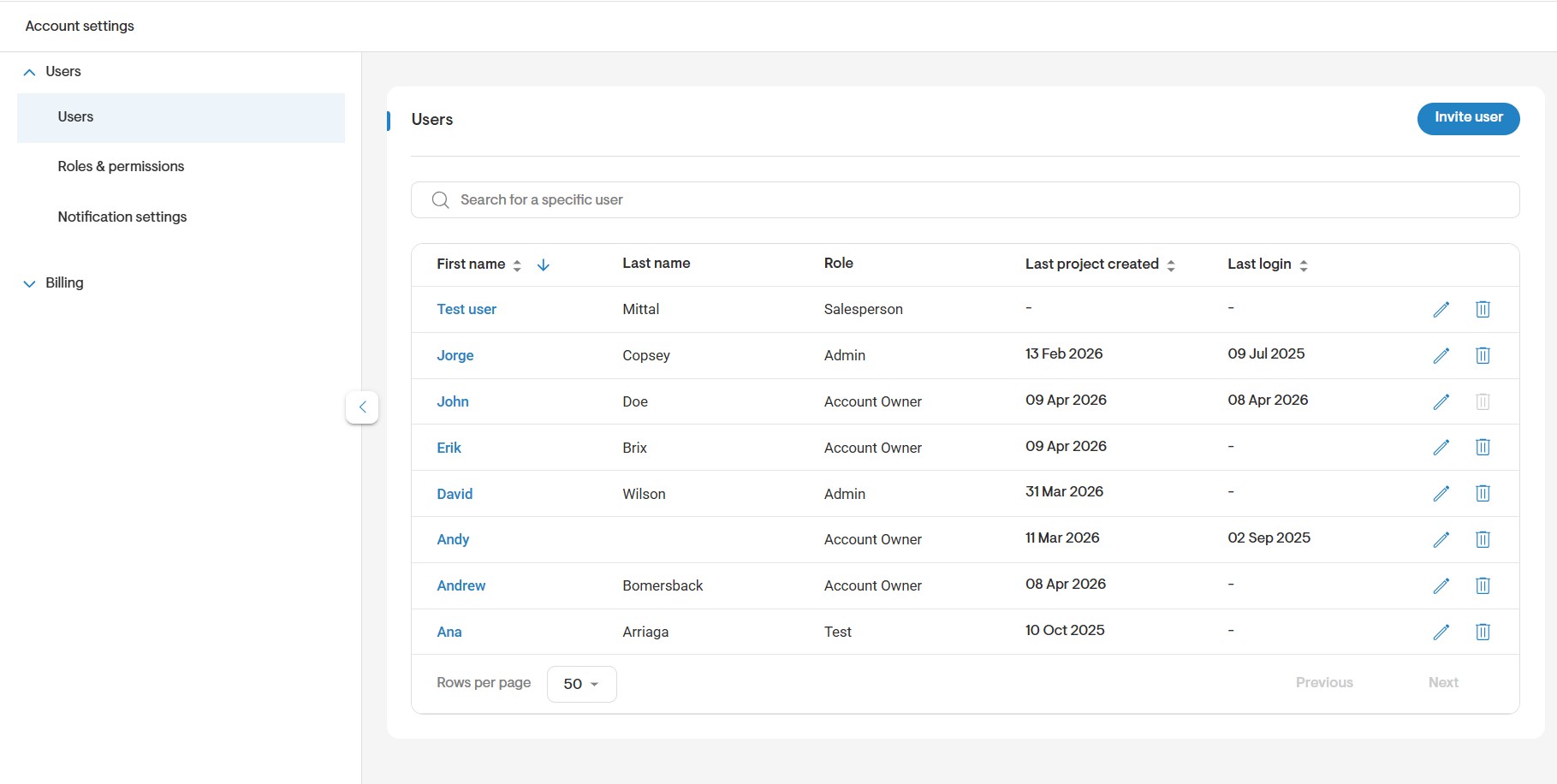
On the Users page, you can view a table listing all users along with their roles and key activity details, such as the date of their last project creation and last login.
Here’s what you can do from this page:
- Edit user information: Update details for any user in the list by selecting the pencil icon.
- Delete a user: Remove a user from your account by clicking on the bin icon.
- Search for users: Find a specific user by entering their first or last name.
- Sort the list: View users in ascending or descending order based on selected criteria.
- Adjust table view: Choose how many rows to display per page.
- Navigate pages: Use the Previous and Next buttons to move between pages.
Roles and Permissions
In the Roles & Permissions section, you can manage user access and responsibilities by modifying or deleting roles.
- To modify a role: Click on the role’s name to open its permissions. You can then adjust the settings as needed.
- To delete a role: Click the bin icon next to the role you want to remove.
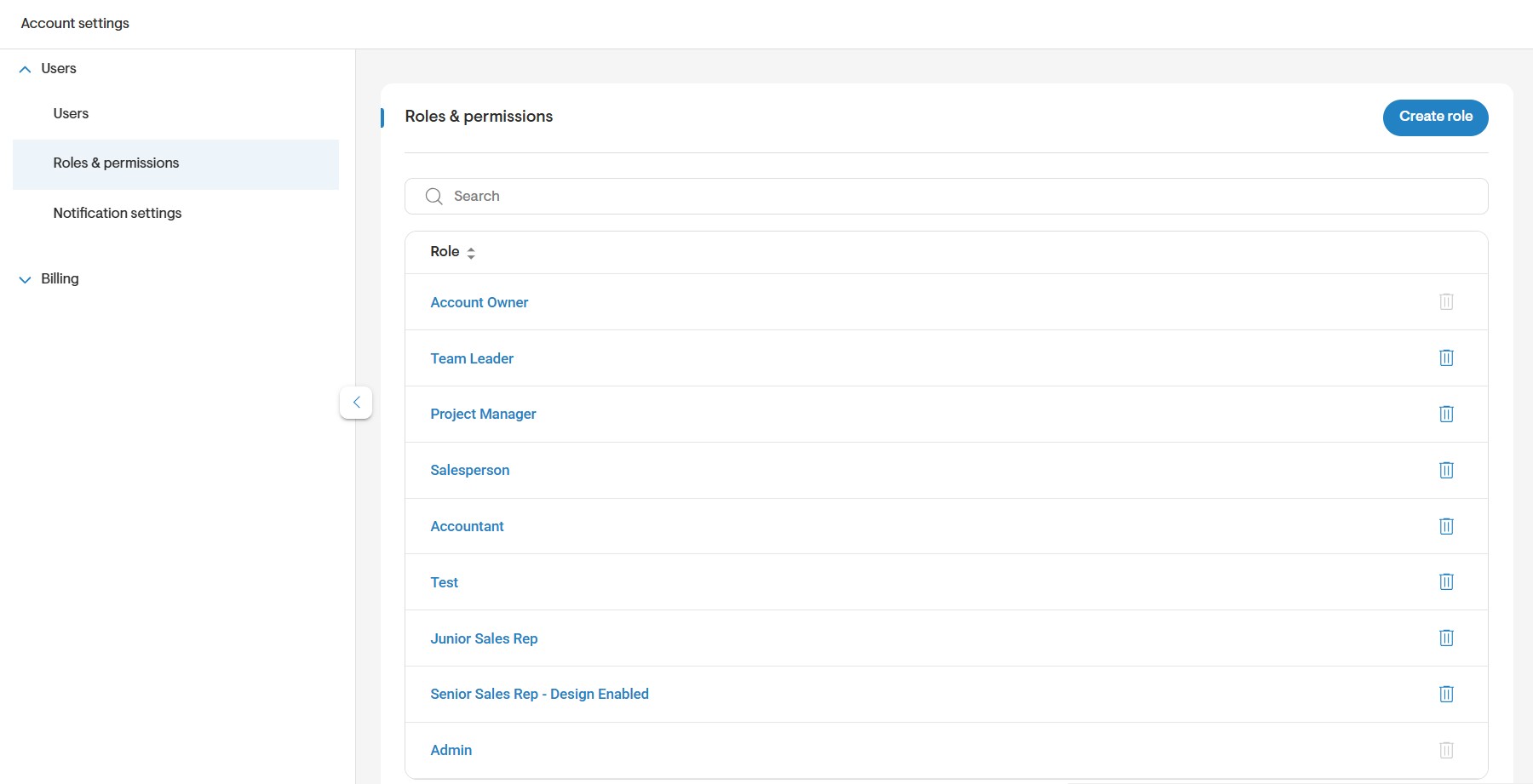
- You’ll find four default roles already set up in your account: Account Owner, Team Leader, Project Manager and Salesperson.
Note: The Account Owner is the top-level role with all permissions enabled by default. These permissions are locked in you cannot deselect or modify the Account Owner's access rights.
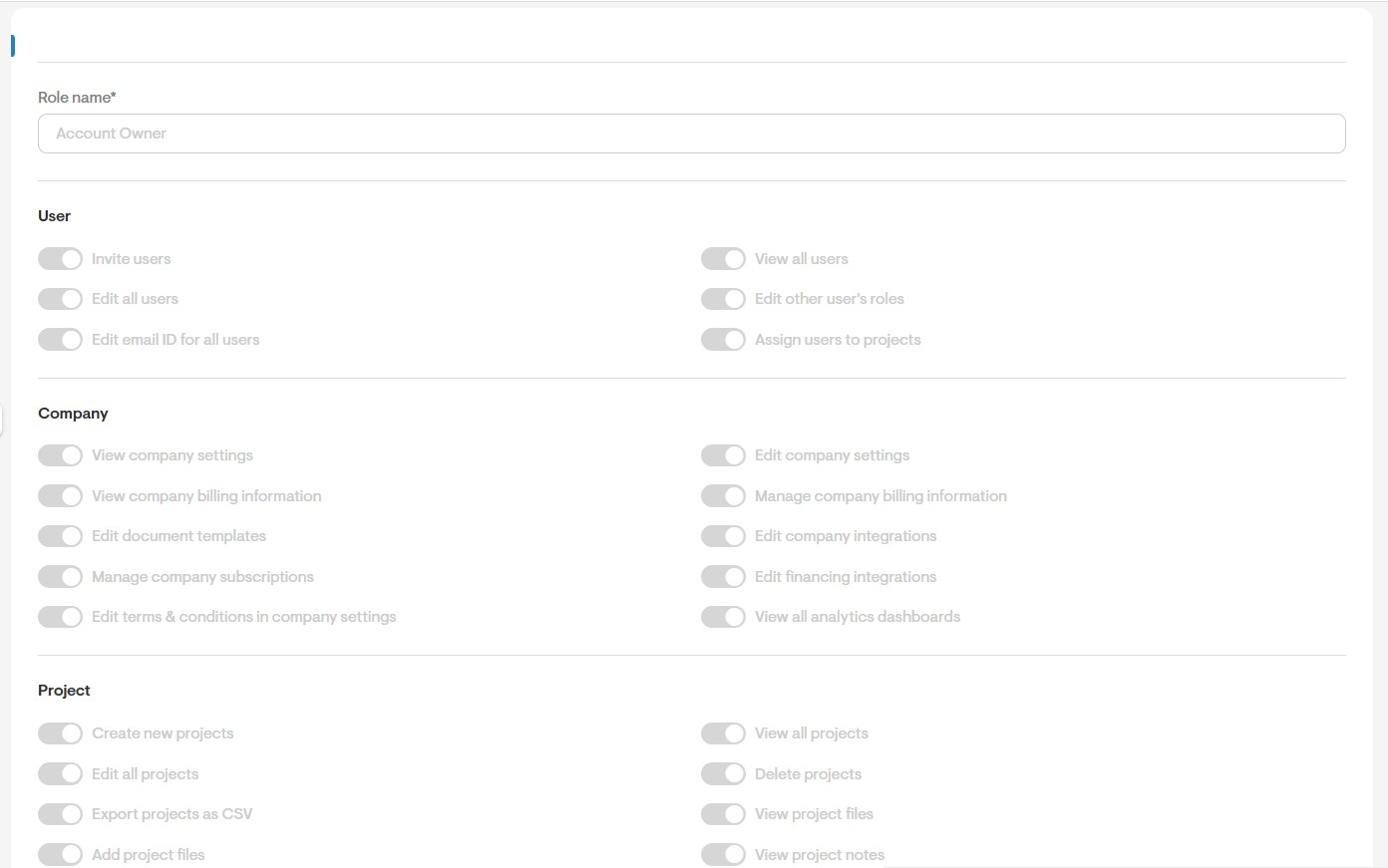
- Solargraf provides flexible role management, allowing you to create new roles or customize existing ones with role-specific permission settings.
- These permissions can be toggled on or off depending on what’s appropriate for each role.
Notification Settings
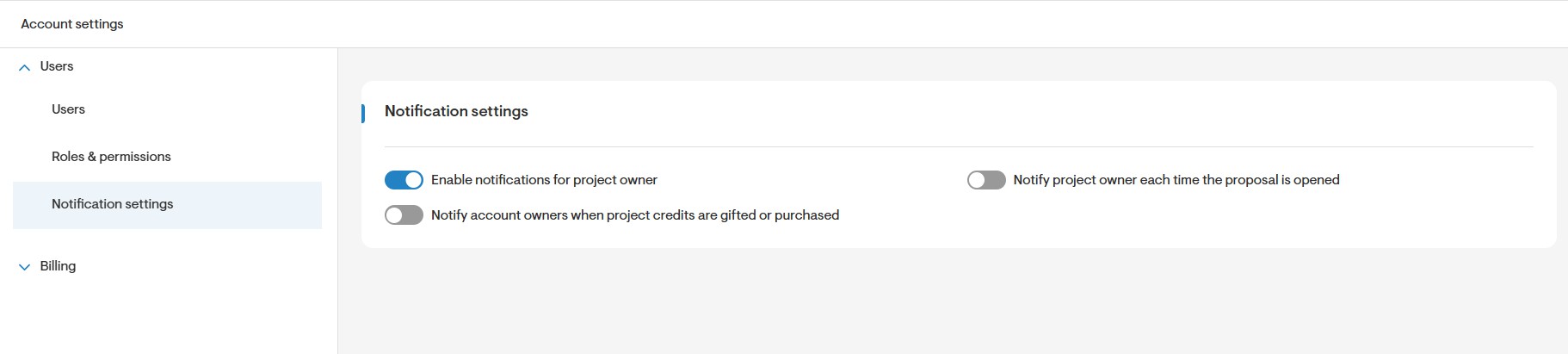
On this page, you can select the default notification preferences for each project.
- Enable notifications for project owner: When this setting is turned on, the user assigned as the project owner will receive text and email notifications about key project milestones.
- Notify project owner each time the proposal is opened: The project owner will be notified via text or email every time the homeowner or client opens the proposal.
Leads
In Solargraf, you can use the Leadssection to create, manage, and assign leads to different members of your team.
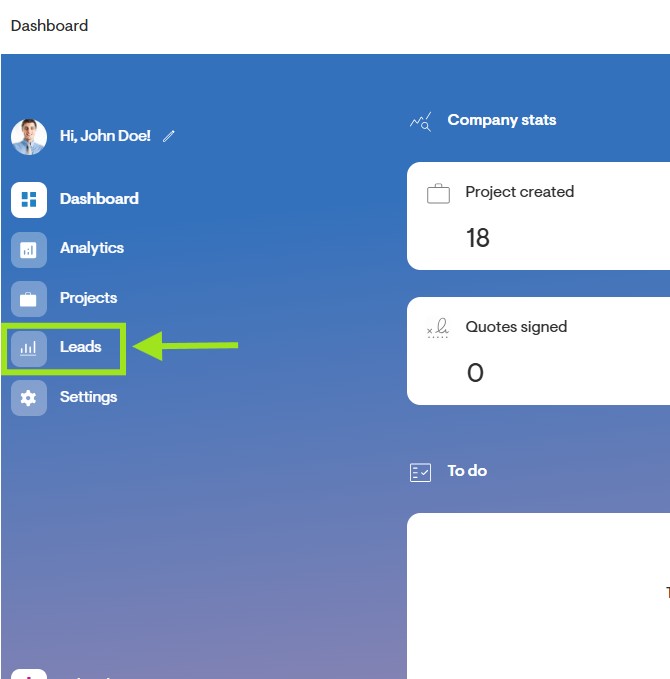
- To access this page, click on Leadslocated in the top-left menu of your dashboard, then select the Leads tab.
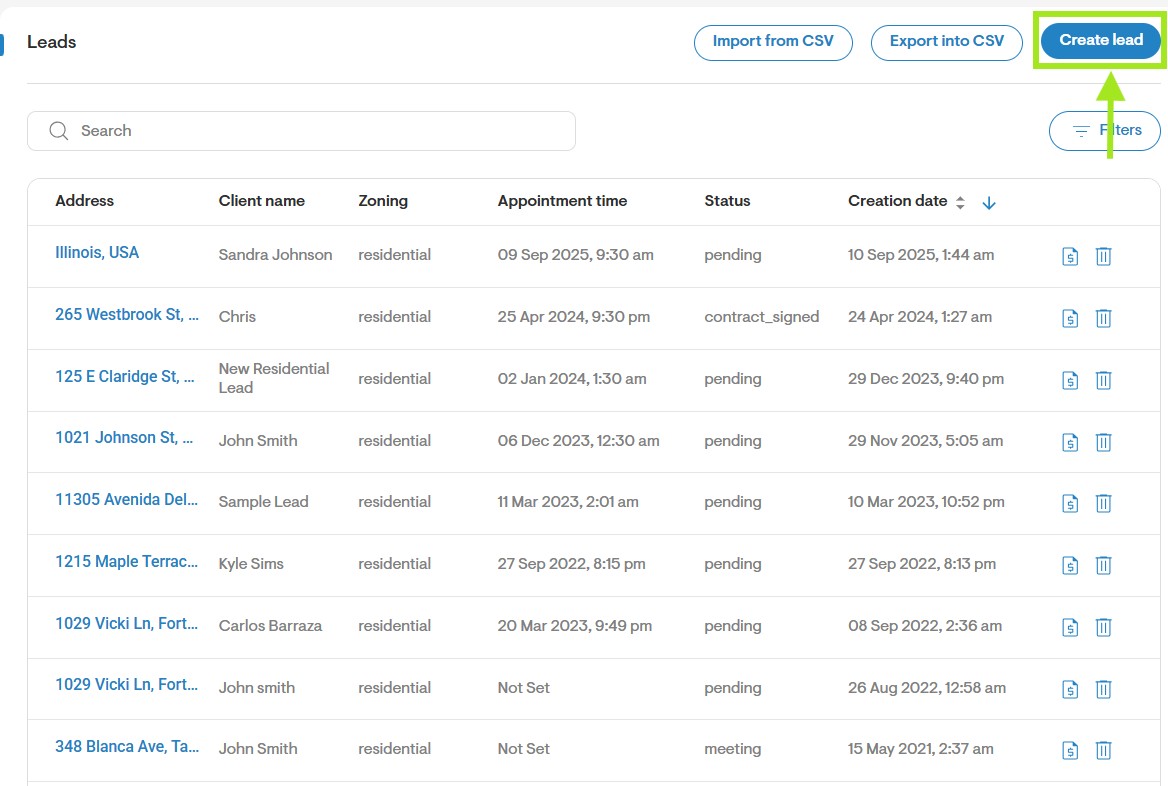
- On the Leads page, click on the New lead button at the top right corner to create a new lead.
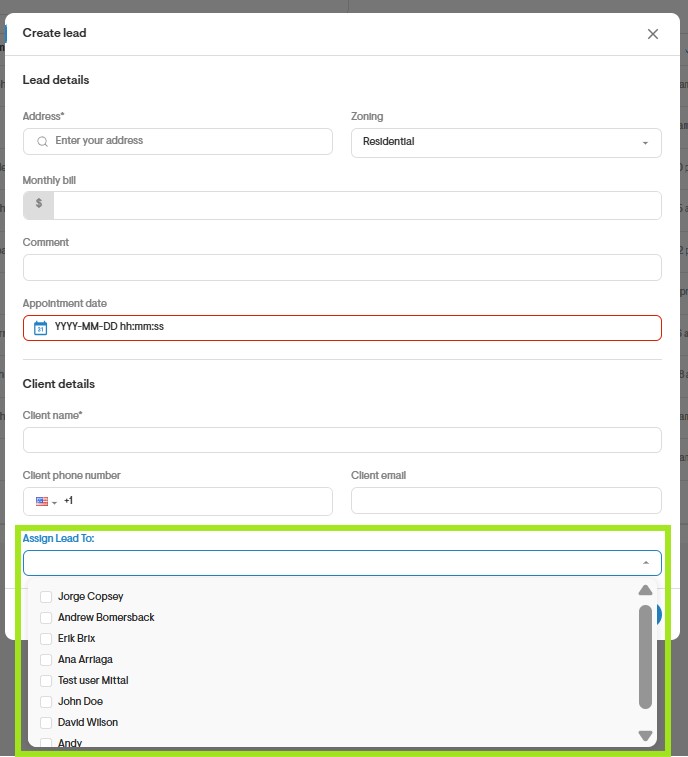
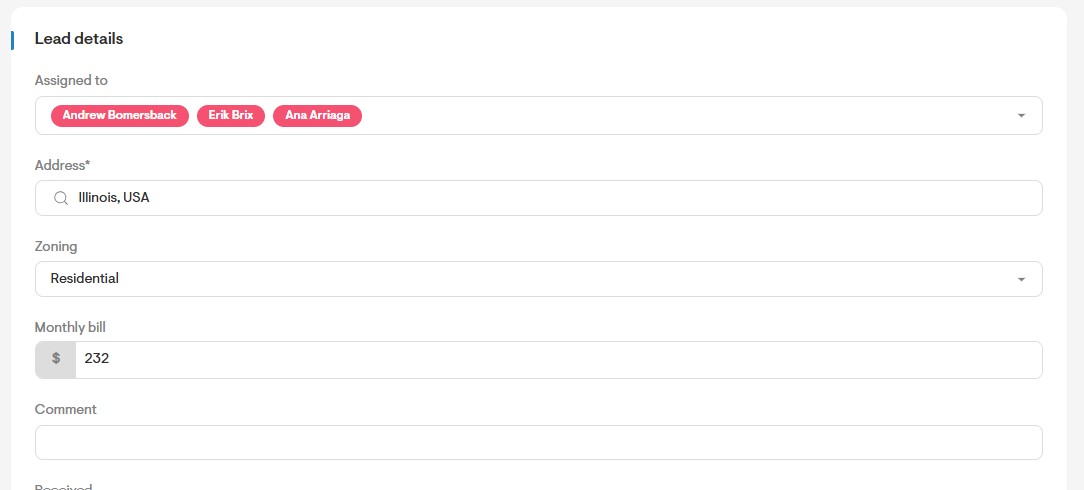
- When creating a new lead, a window will appear where you can enter the lead and client details. At the bottom of the form, you’ll find a dropdown labeled Assign lead to. Use this dropdown to select the team member you want to assign the lead to.
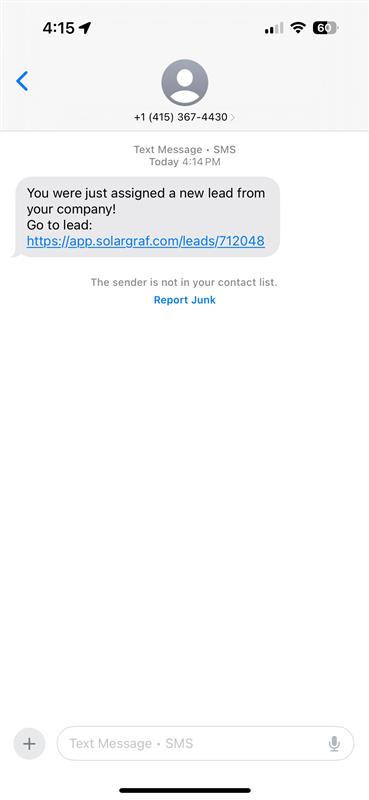
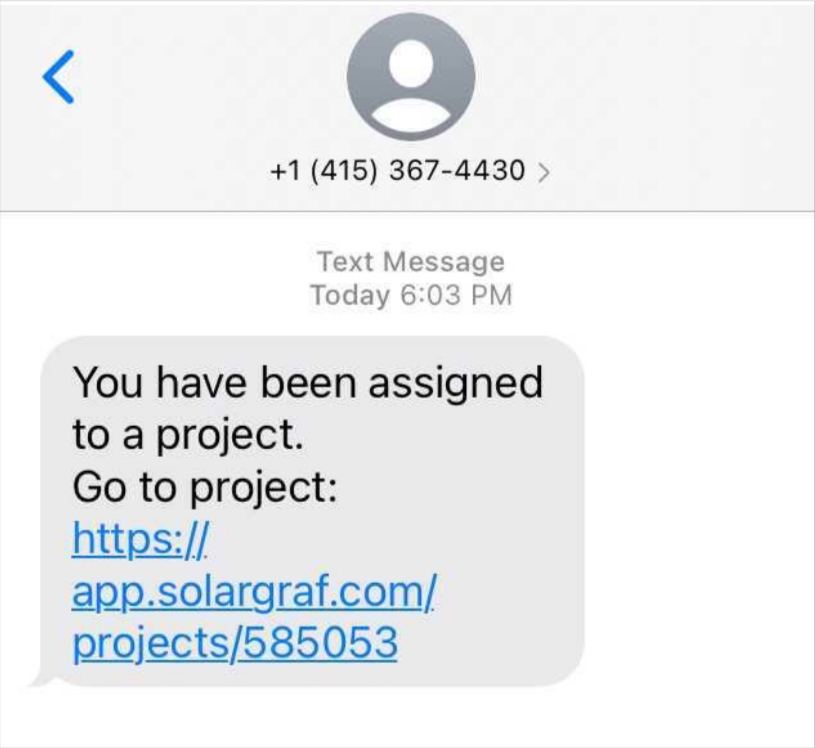
The assigned team member will automatically receive an SMS and/or email notification informing them that a lead has been assigned to them.
- You can also assign multiple team members to a single lead by checking the button next to their names and to send them a notification about this lead assignment.
- If you have a list of leads that you wish to bulk-import into Solargraf, you can do so via Public API . For more information about the Solargraf API : How to request Soalrgraf's Public API
Project Assignments & Notifications
Similar to the Leads section, Solargraf allows you to assign projects to different team members through the Assign users section on the Overview page of each project.
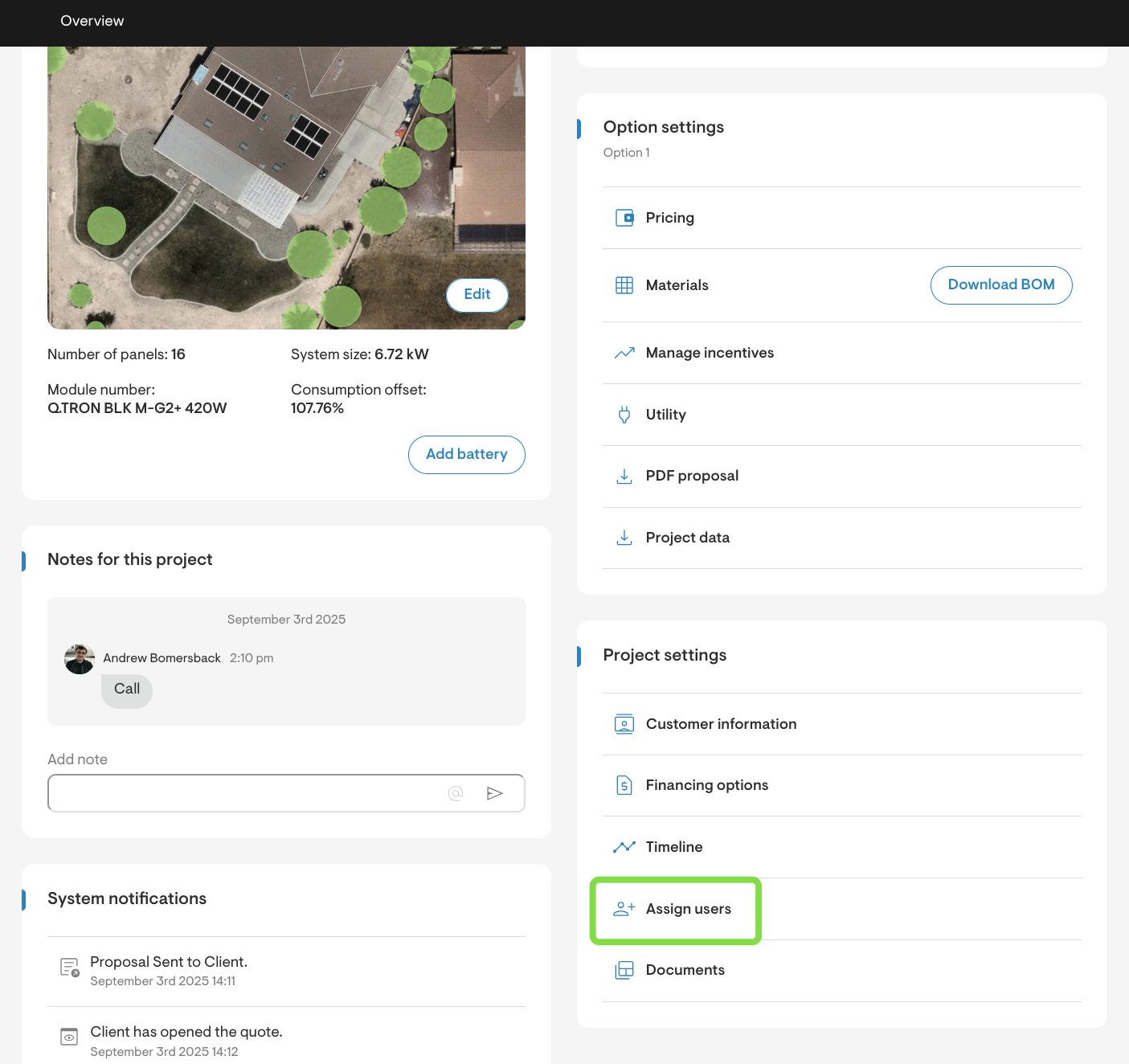
- You can designate one team member as the Project owner. This person will receive an automatic SMS and/or email notification when the project is assigned to them, as well as for any future updates related to the project (e.g., permit set updates).
- Other users on the account can also opt in to receive notifications about the project. This can be done by toggling the notification icon to the ON position in the Assign users section.
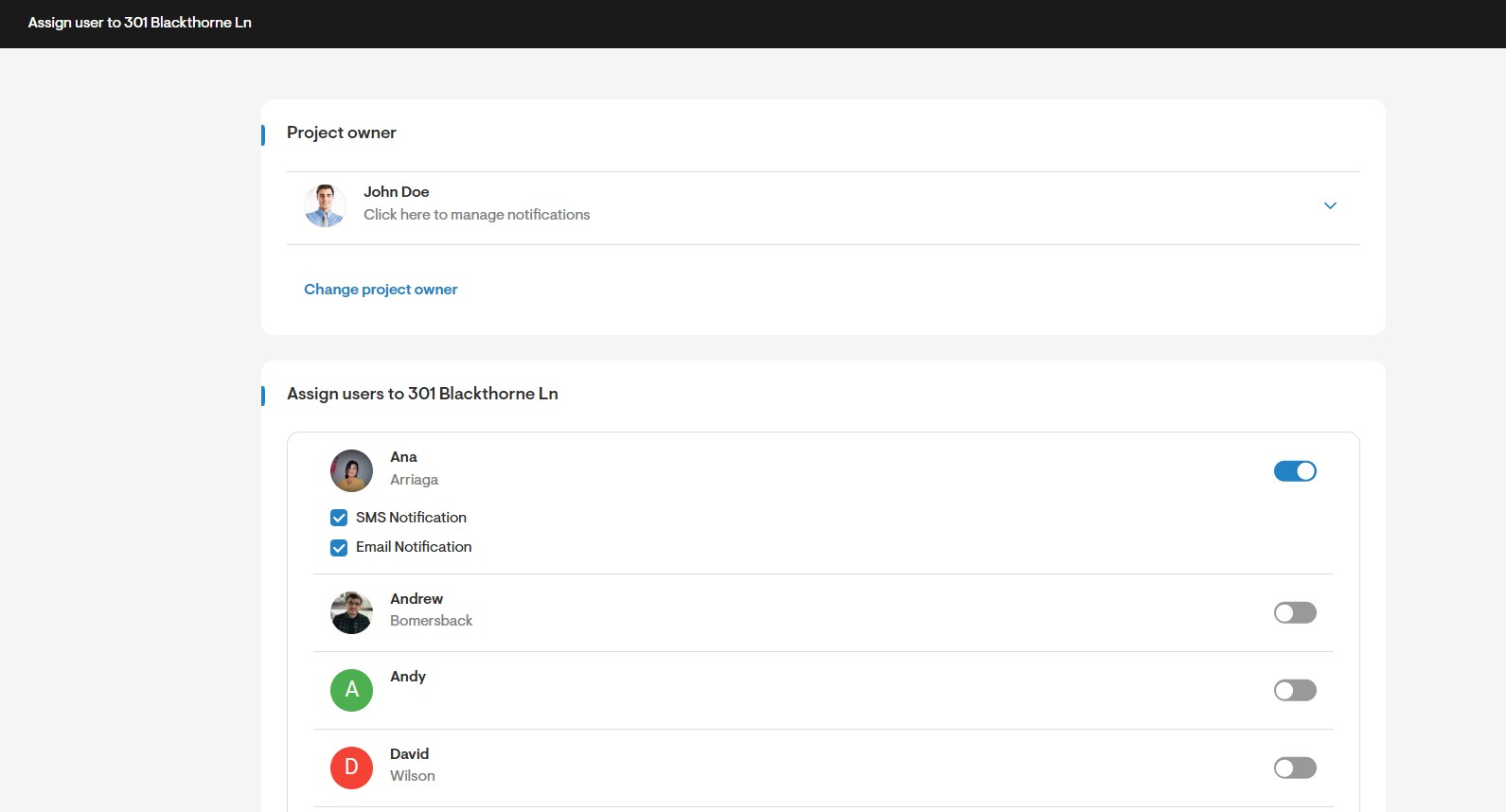
- Once notifications are enabled, users will receive alerts via email and/or SMS for project assignments and key updates.
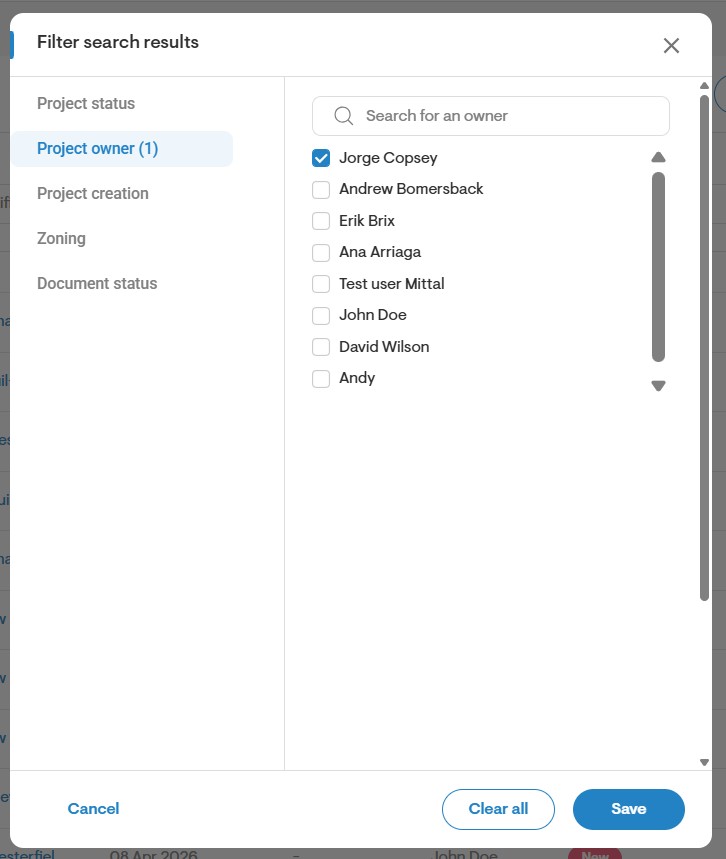
In addition, when you click filter by Project owner on the Projects page, you can view projects assigned to a specific team member.
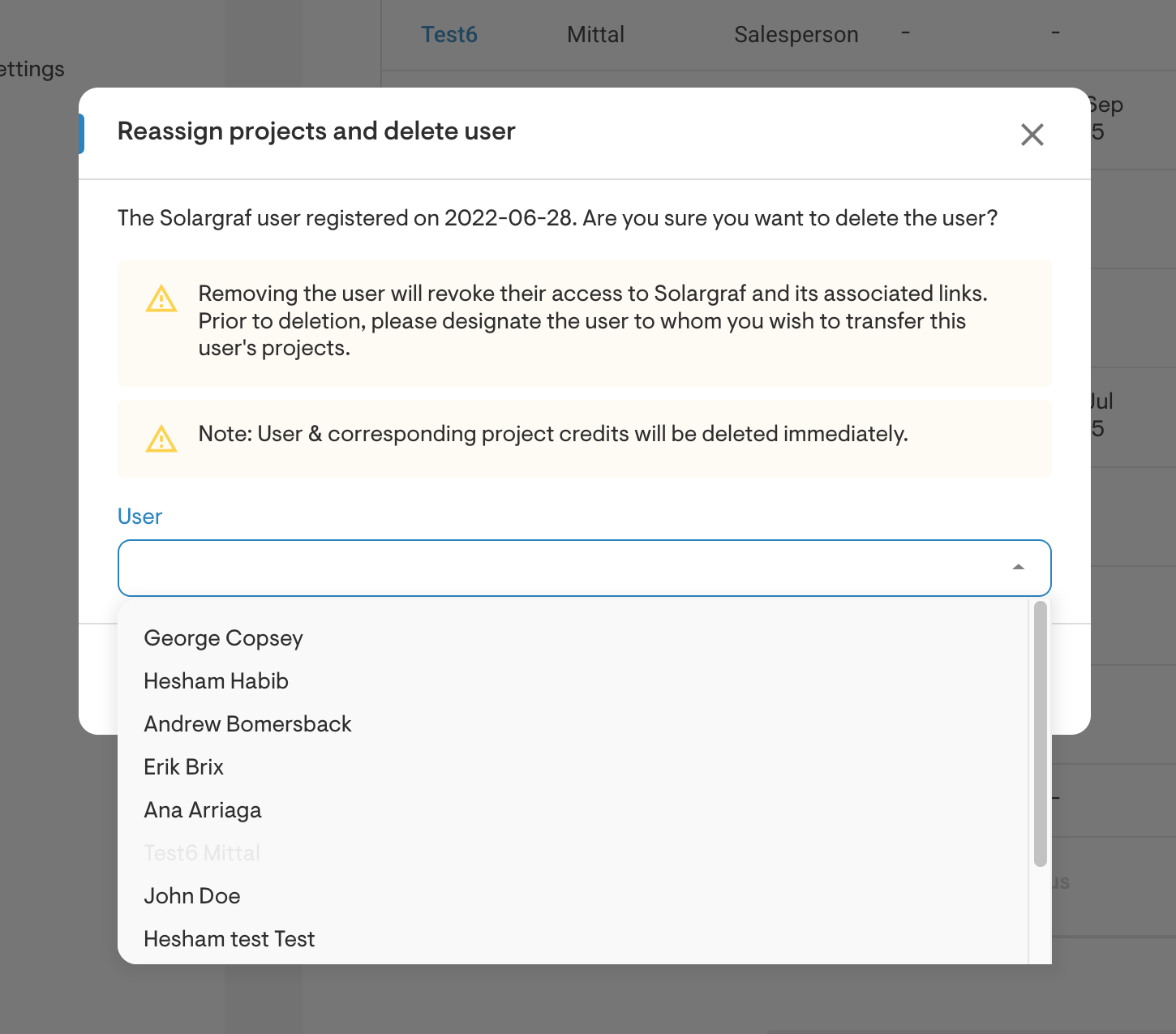
Q. What happens when a user is deleted from the company account?
Answer:
When a user is deleted from a company account, all of their projects are automatically reassigned to another user. A dialog window will appear, prompting you to select the user who should take over the deleted user's projects.