Help Center Loan
Sungage Integration on Solargraf
Published on 24 Sept 2026
This guide explains how to set up and use the Sungage integration in Solargraf. Sungage on Solargraf supports installer activation, dynamic loan import, project-level quoting, homeowner loan application by email, and project status tracking through the Sungage portal.
Note: This feature is controlled by a company-level setup. If your company has not activated Sungage and imported at least one loan product, installers will not be able to use Sungage financing on projects.
What this integration does
The Sungage integration lets installers do the following directly in Solargraf:
- Activate Sungage at the company level using Sungage-issued credentials
- Import available Sungage loan options into company settings
- Use supported Sungage loans in project financing and proposals
- Show accurate monthly payment values and loan details for chosen Sungage loan options
- Create a Sungage project from Solargraf and email the homeowner a credit application link
- Track the created Sungage project on the Sungage portal and update it later if the design or financing changes
Before you begin
Before using Sungage in a project, make sure all of the following are true:
- Your company is a Sungage partner or is in the process of becoming one
- You have valid Sungage credentials
- At least one Sungage loan has been imported into company financing settings
Step 1: Activate Sungage for your company
Sungage must first be activated in company settings before it can be used on projects.
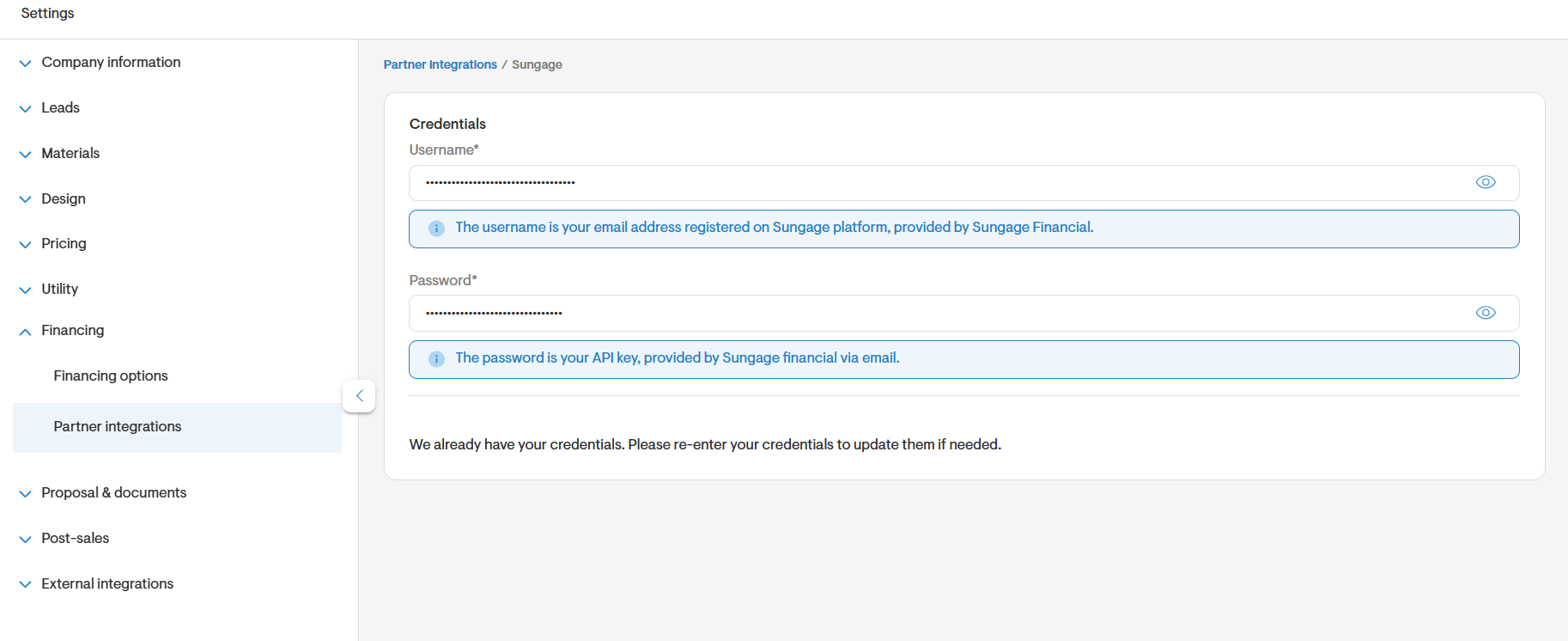
When you click on Sungage under Partner integrations, you will be provided with fields to enter:
- Username: your Sungage-registered email address
- Password: your Sungage API key
Once you click Save, Solargraf will validate the credentials and save them if they are validated successfully. If the credentials are invalid, Solargraf shows an error and asks you to re-enter them.
Step 2: Import Sungage loan options into company financing
After successfully updating your Sungage credentials on Solargraf, the next step is to import the loan products your company wants to offer.
Under Company settings > Financing > Financing options, you will see the button to import Sungage loan options. When you click on it, you will see the following Sungage loan types, with a filter to make the selection easier:
- BrightStart DPP
- BrightStart Level Pay
- Sunrise
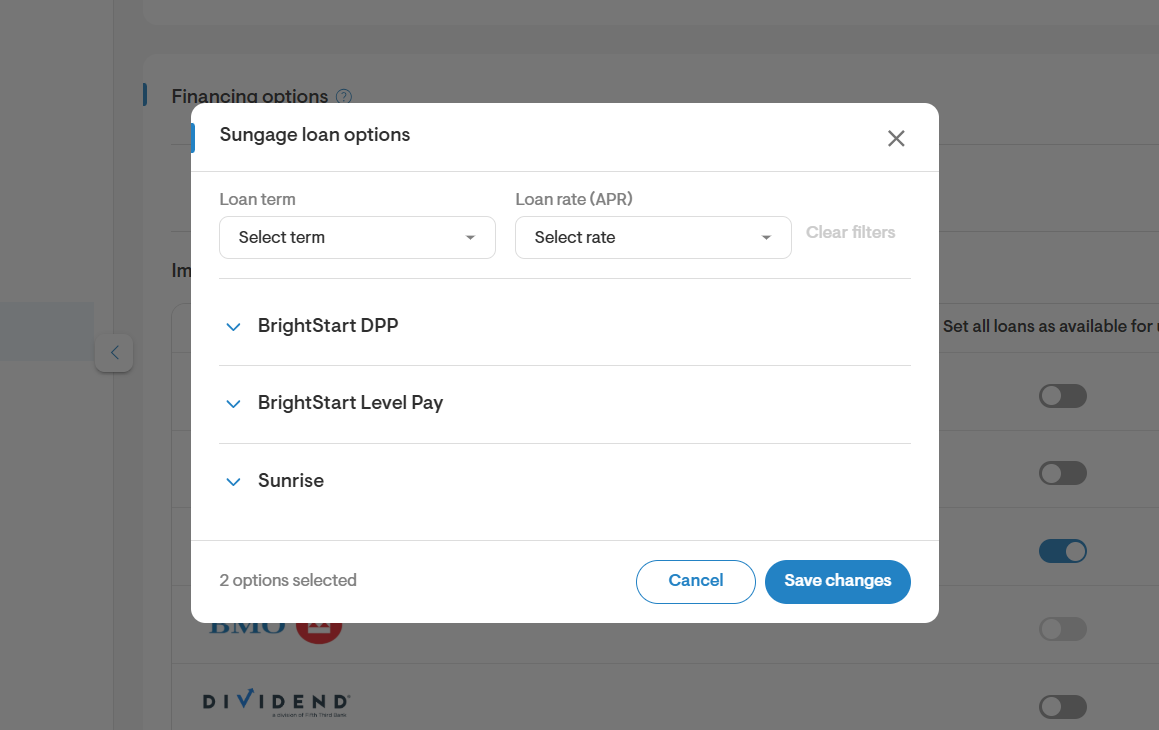
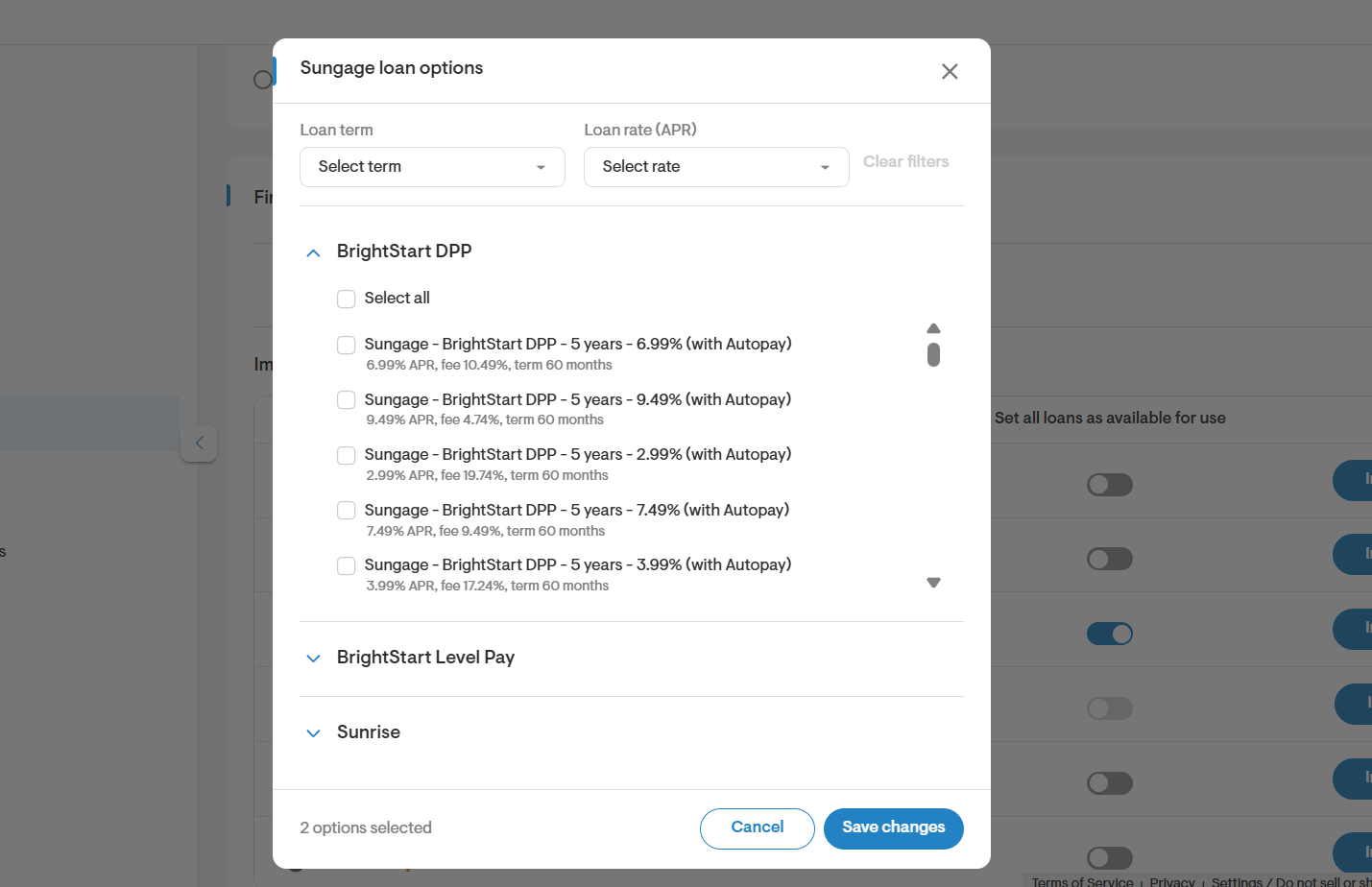
Here, each option is shown with a checkbox so you can choose which products to import. You can import up to 10 Sungage loans, and you can select loans across any of the three product sections. If no Sungage credentials have been saved, clicking Import shows an authentication-required message instead of loan options.
Click Save changes to import the selected Sungage loans into company financing settings. These loans can then be used in new and existing projects. You can check the details of the imported Sungage loan options by clicking on the edit icon.
Step 3: Understand the Sungage loan types imported into Solargraf
Solargraf supports three Sungage loan types. Each is modeled differently and behaves differently on the webquote. The table below briefly explains the three loan types offered by Sungage.
| Loan type | Key feature | Payment behavior |
| BrightStart DPP | Deferred payment product | Includes a deferred payment portion due at month 35. Can also be used with select rebate options supported on Solargraf. |
| BrightStart Level Pay | Standard fixed-payment loan | Monthly payment remains constant for the complete loan term |
| Sunrise | Escalator loan | Starts with an initial monthly payment and increases by 2.9% each year |
All Sungage loans have an associated dealer fee, which is factored into the pricing calculations shown on the webquote. They have a minimum loan amount of $10,000 and a maximum loan amount of $150,000.
Sungage BrightStart DPP can also be used with the following rebates currently supported on Solargraf:
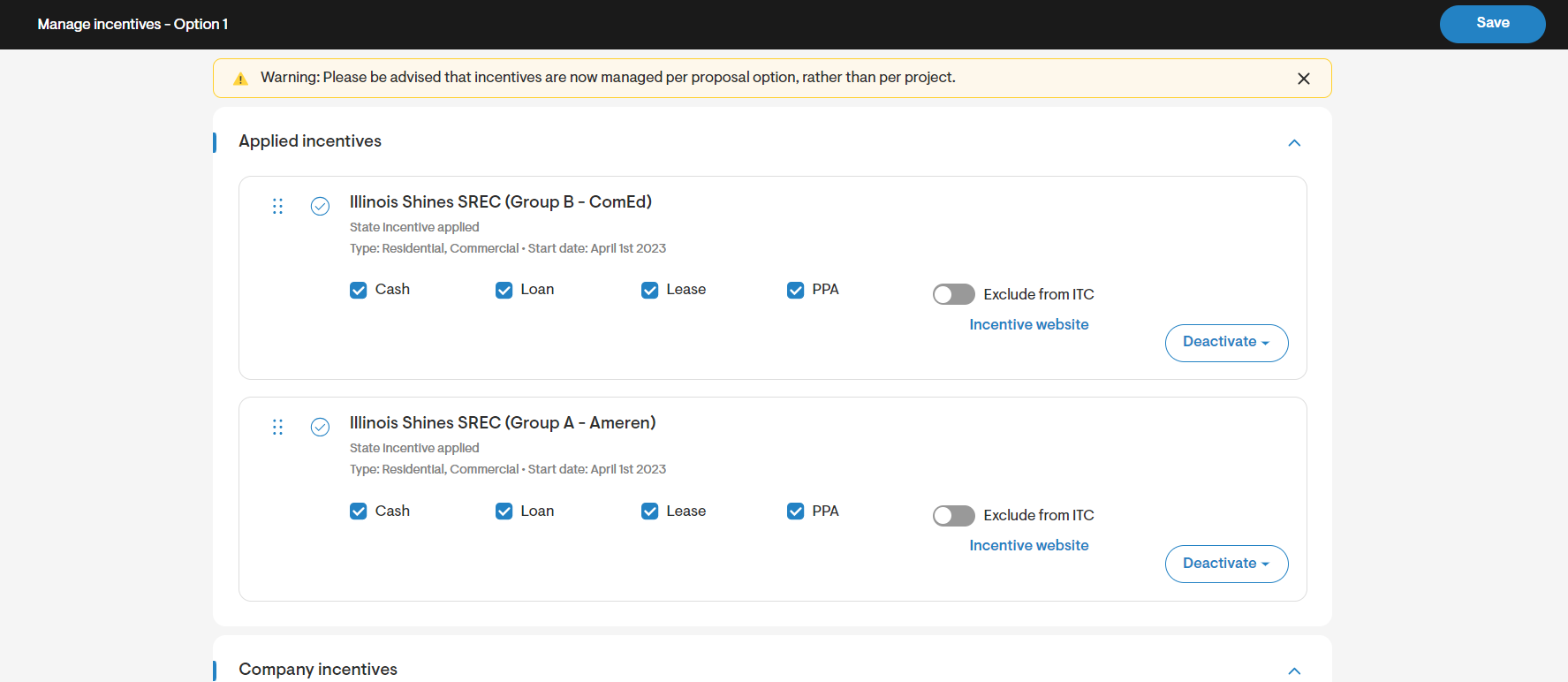
- Illinois Shines SREC (Group A - Ameren) & Illinois Shines SREC (Group B - ComEd) in Illinois
- Austin Energy - Residential Solar PV Rebate Program (2018) in Texas
Step 4: Use Sungage loans in a project
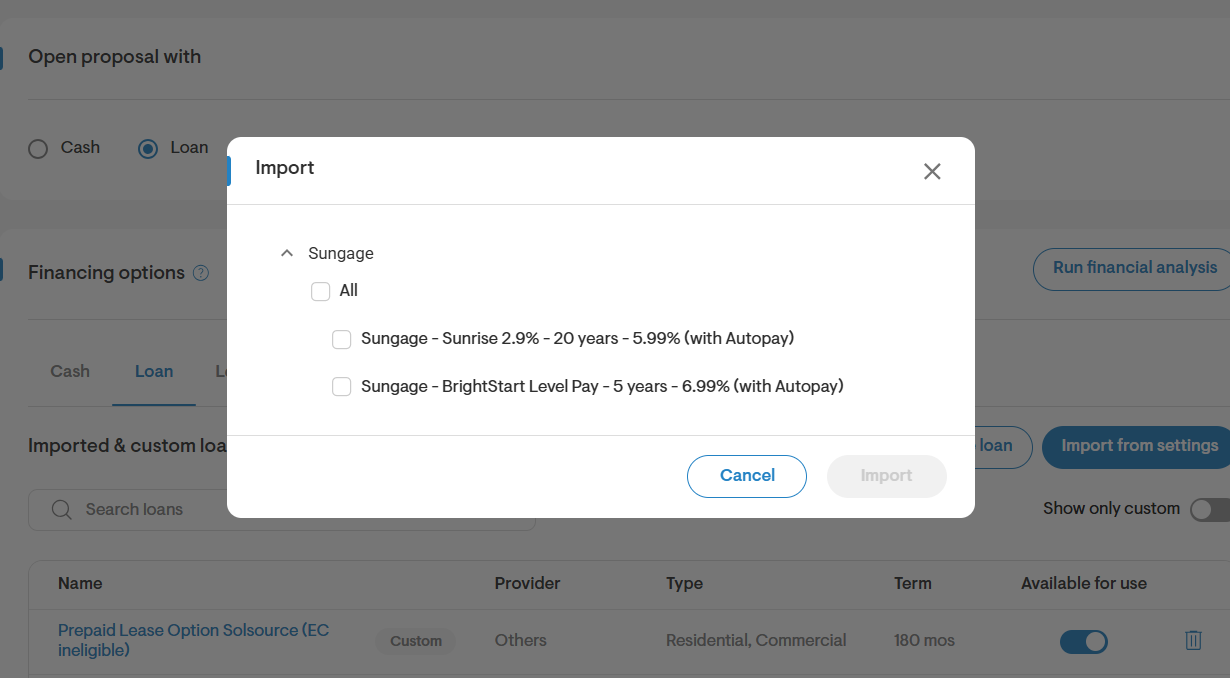
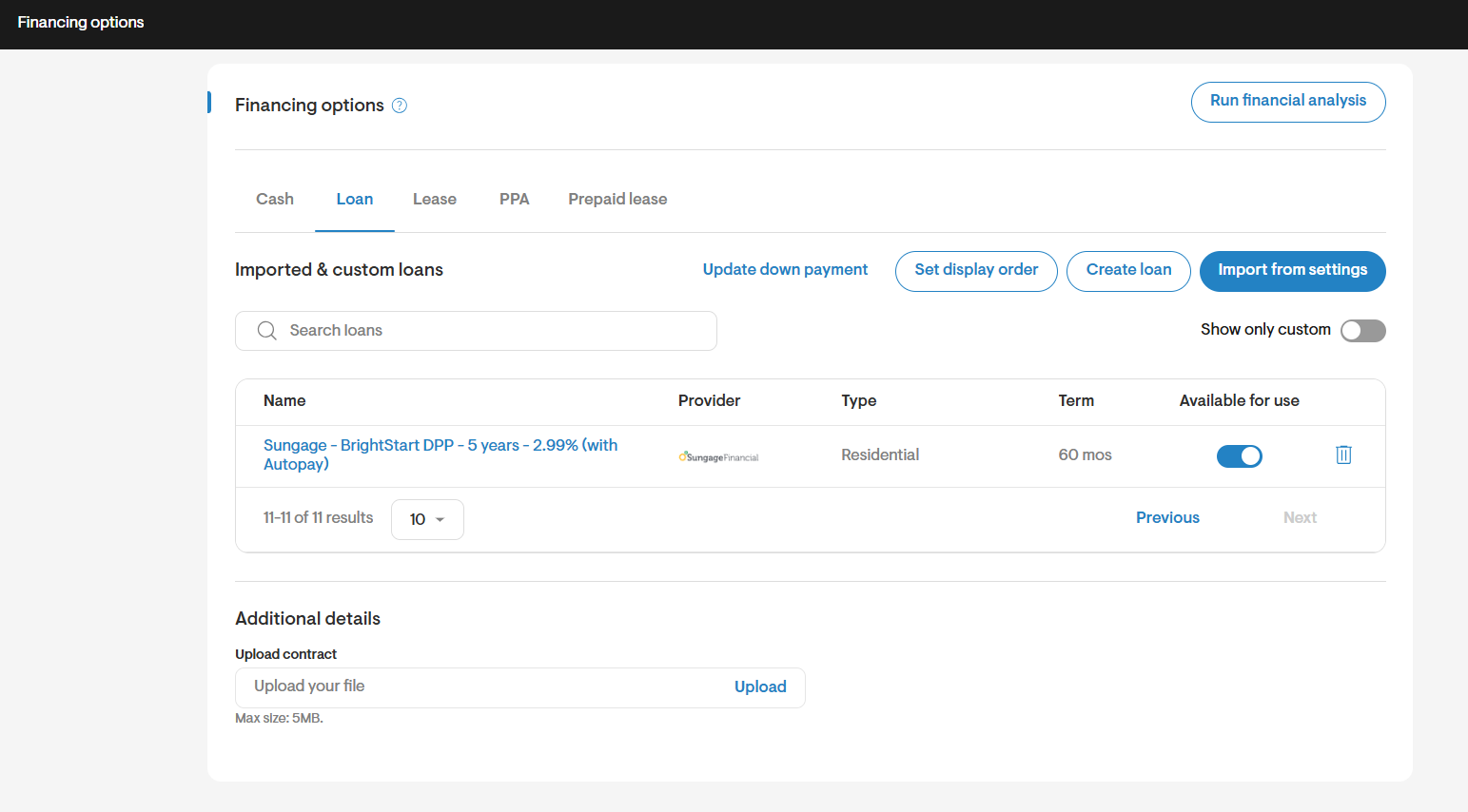
Once loans are imported at the company level, they can be imported to projects under financing options by clicking the Import from settings button.
Step 5: How Sungage loans are shown on the webquote
When a Sungage financing option is selected on the webquote, Solargraf calls Sungage pricing services to calculate the payment details shown to the homeowner.
How costs are grouped
- Solar amount includes solar cost plus applicable solar adders and discounts
- Battery amount includes battery cost plus applicable battery adders and discounts
- Roof amount includes applicable roof-related adders and discounts
Dealer fee handling is included based on the selected dealer fee setup and cost-level toggles in Solargraf.
Payment behavior by loan type
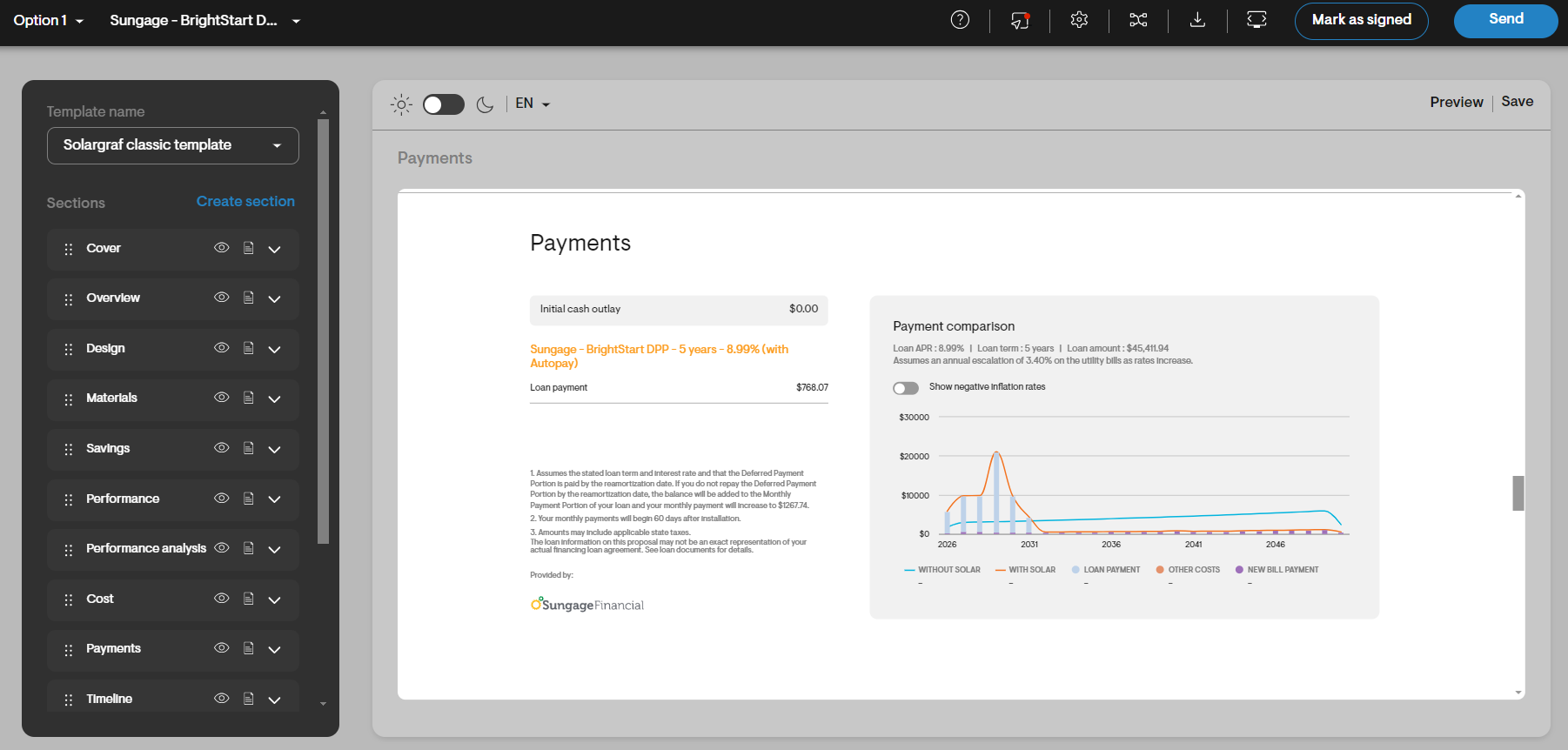
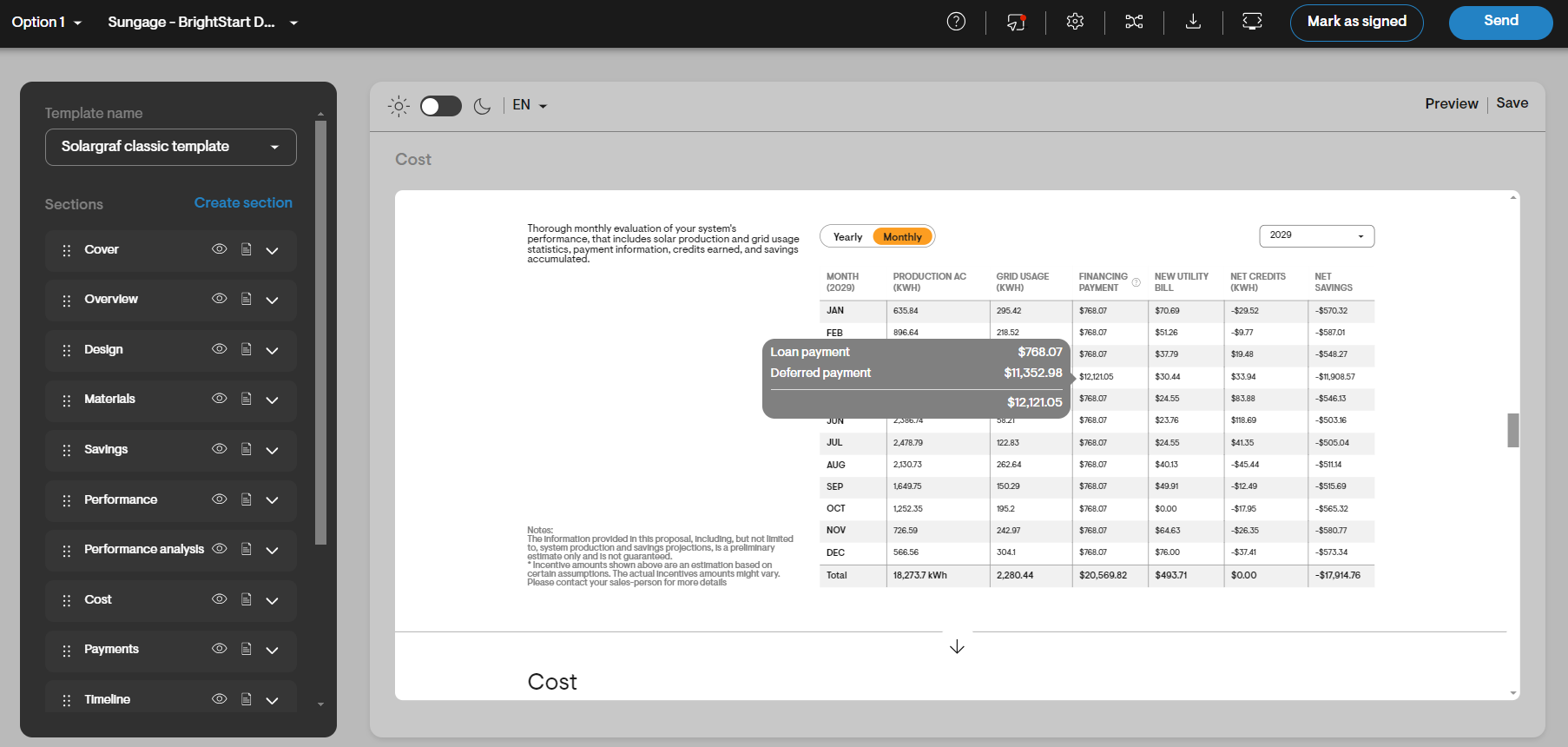
BrightStart DPP
- Monthly payment is based on the Sungage payment response
- A deferred payment portion is due at month 35
- Webquote, savings, performance analysis, and PDF reflect this deferred payment portion
- Disclaimers explain the reamortization behavior if the deferred portion is not paid
BrightStart Level Pay
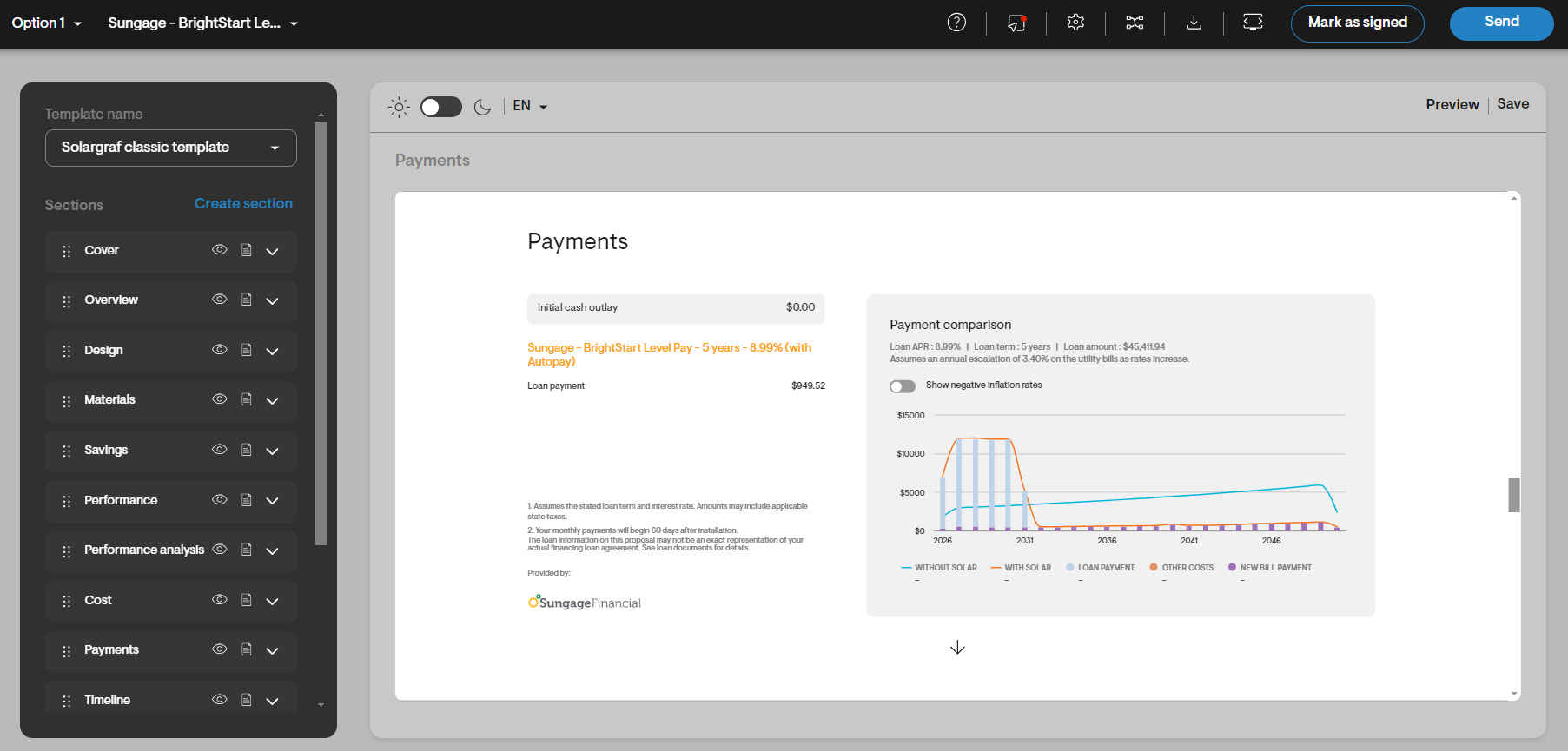
- Monthly payment stays constant for the full loan term
- Webquote and PDF show the same monthly payment value throughout
Sunrise
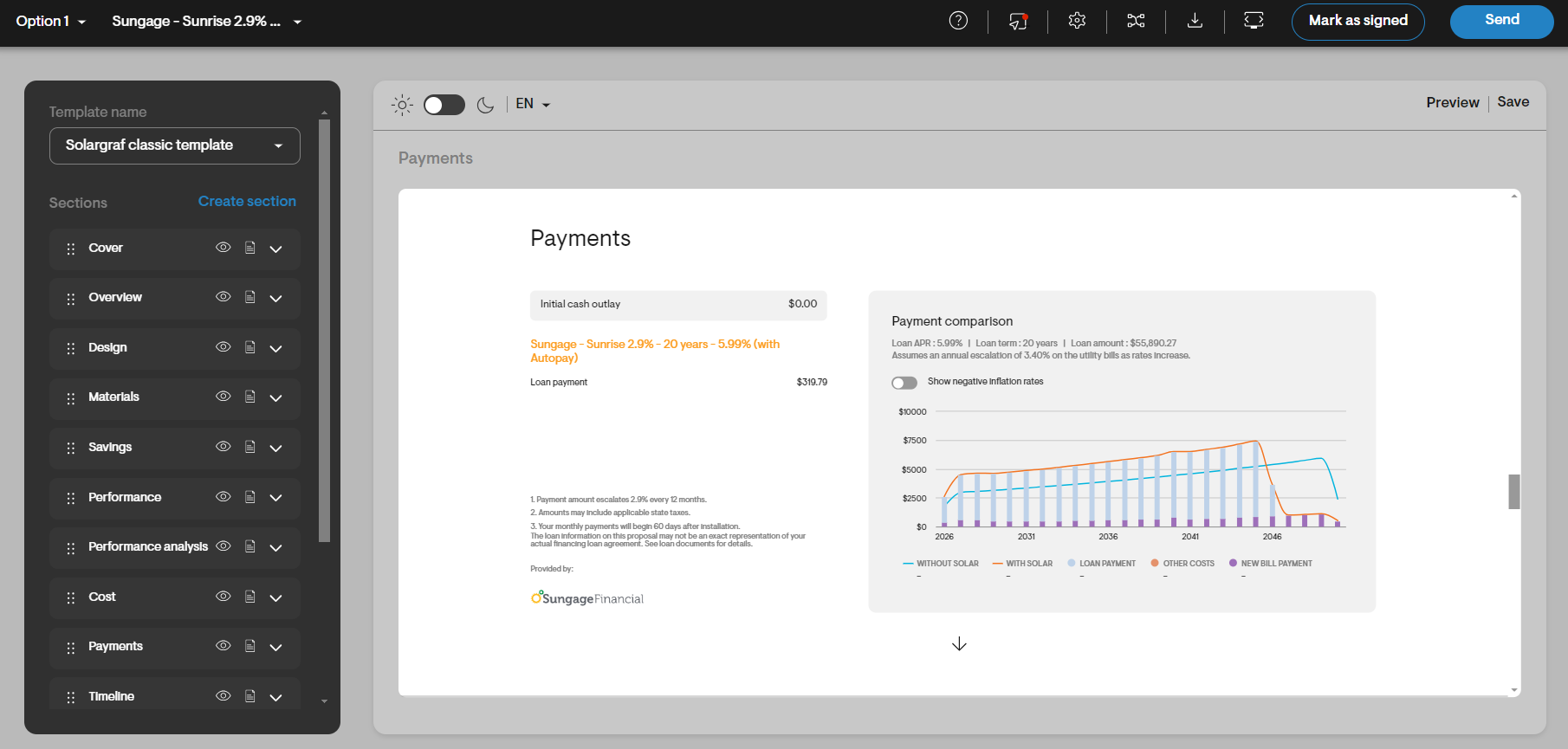
- First-year monthly payment uses Sungage’s initial payment value
- Payments increase by 2.9% every 12 months
Step 6: Supported incentives and rebates
Solar incentives currently supported for BrightStart DPP
| State | Supported incentive |
| IL | Illinois Shines SREC (Group A - Ameren), Illinois Shines SREC (Group B - ComEd) |
| TX | Austin Energy - Residential Solar PV Rebate Program (2018) |
For Sungage BrightStart DPP loan options, if you would like to include the rebates supported by Sungage on the webquote, follow the steps below:
- Add the rebate you wish to include under Manage incentives on the overview page and apply it to the design option you wish to use.
- Click on the Sungage DPP loan product.
- Choose the added rebate in the dropdown.
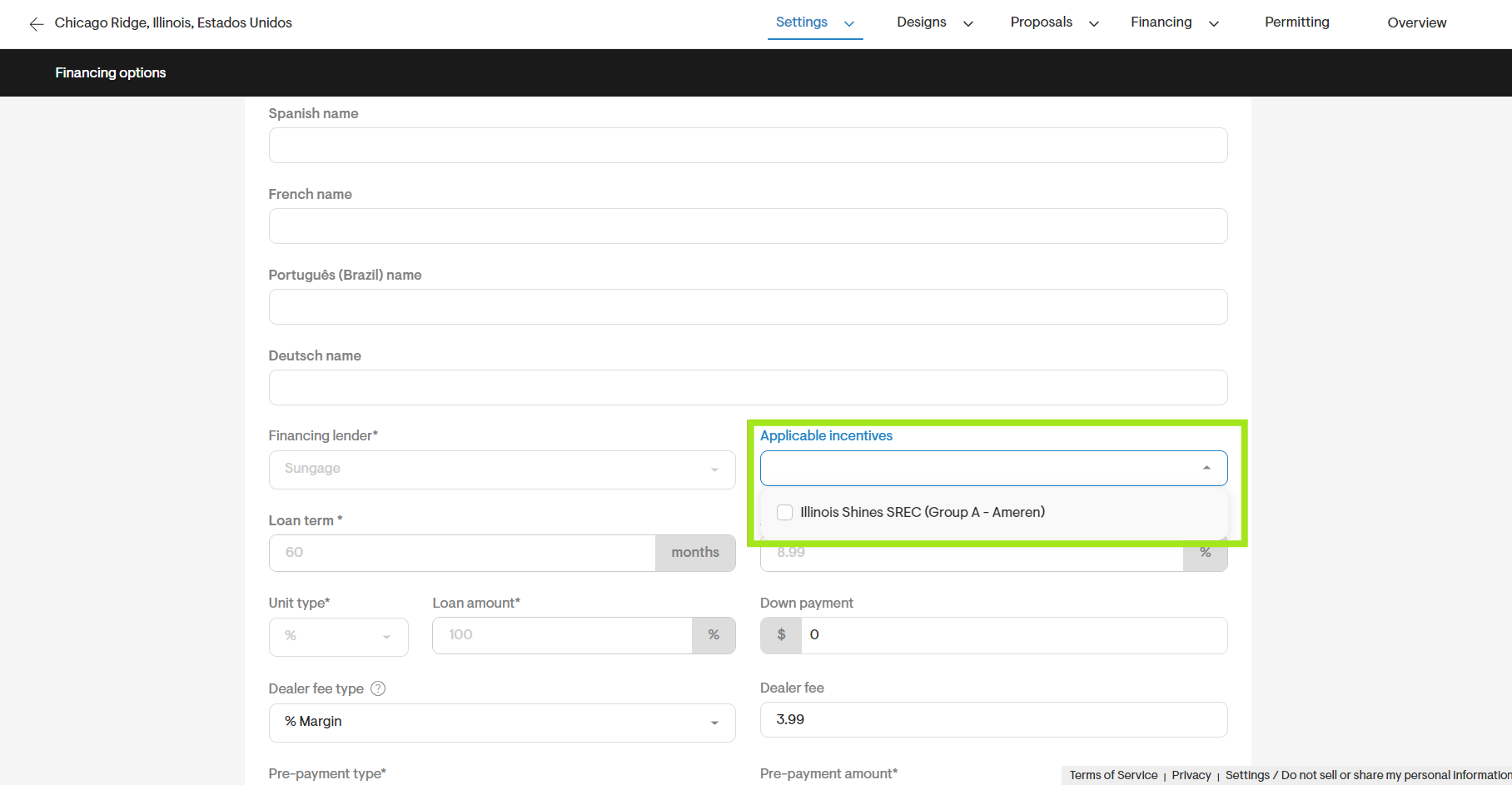
The rebate amount is calculated based on the pricing set on the chosen design option and sent to Sungage.
Note: These rebates can only be added based on the project state where they are available. Illinois Shines SREC (Group A - Ameren) & Illinois Shines SREC (Group B - ComEd) can only be added for projects in Illinois, and Austin Energy - Residential Solar PV Rebate Program (2018) can only be added for projects in Texas.
Step 7: Apply for a Sungage loan from the project overview page
After a project has an eligible design and Sungage financing option, you can create the Sungage project and email the homeowner a loan application link.
Follow the steps below to apply for a Sungage loan and send the loan application to the homeowner:
- Ensure that the homeowner’s first name, last name, and email address are populated under customer information.
- Go to the Project Overview page and click Apply for Sungage under loan providers. Sungage may also be accessible from the navigation bar.
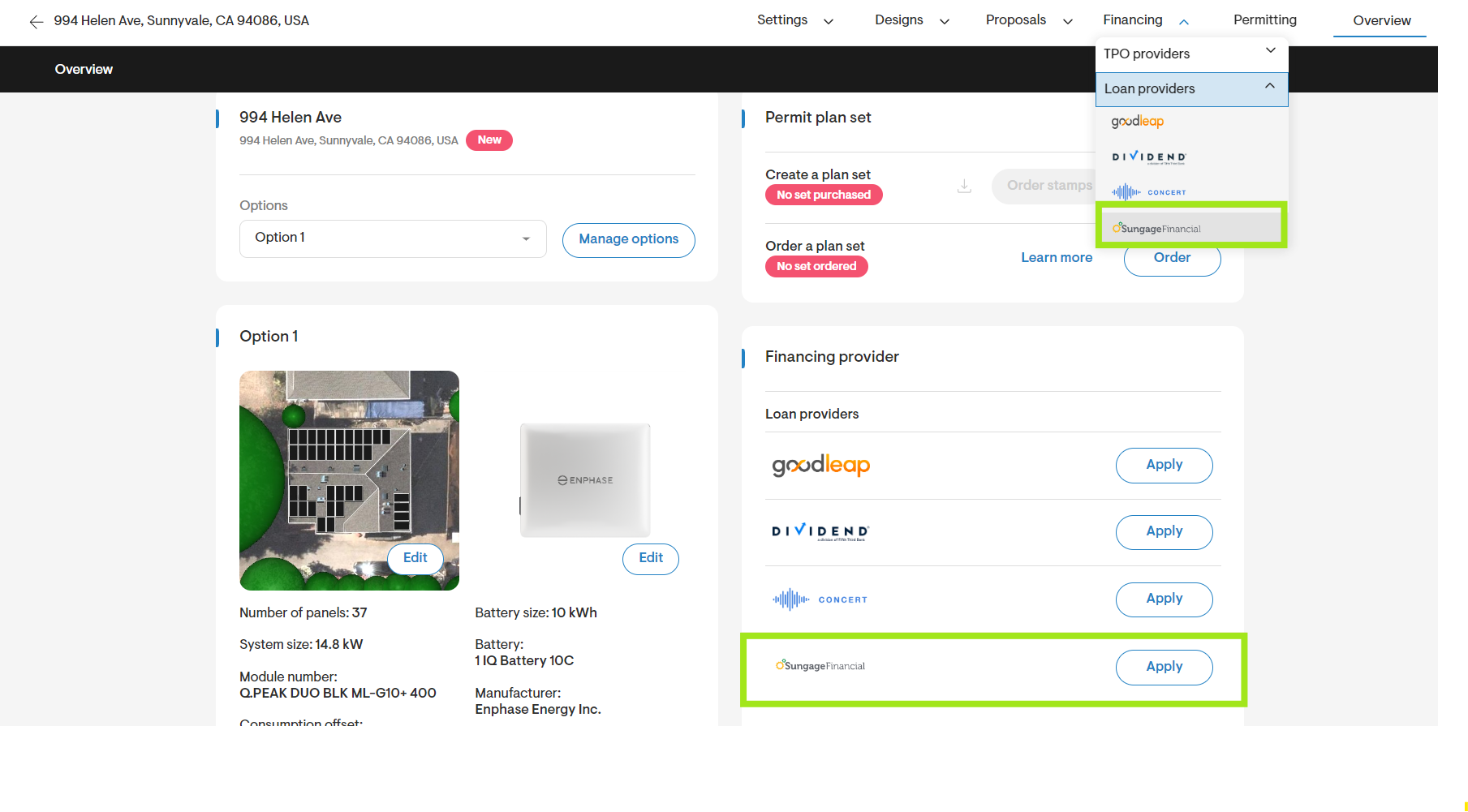
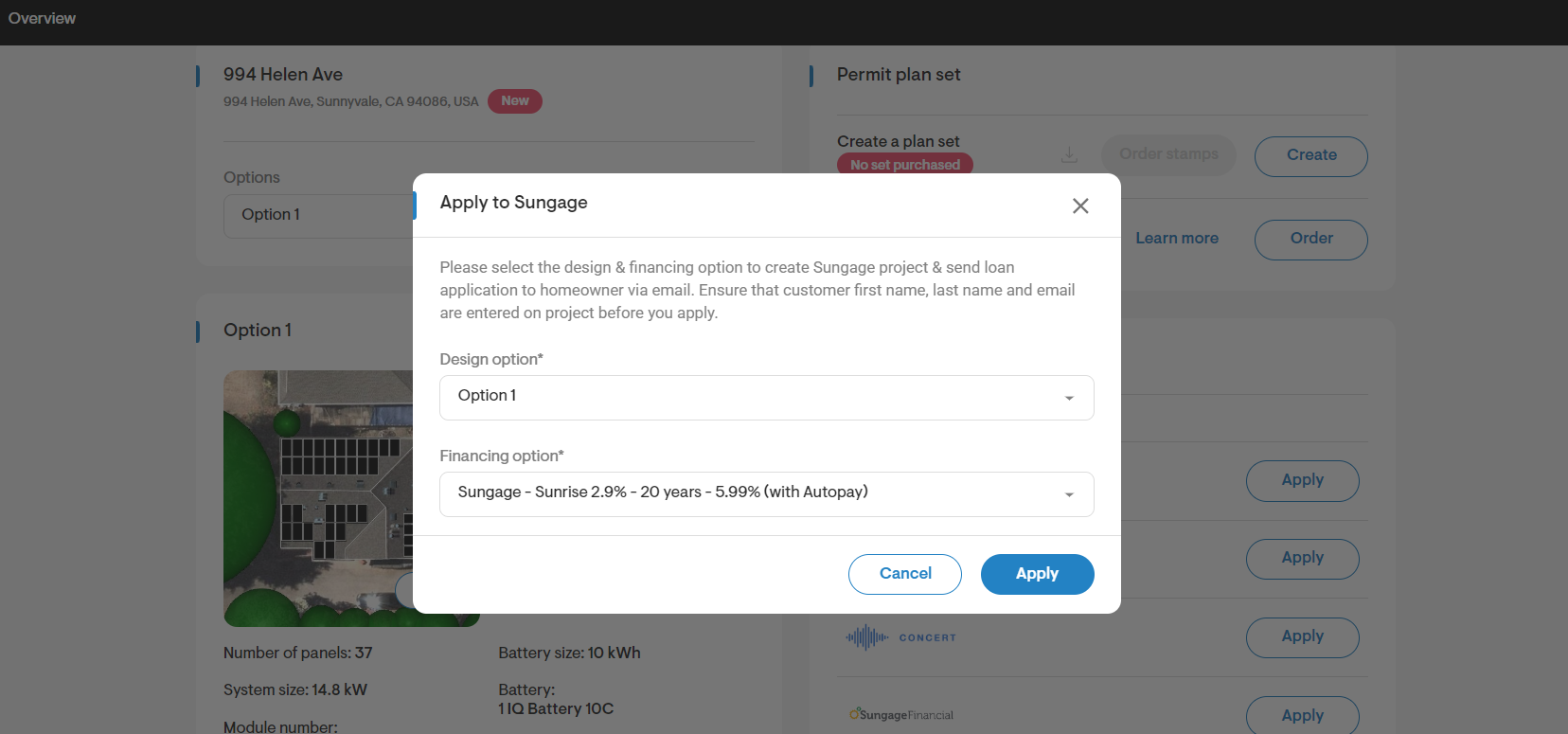
- In the pop-up, choose the design option and Sungage financing option, and click Apply.
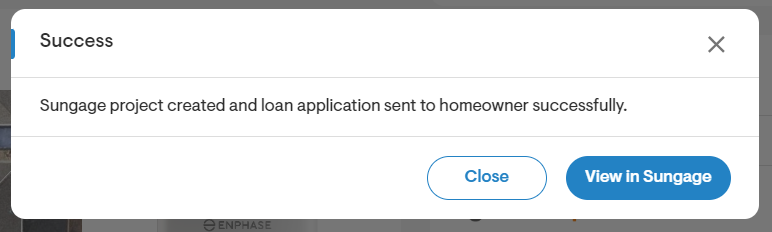
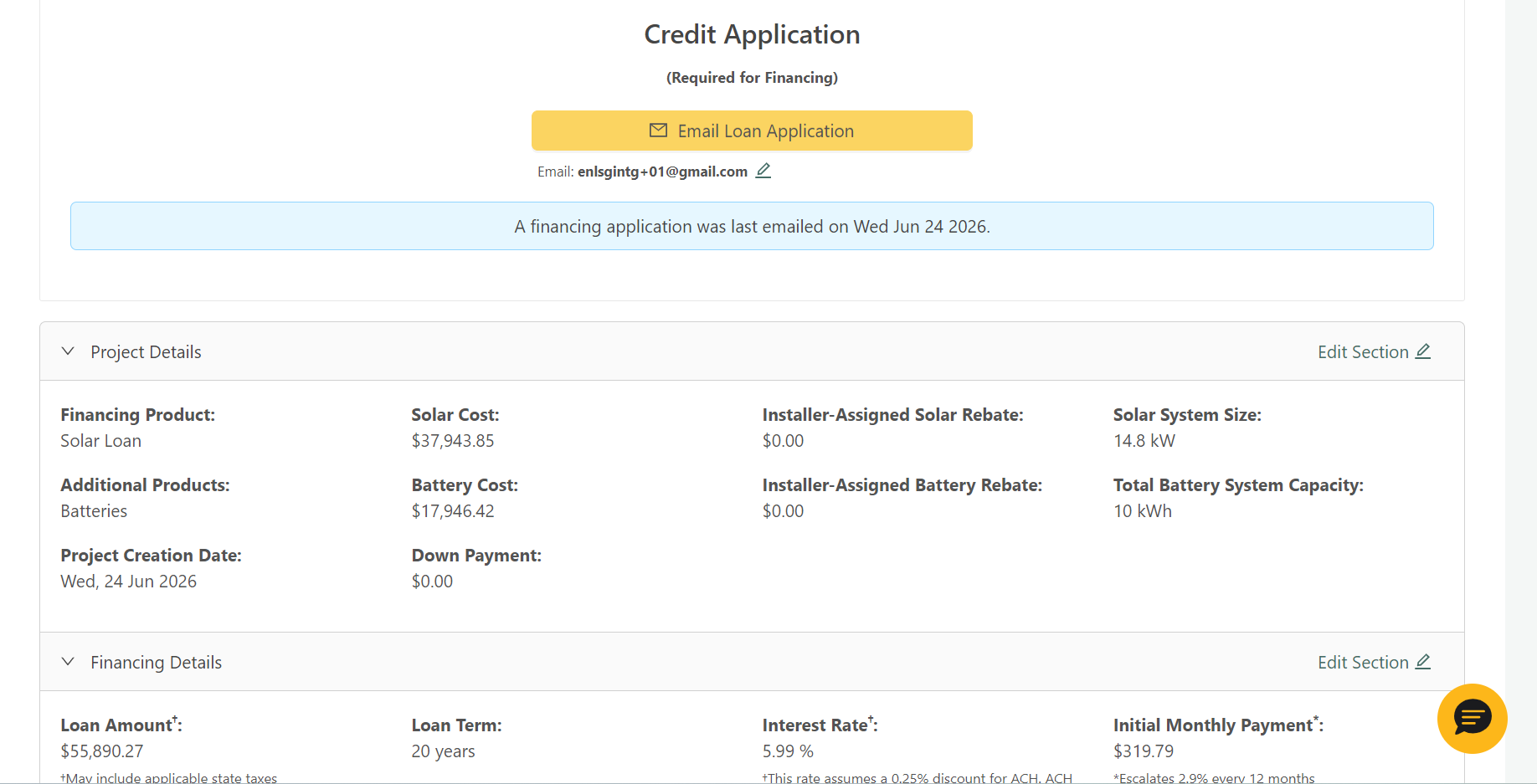
- Upon receiving a success message, a Sungage project is created and a Sungage credit application link is sent to the homeowner by email.
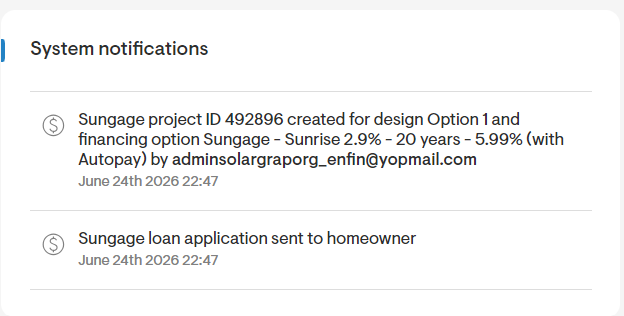
- You can also check the related messages under system notifications.
- After a successful application, the button on the overview page changes from Apply to View status.
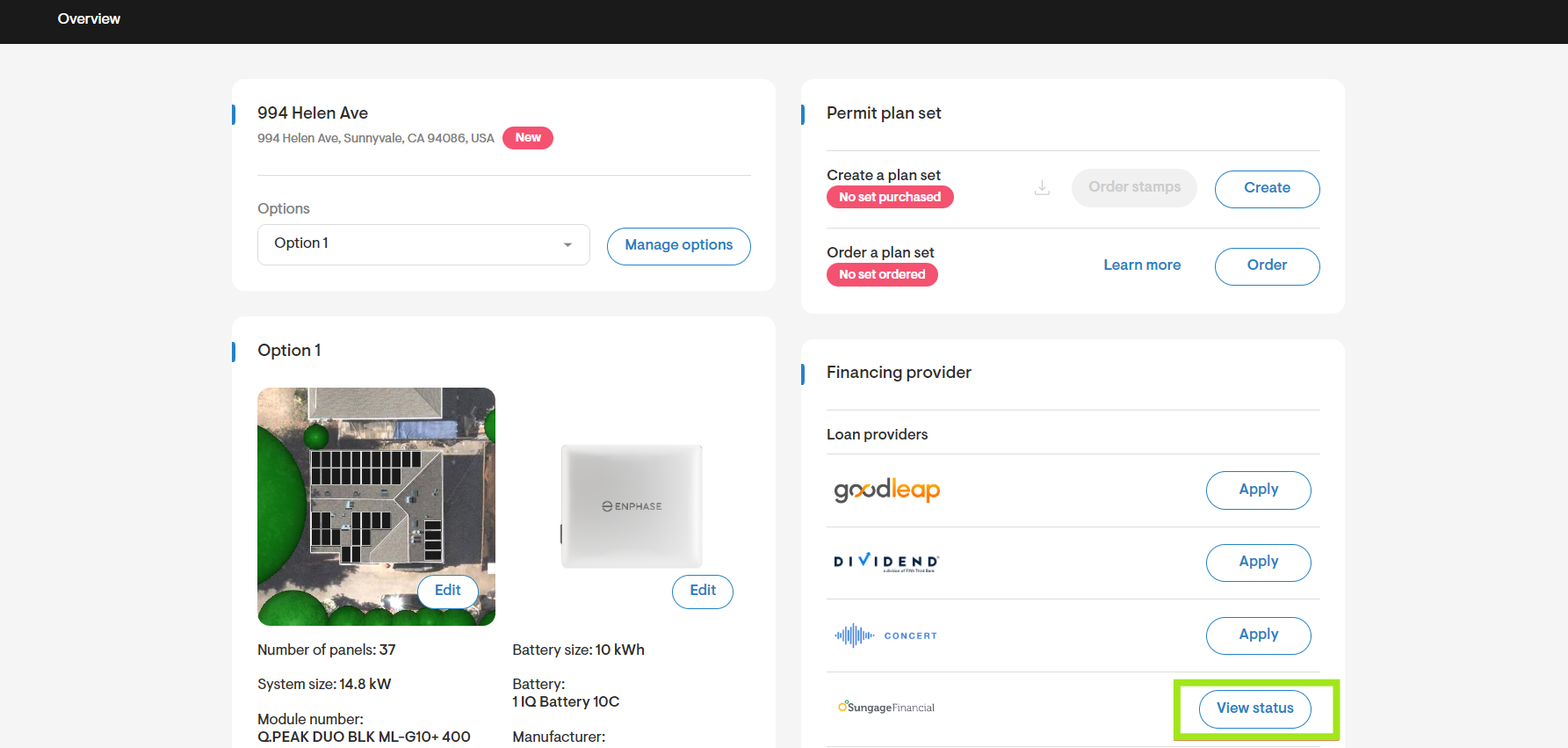
- If Sungage returns an error while creating the project, the error is shown to the user on Solargraf.
Note: If the customer’s first name, last name, or email is missing, don’t start the Sungage application flow until this information is updated under customer information.
Step 8: Update an existing Sungage project
Once a Sungage project has been created, if the project design or financing changes after the original submission, installers can update the Sungage project on Solargraf. Follow the steps below to update the project:
- Click on View status and click Update in the pop-up.
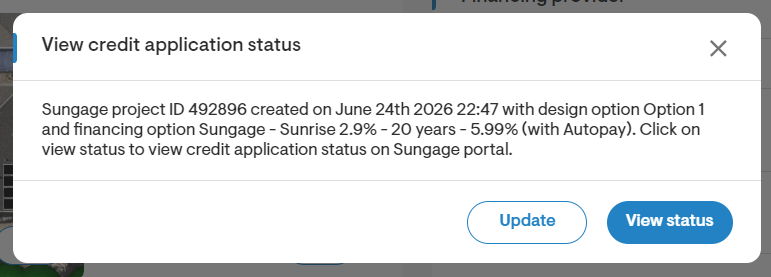
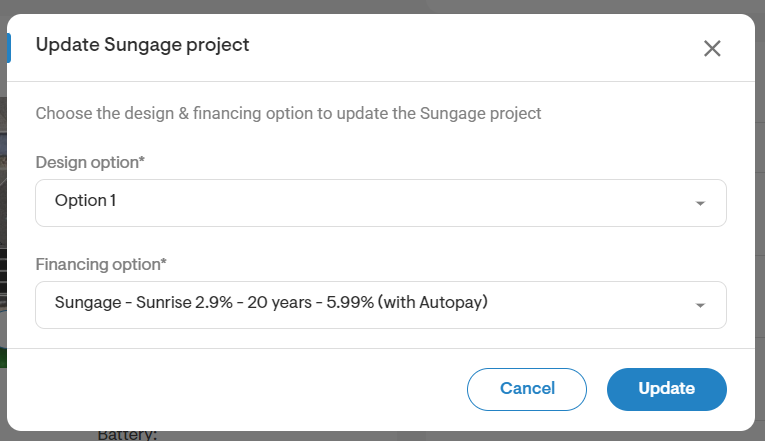
- Select the latest eligible design option.
- Select the latest eligible Sungage financing option.
- Click Update to send the full updated design & financing option details to Sungage.
- On success, Solargraf confirms the new design and financing combination and provides a View in Sungage link.
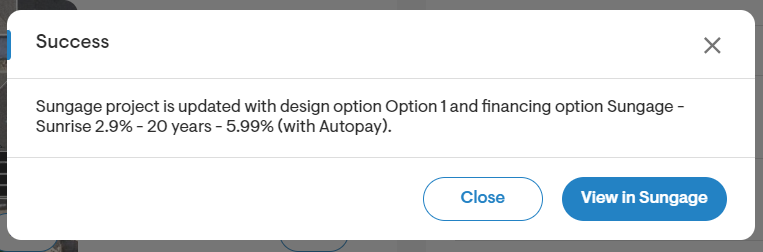
- On failure, Solargraf displays the error reason returned by Sungage.
Troubleshooting
| Issue | Likely reason | What to do |
| Cannot import available loans | Sungage credentials are missing or invalid | Re-enter company credentials in the Sungage authentication page |
| No Sungage financing visible on project | Sungage is not activated, not enabled for project pages, or no loans were imported | Check company setup, toggle visibility, and imported loan options |
| No eligible financing options | The selected design does not meet Sungage criteria | Review financed amount, state eligibility, battery and roof allocation, and selected loan term |
| Apply button stays disabled | Design option or financing option is not selected | Select both fields in the Apply to Sungage pop-up |
| Application fails | Required customer or project details are missing, or Sungage rejected the application details | Verify customer name, email, address, pricing inputs, and supported incentive setup |
| Quote values look different than expected | Costs, dealer fee, adders, discounts, or selected incentives changed the details sent to Sungage | Review solar, battery, roof, down payment, and incentive setup on the selected financing option |
Best practices for installers
- Activate and test Sungage at the company level before training additional users
- Import only the loan products your sales team actually plans to offer
- Use clear naming conventions for imported loans so reps can choose correctly on projects
- Double-check down payment, dealer fee type, and incentive selections before sending a homeowner application
- Review the webquote payment section after selecting the Sungage loan, especially for DPP and Sunrise products
- Use View status after submission whenever a design or financing option changes
FAQ
Do I need Sungage credentials before importing loans?
Yes. Solargraf validates Sungage credentials before it can fetch available loan products from Sungage.
How many Sungage loan options can my company import?
Your company can import up to 10 Sungage loan options into company settings.
Why does a Sungage financing option appear for one design but not another?
Sungage eligibility is design-specific. Loan amount, state support, and cost composition can make one design eligible while another is filtered out.
What happens after I click Apply on a project?
Solargraf creates a Sungage project, sends the homeowner a loan application email, stores the Sungage project reference, and changes the button to View status.
Can I update a Sungage project after it has already been created?
Yes. Use the View status flow and then click Update to send the latest eligible design and financing information to Sungage.