Help Center Loan
How to set up a Sunlight Sunsaver loan in Solargraf
Published on 30 Apr 2025
Below are the steps needed to correctly set up the Sunlight Sunsaver loan product.
Go to Settings
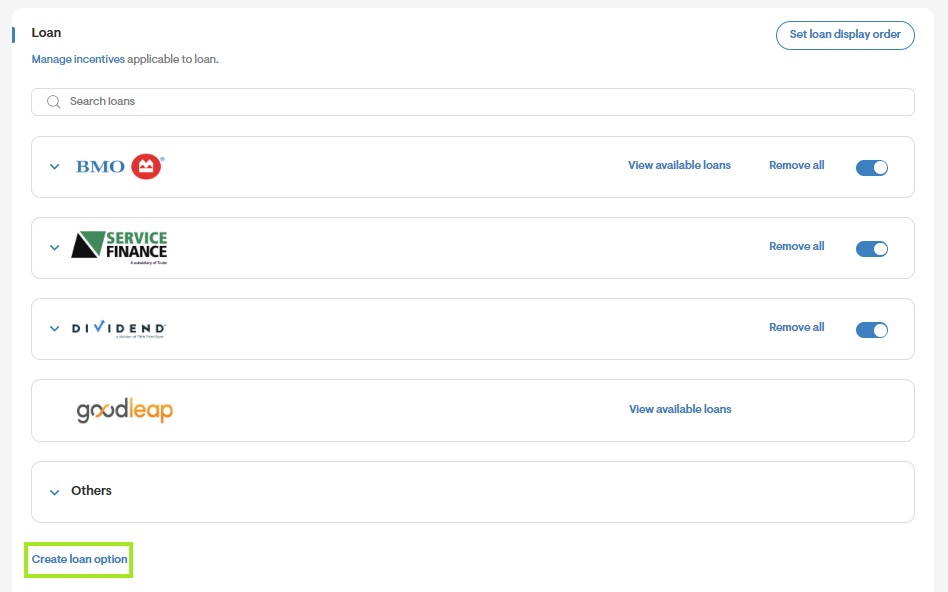
- Start by navigating to your company settings, then select Financing Options and click on Add New Loan Option.
Loan Terms and Incentives
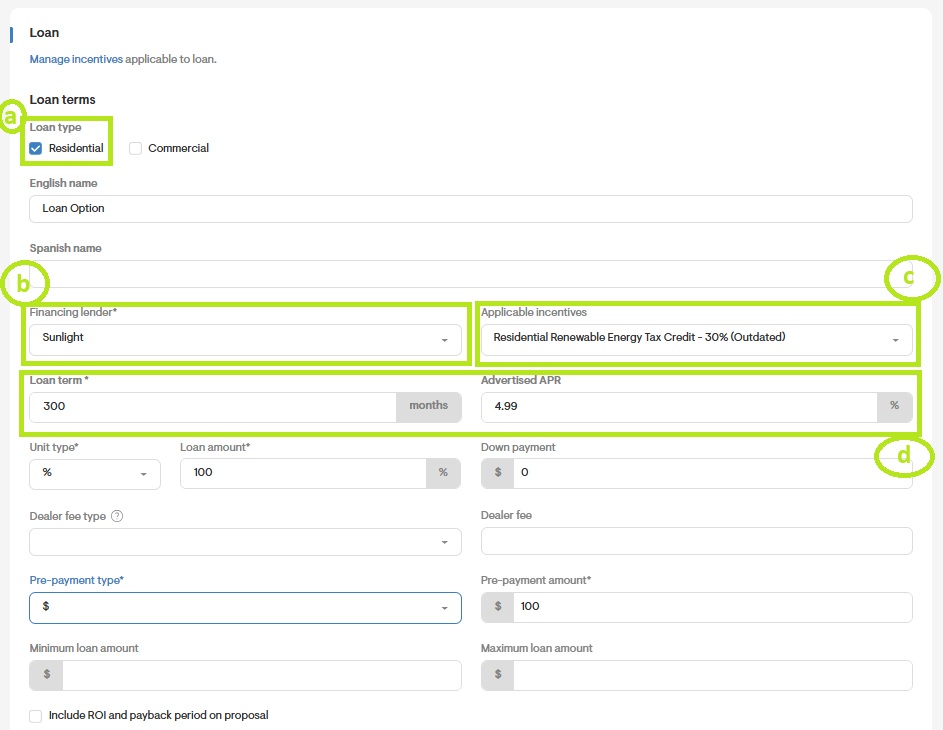
In this section ensure the following steps are completed:
- Ensure that the Residential Check Box is selected.
- Under the Financing lender dropdown select Sunlight.
- Under Applicable incentives select the Residential Renewable Energy Tax Credit - 30%.
- The Loan Term and Advertised APR should align with Sunlight's offering. In this example, the 25-year, 4.99% Sunlight Sunsaver product is used, incorporating a 2.9% escalator.
Setting up Payment options
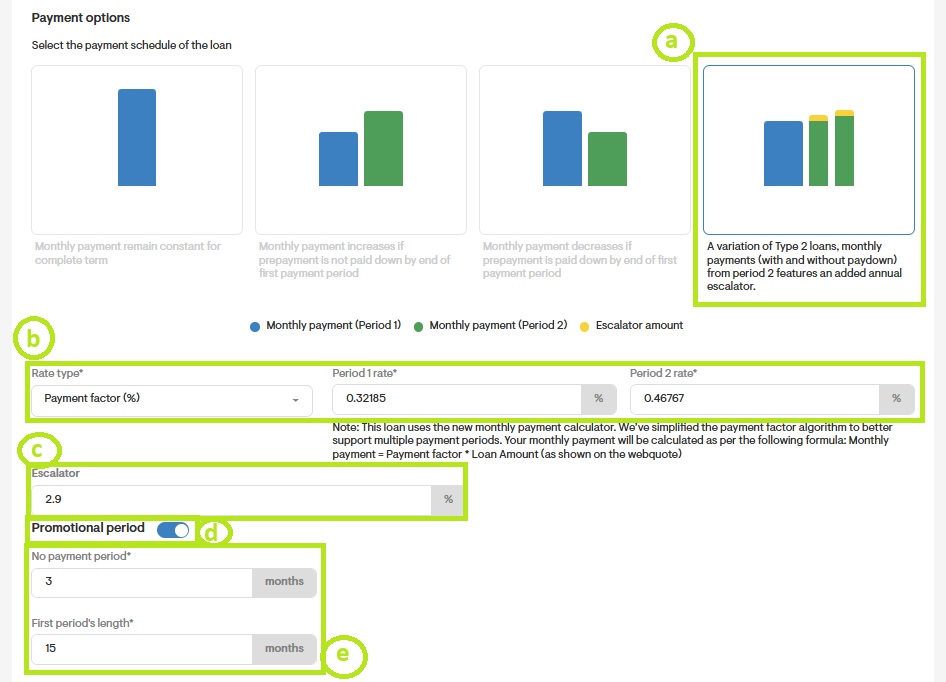
- Select the fourth option to match the Sunlight Sunsaver loan: “A variation of Type 2 loans, monthly payments (with and without ITC paydown) from period 2 features an added annual escalator.”
- Under the Rate Type dropdown, select Payment Factor and ensure it matches the payment factors provided by Sunlight.
Payment Factor 1: 0.32185%
Payment Factor 2: 0.46767% - Under the Escalator dropdown, input the annual escalator for the loan. This loan has a 2.9% escalator.
- Ensure the toggle for Promotional Period is activated as shown below.
- Under No Payment Period input“3” for the number of months and under First Payment Period input “15” for the number of months.
Note section
- In the notes section, fill in the advised disclaimers provided by Sunlight.
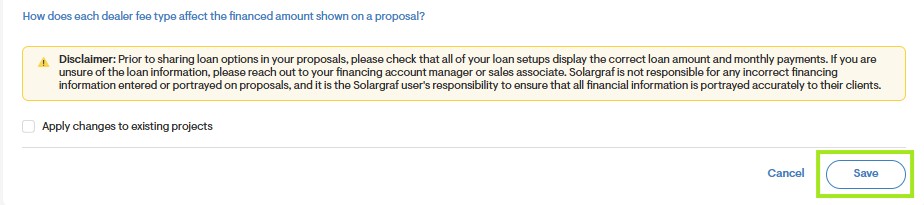
Save the loan
- After filling in the necessary details, click Save. Your loan will then be available for you to select in your projects.