Help Center Loan
How to Set Up Loans in Solargraf
Published on 24 Aug 2022
This guide will walk you through the process of adding a loan to your Solargraf account.
Import loans
Solargraf supports integrations with BMO, Dividend, and Goodleap.
To integrate your Solargraf account with any of the providers listed above, see How to Add API Credentials for Financing in Solargraf.
- Once you have set up the integration with your financing partners, navigate to your company's Settings, then expand the Financing heading and select the Financing options section.
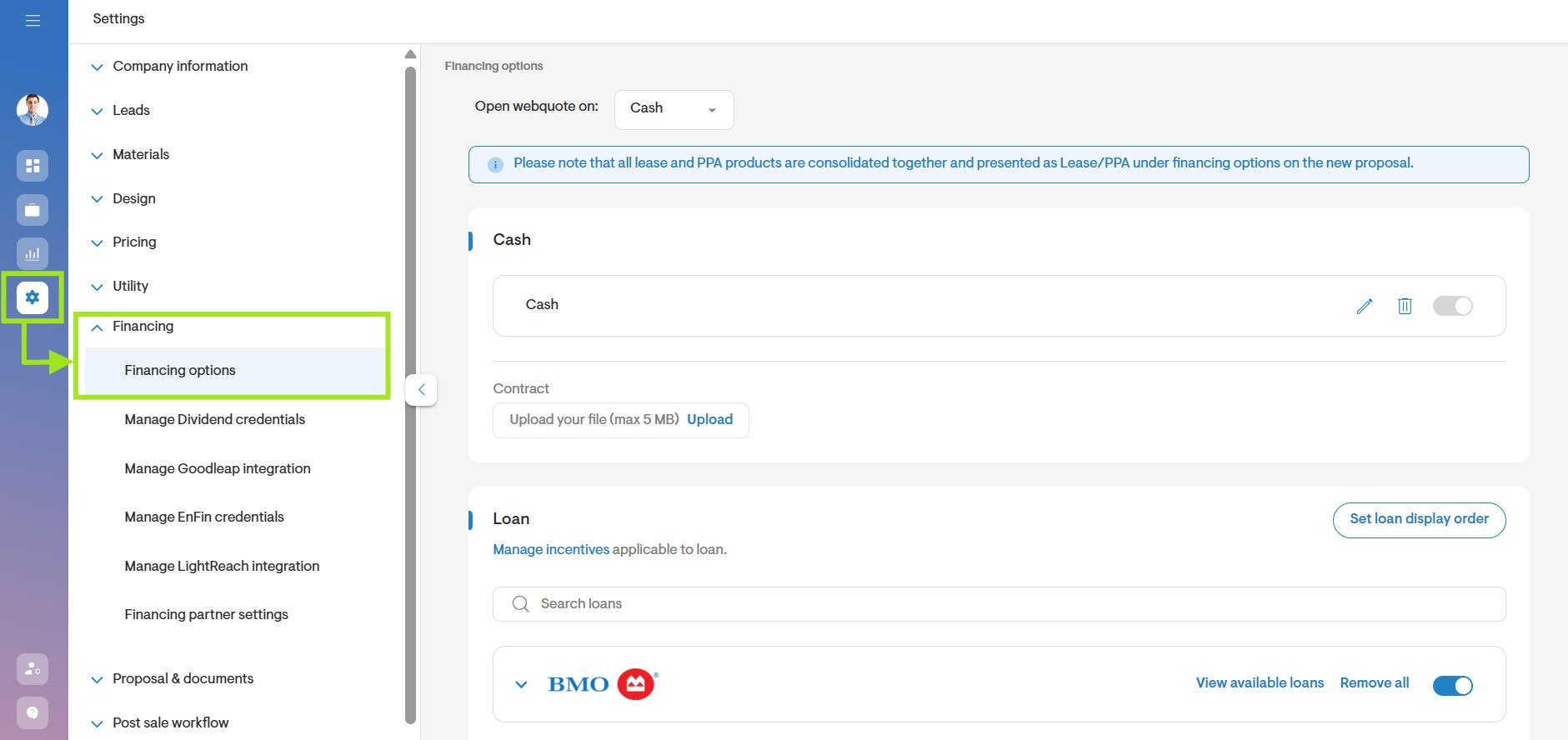
- Click the View available loans button.
Note: This button will only be available next to lenders with an active integration. - Select the checkboxes for any loans you wish to import.
- Alternatively use the checkbox Select all to import all at once.
- Click the Save changes button.
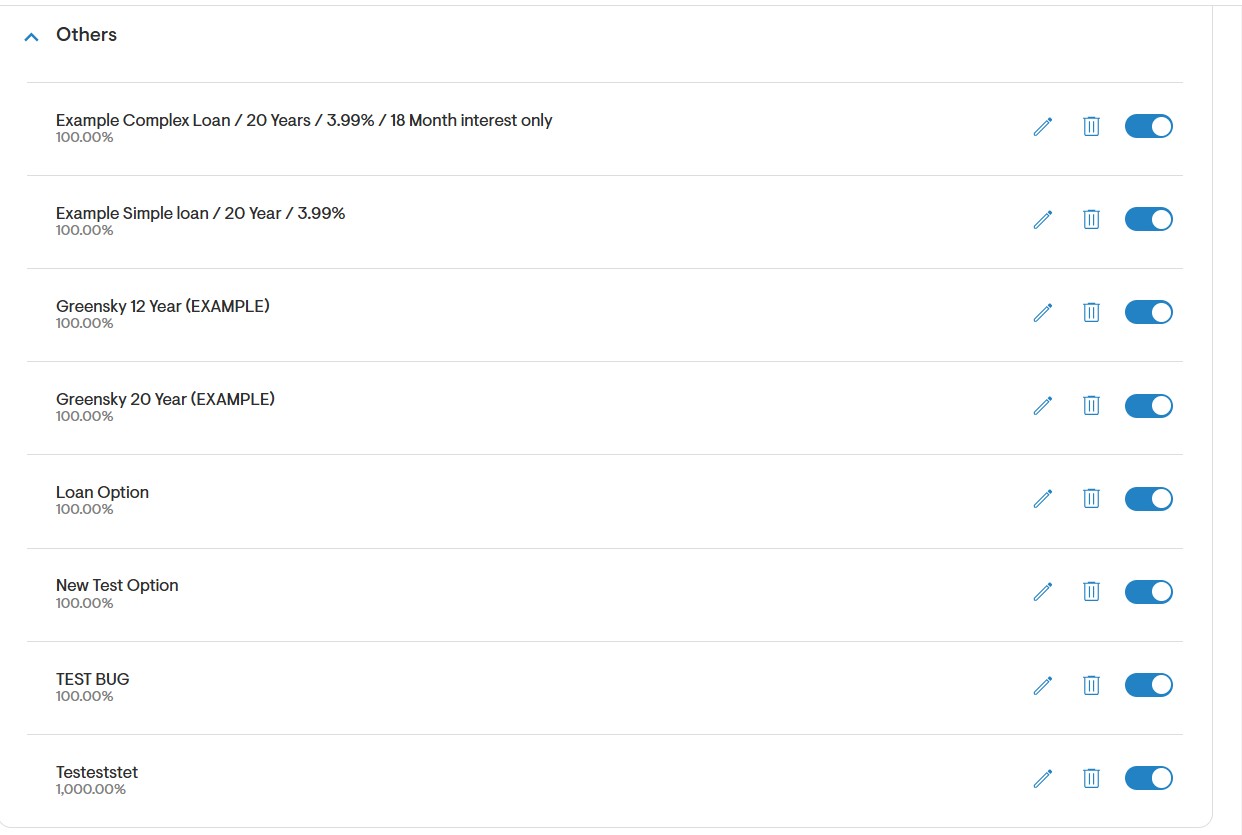
The imported loans will now be available to use with your projects.
Add a new loan option
If you need to model a loan that isn't available to be imported, you can also set up a custom loan.

- Click the + Add new loanoption near the bottom of the Loan section.
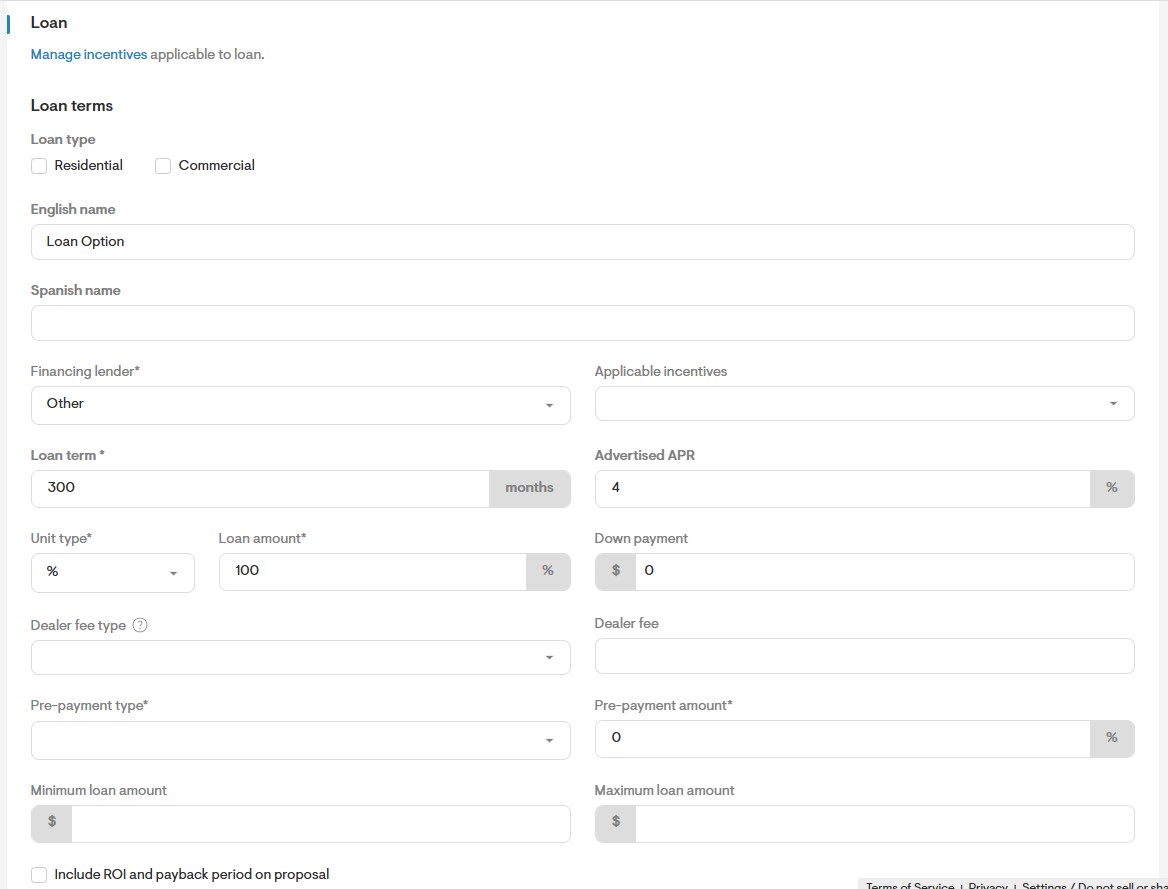
- Use the Loan type checkboxes to indicate whether the loan applies to residential or commercial projects, or both.
- Enter the Loan name. There is one field for each language previously configured via the company settings.
- Select the appropriate lender from the dropdown under Financing lender. Choose Other if the lender is unavailable on the list.
- From the Applicable incentives dropdown menu, select any incentive options which should factor into the loan. To modify the available incentives, click the Manage incentives link near the top of the loan settings.
Note: To set up a loan with multiple periodhs, an incentive must be selected. - Enter the length of the Loan term in months and the percentage value for the Advertised APR.
- Select the Unit type to represent the loan amount (% or $).
- Enter the Loan amount and the Down payment amount in $ value.
- Select the Dealer fee type and enter the Dealer fee.
- Enter the Minimum loan amount and the Maximum loan amount.
- Determine whether or not the ROI and payback period will be included on the proposal by using the checkbox below.
Payment options
You can model a loan with four different payment schedules.
Type 1 – Constant monthly payment
For this option, the monthly payment remains constant for the full term of the loan.
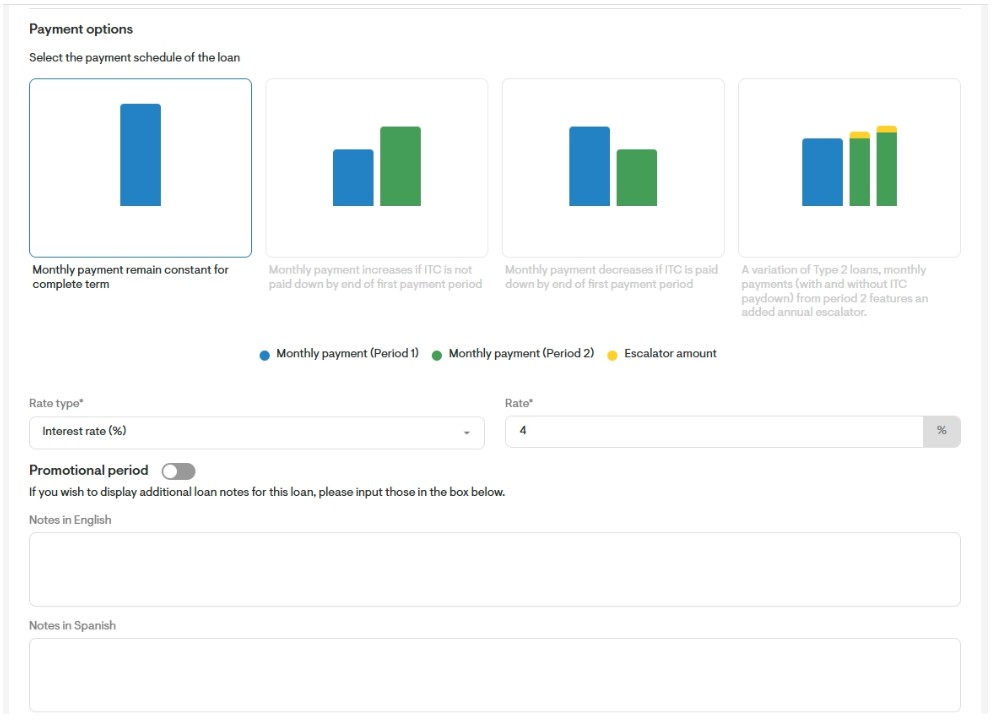
- Select the appropriate Rate type from the dropdown based on the lender's specfications, and enter a value the Rate field.
- If the loan should feature an initial no-payment period, enable the toggle switch for the Promotional period option, and then define the period's lengh in months in the No payment period field. Use the checkbox to specify whether interest accumulates during the no-payment period.
Note: The First period's length field will adjust according to the values entered in the prior fields.
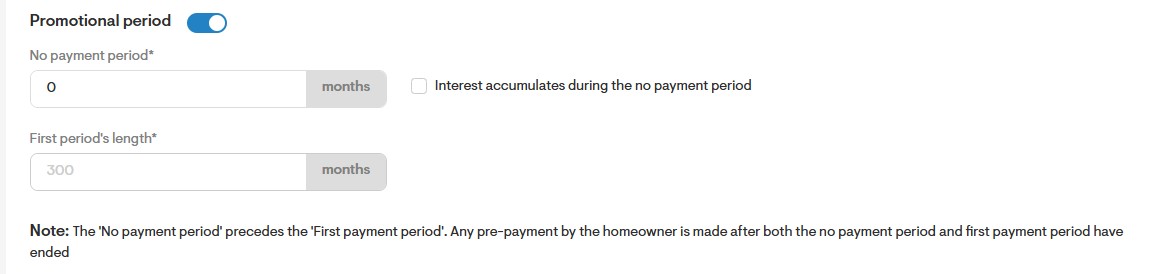
- If you wish to display additional loan Notes for this loan, please input those in the boxes corresponding to each language previously set via the company settings.
Type 2 – Monthly payment increases if ITC is not paid down
This loan type features two payment periods. Monthly payments are lower for the first period. If the ITC is paid down by the end of the first period, payments remain the same for the second period. However, if the ITC is not paid down, monthly payments increase for the second period.
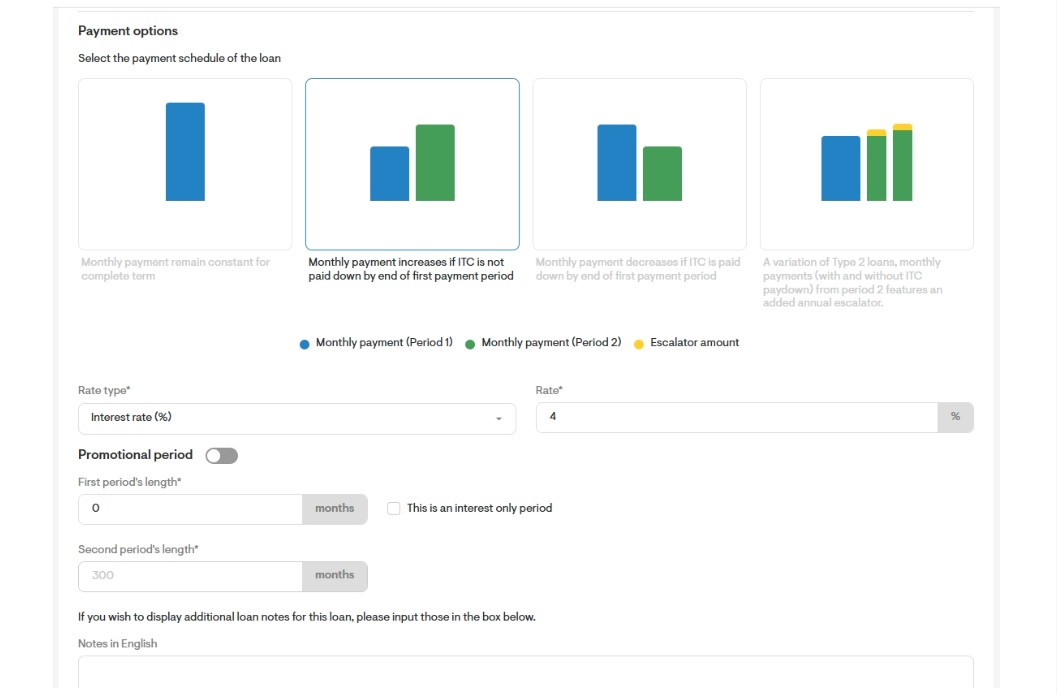
- Select the Annual percentage rate type from the dropdown and enter the Rate.
- If the loan should feature an initial no-payment period, enable the toggle switch for the Promotional period option, and then define the period's lengh in months in the No payment period field. Use the checkbox to specify whether interest accumulates during the no-payment period.

- Enter the First period's length in months and use the checkbox located next to it to set whether This in an interest only period.
- Enter the Second period's length in months.
- If you wish to display additional loan Notes for this loan, please input those in the boxes corresponding to each language previously set via the company settings.
Type 3 – Monthly payment decreases if ITC is paid down
For this loan type, the monthly payment decreases if the ITC is paid down by end of first payment period.
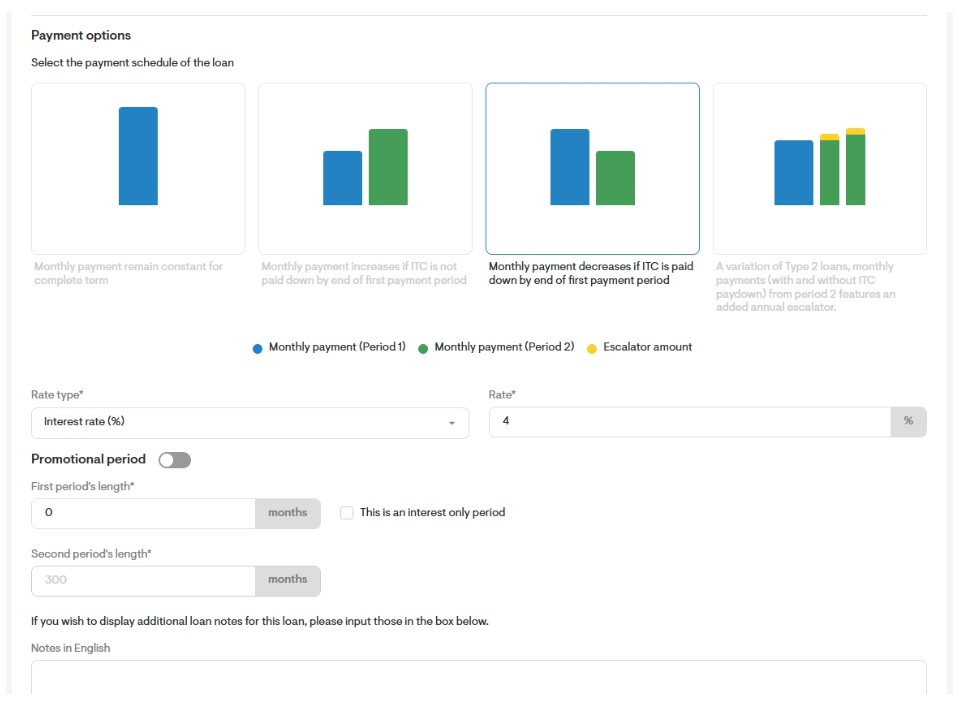
- Select the Annual percentage rate type from the dropdown and enter the Rate in the box located next to it.
- If the loan should feature an initial no-payment period, enable the toggle switch for the Promotional period option, and then define the period's lengh in months in the No payment period field. Use the checkbox to specify whether interest accumulates during the no-payment period.
- Enter the First period's length in months and use the checkbox located next to it to set whether This in an interest only period.
- Enter the Second period's length in months.
- If you wish to display additional loan Notes for this loan, please input those in the boxes corresponding to each language previously set via the company settings.
Type 4 – Second payment period features an annual escalator
This option is a variation of the Type 2 loan. Monthly payments increase if the ITC is not paid down by the end of the first period, but the second period also includes an annual escalator.
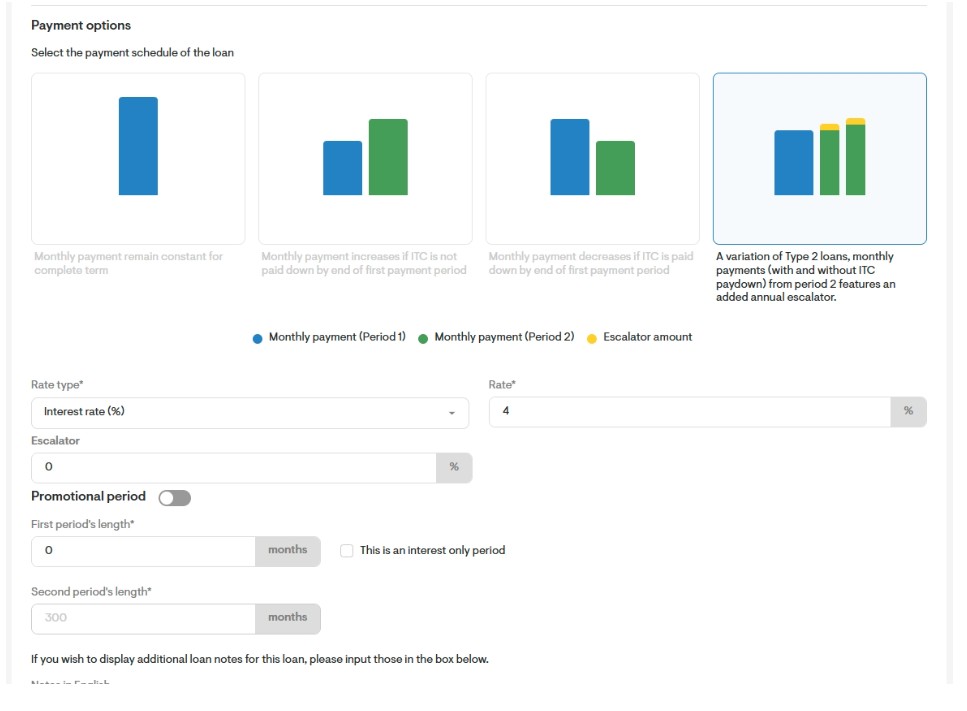
- The setup for this type of loan mirrors that of Type 2 loans, with the exception of adding a percentage value for the Escalator field.
General tips
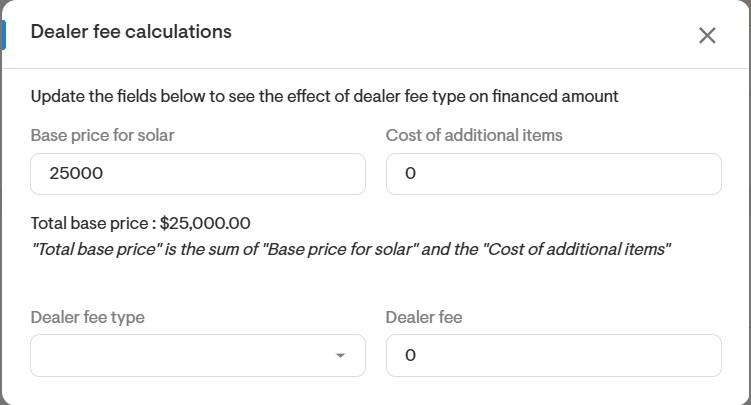
- If you want to understand how the dealer fee is calculated and displayed in the proposal beforehand, click on the blue sentence below. You'll be presented with the Dealer Fee Calculations pop-up, where you can input the base price for solar, the cost of additional items, and specify the dealer fee type and value to estimate the dealer fee shown on the proposal.

If you want the changes made to the loan you're working on to be applied retroactively, check the box labeled Apply changes to existing projects.
