Help Center Pricing
Setting up Battery Pricing
Published on 10 Dec 2021
The following guide will lead you through the process of configuring battery pricing for your Solargraf projects.
Table of Contents
- Battery Pricing via the Company Settings
- Battery Pricing via the Project Settings
- Battery Pricing via the Battery Design Tool
- Custom Battery Configuration via the Company Settings
- Custom Battery Configuration via the Project Settings
Battery Pricing via the Company Settings
To utilize one of Solargraf's pre-defined battery configurations with automatic pricing follow the steps below:
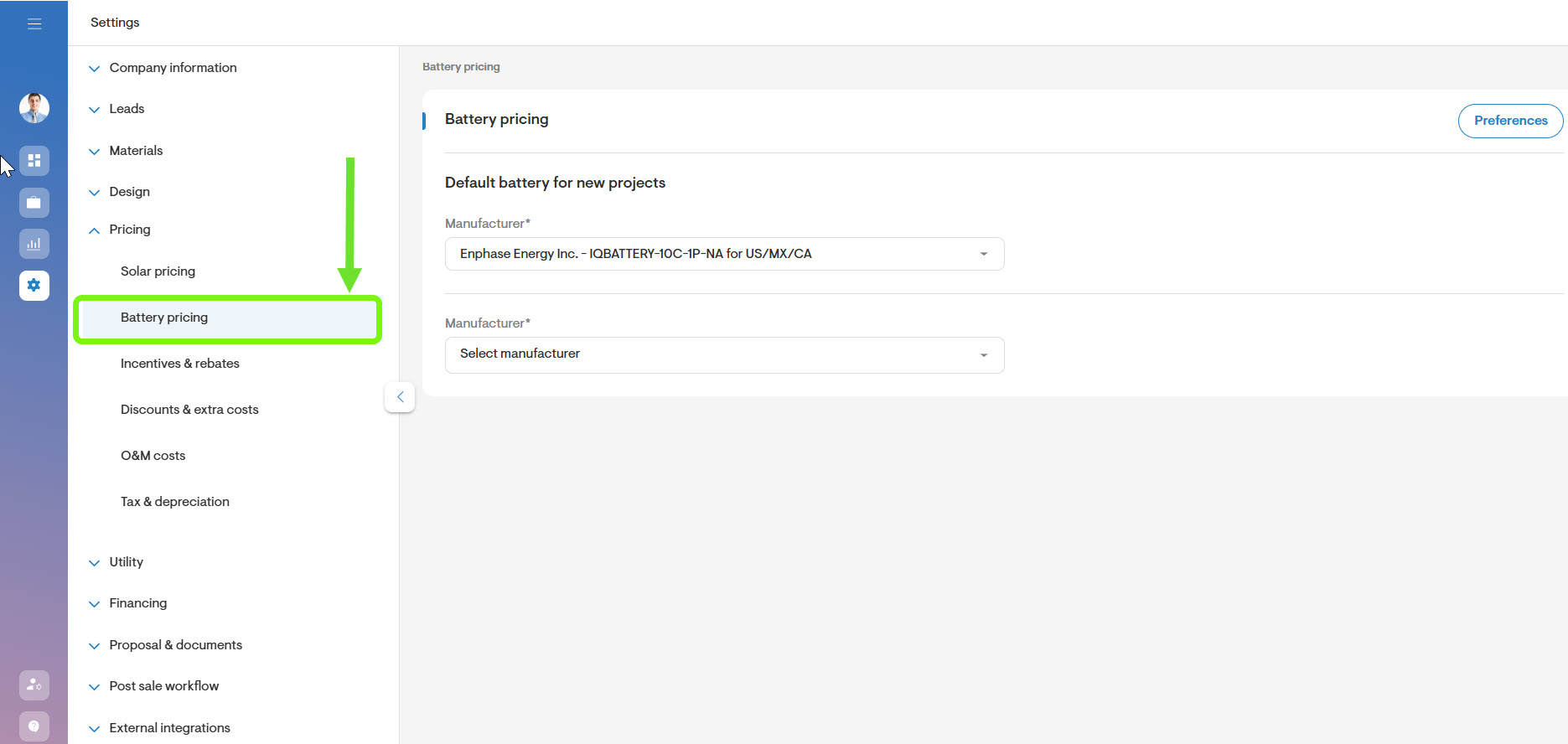
- Navigate to the Company Settings page.
Go to Battery Pricing.
On this screen, you can activate or deactivate the following options by toggling the switch to blue (on) or gray (off):
1. Exclude Price for Batteries from ROI as a default.
2. Use optimized battery savings mode considering battery exports for NEM 3.0.
3. Apply financing dealer fee to batteries.
Note: 1 and 3 can later be changed at the project level on the Pricing page, after you've added one of Solargraf's default battery configurations.
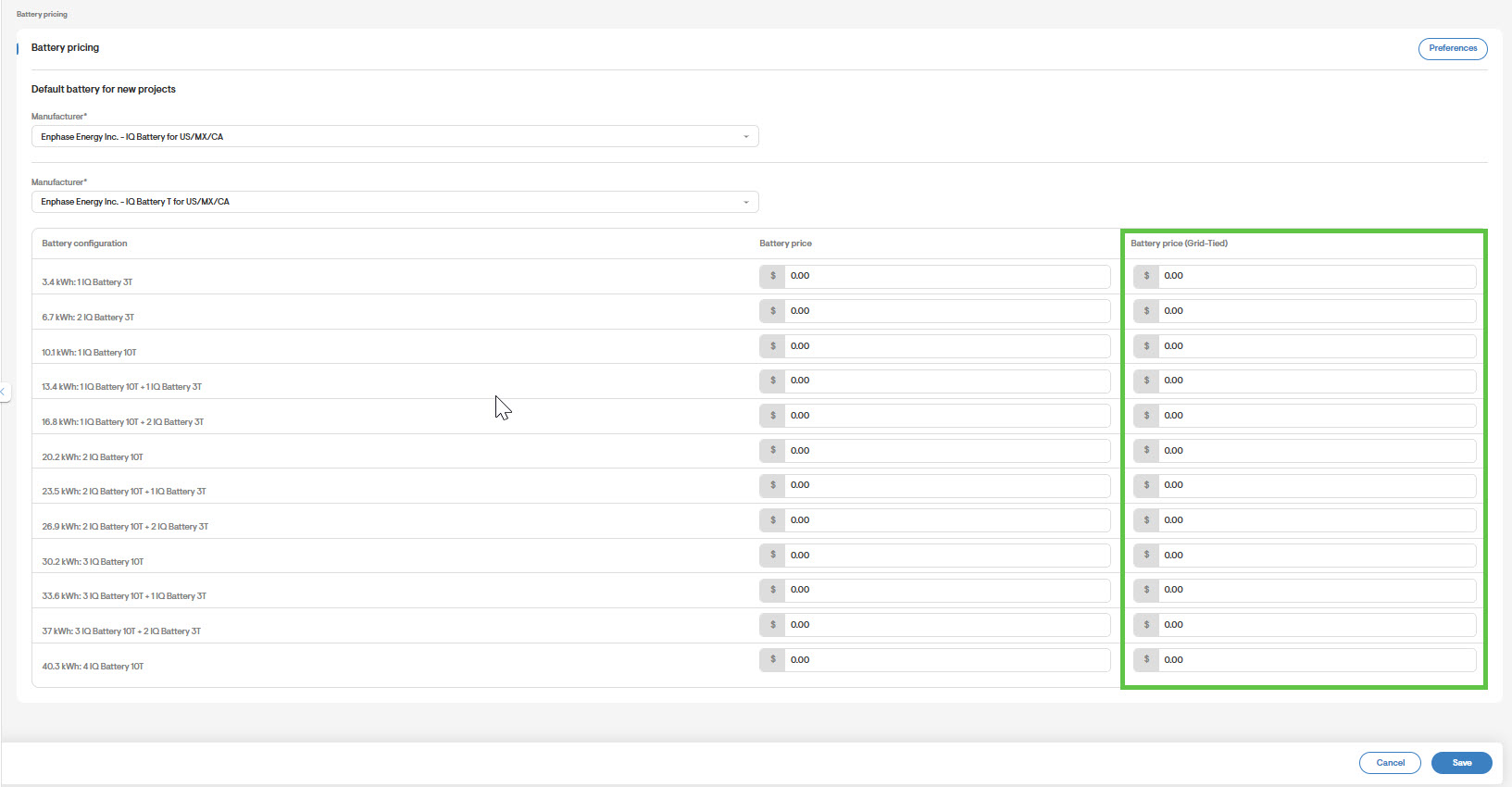
4. You can also activate 'Use separate pricing for grid-tied batteries,' which will unveil an additional column specifically for grid-tied batteries.
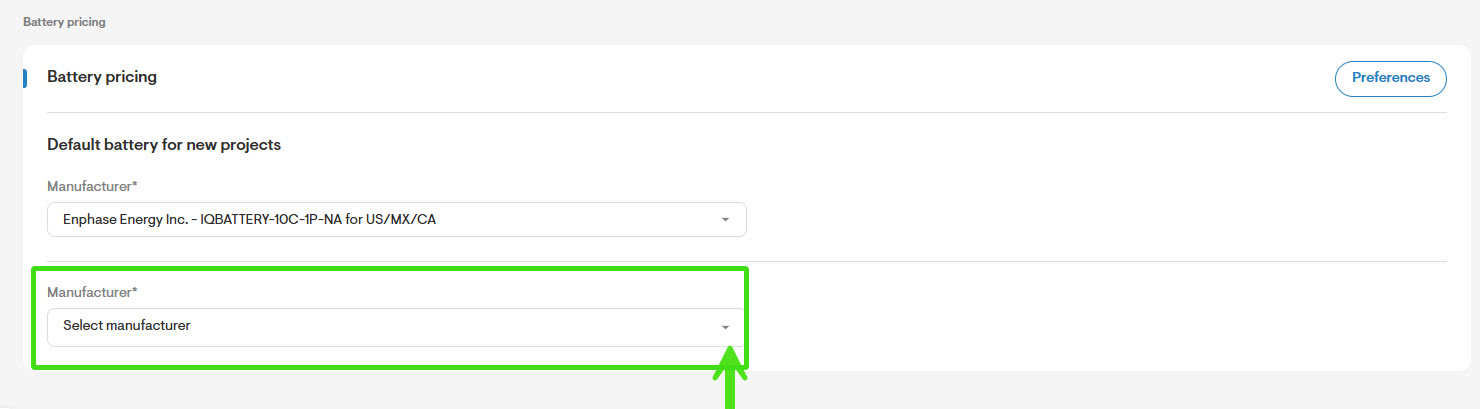
- Choose a battery manufacturer from the dropdown located under pricing.
- Enter the dollar amount in the box located next to each battery size to add the pricing for the sizes you wish to configure.
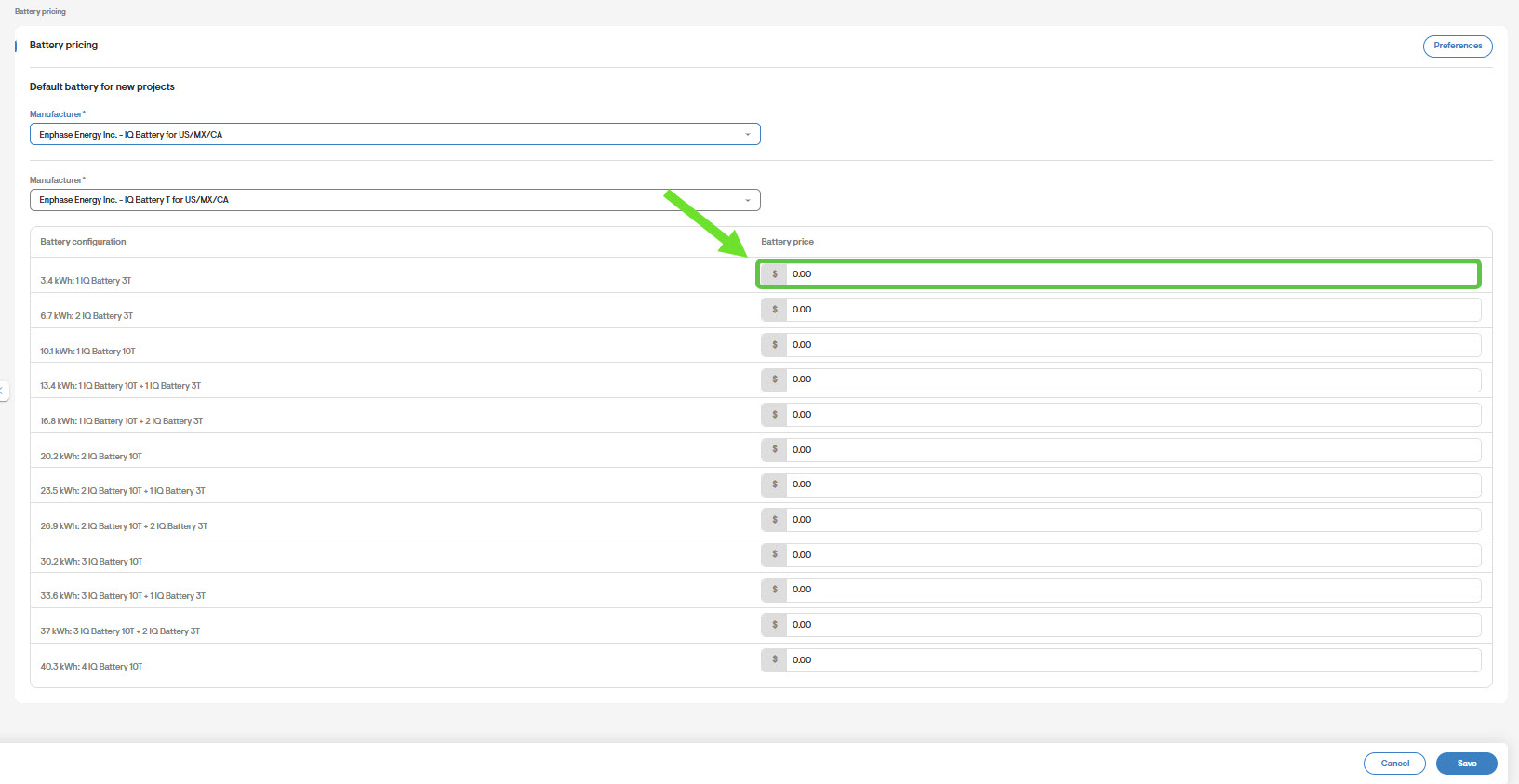
Once you've added in pricing for the selected battery configurations, click Save. The batteries configured will now appear on a project level.
Battery Pricing via the Project Settings
You can utilize the battery pricing configuration in two ways: through the Battery Design Tool or via the Materials Settings at the project level. We will first cover the latter.
To set this up, navigate to your project's Overview Page.
Go to Materials and select Battery Systems.
Check the box for "Use pre-defined storage configuration".
Note: Batteries added from this page will be available on the proposal in self consumption mode only.
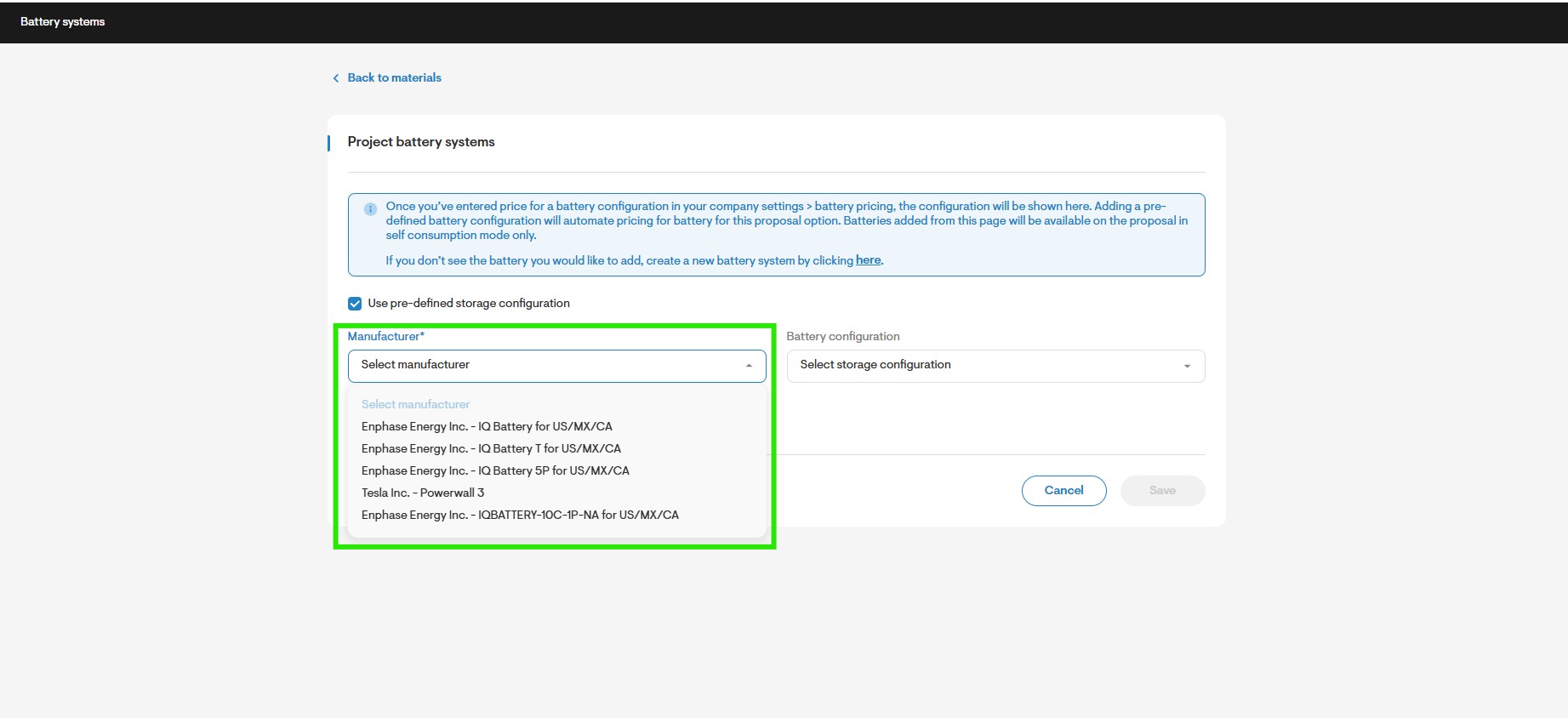
Select an option for the Manufacturer as well as the Storage Configuration located next to it.
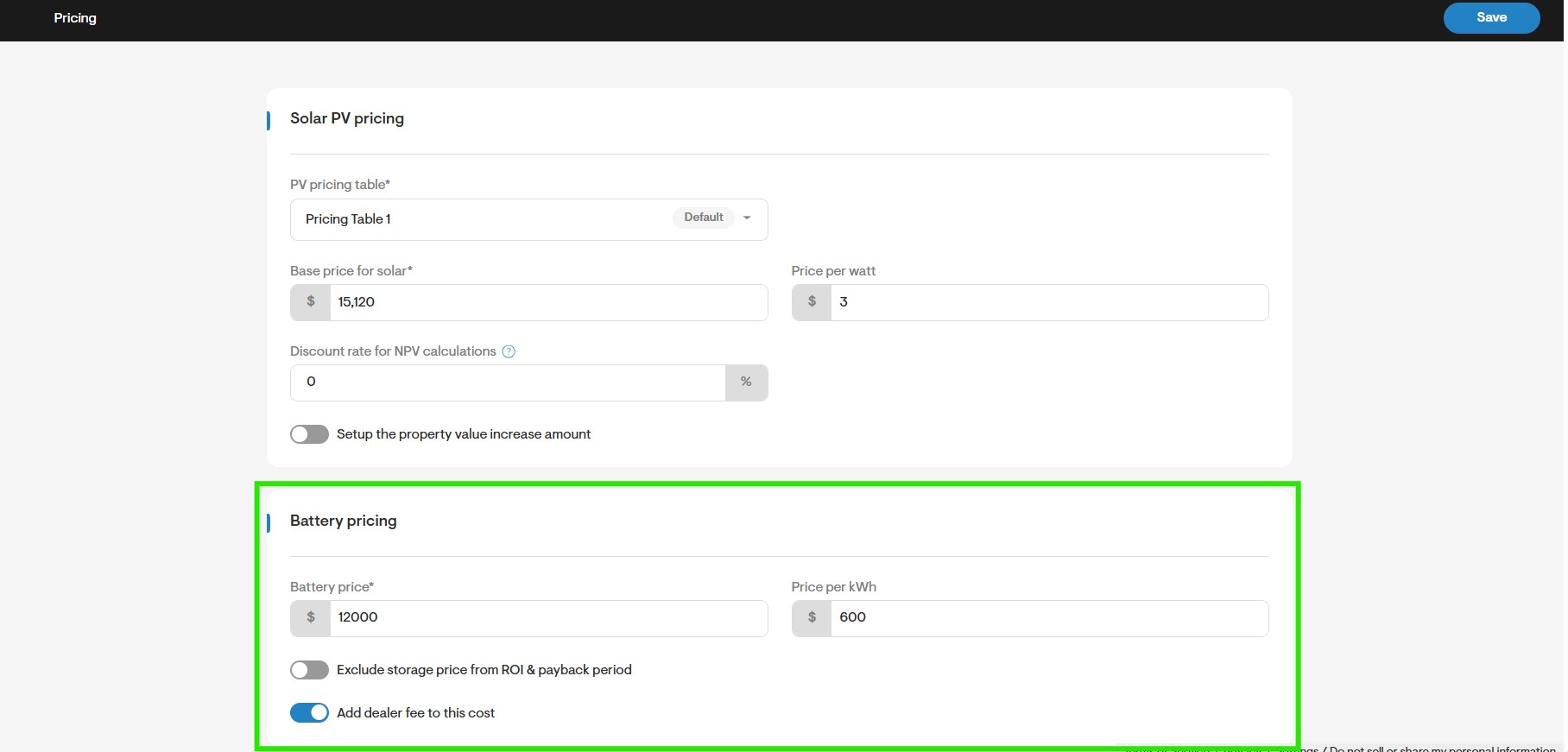
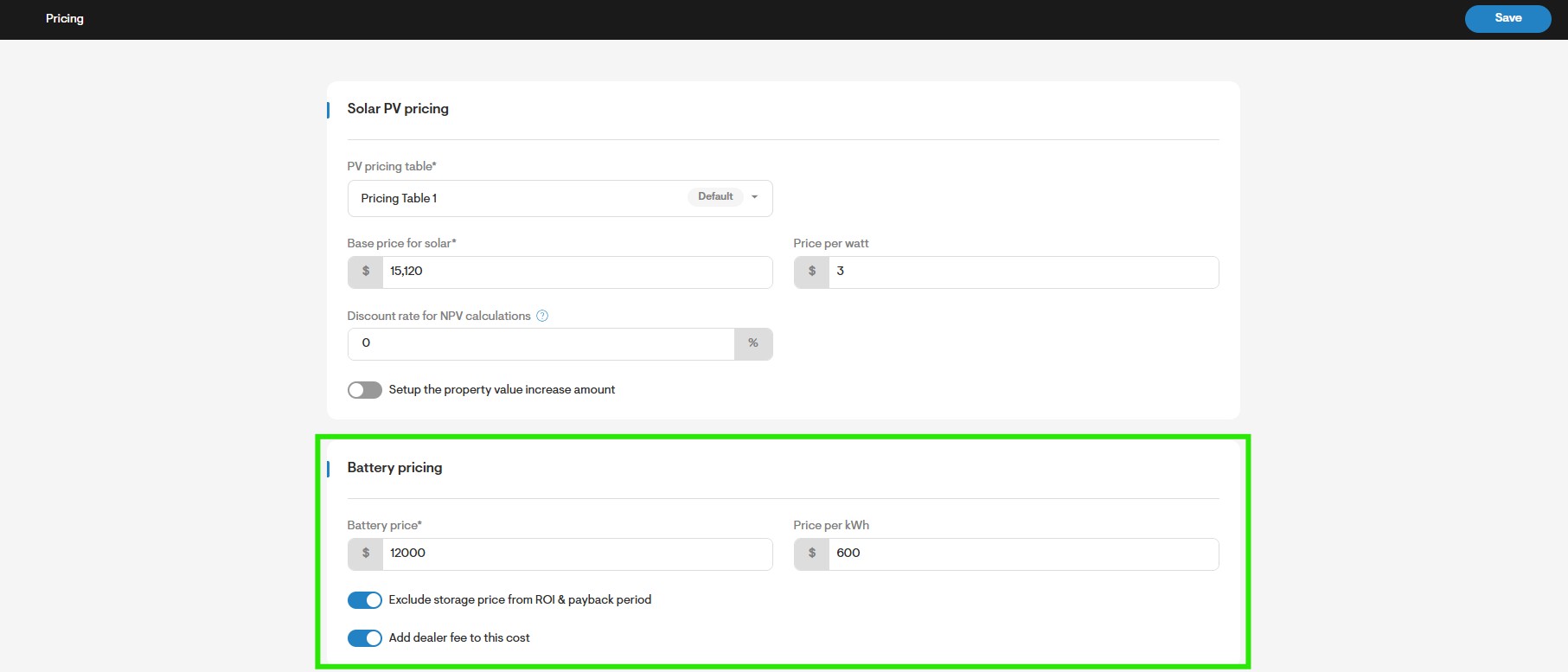
Note: only the options with previously added pricing will appear in this list.Go to the Pricing page of the same project. Under Battery Pricing you can override the existing price of the battery on the Pricing page, as well as toggle on/off the option to Exclude the Price of Storage from ROI calculations and add dealer fee to this cost.
Battery Pricing via the Battery Design Tool
You can utilize previously configured batteries by accessing your battery design tool through the following steps:
Begin by navigating to an existing design (or creating one), then click the Edit button under the Overview page.
You are required to fully model the roof and solar system. This includes the roof azimuth, tilt, obstructions and trees as well as selecting the correct model and quantity of panels.
Go to the Battery Design Tab.
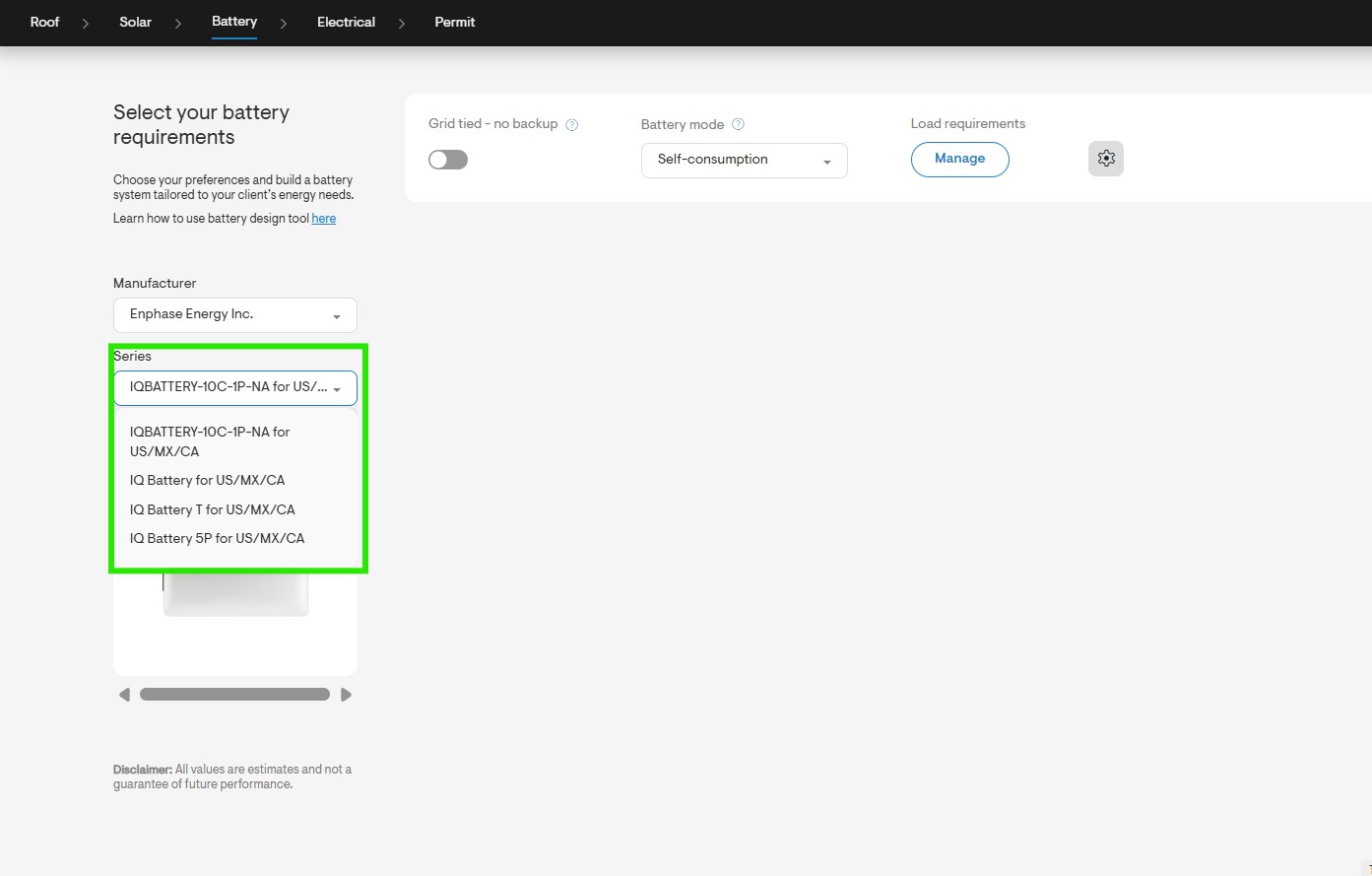
Select the Manufacturer and Battery group.
Note: Only Batteries set up via the company settings will be visible in this dropdown.
Custom Battery Configuration via the Company Settings
If a battery is unavailable for addition via battery pricing, you can utilize the custom battery configuration (without automatic pricing) by following the steps below.
Go to the Company Settings page.
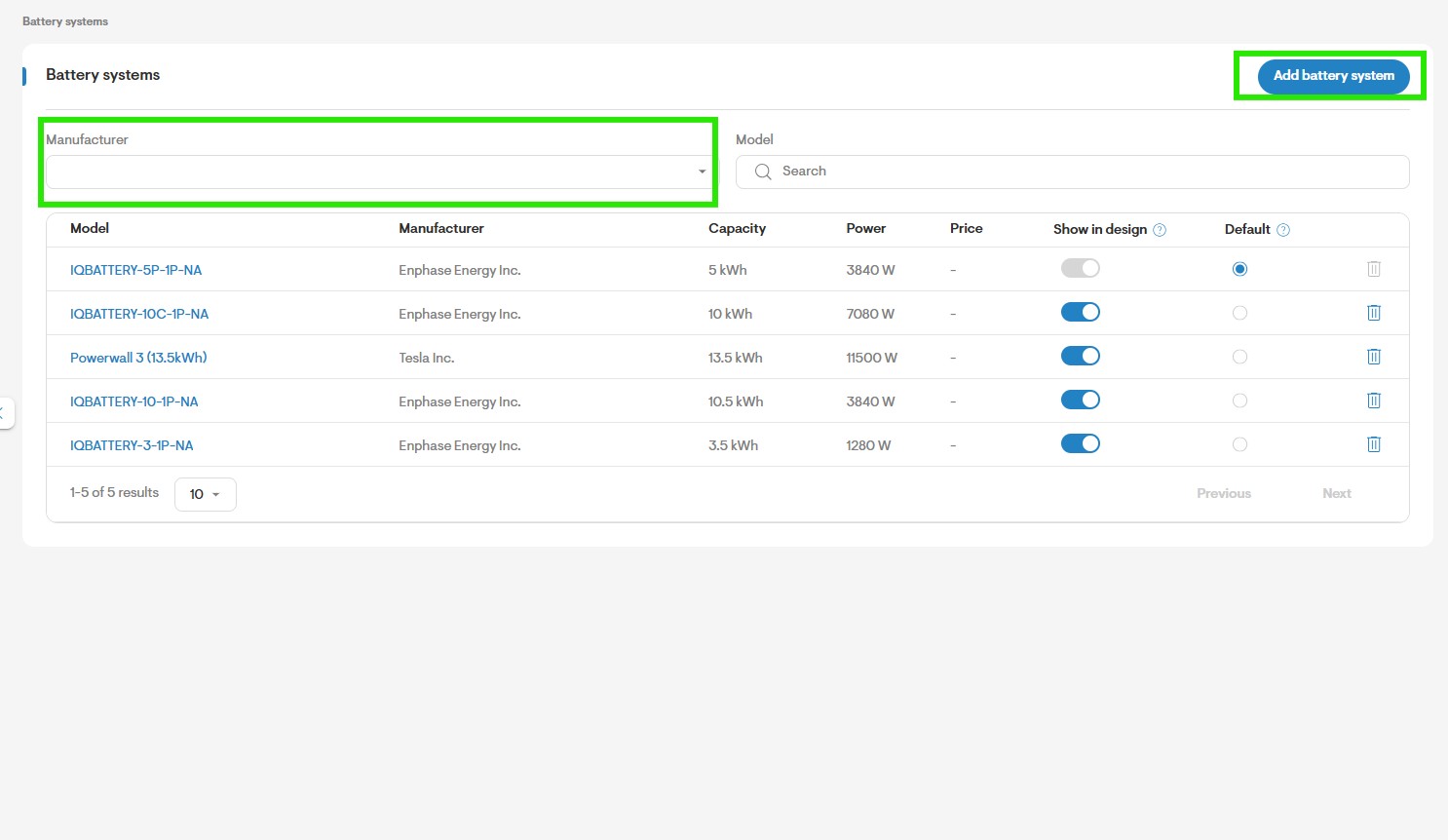
Go to My Materials, then Battery Systems.
You can use this page to add your own Battery systems or select from Solargraf's list.
Note: When a battery is added on this page no pricing is associated with the added battery.
Custom Battery Configuration via the Project Settings
After adding the battery to the company settings, it will be available for setup on a project level following the steps below.
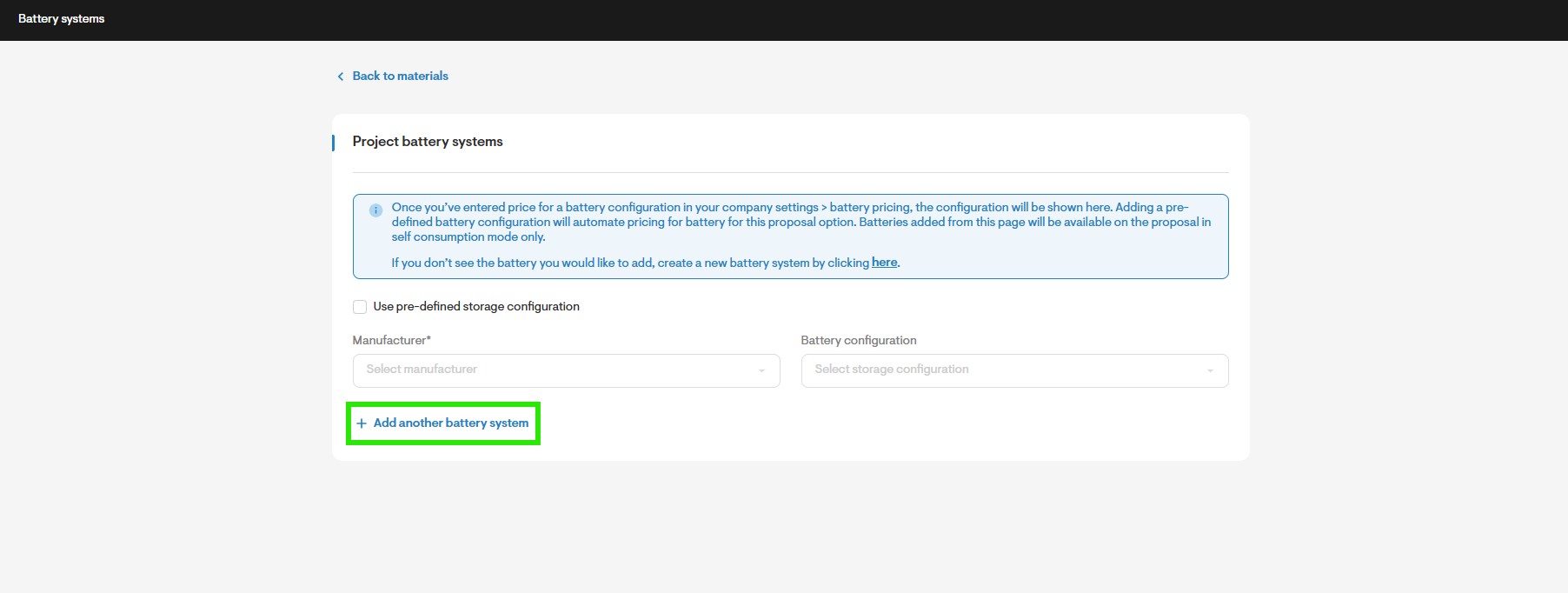
Go to Materials, then Battery Systems.
Deselect the option to 'Use pre-defined storage configuration'.
Click Add another battery system.
Select the Battery Manufacturer model and quantity desired from the dropdown menu and save changes.
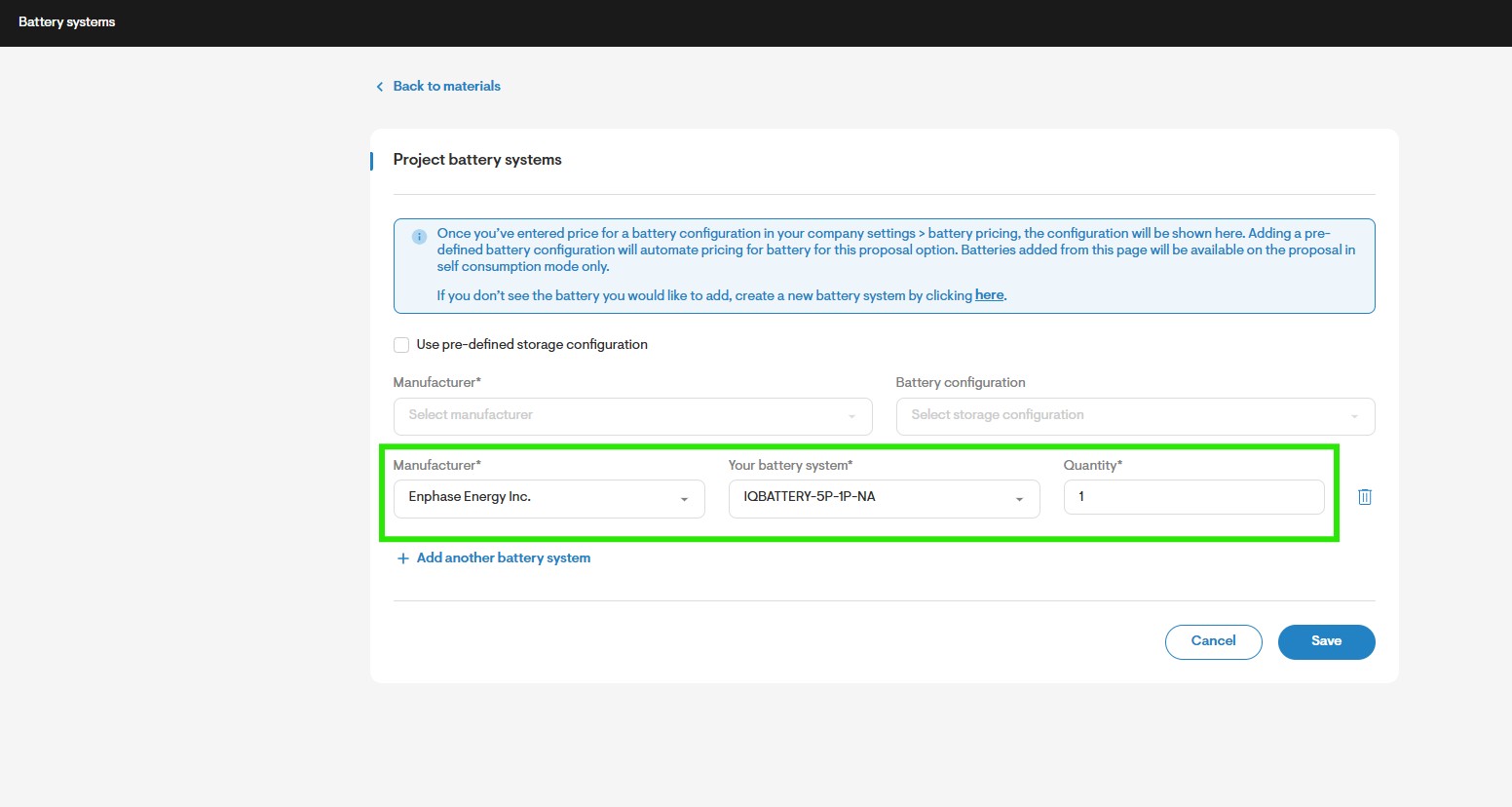
Please note that the pricing for these batteries will have to be set manually, in order to do so go to the Pricing page of the same project.
Under Battery Pricing you can enter the price of the battery as well as toggle on/off the option to 'Exclude the Price of Storage from ROI calculations' and 'Add dealer fee to this cost'.