Help Center Pricing
Discounts and Extra Costs
Published on 10 Dec 2021
In addition to setting up standard solar and battery pricing for your projects using either pricing tables or BOM-based pricing (bill of materials), you can also use Solargraf to set up discounts and extra costs that allow you to more directly tailor your pricing to the requirements of each proposal you prepare.
Extra costs
- To add an extra cost that you can reuse on more than one project, navigate to your company's Settings page.
- Click the Pricing heading to expand that section and then select the Discounts & extra costs option.
- Next, click the + Add new extra cost button.
- If the extra cost should be active by default on newly created projects, enable the Default extra cost toggle switch. Extra costs not set as default will be inactive when new projects are created and can be enabled as needed from the project's Pricing page.
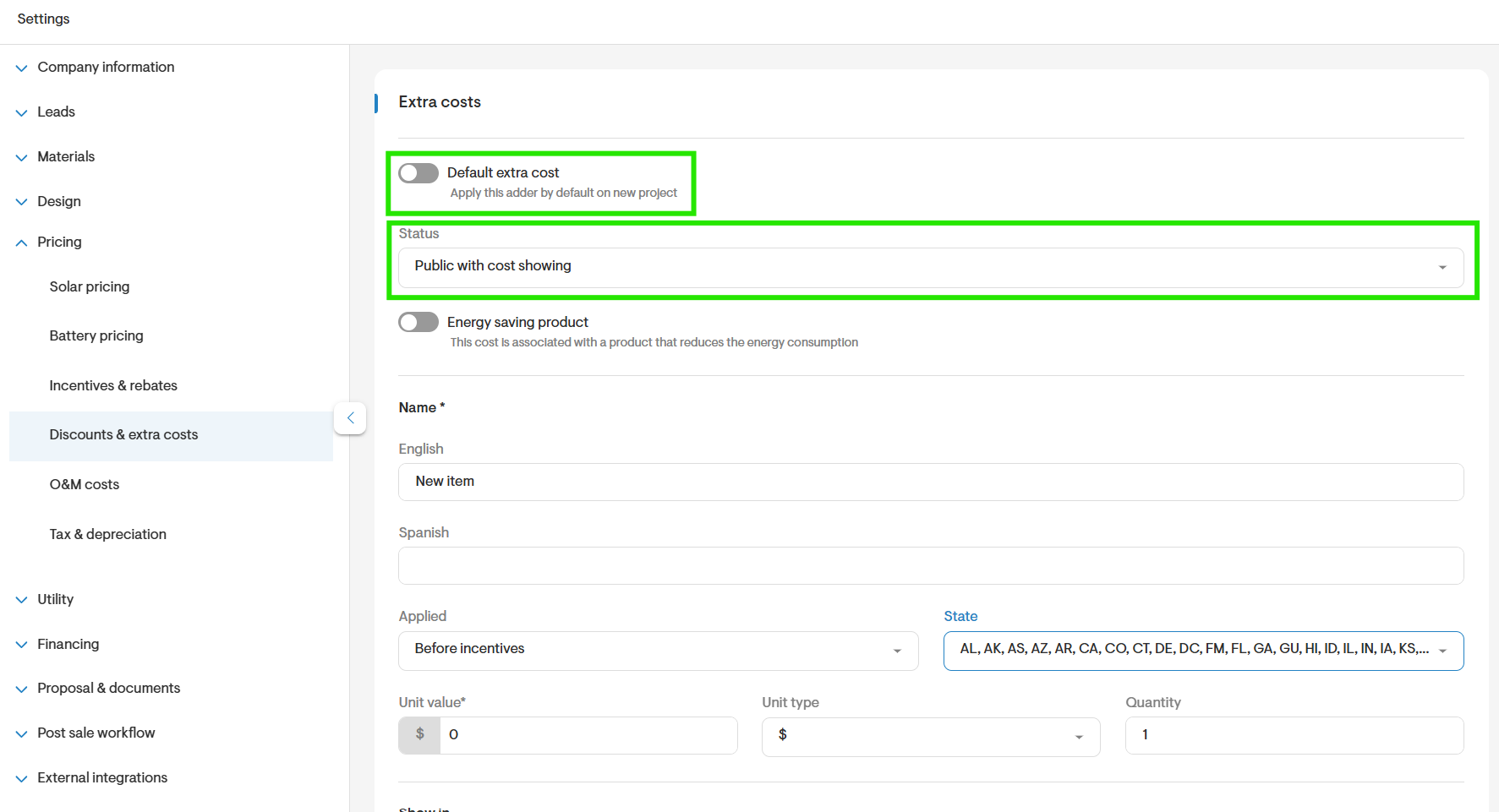
- Select an option from the Status dropdown menu to configure how the extra cost should be displayed on your proposal.
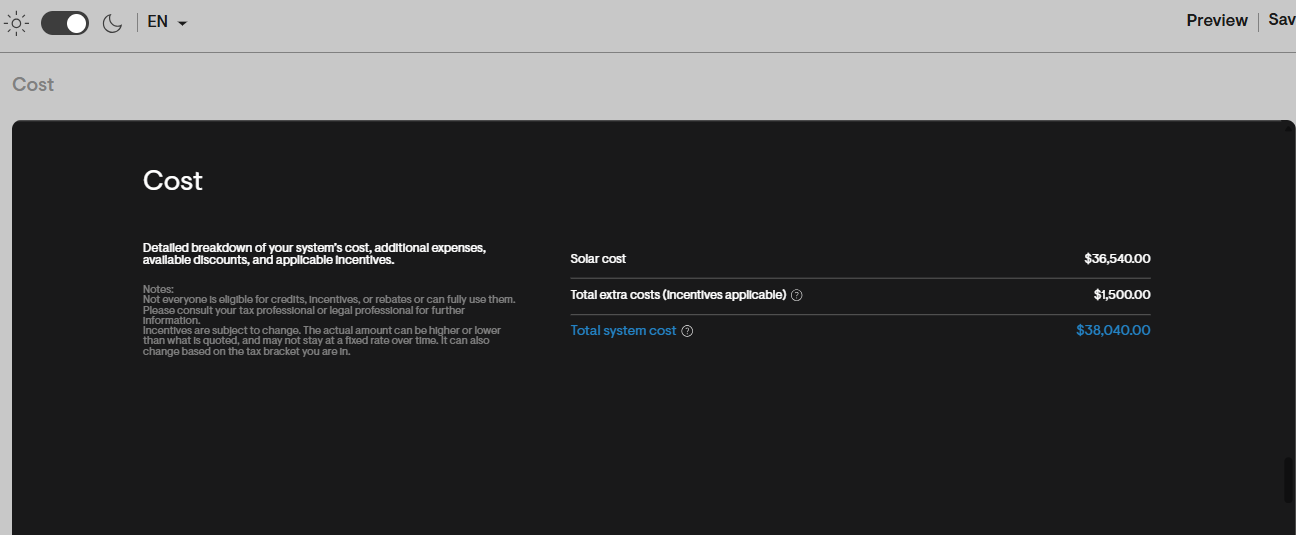
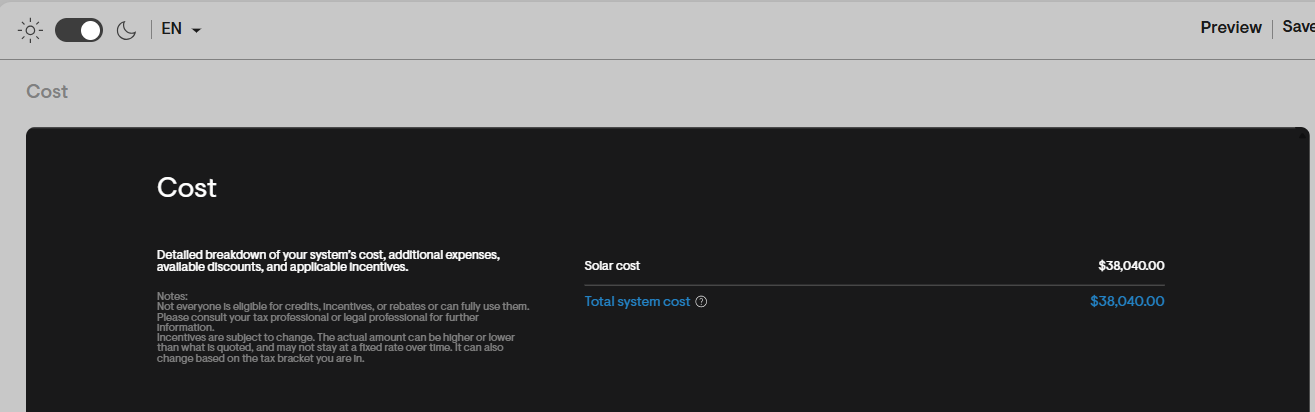
Public with cost showing – The extra cost is listed as a separate line item with the price displayed.
Public without cost showing – The extra cost is listed as a separate line item wihout a price, and the cost is added to the project's base price.
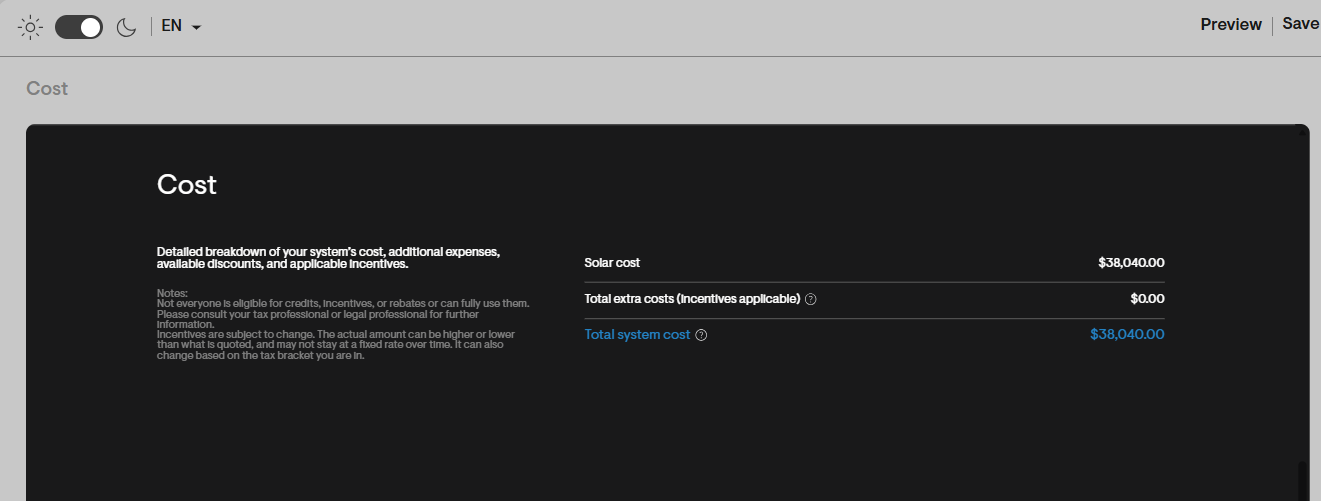
Private – The extra cost is added to the project's base price, but it is not listed as a distinct line item.
- Next, complete the Name field and select an option from the Applied dropdown menu. Extra costs applied Before incentives will be factored in when calculating any incentive amounts, whereas those applied After incentives are excluded from the calculation.
You can define the value of the extra cost using the following unit types:
- $ – Calculated as a flat dollar amount.
- $/year – Recurring annual charge for the defined length of the project's lifetime.
- $/watt – Calculated per watt based on the project's system size.
- $/Panel – Calculated per panel installed for the project.
- $/SQ – Calculated per roofing square for the total roof area.
- $/Linear foot – Calculated per linear foot of either the roof's eaves, ridges, or rake lines.
- % of solar price – Calculated as a percentage of the base solar cost from the project's Pricing page.
- % of storage price – Calculated as a percentage of the battery cost from the project's Pricing page.
- % of gross cost – Calculated as a percentage of the project's gross cost.
- Once you have defined the Unit value, Unit type, and Quantity, select which types of financial options the cost applies to.
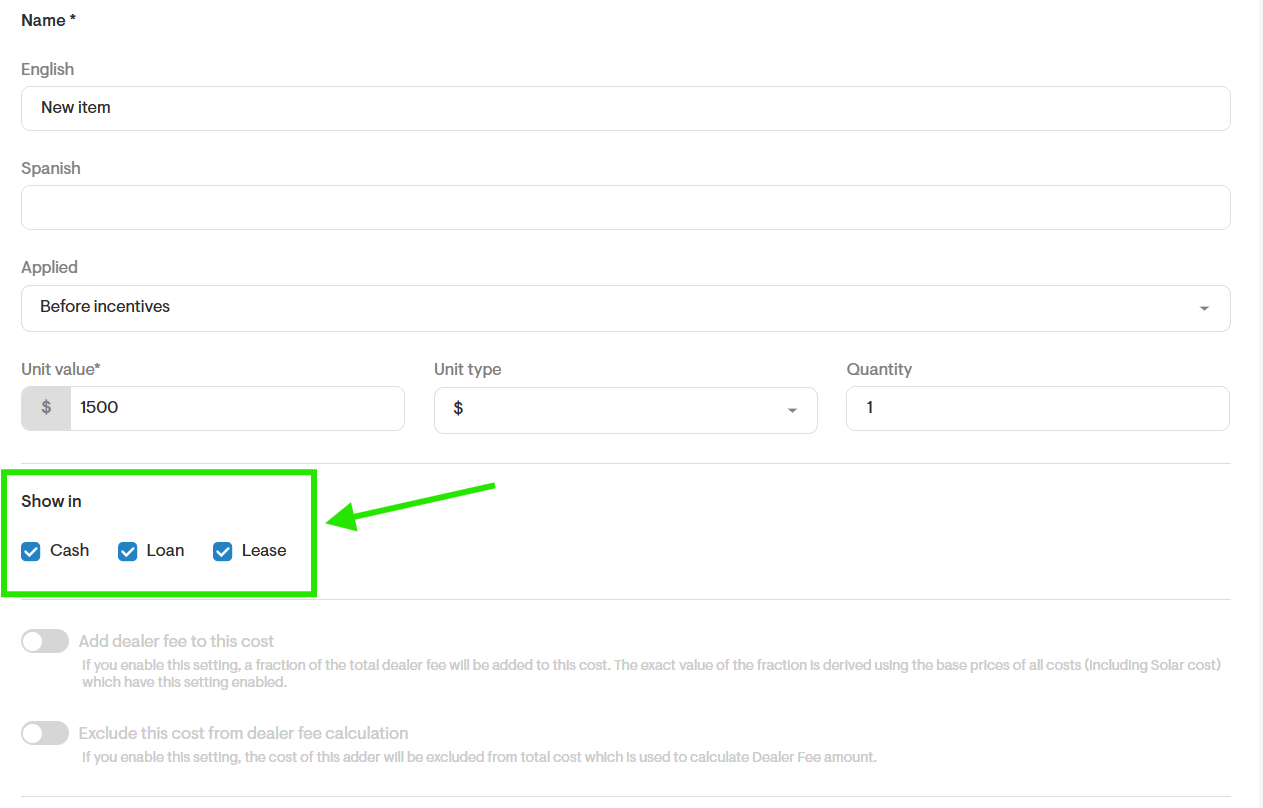
- When finished, click the Save item button in the lower-right corner of the page.
Discounts
- To add a discount that you can reuse on more than one project, navigate to your company's Settings page.
- Click the Pricing heading to expand that section and then select the Discounts & extra costs option.
- Next, click the + Add new discount button.
- If the discount should be active by default on newly created projects, enable the Default discount toggle switch. Discounts not set as default will be inactive when new projects are created and can be enabled as needed from the project's Pricing page.
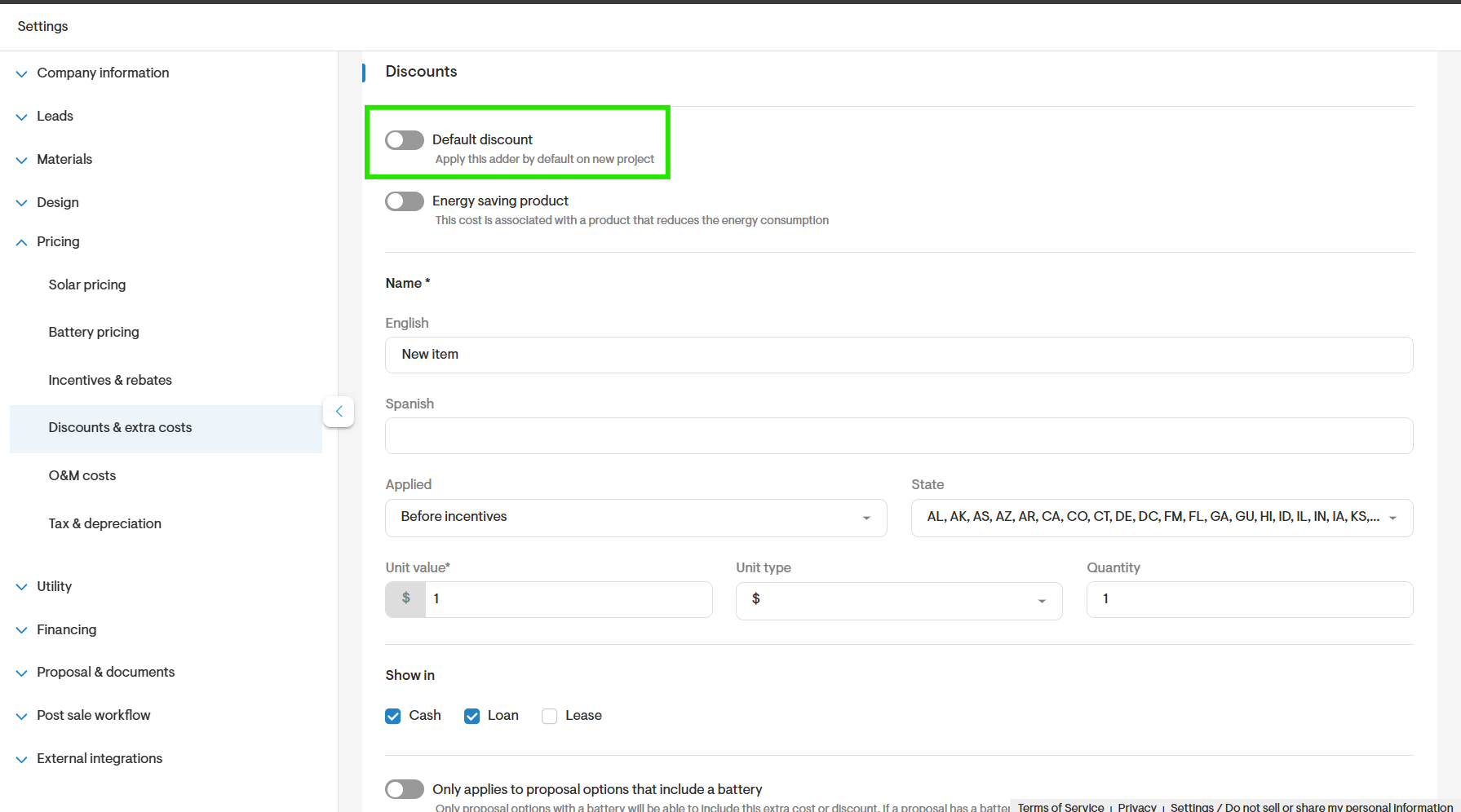
- Next, complete the Name field and select an option from the Applied dropdown menu. Discounts applied Before incentives will be factored in when calculating any incentive amounts, whereas discounts applied After incentives are excluded from the calculation.
You can define the value of the discount using the following unit types:- $ – Calculated as a flat dollar amount.
- $/year – Recurring annual charge for the defined length of the project's lifetime.
- $/watt – Calculated per watt based on the project's system size.
- $/Panel – Calculated per panel installed for the project.
- $/SQ – Calculated per roofing square for the total roof area.
- $/Linear foot – Calculated per linear foot of either the roof's eaves, ridges, or rake lines.
- % of solar price – Calculated as a percentage of the base solar cost from the project's Pricing page.
- % of storage price – Calculated as a percentage of the battery cost from the project's Pricing page.
- % of gross cost – Calculated as a percentage of the project's gross cost.
- Once you have defined the Unit value, Unit type, and Quantity, select which types of financial options the discount applies to.
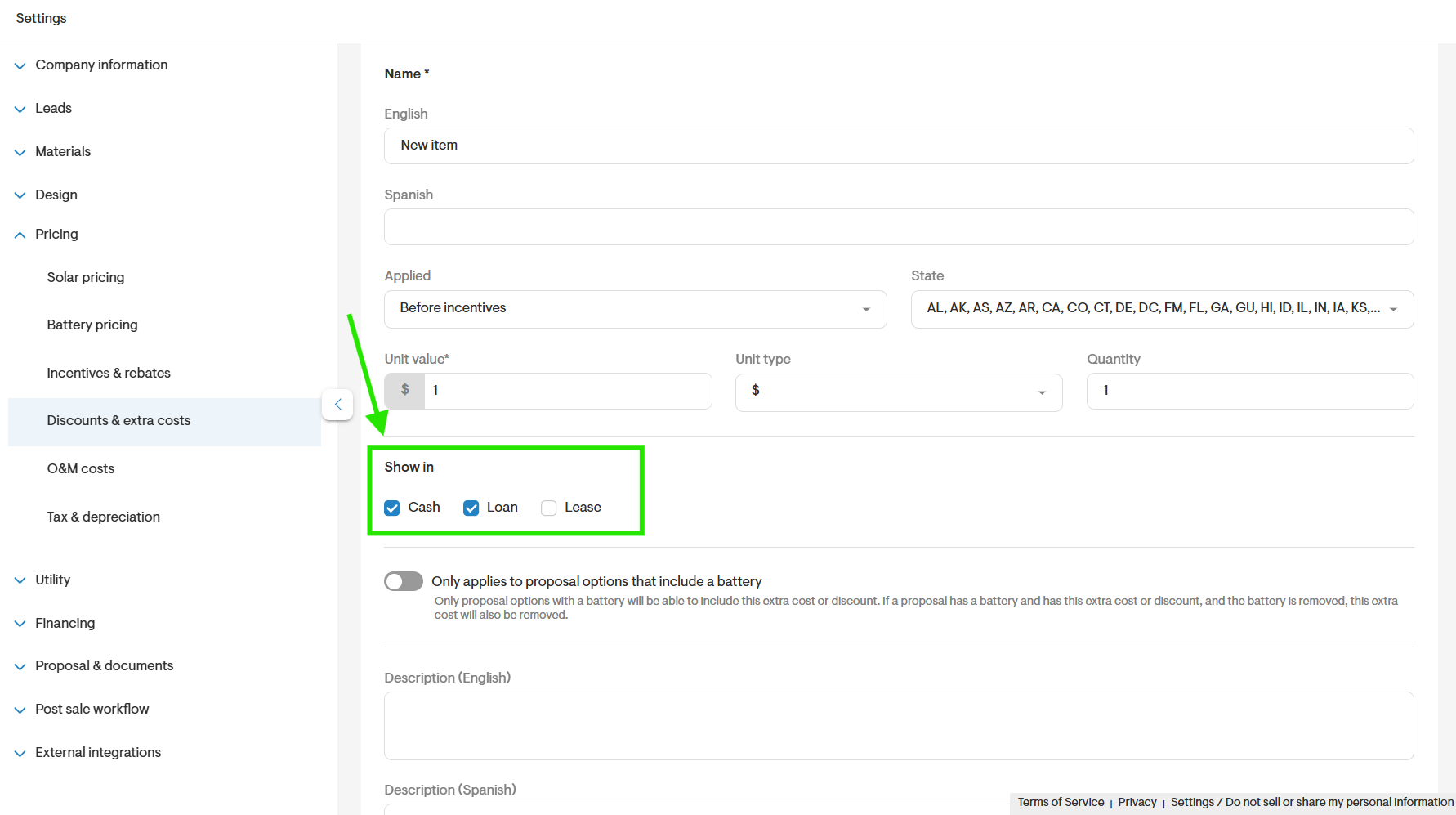
- When finished, click the Save item button in the lower-right corner of the page.
Energy-saving products
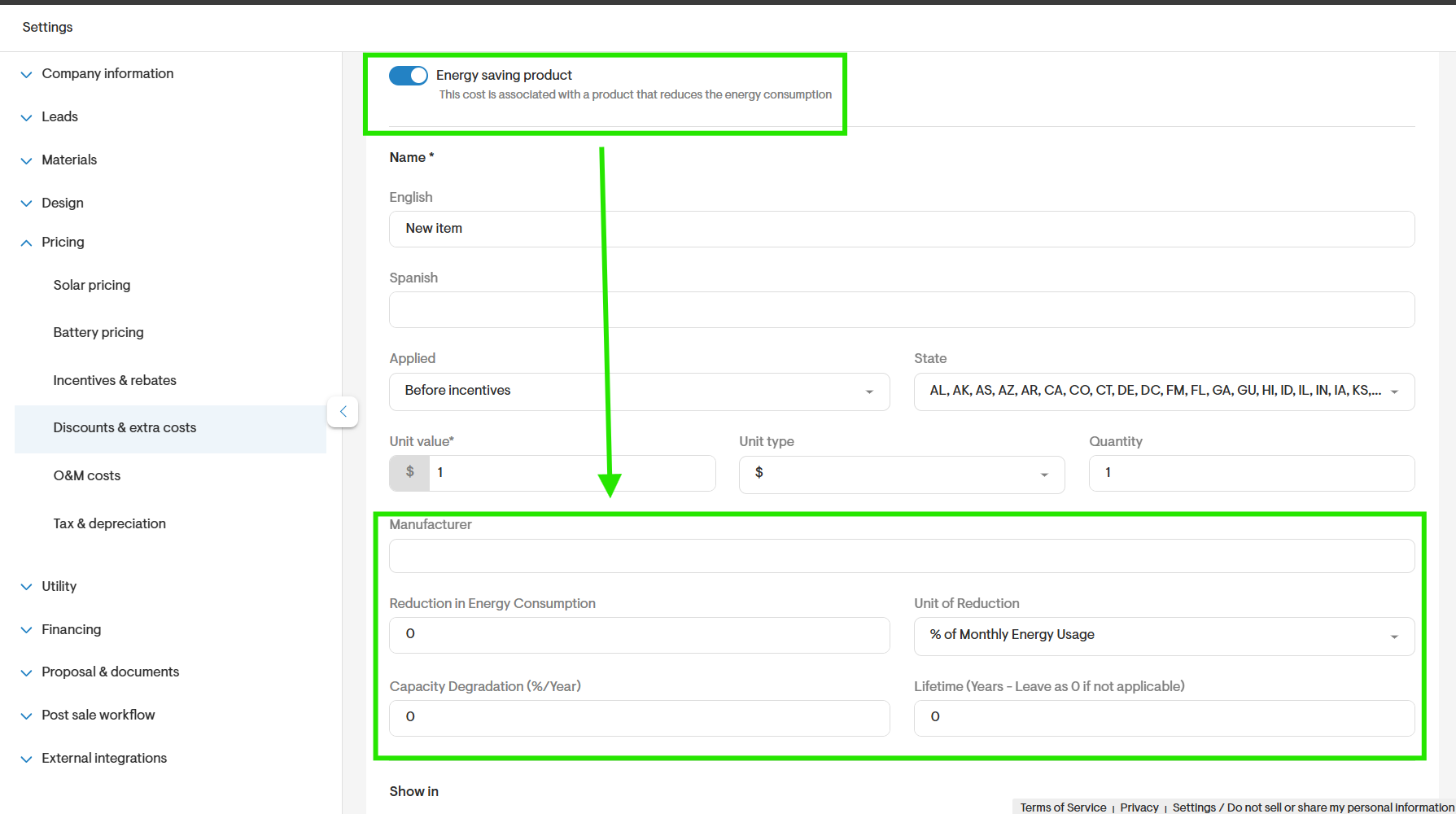
Both discounts and extra costs can be marked as energy-saving products, which in addition to their normal impact on the total price will also lower the project's estimated future consumption.
- To classify a discount or extra cost as an energy-saving product, enable the Energy saving product toggle switch and then complete the following fields:
- Manufacturer – Name of the product manufacturer.
- Reduction in energy consumption – Estimated reduction in consumption from using the product.
- Unit of Reduction – Select whether the energy savings are calculated as % of Monthly Energy Usage or a flat kWh/Month reduction.
- Capacity Degradation – Estimated year-over-year efficiency loss for the product.
- Lifetime – Number of years the product is estimated to remain in service. Leave as "0" if the product will be operational for the duration of the project lifetime.
Display order of discounts and extra costs
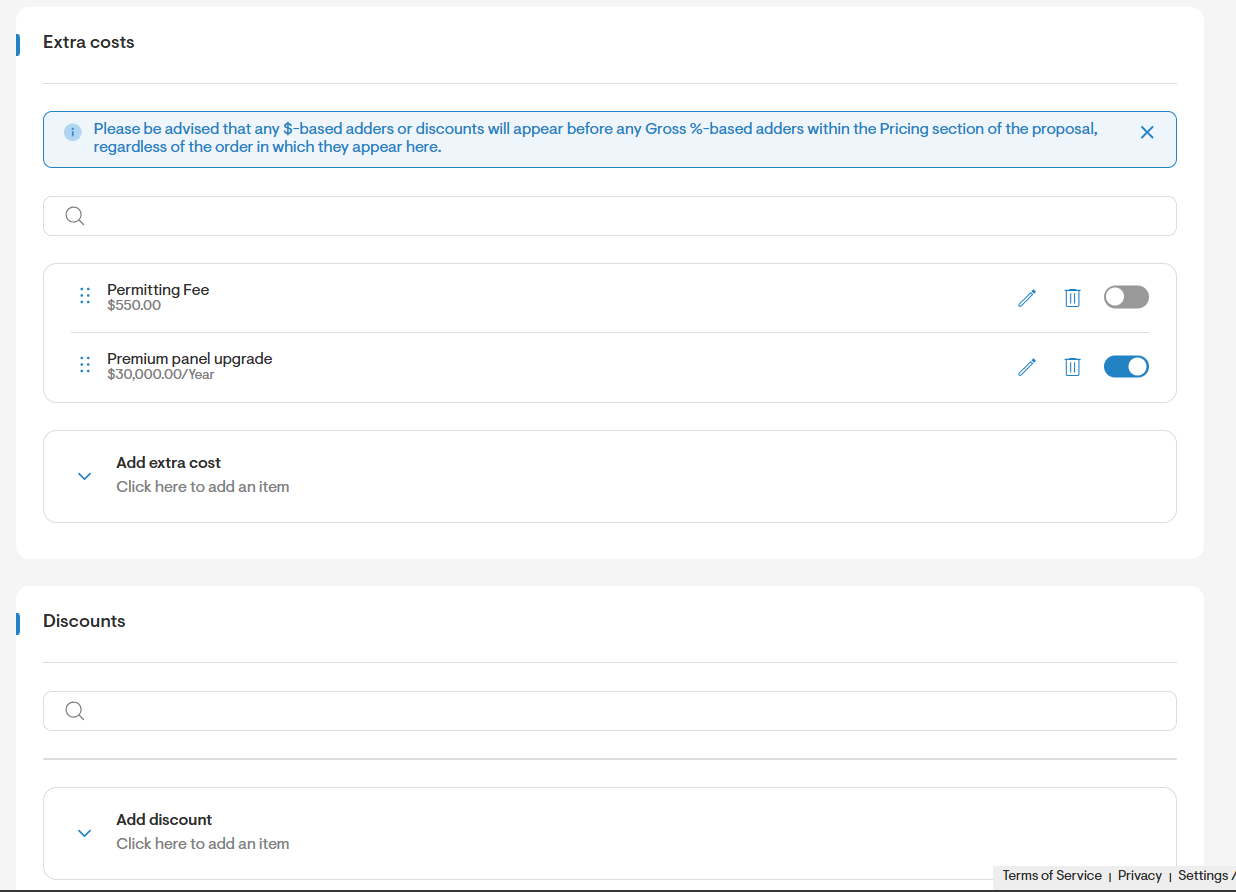
- You can rearrange the order in which discounts and extra costs are displayed on the proposal either from your company's Settings or from a project's Pricing settings.
- From the list view, click on whichever discount or extra cost you would like to rearrange and then drag it to the spot in the list where it should appear.
However, items calculated as % of Gross Project Price will always be displayed last, regardless of the order defined in the pricing settings.