Help Center TPO / PPA
Send a GoodLeap TPO application
Published on 28 Oct 2025
Once the GoodLeap integration is complete by following the steps in Integrate with GoodLeap, you can submit a GoodLeap TPO application from the project page. To do so, follow the steps below.
Apply losses template to project
- At the project level, go to the Design page, navigate to the Solar tab, and select the previously created GoodLeap Losses template.
Note: If you don’t see the GoodLeap template, it’s possible that a step in the integration process was missed. Please review the steps outlined in Integrate with GoodLeap to ensure everything was completed correctly, or reach out to your administrator to do so.
- Under the same tab, set the DC to AC ratio to 1.5.
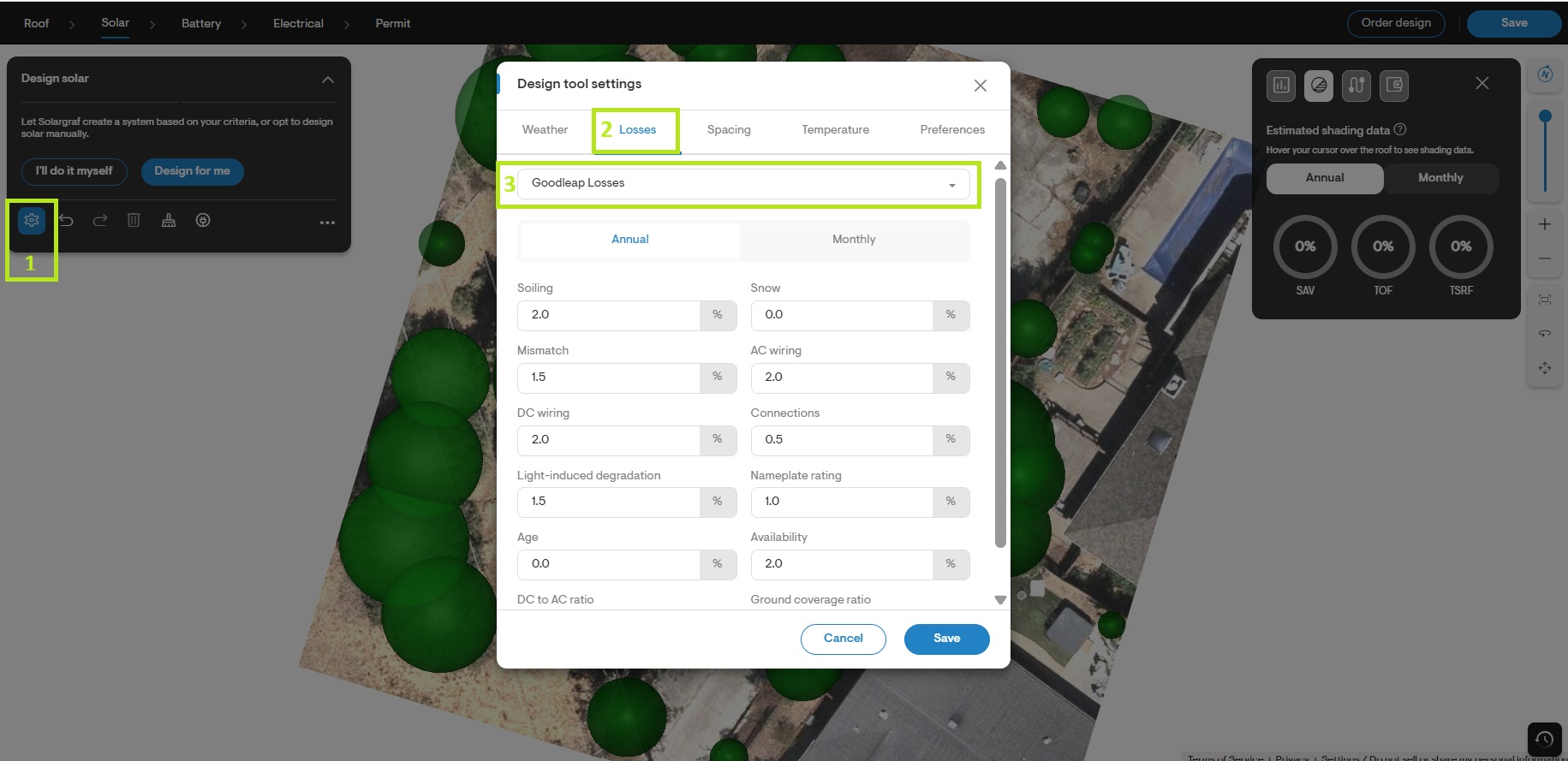
- Save your changes.
- Finish creating your design by including all the essential components as you would normally.
Enable GoodLeap TPO
GoodLeap TPO options must be enabled at the project level, as the availability of certain products depends on the specific address and its associated utility provider.
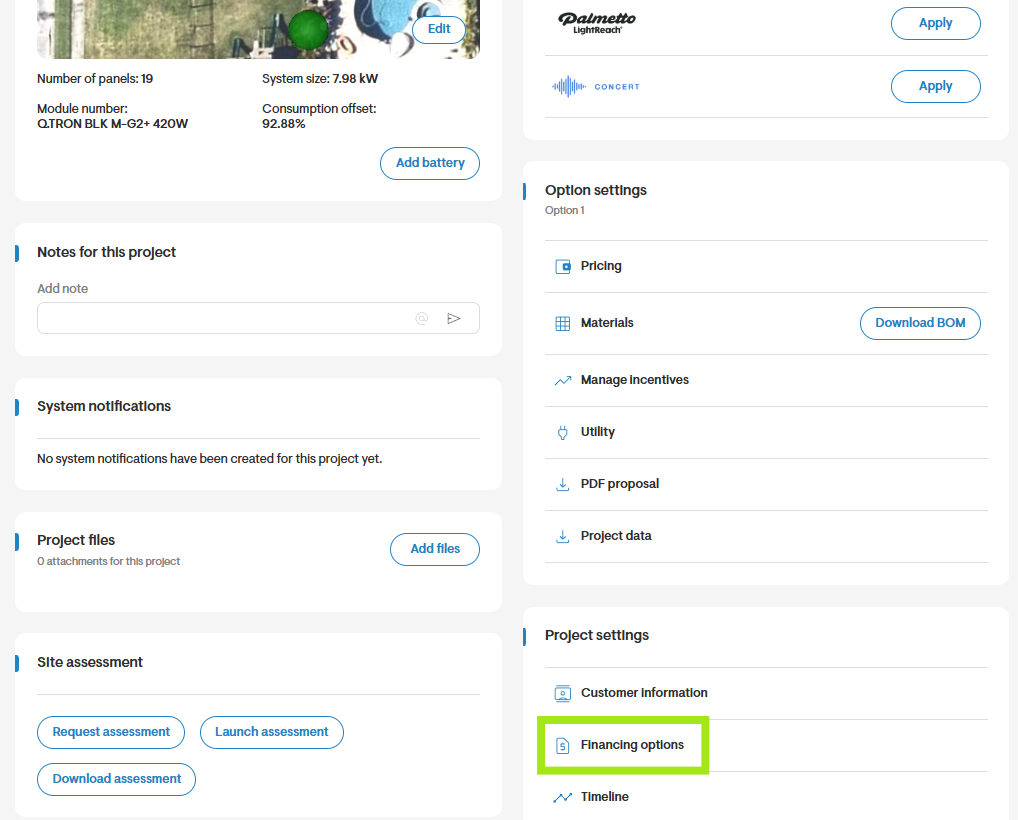
- In your project overview, navigate to Financing options.
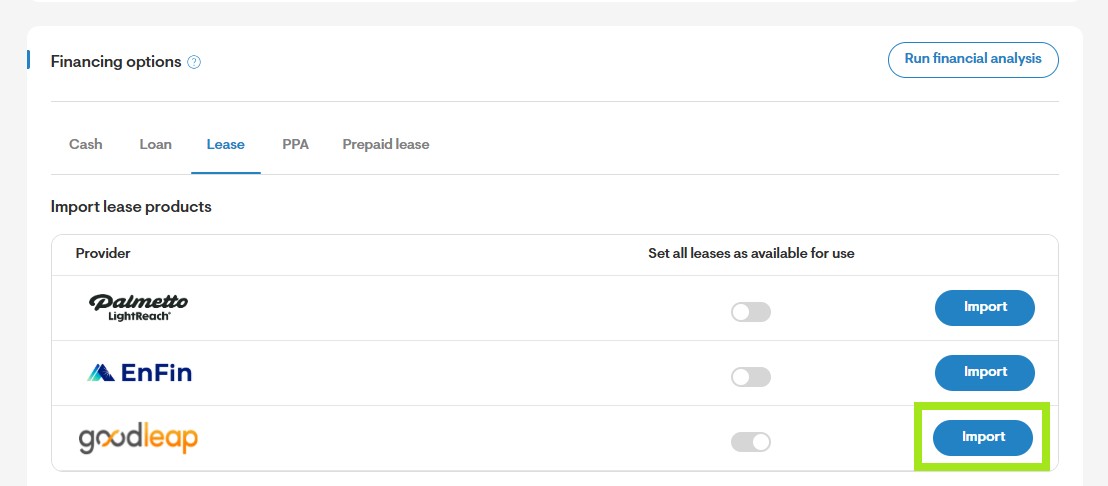
- Go to the Lease tab and click Import for GoodLeap. Import the desired GoodLeap products.
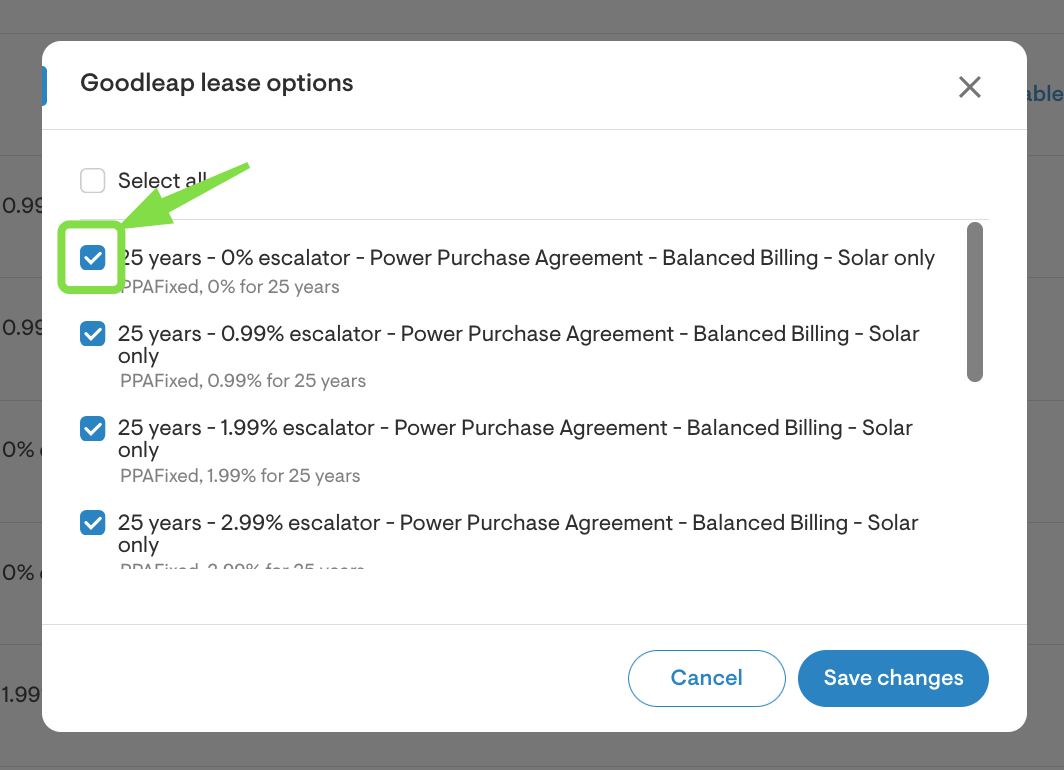
- Using the checkboxes, enable the necessary lease options for this project. You may also select all at once if necessary.
- Save your changes.
Select a lease product
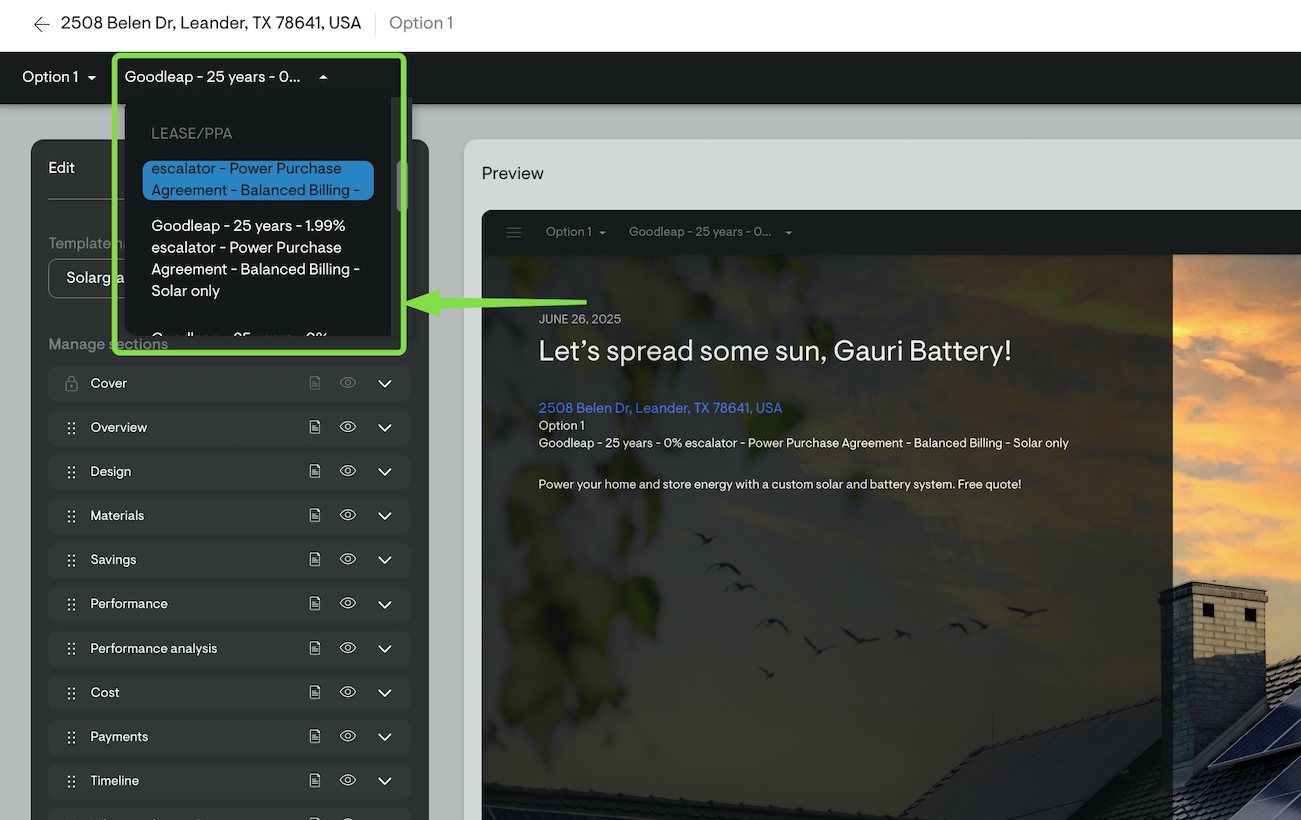
- Choose a GoodLeap lease product on the webquote to view monthly payments and other details.

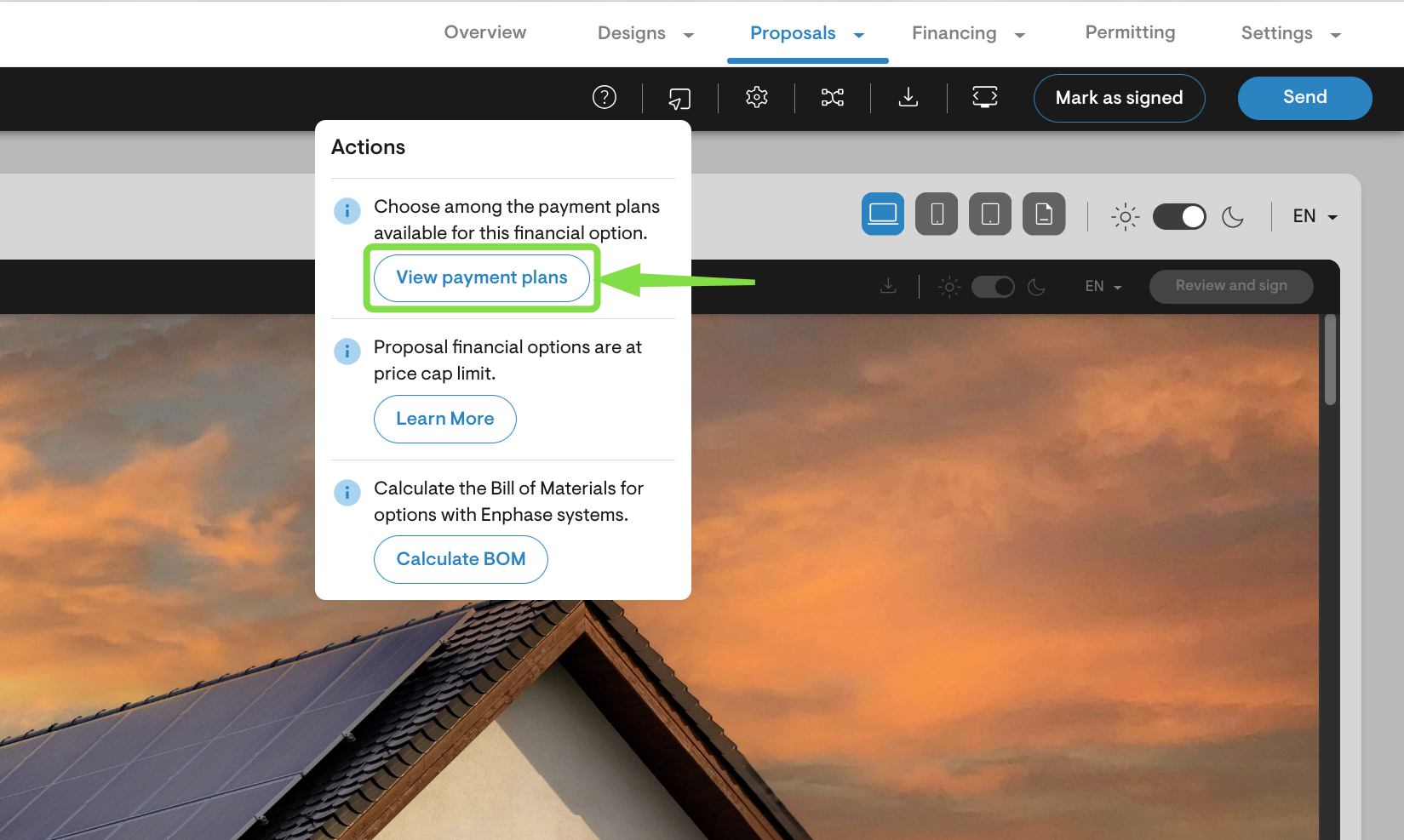
- Once you have selected a lease option, go to the top right menu, select the Actions icon, and click View payment plans.
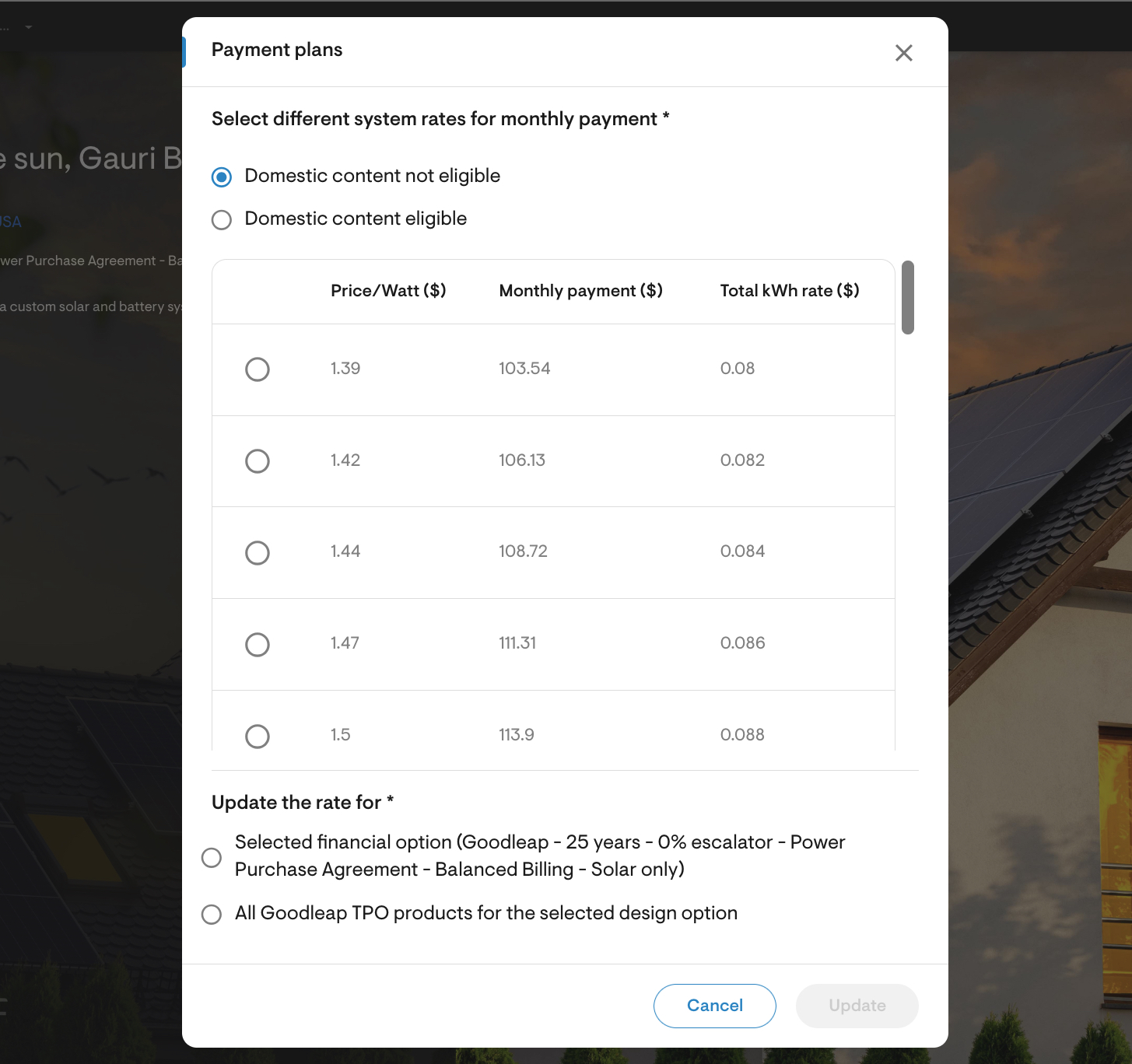
- Review the pricing matrix and make your selection.
- Once satisfied with the pricing, send the quote to the homeowner.
Apply for TPO
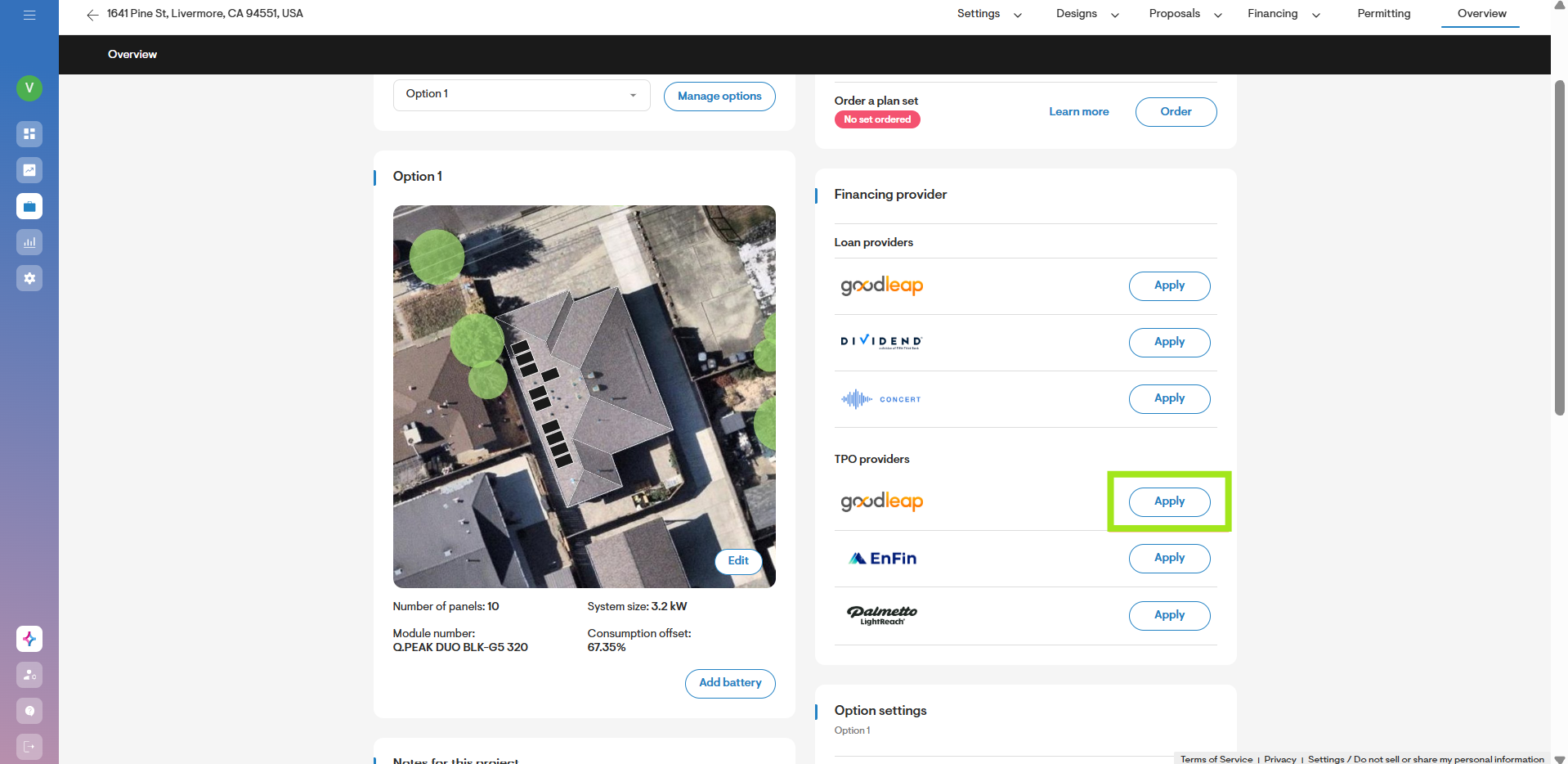
- On the Project Overview page, click Apply next to GoodLeap under TPO providers.
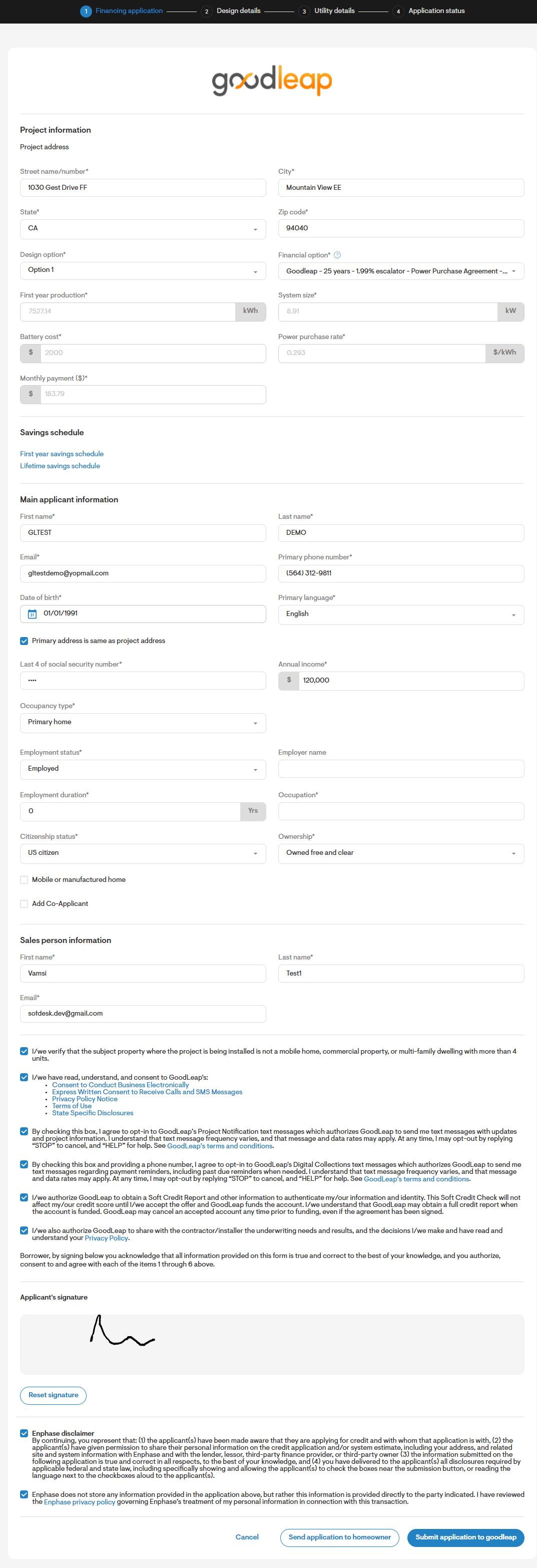
- Select the financing option and fill out the form with the applicant and sales rep details. Choose the Submit application to GoodLeap button to create an in-person application, or choose the Submit application to homeowner button to send the application to the homeowner.
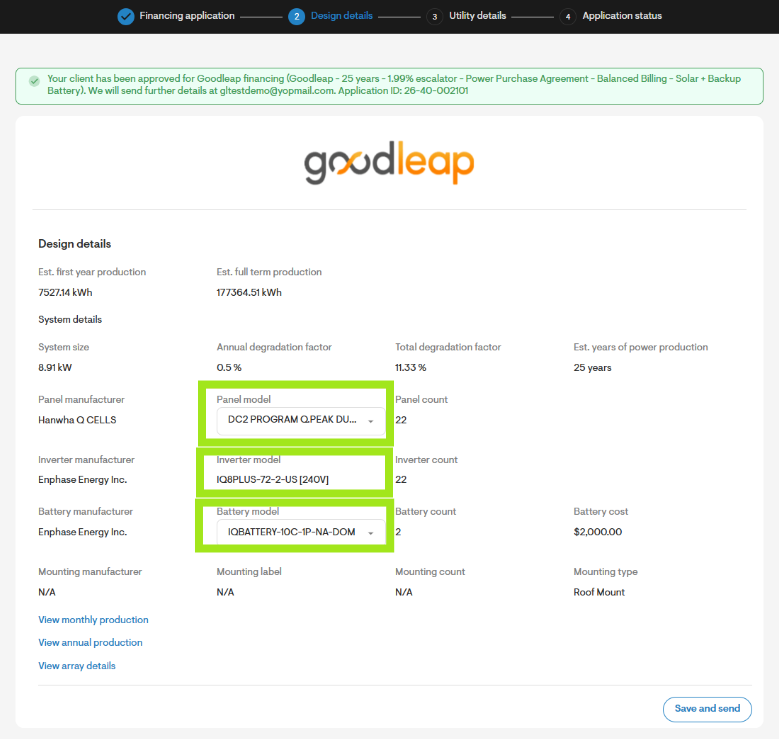
- Once the homeowner is approved, verify and send design details. You can check if the homeowner is approved by the green ribbon at the top.
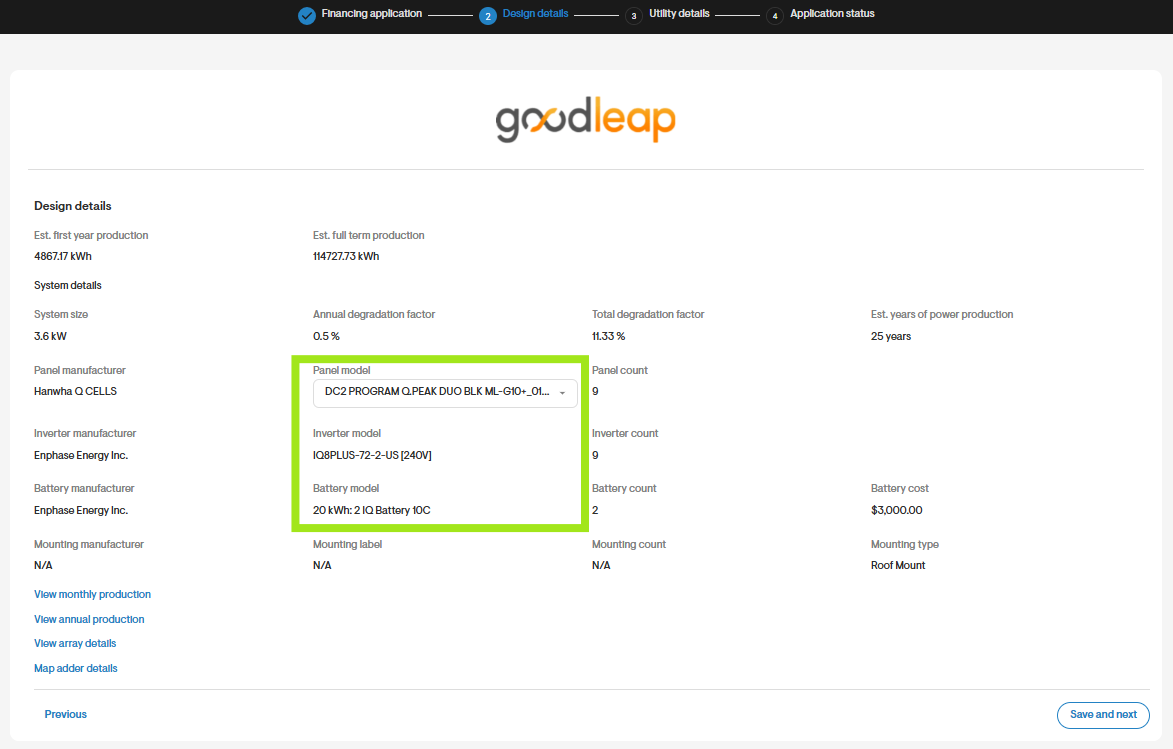
- On the Design details tab, choose the appropriate equipment model for panel model, inverter model, and battery model using the dropdown highlighted below. This dropdown is specifically enabled to allow selection of either Domestic Content or Safe Harbor equipment.
- Proceed to the Utility details tab by clicking Save and send.
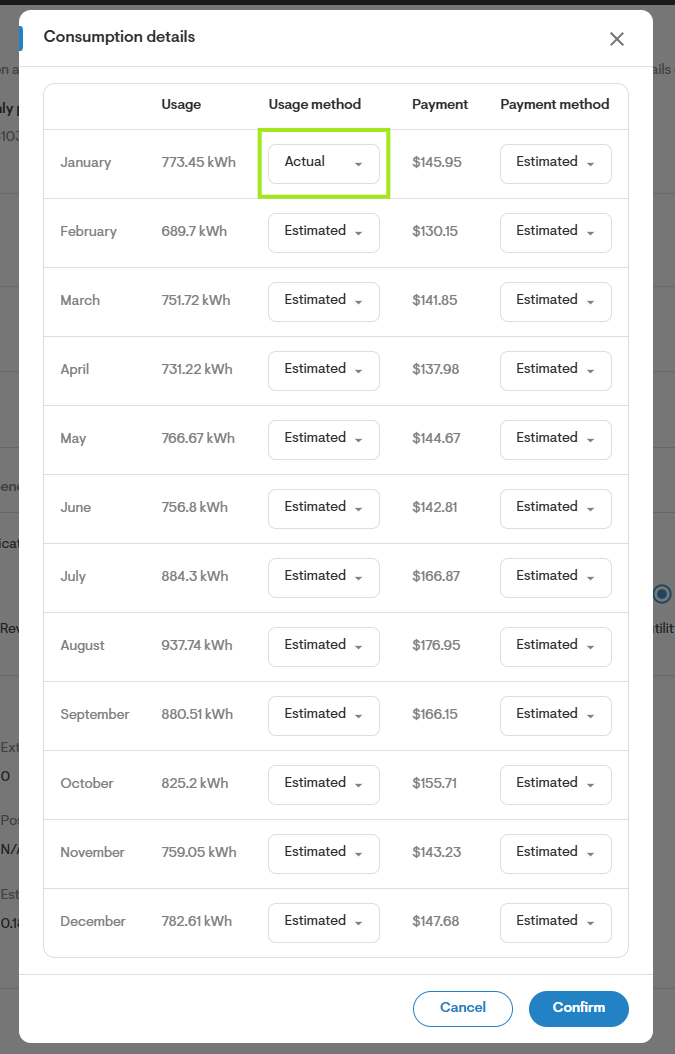
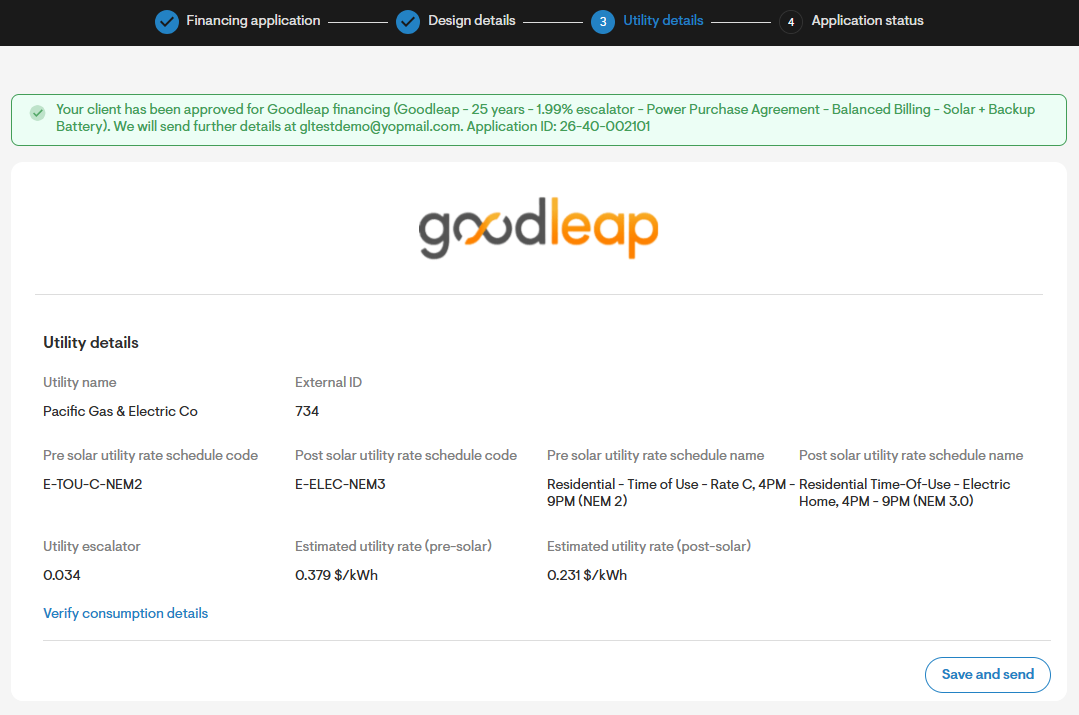
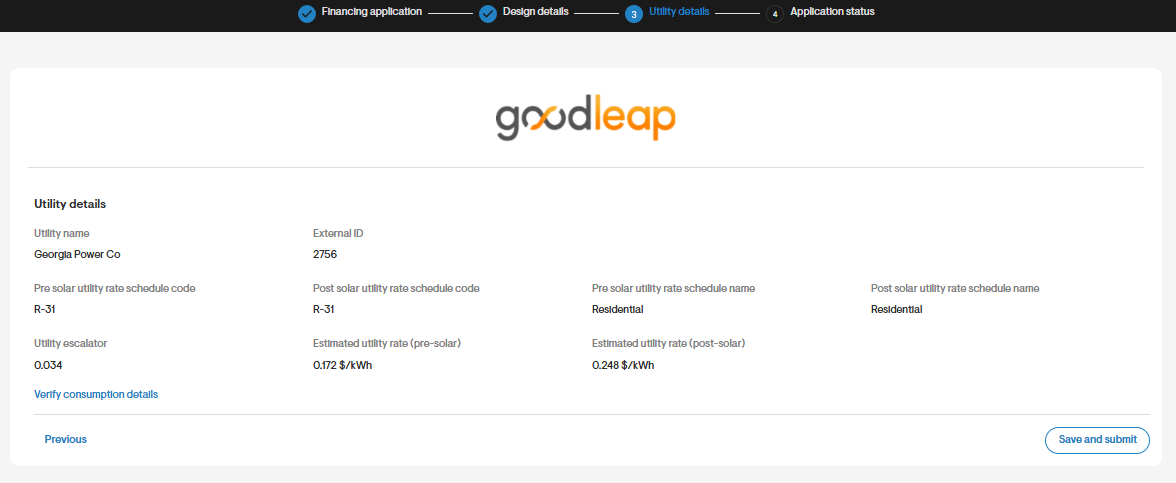
- On the Utility details tab, click Verify consumption details and ensure that at least one month of consumption data is marked as actual customer usage. Click Confirm to save your changes.
- Click Save and submit.
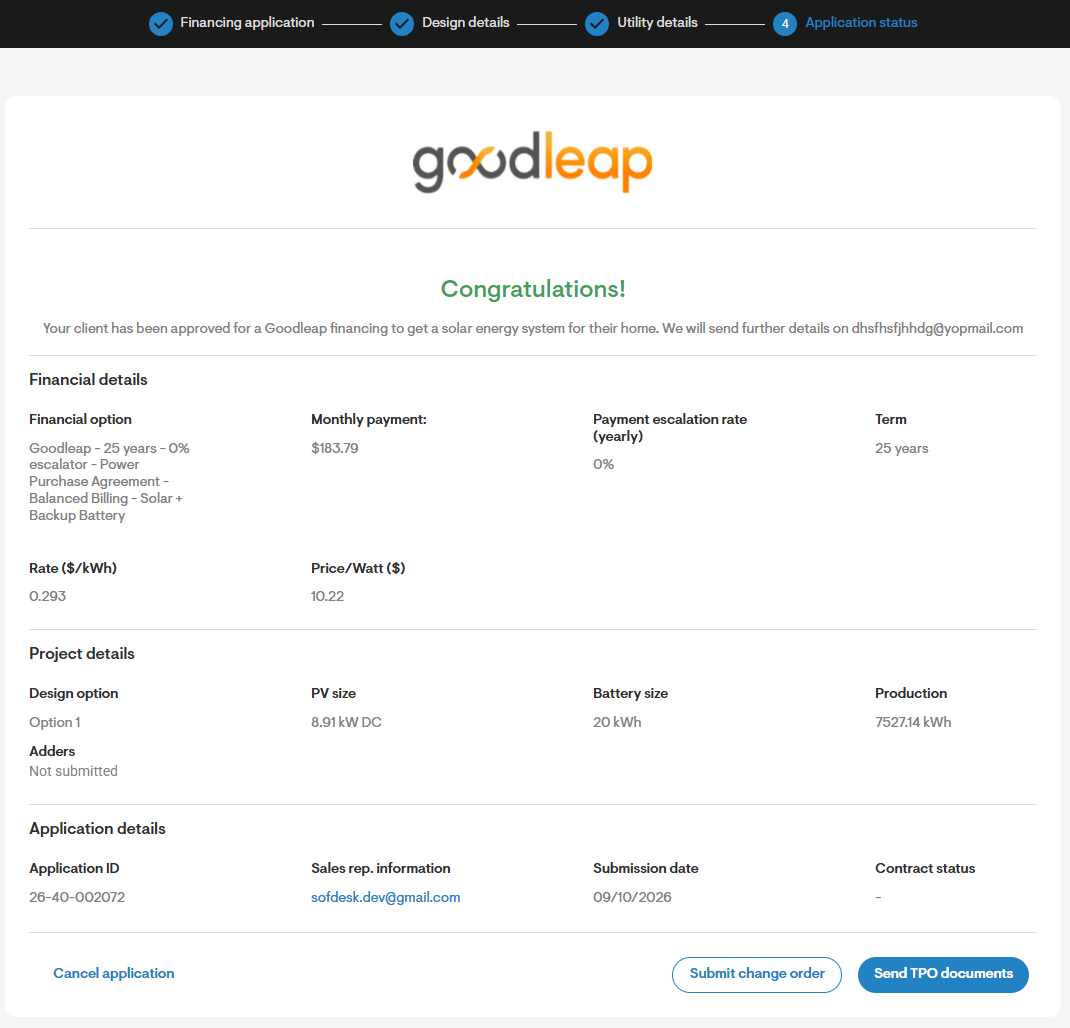
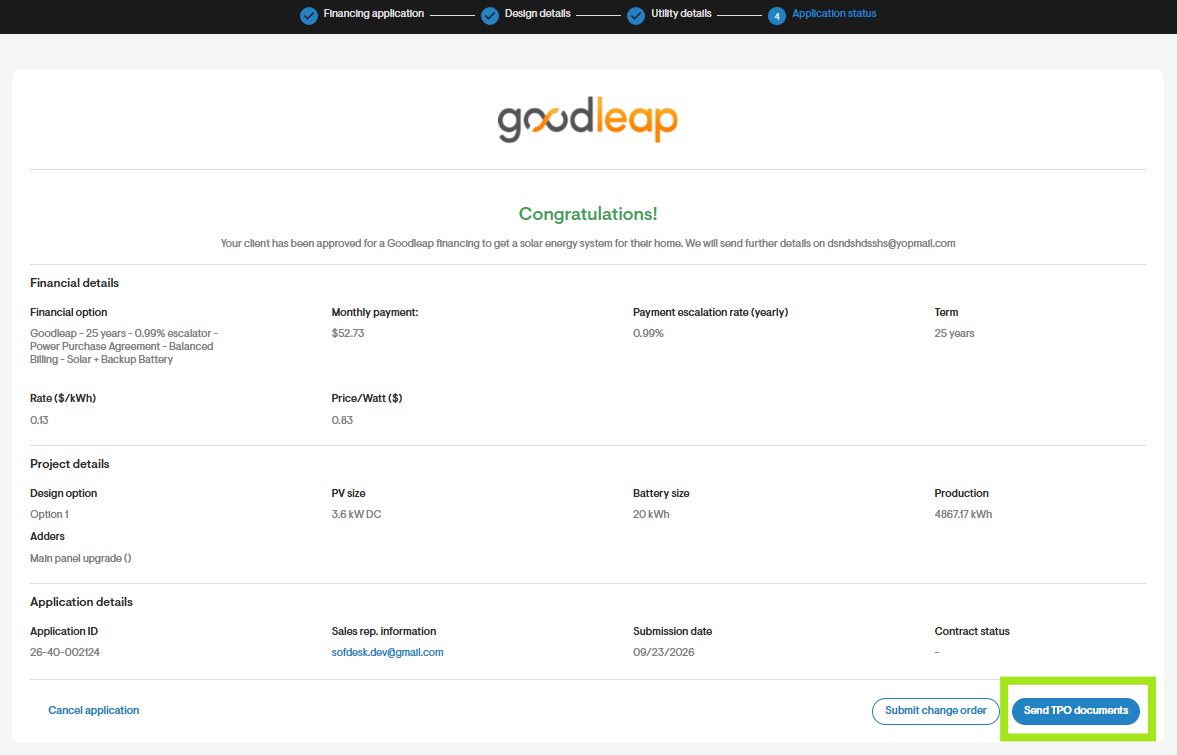
- Once the application has been submitted, you’ll be directed to a confirmation screen with a “Congratulations!” message.
- You can send the TPO documents to the homeowner by clicking the Send documents button.
- You can cancel the application by clicking the Cancel application button and giving a cancellation reason.
Submit a change order
- If there are changes to the design or equipment, update them on the Design page first.
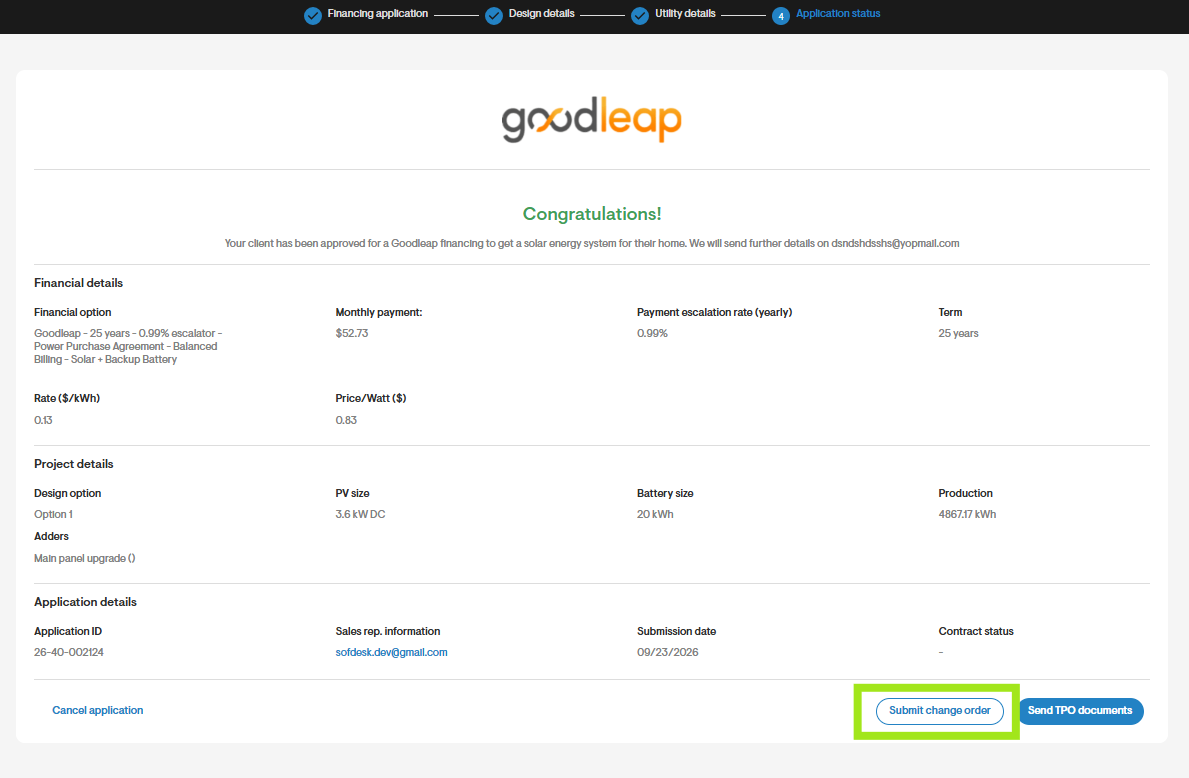
- Then, navigate to the GoodLeap TPO application submission screen.
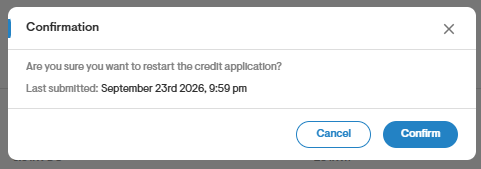
- Click the Submit change order button and click Confirm on the pop-up.
- On the financing application page, choose the financing option to submit the application with the change order.
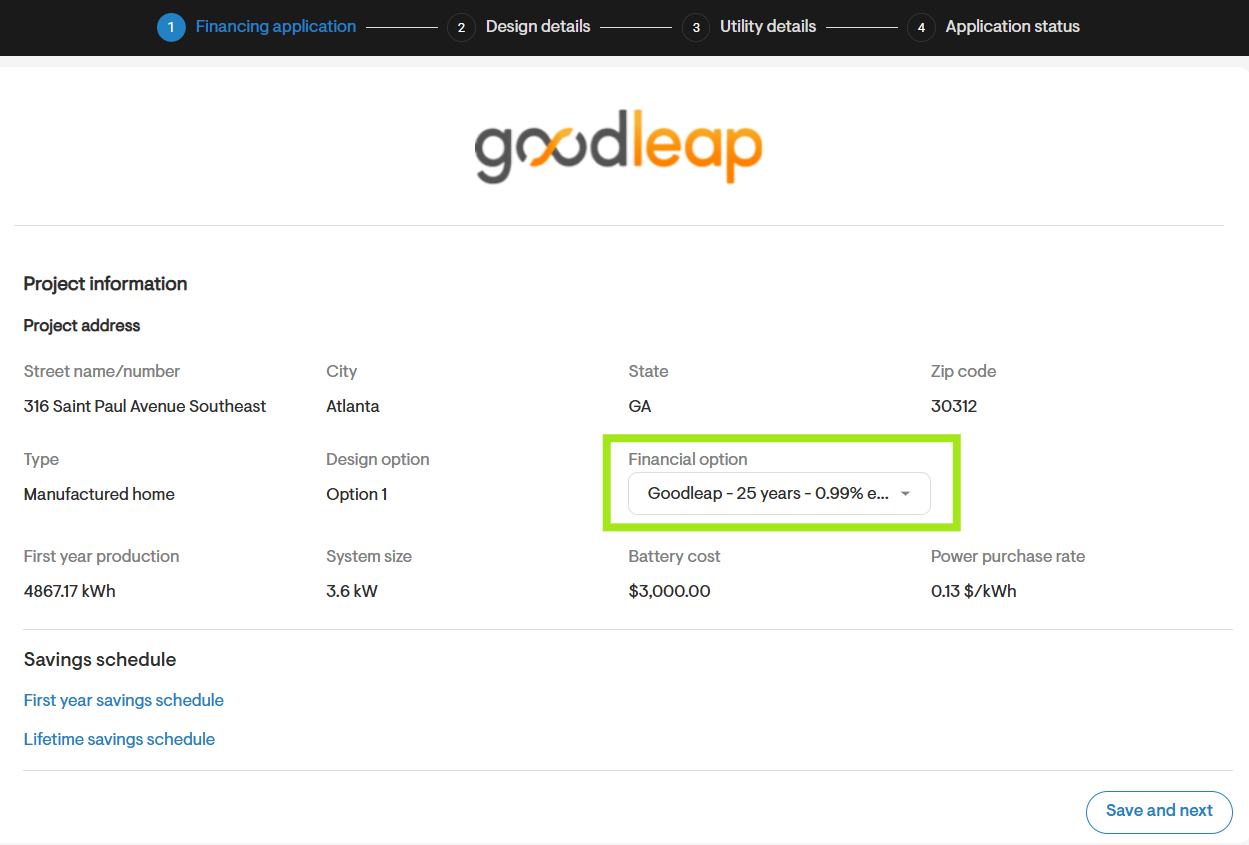
- Click Save and next.
- Review the design details. Verify and update the panel, inverter & battery model from the dropdown for the DC/FEOC variant as required.
- Click Save and next.
- Review the utility details.
- Click Save and submit.
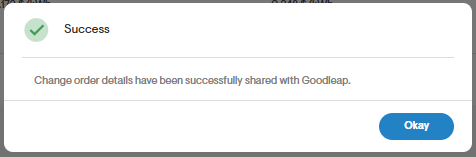
- You should receive a success message as shown below.
- You may send the homeowner the TPO documents.
Post-application actions
- Check the status of the pre-approval after submission.
- If pre-approved, add design and utility details to complete the application.
- Modify the project as needed and submit a change order from the application status page. Solargraf will pre-fill details from the latest design.
- Request GoodLeap to send documents to the homeowner after submitting the utility and design details.
FAQ
Can I use GoodLeap TPOs for system expansion projects?
No, system expansion projects are not currently eligible.
Why is a financing option filtered out?
Check the notifications for specific errors from GoodLeap.
I’m getting an “Invalid partner installer” error. What should I do?
Ensure the project owner is registered on GoodLeap with the same email address. Only installers registered under the same company and on the GoodLeap portal can apply for TPO.
Documents aren’t being sent to the homeowner even though I received a success response from Solargraf. What’s the issue?
Verify that the required salesperson details have been provided to GoodLeap.
Why can’t I import GoodLeap TPO products at the company level?
TPO products vary significantly based on the project address and utility provider. For this reason, they can only be imported at the project level, ensuring only applicable products are available for the specific project.