Help Center Design Tool
How to Generate a Line Diagram
Published on 7 Sept 2023
The following guide provides information on how to create a line diagram in Solargraf. Before generating a line diagram for your project, you will first need to complete the project's electrical design.
For more information on the electrical design, refer to: How to Use the Electrical Design Tool (EDT).
Verify electrical components
From the electrical design page, click the Line diagram button, or press 'L' on your keyboard.
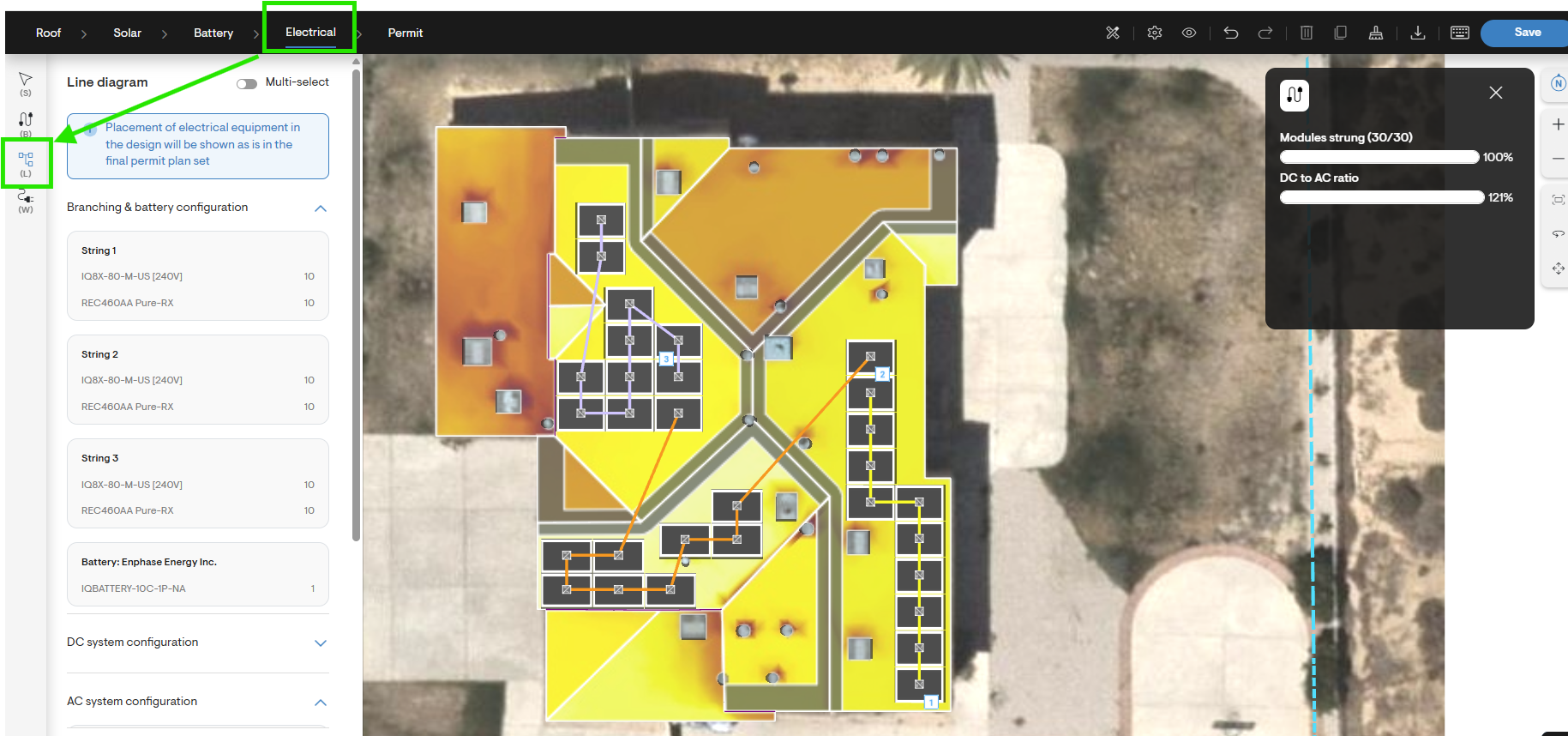
Review the line diagram menu. Ensure that the quantity and type of electrical components are valid for the number of arrays and type of inverters in your solar design, and verify that you have strung all panels and components to form a complete circuit.
Generate the line diagram
After reviewing your electrical design, click the Generate line diagram button at the bottom of menu.
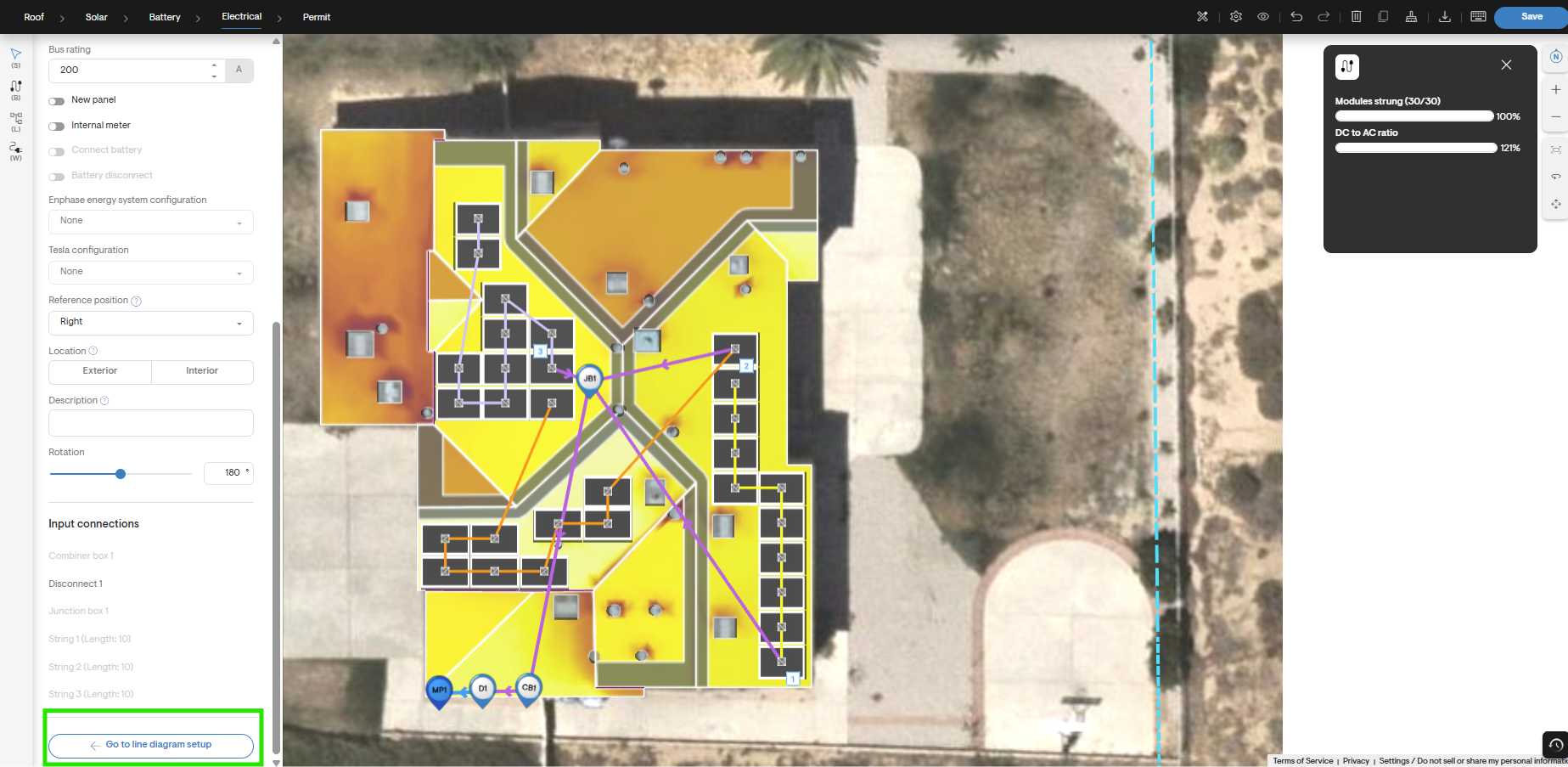
Resolve alert messages
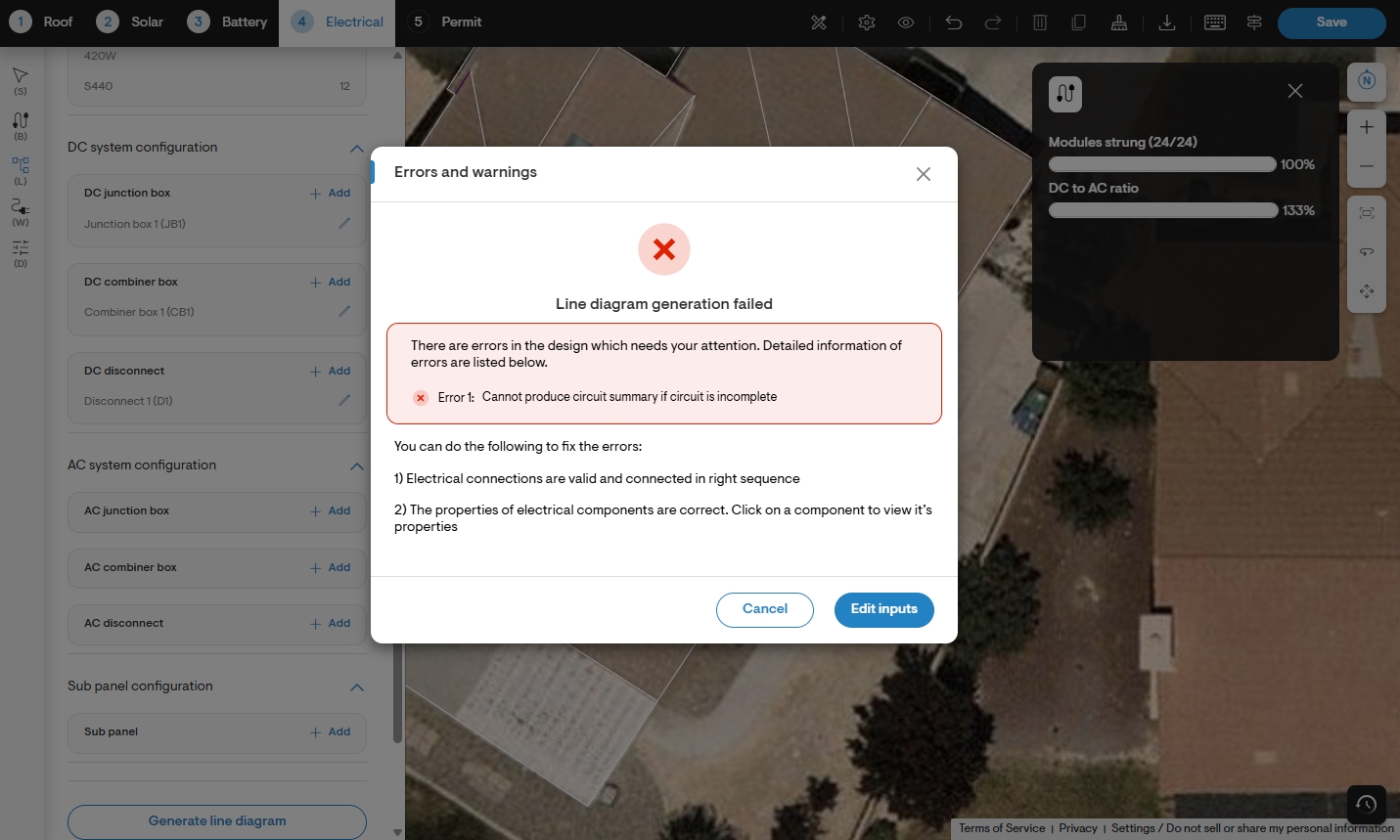
If any components have not been connected to the circuit or have not been set up properly, the line diagram will fail to generate, and you will be given an error message with an explanation of the problem.
To resolve the error, follow the troubleshooting steps outlined in the specifc error's accompanying message.
Download the line diagram (optional)
Once generated, a preview of the single-line diagram (SLD) will open automatically from the right side the page. To save a copy, click the Download button above the diagram.
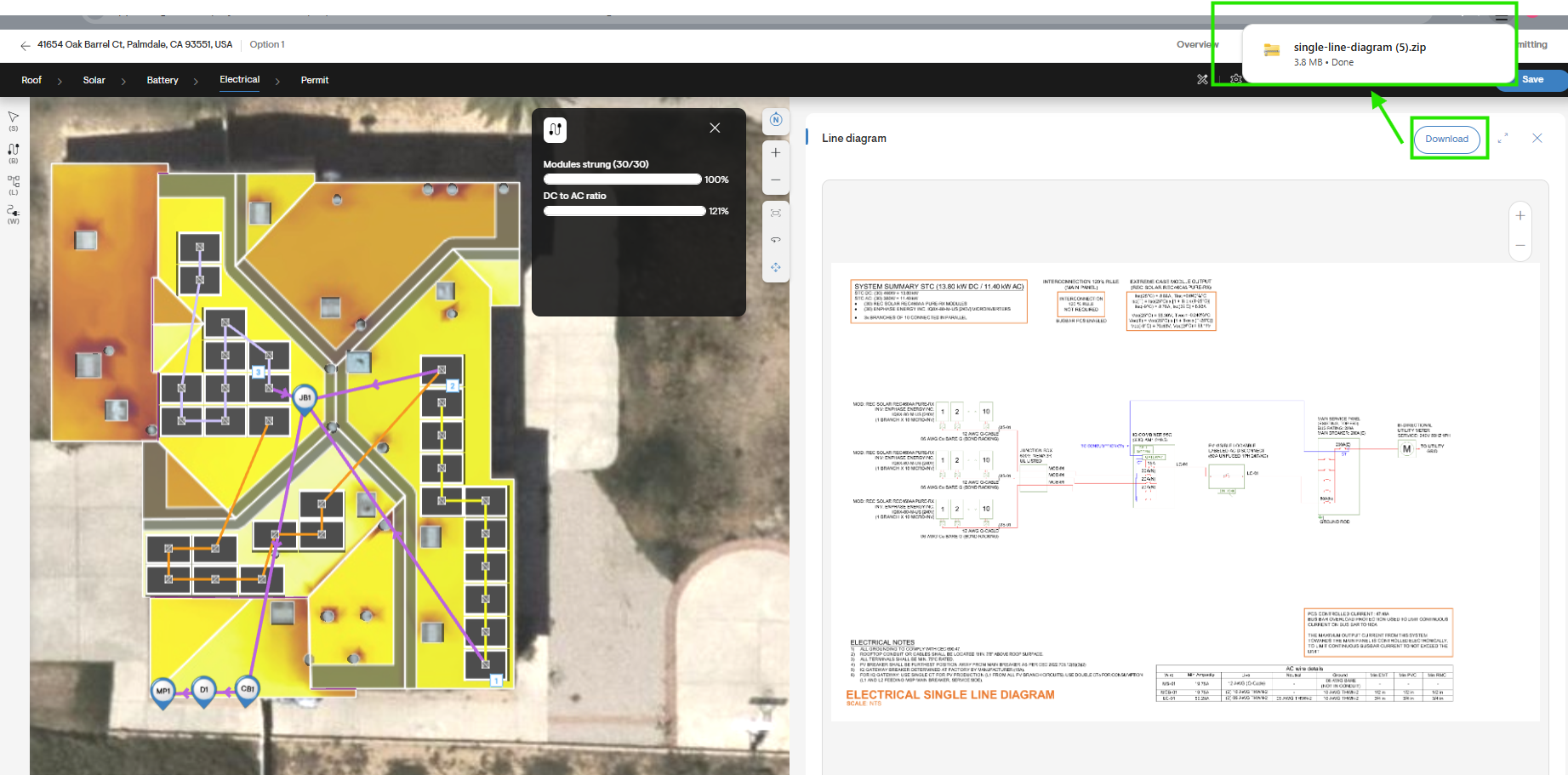
For more information on downloading the line diagram, see: FAQ: Electrical Design Tool (EDT).