Help Center Design Tool
Design Tool Settings
Published on 15 Sept 2023
Design Tool Settings
- The Design Tool Settings can be accessed by clicking the following icon in the design tool.
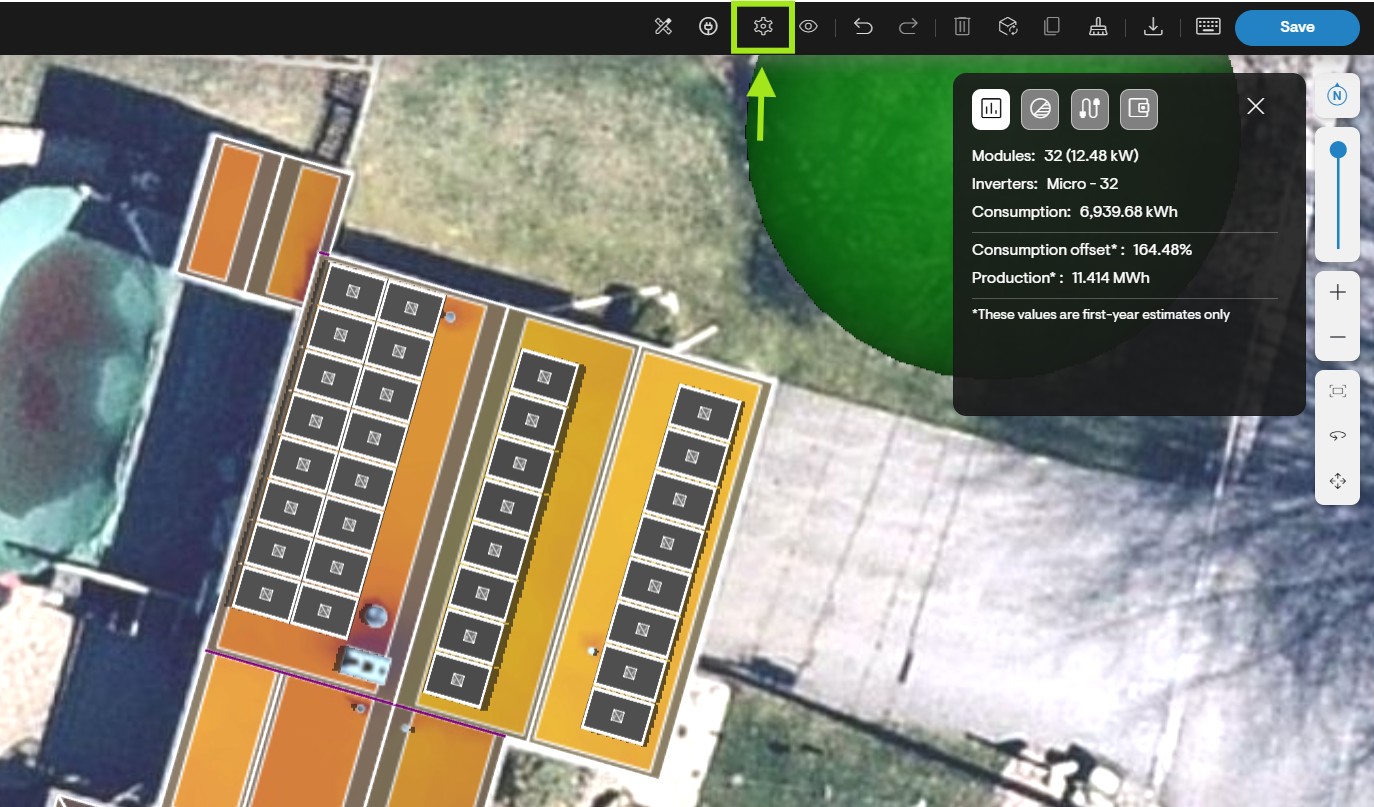
- Under the Design Tool Settings, you will have the option to edit the following:
- Weather
- Losses
- Spacing
- Temperature
- Preferences
Weather
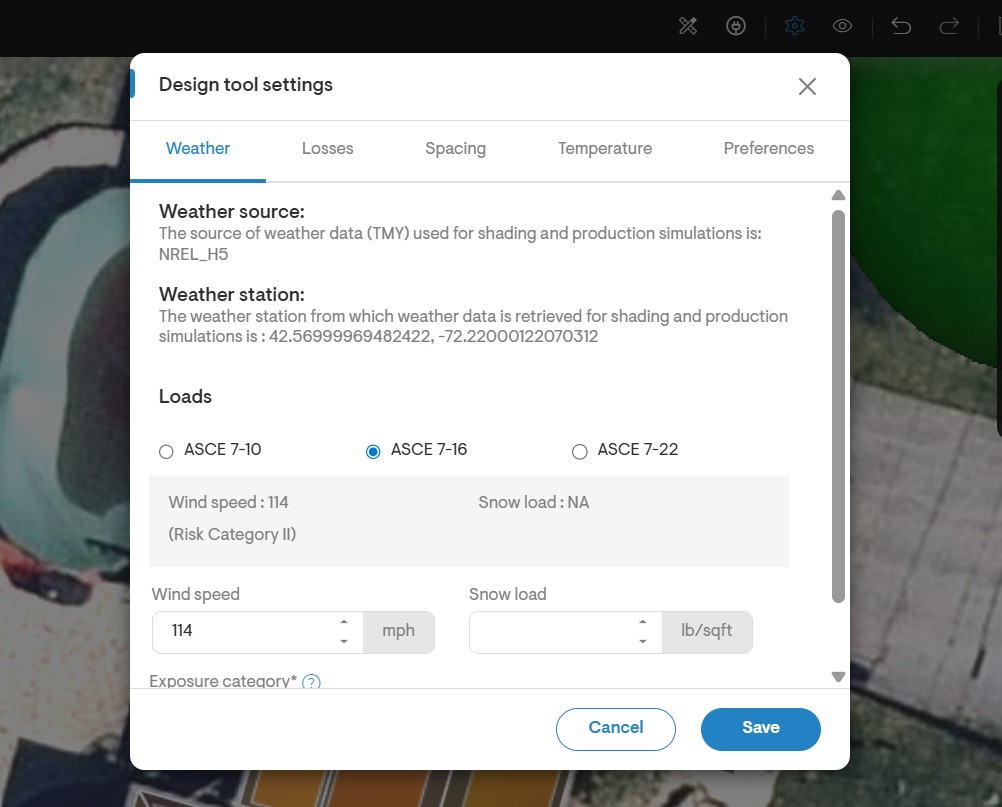
- Under the weather tab, you will be able to see the source of weather data (TMY) used for the shading analysis and production estimates.
- It will also show the weather station from which data is obtained.
Losses
- Under the losses tab, you will have the option to select the losses template.
- You will be able to enter monthly or annual percentage losses.
- You may enter losses due to soiling, snow, mismatch, AC wiring, DC wiring, connections, light-induced degradtion, nameplate rating, age and availability. You may also enter the power export limit and ground coverage ratio.
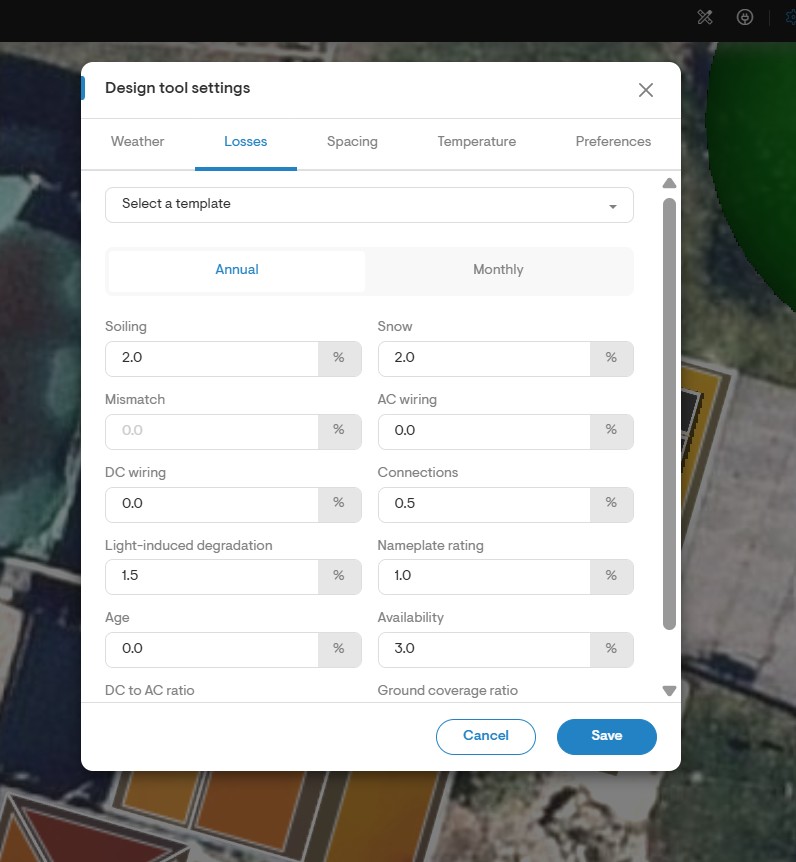
Please refer to this article for the steps on how to create a losses template, which you will be able to select from the "select a template" dropdown seen in the screenshot above.
Spacing
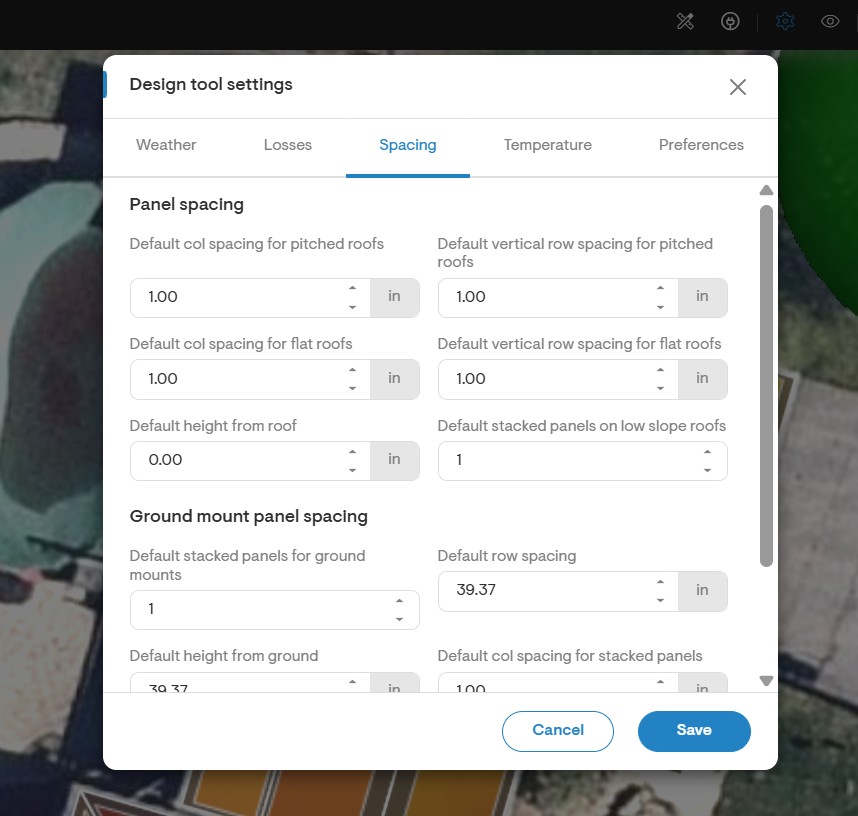
- Under the spacing tab, you may edit the panel spacing or ground mount panel spacing.
Temperature
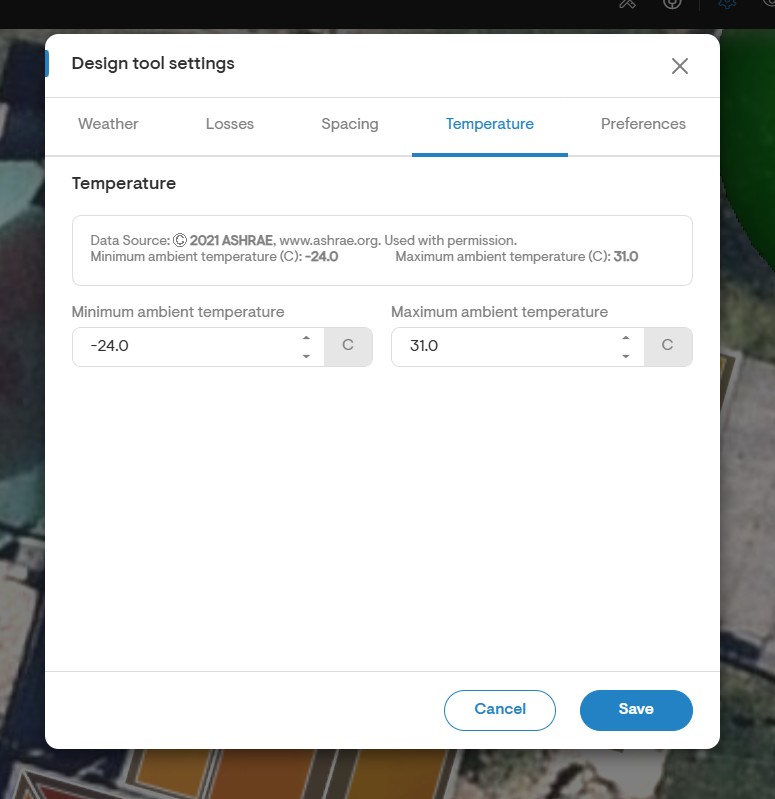
- Under the temperature tab, you may enter the minimum and maximum ambient temperatures.
Preferences
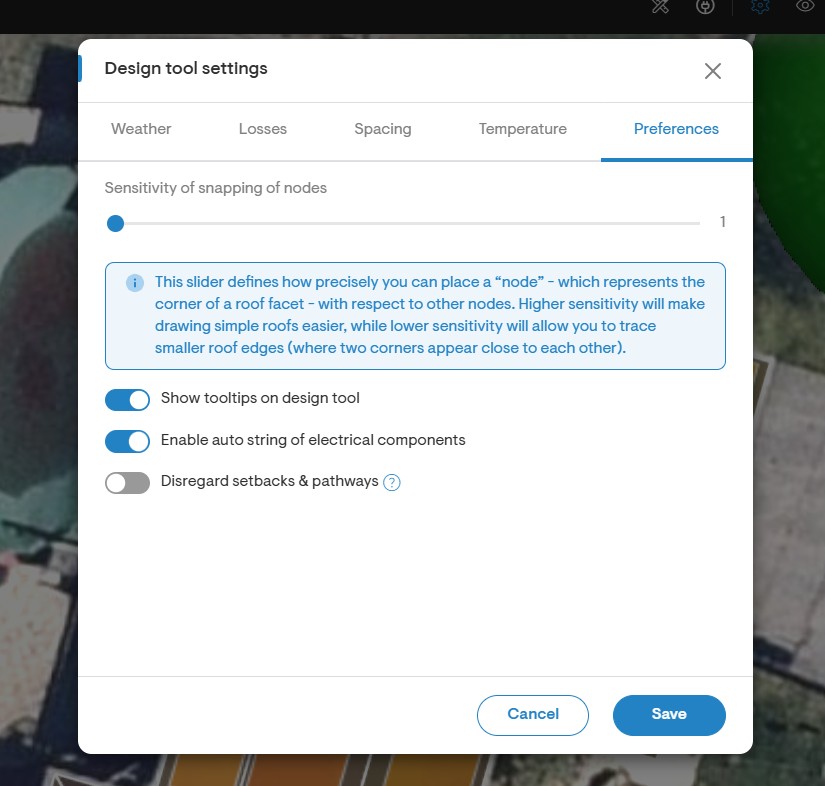
- Under the preferences tab, you may adjust the sensitivity of the snapping of the nodes.
- You may also choose to show the tooltips on the design tool as well as enable auto stringing of electrical components.