Help Center Battery Design
How to Add a Battery in Solargraf 3D
Published on 29 Aug 2024
Solargraf’s updated battery design tool streamlines the process of deciding on the right battery configuration, making it easier than ever to compare options and experiment with different scenarios in order to meet each project’s unique needs.
Battery pricing
Before any battery can be used with the design tool, first its pricing must be set up.
- Navigate to Company settings and then Battery pricing. Next, select a battery from the Manufacturer dropdown menu in the Pricing section and fill out the price field for any configurations that will be offered, leaving the rest as $0.
Default battery for new projects
This will be the default option when preparing to add a battery to a project.
- From the Battery pricing page, select an option from the Manufacturer dropdown menu in the Default battery for new projects section at the bottom of the page.
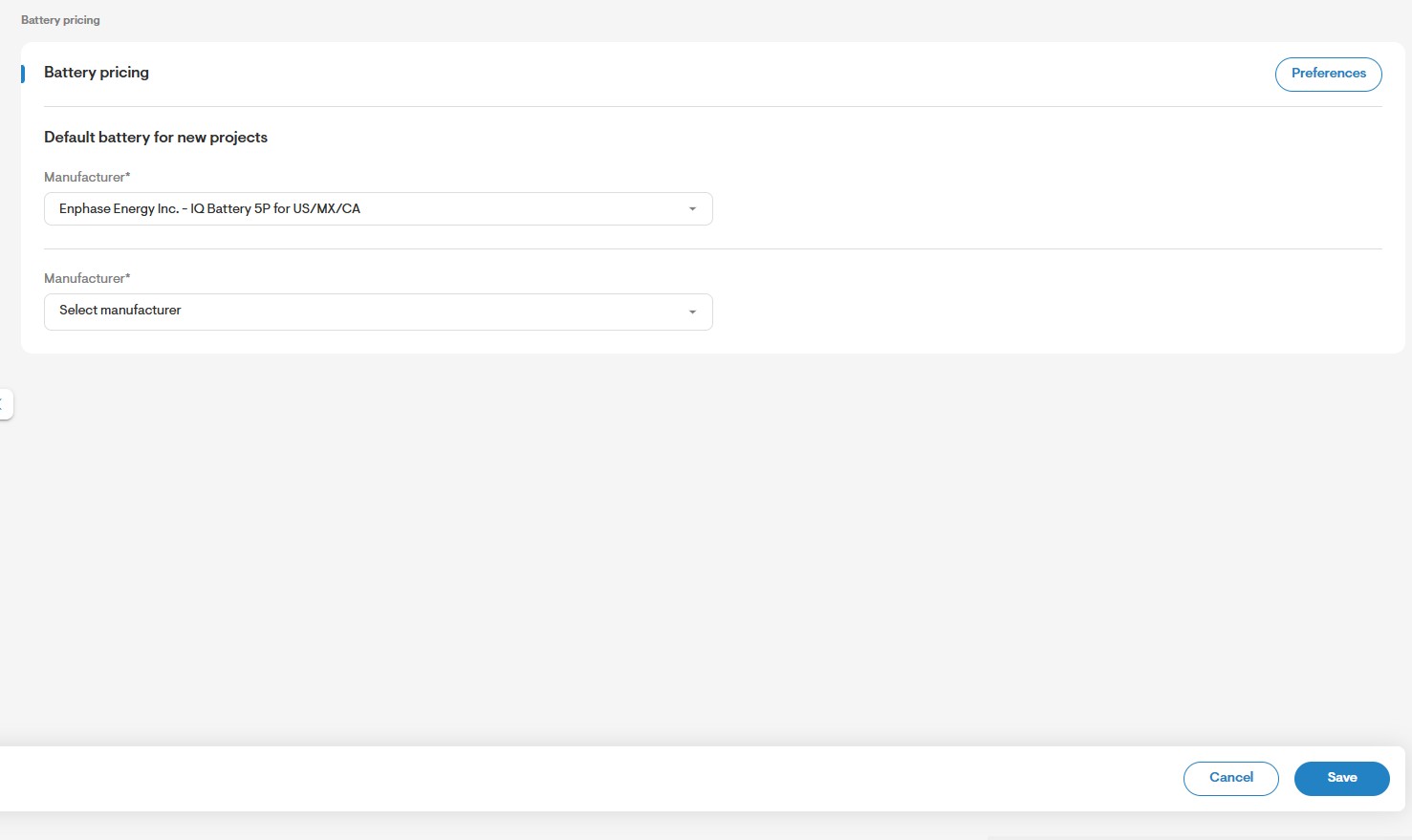
Design tool default settings
- Navigate to Company settings and then Design tool default settings. Next, scroll down to Battery design section.
- Enter the hours for theTarget backup duration
- Move the slider along the bar to set the default percentage for:
Target bill offset
Target self consumption
Battery reserve
- Click Save

Using the Battery Design tool
From a project, after completing the solar design click on Battery from the top bar. The design tool will pre-populate with the default choices from company settings. However, these can be modified individually as needed.
To select a different battery model, use the Manufacturer and Series dropdown menus on the left.
Next, use the Battery mode dropdown menu to define the homeowner’s intended use case for the battery.
To edit the target backup duration, target self-consumption, target bill offset, or battery reserve, click on the Gear icon.
- To edit the list of backed-up appliances, click the Manage button below Load requirements.
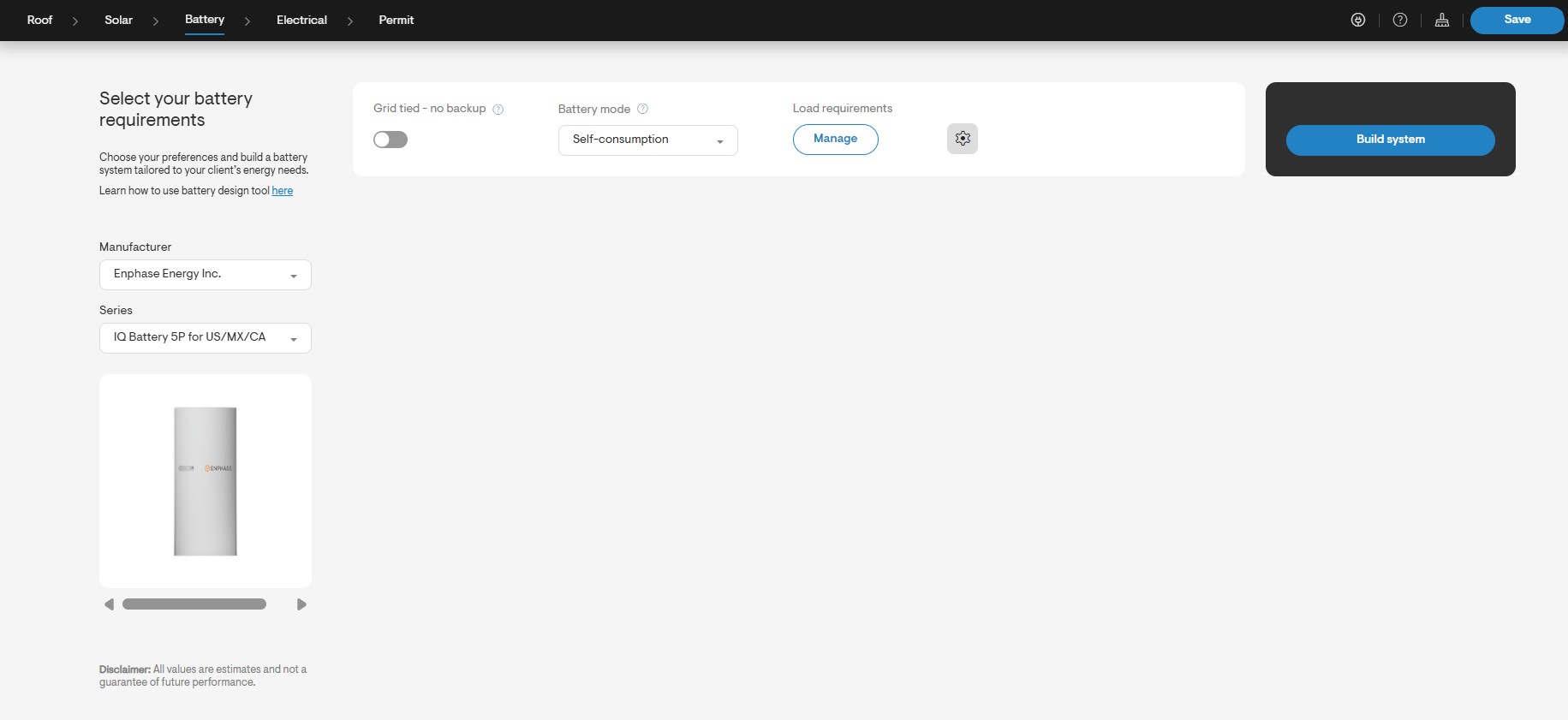
Solargraf supports three distinct battery modes:
Backup During Outages
Backup mode allows the modeling of whole and partial home backup systems with the flexibility to select specific appliances for backup. Each appliance’s electrical details can be edited to generate a battery recommendation suited to the project’s backup needs.
Self-Consumption
Self-Consumption mode optimizes battery usage to minimize dependence on the utility grid. The design tool will recommend a battery configuration as close to the target self-consumption percentage as possible.
Savings
Savings mode can be used to model batteries on tariffs with Time-of-Use rate structures or grid-connection types such as Net Billing Tariff (NEM 3.0), Net Feed-in Tariff, or Gross Feed-in Tariff. For utilities under the updated NEM 3.0 guidelines, this mode also allows for a recommendation on using rate arbitrage to discharge the battery during peak tariff periods.
When Savings (with export) is selected, the battery can automatically switch between powering loads or exporting to the grid throughout the day, depending on whichever offers greater savings. In this mode, installers can set up a target bill offset percentage and reserve some capacity for backup if needed.
- Click Build system to get a battery recommendation. Evaluate the options based on the detailed analytics and choose the best option for your project.
- Click Save, and then proceed on to the rest of the proposal.
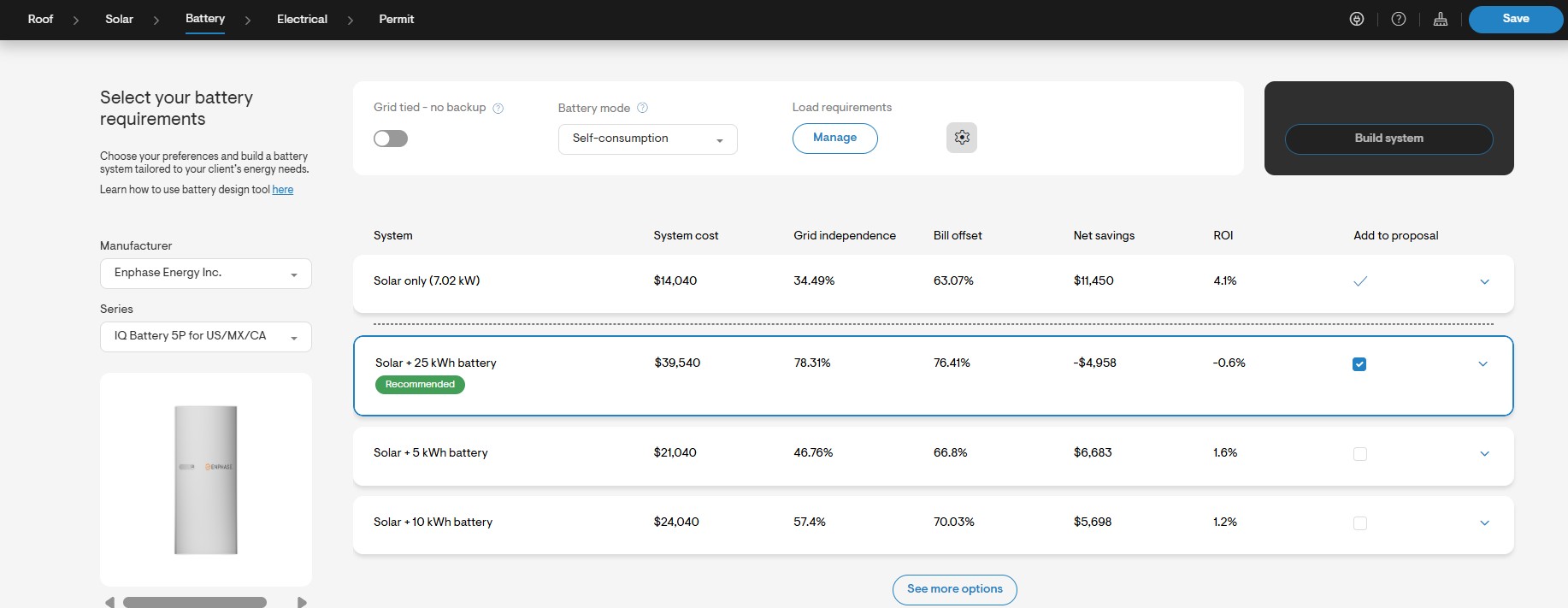
FAQs
Why is my battery not currently supported?
Please email accounts@solargraf.com with the following information for it to be coded into our system:Spec sheet
Front-facing image of the battery having been installed (to show on the proposal)
Why am I not seeing the battery show up in the battery design tool?
Battery pricing must be set up to allow for system calculations. Please add in this information via the Company Settings page or contact your Account Owner to add it on your behalf.In battery pricing, what customization am I allowed?
We support pricing tables based on size, and we also allow different pricing for when the battery is in a grid-tied configuration.