Help Center External Integration
Enlighten ↔ Solargraf Integration for System Expansion and Battery‑Only Proposals
Published on 28 May 2026
This article explains how installers can use the Enlighten ↔ Solargraf integration to create data-driven System Expansion and Battery-Only Proposals (BoP) for existing Enphase systems. It covers setup, end-to-end workflow, data imported from Enlighten, troubleshooting, and FAQs.
Who is this for? Installers using Solargraf who have access to Enlighten sites and want to leverage actual production and consumption data for creating system expansion/ battery only proposals on Solargraf.
- Overview
- What the Integration Enables
- End-to-End workflow
- Connect your Enlighten account
- Start a project and opt into Enlighten system data
- Search and select the Enlighten system
- Import & verify consumption data from Enlighten
- Import & verify production data from Enlighten
- Continue in the design tool
- What data is imported
- Consumption & Production data
- System metadata
- User messages you may see
- Troubleshooting
- Best Practices
- FAQs
- References
What the Integration enables
- Connect your Enlighten account to Solargraf using a secure company level connection.
- Search and select an existing Enlighten site by System ID, System name, Address (sites in stages 4–5 only).
- Auto-import 12 months of hourly telemetry (8,760 data points) for production and consumption, plus key site metadata.
- In case of battery-only flow: proceed to the battery design tool after consumption & production is pulled from Enlighten. For system expansion flow: proceed to roof/PV design with imported consumption & production data.
End-to-End workflow
a. Connect your Enlighten account
- In Solargraf, go to Company settings → External integrations → Enlighten.
- Authenticate using your Enlighten credentials (username & password). Solargraf stores a secure token.
- Confirm status shows Connected. You can disconnect/update credentials anytime.
- For companies with parent child setup enabled, Enlighten credentials need to be updated separately for the parent and child with the corresponding parent & branch companies on Enlighten.
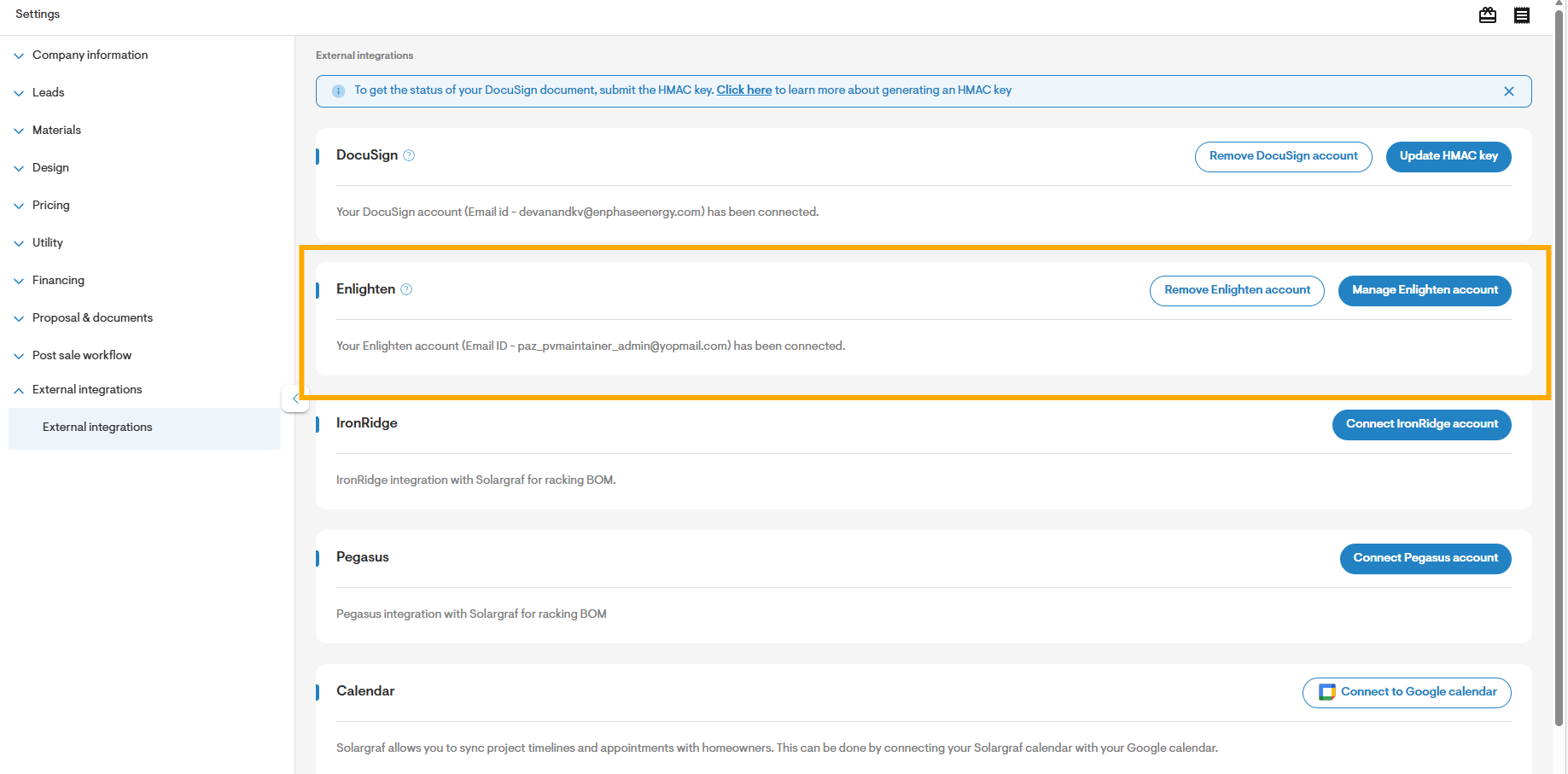
Best practice: Connect your own Enlighten admin account. Access to sites is enforced by your Enlighten permissions.
b. Start a project and opt into Enlighten system data
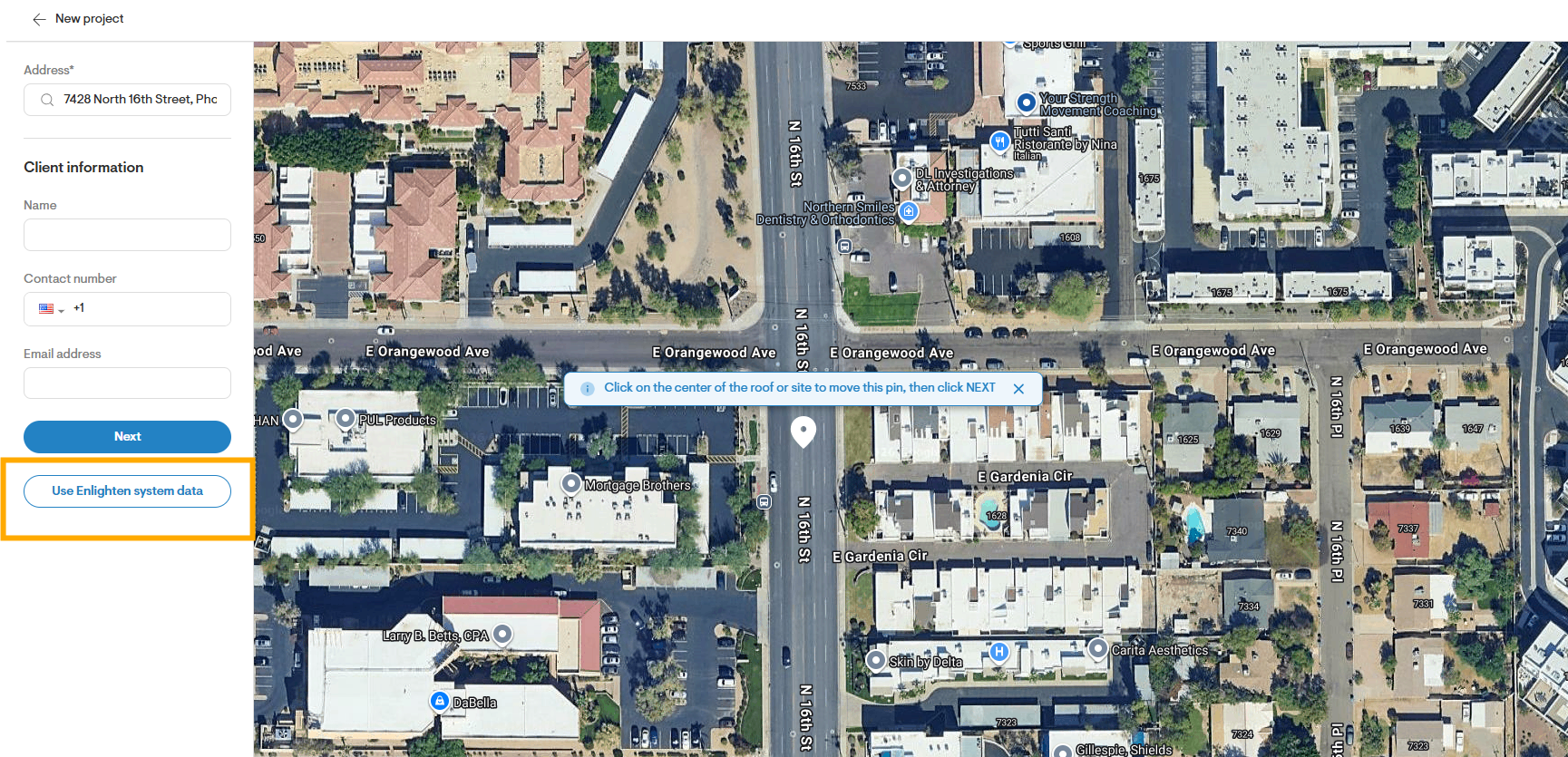
- Create a new project and enter the customer address.
- Select “Use Enlighten system data.” If not connected, you’ll be prompted to open External integrations.
- Solargraf routes you to Enlighten system search pre-filled with the address.
- You can also click on “Use Enlighten system data” without entering any address and search with system ID or system name on the Enlighten system search page.
c. Search and select the Enlighten system
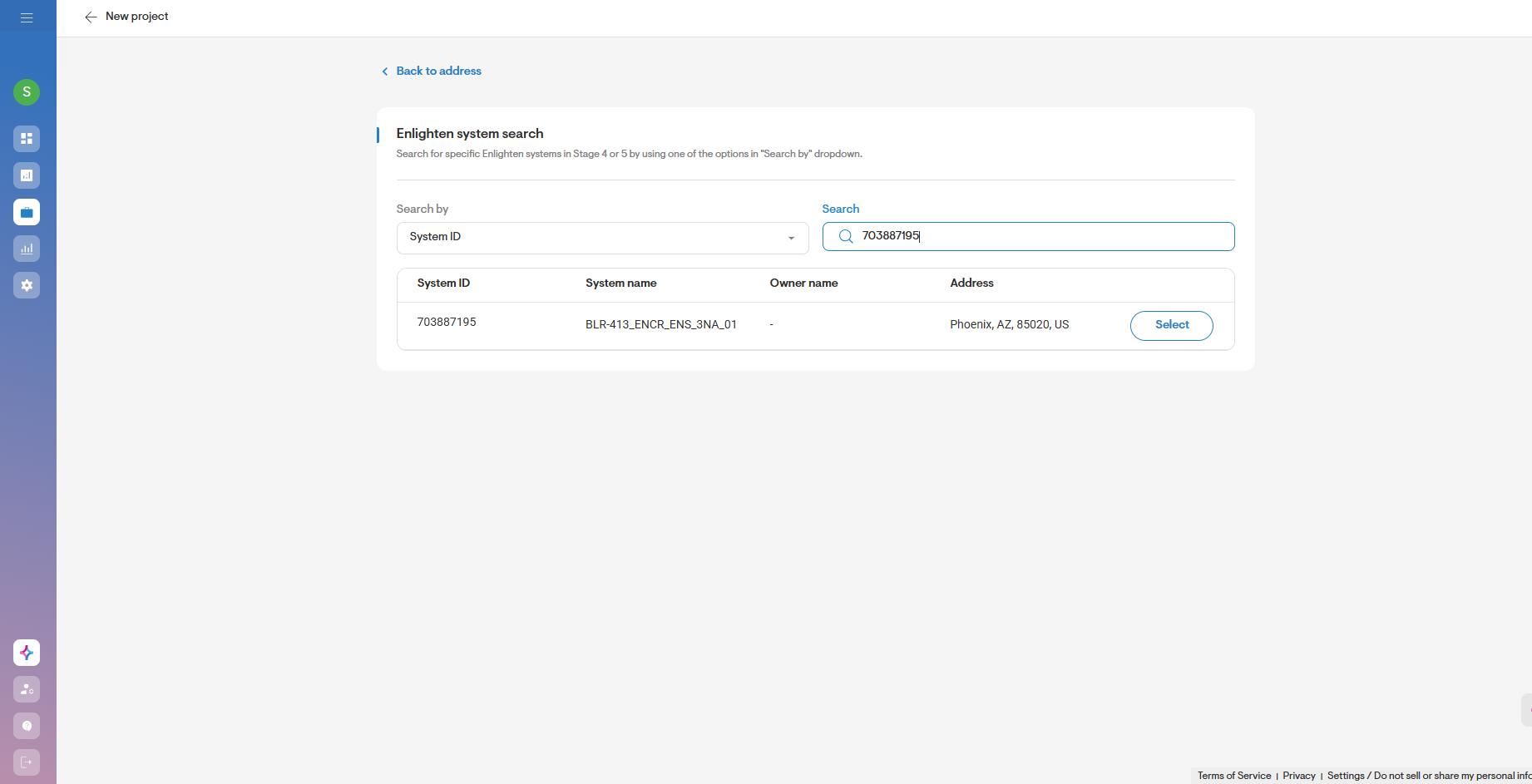
- Once you land on the Enlighten system search page, you can search for Enlighten systems you have access to using any of the below
- System ID (exact match)
- System name (partial, 3+ characters)
- Address (Google address lookup)
- Results show Stage 4–5 sites only, with System ID, System name, Owner name and address.
- Use the Select button to choose a system for creating system expansion/BoP and proceed to pre design page.
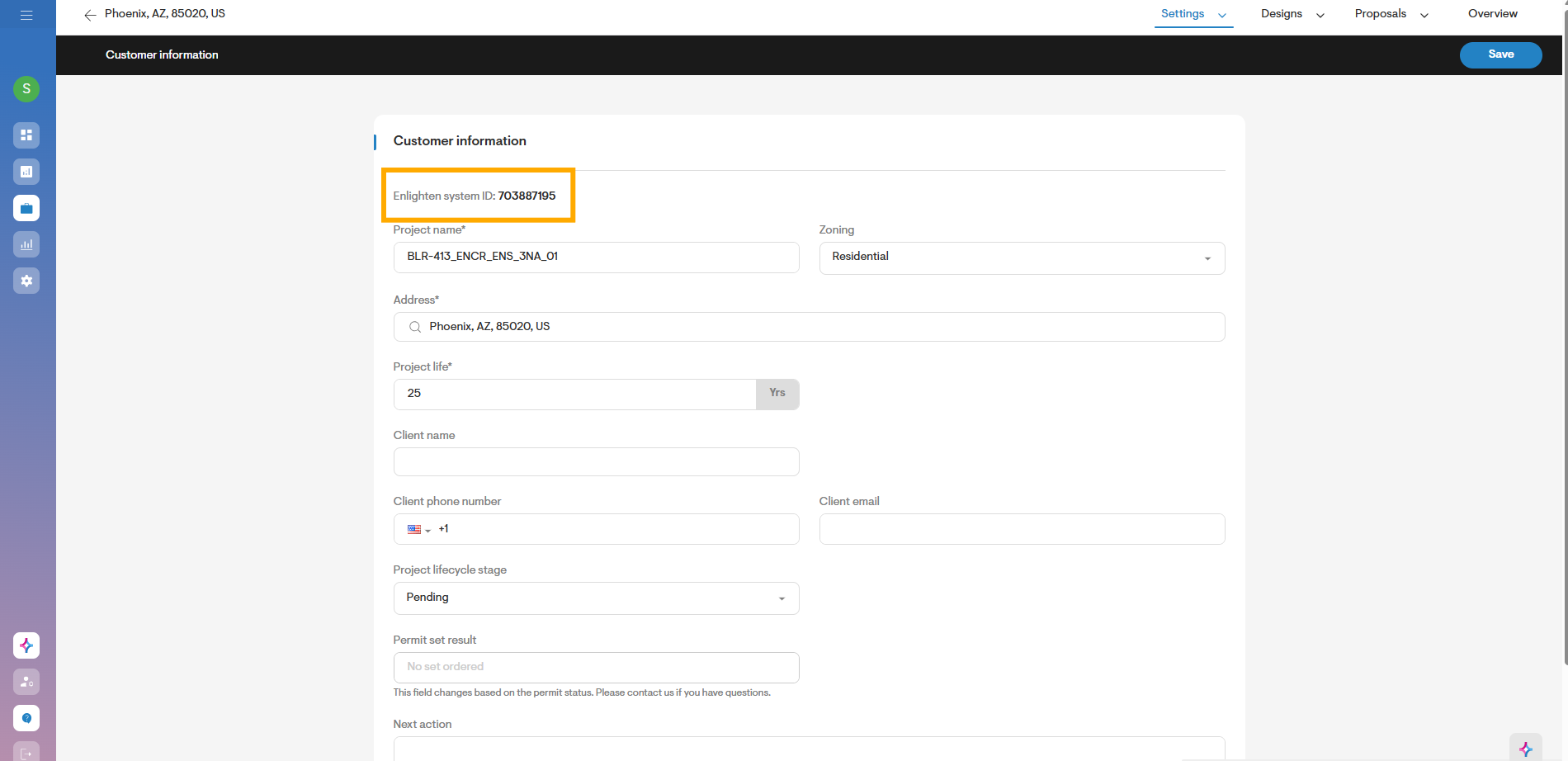
- You can check the Enlighten system ID chosen for the project later under customer information tab on overview page
d. Import & verify consumption data from Enlighten
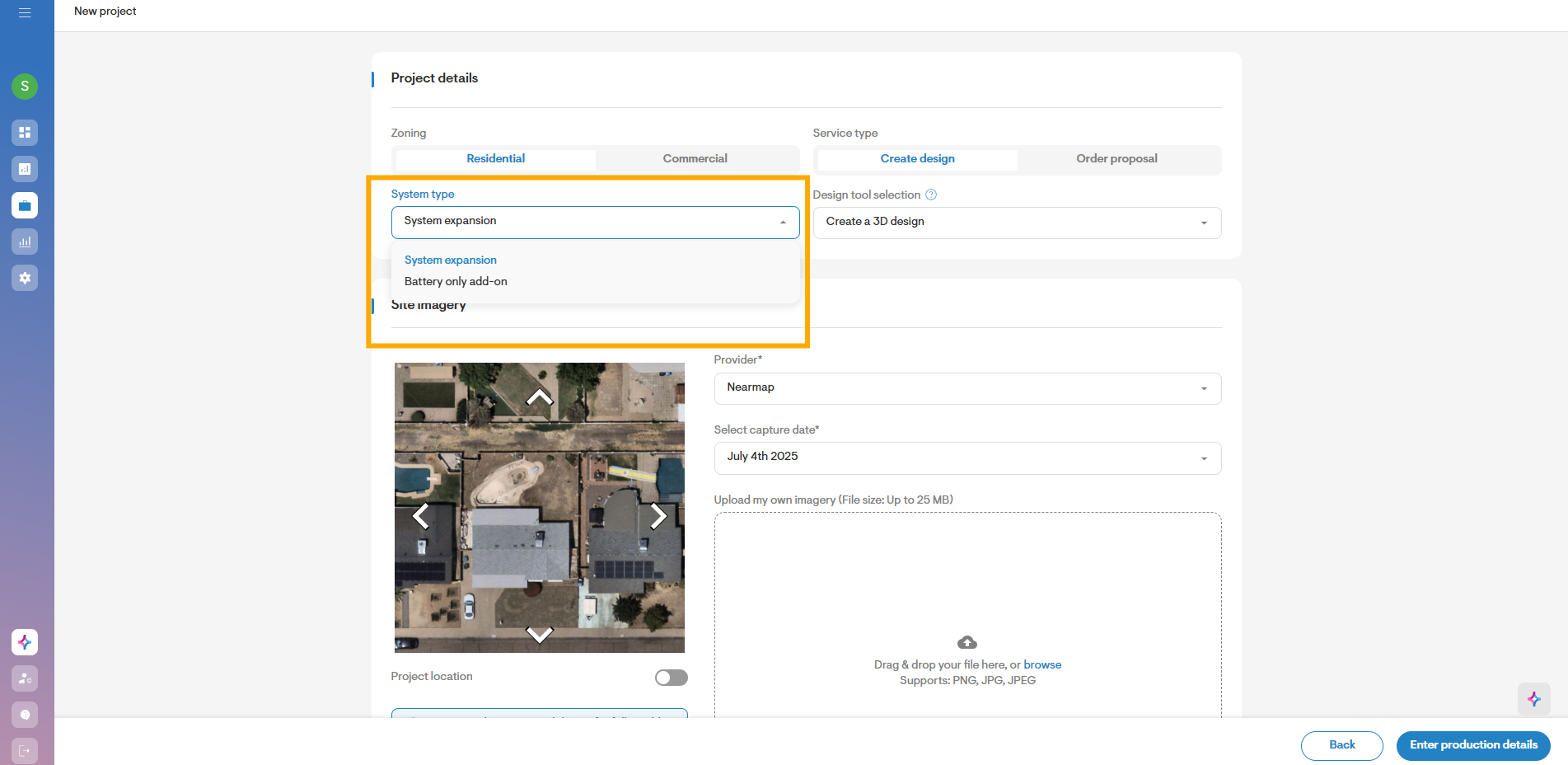
- For the system chosen, once you land on the pre design page, you will see system expansion selected by default in the system type dropdown. You can choose battery only proposal as well in the dropdown.
- If credentials expired: You’ll see a prompt to update credentials. Select Proceed to open External integrations on company settings and update credentials for Enlighten. Then retry.
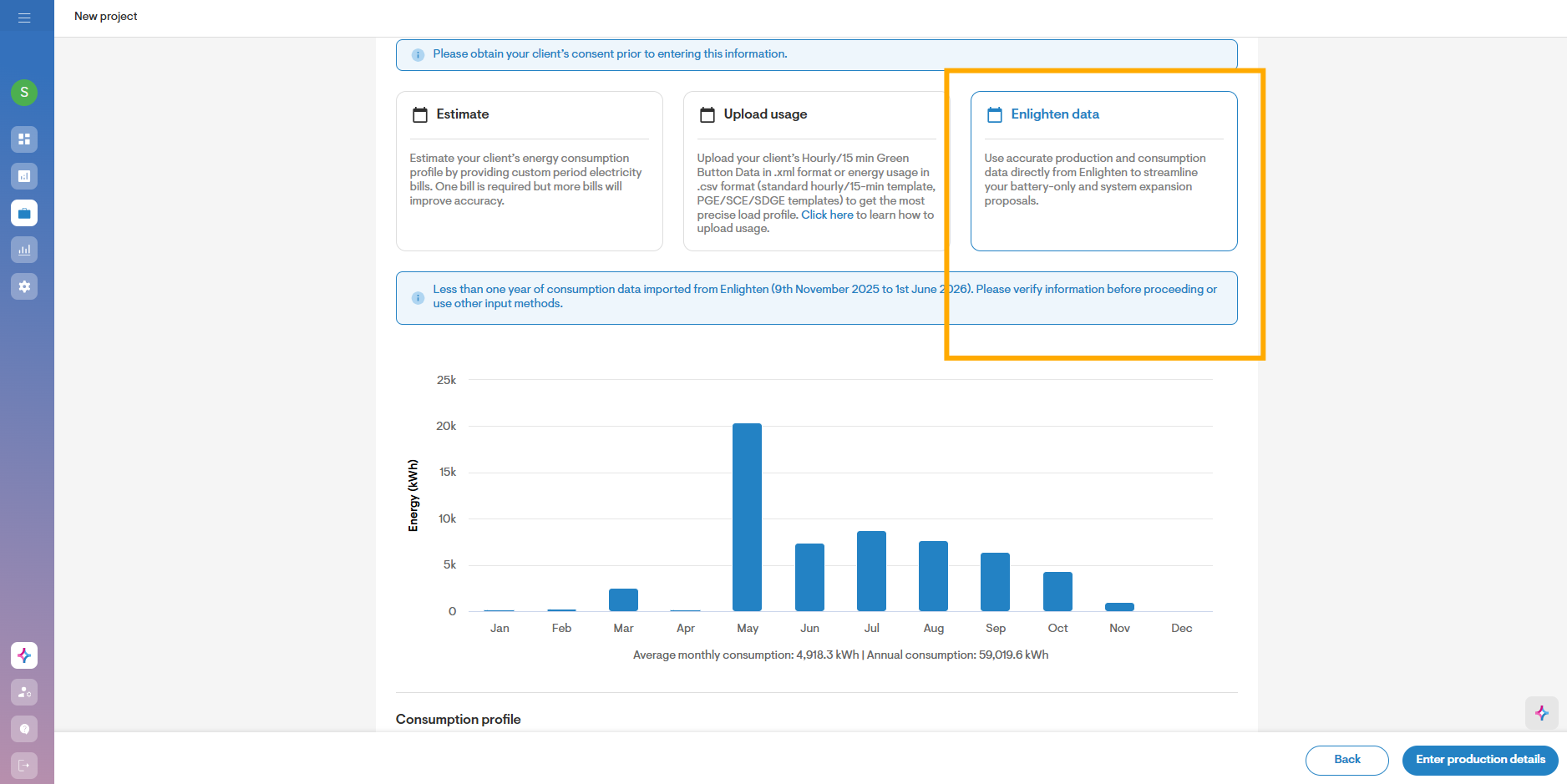
- Under “Electricity bills & consumption” section, you will see Enlighten data selected by default.
- Solargraf tries to import last 12 months of consumption data based on the last reported date for consumption data. It displays the date range for which data is pulled as well.
- If less than 12 months of data is available, you will see a message accordingly. In this case Solargraf extrapolates for the missing consumption data. You can switch to other input methods as well (Estimate or Upload usage).
- You can see the consumption pattern imported from Enlighten in the graph at the monthly level and total annual consumption below the graph.
- Once you verify the consumption details, you can click on “Enter production details”
- You can check the hourly consumption data imported from Enlighten later on the overview under “Export project data” tab.
e. Import & verify production data from Enlighten
- For the system chosen, once you land on the production details page, you will see Enlighten data selected by default in input dropdown.
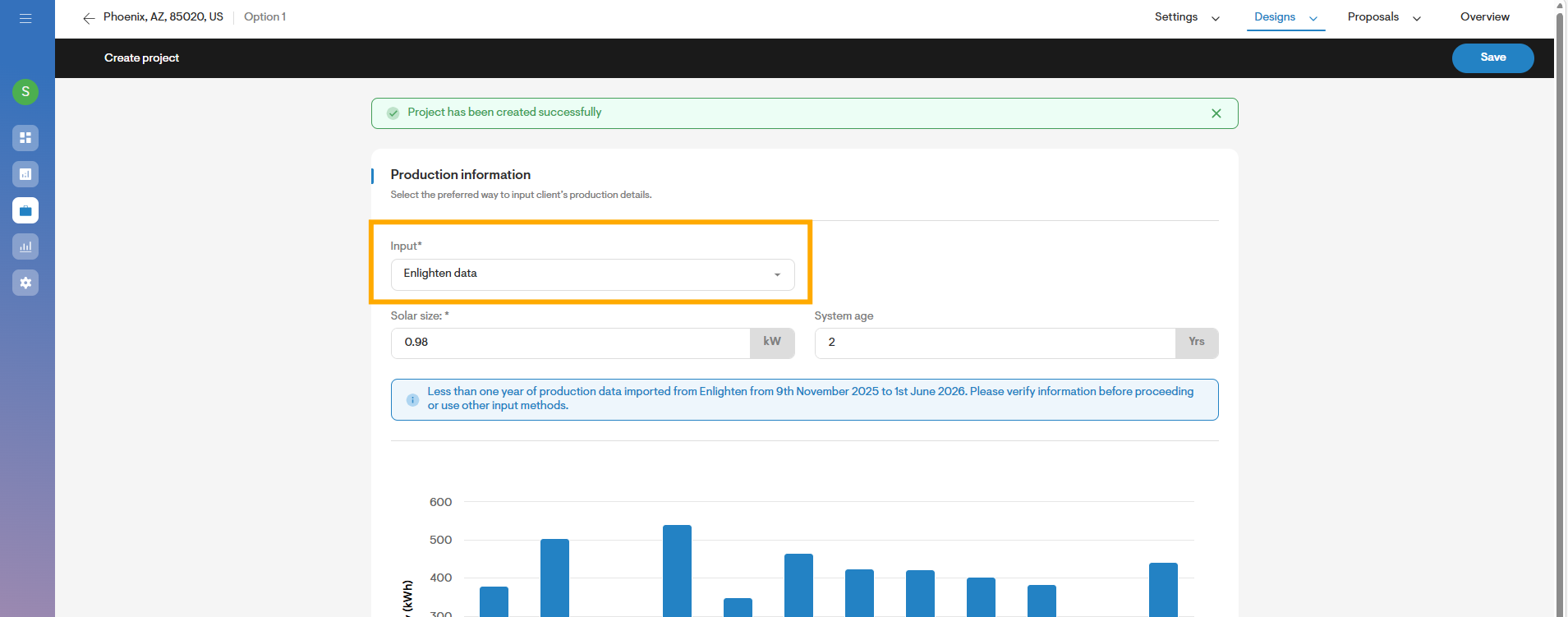
- Solar size is auto populated from Enlighten data. You can edit this value if needed.
- System age is calculated based on the system activation data. You can edit this value if needed.
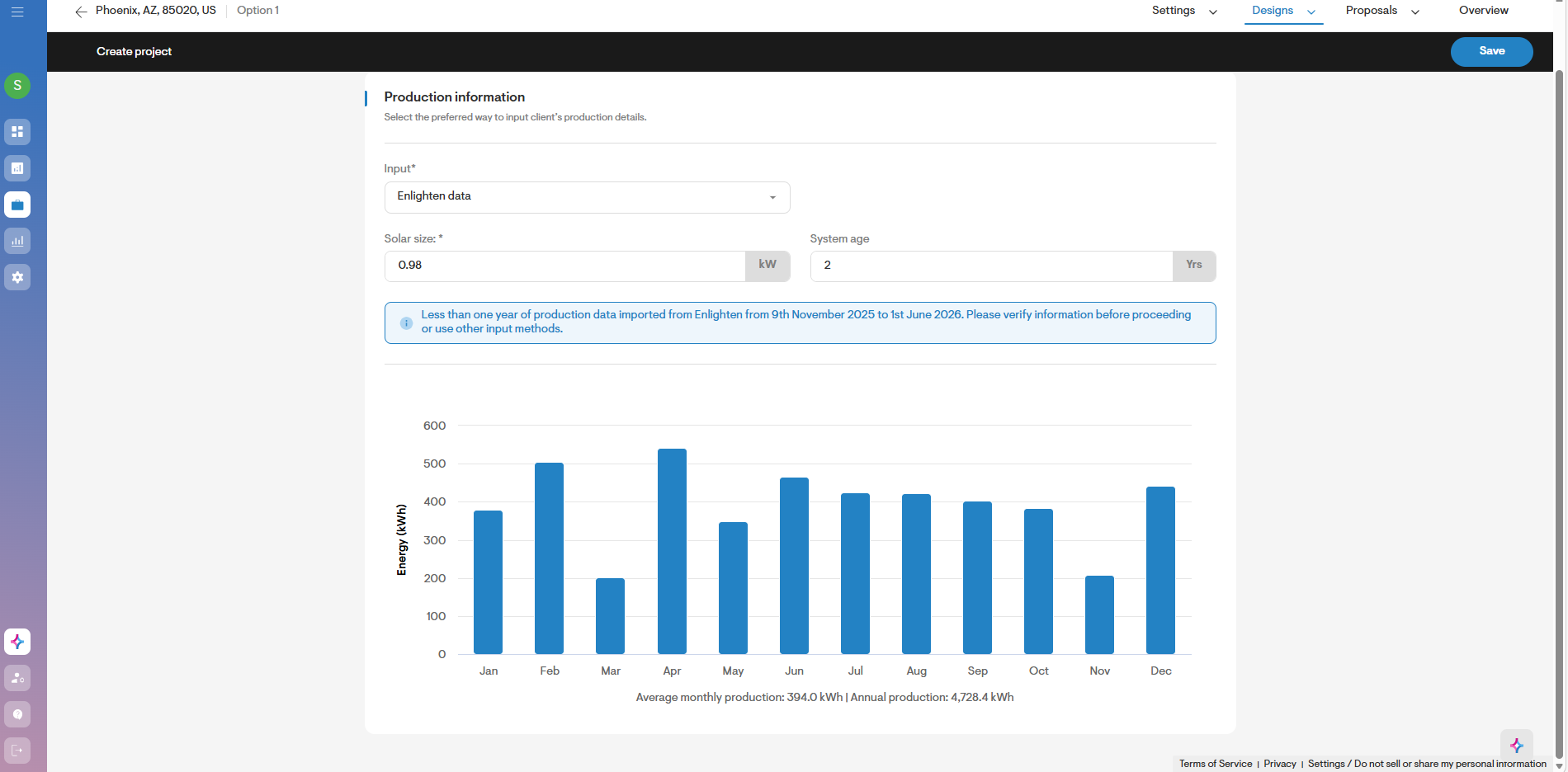
- Similar to consumption, Solargraf tries to import last 12 months of production data based on the last reported date for production data. It displays the date range for which data is pulled as well.
- If less than 12 months of data is available, you will see a message accordingly. In this case Solargraf extrapolates for the missing production data. You can switch to other input methods as well.
- You can see the production pattern imported from Enlighten in the graph at the monthly level and total annual production below the graph.
- Once you verify the production details, you can click on “Save”.
- You can check the hourly production data imported from Enlighten later on the overview under “Export project data” tab.
f. Continue in the design tool
On the predesign page, depending on the system type, you will land on the appropriate design tool tab:
- Battery-only: lands directly in battery design with the imported consumption load profile and PV production.
- System expansion: proceeds to roof/PV design with imported consumption load profile and PV production
- Complete your design and generate the proposal.
g. Update latest consumption/production data
- You have the option to pull latest consumption data from the utility tab on the overview page.
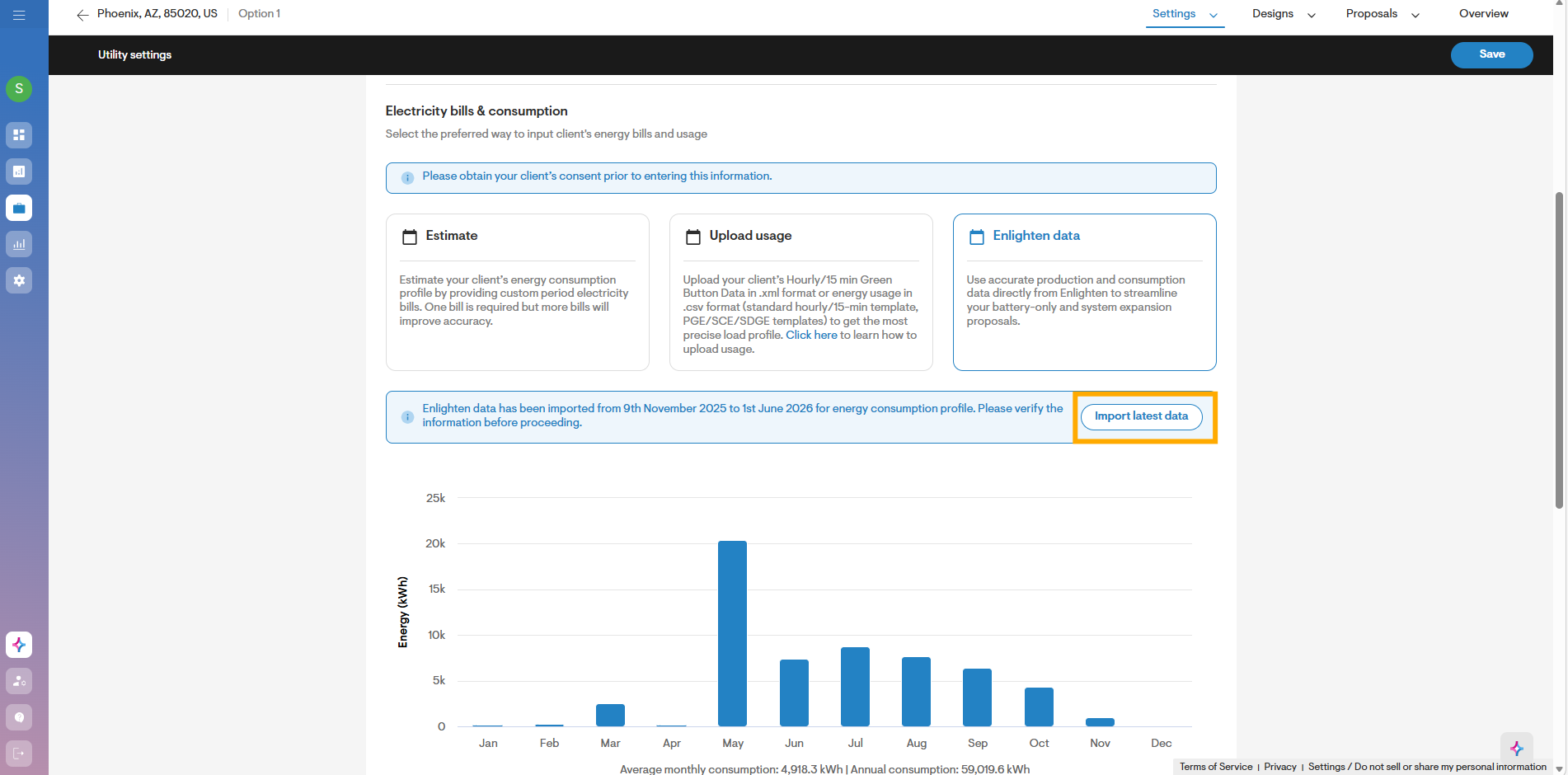
- You have the option to pull latest production data from the existing production details tab on the overview page.
- Once you pull the latest consumption/production data, Solargraf will show you the dates for which the data is imported, and you can save the latest data to the project which will update the savings calculations accordingly.
User messages
- Success: “Enlighten data has been imported from [start] to [end] for energy consumption profile. Please verify the information before proceeding.”
- Partial data: “Less than one year of consumption data imported from Enlighten ([start] to [end]). Please verify or use other input methods.”
- No data: “No data available in Enlighten, please select other input options.” (Production/consumption input options adjust accordingly.)
- Credentials invalid: “The credentials used to connect with Enlighten data are no longer valid…” (Proceed to External integrations)
Troubleshooting
Authentication and access
- Login failures: Recheck credentials in External integrations.
- Expired tokens: You’ll be prompted to re-authenticate before further API calls.
Search & selection
- No results: Adjust criteria; confirm system is in Stage 4–5.
- Insufficient system permissions: Only systems you can access in Enlighten will appear or allow consumption/production data import.
Telemetry import
- Less than 12 months available:
- No data returned: Check if CTs are installed and reporting; fall back to manual inputs where enabled.
Data consistency
- If PV size, tariffs, or utility fields differ from your records, review in Project Overview and update before proposal.
- For battery-only, ensure consumption profile aligns with customer bills for the selected period.
Best Practices
For fastest results:
- Authenticate once and keep your connection active.
- Search by System ID when known for exact match.
- Verify the imported date range and gaps before modelling.
- Use telemetry-driven battery sizing to anchor financial estimates.
FAQs
Which systems are eligible to appear in the search results?
Systems in Enlighten stages 4–5 that your Enlighten user has permission to access. Earlier-stage or inaccessible systems will not be listed.
How much historical data is imported?
Up to 12 months of hourly production and consumption. If the system is less than 12 months old, data is imported from the operational date.
What happens if my Enlighten password changes?
Your token becomes invalid, and Solargraf prompts you to update your credentials in External integrations page of company settings. After updating, retry the import.
Can I proceed if no consumption data exists?
Yes. You’ll see a “No data” message and can switch to alternative input methods supported in Solargraf for consumption modelling.
Is the integration company-level or user-level?
User-level authentication is enforced. In parent-child org setups, each child must connect their own Enlighten credentials if required.