Help Center Pre-Design
CSV Converter Tool for System Expansion
Published on 3 Jun 2025
XML usage data for existing homes
Solargraf doesn’t support uploading of .XML file formats for usage data when the home has existing PV systems. These files consist of complex blocks of data corresponding to grid imports and grid exports with diverse formats.
We generally strongly recommend using the CSV upload feature in Solargraf for proposals involving grid import/export data. However, we understand that CSV formats from utilities like PGE and SCE can be complex and not directly compatible with Solargraf’s paste-in format.
To help with this, our team has developed a temporary tool that converts these complex utility CSVs into a format that can be easily pasted into Solargraf.
How to Use the CSV Converter for Grid Import/Export Data
Download the CSV File
Go to the PGE or SCE website and download your energy usage data in CSV format. Only CSVs with grid import/export data are supported. If your CSV contains only grid imports (no exports), you can upload it directly into Solargraf (no conversion needed).- Upload to the Converter Tool
Use this link to upload your CSV file. The tool will process and convert it into a format compatible with Solargraf.
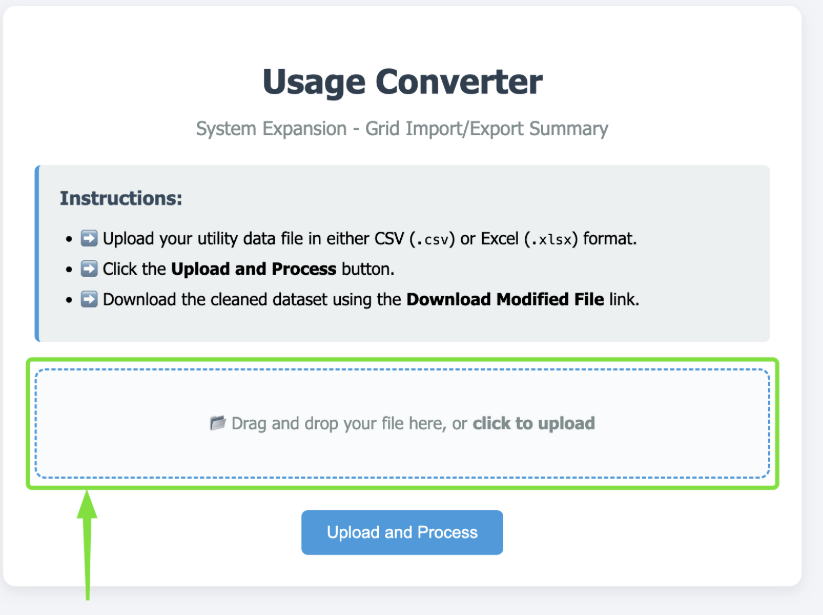
- Download updated file to your device
Once the file has been uploaded a button will appear to Download Modified File.
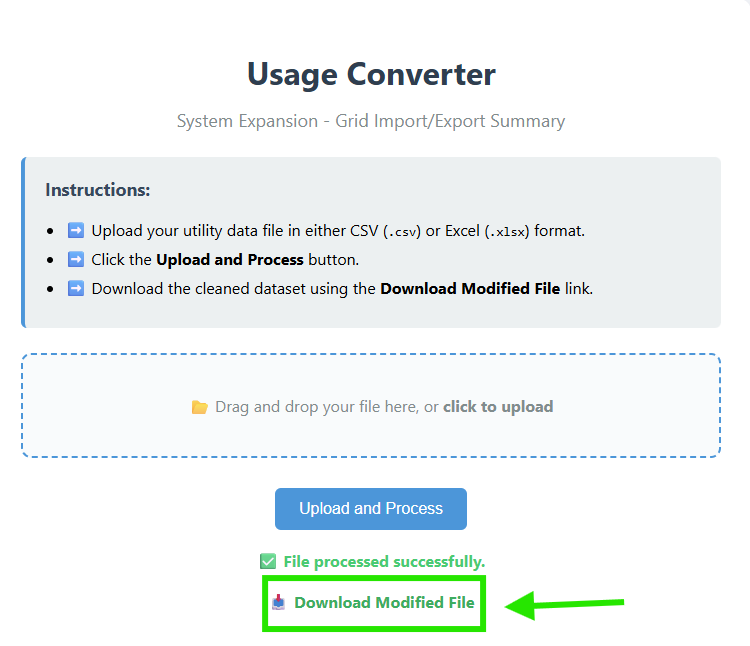
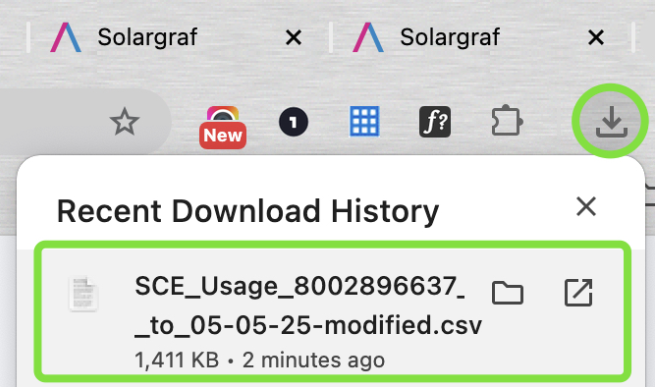
Locate downloaded file
Most browsers (like Chrome, Edge, or Firefox) show downloaded files in a download bar or icon at the top right of the screen. Look for a downward arrow icon or a "Downloads" button. Click it to open or reveal in folder.
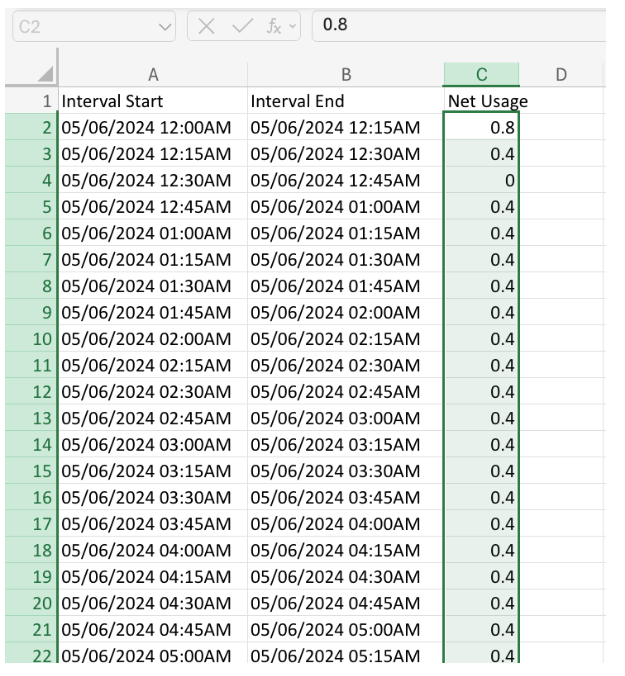
Copy the parsed CSV data
Open the updated CSV file you just downloaded, then copy the values from the "usage data" column.
Locate Copy Custom feature
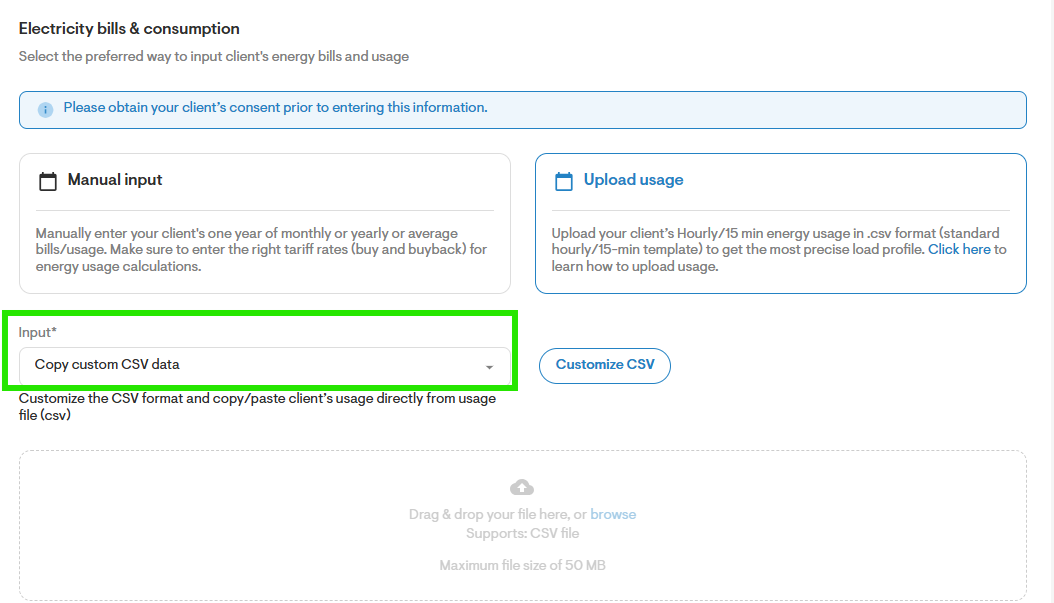
In your project’s utility settings, use Solargraf’s Copy Custom CSV data feature to paste the usage data.
- Paste data into Solargraf
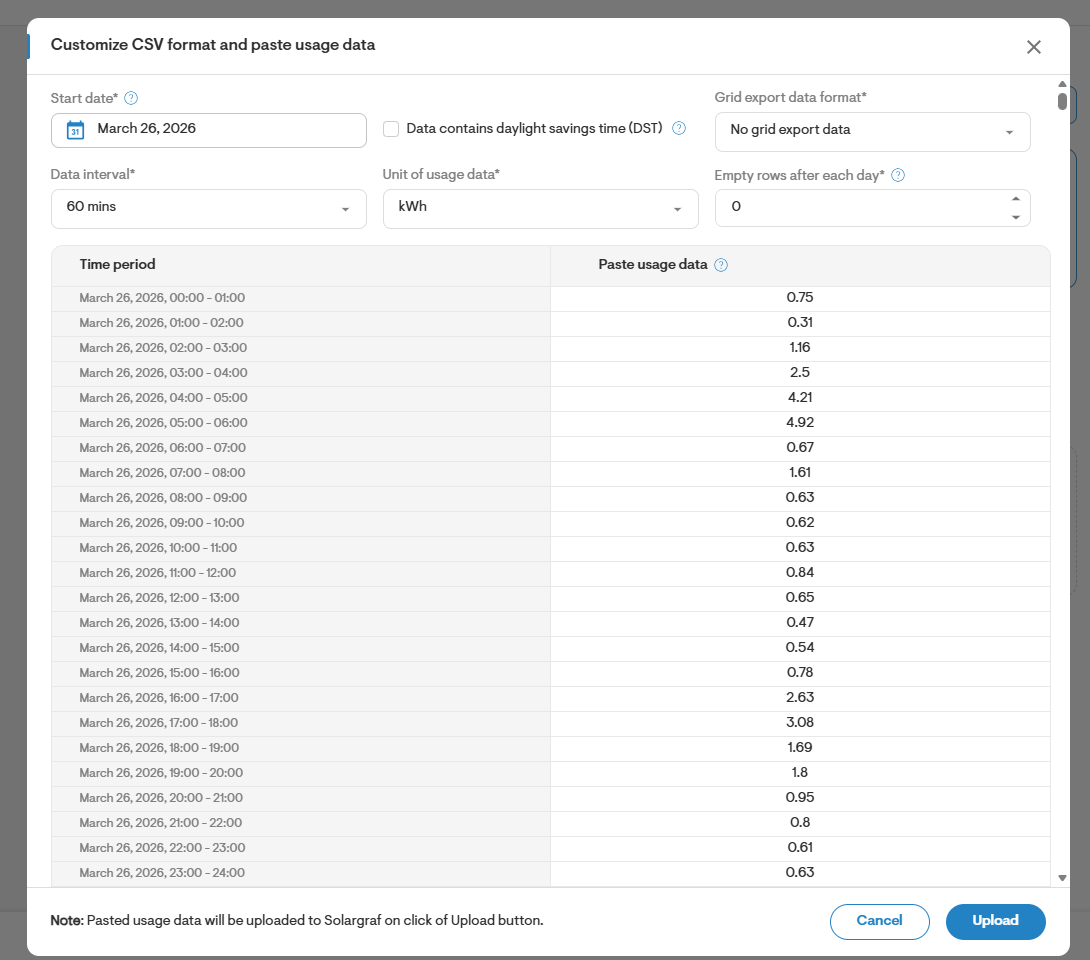
Paste the usage data in the right column. Make sure to select the correct start date, data interval, and unit of usage to ensure the data aligns accurately.
Set the Correct Start Date
When pasting the data into Solargraf, make sure to select the correct start date to ensure accurate alignment of the data.