Help Center Proposal
Translating Your Webquote in Solargraf
Published on 18 Nov 2022
The following guide will walk you through how to translate your Solargraf webquote to any of the available language options.
Available Languages
- As Solargraf continues to expand its service offerings to countries across the globe, we are increasing the list of available languages in your Solargraf account. To learn more about configuring your preferred languages in your Solargraf settings page, you may refer to this article: Language Settings.
- Once configured, you may use the following guide to add translations to the different sections on your webquote.
- Once you've added a translation to the individual section, it will be enabled on the webquote when the corresponding language is selected on the top right of the webquote, as shown below.

- Click the gear icon at the top of the Webquote page.
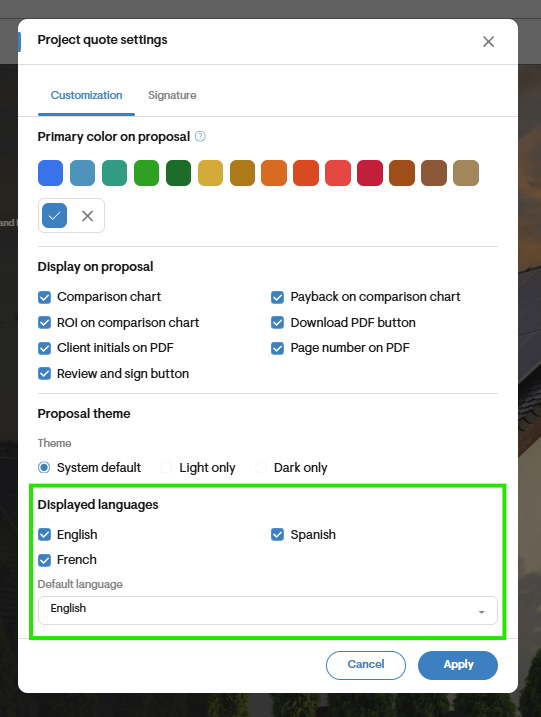
- Under the Displayed languages section:
Use the checkmarks to select the languages you want to offer.
Use the dropdown menu to choose which of the selected languages will be the default language the Webquote opens in.
This step can be done at either the project level or the company level. Setting it at the company level is beneficial because it allows you to define general defaults that will apply to most projects, helping maintain consistency and saving time during setup.
Editing language for Sections
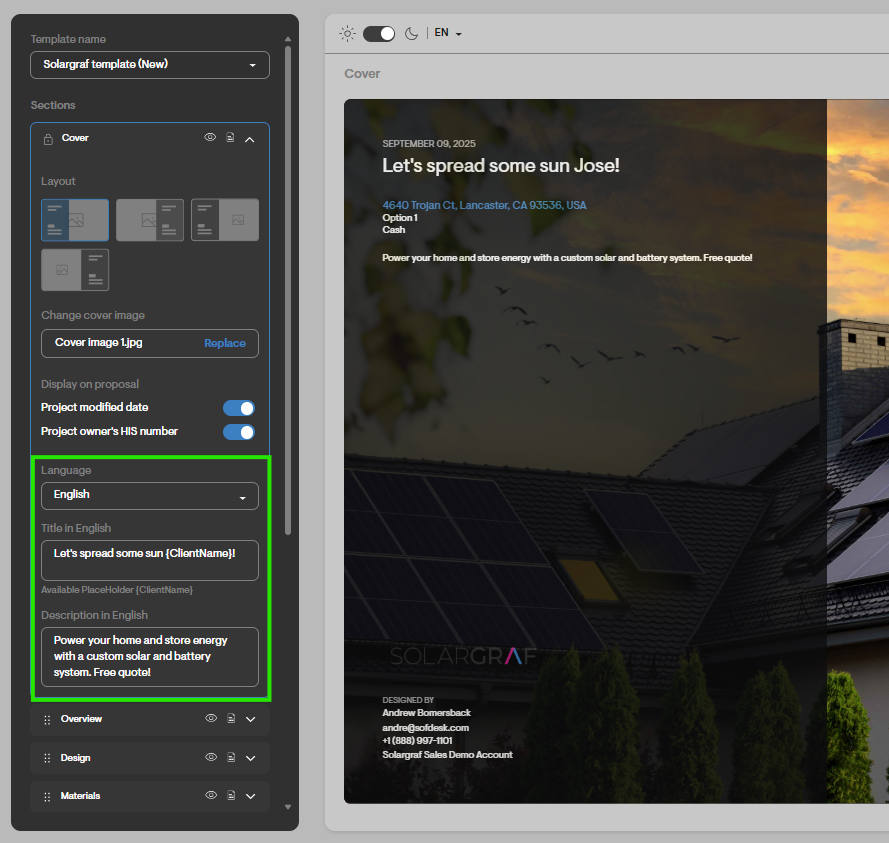
Some sections will display a language dropdown along with title and description fields for each available language. These sections include: Cover, Overview, Savings, Performance, Performance analysis, Cost, and Timeline.
- To edit the language, first select the desired language from the dropdown.
- Then, enter the title in the Title field and the description in the Description field.
- Repeat this process for each available language as needed.
For the rest of the sections not mentioned, you can only edit the title using the same method described above.
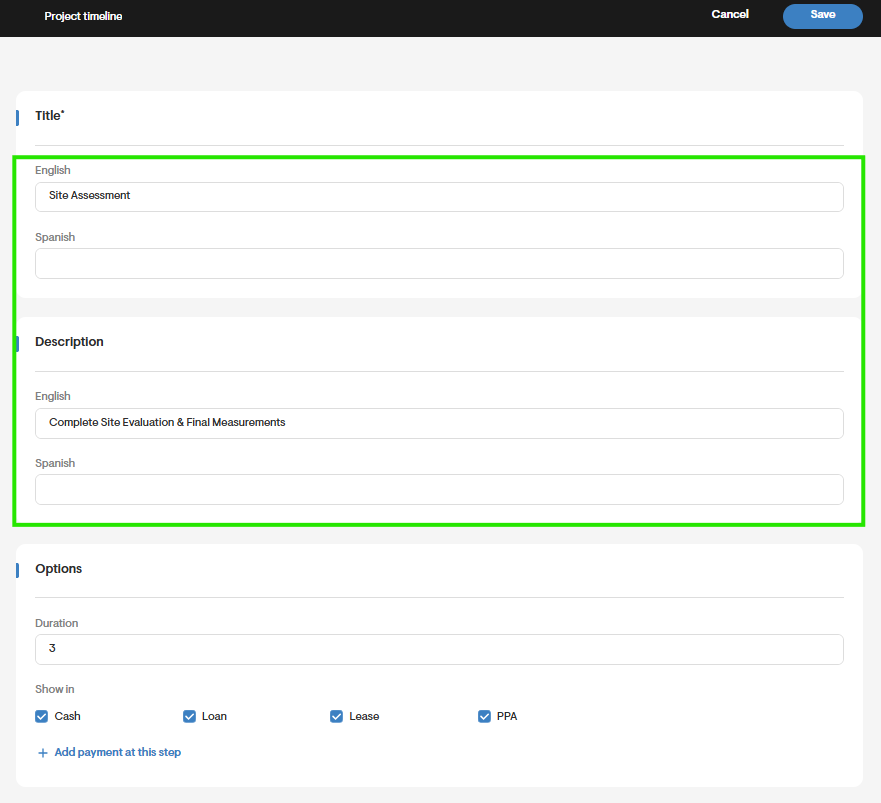
For the project timeline you can also edit the name and description for each step by going to the Overview page > Timeline > Click the pencil icon next to each step.
- Here you can edit the title and description for each step.
Financial Options
You can also add alternate language options when setting up your Financial Options.Start by going to the Financial Option settings on your project.
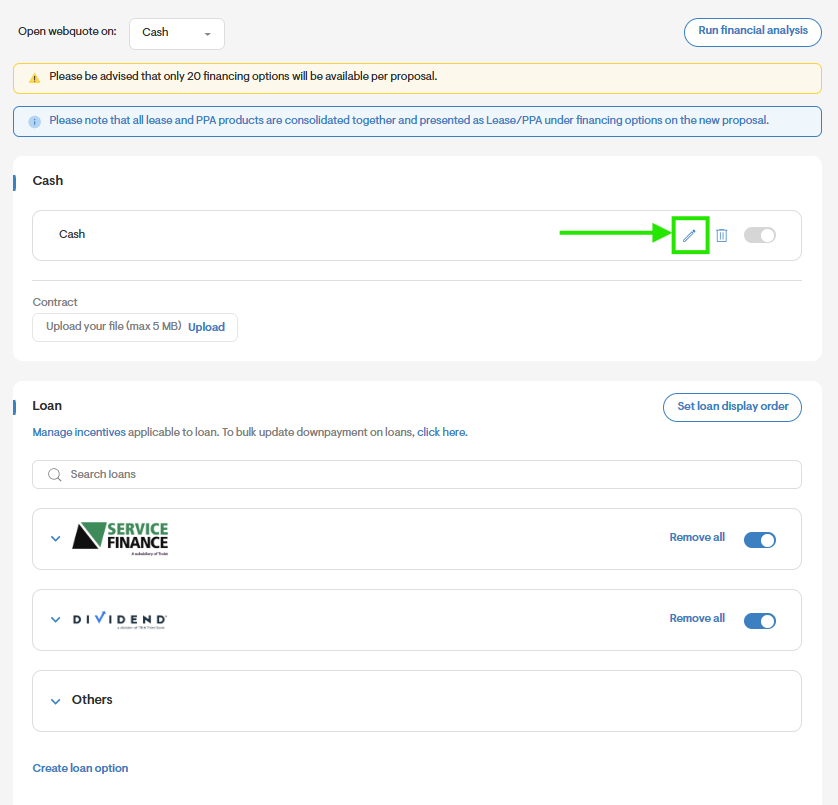
To add translations to a Cash option, click the pencil icon next to the buy option you have added.
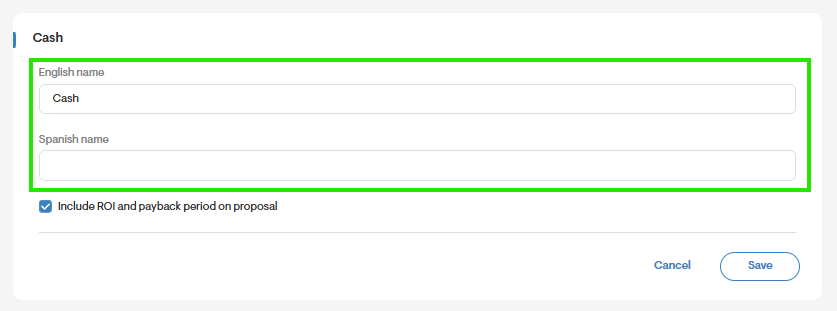
You will see a list of fields that allows you to enter alternate languages for the Cash option name. You may enter the different names you would like to display for each language.
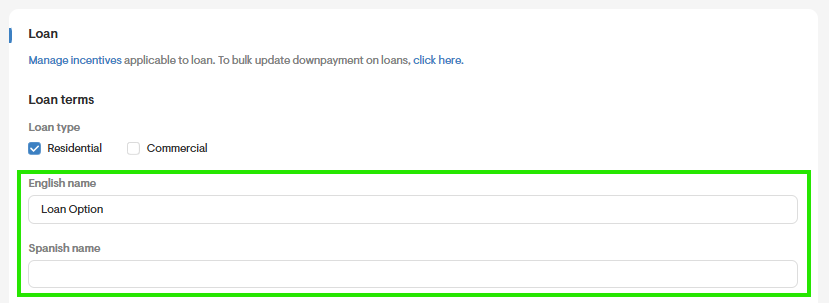
To add translations to an individual loan option, click the pencil icon to the right of the loan option.

You will see the option to enter multiple loan option names, corresponding to different languages. Add in the names you would like to be available for use on your webquote.
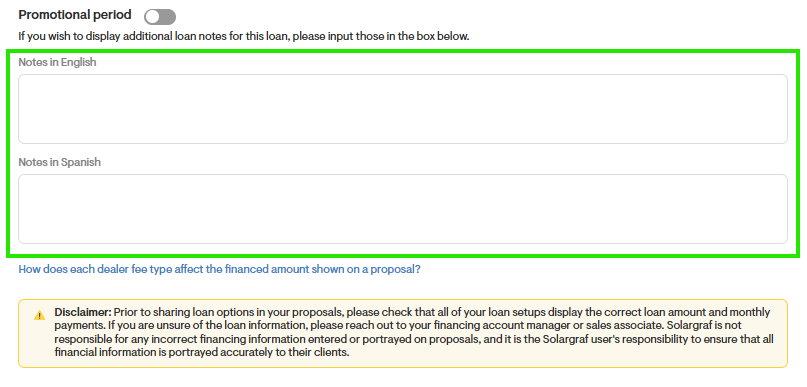
At the end of the loan form, you may include additional notes in their respective languages.
To add translations to a Lease and/or PPA option repeat the steps above.
Extra Costs and Discounts
You may also add translations for the names of Extra Costs and Discounts added to your project pricing.
To do this, navigate to the Pricing settings within your project and enter the translated names for each language as needed.
Then, click the pencil icon next to the Extra Cost item.
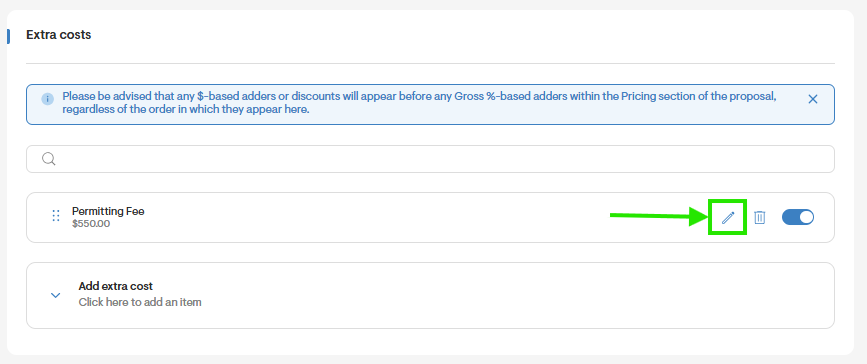
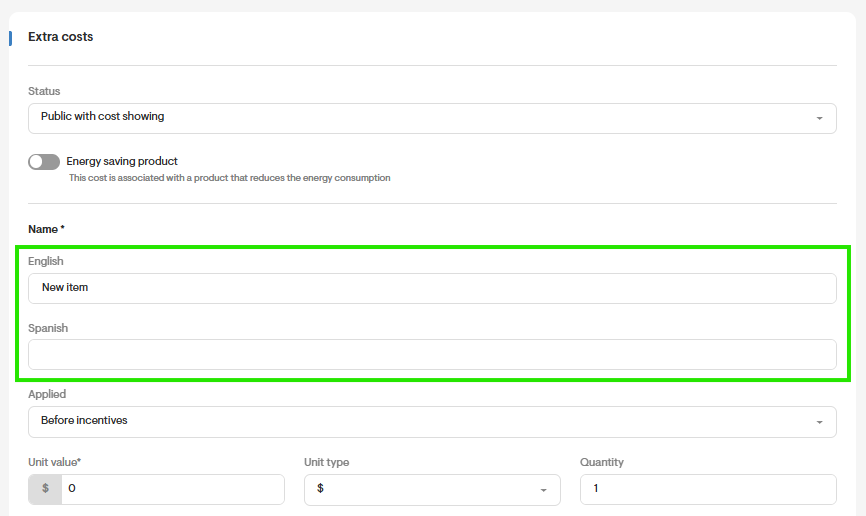
- You'll see the field to add name translations—fill these in as needed for each available language.
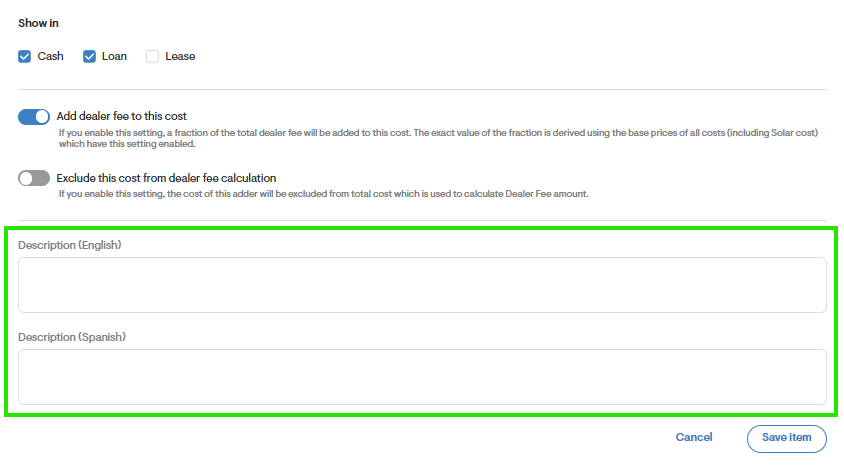
- Do the same for the descriptions.
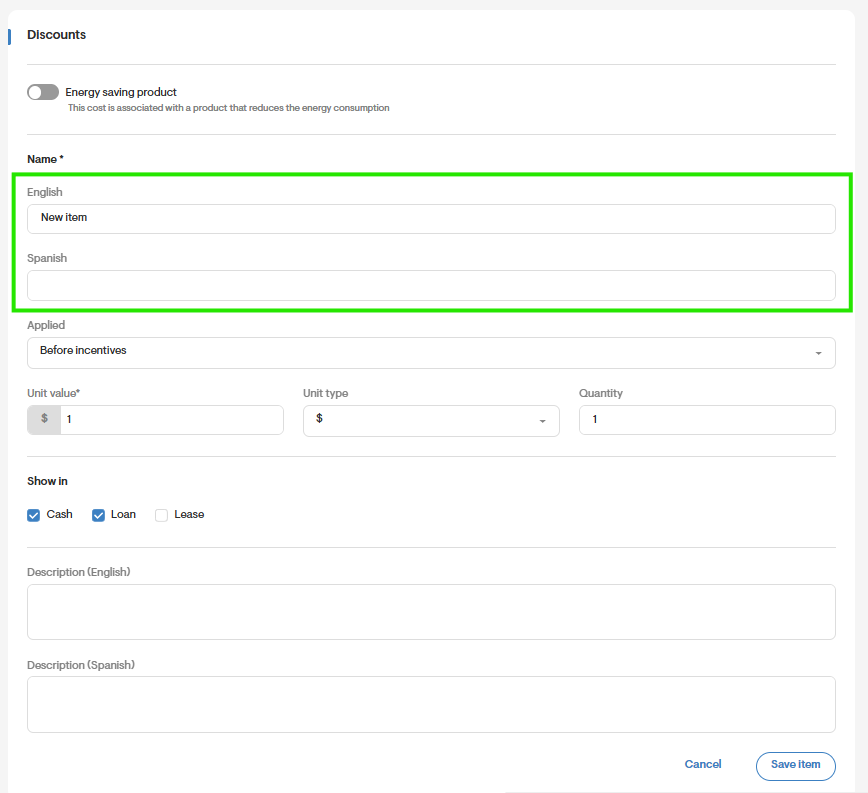
To add the name translations for a Discount item, click the pencil icon to the right of each discount.
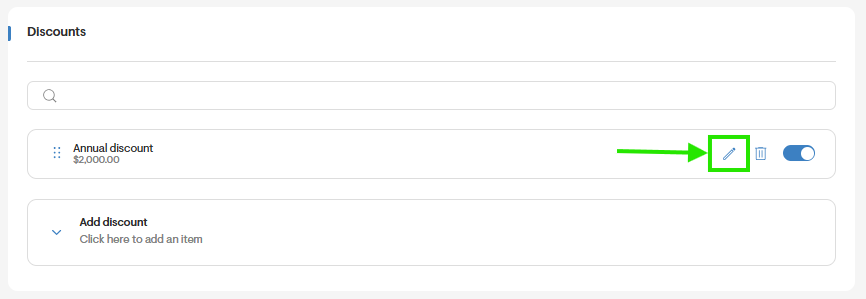
You may then add alternative translations/descriptions for its name, as needed.