Help Center Materials
Manage the materials database in Solargraf
Published on 22 Sept 2026
The materials database (also called the Equipment Database) in Solargraf gives you access to a global list of components you can use when building proposals, electrical designs, and permit packages. This guide covers how to browse, add, and manage materials in your company catalogue.
What you can do
- Browse the SG Global list of materials across different categories
- Download spec sheets for any SG Global list record
- Add or remove SG Global records from your company catalogue
- Once copied, you cannot edit the attributes of an SG Global record
- Set a default record at the material category level
- Enable a material record for use in your projects
- Use these materials across solar design, electrical design, production calculations, BOM, proposal webquotes, and permitting services
Supported material categories
Panels, Inverters, Battery Systems, Battery banks, Optimisers, Rapid shutdowns/MCIs, Racks, Attachments, Flashings, EV chargers, Thermostats, AC Combiners, Critical Load Centres, Charge Controllers, Cabling and Accessories, Communications, Junction Boxes, AC Disconnects, DC Disconnects, Service Panels, Generators, Revenue Grade Meters, and Automatic Transfer Switches (ATS).
View your materials list
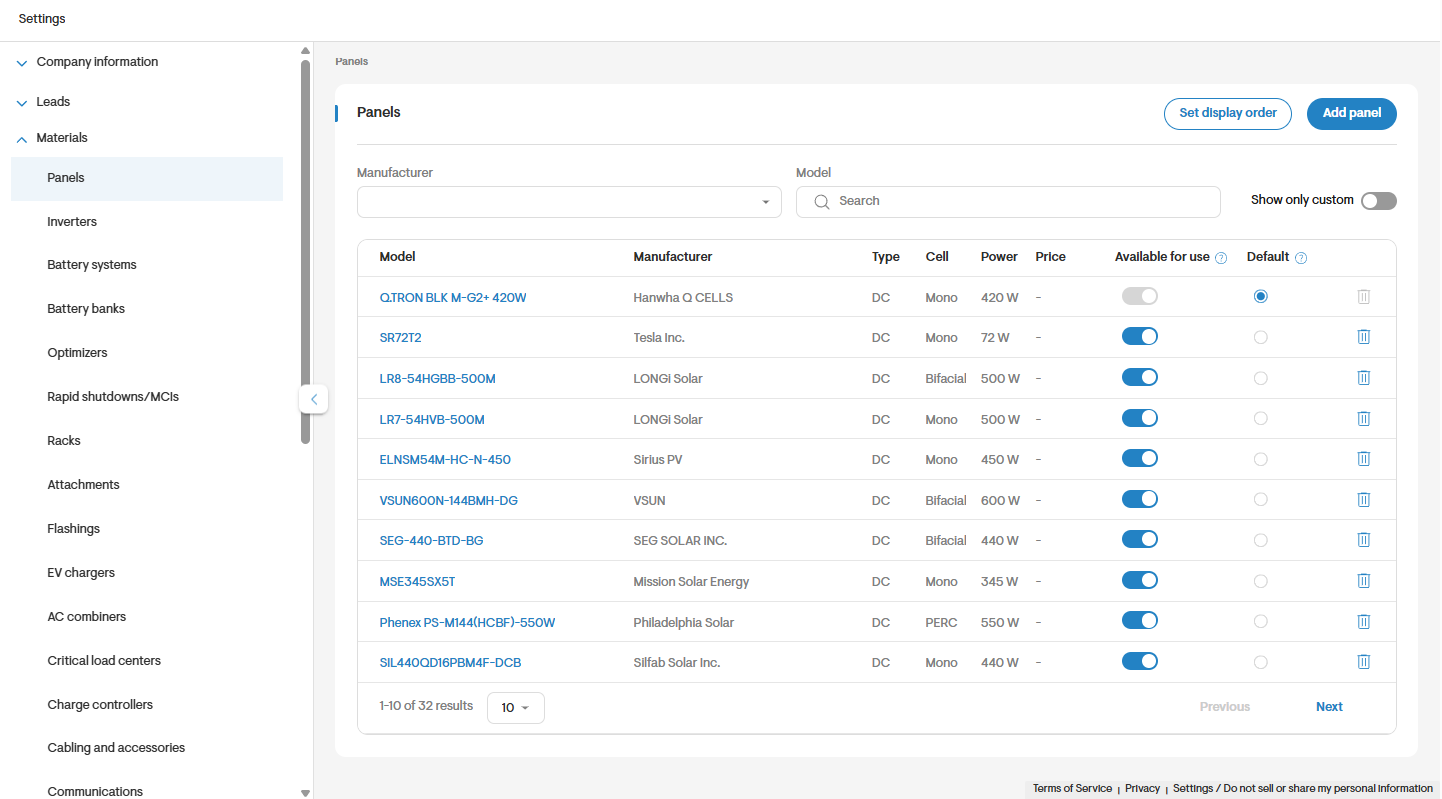
- Go to Settings > Materials to open the materials listing page.
View records in your company catalogue
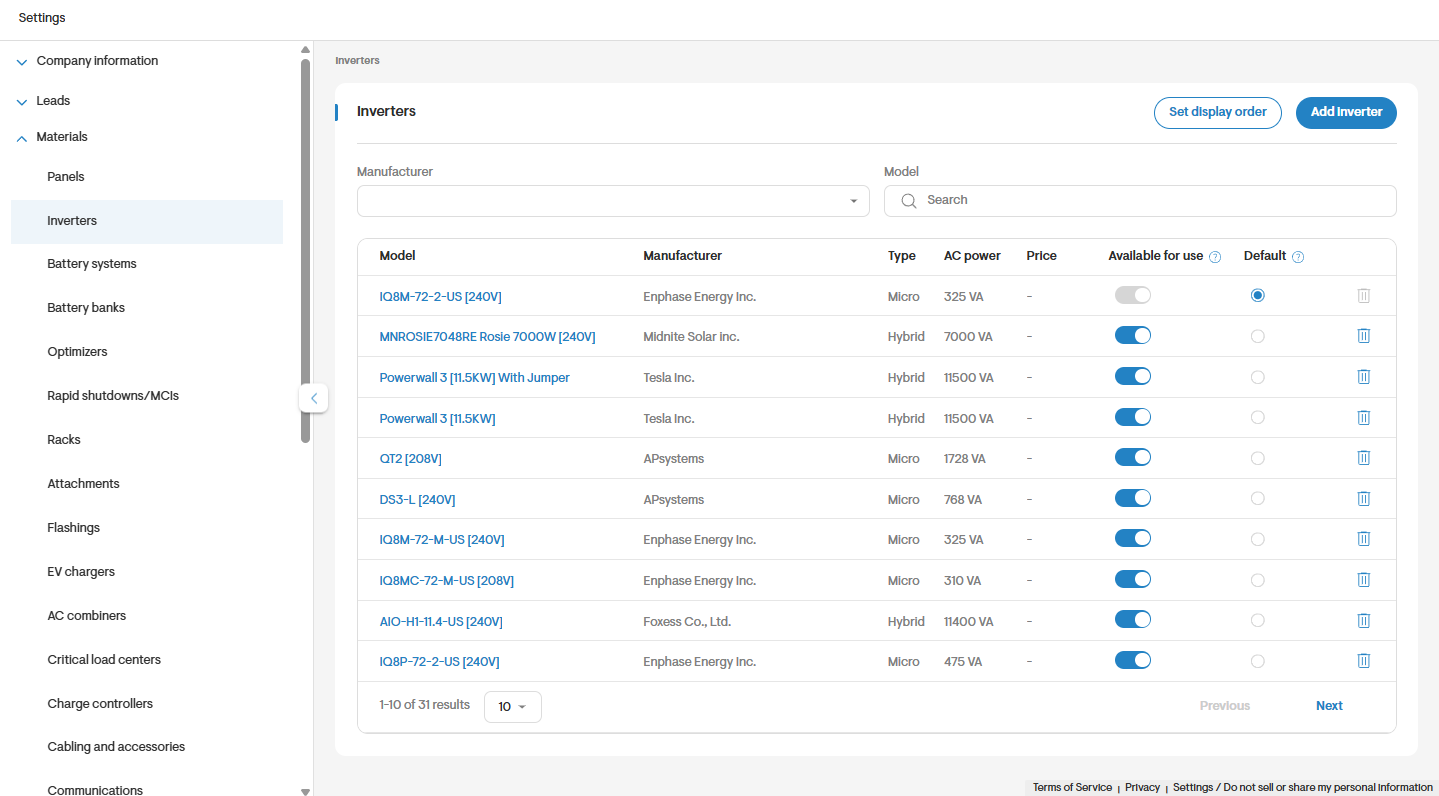
- Click on a material category to open its listing page.
- You'll see a list of all the records you've already added to your company catalogue from the global database.
- These records are available for use in solar design, battery design, electrical design, permit design, and permitting services.
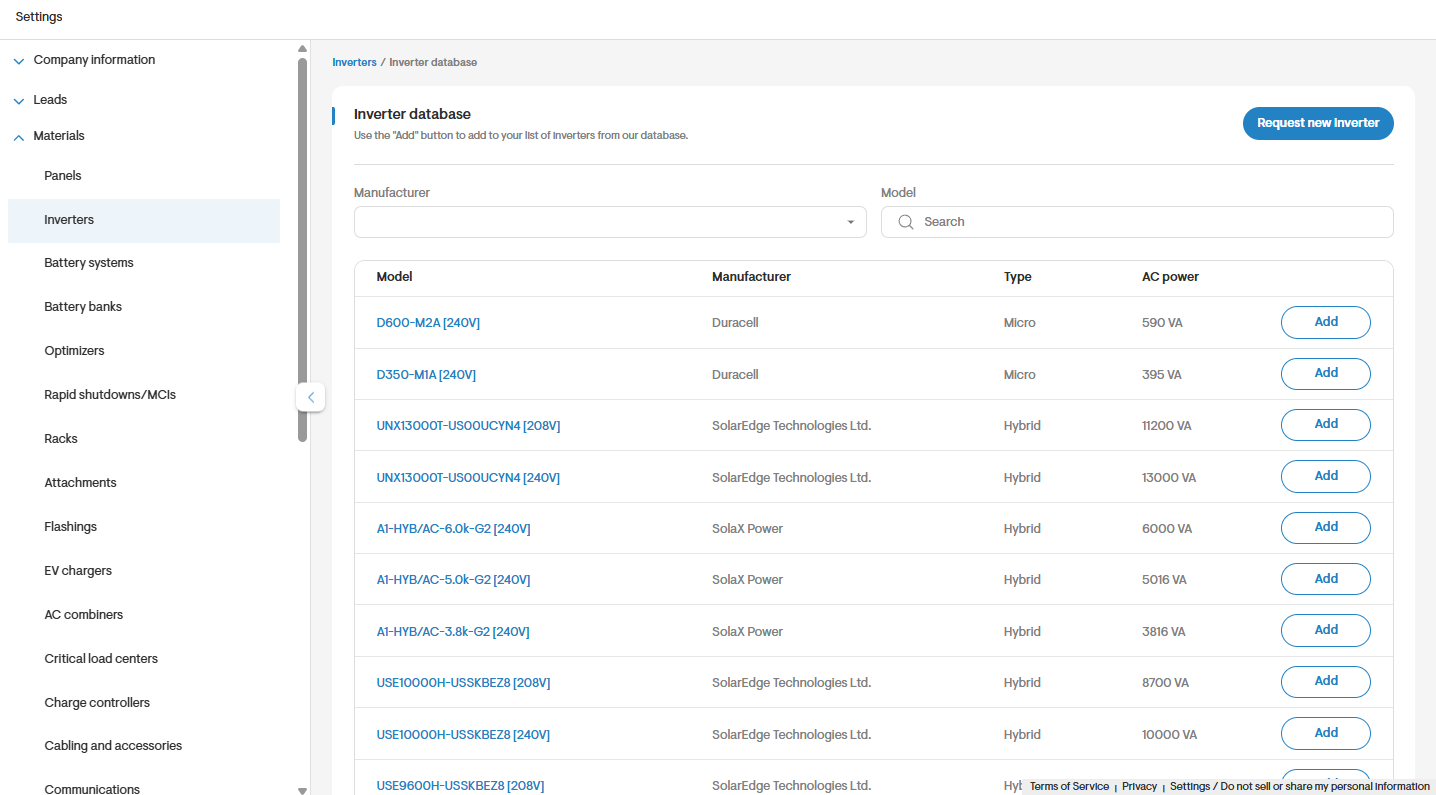
Add records from the Solargraf Global database
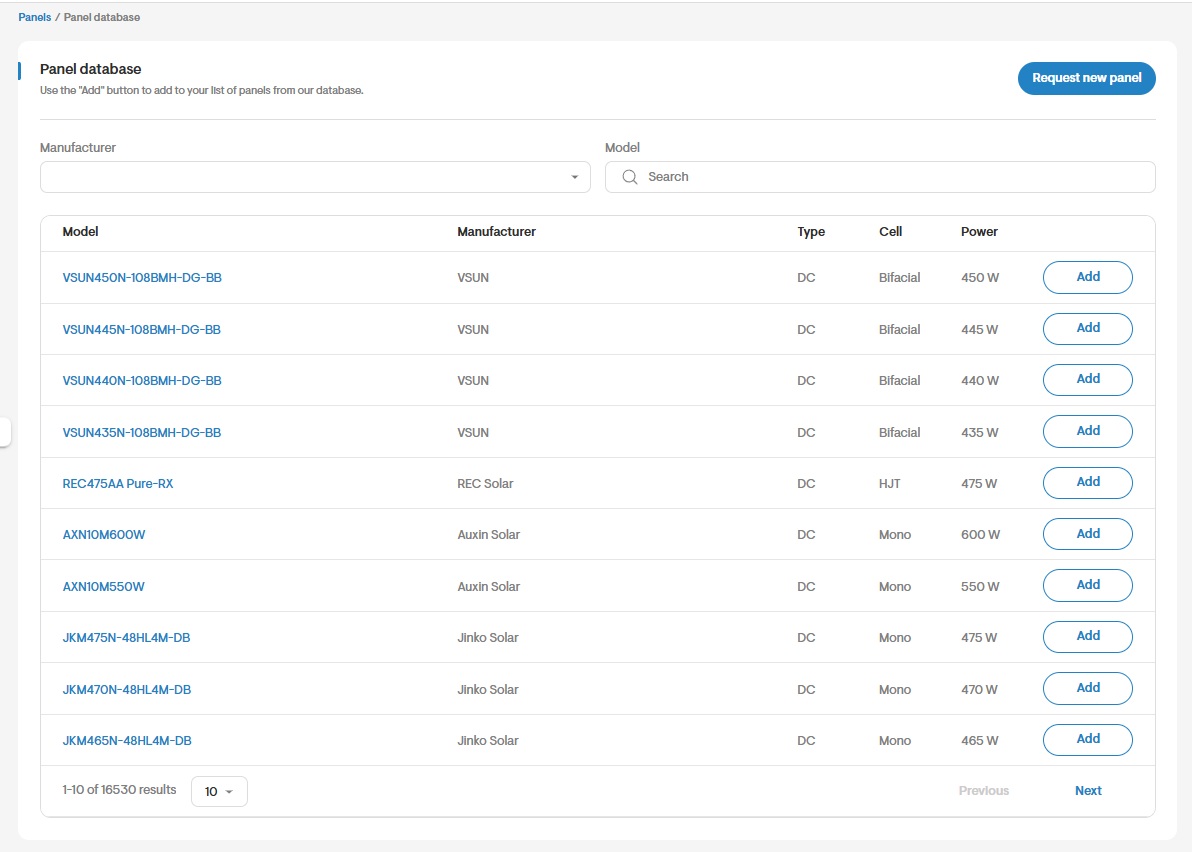
- Browse all available records from the global database.
- Search records by model name or manufacturer name.
- View a record's details, including its spec sheet, before adding it to your company catalogue.
- Click Add to bring a record from the global database into your company catalogue.
- Once added, you can only edit a few fields on your company copy, such as Product Image, Product YouTube URL, warranty, and selling price.
- This keeps the underlying attribute values of SG Global records consistent for everyone.
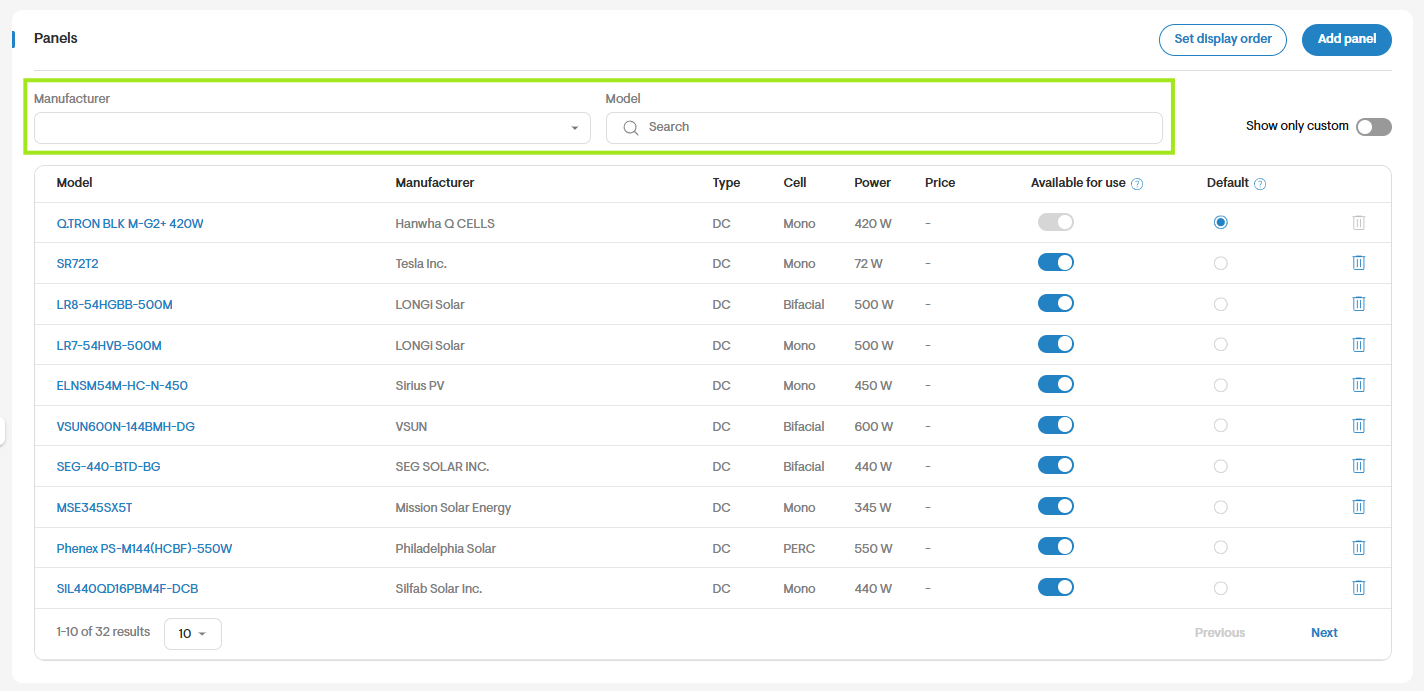
Search for a specific record
- Search your company catalogue by model name or manufacturer name.
- The same search option is available at the global database level.
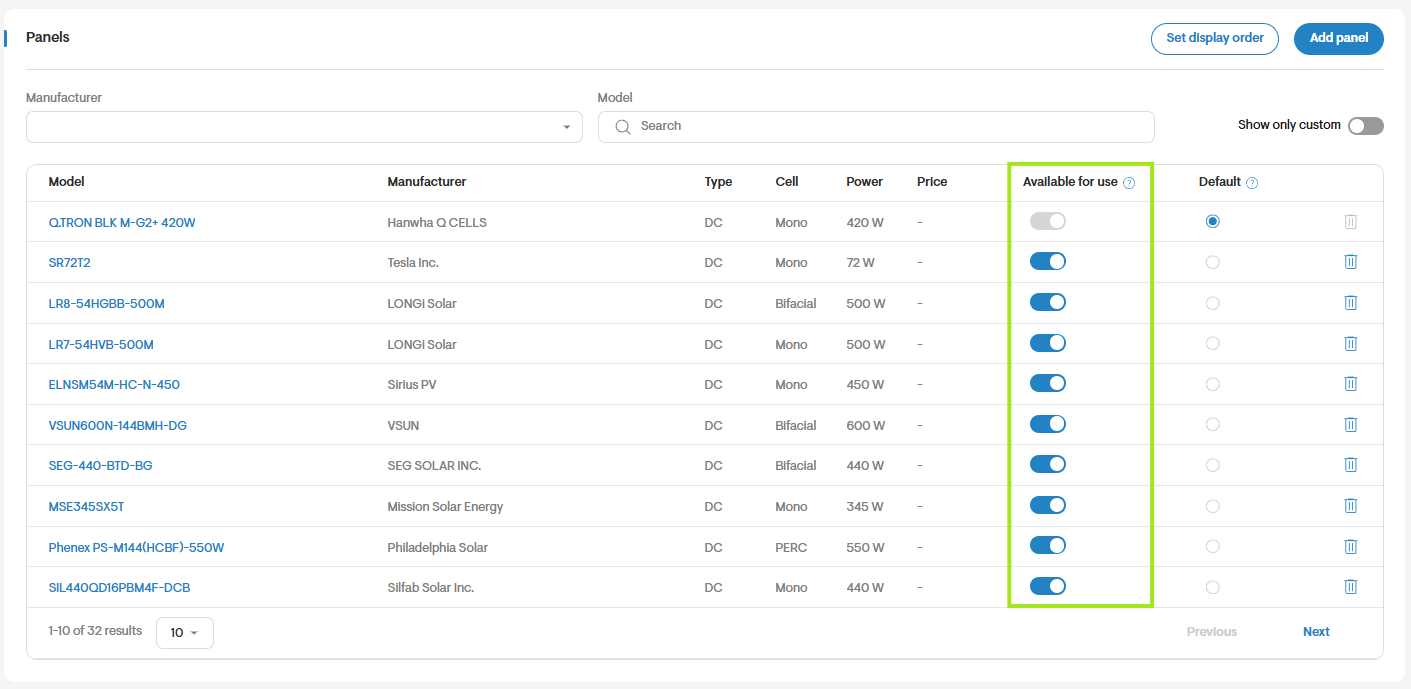
Enable a record for use in your projects
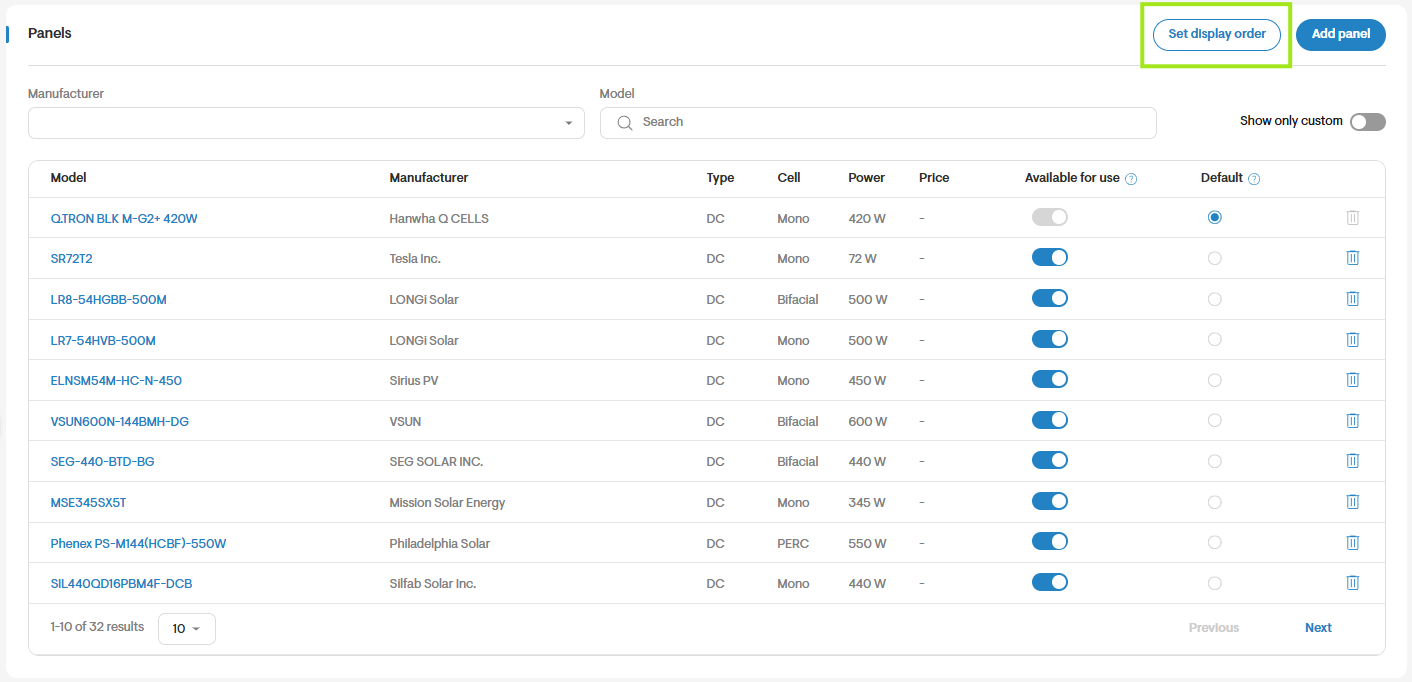
- Mark a record as enabled (Available for use) to make it usable in your projects.
- Only enabled records are available when working on a project.
- You can enable or disable a record at any time.
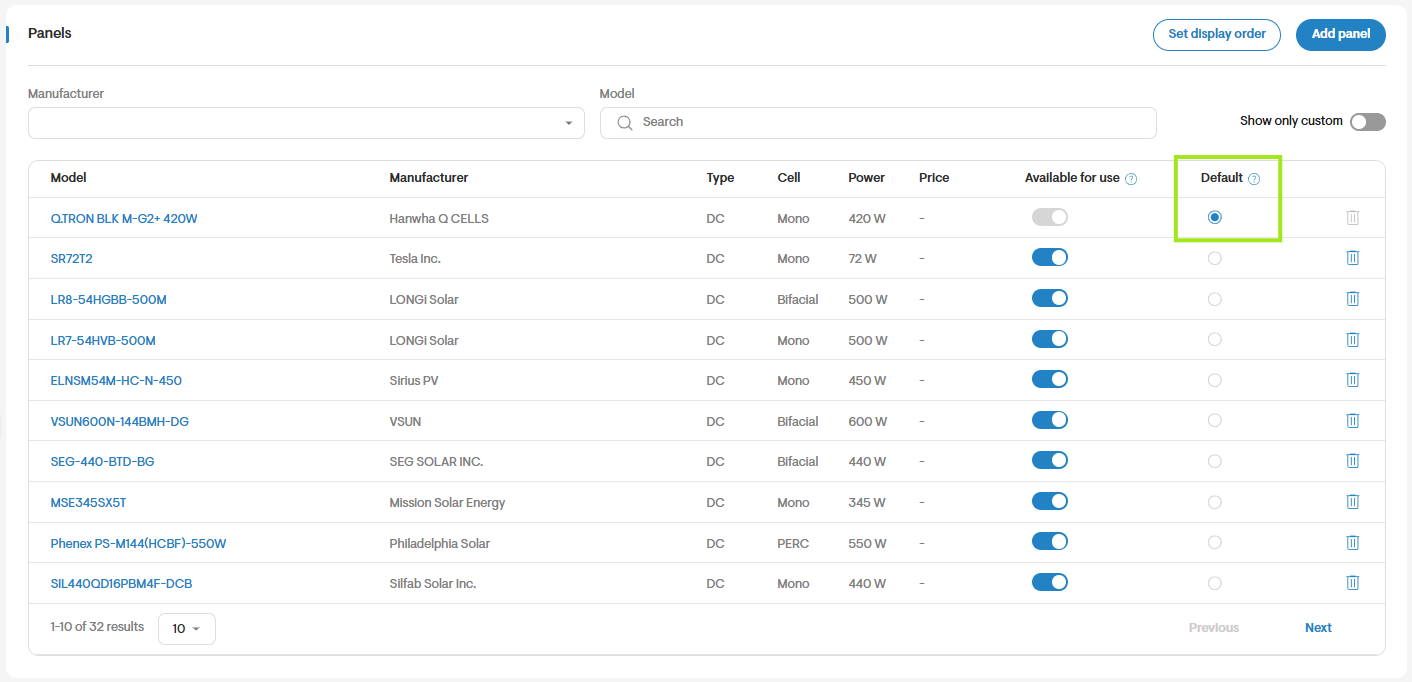
Set your default record
- Set a default record for each material category.
- Your default record is automatically selected on new projects during design.
- You can only set an enabled record as your default.
- You can change your default record at any time.
Set the display order
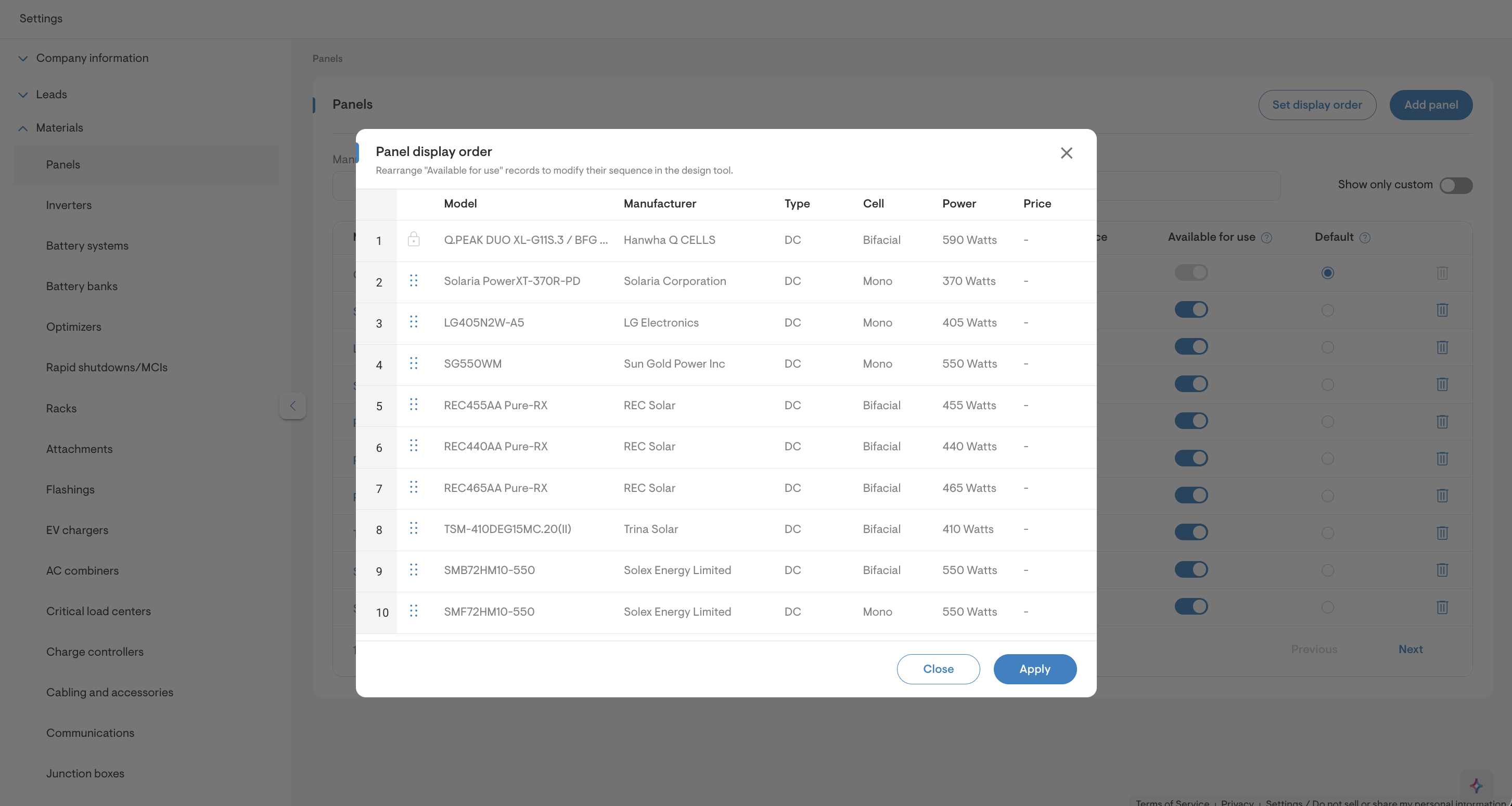
- Click Set display order to arrange your company catalogue list by priority.
- Drag records up and down to set their priority.
- Solargraf displays records in solar design using the same order you set in your company catalogue.
- You can re-sort priority at any time.
- Display order only applies to the Panel and Inverter catalogues.
Request a new material
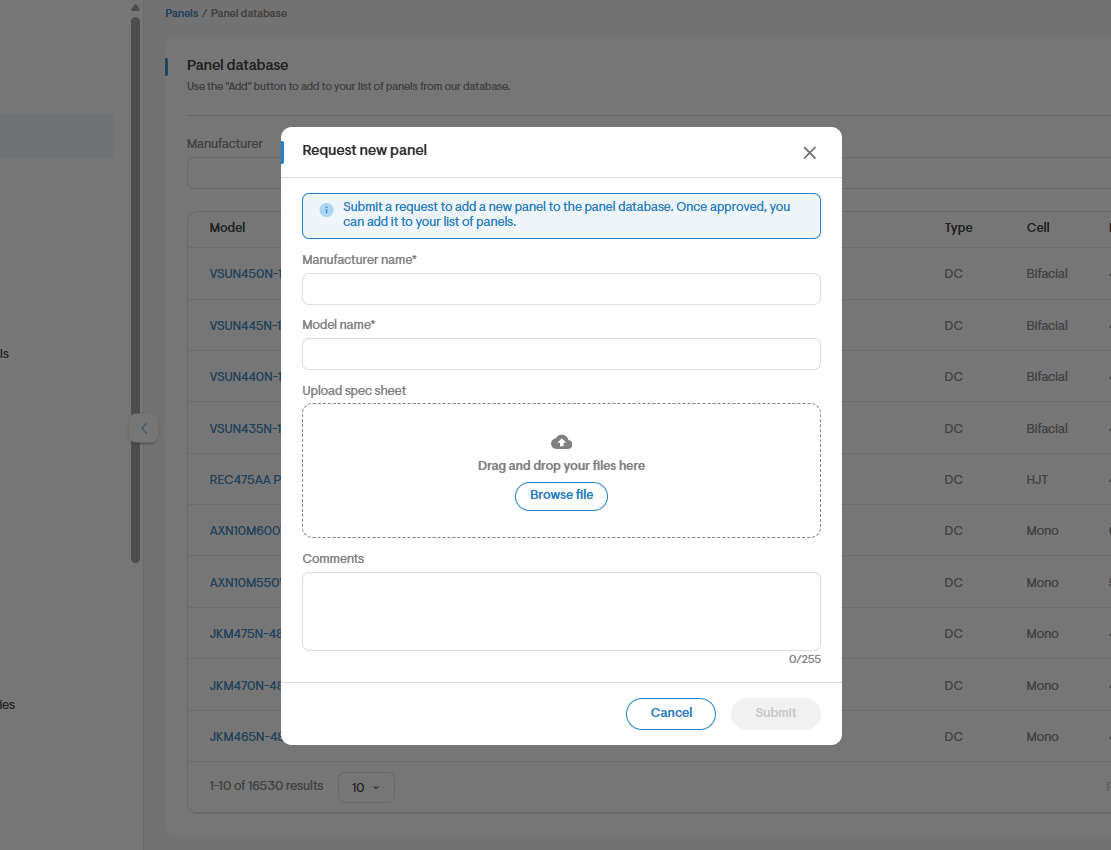
- Request a new material be added to the database if it isn't available in the global database.
- Provide the model and manufacturer name, and optionally a spec sheet and comments.
- Submitting the request sends an email to the Solargraf database team.
- The team adds the material within 48 hours.
- Once added, you can bring the material into your company catalogue from the global database.
Note: You can no longer create custom materials directly in the tool. Any existing custom materials will remain as is, but new custom materials can't be added going forward. If you need a material that isn't available in the global database, submit a request to the Solargraf database team using the steps above.