Help Center Roof Design
Keepouts and Obstructions
Published on 9 Jun 2023
The following guide provides information on keepouts and obstructions.
Keepouts
- To add a keepout to your roof design, click the Keepouts icon on the right of the screen. You may also click 'K' on your keyboard to select the keepouts tool.
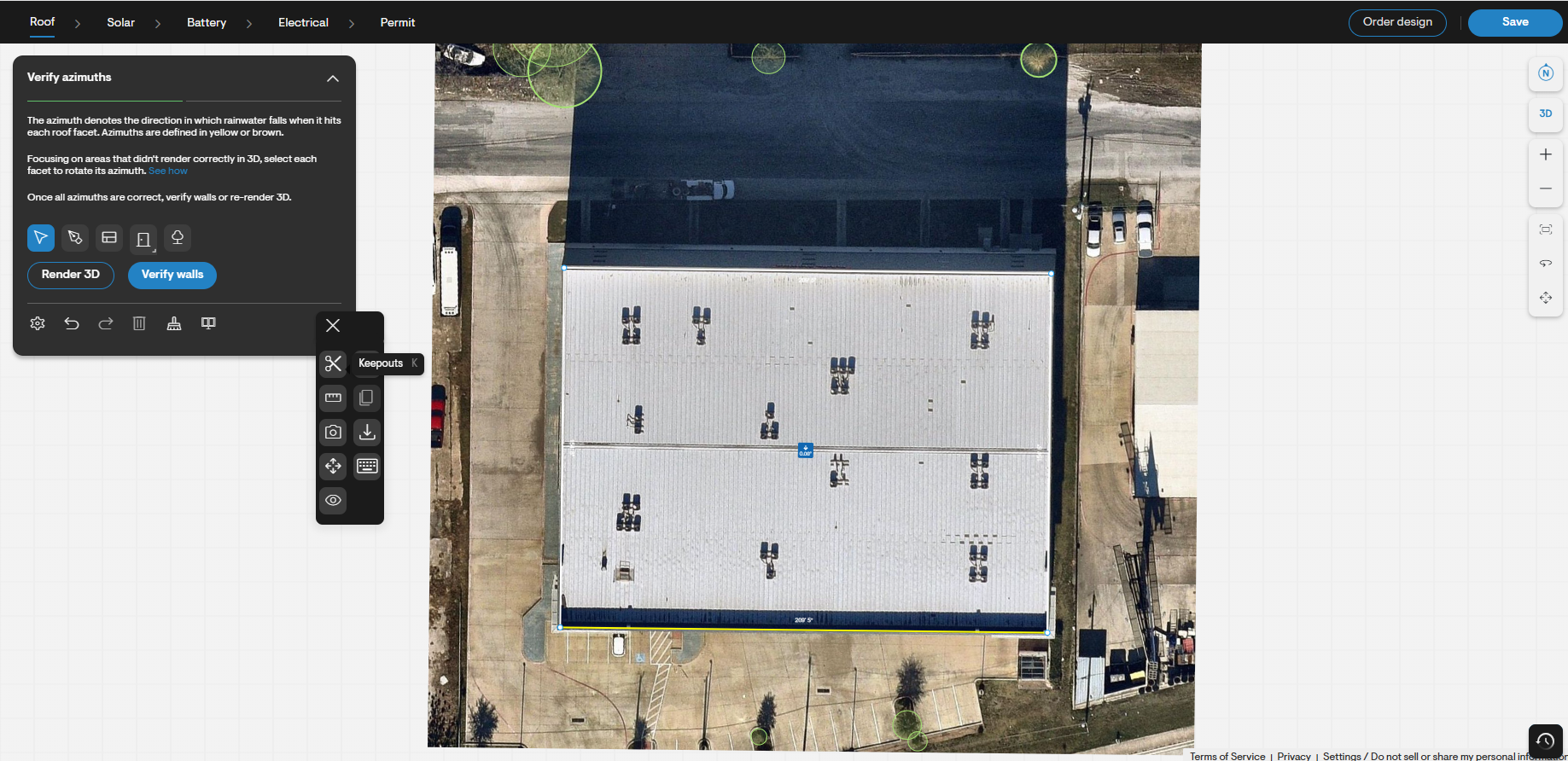
- Keepouts are added to areas of the roof that are not to be populated by panels.
- After selecting the keepout tool, click and drag on your design to define the area of the keepout.
- When you add panels to your roof, the keepout area will not be populated with panels.
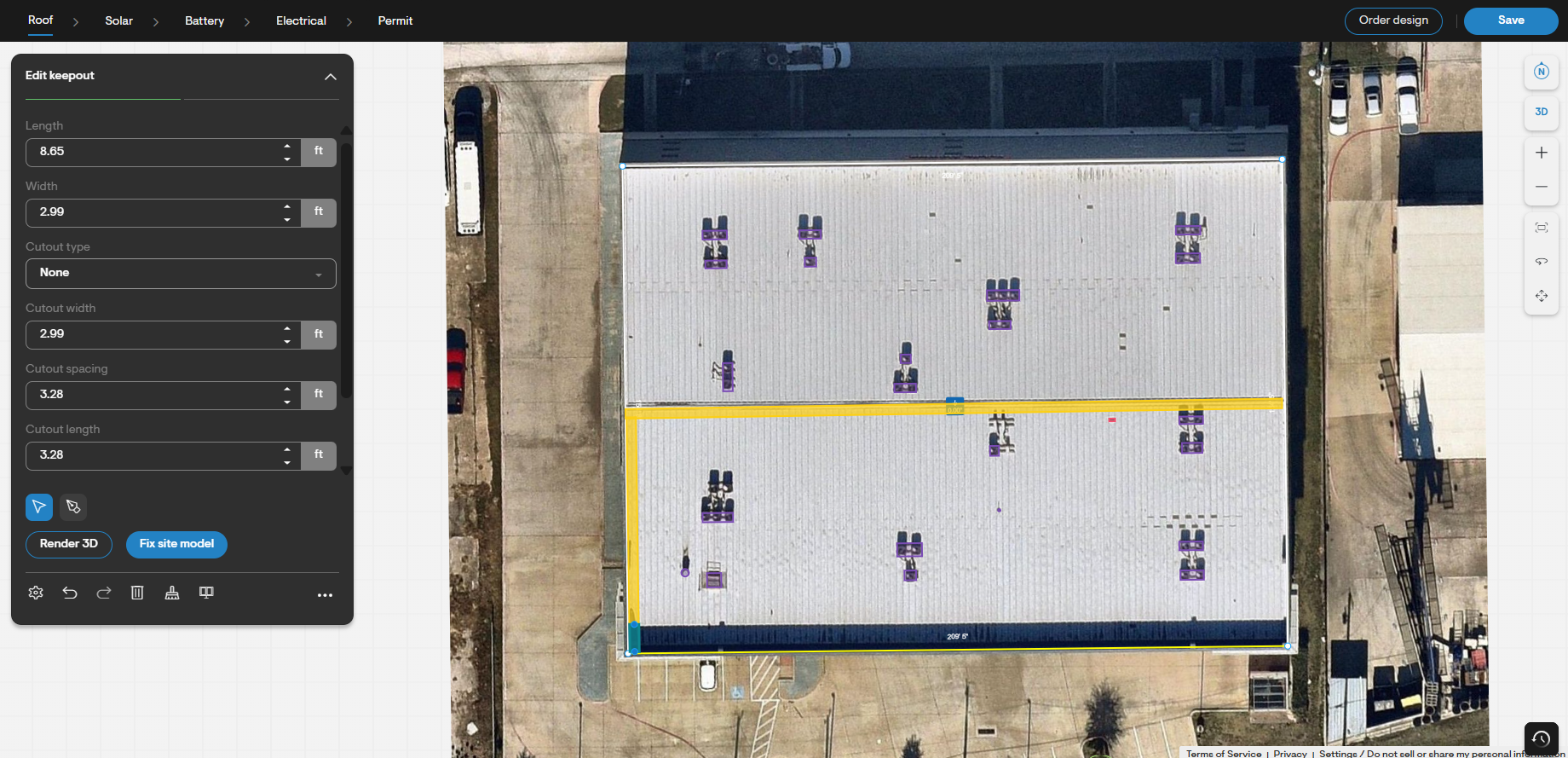
- Once you have added a keepout to your roof, you will be given the option to adjust the length, width, and cutout type of the keepout. You may also set the keepout perpendicular or parallel to the roof facet's azimuth.
Obstructions
- To add an obstruction, click the Obstruction tool on the right of the screen. You may also click 'O' on your keyboard to select the Obstruction tool.
- You can either Detect Obstructions, add a rectangle, polygon, or circle obstruction.
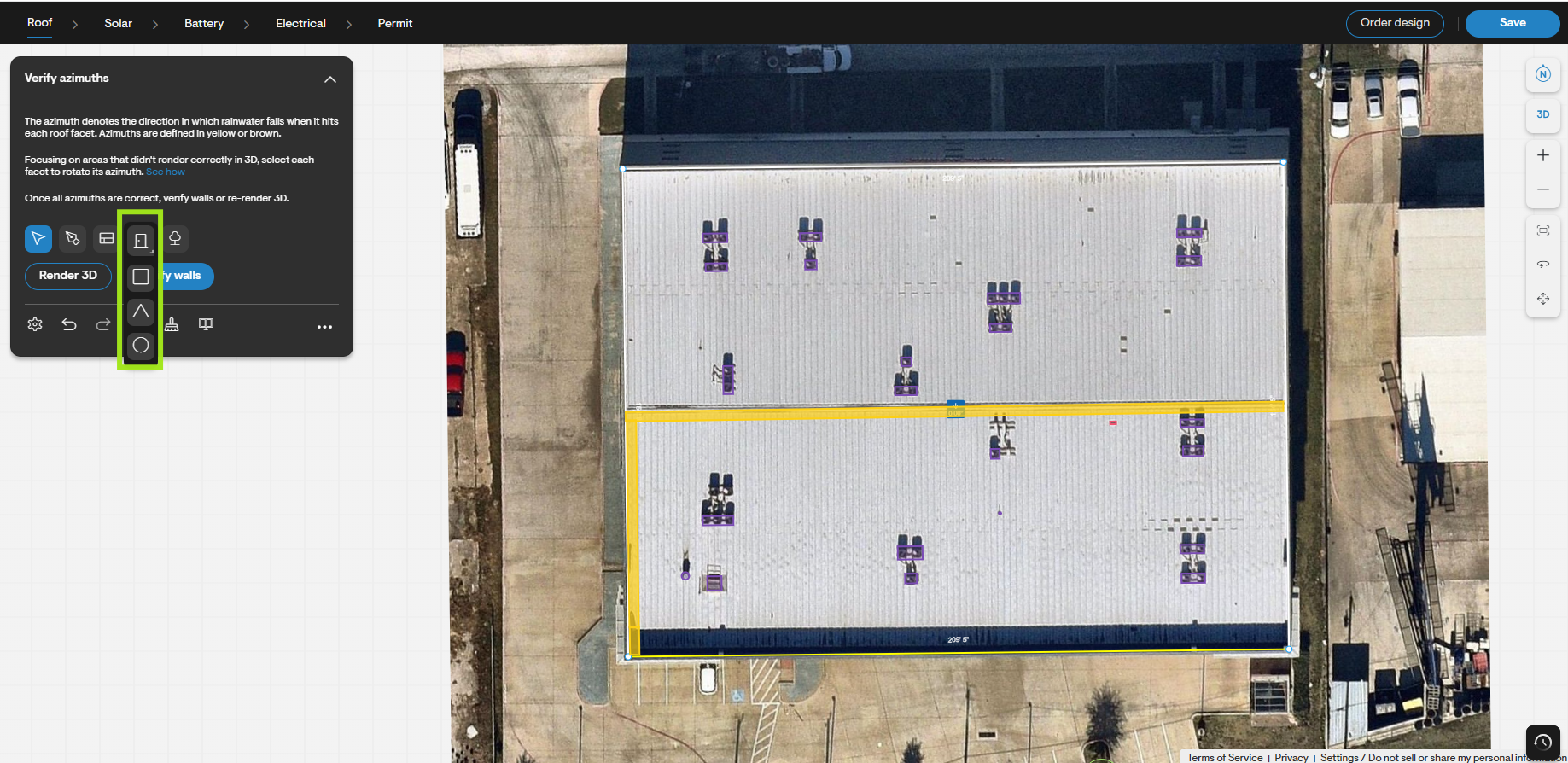
- To add an obstruction to your design, click and drag to obstruction onto your roof.
- When you add an obstruction you will have the option to specify it as a skylight, chimney, pre-existing PV array, or other. You will also have the option to edit the width, length, height, and rotation of the obstruction.
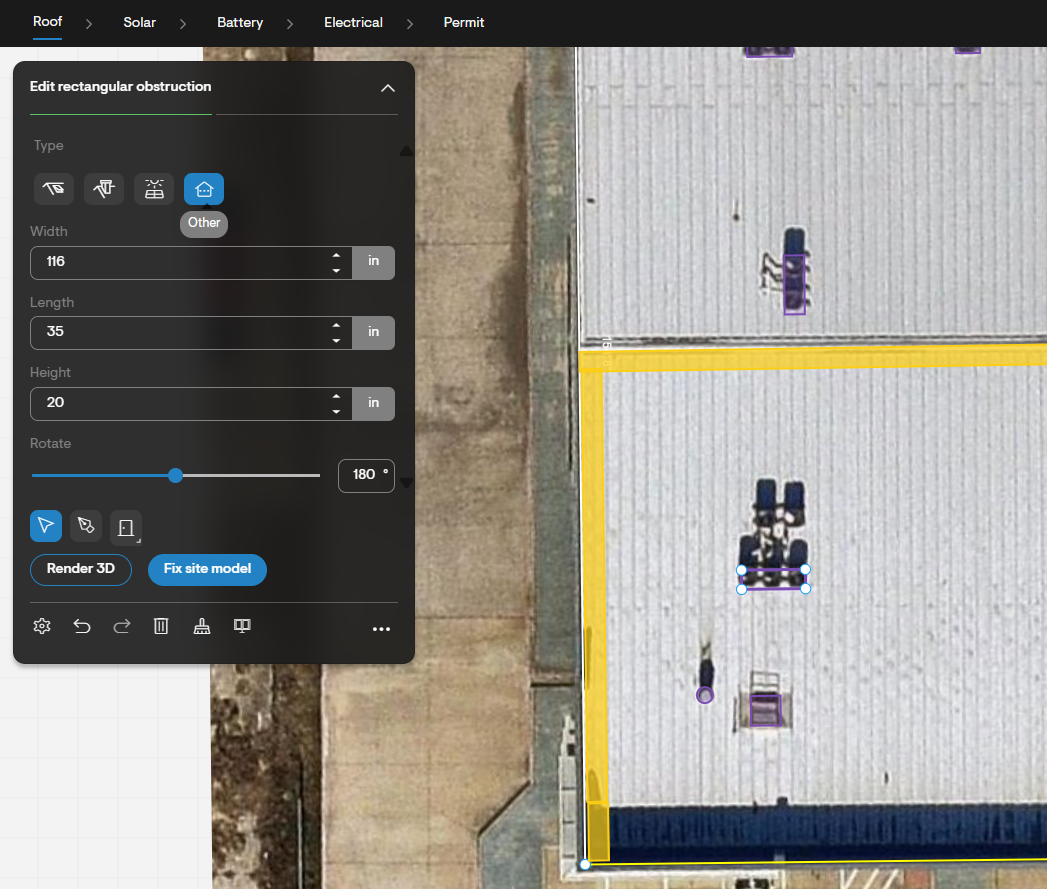
- Alternatively, you may auto-detect obstructions. This will erase any existing obstructions, and will add detected obstructions automatically to your roof design.