Help Center Proposal
How to convert a classic proposal template to advanced customization
Published on 15 Oct 2026
Learn how to convert an existing classic proposal template to an advanced proposal template while preserving the original template and its configuration. This enables you to take advantage of advanced customization features without impacting your existing template.
Overview
Depending on your permissions, Solargraf allows you to convert classic proposal templates, including their clones, into the advanced proposal experience. Conversion creates a copy in the advanced proposal format while preserving the original classic template. This feature is available only to companies with access to classic templates. New companies using advanced templates exclusively do not require migration.
How to convert a classic proposal template to the advanced proposal format
- Navigate to proposal templates: Company settings > Proposal & documents > Proposal templates.
- Click the classic template you want to convert.
- You will get a prompt to create a copy of the current template in the new advanced framework.
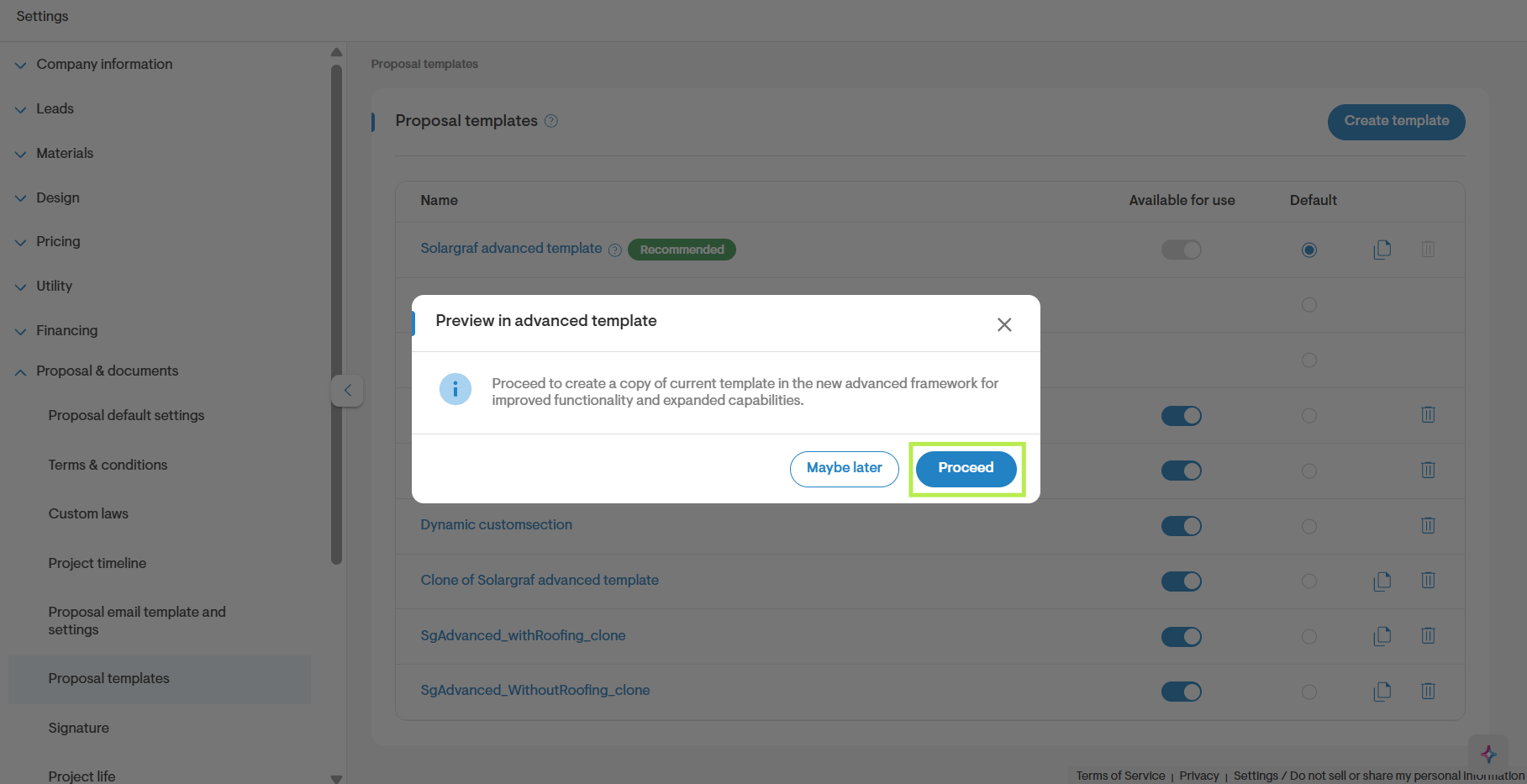
- Click Proceed to create a clone of the original template in advanced proposal format while preserving the original template.
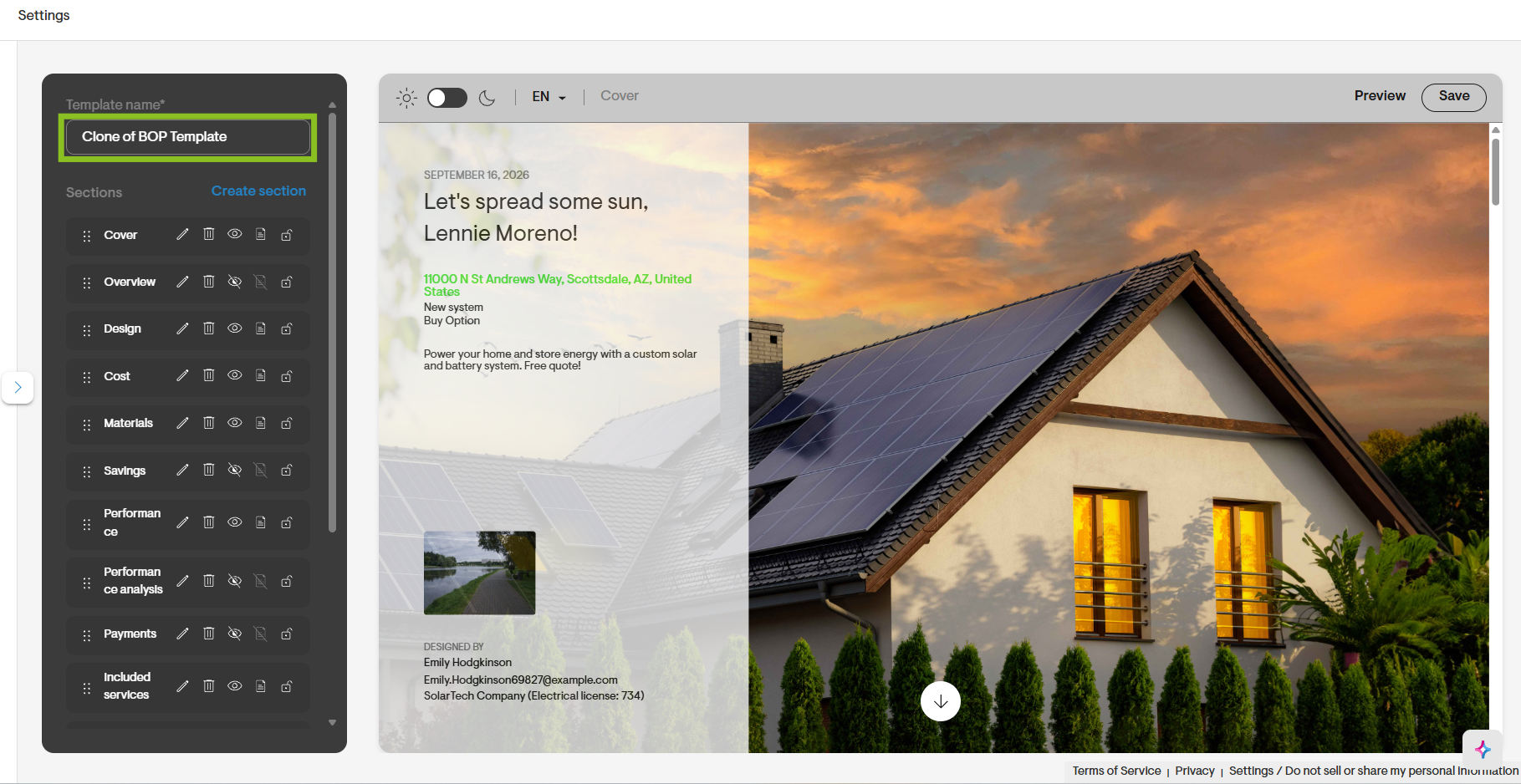
- Review the newly created template in the proposal editor.
- Make any required customizations, like changing the template name, hiding sections, or updating content and layout settings.
- You can also mark this template as default, make it available for use, or delete it if it does not meet your requirements.
Note: Deleting the newly converted template does not affect the original template.
What happens if I select ‘Maybe later’?
- Click Maybe later to continue editing the original classic template without converting it to the advanced proposal experience.
- Solargraf opens the original template without making any changes.
- No advanced template is created in the form of a clone.
- You can choose to convert the template at a later time.
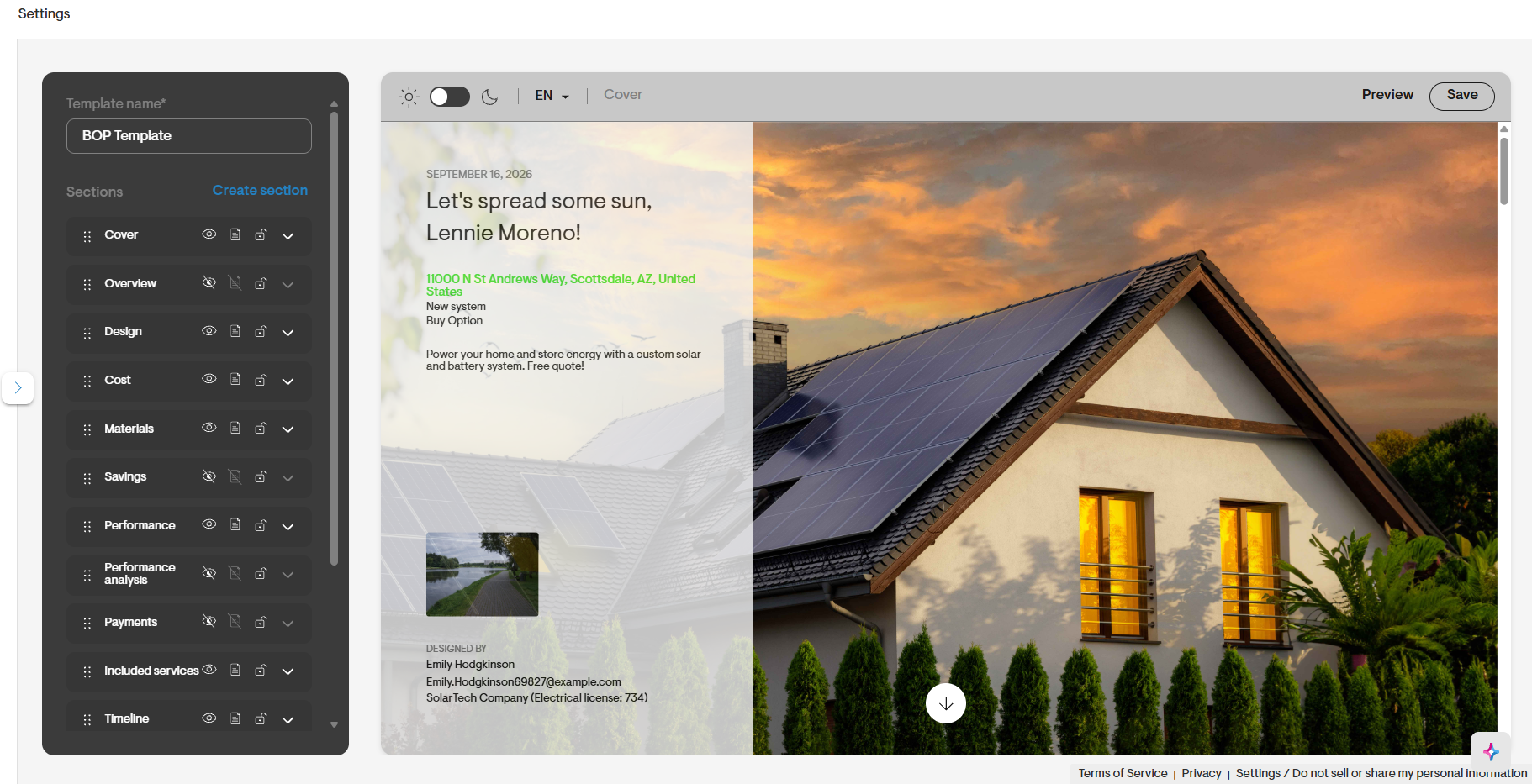
Post migration
- The source template and the new template are both available for use.
- Use the cloned copy for future template updates and customization.
- Validate section content, spacing, language settings, images, and customer-facing fields before publishing.
- Keep the original classic template until the migrated version has been reviewed and approved.
- Changes to one template never affect the other.