Help Center External Integration
DocuSign: How to Connect Your Account
Published on 3 Oct 2022
This guide will walk you through how to connect your DocuSign account to your Solargraf account.
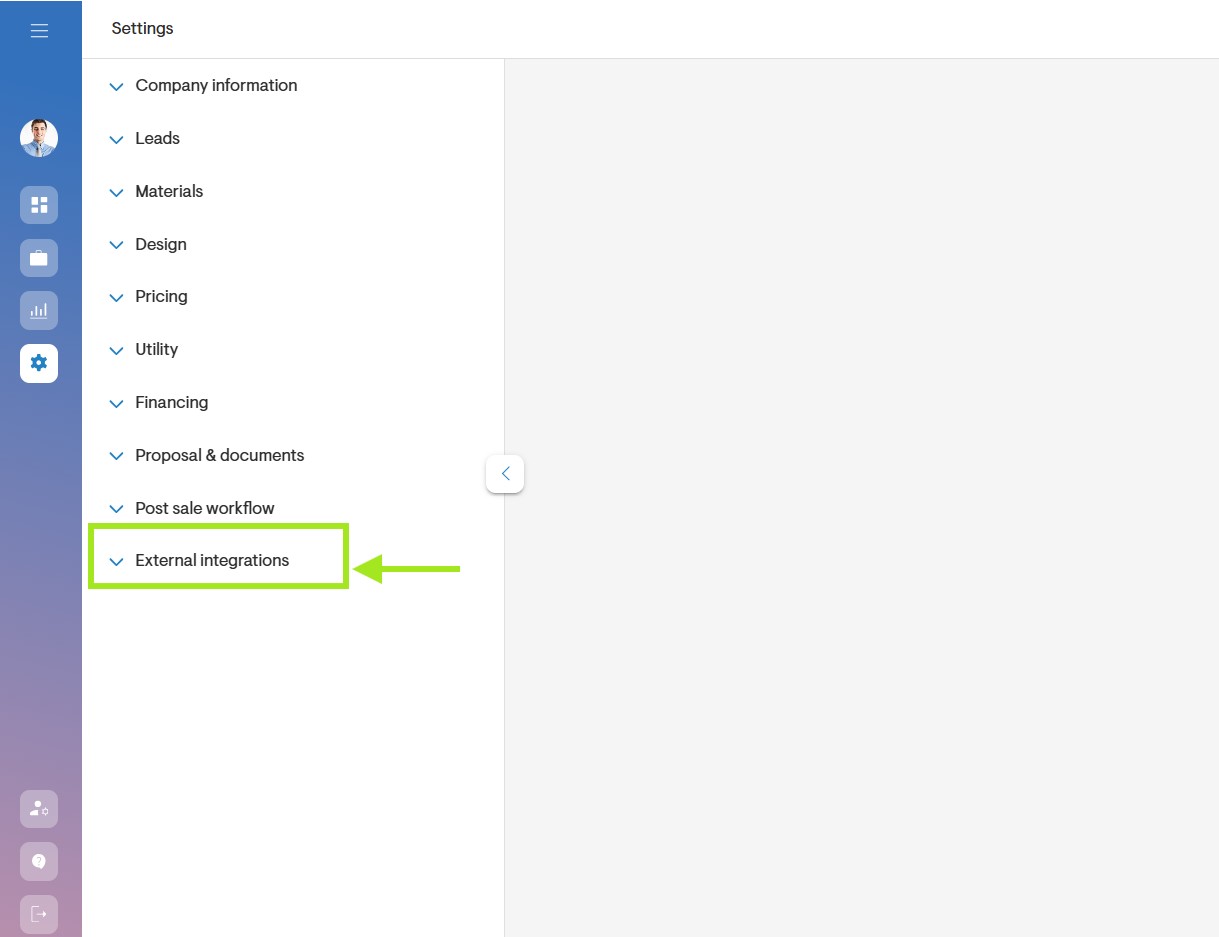
Go to External Integrations
To connect your DocuSign and Solargraf accounts, start by going to the External Integrations page. To do so, click the menu icon on the top left of the Dashboard page, and then select External Integrations.
Sign in to DocuSign
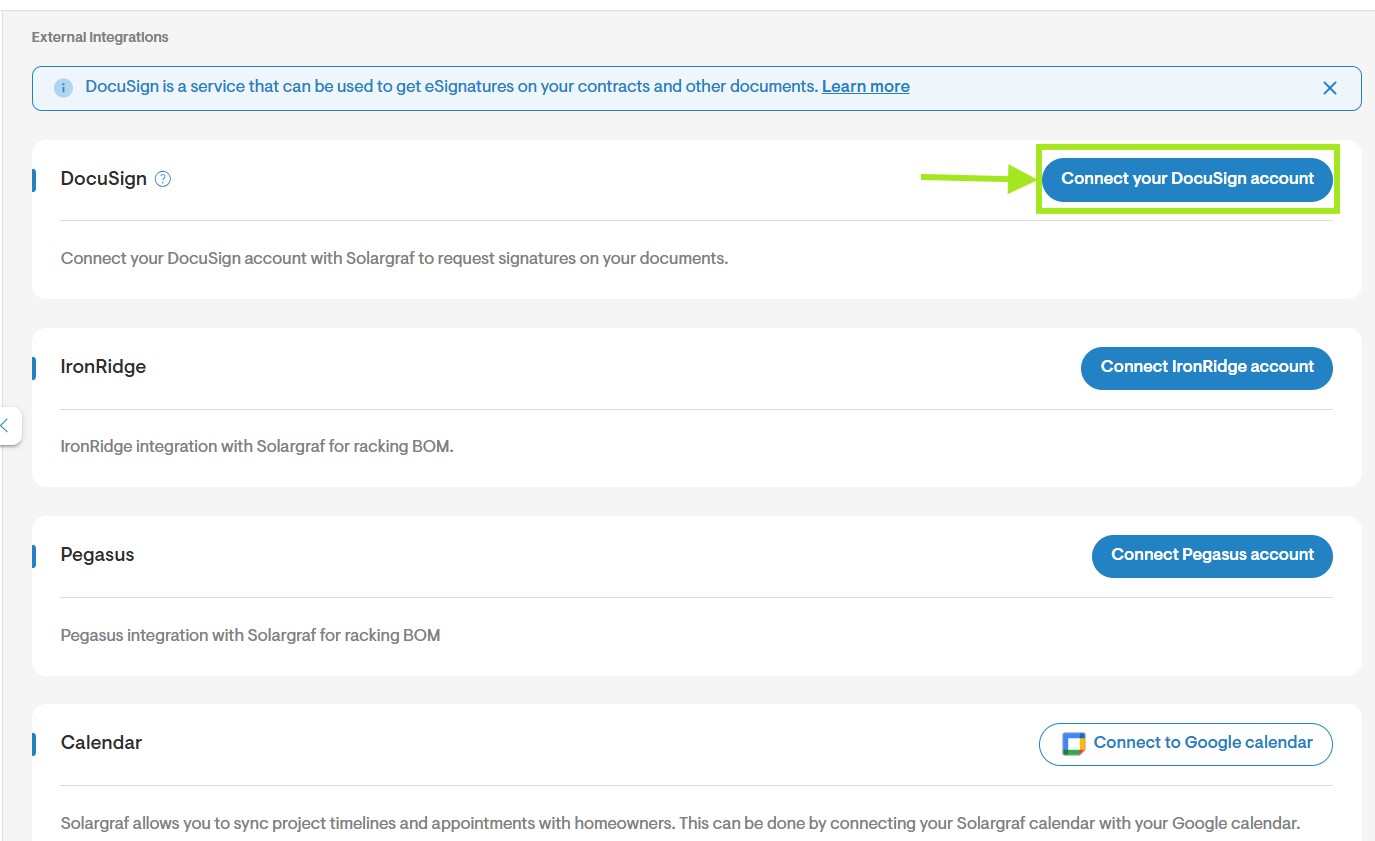
Next, click Connect your DocuSign account to login to your DocuSign account.
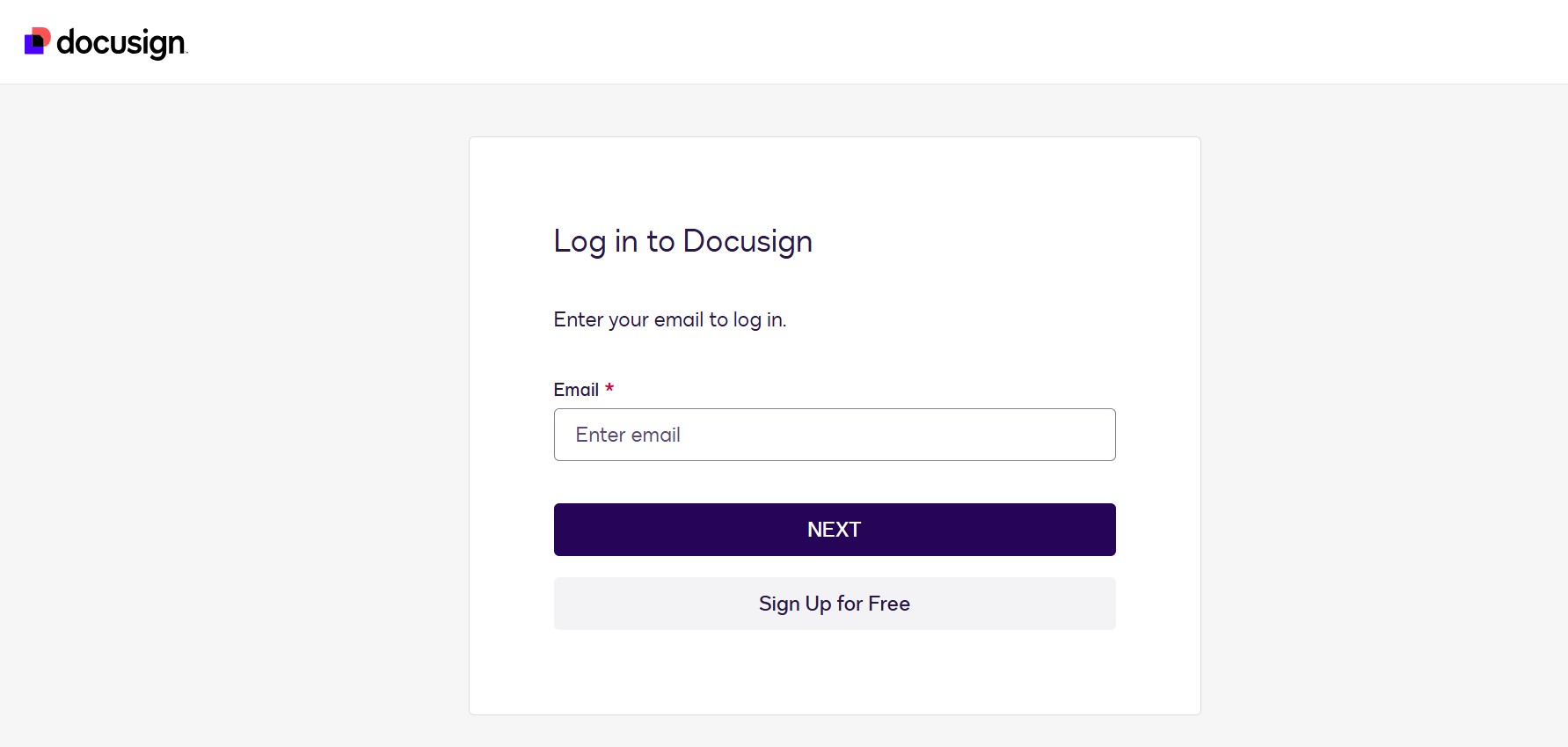
This will redirect you to the DocuSign login page, where you can enter your email and password.
Once you've signed in you will be redirected back to the Solargraf External Integrations page.
Update an HMAC Key
- Once you've signed in to your DocuSign account, you may additionally update an HMAC key to Solargraf. The purpose of the HMAC key is to send real-time status updates from Docusign to Solargraf once a document has been sent or signed.
Note: For instructions on where to find the HMAC key on your DocuSign account, click the hyperlink 'Click here' text. - Once you've copied the HMAC key from Docusign click Update HMAC Key on the External Integrations page.
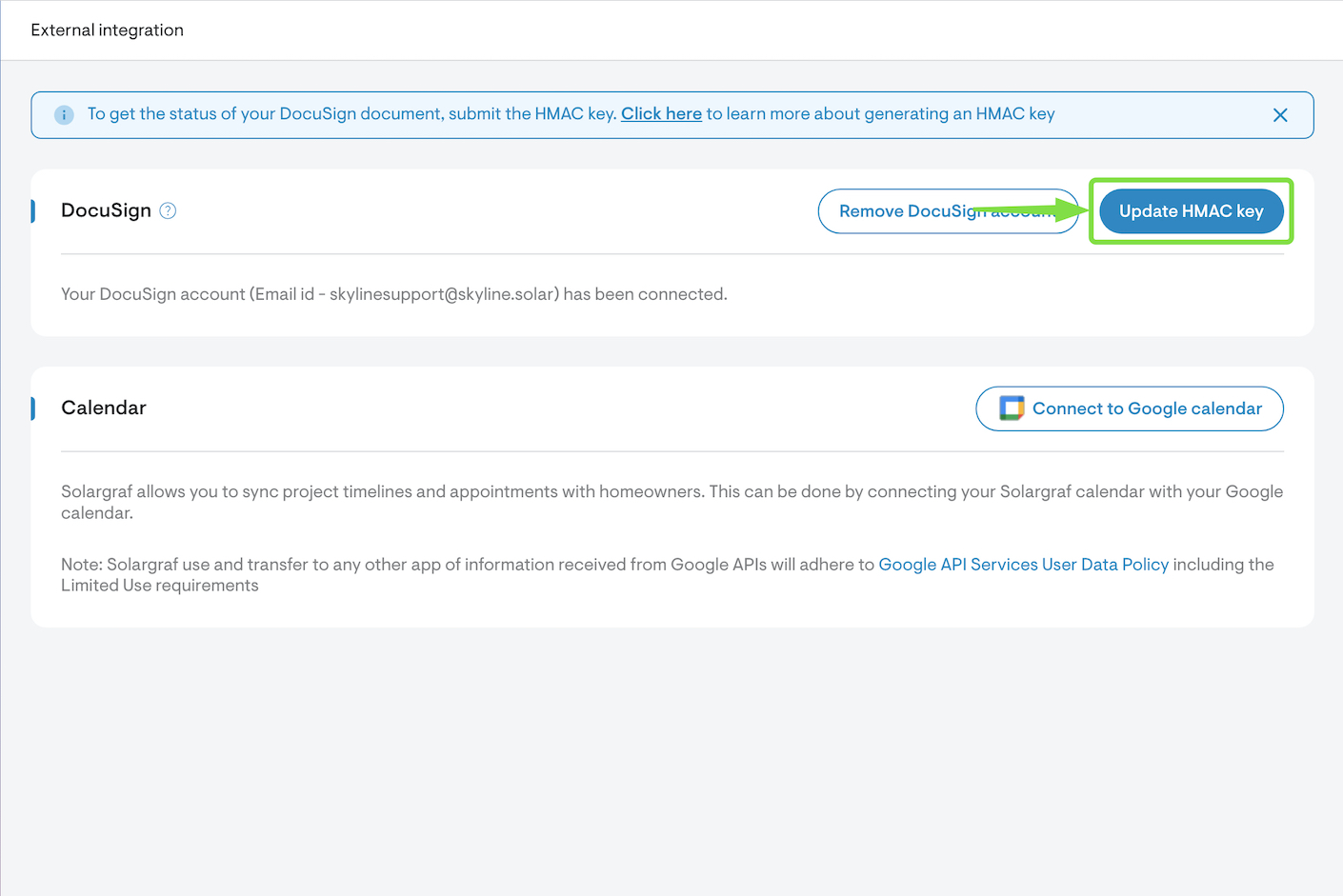
Next, paste the HMAC key into the field and click Update.
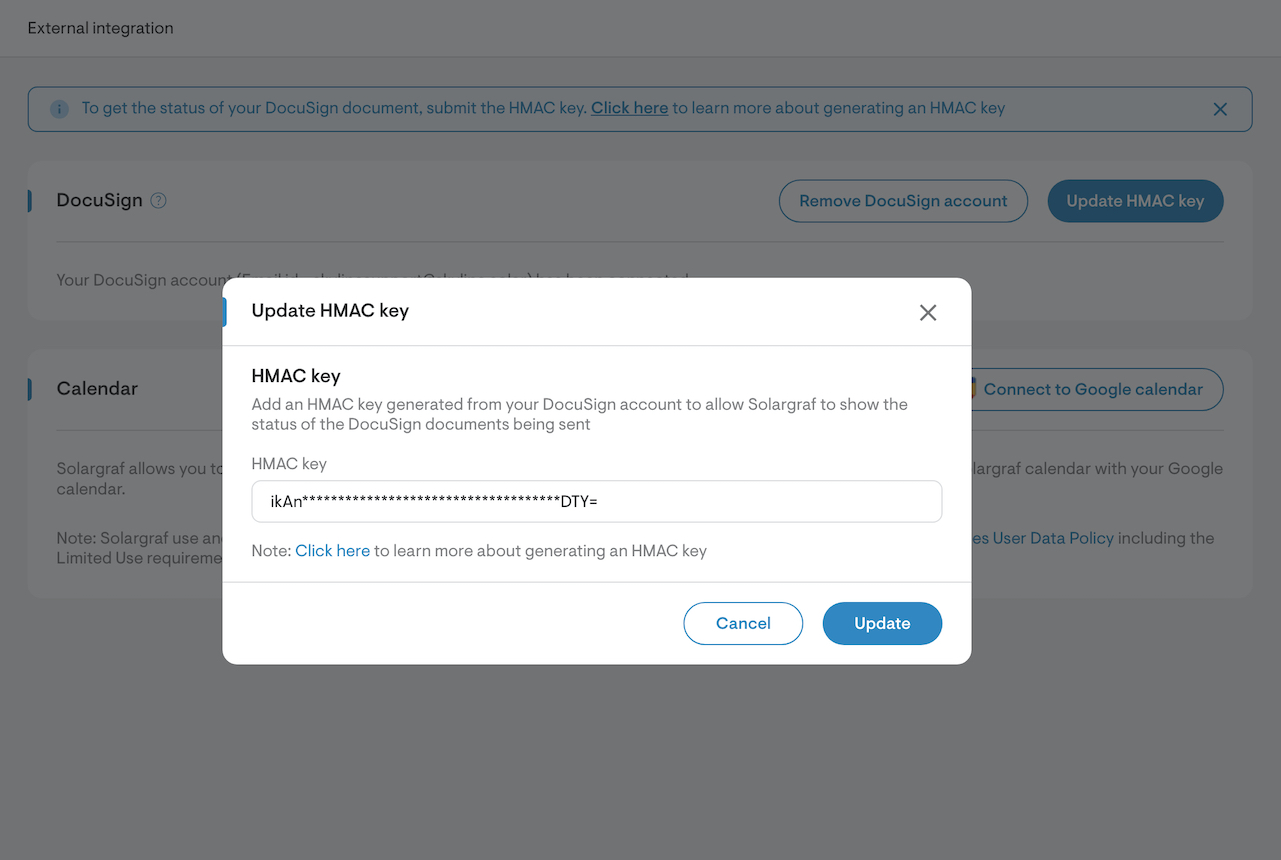
After following the above steps, your Solargraf account will be successfully integrated with DocuSign.