Help Center Proposal
BOM-Based Pricing
Published on 7 Dec 2022
The following guide will walk you through using BOM-based pricing for your Solargraf projects. This is an alternative to using pricing tables to set a price-per-watt when calculating the project cost, and it allows you to instead price projects based on the materials added.
Enable BOM-based pricing
- To get started with BOM-based pricing, navigate to your company's Settings page.
- Next, click on the Pricing heading and select Solar pricing.
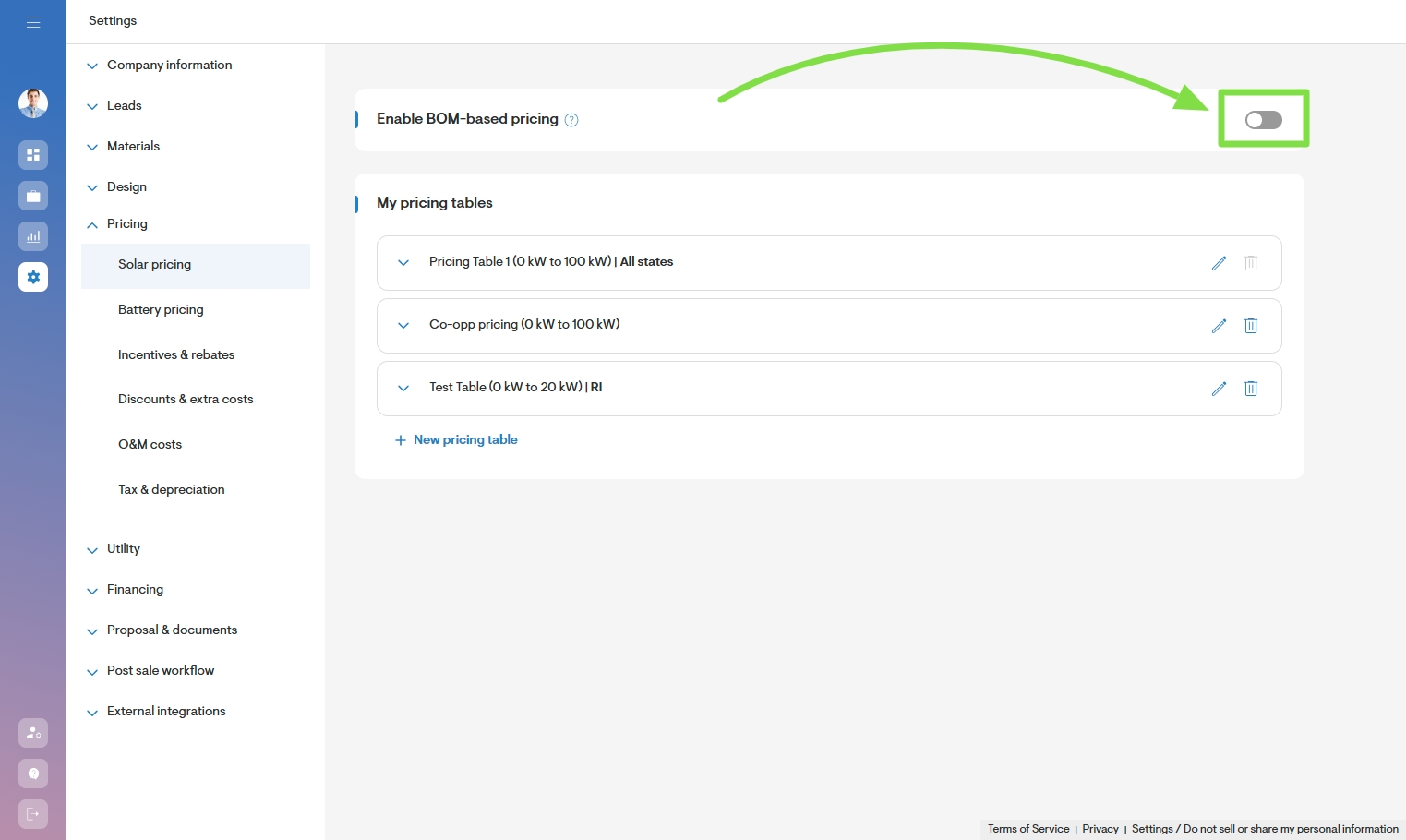
- Enable the toggle switch for the Enable BOM-based pricing option.
Add unit pricing
- Next, you will need to set the default unit price for each of the materials your company uses in its projects.
- From your company's Settings page, click the Materials heading and then select My materials.
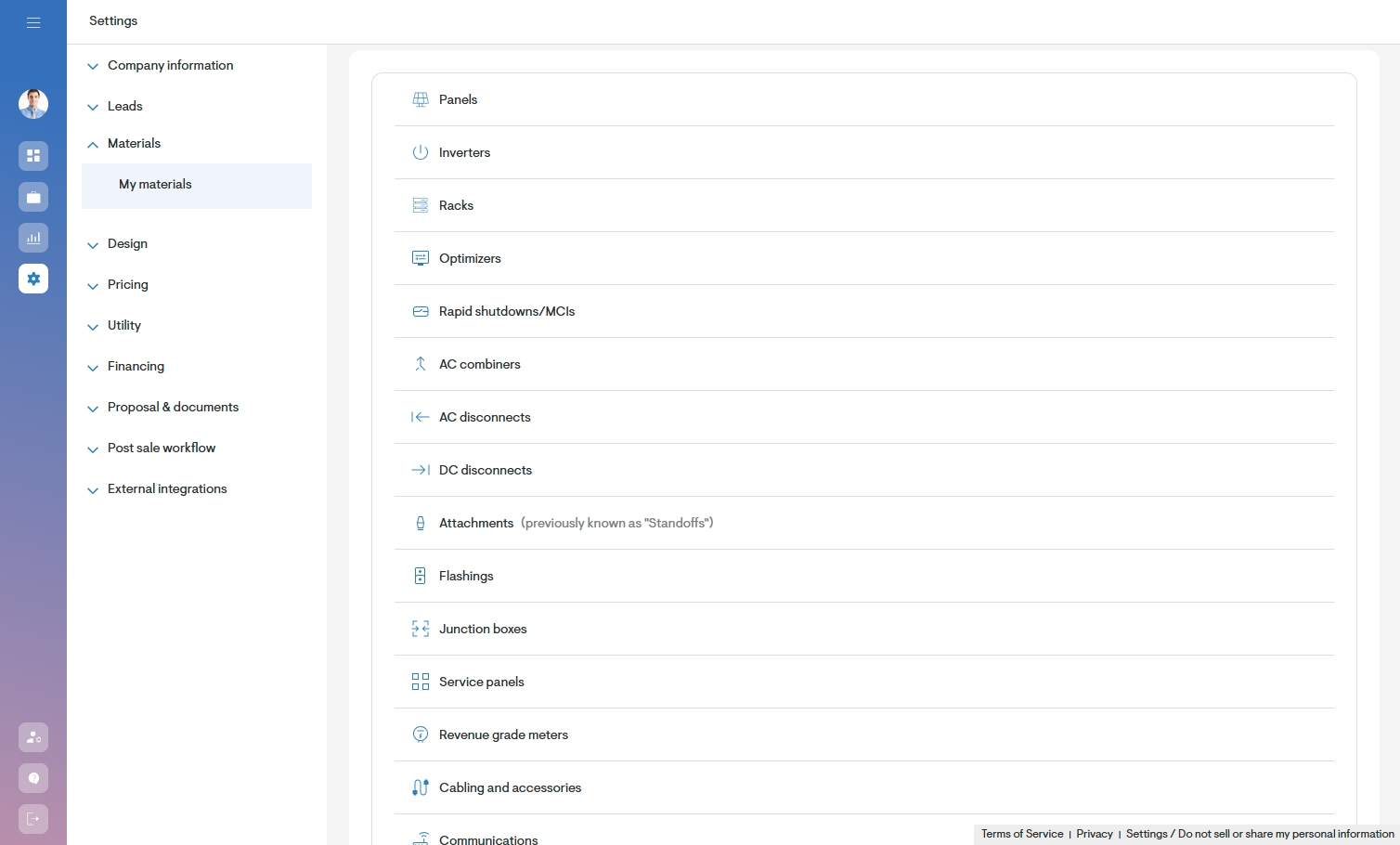
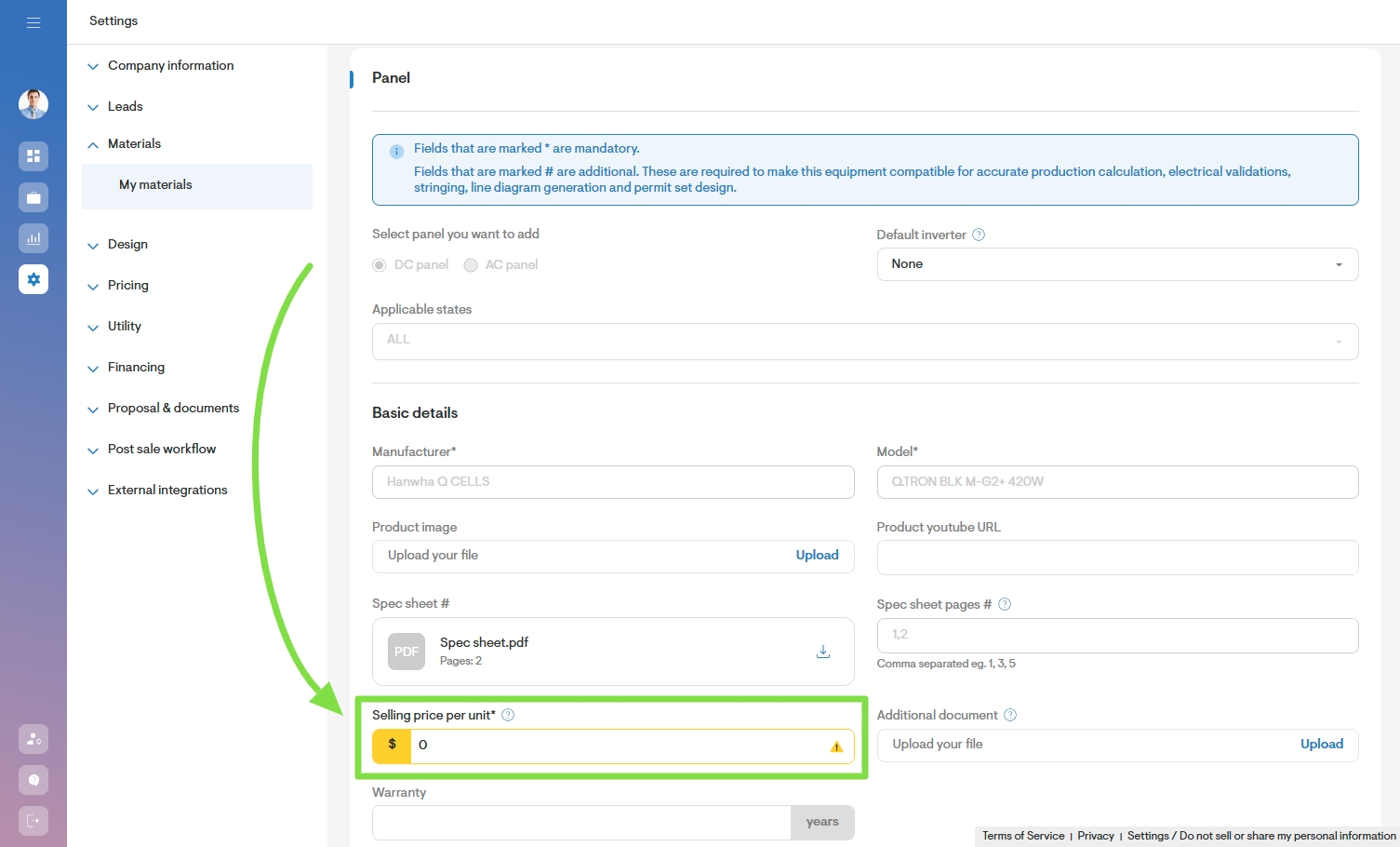
- For each item set up in your company's materials, enter a value for its Selling price per unit field and then save.
Review project pricing
At the project level, review the Pricing page to view its BOM pricing. You will be able to see the material name, price per unit, quantity and total price for each material added to the project.
The values shown in Project price and Price per watt fields are automatically calculated based on the unit pricing and number of units. They are determined as follows:
- Project price = (Panel price per unit × quantity) + (Inverter price per unit × quantity)
- Price per watt = Project price ÷ System size
Any additional materials will also be added to the calculation using a similar formula of price per unit multiplied by the number of units.
- To override the company price per unit for any material at the project level, click the Edit pencil icon and enter a new value, then click the Save button.
Note: The ability to edit pricing is governed by a user's role permissions and may be restricted for some users.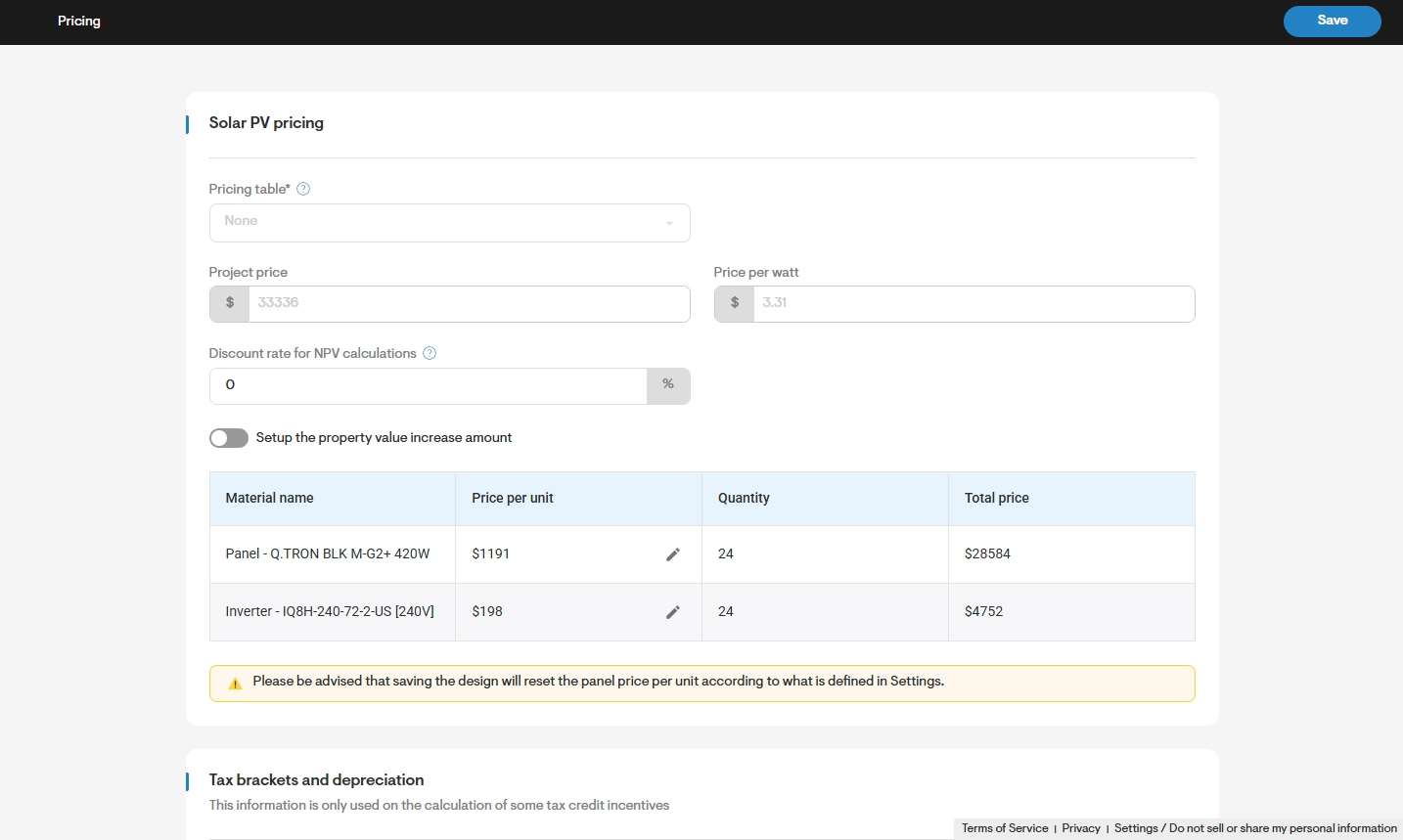
Additionally, you will be able to modify Battery pricing, Extra costs, and Discounts as needed.