Help Center Utility Set up
Custom Tariff Builder
Published on 11 Jun 2025
The following guide provides information on how to create custom tariffs with Time-of-use and tiers.
Create a tariff
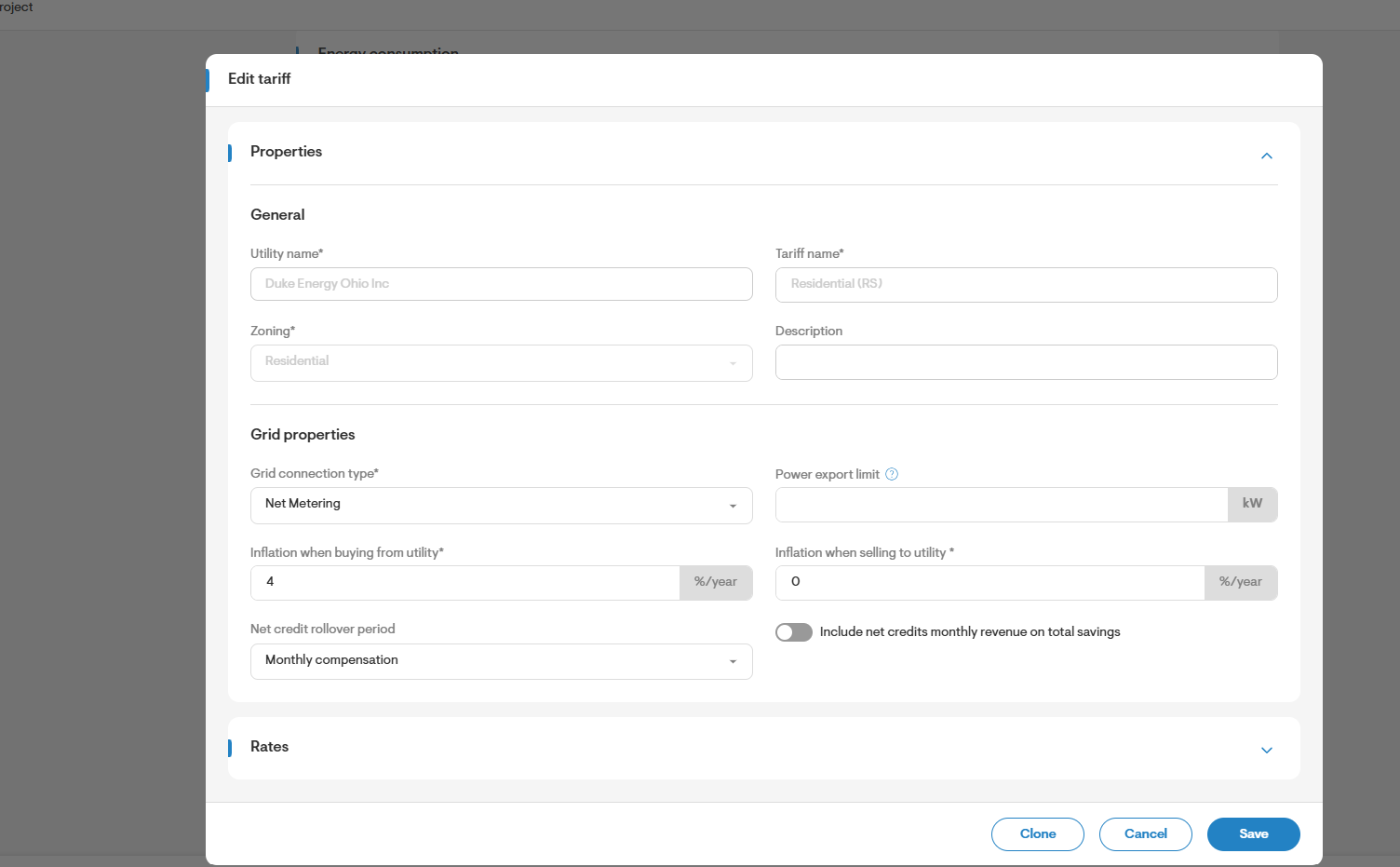
- Go to Company Settings > Utility and Tariff Settings, then click Create Tariff in the top-right corner to set up a new custom tariff.
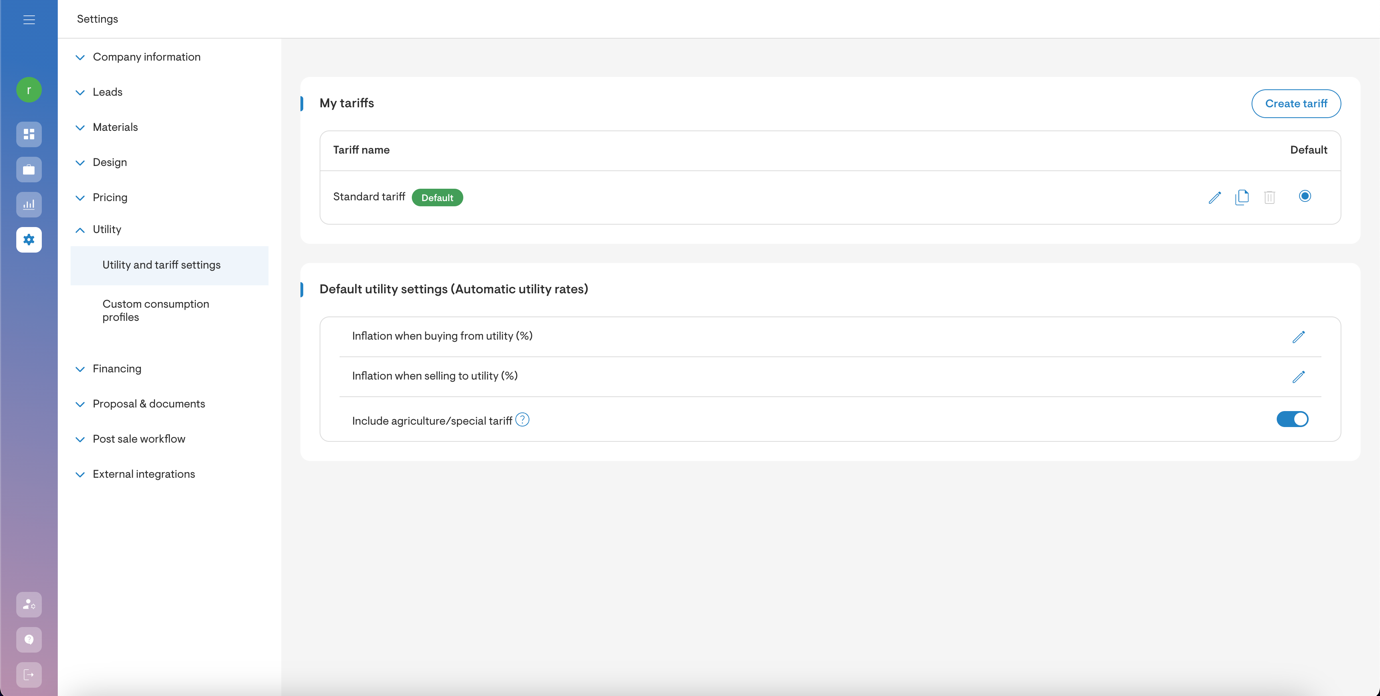
Enter the relevant properties for the new tariff
- The updated tariff builder allows you to define general details such as the Utility Name, Tariff Name, Zoning (Residential or Commercial), and a Description.
- You can also configure grid properties, including the grid connection type and grid export settings, to accurately reflect how the tariff interacts with the utility grid.
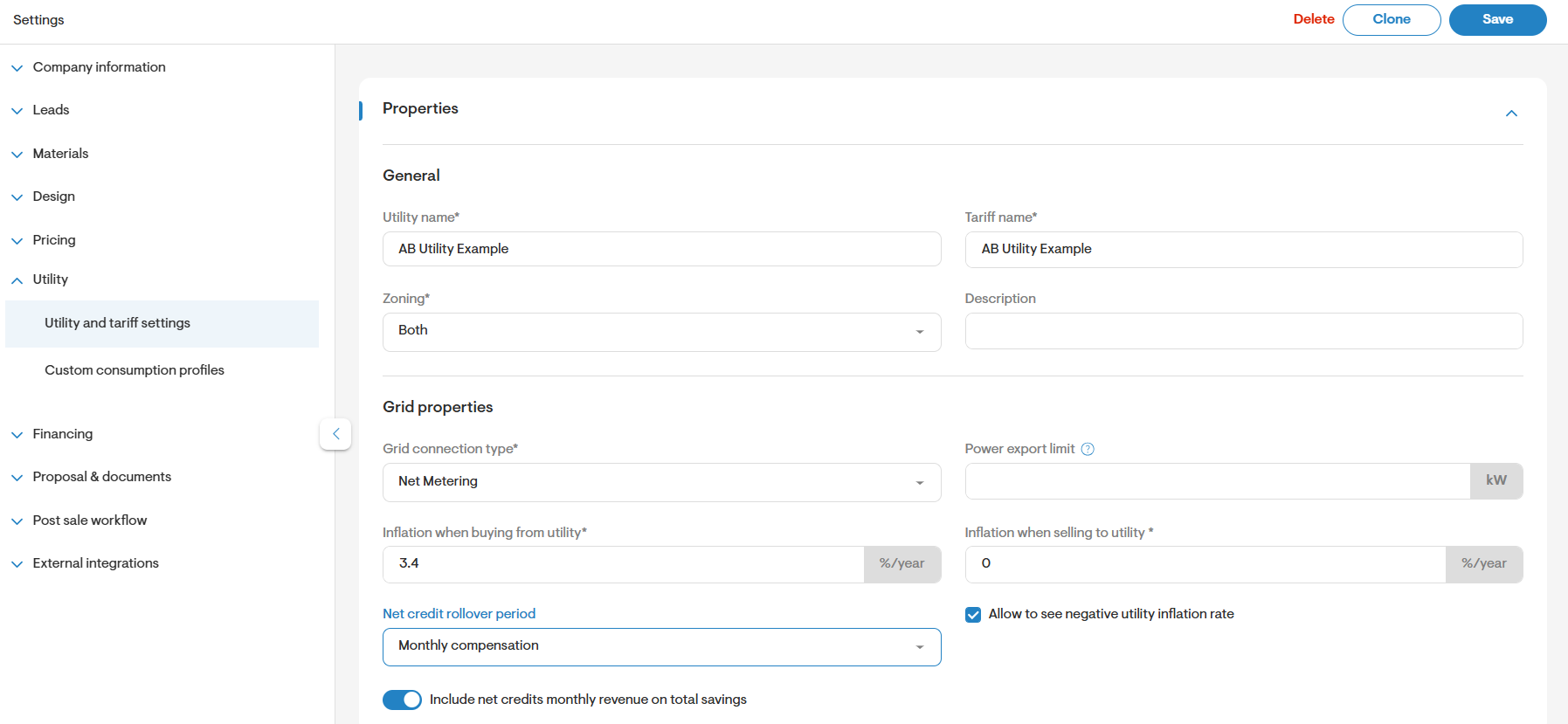
Enter the fixed and minimum rates associated with the tariff
- The Rates section in the tariff builder allows you to enter various types of rates. Begin by entering the monthly fixed rates and minimum bill rates associated with the tariff.
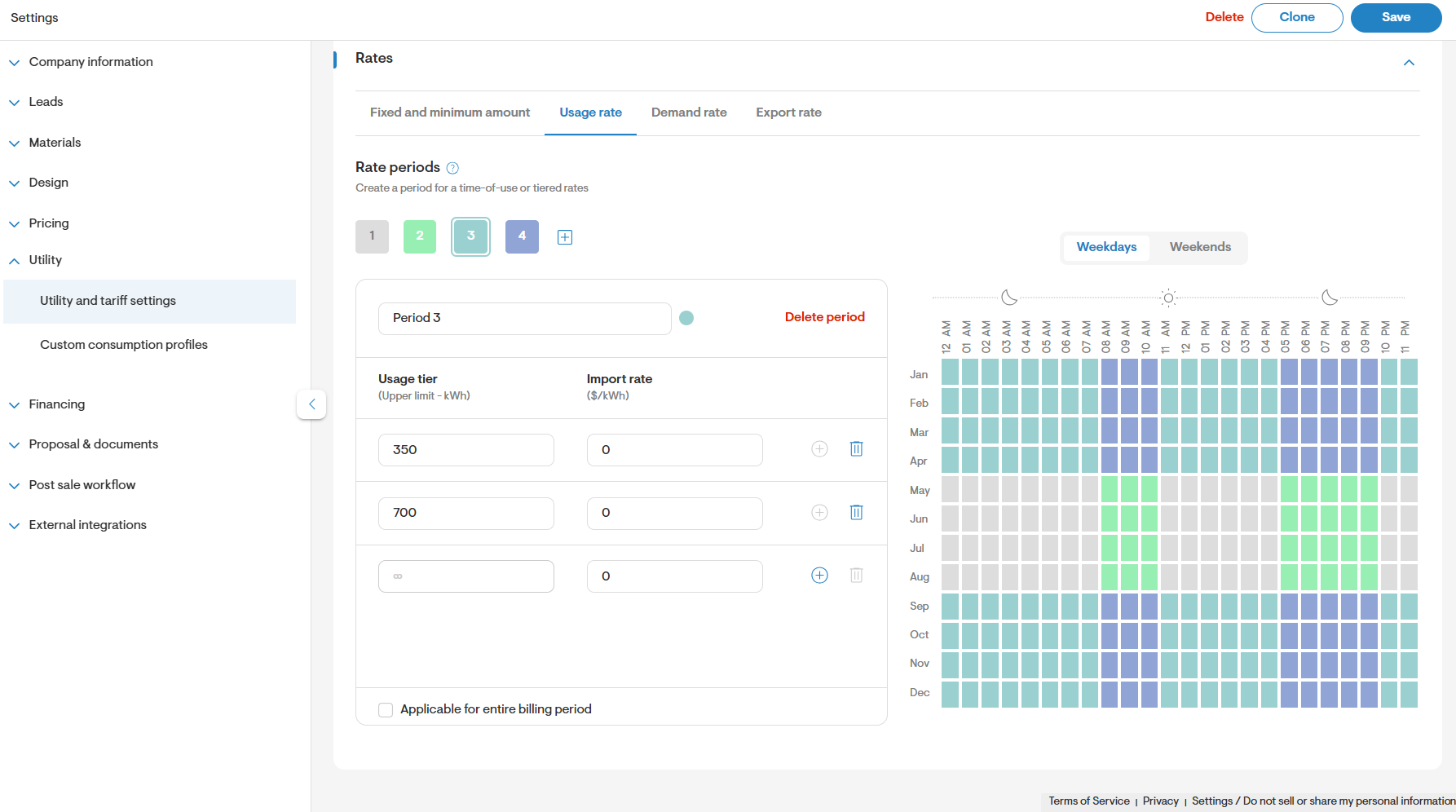
Enter Usage Rates with Time-of-Use and Tiering
Create usage rates (per kWh) associated with the tariff. Each rate should be linked to a unique time-of-use (TOU) period. You can also define tiered structures within each TOU period.
- To begin, define a unique period (e.g., Summer – On-Peak) and associate it with a TOU window.
- If a rate applies to the entire billing period and is not tied to any TOU window, check the “Applicable for entire billing period” box.
The example below includes a tariff with:
- 2 seasons: Summer and Winter
- 2 TOU periods: On-Peak and Off-Peak
To model this, create 4 unique periods:
- Summer – On-Peak
- Summer – Off-Peak
- Winter – On-Peak
- Winter – Off-Peak
One of the TOU windows includes a three-tiered rate structure, with usage thresholds set at 350 kWh and 700 kWh.
Model Demand Rates with Time-of-Use and Tiering
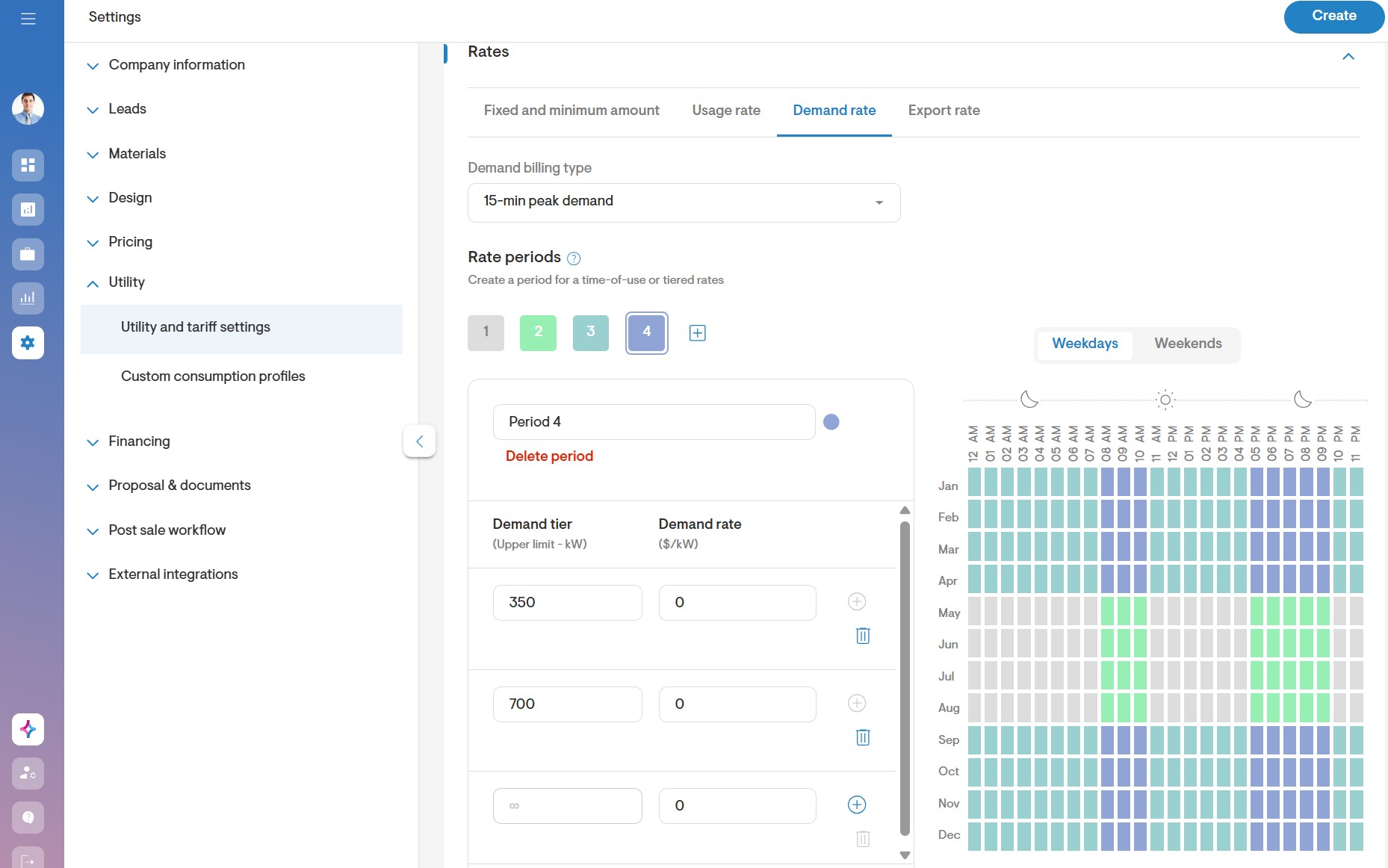
- Create demand rates (per kW) associated with the tariff. Demand rates offer similar configuration options as usage rates, including time-of-use (TOU) windows, tiered structures, and weekday/weekend variations.
- Be sure to define the demand billing type, which determines how peak demand is calculated during the billing period.
Model export rates (or surplus rate)
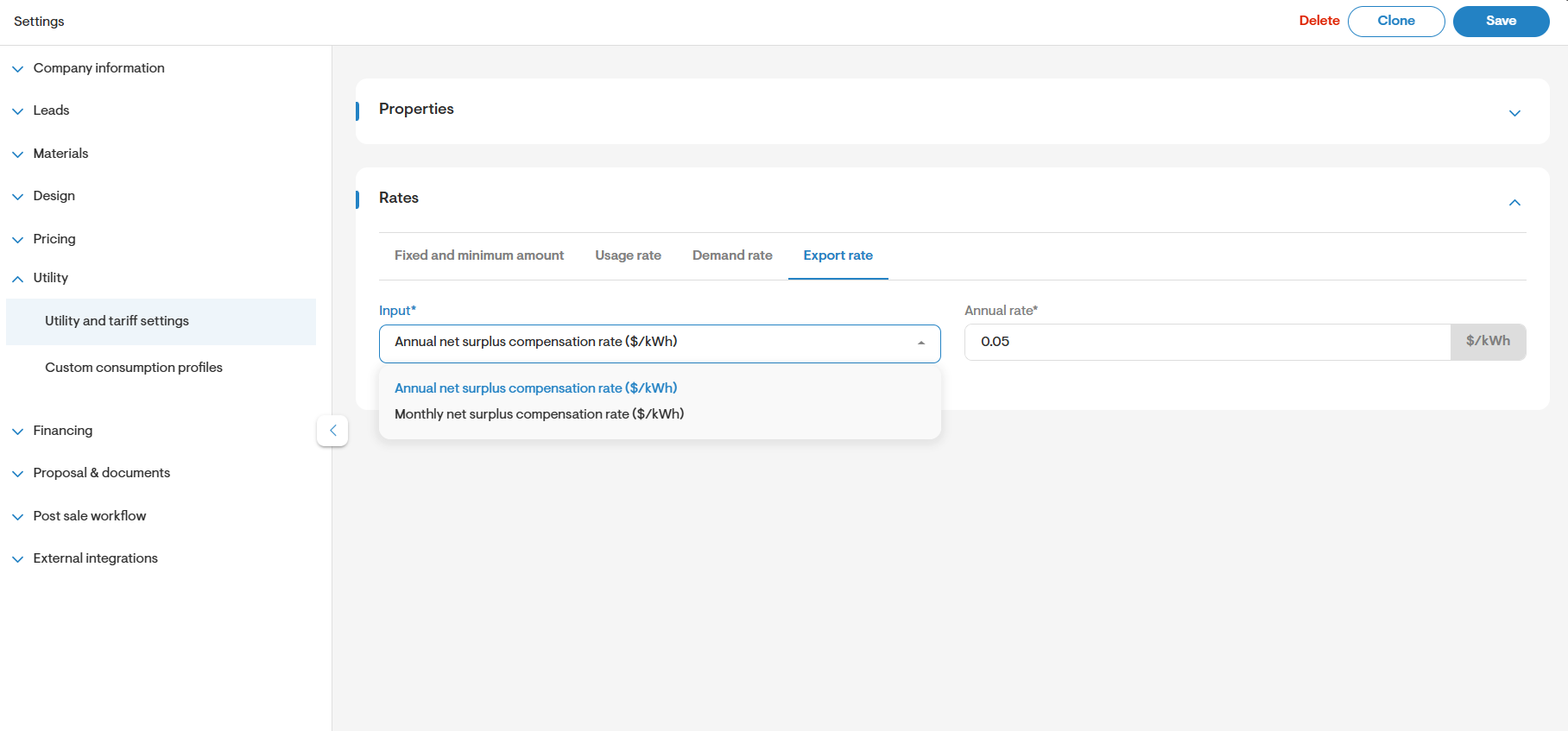
- Export rates—also known as sell rates or surplus rates—can be defined as part of the tariff. These rates can be set as either a fixed annual value or as variable monthly values.
Select and edit a Custom Tariff during project creation
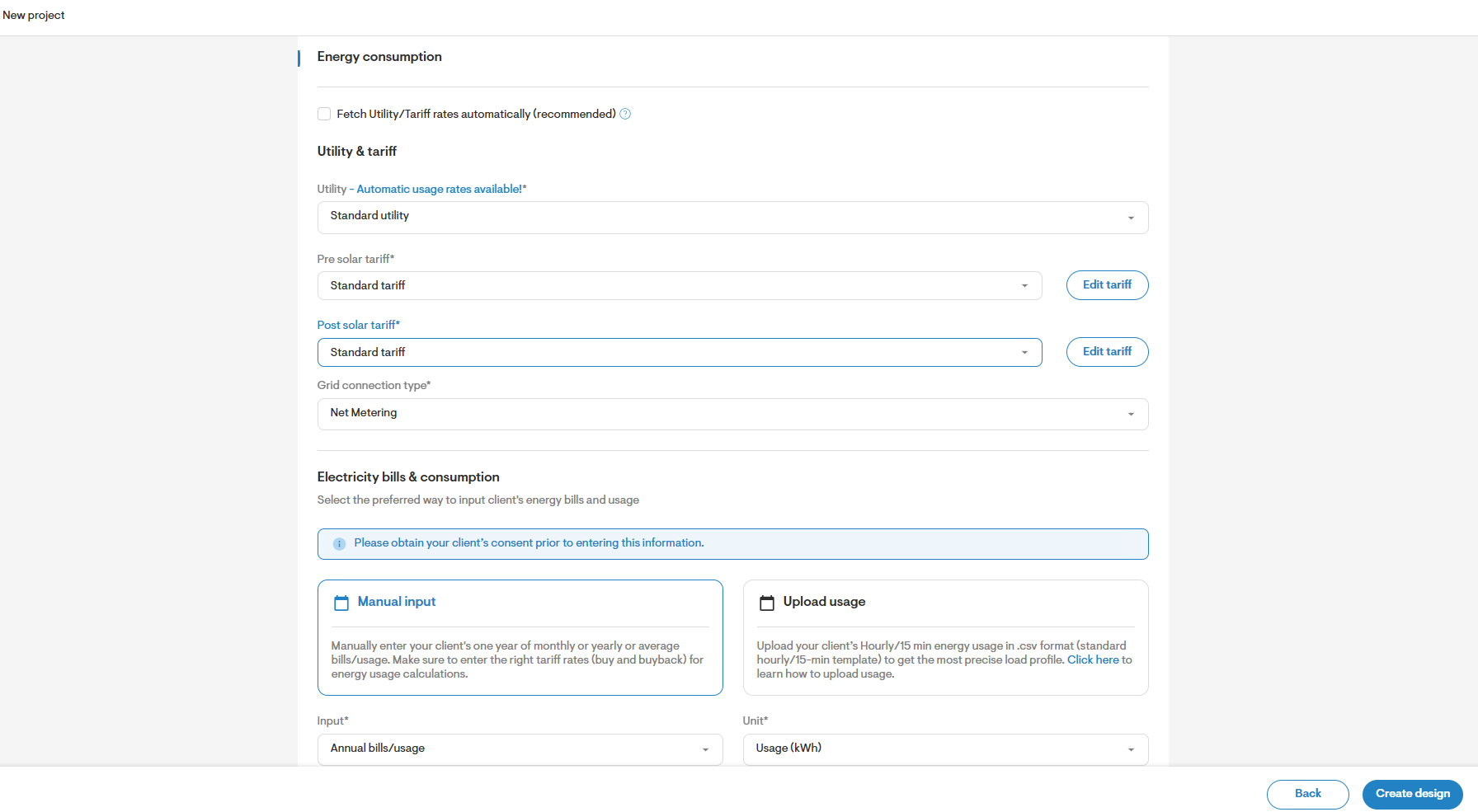
- During project creation, you’ll have the option to select a custom utility and tariff. Once selected, you can edit the tariff properties as needed.
All properties and rates defined in the custom tariff will be copied into the project, allowing for further customization without affecting the original tariff template.
Edit the tariff using the custom Tariff Builder in project settings
- To make changes after project creation, navigate to the project’s Utility and Tariff Settings and click the “Edit Tariff” button. This opens the Custom Tariff Builder, where you can update tariff rates and grid properties.
Note:Grid-related settings such as credit rollover and inflation adjustments are now managed directly within the Custom Tariff Builder.