Help Center Utility
Adding Quantity Charges like Taxes and Discounts
Published on 13 Jul 2026
Solargraf fetches federal and state taxes automatically for automatic usage rates. However, in certain areas, there can be local or county level taxes which are not captured automatically, since these taxes or charges can differ from county to county, or even within the same county.
To ensure accurate modeling, Solargraf now allows users to add these taxes or discounts.This guide outlines how to do so.
Steps to add quantity charges
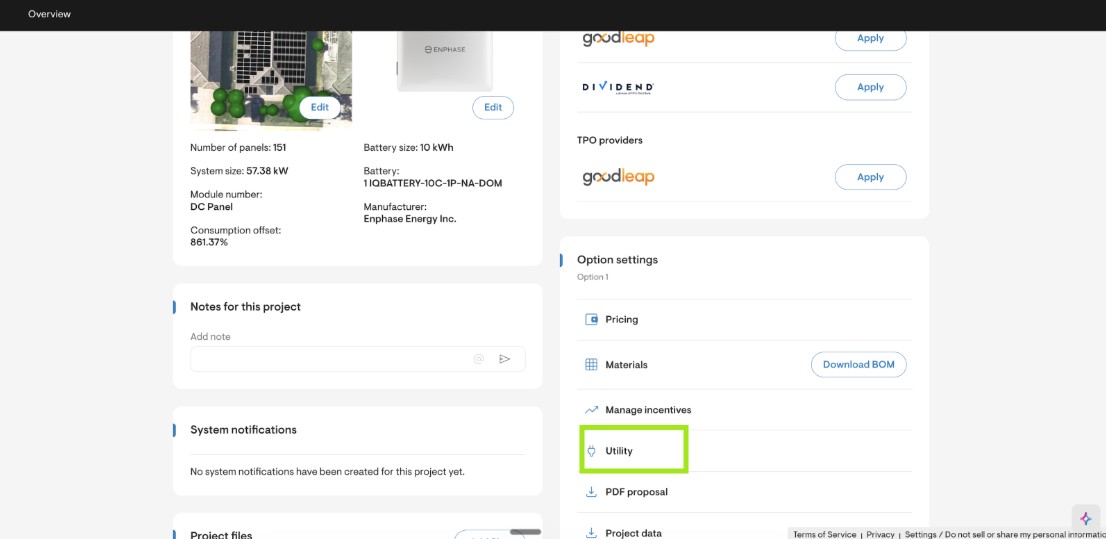
Go to Project Overview > Utility
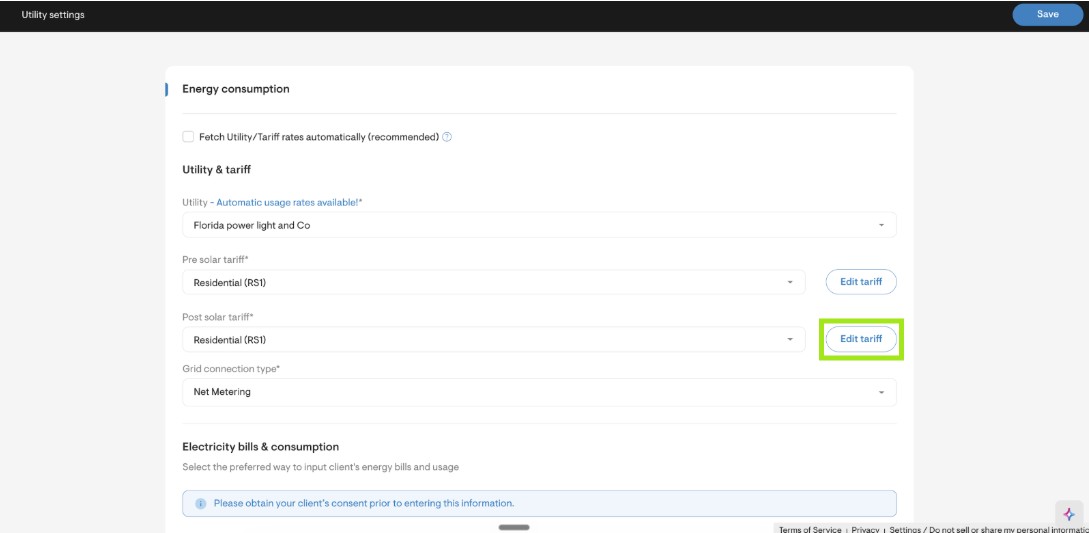
Click on the Edit Tariff button for either the pre-solar tariff or the post-solar tariff
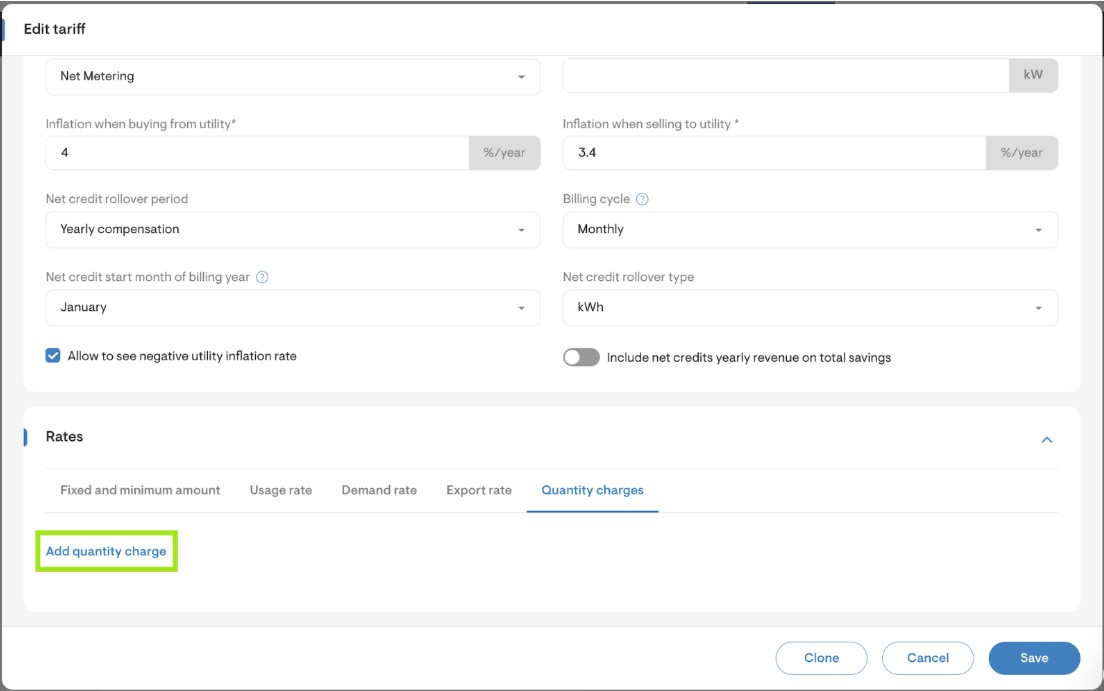
Under the Quantity charges section, click on Add quantity charge
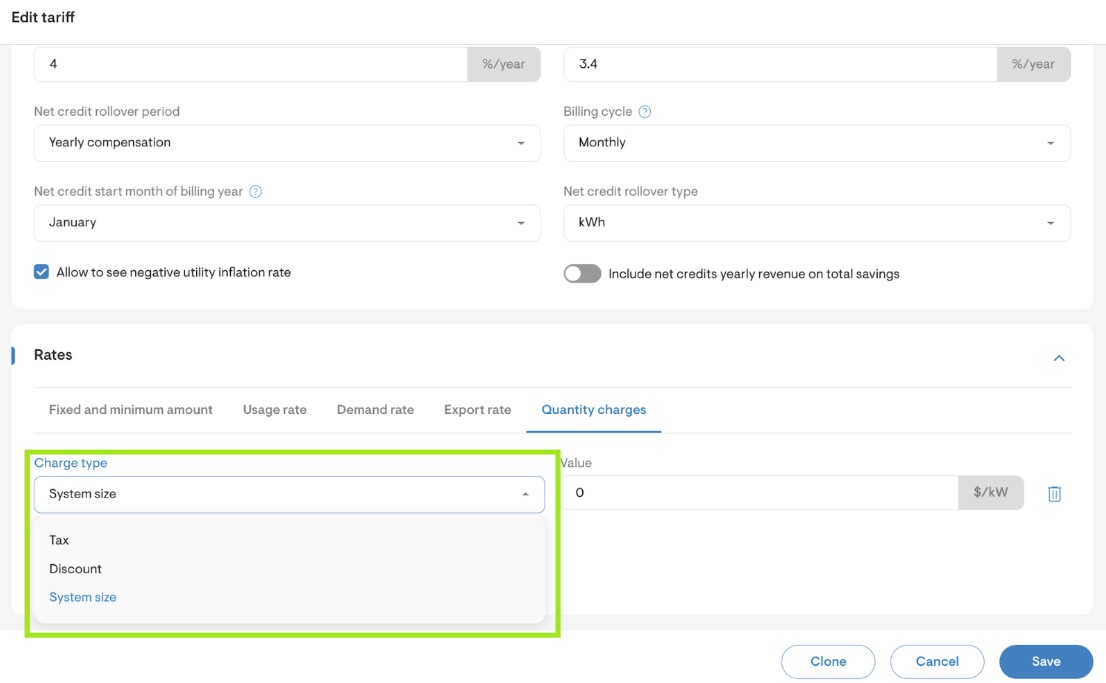
There are 3 types of charges that can be selected:
Tax as a percentage (%) of total bill value
Discount as a percentage (%) of total bill value
System size charge, calculated as $/kW
Note:
Quantity charges need to be applied separately to pre-solar tariffs and post-solar tariffs
For projects where tariffs are fetched automatically using automatic usage rates (Genability), quantity charges can be defined under the default tariff in Company settings
For custom tariffs, quantity charges can be defined in Company settings