Help Center Post Sale Workflow
Virtual Site Assessment
Published on 2 Sept 2022
The Virtual Site Assessment is a useful tool to use to collect information from your homeowners. This form can be completed by the homeowner directly or by a sales representative on site.
Setting up the Virtual Site Assessment Form
- To setup the Virtual Site Assessment form, go to the company Settings page. Once there, scroll down to the Post Sale Workflow section and click the plus button to the right as shown below.
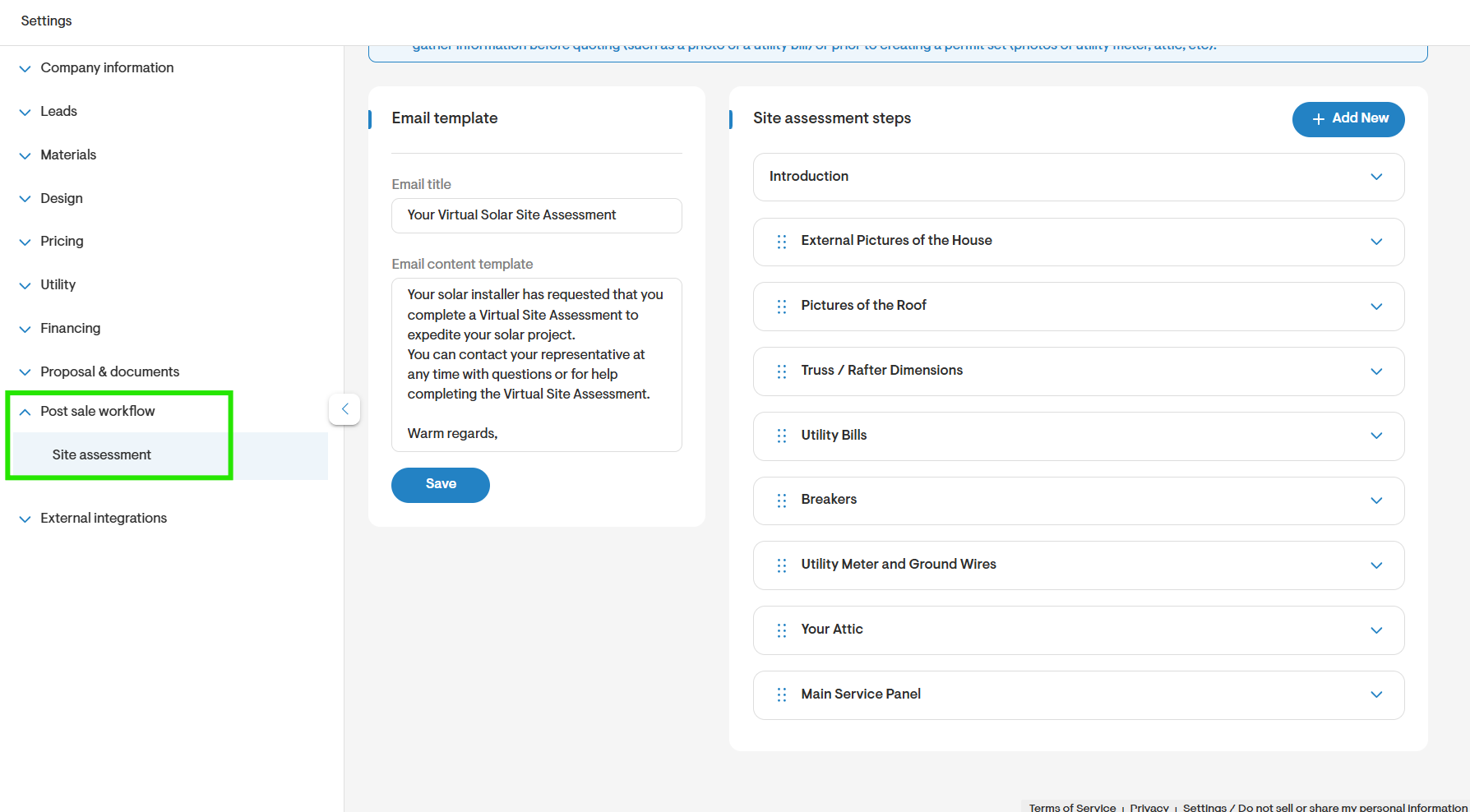
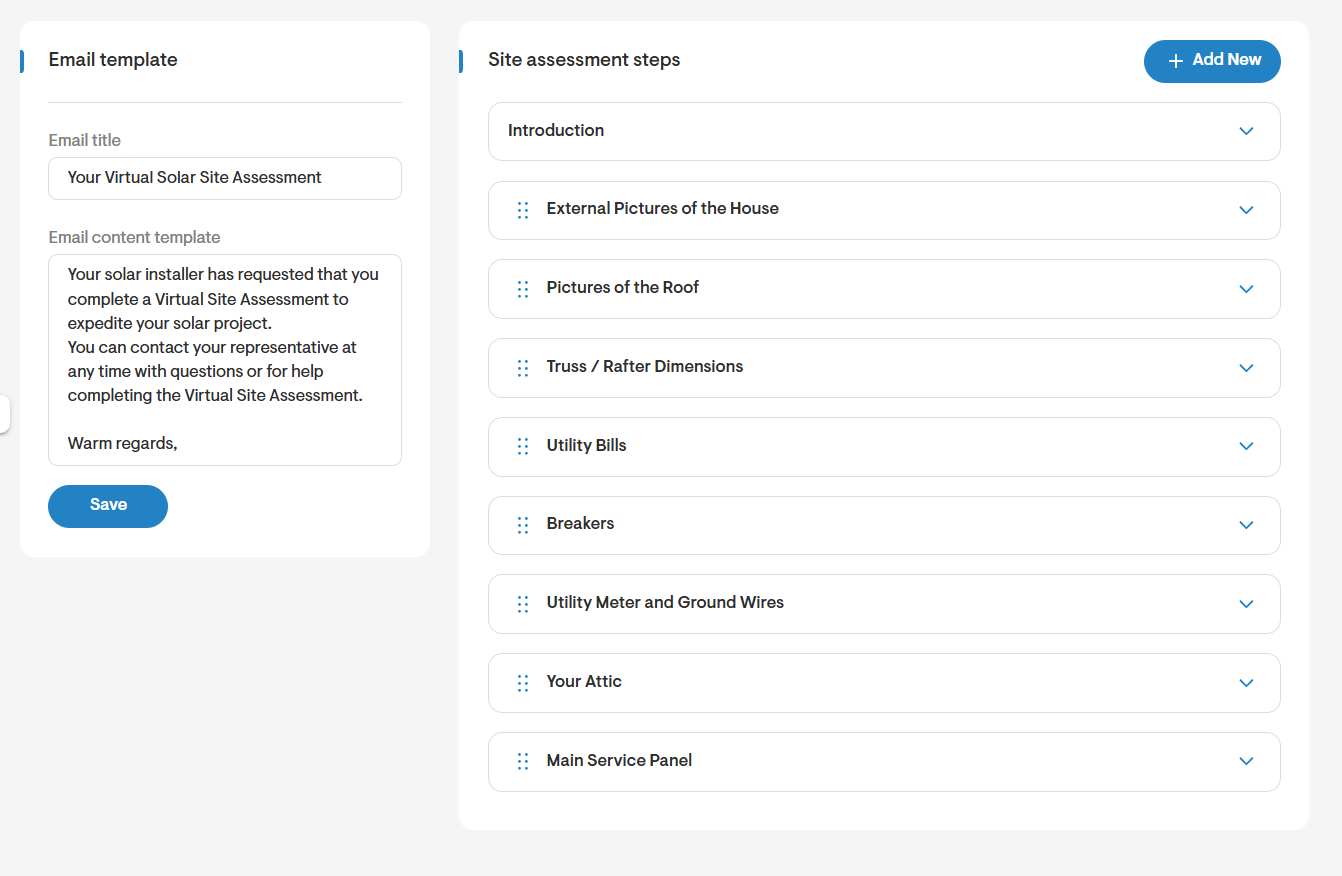
- Once on the Virtual Site Assessment form page, you will be able to see the Email Template that is sent out when the form is shared as well as the list of steps already included in the Virtual Site Assessment form. You may use these steps as is or click Add Step to modify the existing form.
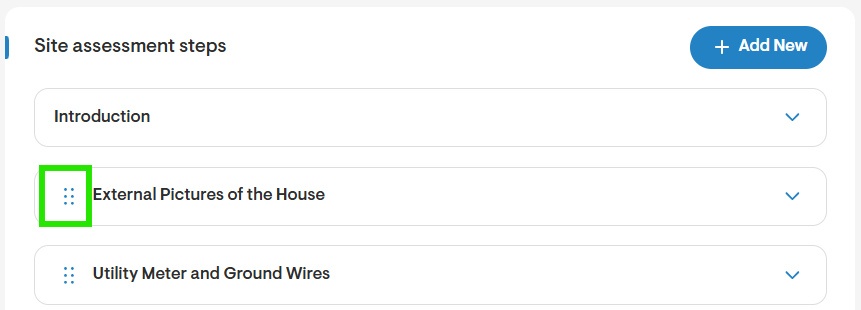
- Use the 6-dot menu icon to the left of the step title to reorder the steps in the Virtual Site Assessment form.
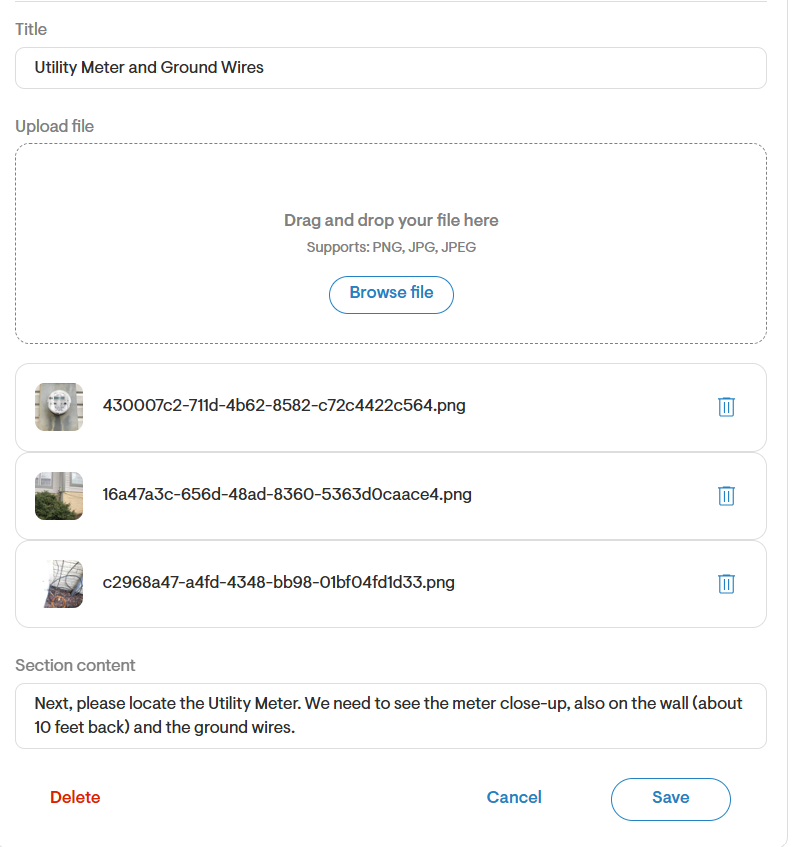
- When editing each individual step in the Virtual Site Assessment form, you can add a step title, section content, as well as upload a sample image to go along with the request. The sample image will appear as an example to the homeowner or end-user filling out the form.
Share or Launch Virtual Site Assessment
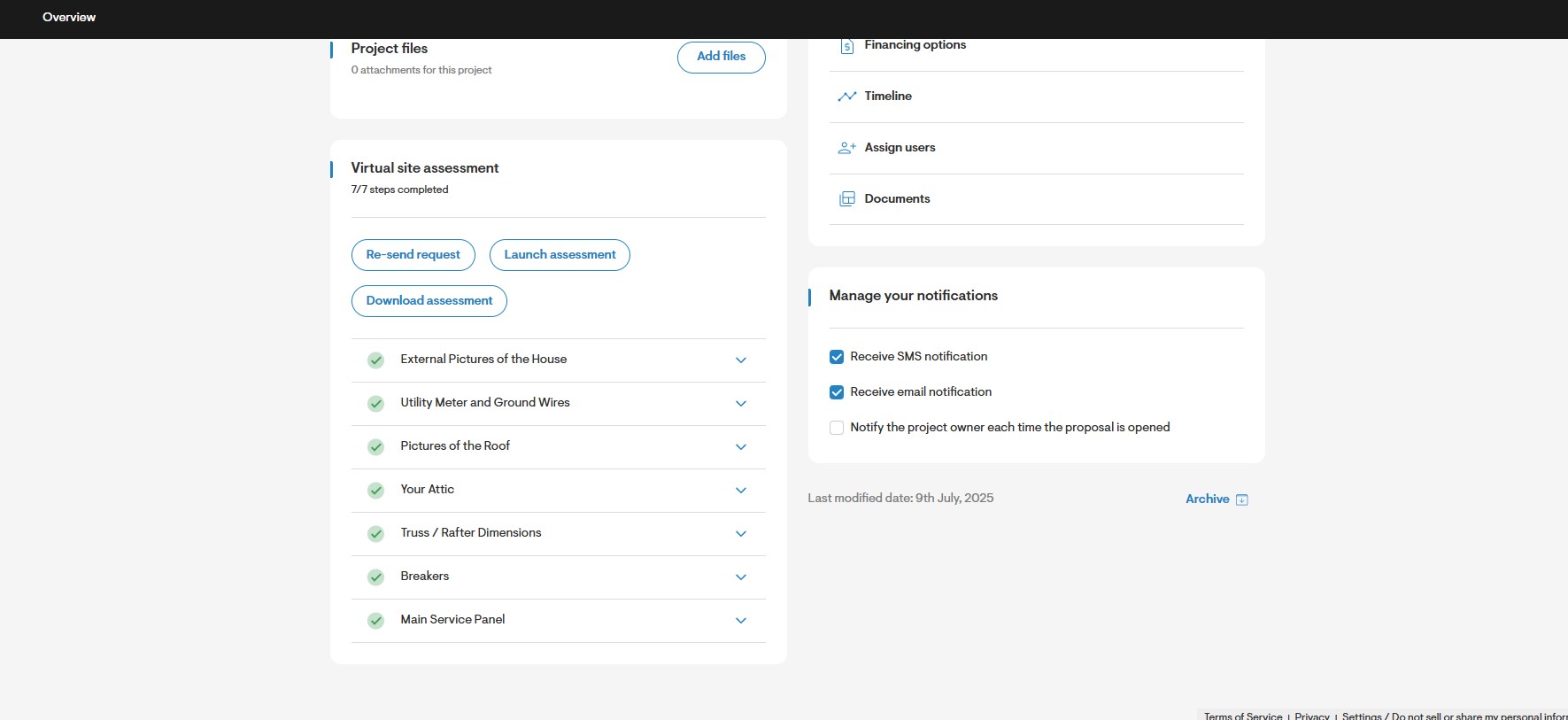
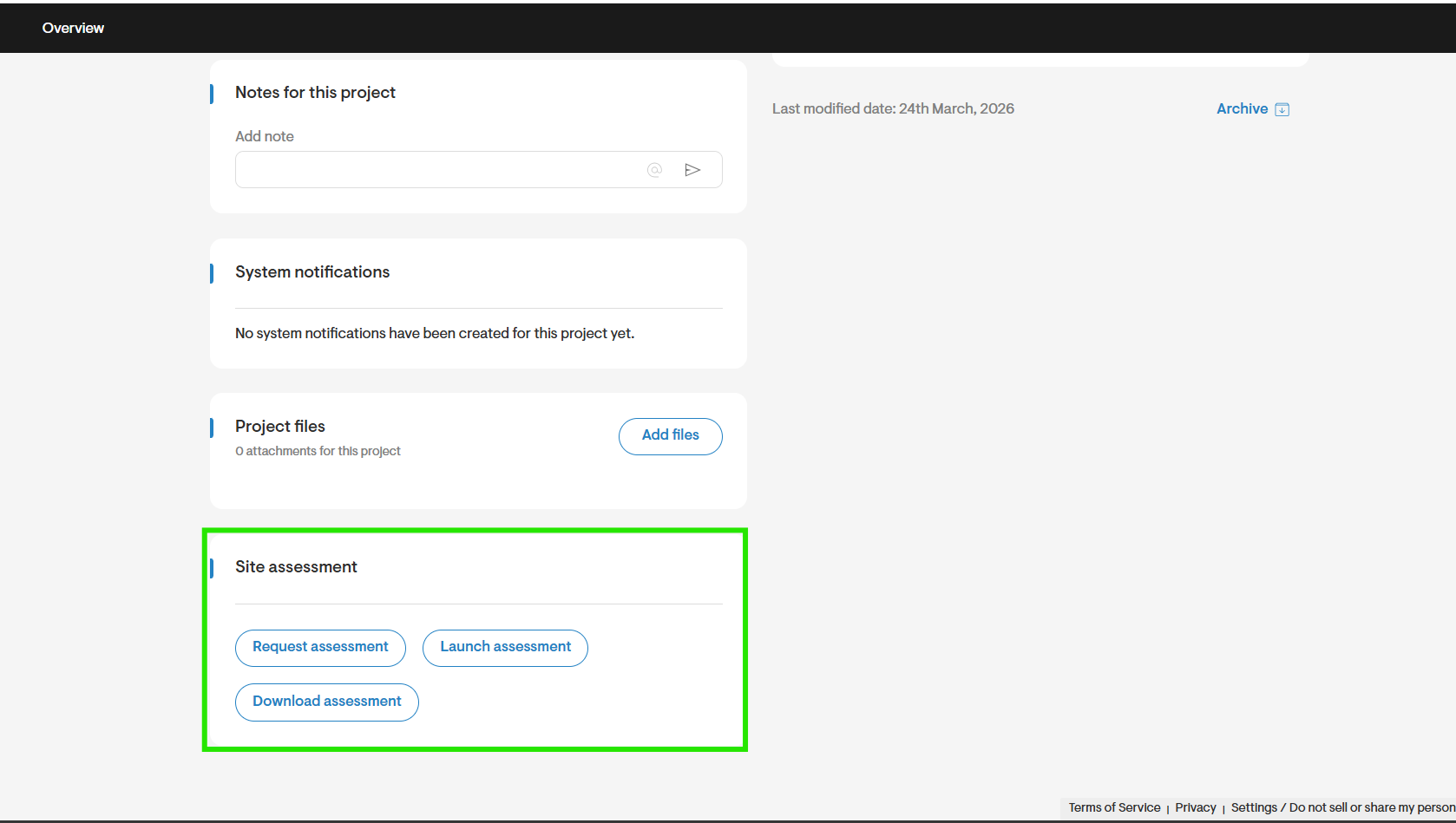
Once you’ve completed the Virtual Site Assessment Form template. Access the Overview page for any project where installers have two options:
- Option 1: Homeowner completes the form
Click Request Assessment, and the form is emailed to your client for them to fill out at their convenience. - Option 2: You complete the form on-site
If you're visiting the property, you can open the form yourself and walk through the questions with the homeowner.
- When sending the Virtual Site Assessment you will be prompted to enter the client’s email and name, as well as view the email title and body that will be sent along with the link to the Virtual Site Assessment form.
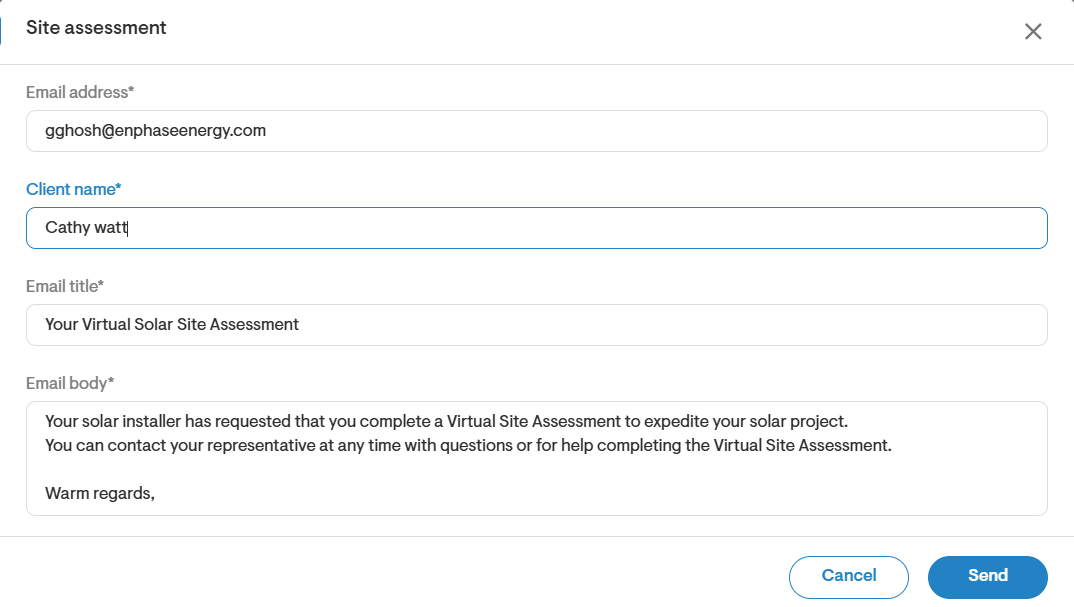
- When you’ve completed all the information, click Send.
Virtual Site Assessment Form Email
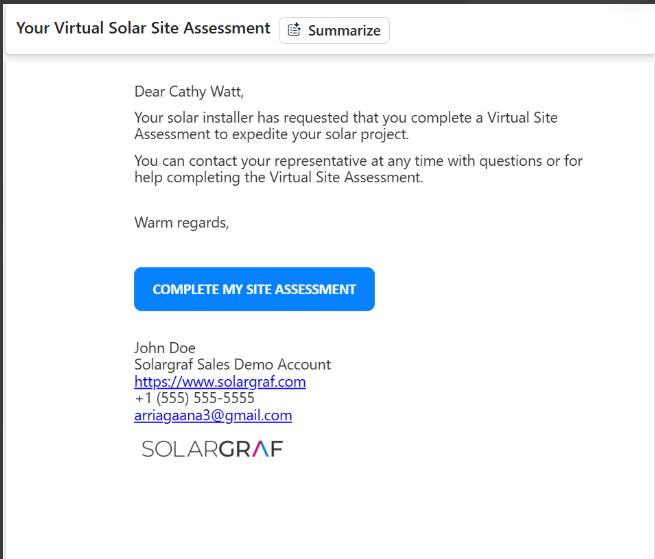
The homeowner will receive an email with a link to complete the Virtual Site Assessment form online.
On the Virtual Site Assessment form, the user will be able to go through each step and upload the required information.
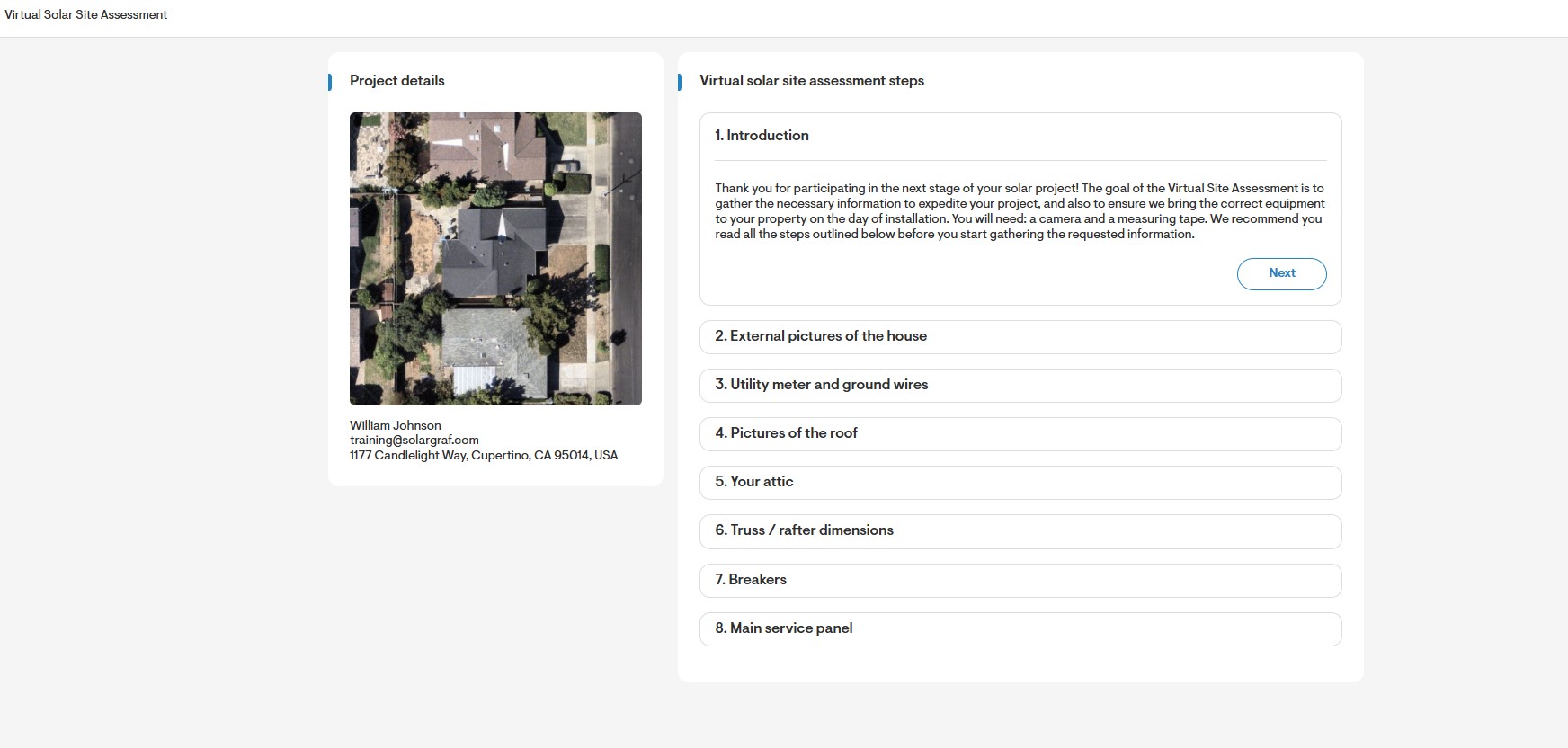
Once the information has been submitted, it will be stored on the Overview page, below the Virtual Site Assessment section. Here you will be able to access the comments and images submitted through the Virtual Site Assessment form by clicking the arrow next to each step title.