Help Center Proposals
Embed comparison chart as a separate section in proposal
Published on 7 Jul 2026
You can now add the Comparison chart as a dedicated section inside your proposal, instead of only accessing it through the Compare pop-up in project settings. This gives you greater flexibility in how you present system comparisons to your customers.
The comparison chart presents a side-by-side view of different project options, making it easier to evaluate and communicate proposals. It includes key details such as system specs, performance metrics, cost breakdowns, payment estimates, and long-term financial outcomes like savings and ROI. To learn more about the Comparison chart and how it works, clickhere.
Prerequisite: This feature is only available to users who have enabled the Use enhanced proposal format toggle. You can update this setting in User preferences.
1. How to add the comparison chart section to Solargraf classic template or its clone?
Navigate to company settings and open the Solargraf classic template (or its clone).
Click Createsection in the left panel and enter a name for the new section.
Click Edit on the new section to open the custom section editor.
In the Built-in section dropdown, locate Comparison chart.
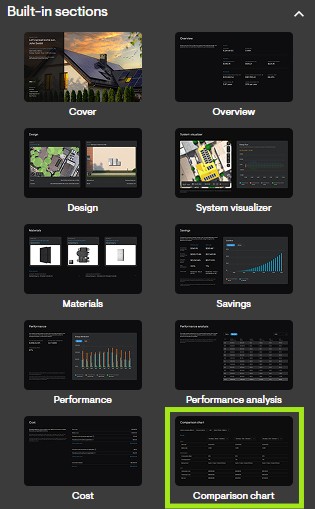
Drag and drop the Comparison chart element into the editable area on the right.
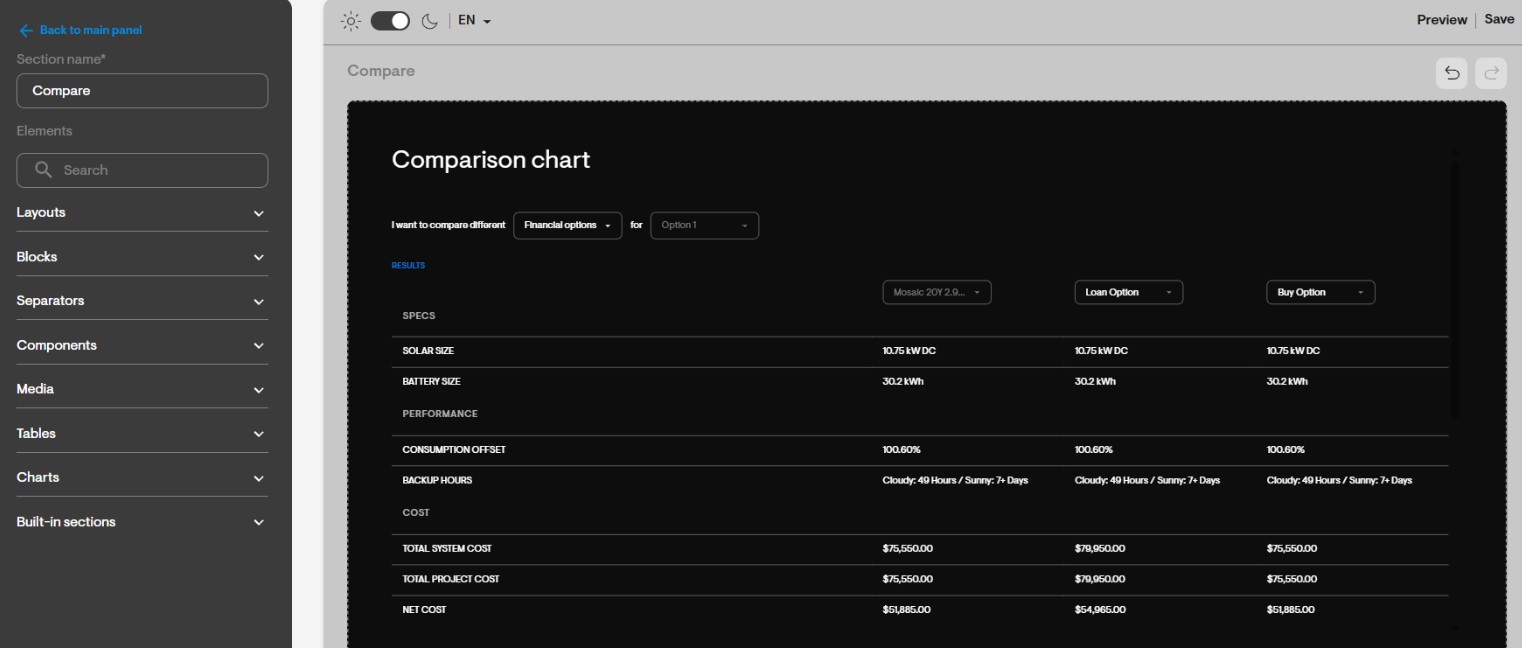 Note:The Comparison chart shows placeholder data inside the template editor. When the template is applied to a real project, all data automatically updates to reflect that project’s actual values based on user selection.
2. How to add the comparison chart section to Solargraf advanced template or its clone?
The Comparison chart section is pre-built in the advanced/recommended template or its clone.
Navigate to company Settings and open the Solargraf advanced template (or its clone).
Locate the Comparison chart section – it appears just before the Payments section by default.
The section is hidden by default. Click thevisibility icon to unhide it.
Click Previewto review the layout across desktop, mobile, tablet, and PDF.
You can also use theCreate templateoption to access this section, as it is included by default.
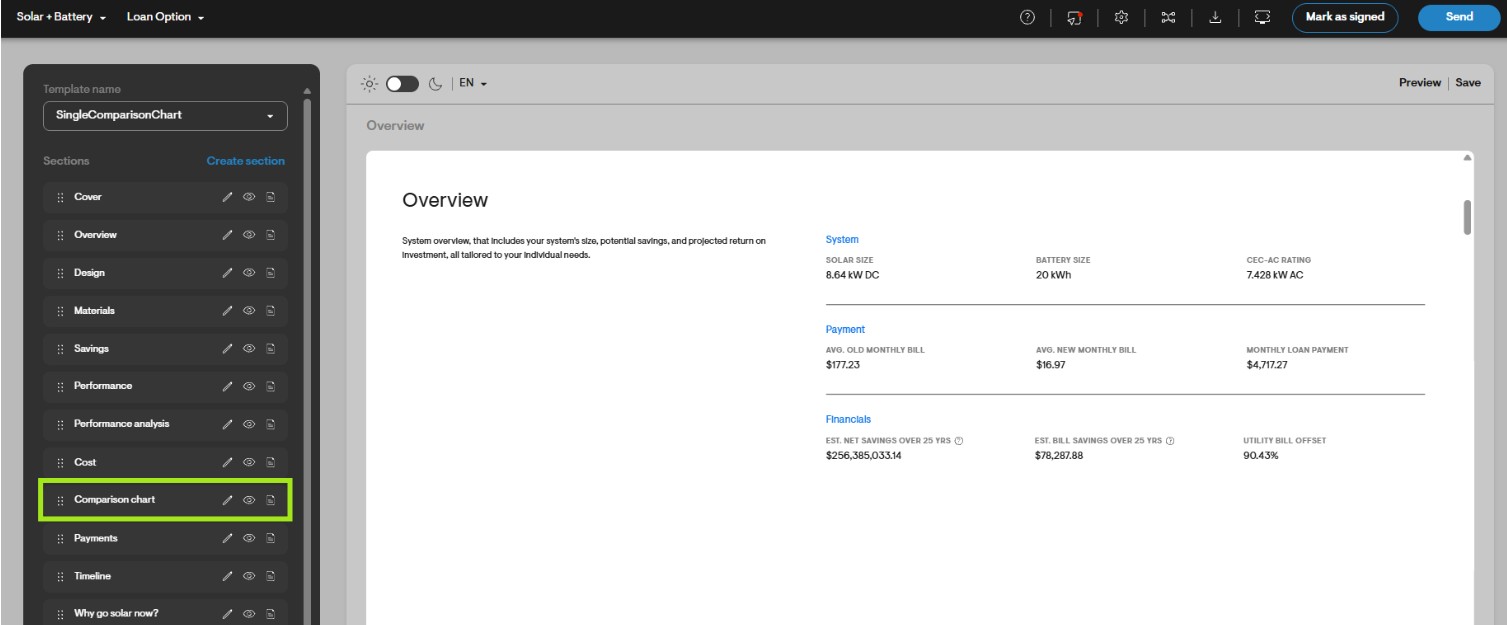 Note:Only one Comparison chart section is permitted per proposal template.
3. How to add the comparison chart section to Solargraf old template?
The Comparison chart section is not supported on the old template. To use it:
Enable the Use enhanced proposal format toggle in user preferences.
Go to Proposal templates and clone the Recommended template or create a new template.
4. Can I add the Comparison chart section directly in project settings?
No. Drag-and-drop of built-in sections is only supported in company settings, not within project settings. To add the chart, either use the advanced/recommended template (where it is included by default) or create a custom section via company settings.
5. Can I add multiple Comparison chart sections to one proposal?
No. Each proposal template is limited to one Comparison chart section. Once it has been added, it will no longer appear in the built-in sections’ dropdown for that template.
6. What happens to the Compare pop-up when I add this section to the proposal?
The Compare pop-up works independently. Adding the chart as a section does not change the pop-up’s behaviour — it continues to show design and financial options as before. Selections made in the section are not synced with the pop-up; the pop-up opens blank each time and requires fresh selections. This applies in both the installer and the homeowner view.
7. How will this section appear in the Homeowner view?
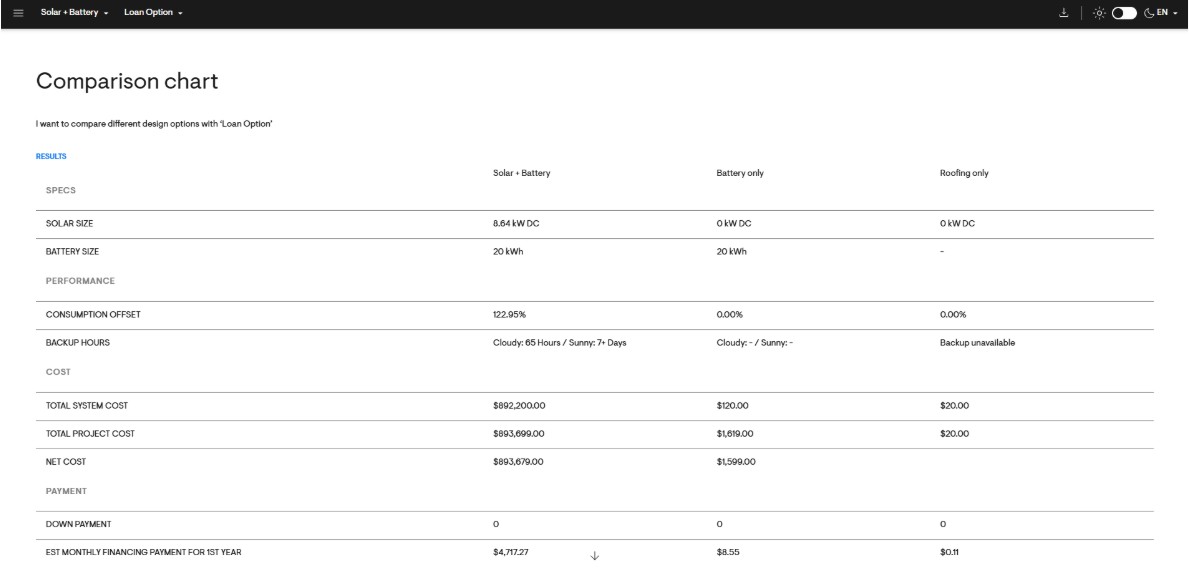
The Comparison chart behaves differently for homeowners than for installers as shown below:
In the Homeowner view, selections in the Comparison chart section are saved per design option.
When financial options are selected, they automatically update when switching between design options.
Homeowners can view but cannot modify the Comparison chart. Only installers control these selections.
Homeowners can still use the Compare pop-up to explore different design or financial options independently if the setting has been enabled.
 Best practices to ensure the Comparison chart section appears correctly in proposal
Enable the Use enhanced proposal format toggle in user preferences.
Use the recommended template (which includes this section by default).
Refer these article to understand what the Comparison chart is and how it works:
Good/Better/Best: Creating multiple project options